Record
Sentec EMS has a Record feature, where employees can use their smartphones to check in and out for attendance.
View
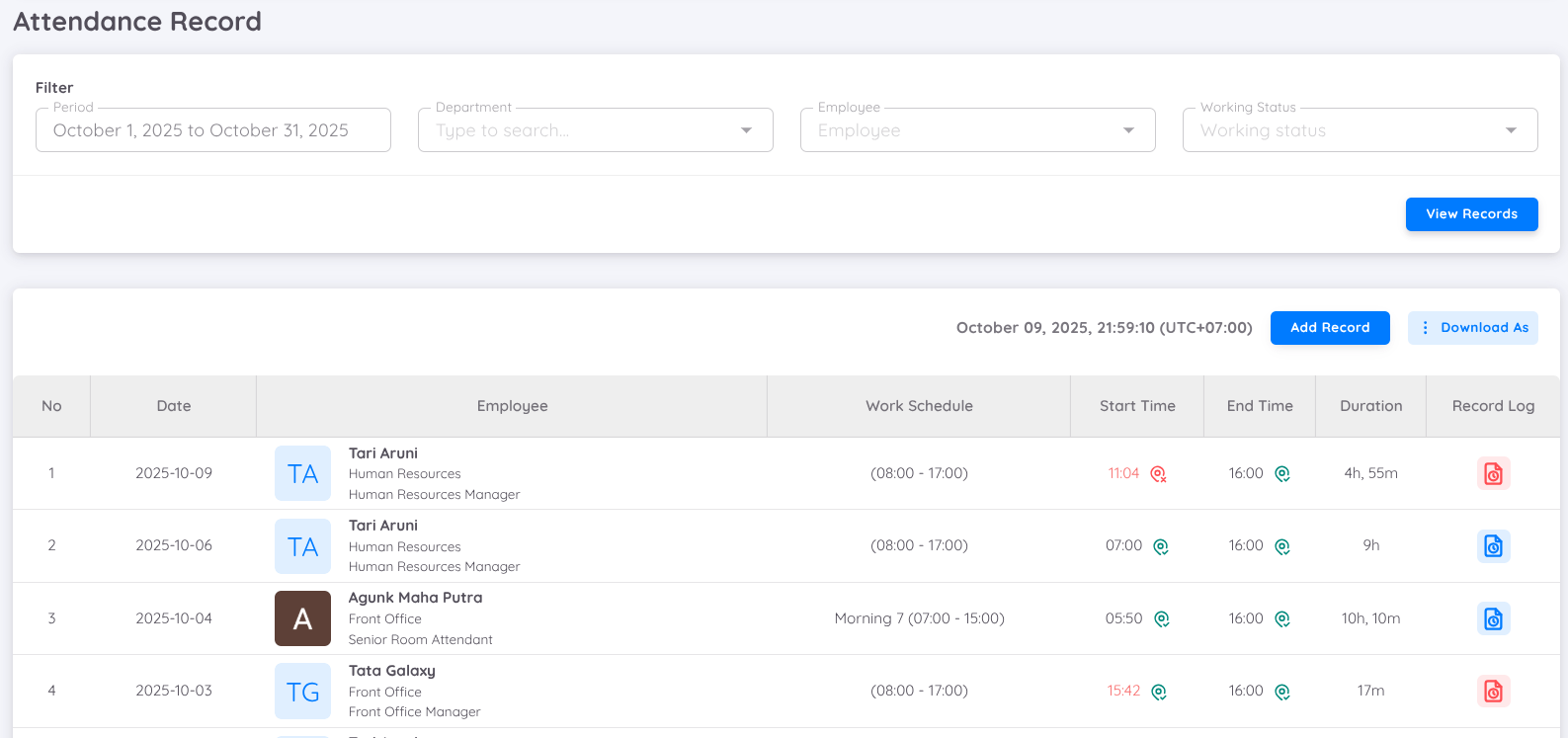
Employee attendance data can now be displayed based on the selected date range, with filter options by department, working status, and employee name for easier search.
- Date Column: Displays the date when the employee recorded their attendance.
- Employee Column: Contains complete employee information, including profile photo, full name, department and position.
- Work Schedule Column: Shows the employee's work schedule on the attendance day, whether regular or shift.
- Start Time/End Time Column: Displays check-in and check-out times, now enchanced with location validation.
- Red time text : Indicates the employee was late for checkk-in or left earlier than scheduled.
- Black time text : Indicates the employee adhered to the scheduled work hours.
- Red location icon : Indicates the employee was outside the specified attendance location radius.
- Green location icon : Indicates the employee was within the specified attendance location radius.
- Duration Column: Displays the duration of attendance for each record in hours and minutes
- Record Log Column: Provides additional attendance information, such as the employee's location during check-in/check-out and a photo taken during attendance. Location validation can now be viewed in this column.
Pop-Up Information
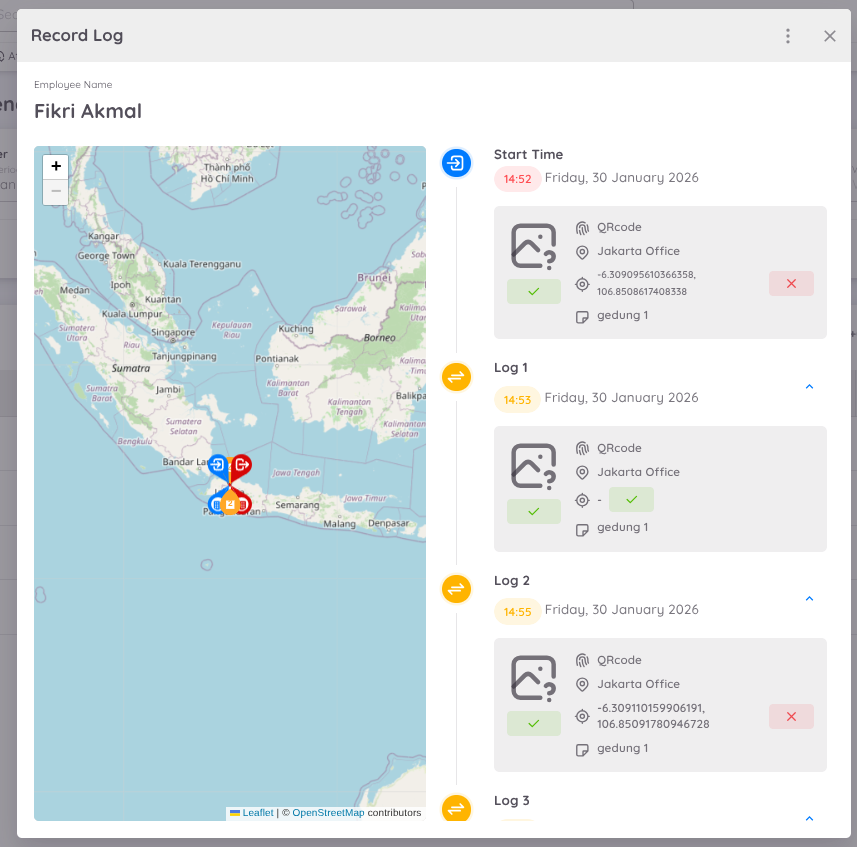
The Record Log column also has a button that will display a pop-up with attendance information. This pop-up is divided into sections:
- Map: Displays the employee’s attendance location and the selected check-in location (e.g., hotel).
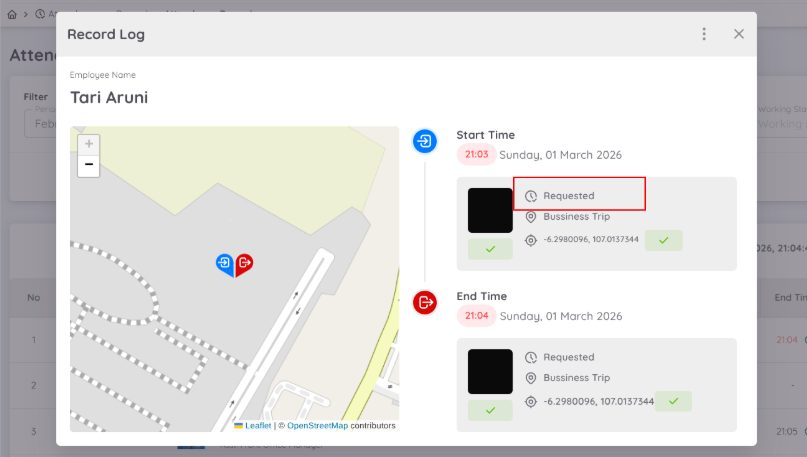
- Start Time: Shows information about the employee’s clock-in, including photo and location details, along with the validation status.
- Log 1, Log 2, etc.: Records additional clock-out activities, including photo and location details, along with the validation status.
- End Time: Shows information about the employee’s final clock-out, including photo and location details, along with the validation status.
Users can change the validation status in the Location and Photo columns by clicking the corresponding toggle.
Rules
- Clock-in can only be performed once per schedule.
- Clock-out can be performed multiple times within the same day.
- All clock-in and clock-out activities are recorded and displayed in the Activity Log.
- The system records the first clock-in and the last clock-out of the day as the official attendance record.
- Any additional clock-out activities are stored in the Activity Log and displayed sequentially (Log 1, Log 2, and so on) for reference.
Add Manual Record
Manual attendance records can be added through the Employee Calendar.
Navigate to the employee profile, then open the employee calendar.
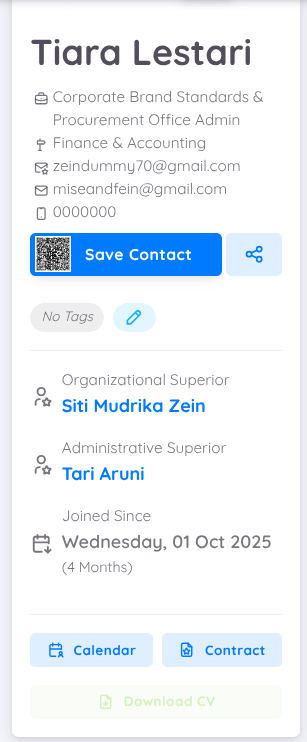
You can add a record for a specific date by clicking on the calendar. If the employee has a schedule on the selected date, the Add Record form will appear.
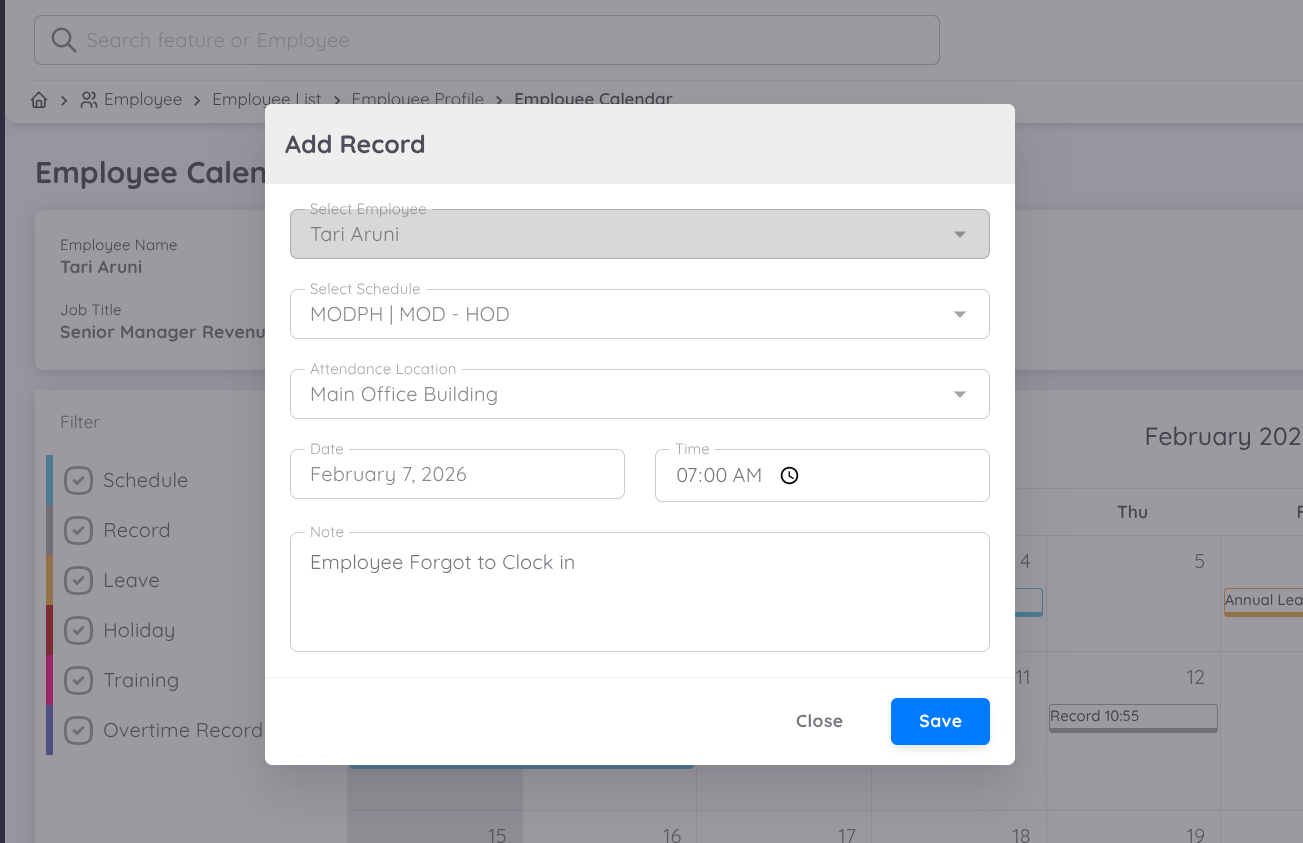
Users can manually add attendance records to resolve issues, such as when employees are unable to use their smartphones.
Manual attendance must be added separately for check-in and check-out.
Follow these steps to manually add an attendance record:
- Click Add Record in the date column where you want to add the attendance.
- In the Add Record form, the employee name will be automatically filled in.
- Select the work schedule for which the record will be added manually.
If the employee only has a regular schedule, this field will be empty and can be skipped.
- Select the attendance location.
- The date will be automatically generated based on the column you selected. Please ensure the date is correct.
- Enter the Time In or Time Out.
- (Optional) Add a note to provide additional context for the attendance entry.
- Click Save to store the record.
Rules
- Attendance records can only be added one at a time.
- A check-in record must be added first, followed by the check-out record.
- If a check-in has already been recorded, manual attendance can only be performed once to enter the check-out time. After saving, the system will automatically record it as the check-out.
- To modify the check-in and/or check-out time after the record has been added, you must delete the existing record and add a new one.
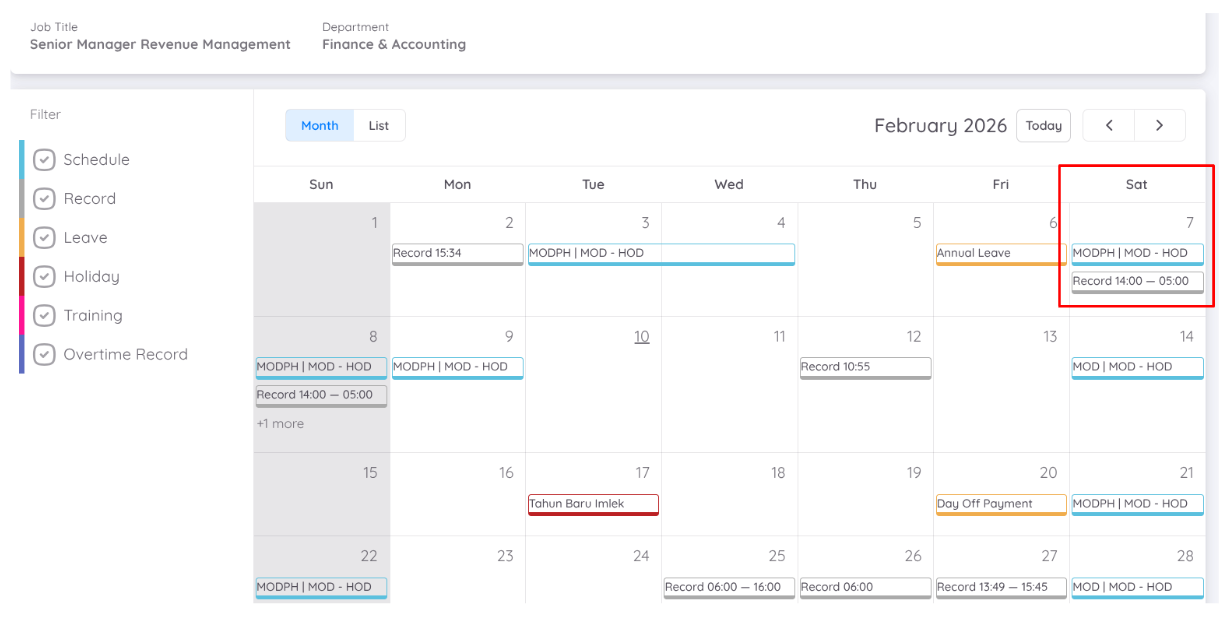
Once the attendance record has been successfully added, it will appear in the Employee Calendar.
Delete Record
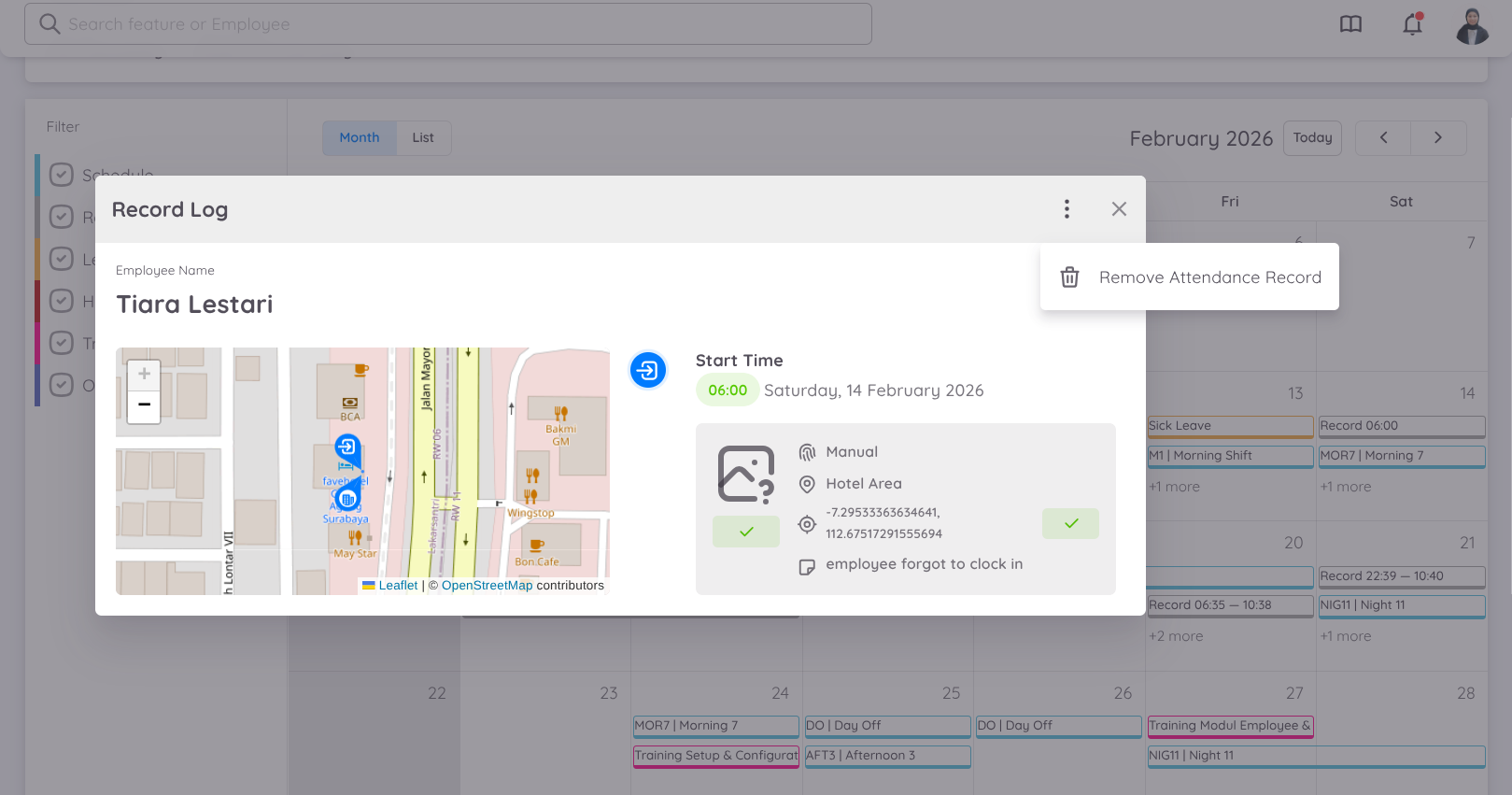
Users can manually delete an employee’s attendance record by accessing the Record Log in the calendar and selecting the date corresponding to the record to be deleted. Click the menu button, then select "Remove Attendance Record".
This action will delete the related employee check-in and check-out history.
Note
Work hour validation and work schedule rules will still apply to manual attendance entries.
Attendance Approval
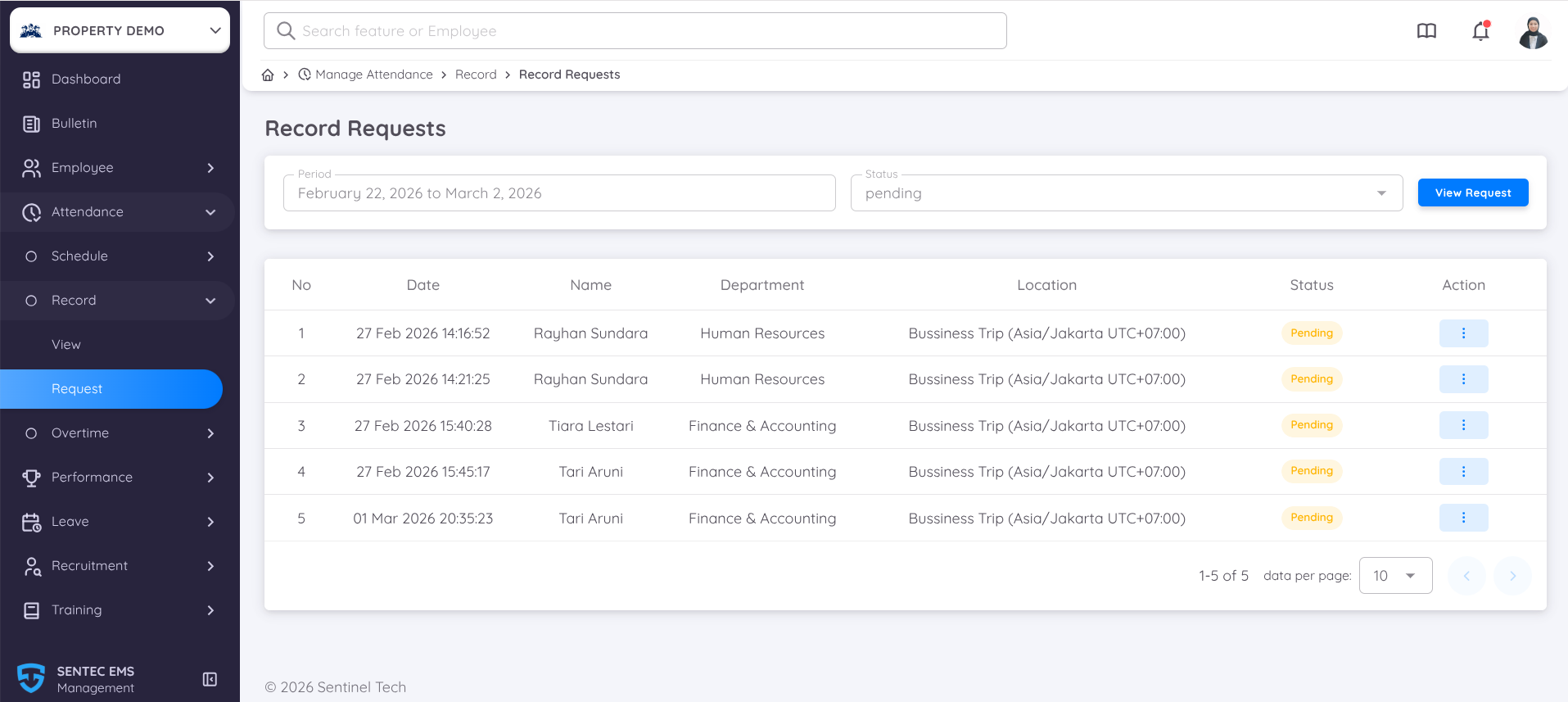
Attendance that requires approval will be displayed in the Record → Request menu.
All attendance requests that require approval will be listed in this menu.
The process to approve attendance is as follows:
Management/HR Review
Management or HR reviews attendance details through the management page by navigating to the attendance approval section.Filter Requests
Attendance requests must be filtered by Period and Status: Pending to display records that require approval.Approval Decision
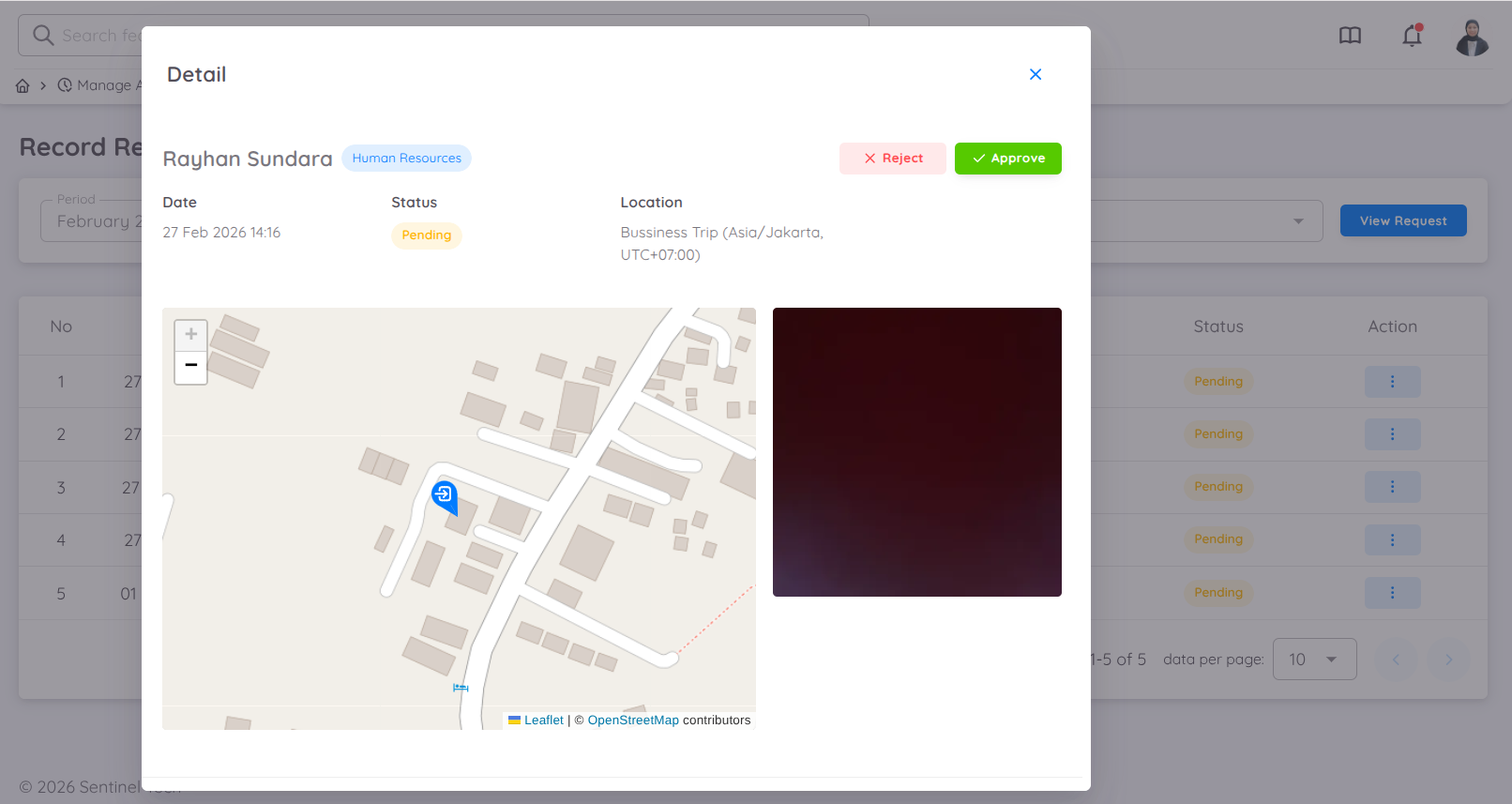
Navigate to the Action column to approve or reject the attendance request. Management/HR can also view the attendance details before taking action.- Approve → The attendance record is finalized and included in attendance reports and official records.
- Reject → The attendance record is not saved, and the employee must coordinate with HR to resubmit the attendance.
NOTE
The approval process must follow the approval sequence, starting from Level 1, Level 2, and so on. Approval levels cannot be skipped.
Attendance records that require approval will appear in the Records Log and will be displayed with a Requested status.
Attendance Approval Rule
If an employee uses an attendance location that requires approval, the approval process must follow the attendance sequence.
When an employee performs a clock-in, the clock-in attendance record must be approved first before the employee can perform a clock-out.
This ensures that attendance records are validated in the correct order and prevents incomplete or unverified attendance submissions.