Employee Reports
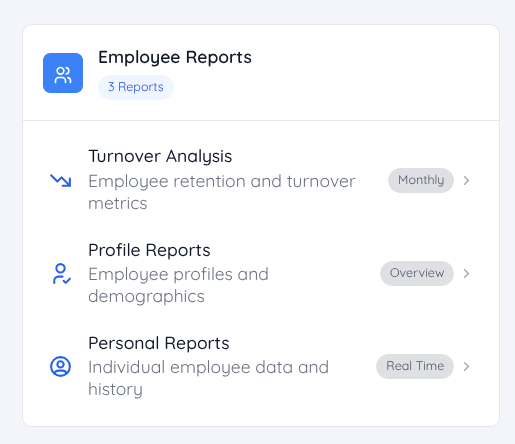
In the Report Dashboard, under the Employee Reports category, management can view detailed reports on Turnover Analysis, Profile Reports, Personal Reports, and Employee Milestone.
Turnover Report
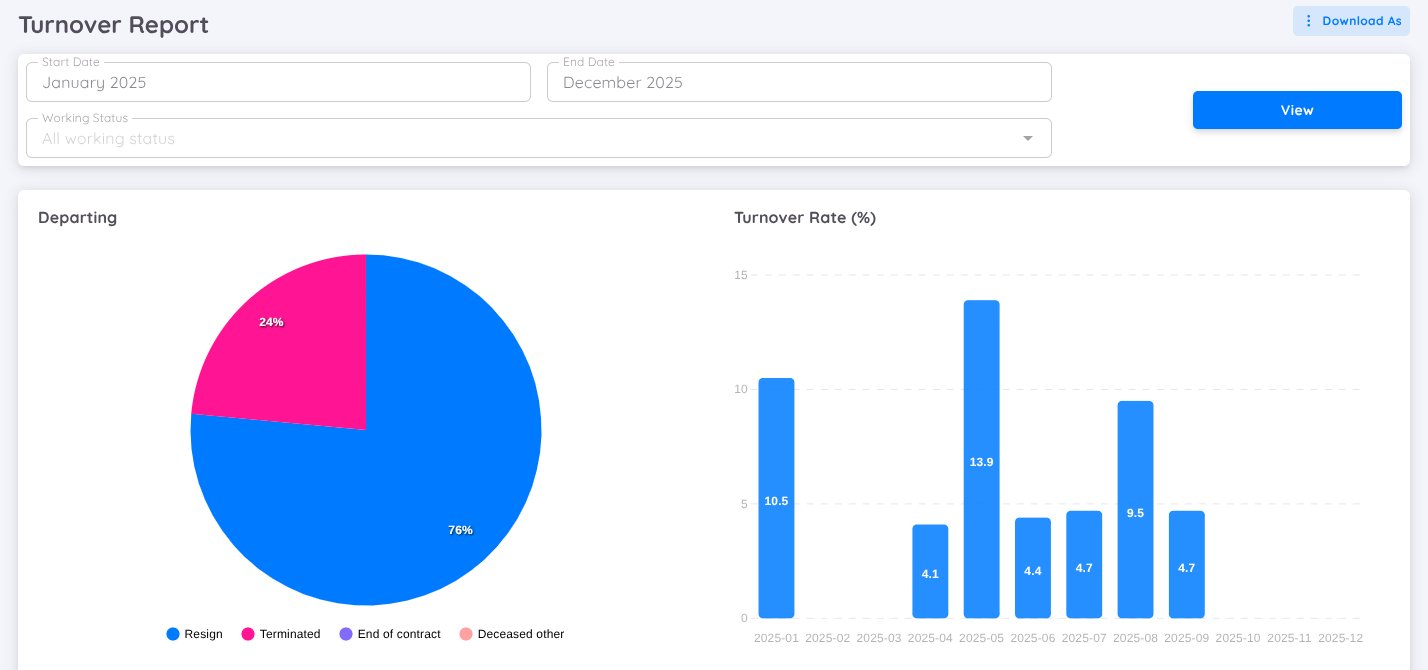
The Turnover Report provides management with a comprehensive overview of employee turnover within a selected period. This report helps monitor workforce trends, identify attrition patterns, and support strategic HR decision-making.
At the top of the page, users can define report parameters:
- Start Date: Select the beginning of the reporting period.
- End Date: Select the end of the reporting period.
- Working Status: Filter employees based on their working status (e.g., all working statuses or specific categories).
- View Button: Click View to generate the report based on the selected filters.
- Download As: Export the report in the available file formats for further analysis or documentation.
The Turnover Report consists of two main visual sections:
1. Departing (Pie Chart)
The Departing pie chart shows the distribution of employee exits by category within the selected period.
The turnover categories include:
- Resign – Employees who voluntarily resigned.
- Terminated – Employees whose employment was terminated by the company.
- End of Contract – Employees whose contracts ended without renewal.
- Deceased / Other – Employees who left due to death or other specified reasons.
This visualization helps management quickly understand the primary causes of employee departures.
2. Turnover Rate (%) (Bar Chart)
The Turnover Rate (%) bar chart displays the monthly turnover rate for the selected period.
- Each bar represents a specific month.
- The percentage shown on each bar indicates the turnover rate for that month.
- This allows management to identify trends, spikes, or seasonal patterns in employee turnover.
The turnover rate is typically calculated as:
Turnover Rate (%) = (Number of Employees Who Left During the Period / Average Number of Employees During the Period) × 100
3. Detailed Records (Breakdown Table)
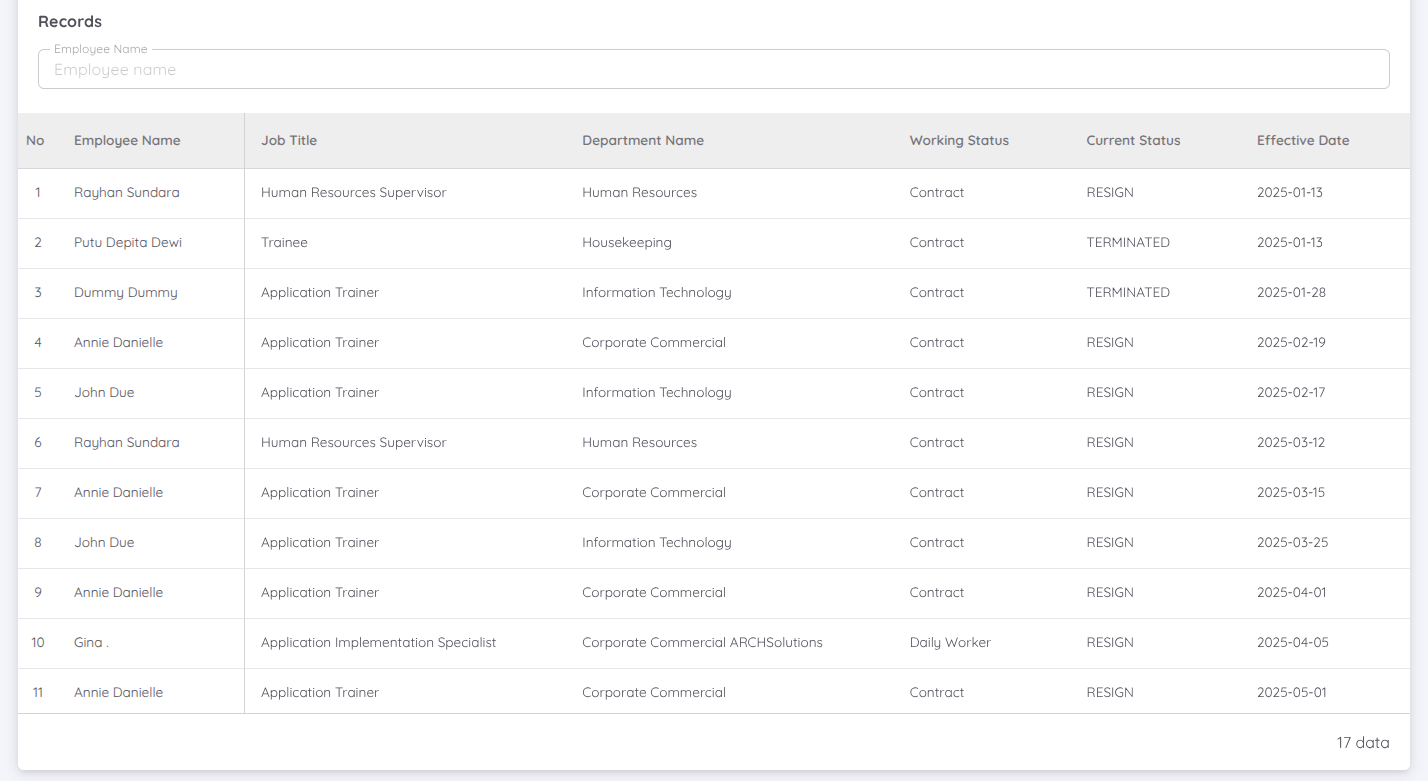
In addition to visual summaries, the Turnover Report also provides a detailed breakdown table of all employees included in the turnover data.
The table includes:
- Employee Name
- Job Title
- Department Name
- Working Status
- Current Status (e.g., Resign, Terminated)
- Effective Date (the date the status change took effect)
A search field is available to quickly locate specific employees within the report.
Purpose and Benefits
The Turnover Report will enables management to:
- Monitor employee attrition trends over time.
- Identify departments or periods with high turnover.
- Analyze reasons for employee departures.
- Support workforce planning and retention strategies.
- Improve decision-making through data-driven insights.
Profile Reports
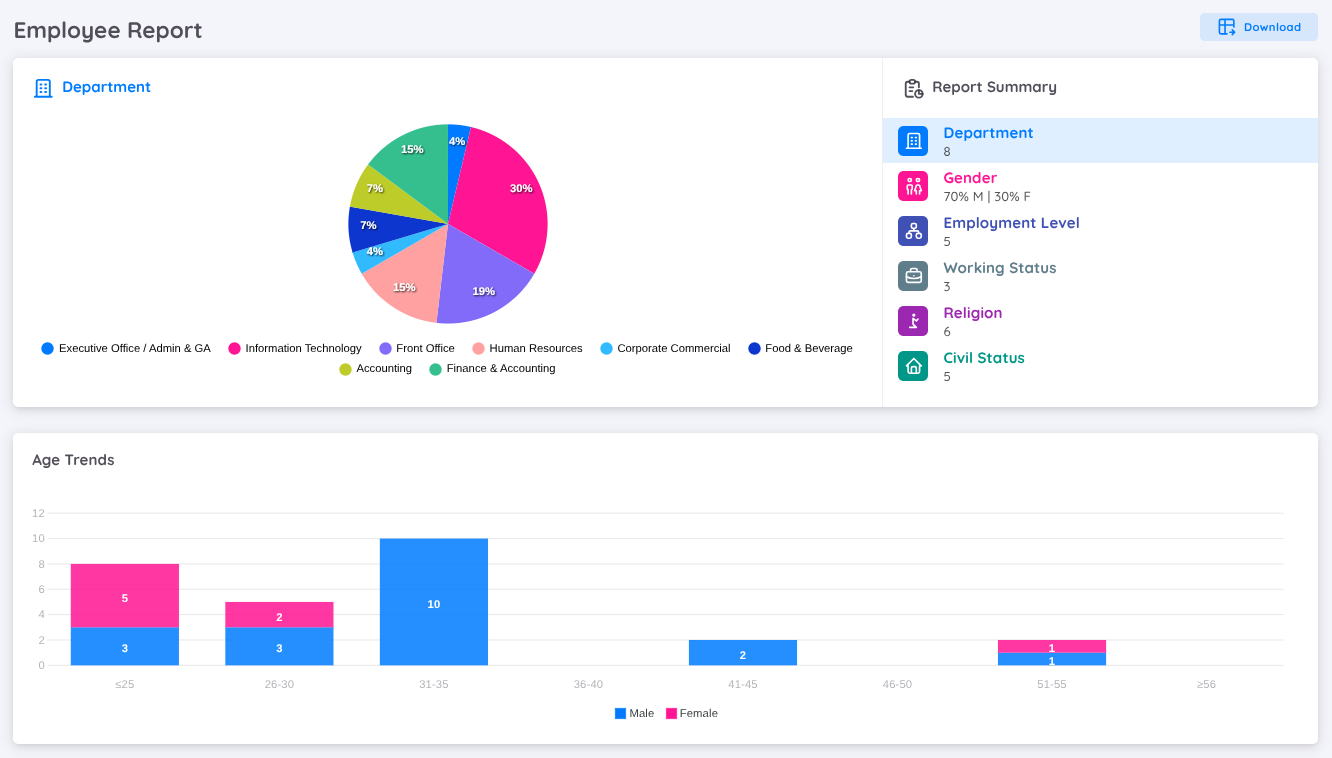
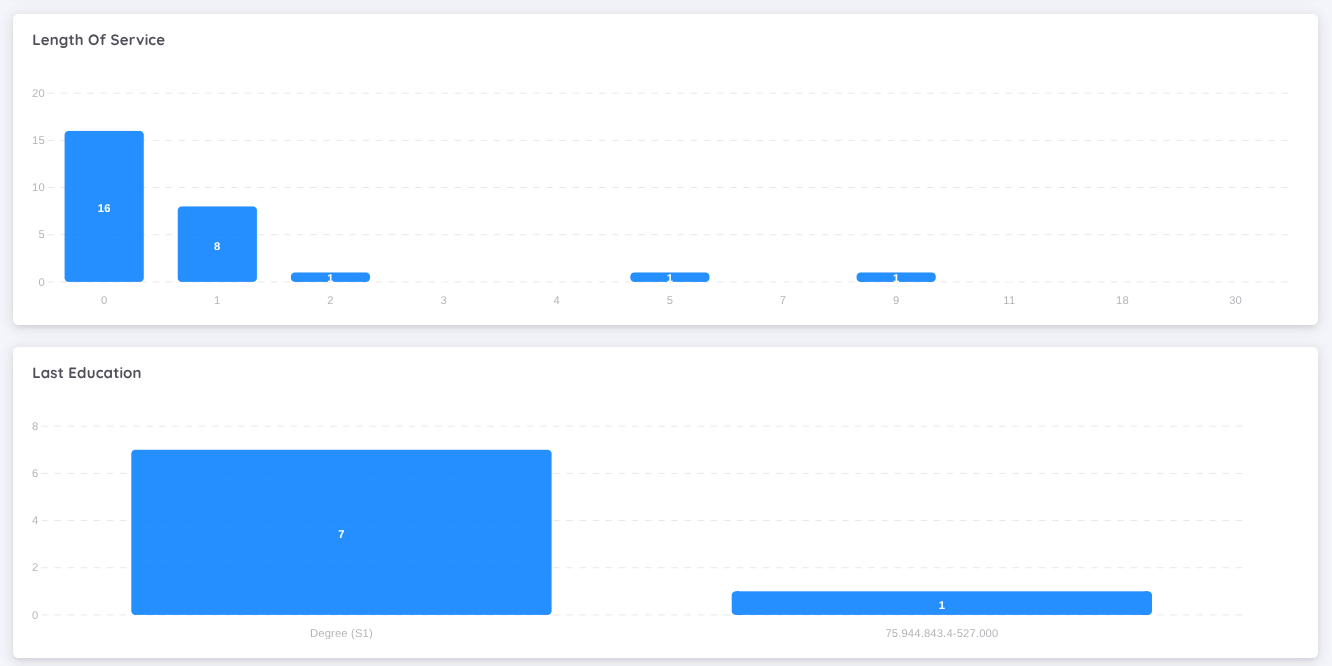
The employee employee profile report provides detailed information about employee data, including personal information, positions, departments, and work history. Key features in this submodule include:
- Employee Statistics: Presents statistical data on the number of employees by department, position, and job status.
- Number of Employees per Department: Displays the count of employees in each department.
- Gender Comparison of Employees: Provides an analysis of the male and female employee count comparison.
- Employee Age Trends: Gives insights into the distribution of employee ages.
- Length of Employment: Shows grouped data based on the duration of employees’ length of service.
- Last Education: Provides insights into the distribution of employees’ highest education level within the organization.
- Profile Completeness : Monitors the completeness of employee profile data, including profile photos, work experience, education history and emergency contacts. Completed data will be marked with a blue check icon.
- End Date Contract : Displays the contract expiration date along with the number of days remaining before the contract ends. If the contract has already expired, the number of days since the contract ended will also be shown.
- Employee Profile Comparison : Allows users to compare the percentage of employees who have completed their profile data with the total number of employees.
Profile Completeness
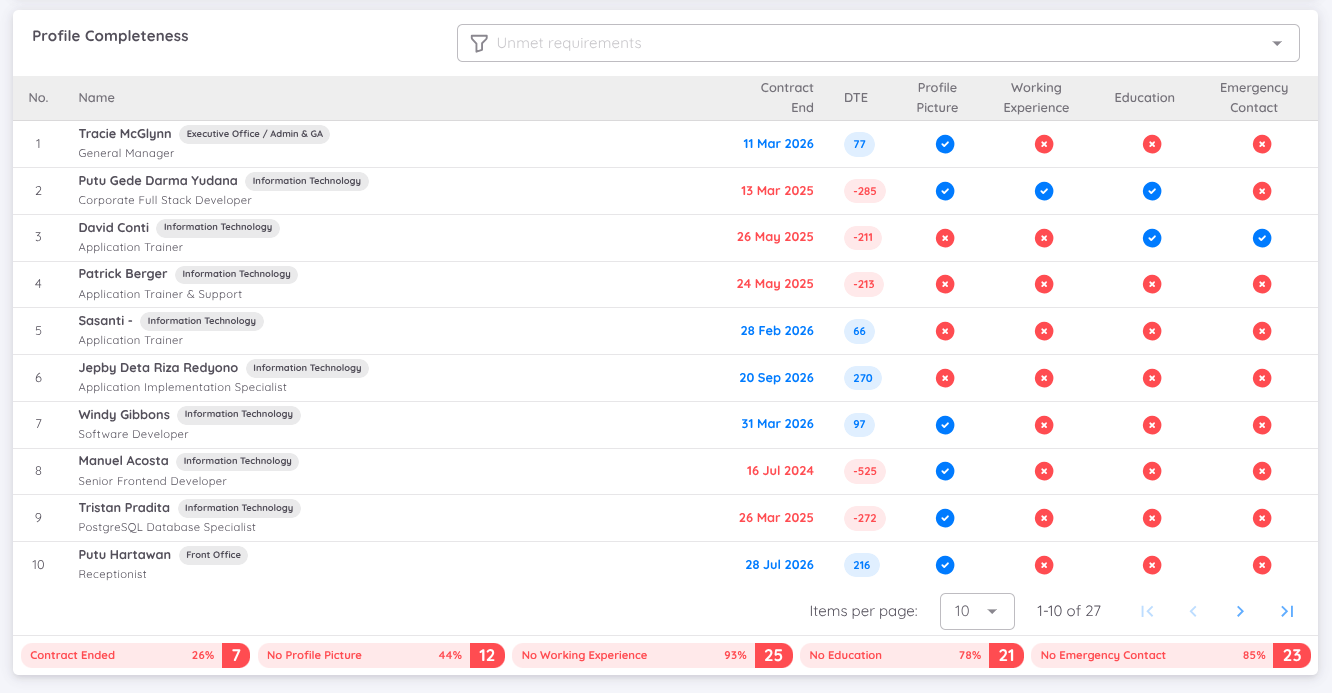
The Profile Completeness feature in the Employee Report module provides a centralized monitoring dashboard for evaluating the completeness of employee master data.
This feature validates predefined mandatory fields within the employee profile and displays their completion status in a structured view.
The system performs validation on the following required components:
- Contract End Date
- DTE (Days to Expire) Indicator
- Profile Picture
- Working Experience Records
- Education Records
- Emergency Contact Information
- Additional Employee Information Fields
In addition to core profile data, the report also provides visibility into:
- Completion status of Additional Information fields
- Document completeness within the employee document folder either uploaded by Management or uploaded by the Employee
Each evaluated item is displayed with a visual status indicator:
- ✅ : All required data is properly filled and/or documents are uploaded.
- ❌ : Required data fields are missing or mandatory documents have not been uploaded.
This structured validation enables Management to proactively monitor data gaps, ensure compliance with internal requirements, and maintain accurate employee records.
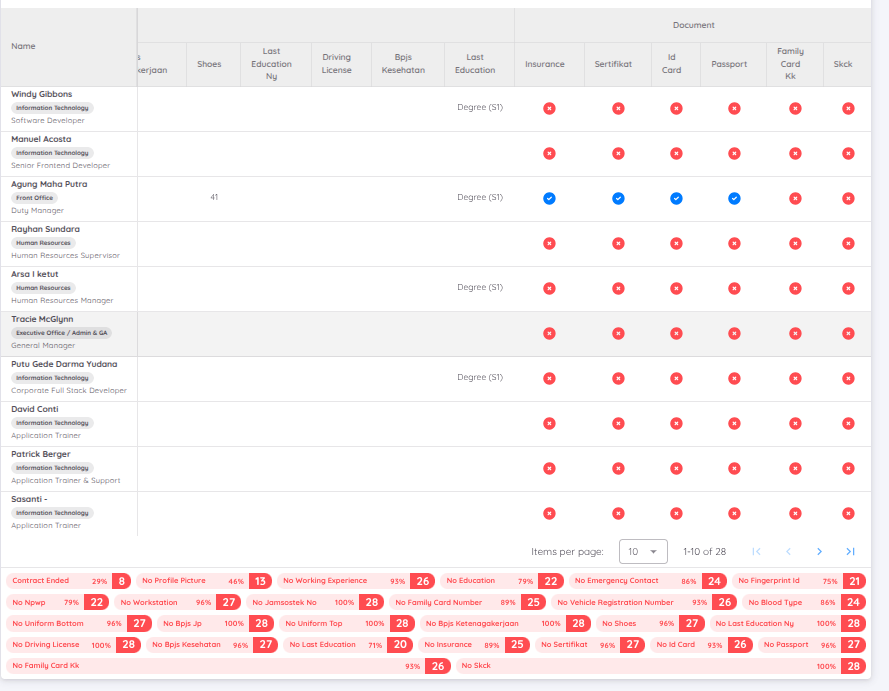
At the bottom of the report, the system also displays the incompletion percentage along with the total number of fields or documents that have not been updated or uploaded.
The percentage represents the proportion of required fields and documents that remain incomplete. This is also reflected in the total count, which highlights the number of outstanding items.
This summary provides a quantitative overview of profile data gaps, enabling Management to quickly assess overall data compliance and identify areas that require follow-up.
If too many columns are displayed or only specific information is required, use the Filter Unmet Requirement feature to hide unnecessary fields or columns.
Personal Report
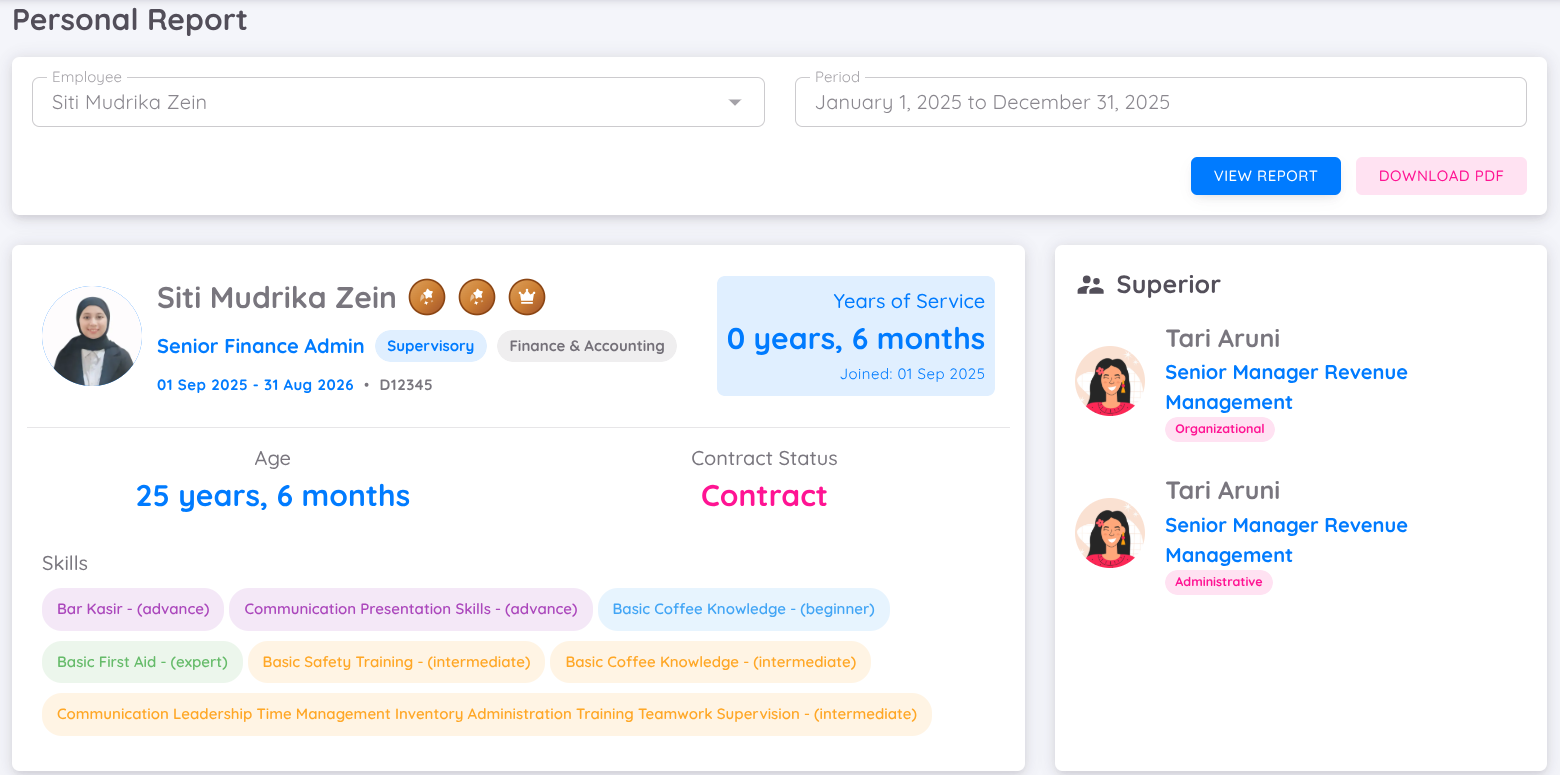
In the Personal Report, management can view detailed reports for each individual employee, providing better visibility into personal employee information and records.
This feature enables easier monitoring, review, and management of employee data in a centralized and structured format.
To view the report, users are required to enter the employee name and select the reporting period. Once submitted, the system will generate the employee’s report based on the selected criteria, allowing management to review specific employee data within the chosen timeframe.
Once the report has been successfully generated, a Download button will automatically appear. This button allows users to download the employee report in PDF format.
The Employee Report Profile Overview provides a comprehensive summary of an individual employee’s key information in a structured and easy-to-read format. This section allows management to quickly understand an employee’s profile, employment details, and organizational placement at a glance.
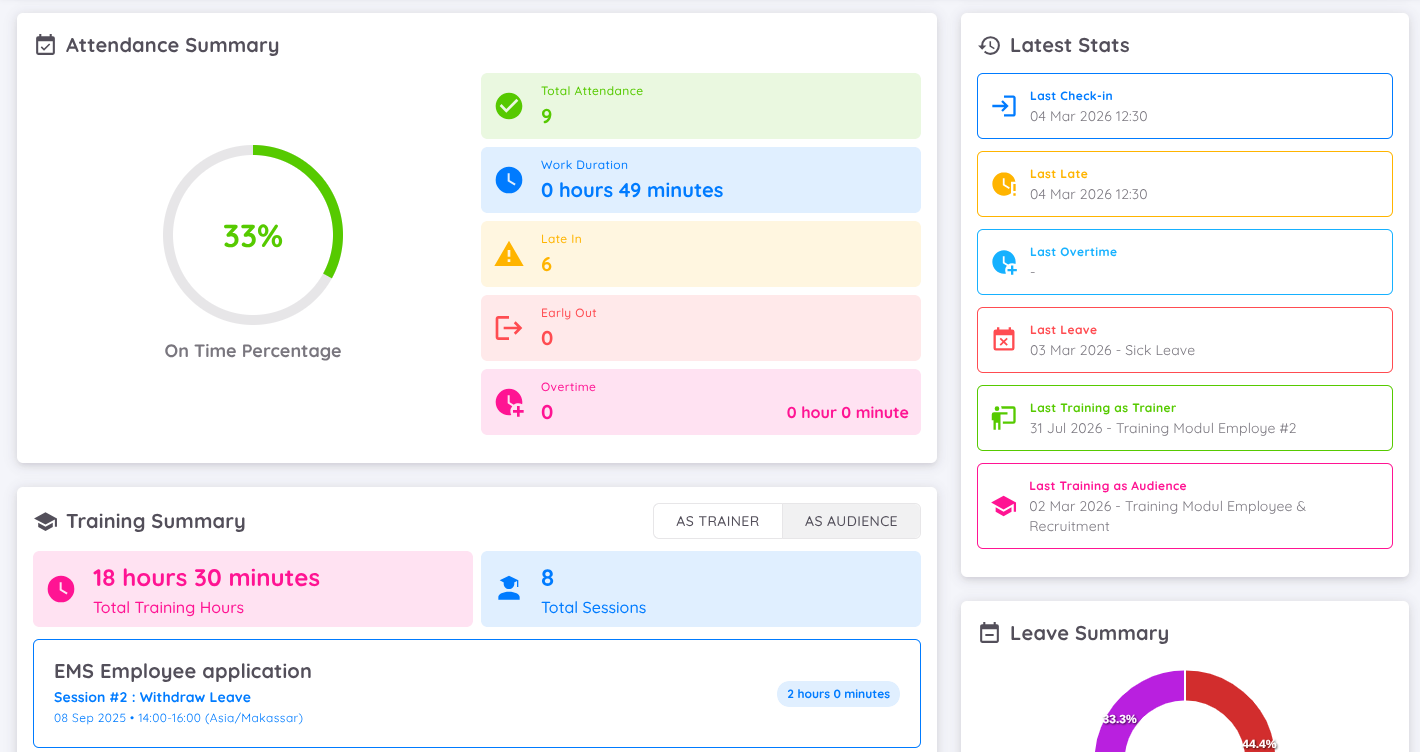
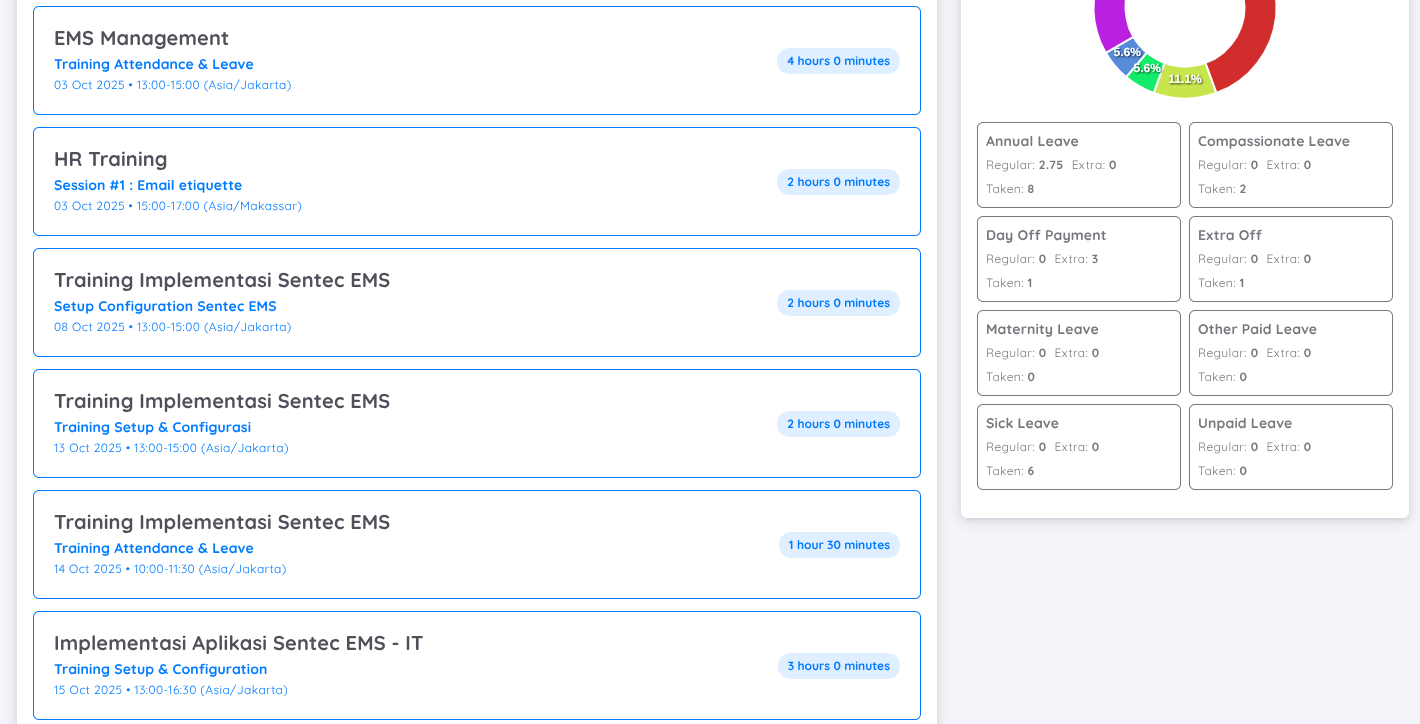
The report also includes an Attendance Summary and Training Summary, providing detailed insights into employee participation and performance within the selected reporting period.
The Attendance Summary section presents a comprehensive overview of the employee’s attendance records, including:
- On-Time Percentage: Displays the employee's punctuality performance.
- Total Attendance: The total number of recorded attendances.
- Work Duration: The total accumulated working hours.
- Late In: The number of late check-ins.
- Early Out: The number of early check-outs.
- Overtime: The total recorded overtime hours.
Training Summary provides a summary of employee training activities, with the option to switch between two tabs: As Trainer and As Audience, depending on the employee’s role in the training.
The section includes:
- Total Training Hours: The total hours spent in training sessions.
- Total Sessions: The number of training programs attended or conducted.
- Training Details: A detailed overview of training activities within the selected reporting period.
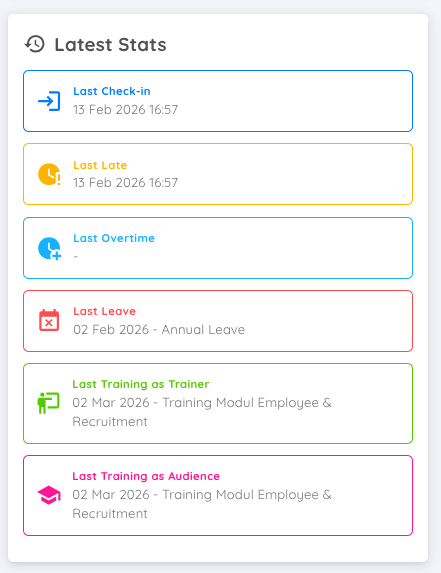
This report also displays the Latest Stats section, which provides a quick overview of the employee’s most recent activities and records. This feature allows management to easily track the latest workforce updates without needing to review the entire report.
Key employee actions and events are presented in a chronological and easy-to-read format.
The section includes the following information based on the selected reporting period:
- Last Check-in: Displays the most recent attendance check-in date and time recorded for the employee.
- Last Late: Shows the most recent occurrence of a late attendance record.
- Last Overtime: Indicates the most recent overtime activity, if available.
- Last Leave: Displays the latest leave record, including the leave date and leave type (e.g., Annual Leave).
- Last Training as Trainer: Shows the most recent training session conducted by the employee as a trainer, including the training title and date.
- Last Training as Audience: Displays the most recent training attended by the employee as a participant, along with the training details.
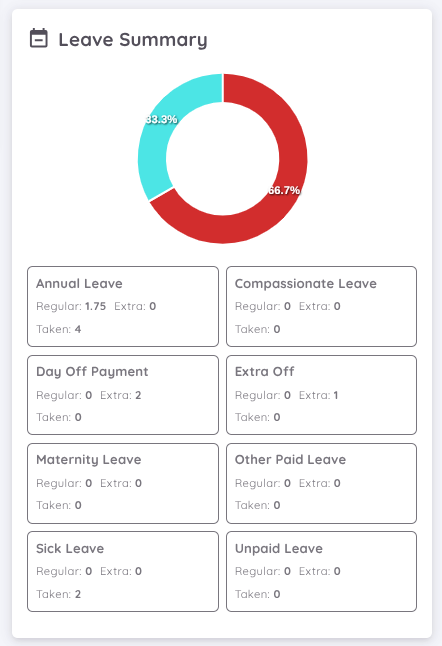
Lastly, the report includes a Leave Summary section. This section provides a visual and detailed overview of the employee’s leave utilization within the selected reporting period.
A pie chart visualization illustrates the proportion of leave taken by leave type, providing a clear overview of leave distribution.
Below the chart, detailed leave information is provided based on the leave categories activated for the individual employee. Each leave type displays:
- Regular Balance
- Extra Balance
- Total Leave Taken
This section helps management monitor leave consumption, understand leave patterns, and review employee leave status in a clear and structured format.
Employee Milestone
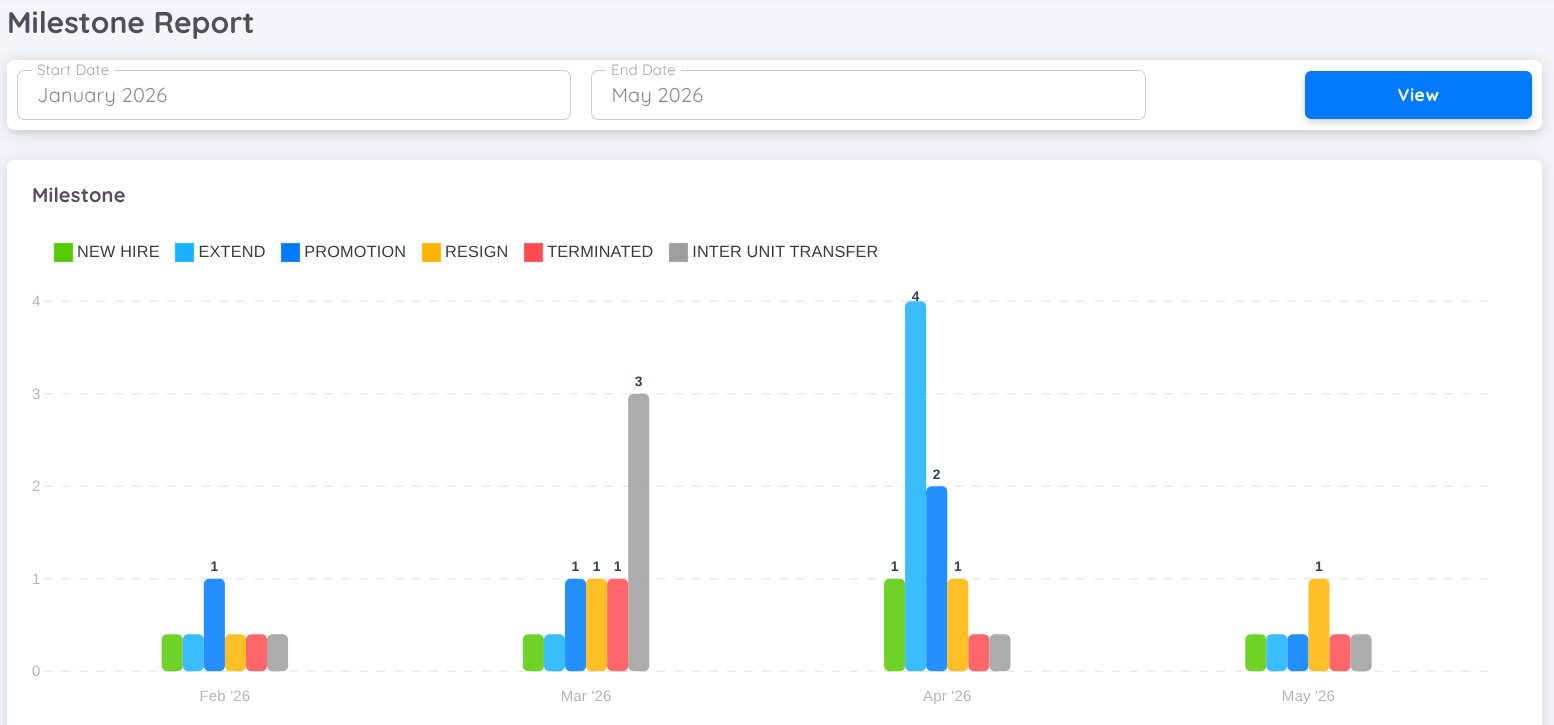
The Employee Milestone report provides insights into key employee movements within a selected period. You can filter the report by start date and end date, then click View to generate the report data.
The report displays milestones such as New Hire, Extension, Promotion, Resignation, Termination, and Inter Unit Transfer in a monthly breakdown. Each category is visualized in a chart, allowing you to easily compare the number of occurrences per month.
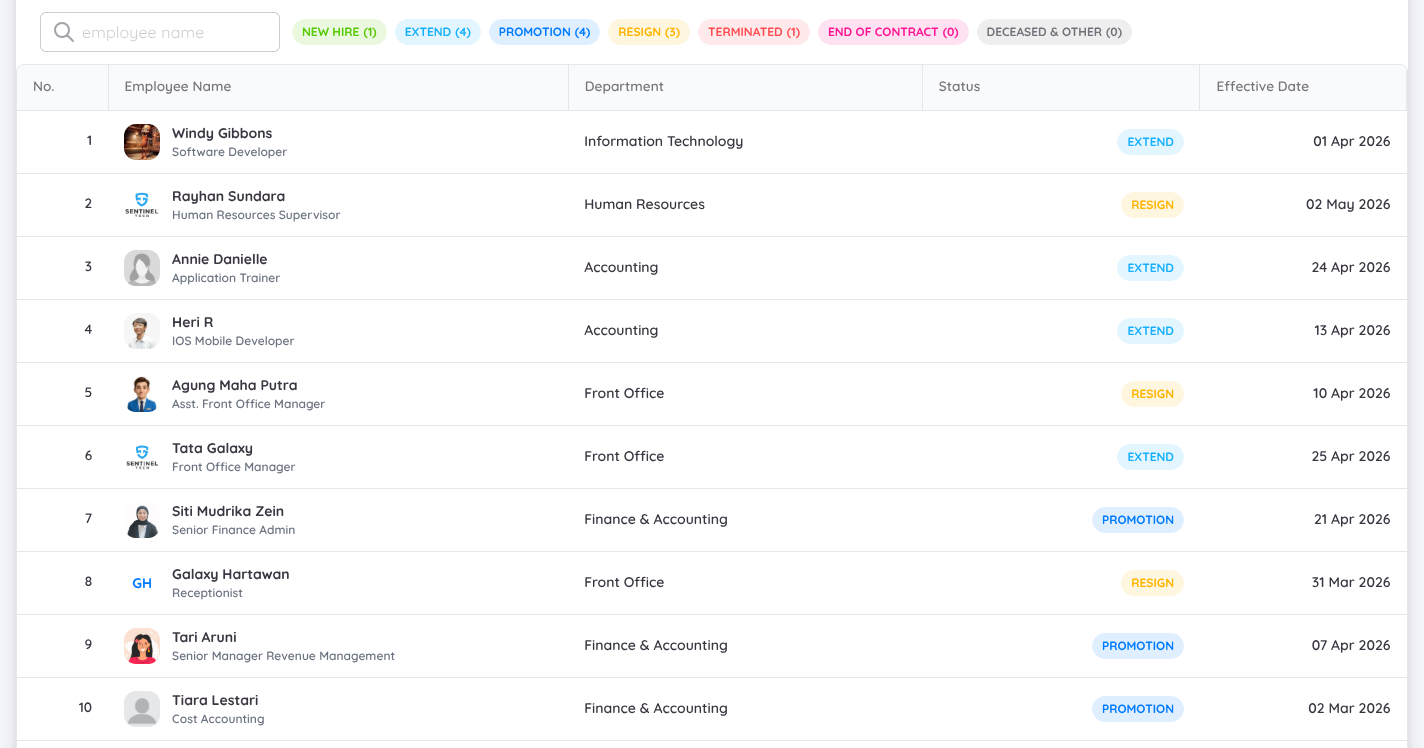
You can also view detailed employee records within the report, providing more in-depth information behind each milestone.
Additionally, the filter can be applied individually for each milestone category.
Employee Contract History Report
The Employee Contract History Report enables Management to easily view and monitor each employee's career progression and contract history in a single centralized report.
This report can be accessed through Report → Employee Contract History Report.
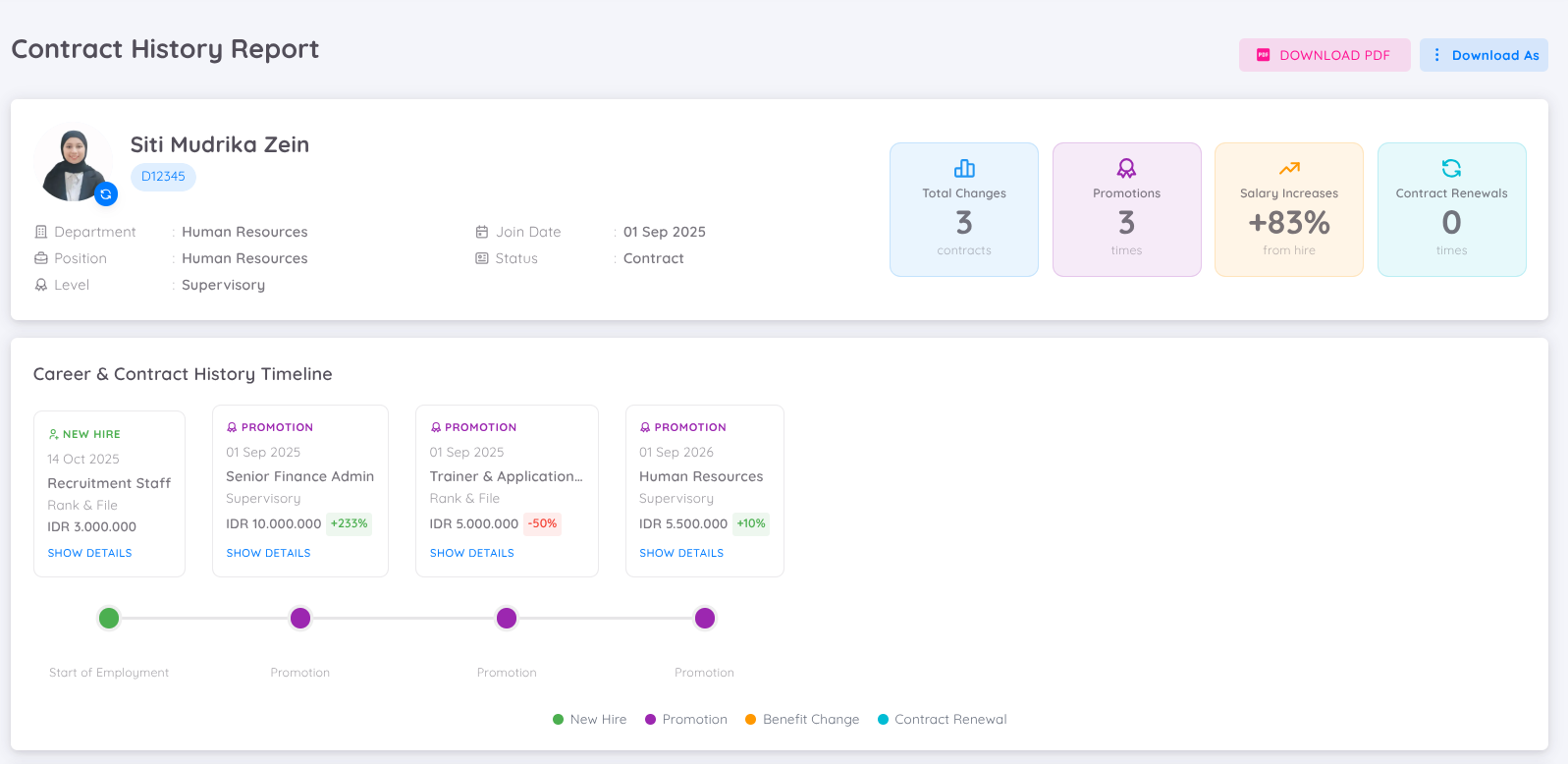
This report provides a comprehensive overview of an employee's career progression, contract changes, and compensation changes (Basic Salary). With this information, Management can make more informed workforce decisions while monitoring employee career growth, employment history, and organizational changes over time.
Employee Summary
The Employee Contract History Report displays an employee summary section that provides a quick overview of the employee's employment information.
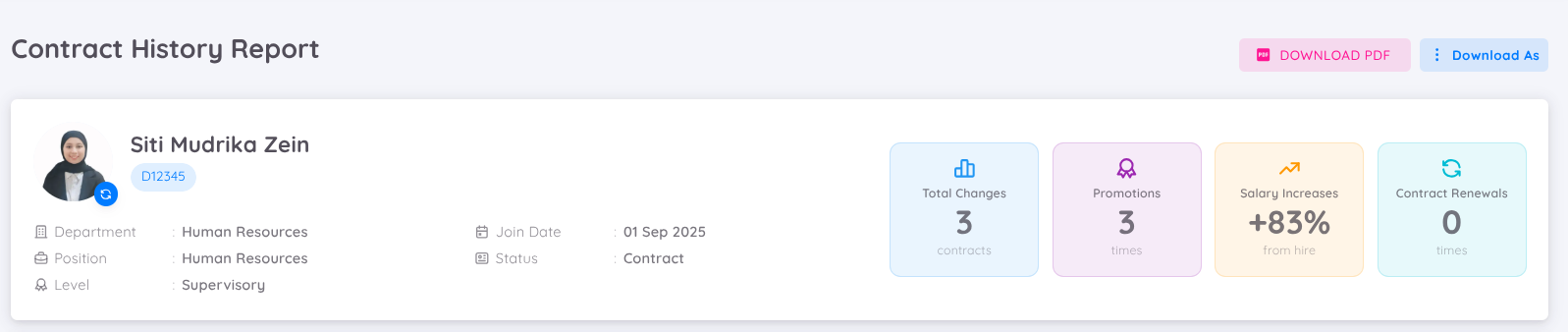
This section presents key employee information, including Employee Profile Information, Employment Information, and a Career Summary, which includes:
| Statistic | Description |
|---|---|
| Total Changes | Total number of recorded contract and career-related changes. |
| Promotions | Total number of promotions received by the employee. |
| Salary Increases | Percentage of salary increase or decrease compared to the employee's previous salary. |
| Contract Renewals | Total number of contract extensions or renewals. |
Career & Contract History Timeline
The Career & Contract History Timeline provides a chronological view of an employee's career progression and contract history, making it easier to track employment changes over time.
Management can review the employee's career journey, including:
- New Hire — Displays the employee's initial hiring information.
- Promotion — Displays promotion history, including changes in position, department, and employee level.
- Contract Renewal — Displays the employee's contract renewal history.
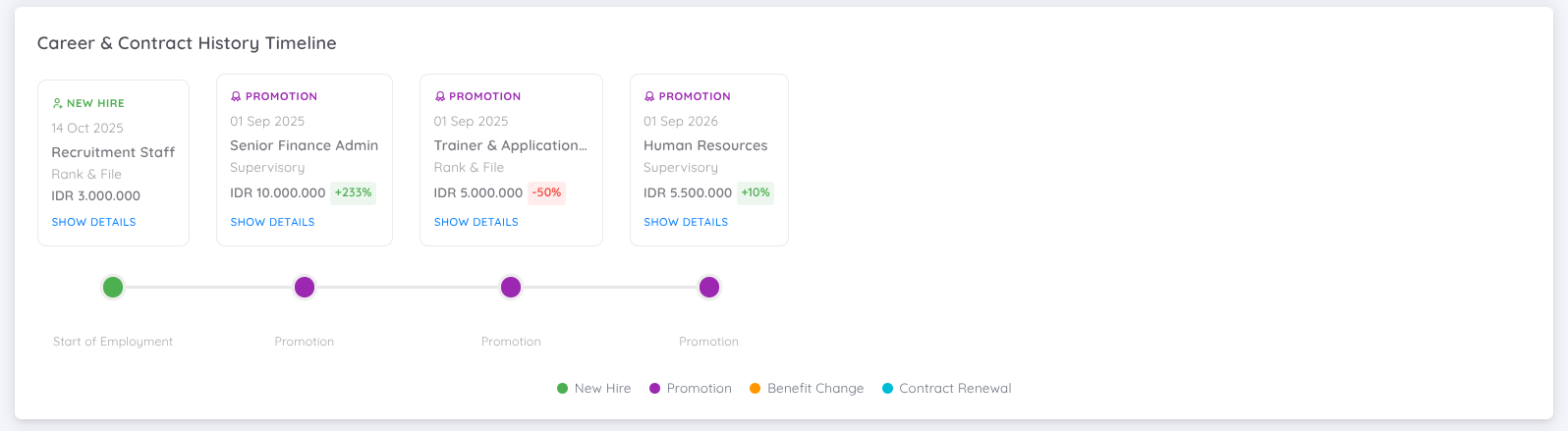
Each card in the Career & Contract History Timeline displays key information about each career or contract change, including:
- Effective Date — Displays the date when the change became effective.
- Change Type — Displays the type of change, such as New Hire, Promotion, Contract Renewal, or other employment-related changes.
- Position — Displays the employee's position after the change takes effect.
- Level / Grade — Displays the employee's level or grade after the change.
- Salary Information — Displays the salary applicable for the selected period, along with the percentage of salary change, whether it is an increase or a decrease, compared to the previous contract.
- Show Details — Displays detailed information about the selected contract change, including compensation details, benefits, allowances, and any other information updated in the contract.
Detailed History
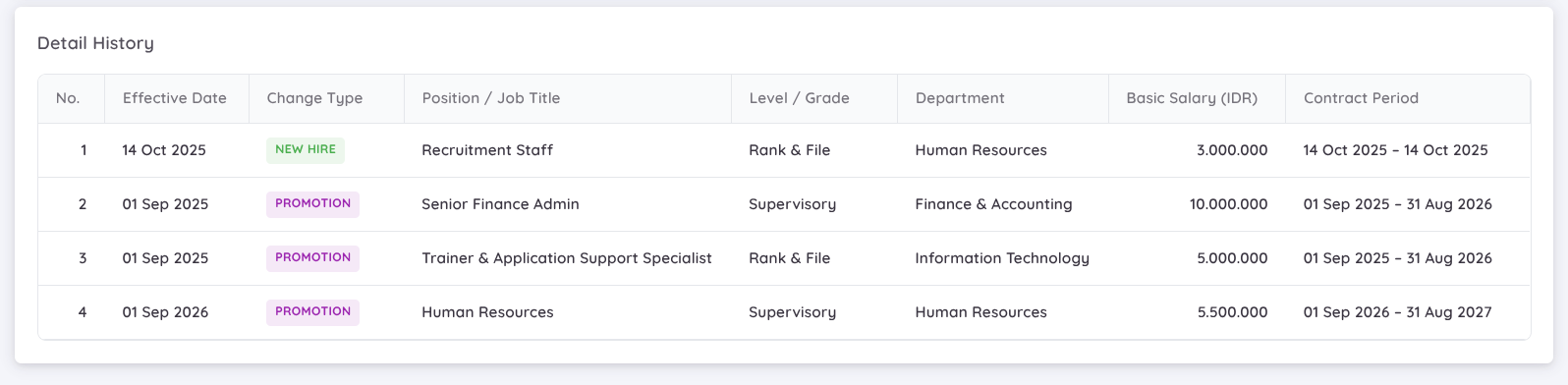
In addition to the timeline, the report also provides a Detailed History section that presents more comprehensive information about every recorded employee change.
This section provides a complete breakdown of each historical record, allowing Management to review the employee's career progression and contract changes in greater detail.
Download Report
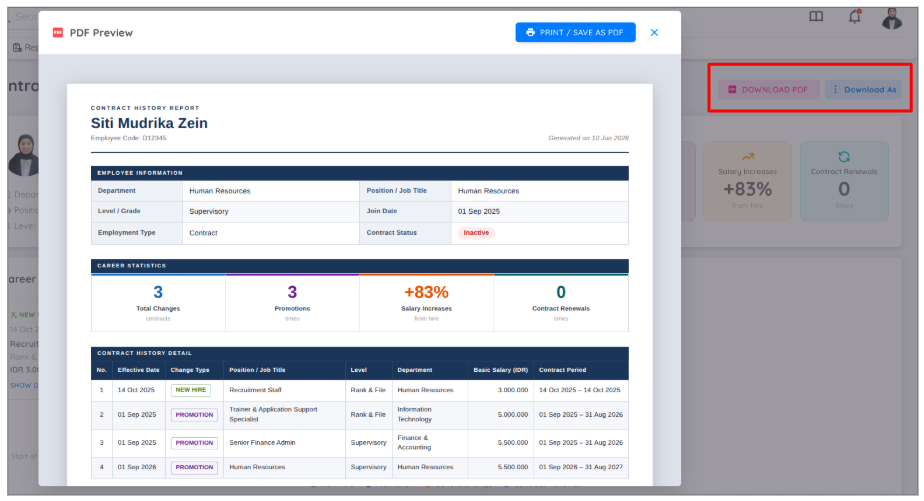
The Employee Contract History Report can be downloaded in multiple formats for documentation and reporting purposes.
Available export formats include:
- PDF — Suitable for printing, sharing, and maintaining standardized report documentation.
- Excel / Spreadsheet — Suitable for further analysis, data filtering, and reporting purposes.
Switch to Another Employee
To view another employee's contract history, click the Employee Switch icon located next to the employee's profile picture. Then, select the employee whose contract history you want to view. The report will automatically refresh and display the selected employee's information.