Offer Letter
Overview
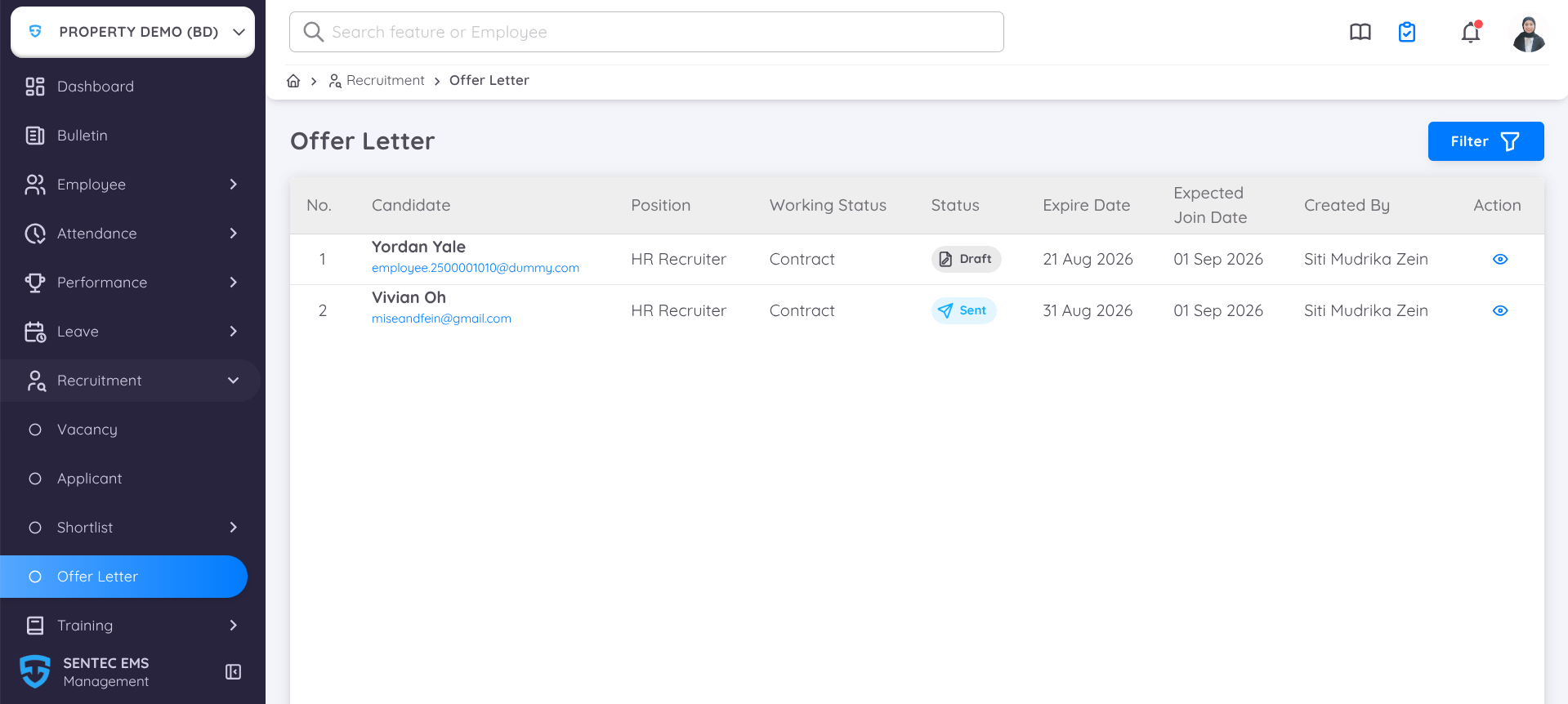
Offer Letter allows the recruitment team to create and send an offer letter directly from the Applicant Details, making it easier to manage the offer process without leaving the applicant's record.
In the Offer Letter list, the following information is displayed:
| Field | Description |
|---|---|
| Candidate Name | The name of the candidate receiving the offer. |
| Position Applied | The position applied for by the candidate. |
| Working Status | The employment status offered to the candidate. |
| Status | Displays the current status of the offer letter, such as Draft, Sent, Rejected, Accepted, or Viewed. |
| Expire Date | The deadline set by the recruitment team for the candidate to provide a response or confirmation. |
| Expected Join Date | The expected date when the candidate will join the company. |
| Created By | The user who created and processed the offer letter. |
| Action | Provides an option to view the created offer letter. |
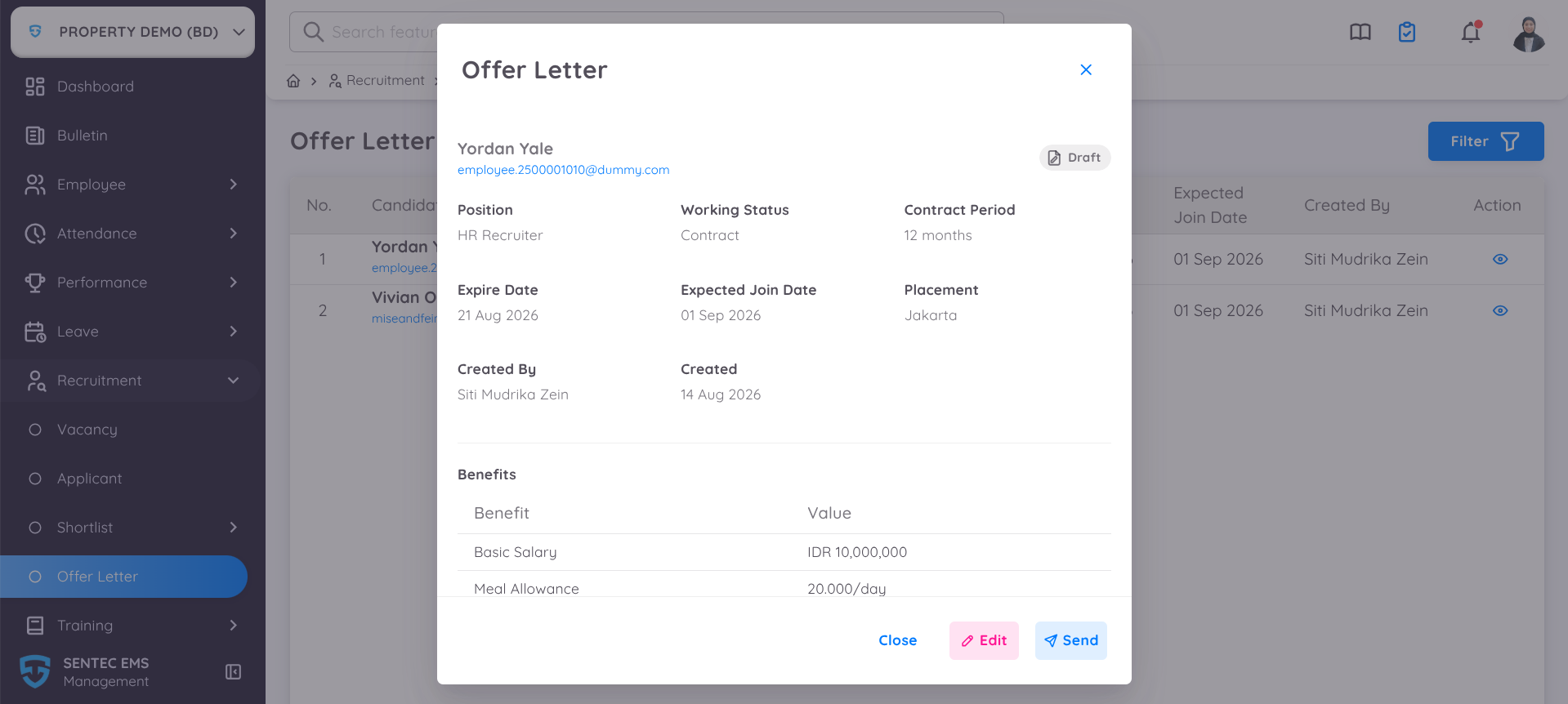
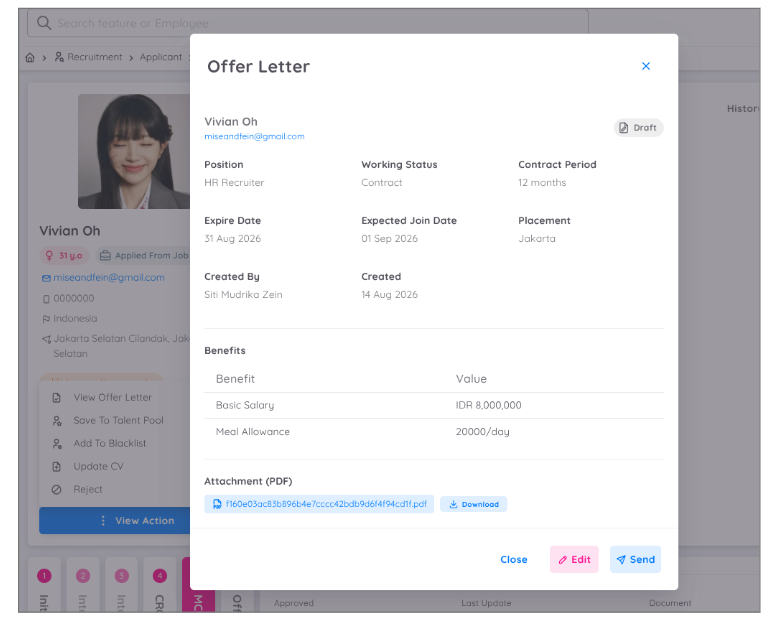
When the offer letter has a Draft status, the Edit and Send buttons will be available to make changes or send the offer letter to the candidate.
Once the offer letter has been Sent, the offer letter details can be viewed from the list.
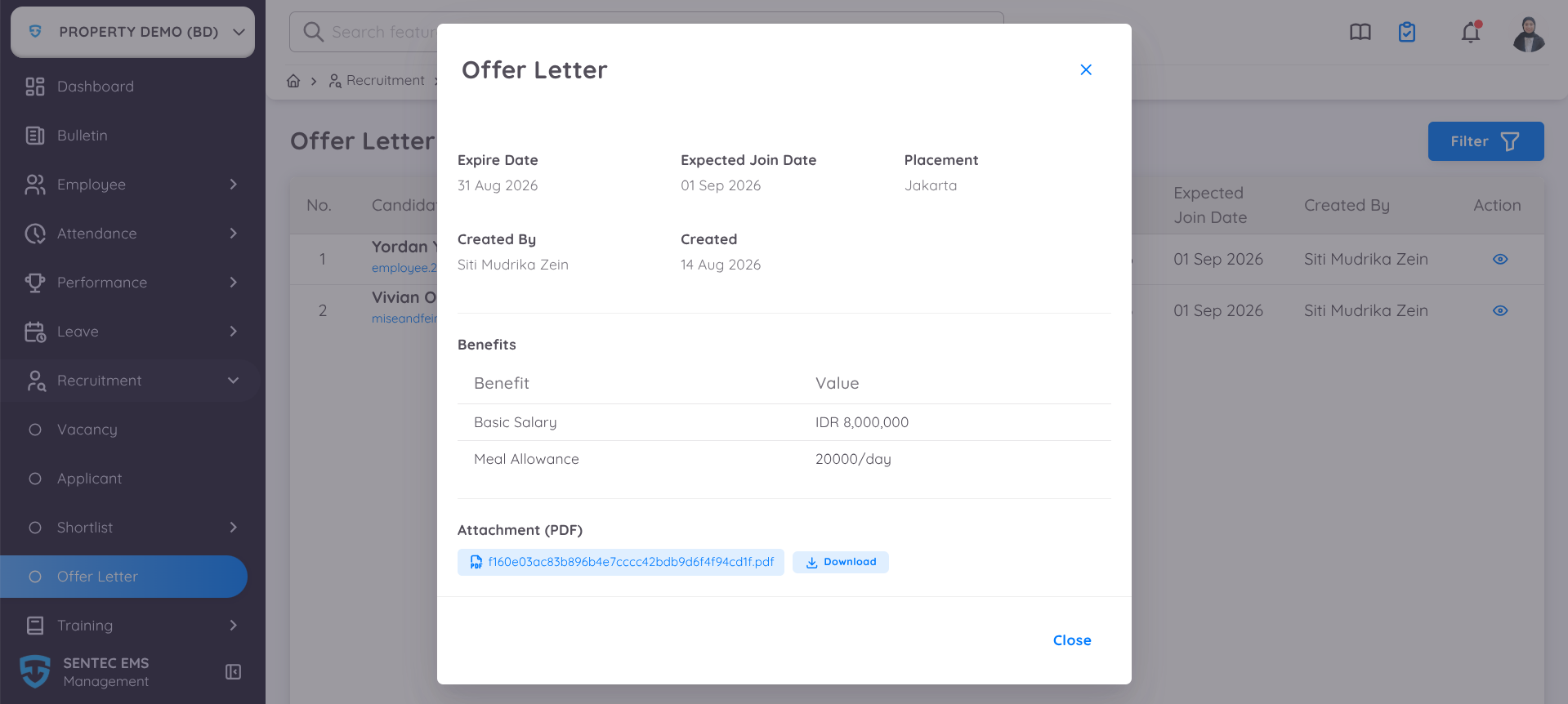
If a document is available, it can be downloaded regardless of whether the offer letter is in Draft or Sent status.
How to Create an Offer Letter
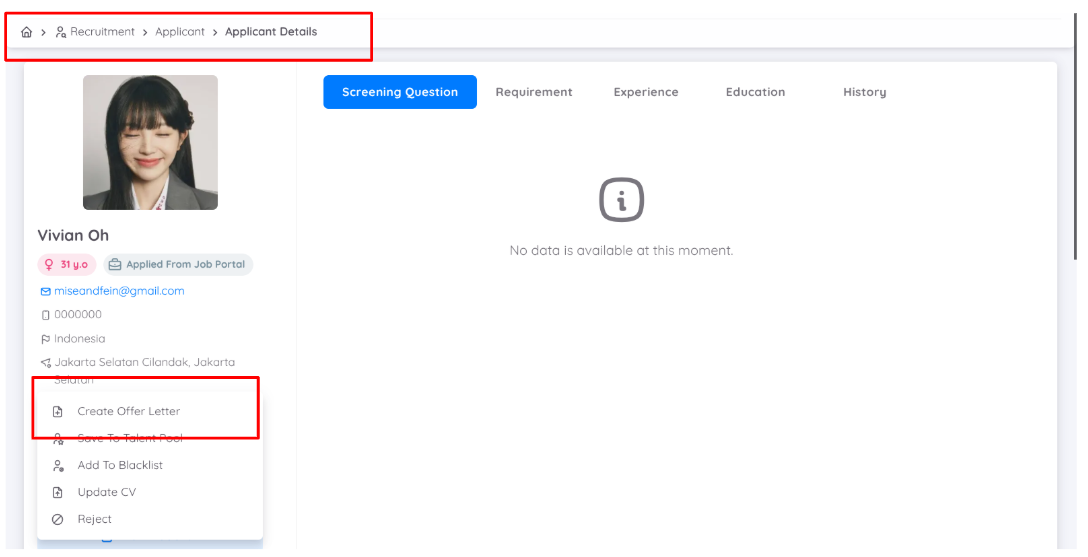
An Offer Letter can be created directly from the Applicant Details. Select the applicant and access the Offer Letter option to create a new offer.
When creating an Offer Letter, complete the required information as follows:
| Field | Description |
|---|---|
| Job Details | Automatically populated based on the vacancy being processed. |
| Contract Status | Automatically populated based on the vacancy being processed. |
| Expire Date | Determines how long the offer will remain available to the candidate. This date can also be used as the deadline by which the candidate must provide a response to the offer. |
| Expected Join Date | The expected date on which the candidate will start working. |
| Contract Period | The duration of the employment contract, entered in months. The value must be a positive number. |
| Placement | The location or property where the candidate will be assigned. |
| Message | Additional notes or messages from the recruitment team regarding the offer. This field can also include a link that allows the candidate to directly access and sign a document. |
| PDF Attachment | Supporting documents or references related to the offer, such as a list of benefits or legal documents that need to be reviewed or signed. Available attachments can be downloaded directly from the offer page. |
| Benefits | Benefits offered to the candidate. Multiple benefits can be added, such as Basic Salary and other applicable benefits. Values such as salary must be entered as positive numbers. |
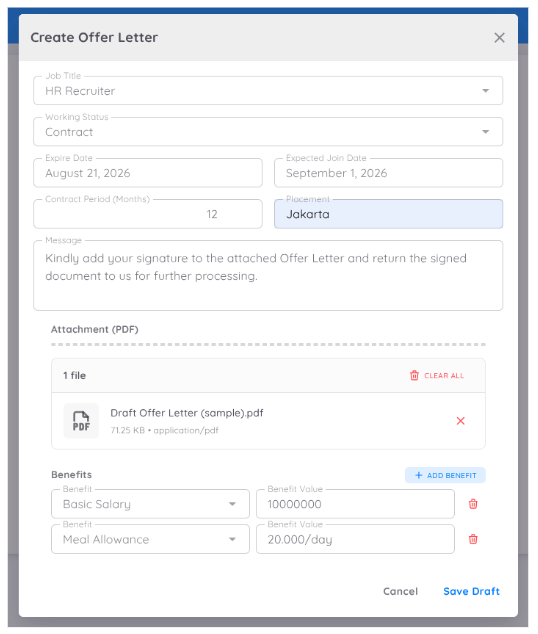
After completing the required information, the Offer Letter can be saved as a Draft for further editing or Sent directly to the candidate.
All created Offer Letters are available under Recruitment → Offer Letter, where the offer letter records can be viewed and managed.
Sending the Offer Letter
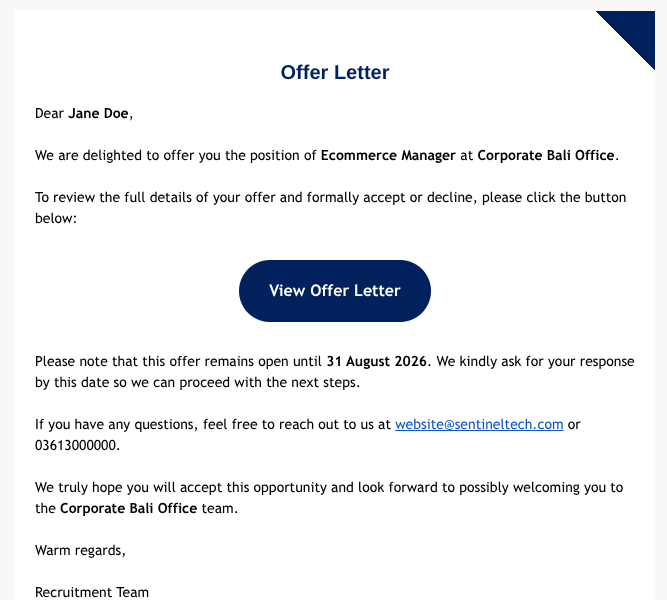
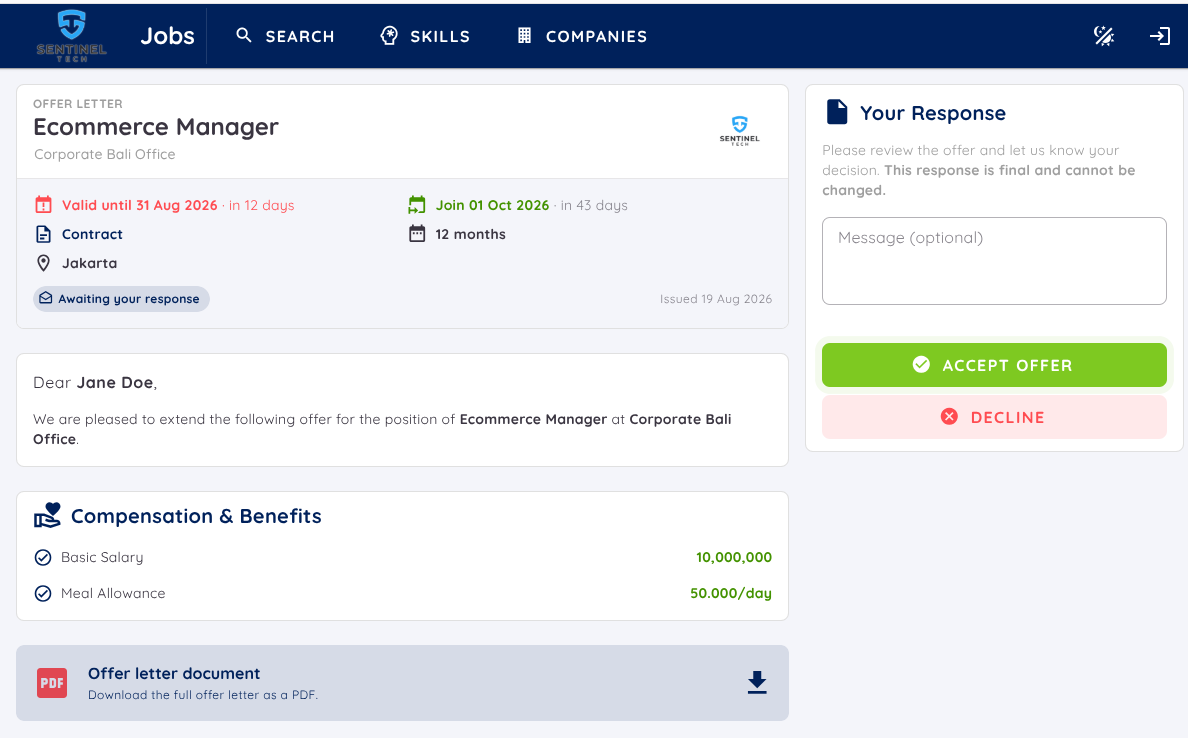
Once the Offer Letter is sent, the candidate will receive an email notification containing the offer details and a link to access the offer.
The candidate will be redirected to the Job Portal, where the offer details will be displayed.
If supporting documents are attached to the Offer Letter, such as documents that require a signature or other references related to the offer, the candidate can download them directly from the offer page.
The candidate can then Accept or Reject the offer directly from the Job Portal. If additional feedback or a message is required, the candidate can enter the information before submitting the response.
Accepted Offer
When the candidate accepts the offer, the Offer Letter status will be updated to Accepted in the Offer Letter list.
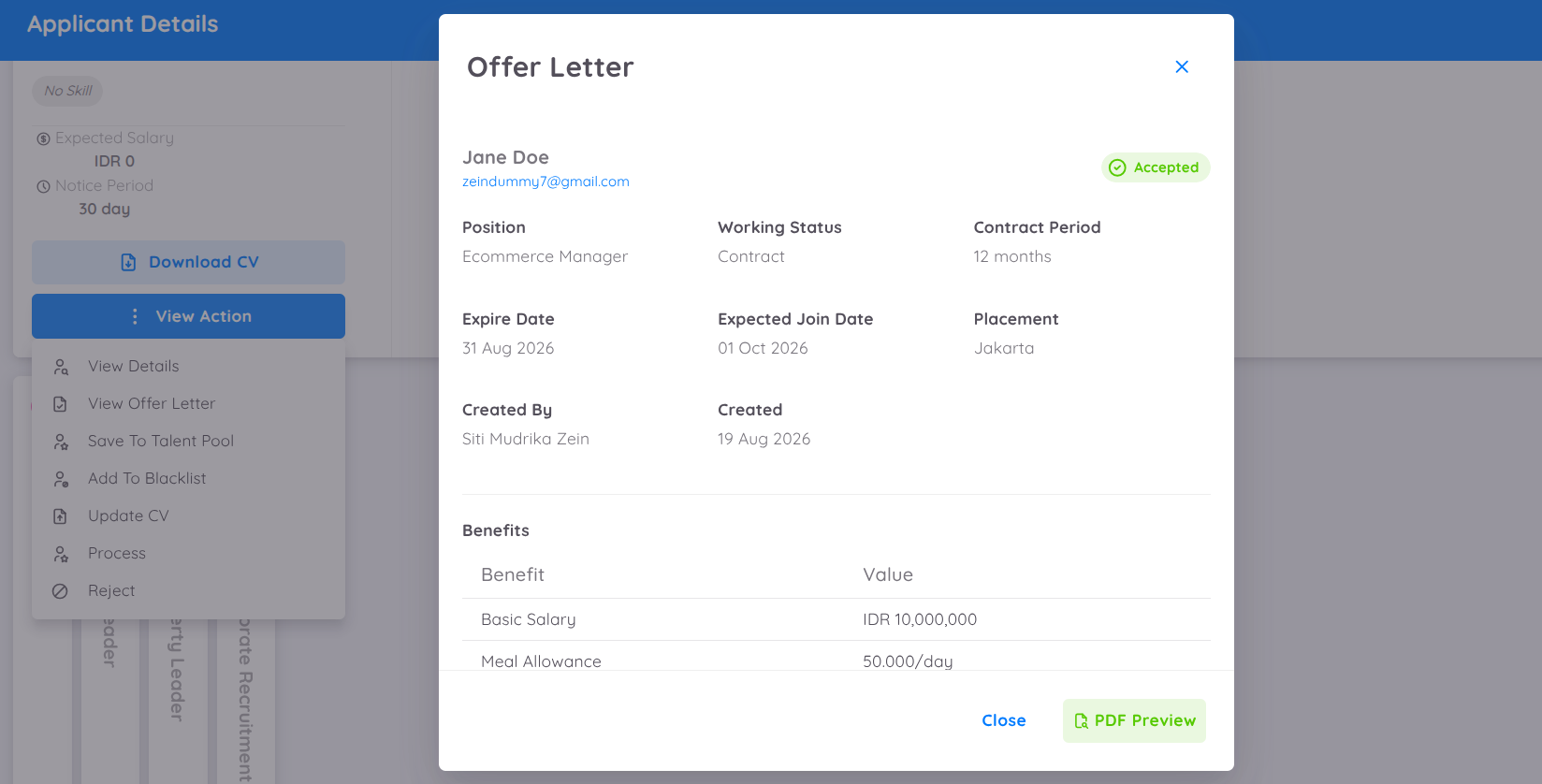
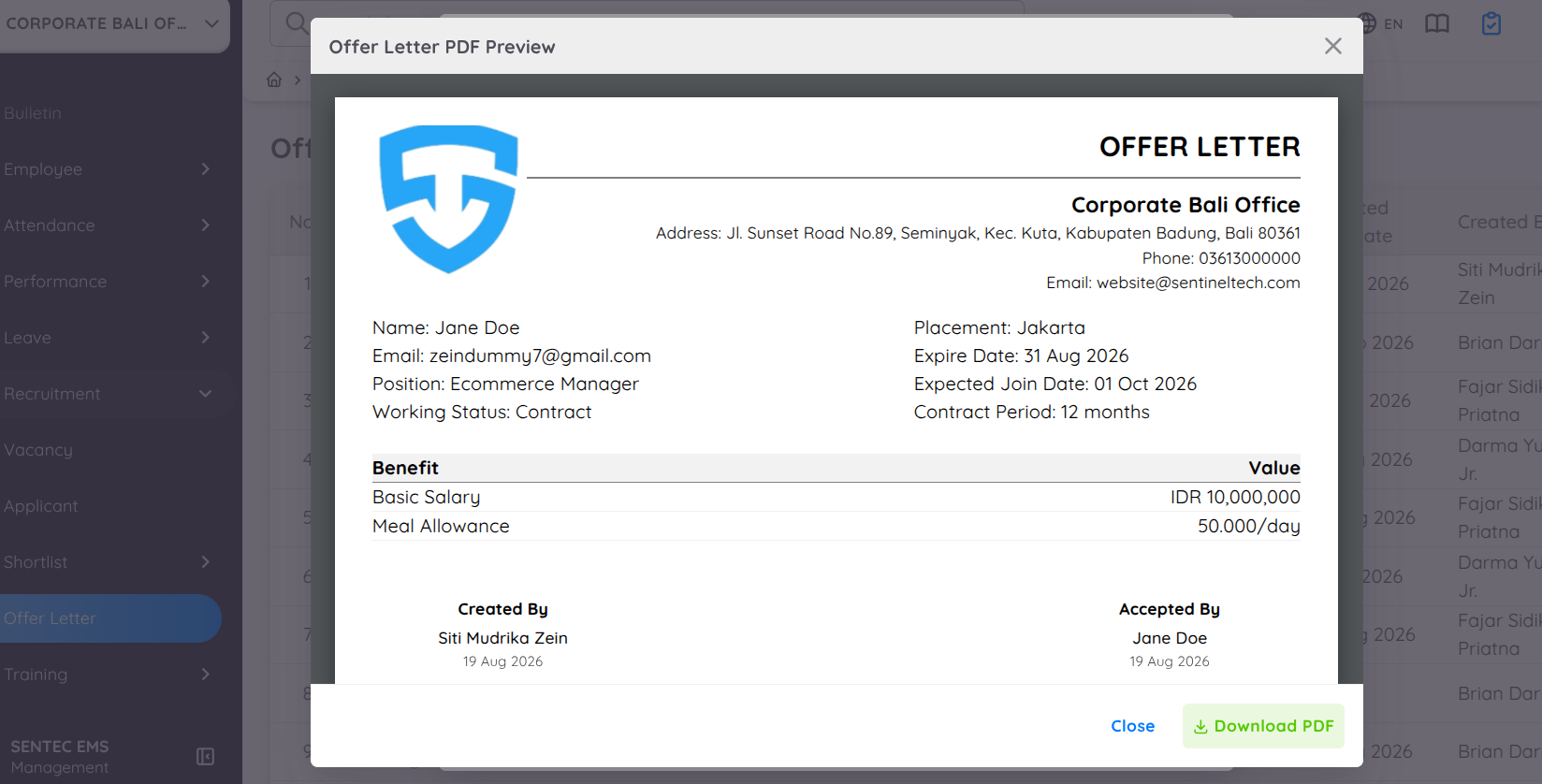
The completed offer details can then be viewed, and the generated document can be previewed and downloaded in PDF format.
Next Process
After the offer has been accepted, the recruitment process can be continued through the Kanban Board. The next step can be the next stage in the recruitment process, such as a Medical Checkup, or the creation of a Draft Contract if the offer is the final stage before the contract activation.
Rejected Offer
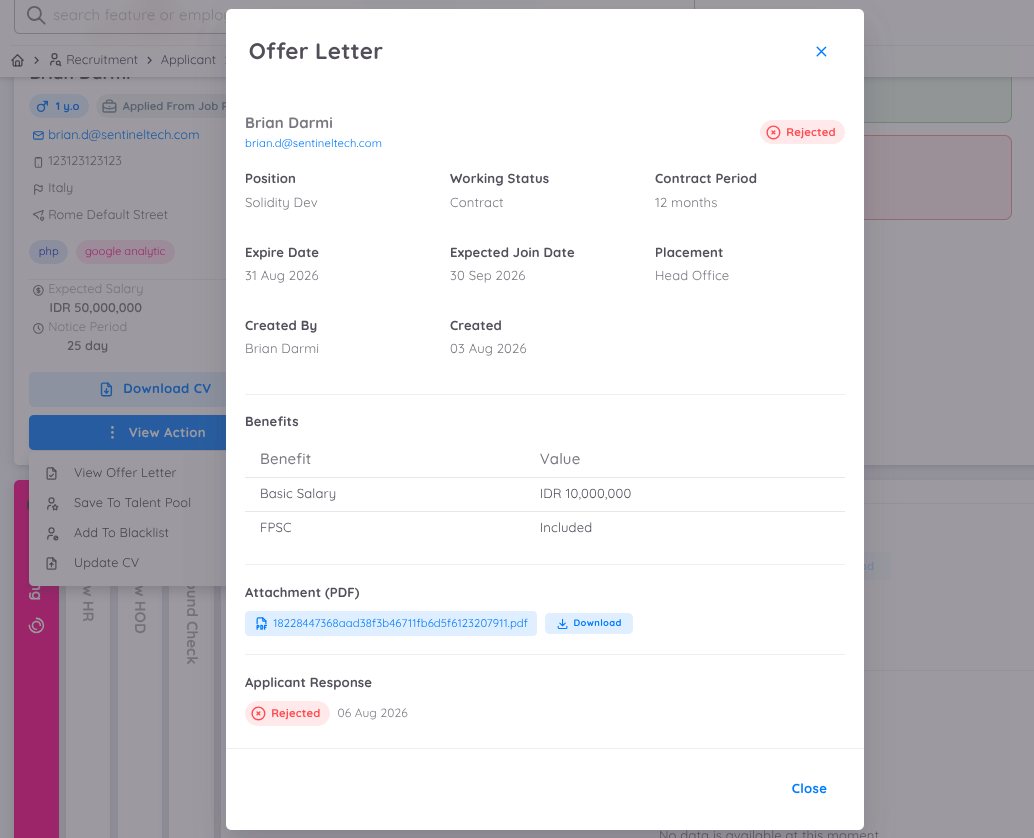
If the candidate rejects the offer, the Offer Letter status will be updated to Rejected.
The Offer Letter details can still be viewed, including the candidate's response or feedback. However, the completed PDF preview will not be available for a rejected offer.