Applicant
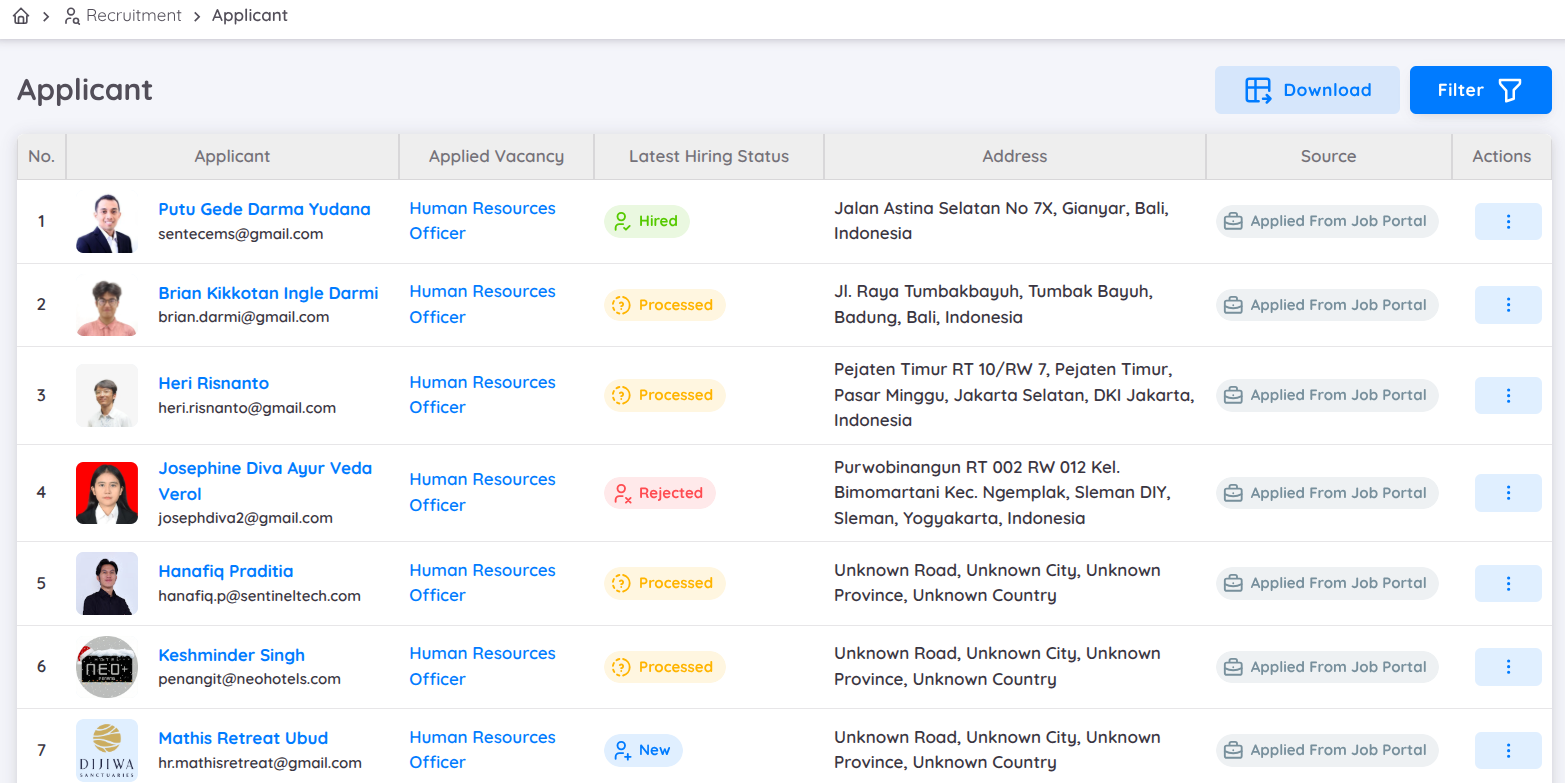
The Applicant menu is designed to assist the recuritment team in managing and monitoring all candidates applying for jobs. Each property or hotel will have its own database to store all applicants from published job vacancies. In the menu, the recruitment team can:
- View, search, and filter candidates based on various criteria to expedite the selection process. Filtering can be done by name, job title, email address, citizenship, city or province.
- Download employee data in Excel, PDF, or Google Spreadsheets format. Select the Preview menu to view the applicant data layout before downloading.
The information displayed for each candidate includes :
- Candidate's Photo
- Candidate's Name and Personal Email
- Applied Job Vacancy
- Latest Recruitment Status
- Candidate's Address
- Application source, whether from a Job Portal or internal database
In the Actions column, the recruitment team has several options for further actions, including:
- View: Access detailed information about the candidate, including personal data, work experience, education, and their recruitment process status.
- Save to Talent Pool: Save the candidate to the Talent Pool so they can be considered for other job opportunities in the future.
- Add to Blacklist: Add the candidate to the Blacklist if they do not meet the criteria or certain qualifications. Candidate on the blacklist will not be considered for future recruitment processes.
- View Vacancy: Directly navigate to the Vacancy menu, specifically to the Kanban Board of the job vacancy applied for by the candidate, to view the recruitment workflow details.
The Applicant menu is designed to provide quick and efficient access for the recruitment team, simplifying candidate data management and supporting a more structured selection process.