Form
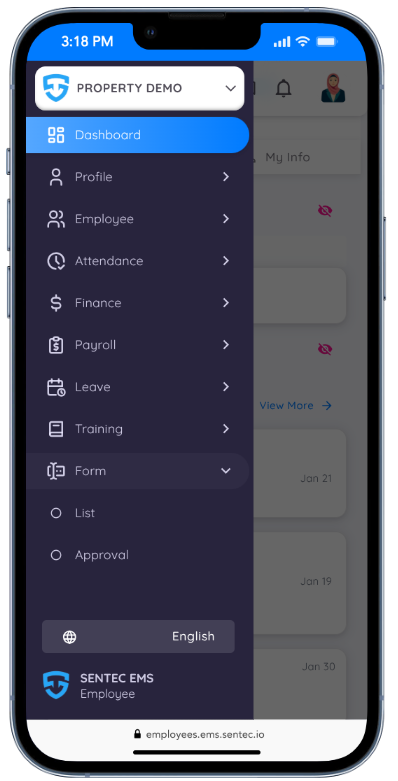
The Form menu allows employees to submit and manage form requests. Through this menu, employees can submit form requests according to their needs while complying with company rules and policies, approve forms (if authorized), and monitor the status and progress of both form submissions and approvals.
Employees can also download submitted forms for reference and/or personal use.
Form List
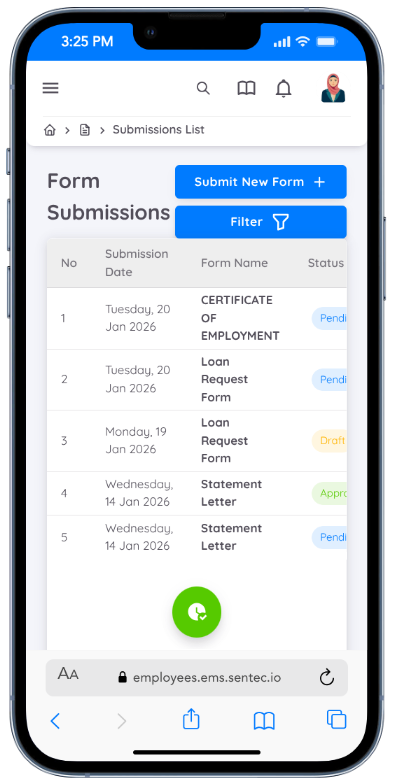
All created forms are stored and displayed in the Form List submenu. This list shows key information such as the submission date, form name, and submission status.
The stages of form submission status are as follows:
| Form Status | Description |
|---|---|
| Draft | The form can still be edited and deleted before it is submitted for approval. |
| Pending Approval | The form has been submitted and is currently awaiting approval. At this stage, the form can no longer be edited or deleted. |
| Approved | The Download button becomes available, allowing the form to be downloaded. |
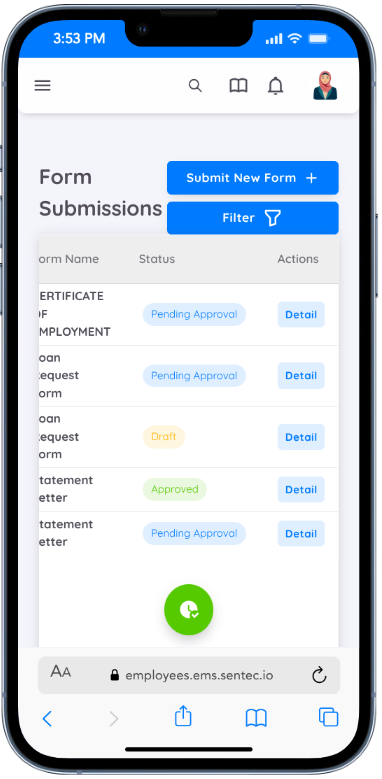
To view the details of a specific submission, click the Detail button in the Action column.
You can also filter the displayed list by Form Name and Submission Period.
Submit New Form
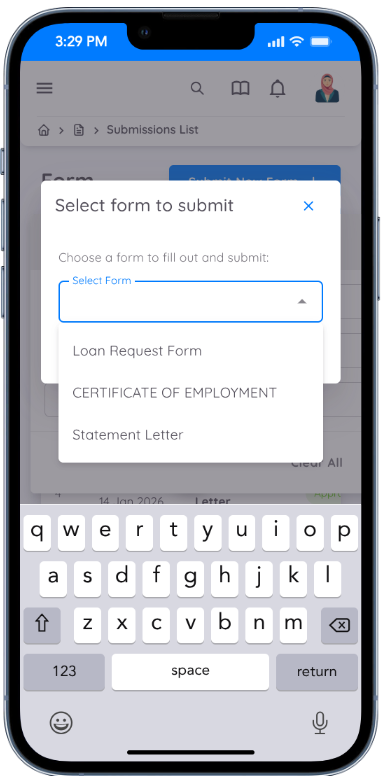
To submit a new form, go to the Form List submenu and click the Submit New Form (+) button in the top-right corner of the page. A form selection window will then appear.
Before proceeding, select the required Form Type. All form templates are predefined by Management or HR, and you can choose the appropriate form template based on your needs.
After selecting the form type or template, complete the form content according to the available fields.
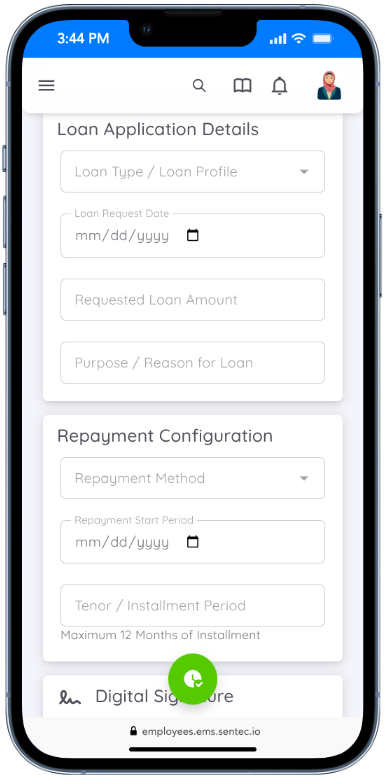
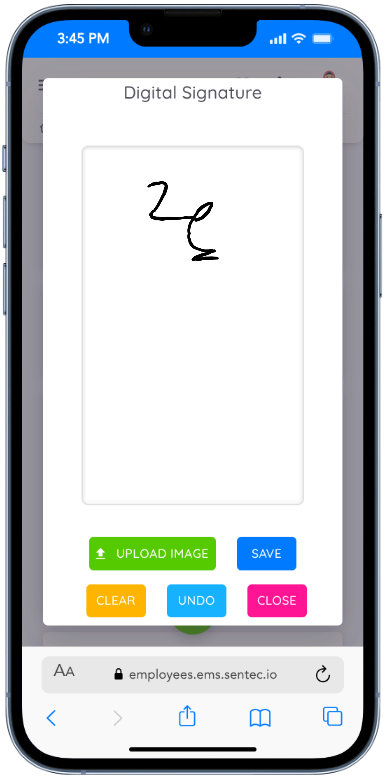
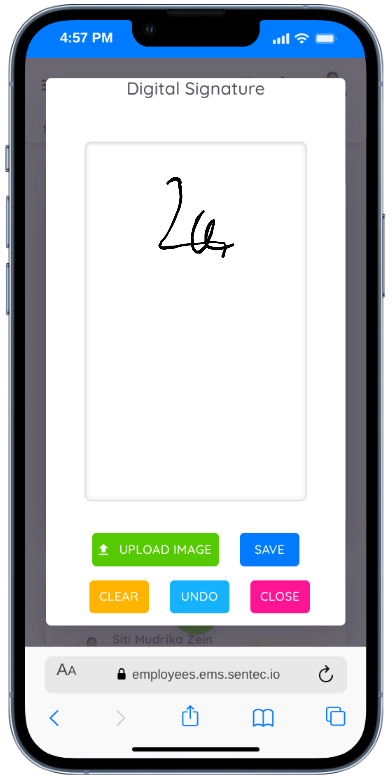
If the form requires a signature, you can add a digital signature by clicking Add Signature. A signature canvas will appear, allowing you to draw your signature directly or upload an image of your signature via the Upload Image option.
If the form requires additional information or supporting documents, an Attachment section is available as an optional field for uploading supporting documents.
Once all required fields have been completed, you can save the form.
After saving, if the form requires approval, it will be stored with a Draft status, allowing you to edit or delete the form before submitting it for approval.
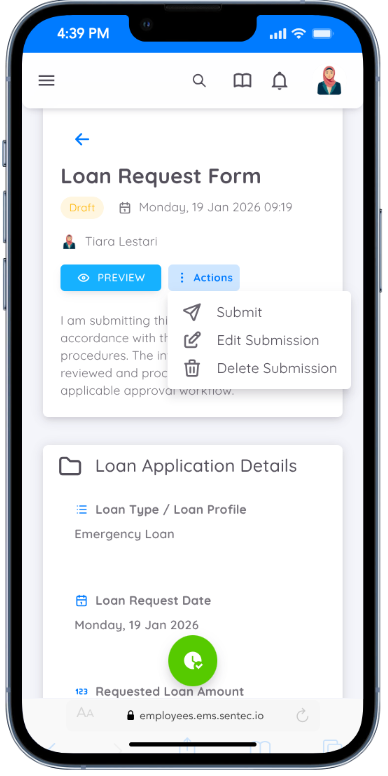
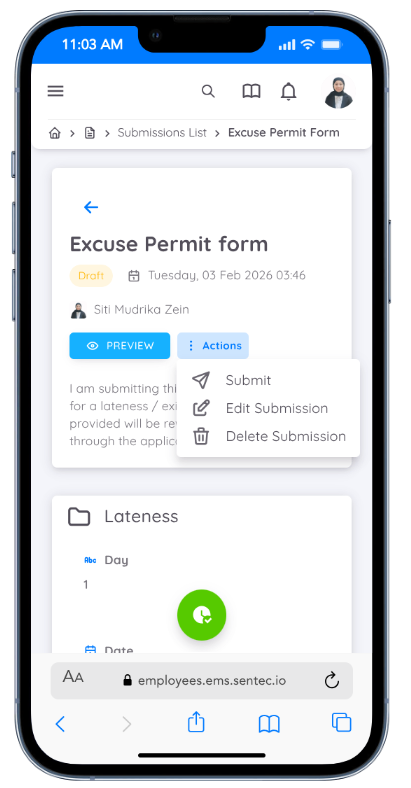
When a form is in Draft status, you can access the form details and several actions will be available.
You can use the Preview option to review the form structure and the information you have entered before taking further action.
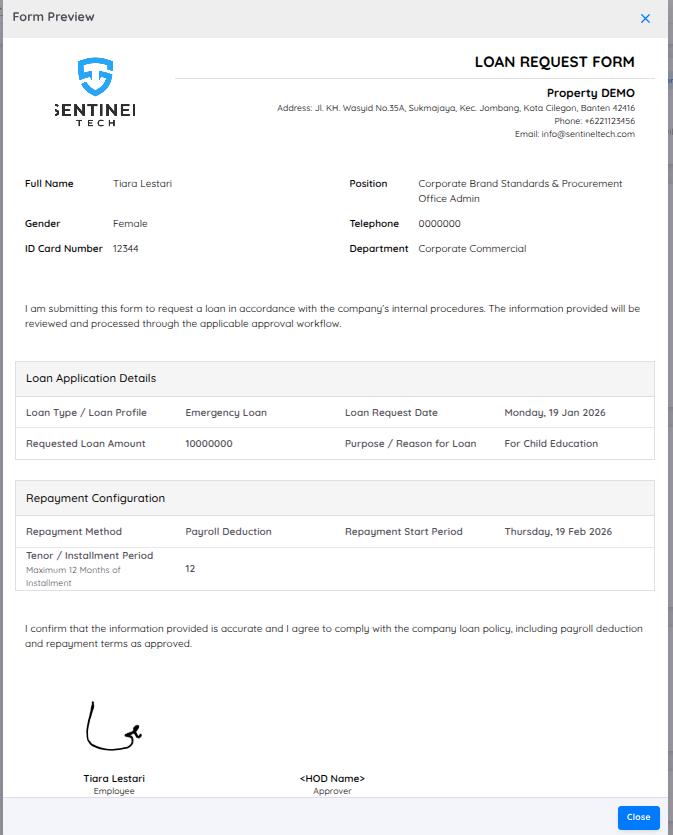
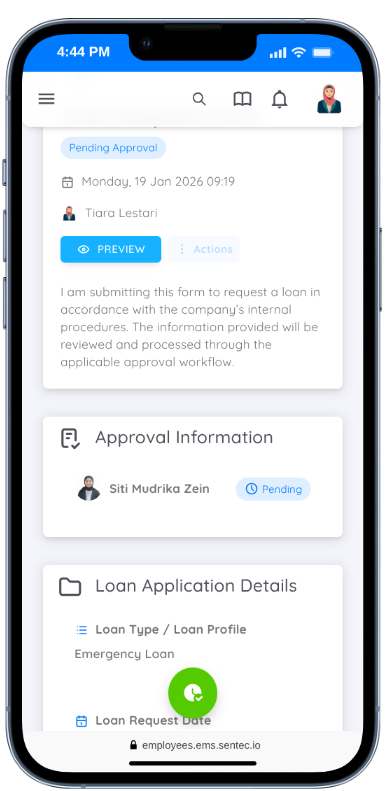
Please ensure that all data is correct before submitting the form. Once submitted, the form status will change to Pending Approval, and the action buttons will become inactive, meaning the form can no longer be edited or deleted.
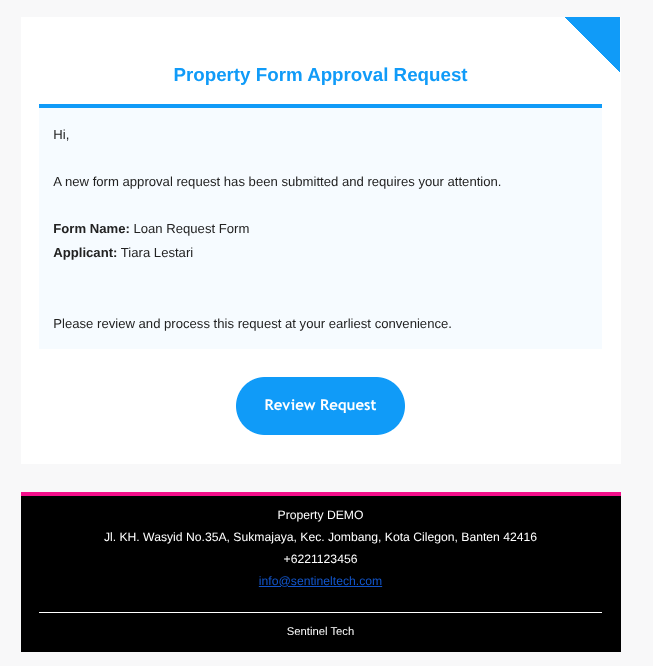
After the form is submitted, an email notification will be sent to the Head of Department (HOD) and/or any additional approvers (if applicable), allowing them to review and approve or reject the request.
Form Approval
If a submitted form requires approval, the HOD or any additional approver will receive an email notification.
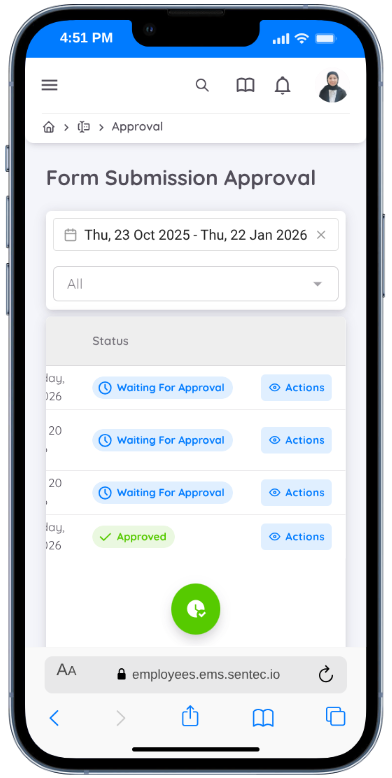
The HOD and additional approvers can also access approval requests through the Approval submenu, where they can view a list of forms with Pending Approval status.
The approval list can be filtered by Period and Status.
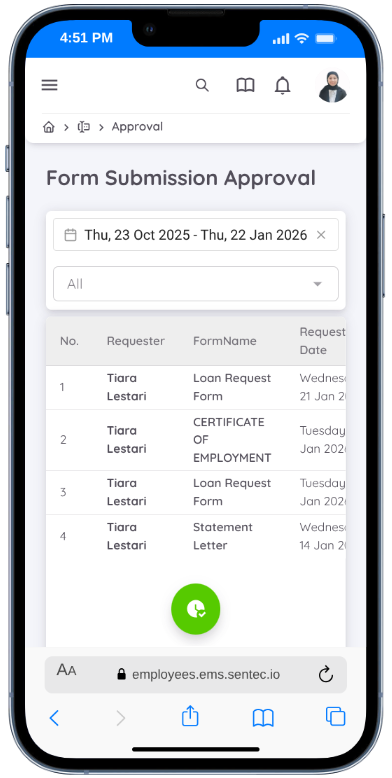
To review a submitted form request, the HOD or additional approver can click the Action button.
On this page, the HOD or additional approver can choose to Approve or Reject the submitted form.
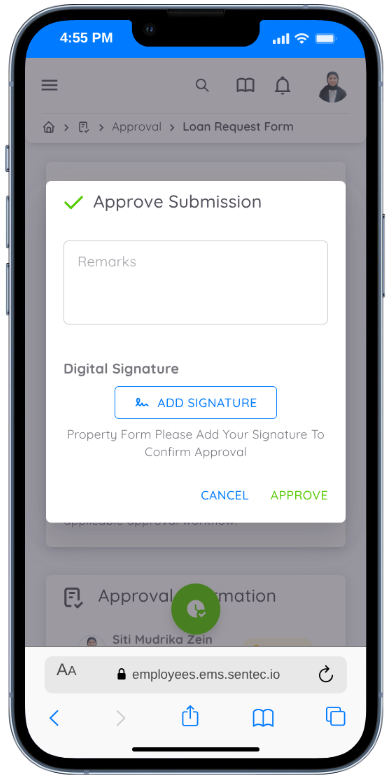
When approving a form, remarks or comments can be added. If a digital signature is required, the HOD or additional approver must add an e-signature by drawing directly on the canvas or uploading a digital signature image using the available upload option.
The approval process will proceed sequentially based on the number of approvers configured for the form. The status will change to Approved once all approval stages have been completed.
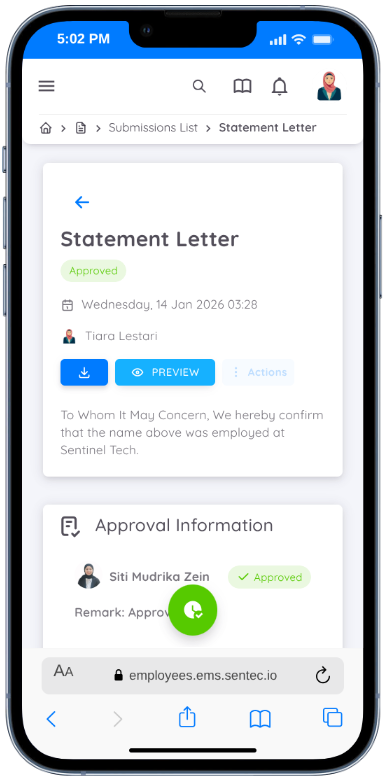
After the form has been fully approved by the HOD and/or additional approvers, employees can download the approved form directly from the form detail page.
Note
Employees can open the List submenu, locate the approved form, open the form details, and use the Download button to download the form.
Assigned Form
Management or HR can assign forms to employees for specific purposes, such as issuing statement letters, task letters, or any other Custom Forms required by the organization. This feature ensures that the appropriate form is delivered to the relevant employee with clear instructions and a structured workflow.
Employees who receive a form assignment will receive an email notification containing a direct link to review the assigned form.
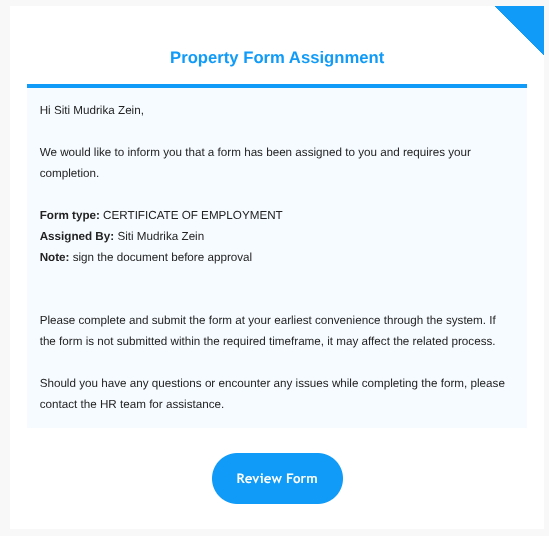
Employees can directly review the form using the link provided in the email. The form will also be available in the Form Submission list, where the assigned form will appear with a Draft status.
If the employee accesses the form directly through the email link, they can complete the required information and save the form. Once saved, the form will automatically proceed to the next step, such as approval, if required
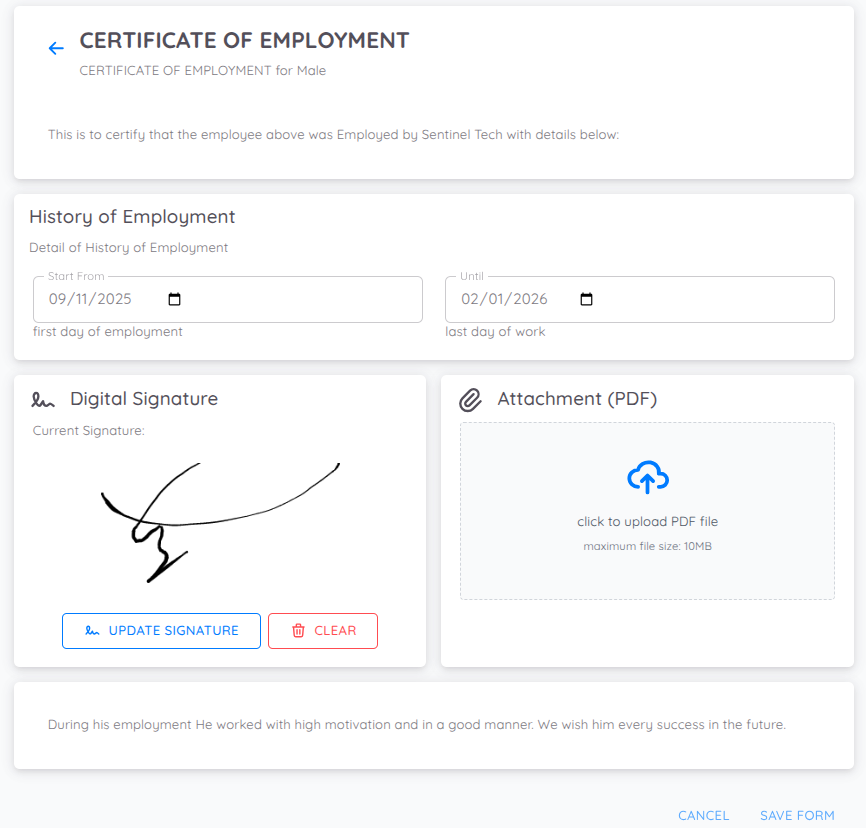
However, if the employee accesses the form through the list in the Form Submission menu, they must first edit the submission and complete all required fields. After updating the information, the employee must submit the form to continue the process.