Record Attendance
Attendance Record Process
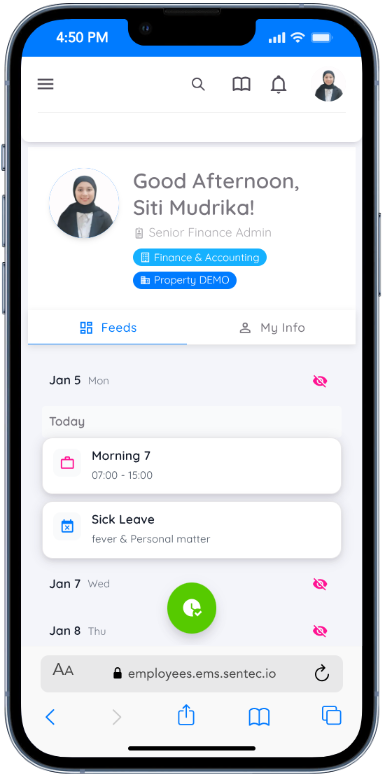
Employees can record their attendance by pressing the green button located at the bottom of the application page. Employees with a regular work schedule can record their attendance at any time within the designated working hours. However, employees with a shift-based schedule can only record attendance if they already have an assigned work schedule.
When recording attendance, the application will display the shift schedules for yesterday, today, and the next two days. Employees must select the applicable shift for the day before continuing with the attendance process.
Employees can choose the attendance location if more than one attendance point is available. During attendance recording, the front camera of the smartphone will be used to take a photo, and selecting images from the photo gallery is not permitted. Employees may also select Dynamic Location as the attendance location when on a business trip or working from home.
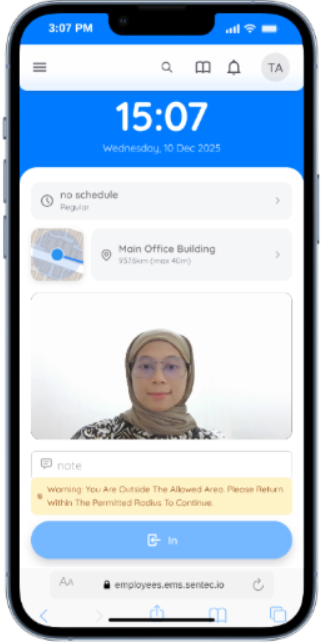
Click the "In" button to clock in and the "Out" button to clock out. The "In" button will be active only if the employee is within the allowed location radius and the attendance time matches the assigned schedule. The "Out" button will become active after a successful check-in.
Employees cannot check in or check out under the following conditions:
- A non-regular employee does not have an assigned schedule
- The employee attempts to check in earlier than the earliest allowed tolerance limit
- The employee attempts to check out later than the allowed tolerance limit
- The employee attempts to check out earlier than the allowed tolerance limit for early check-out
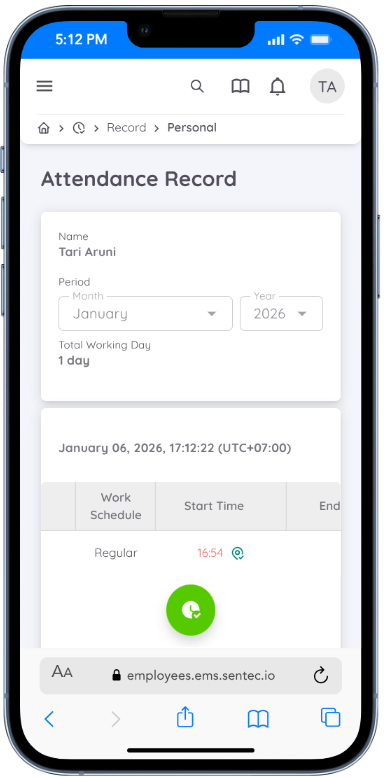
However, employees can still check in even if they exceed the time tolerance for late check-in. In this case, the attendance record will be highlighted in red, and the late duration will be recorded accordingly.
Note
- Ensure that browser permissions (location, camera, and microphone) have been granted so the attendance recording process can function properly.
- iOS users are advised to use the Safari browser, while Android users are advised to use the Chrome browser.
- For more information about browser permissions, please refer to the FAQ.
- Employees may check out multiple times within a single schedule as long as it is within the tolerance limits. Each check-out will be recorded as a log, which is useful for tracking overtime.
Record Attendance using QR Code
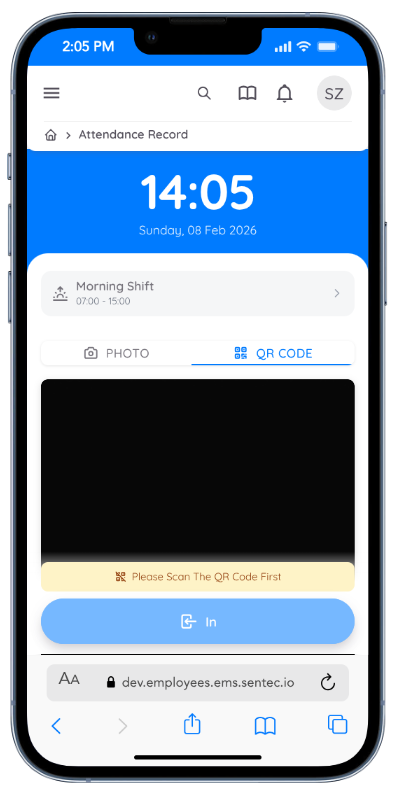
If QR Code attendance is required, employees must select Scan QR Code when clocking in instead of using the photo method.
Employees can perform their first check-in by scanning the QR Code, any subsequent QR Code scans after the first check-in will be recorded as check-out entries and saved as log records until the final check-out.
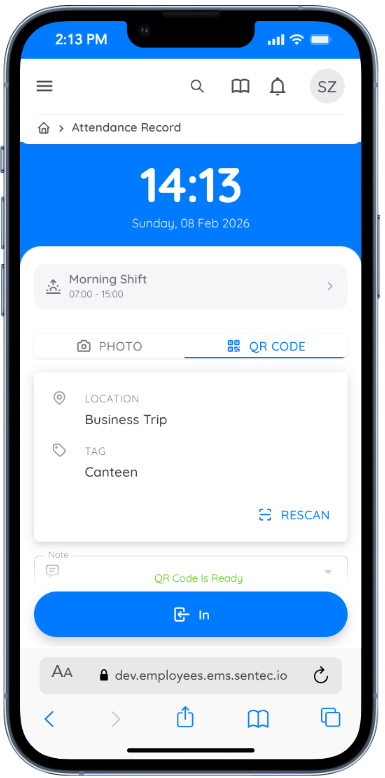
Attendance recording follows the standard attendance rules:
- The employee must have an active work schedule.
- Location permission must be enabled on the device.
- Check-in and check-out tolerance hours follow the existing attendance configuration.
After scanning the QR Code, employees will be directed to a confirmation screen displaying the detected location and Location Tag.
Employees can then click Check In or Check Out to complete the attendance record.
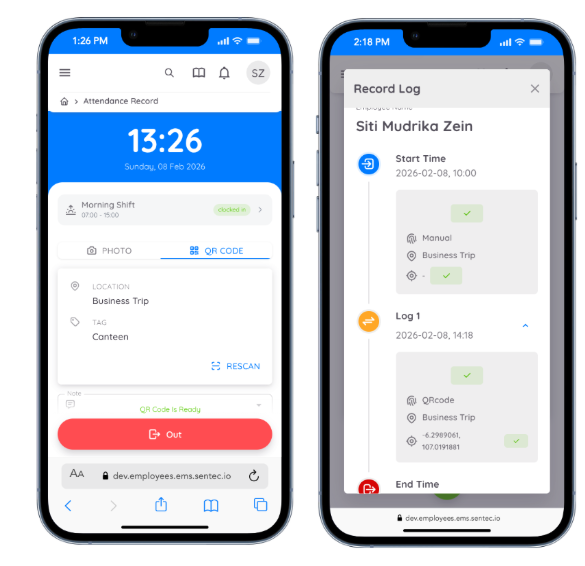
After scanning a valid QR Code, attendance will be recorded based on the associated schedule, location, and Location Tag.
If an employee has already checked in using the standard clock-in method, any QR Code scans within the same schedule will be recorded as check-out logs (Log 1, Log 2, and so on).
The final check-out can be completed using either the standard method or a QR Code scan. The last recorded attendance within the scheduled time will be saved as the employee’s End Time.
Record Attendance Approval
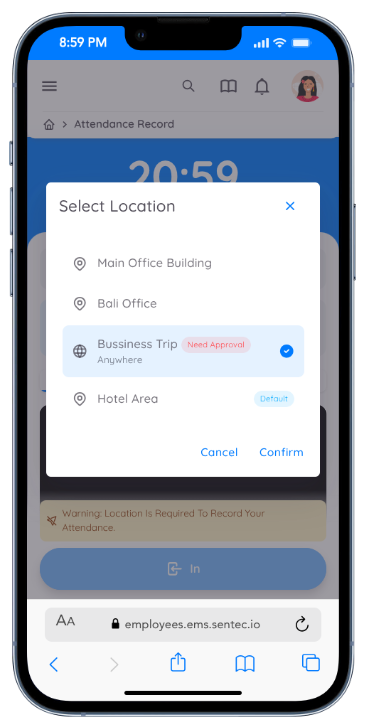
If attendance approval is required, employees will be able to see a note indicating which locations require approval.
Attendance Submission Employees can record their attendance as usual, including when working from different or dynamic locations. Attendance that requires approval will be marked with a Need Approval status.
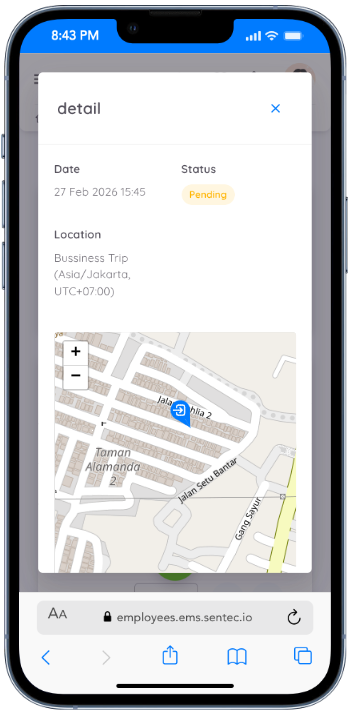
Pending Approval Status Submitted or modified attendance records will automatically be marked as Pending Approval if approval is required.
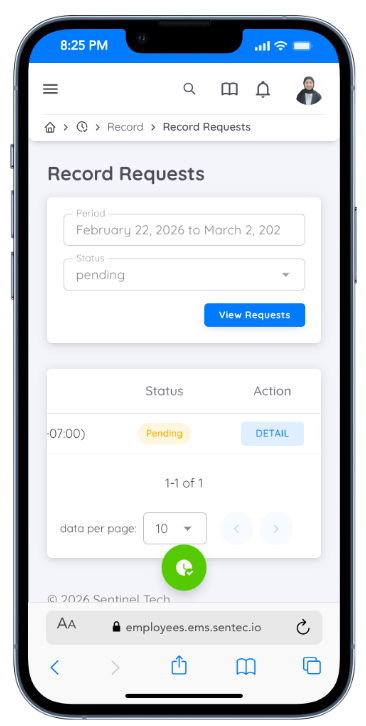
View Attendance Request Employees can view the details of their attendance requests through:
Attendance → Record → RequestAll attendance records that are pending and require approval will be displayed on this page.
NOTE
Once the attendance is approved, the record will be saved in the system.