Administration
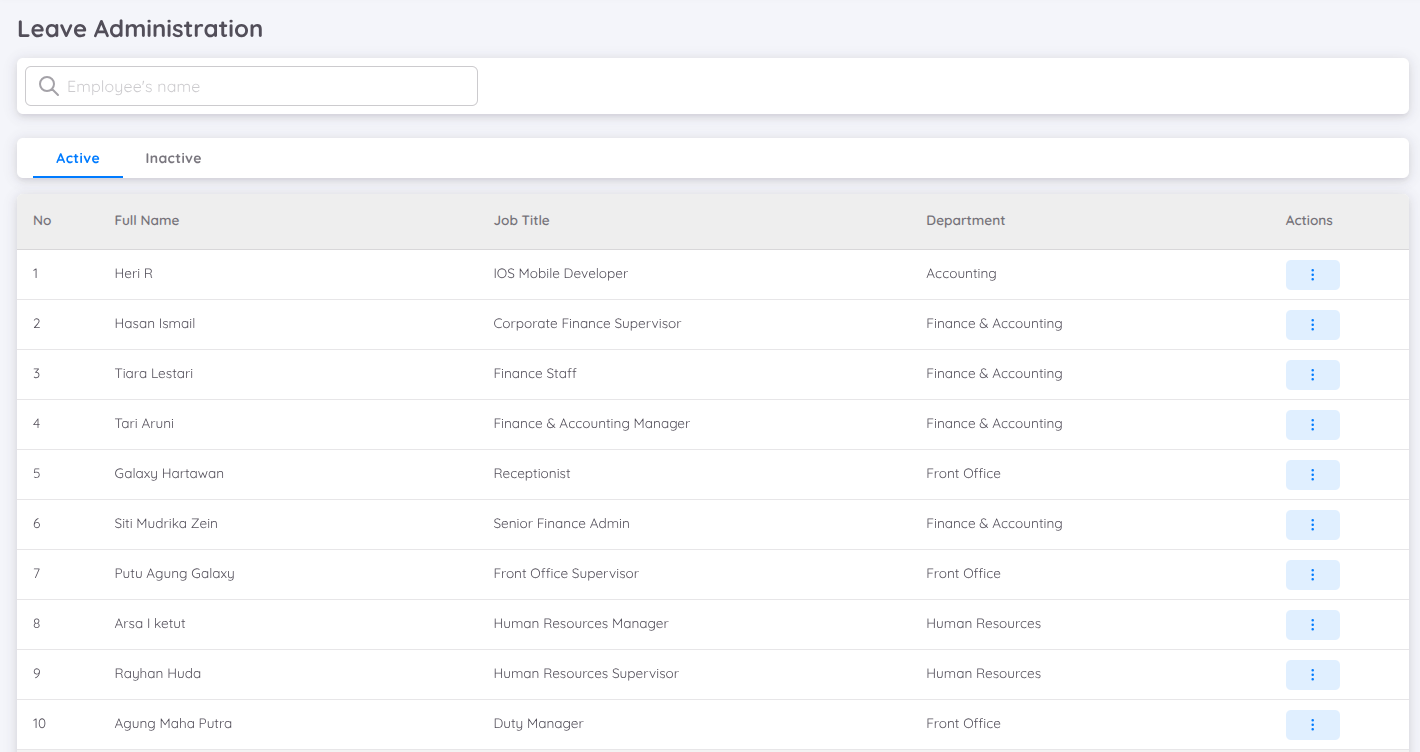
This page is used to manage leave profiles for all employees. The employee list is divided into two tabs: Active and Inactive
Employee Leave Profile
Click the menu in the actions column and select "Manage."
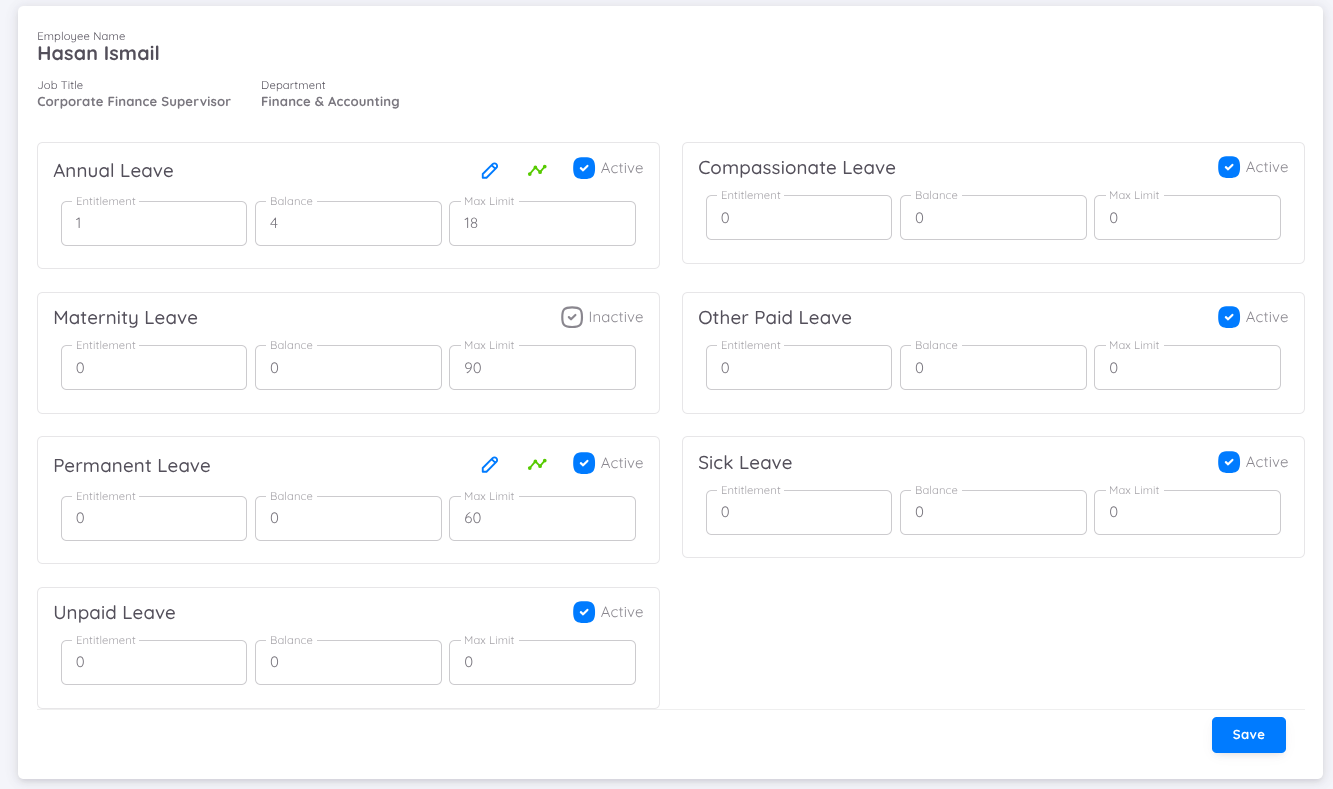
All available leave types are regular leave types. Users can view a summary of balance additions and deductions. In Leave Administration in the employee leave profile, users can edit the balance for regular leave types by clicking the pencil icon on the leave type with a balance. This will open a pop-up 'Edit Leave Balance' with the following fields:
- Action: Toggle with statuses Addition (addition) or Subtraction (deduction).
- Total: Field to enter the amount of balance to be added or deducted.
- Note: Field to enter a brief message.
In addition to adjusting the balance, this function also allows users to set up a history of balance additions and deductions, providing a record of changes over time.
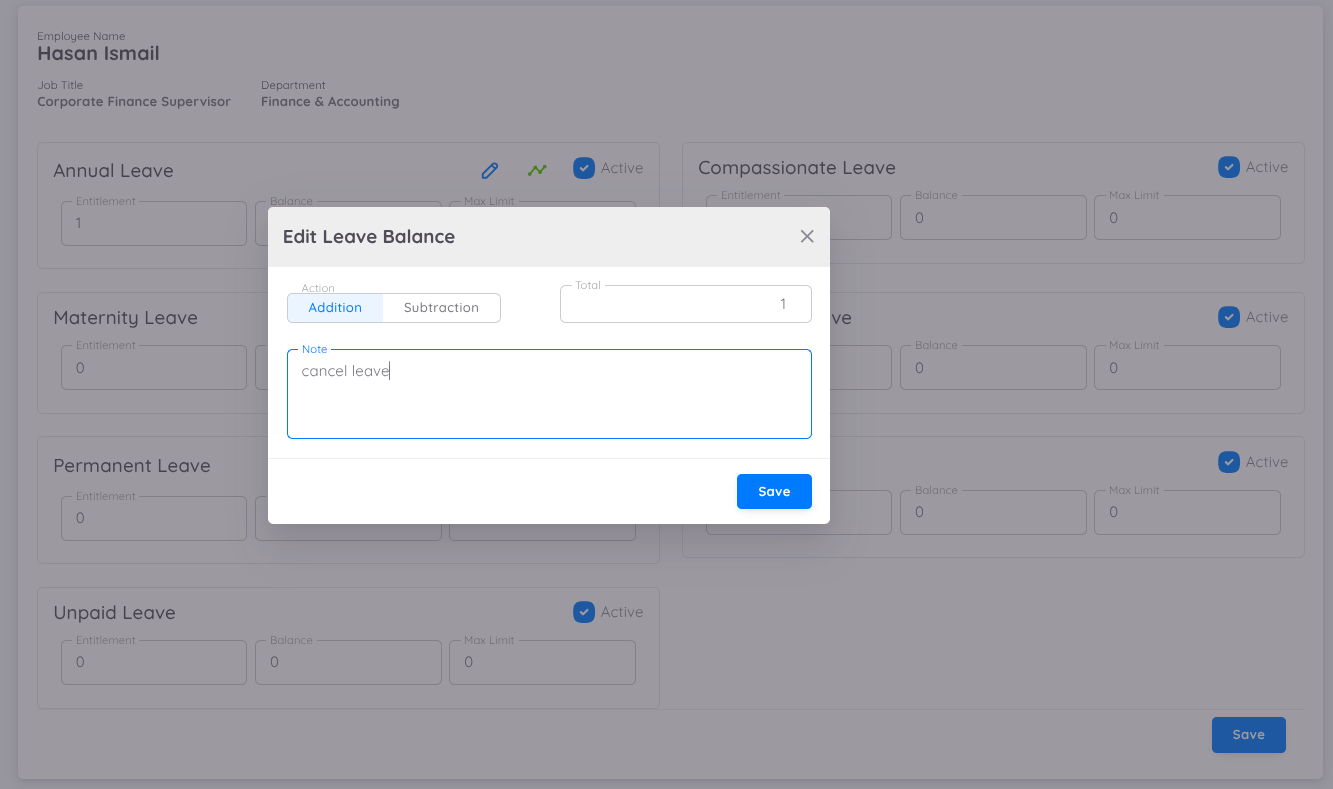
Users can also access other information such as:
- Active/Inactive: Indicates whether the employee can use this leave type when applying for leave.
[INFO: For leave types with the value “Activate date after,” it will automatically become active after the employee’s contract start date exceeds the number of days specified in this parameter. This only applies to new employees.]
- Entitlement: The amount of leave entitlement given according to the “Automatic Leave Entitlement Type” parameter of the leave type.
- Balance: The remaining leave balance.
- Max Limit: The maximum balance limit of leave that an employee can hold according to the leave type. By default, the leave balance limit in the employee leave profile will follow the maximum limit of the leave type.
Note
Leave profiles are not automatically created when a new employee contract is activated. It is recommended that users create the leave profile immediately after activating the new employee's contract. Users do not need to add a balance for leave types with the "Balance Deducted" value set to False or No.
Employee Leave History
Click on the menu in the "Actions" column and select "History."
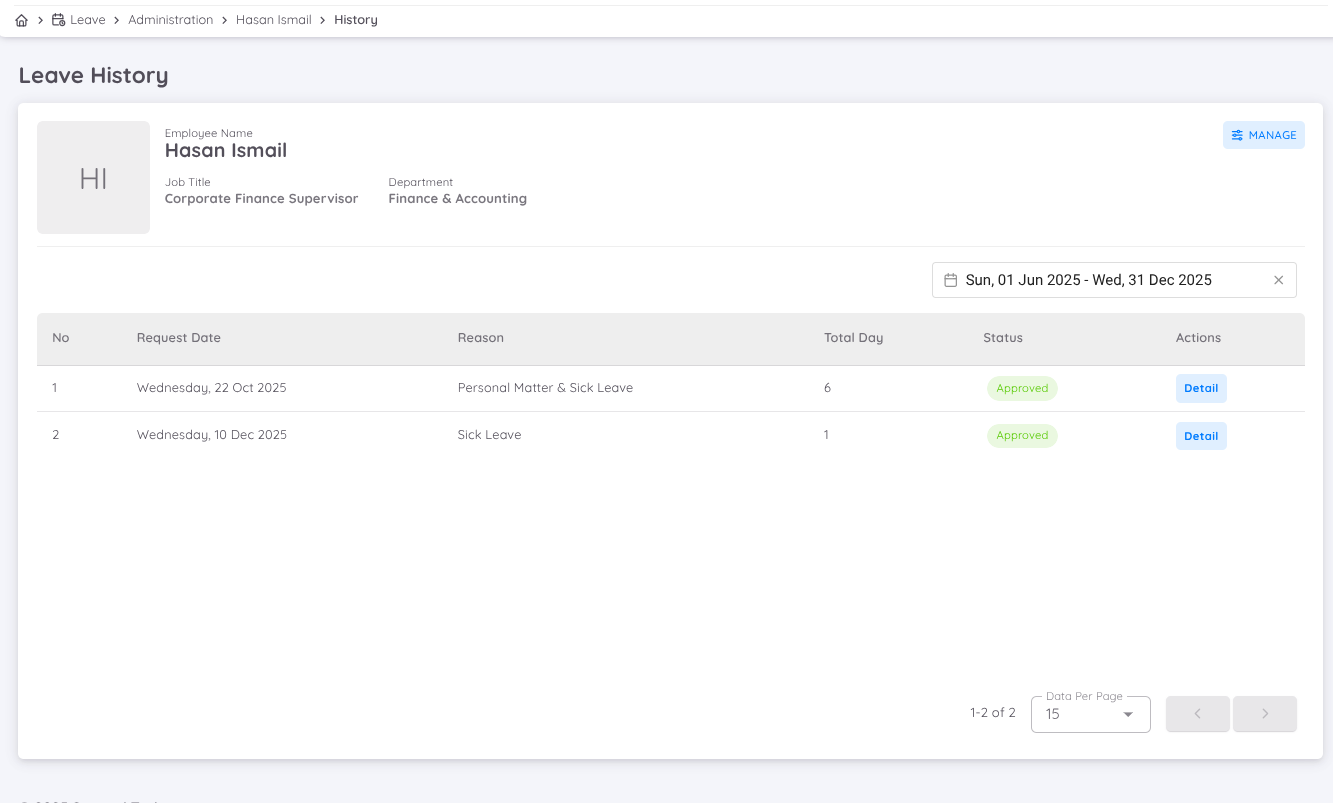
This section displays the history of employee leave requests and their statuses (approved, rejected, pending approval, or withdrawn). Click "Detail" in the actions column to view more detailed information such as approval details, leave dates, and leave type.
Inactive Tab – Leave Administration
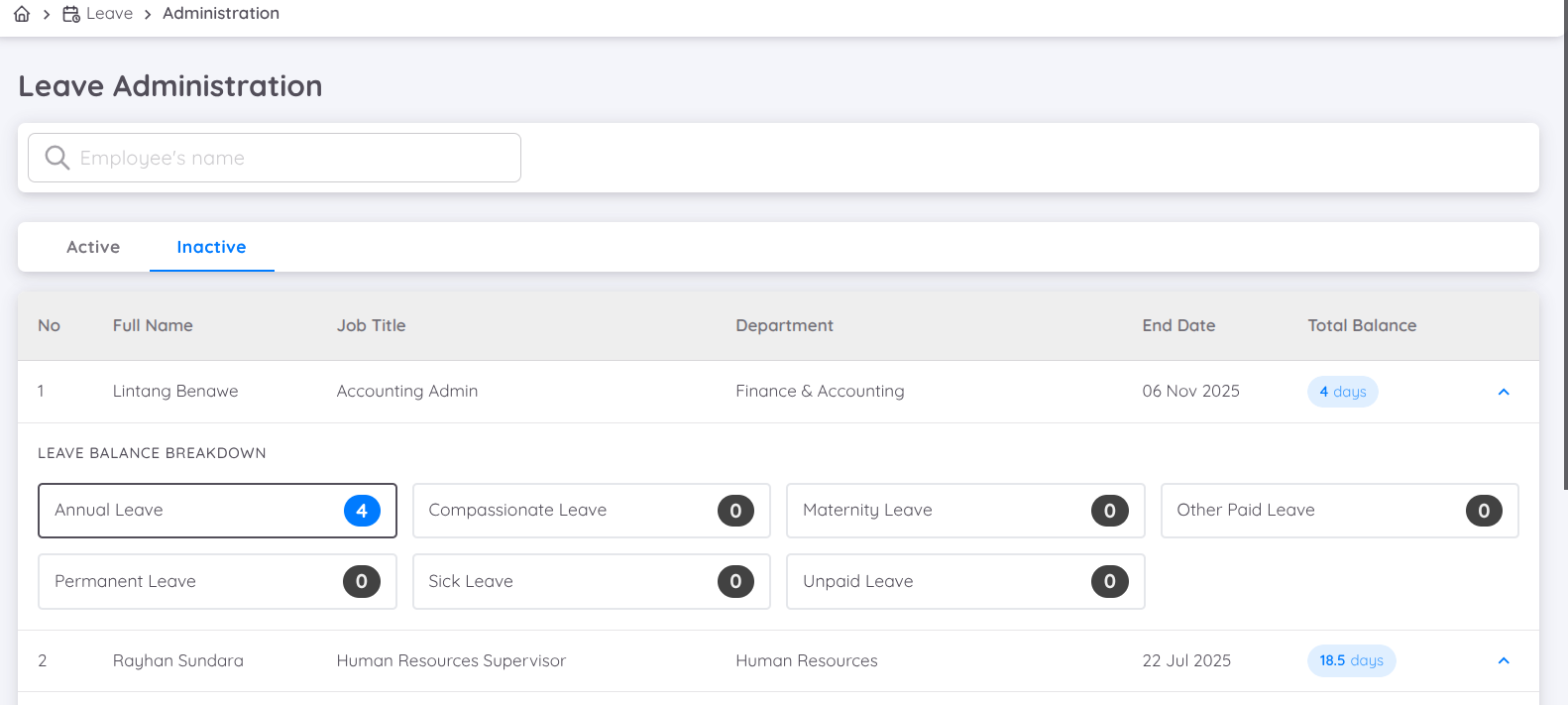
The Inactive tab in the Leave Administration page displays a list of employees who are no longer active, such as resigned or terminated employees, but whose leave data is still retained in the system for record and reporting purposes.
The Inactive tab allows administrators to:
- Review historical leave balances of inactive employees
- Access leave breakdown details for auditing or reporting
- Ensure leave records remain traceable after employment ends
The Features and Components that you can access as follows:
1. Search Bar
You can search for an inactive employee by employee name using the search field at the top of the page.
2. Employee List Table
The table displays the following information for each inactive employee:
| Column Name | Description |
|---|---|
| No | Sequential number of the employee in the list |
| Full Name | Employee’s full name |
| Job Title | Employee’s last job title |
| Department | Employee’s department |
| End Date | Employee’s employment end date |
| Total Balance | Total remaining leave balance (in days) |
3. Leave Balance Breakdown
Each employee row can be expanded to show the Leave Balance Breakdown, which provides detailed information on the remaining leave balance by leave type, such as:
- Annual Leave
- Compassionate Leave
- Maternity Leave
- Other Paid Leave
- Permanent Leave
- Sick Leave
- Unpaid Leave
The number displayed next to each leave type indicates the remaining balance (in days) at the time the employee became inactive.
4. Read-Only Information
All data shown in the Inactive tab is read-only. Leave balances for inactive employees cannot be edited or adjusted, ensuring data integrity for historical records.
Notes
- The leave balances shown reflect the final state as of the employee’s end date.
- Inactive employees will not appear in leave request or leave accrual processes.
- This tab is intended for reference, compliance, and reporting purposes only.
Managing Leave Balance
Depending on the system setup, leave balances will be updated automatically when Auto Entitlement is cheked. Every time an employee submits or cancels a leave request, the leave balance will also be adjusted and deducted accordingly.
However, there are certain conditions where the leave balance must be adjusted manually, such as:
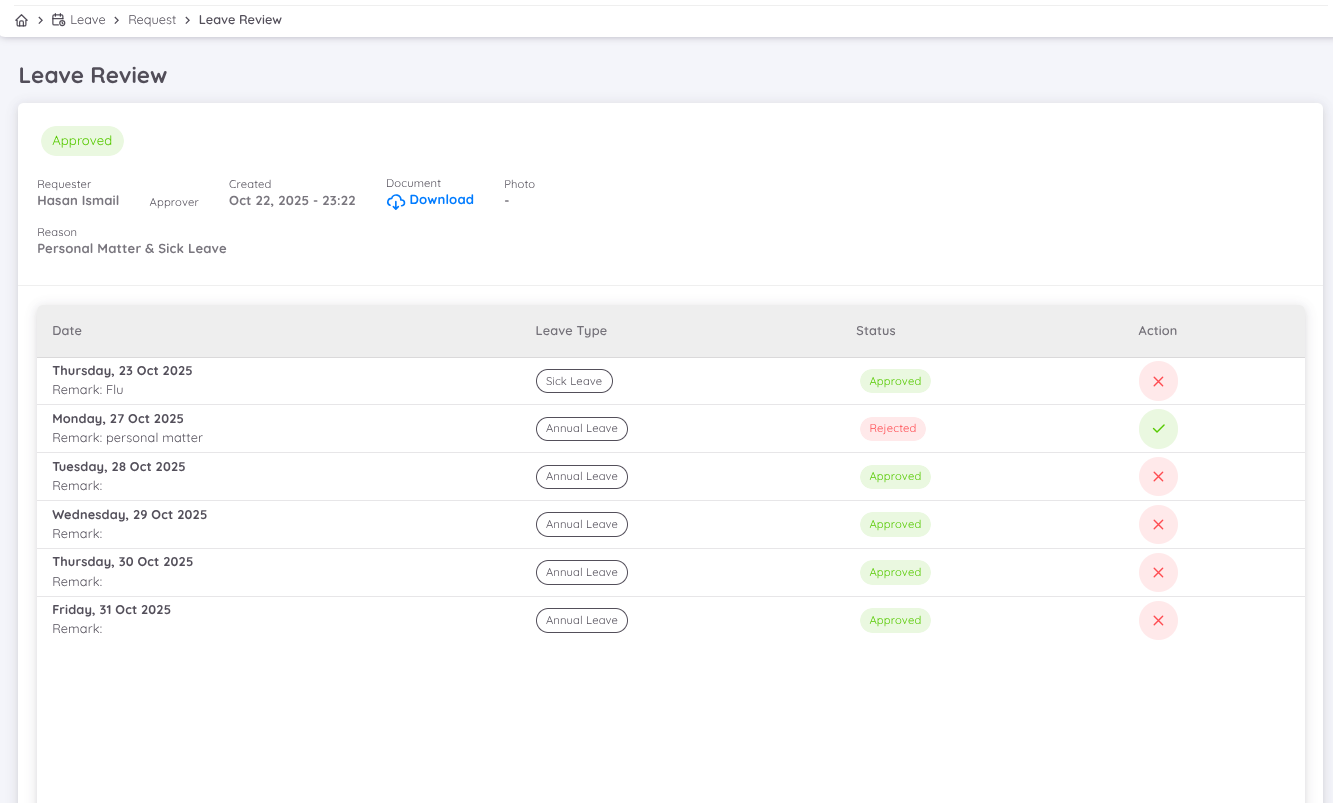
- When the leave request status is changed by HR or management (for example, from Approved to Rejected, or vice versa)
- When HR or management needs to manually adjust an employee’s leave balance
In these cases, HR or users with access to the Leave module can navigate to Leave → Management.
Within the Leave Administration page, you can update the leave balance by clicking the pencil icon on the leave type that you want to adjust.
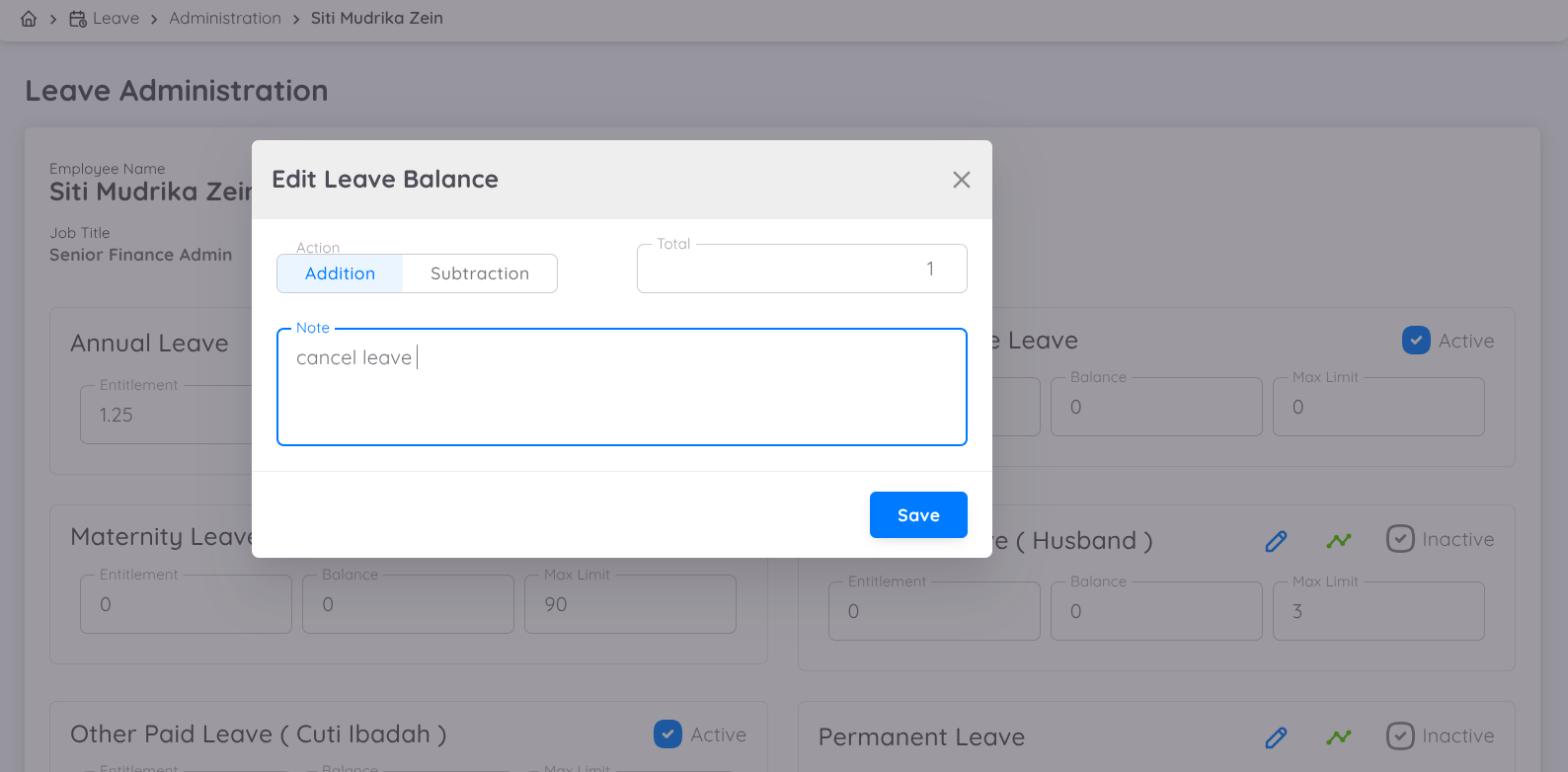
In the Edit Leave Balance form, you can choose the following actions:
- Addition : Add leave balance
- Subtraction : Deduct leave balance
Enter the total balance adjustment and provide notes regarding the changes made. Once the update is saved, the changes will be reflected in the leave balance history.
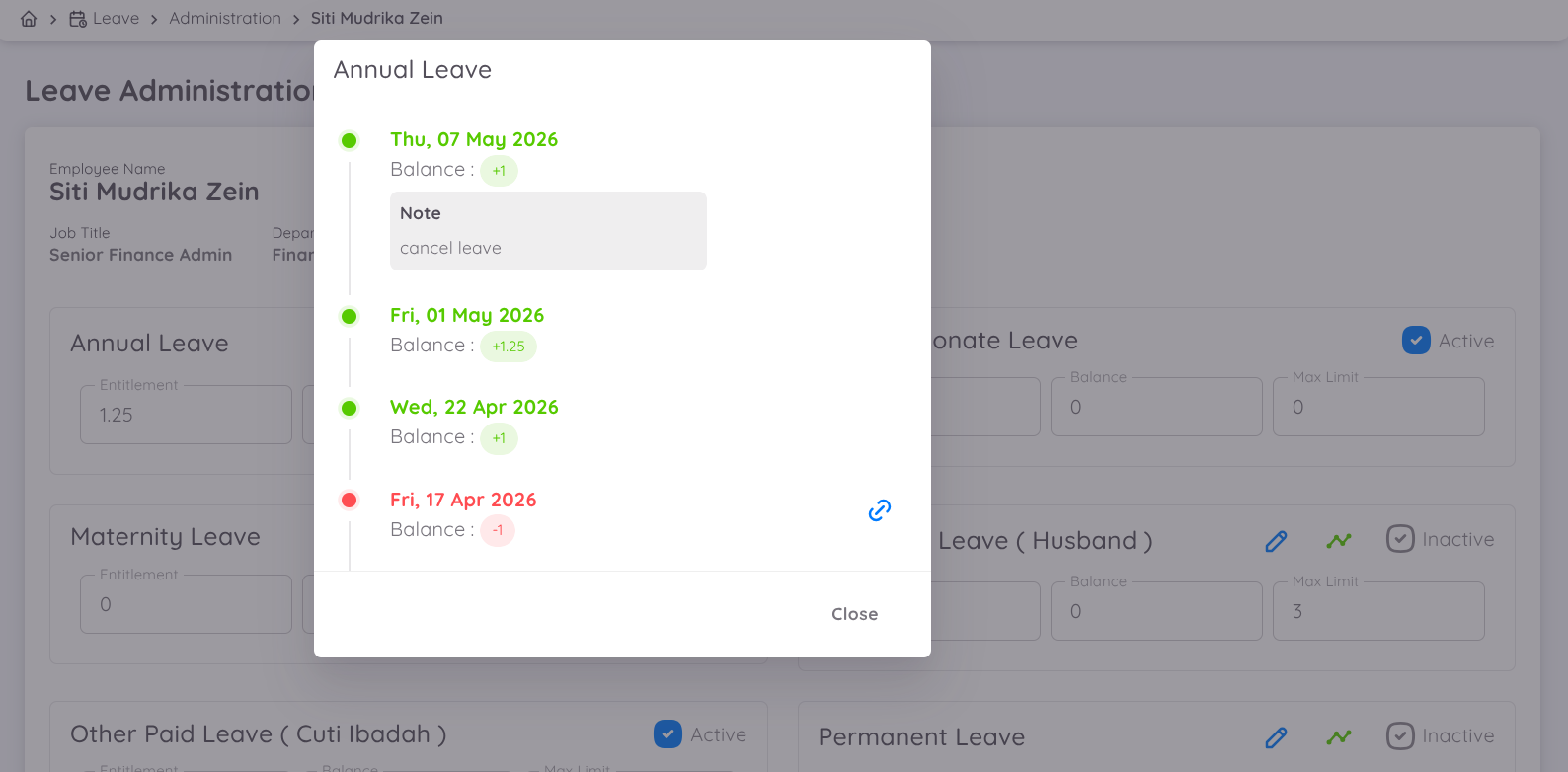
The process can be viewed in the motion below:
Bulk Edit Leave Balance
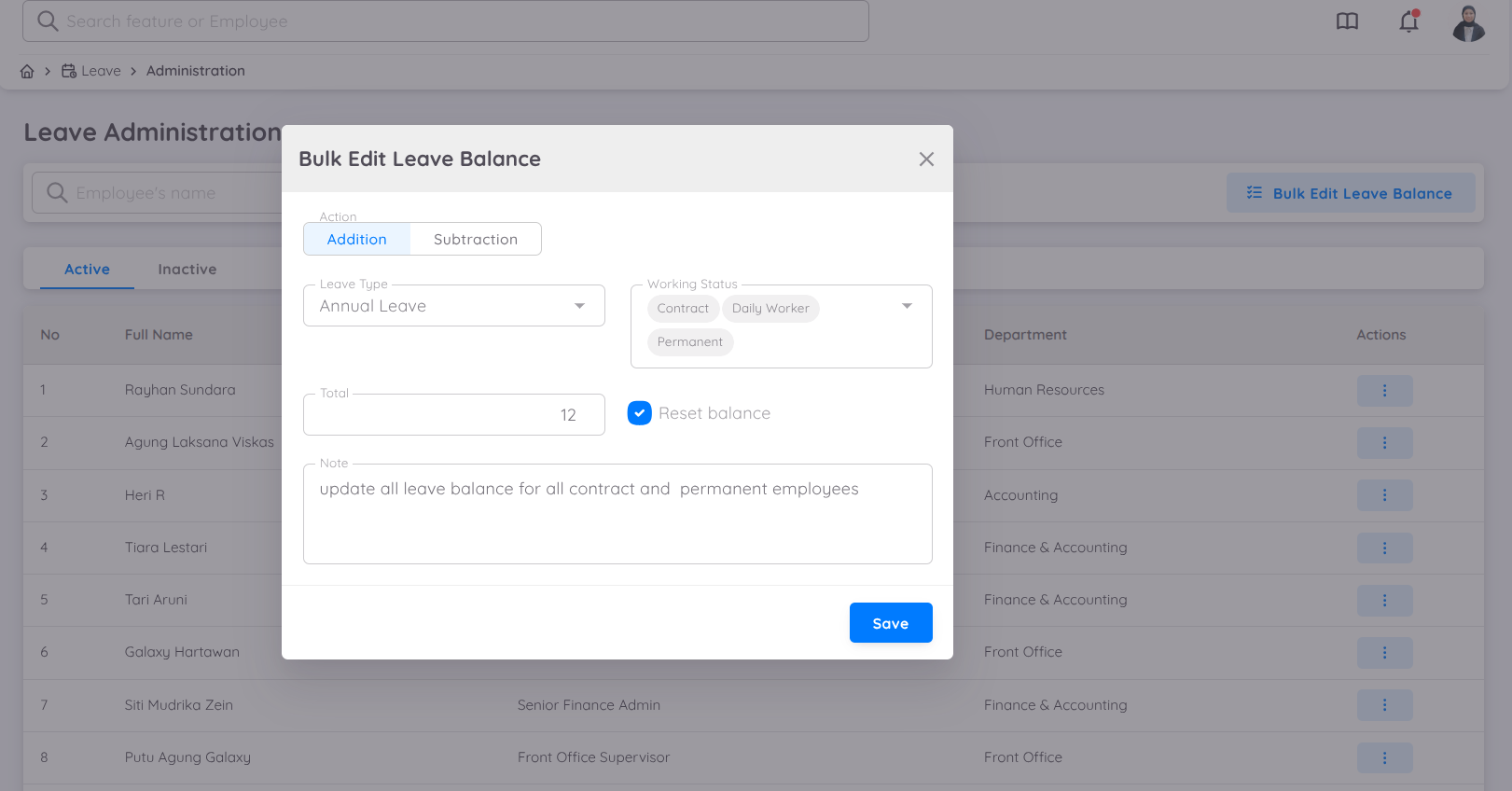
In the Administration menu, management can easily add or subtract leave balances for all employees or for specific groups by filtering based on their working status.
This feature is available under the Administration menu by clicking the Bulk Edit Leave Balance button located in the top-right corner.

Within this menu, management can add or subtract leave balances for specific purposes, such as applying common leave (cuti bersama), which is typically deducted from annual leave. The key features of this menu are:
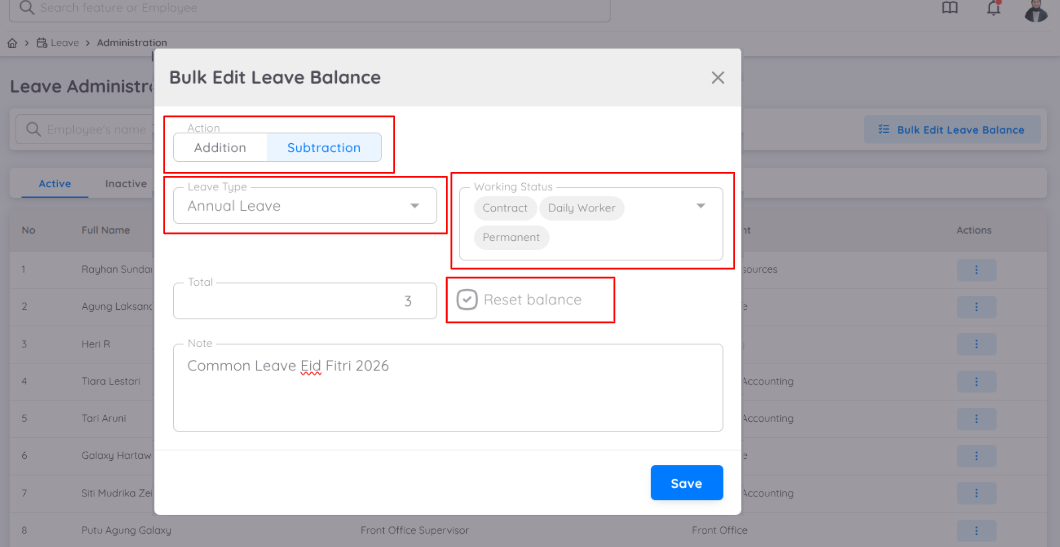
Addition / Subtraction
Increase or decrease leave balances in bulk.
Filter by Working Status
Apply updates to selected groups, such as Contract, Permanent, or Daily Workers.
Reset Balance Option
- If the Reset Balance option is checked, all existing balances will be replaced with the value entered in the Total field.
- If the Reset Balance option is not checked, the entered total will be added to or subtracted from the current balance.
Bulk updates are currently available only for regular leave types with balances, such as Annual Leave.
Each bulk leave update, whether an addition or subtraction, is recorded and can be viewed in the change history.
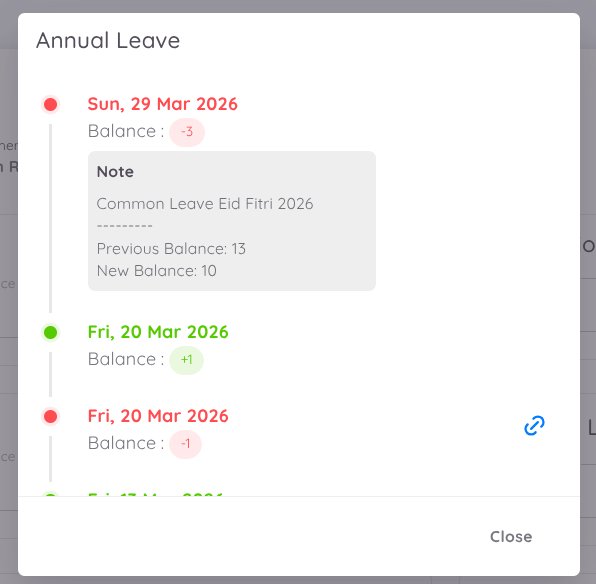
This feature helps management efficiently manage and adjust employee leave balances, especially in scenarios such as:
- Company-wide leave adjustments
- Policy changes
- Events such as common leave (cuti bersama) that impact annual leave balances