Leave
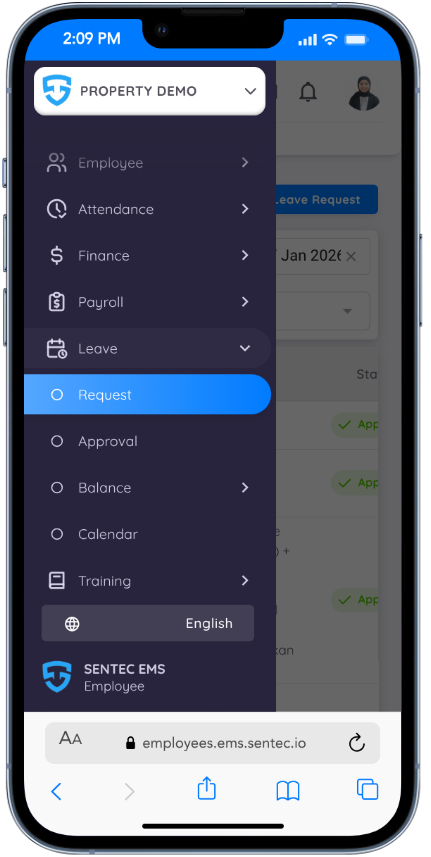
In the Leave menu, employees can submit leave requests, approve leave (if authorized), view their leave balance, and access a calendar that displays all approved or active leave.
Employees can also view all leave schedules within the property through the calendar view.
Request
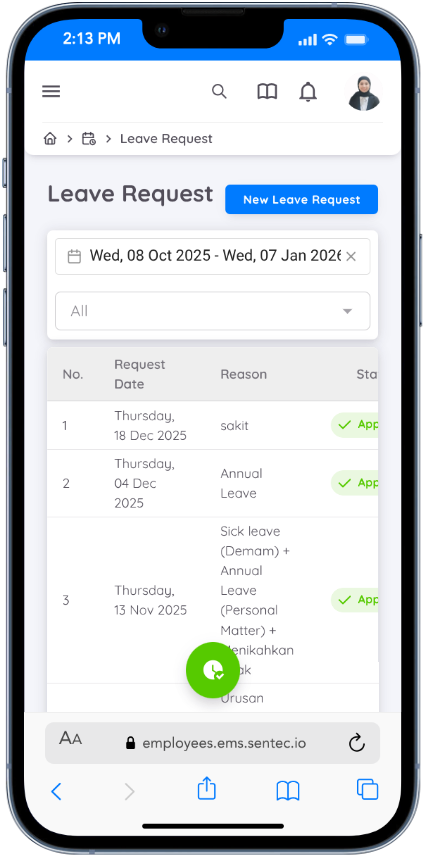
This page displays all leave requests submitted by employees within a selected date range, along with the status of each request (submitted to supervisor/being processed by supervisor).
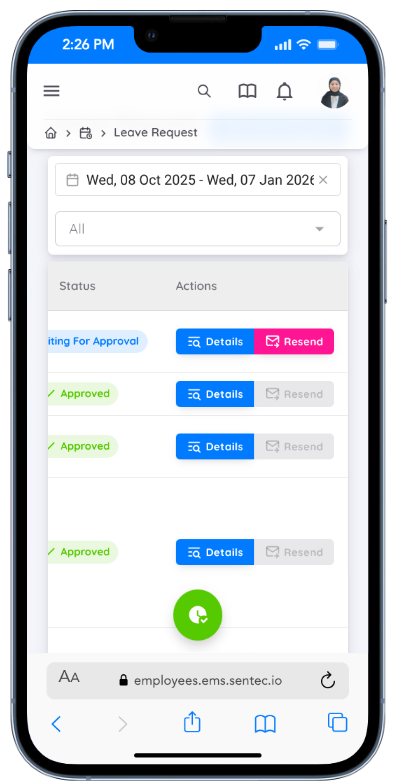
The new Resend Leave Request feature allows employees to resend a previously submitted leave request, and the system will resend the notification email to the employee's administrative or organizational supervisor.
Use the "New Leave Request" button to create a new leave request.
Submitting a Leave Request
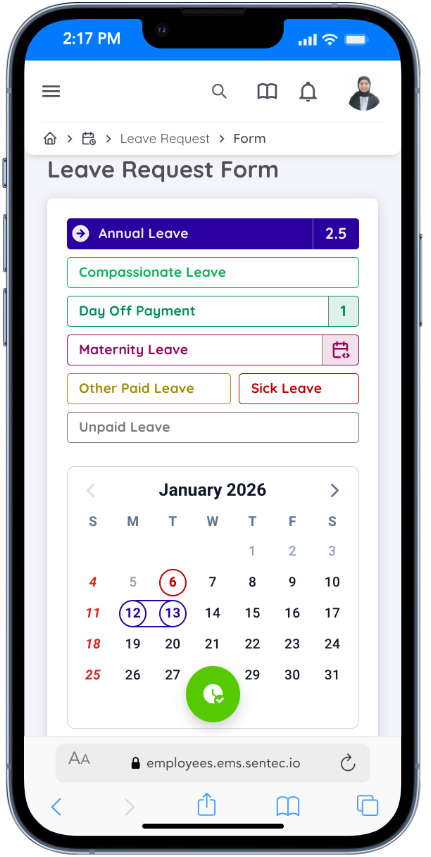
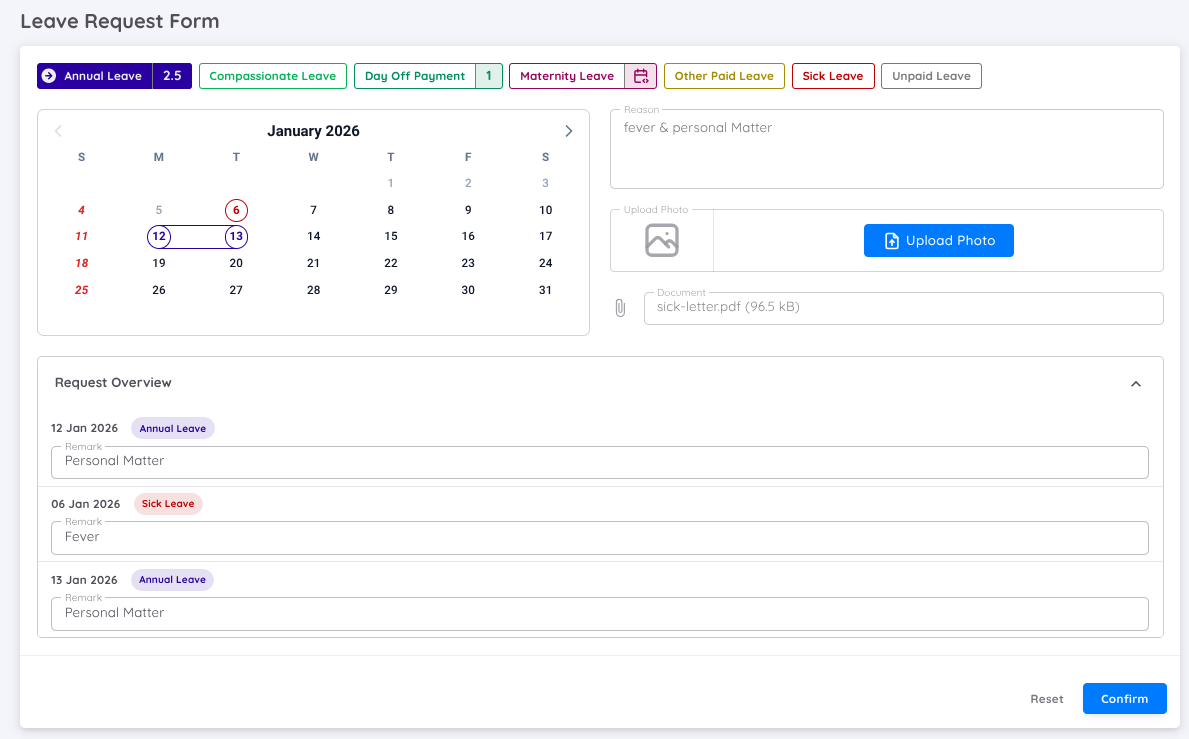
At the top of the form, the available leave types for the employee are displayed along with their remaining balances. Employees can select the leave type they wish to use and set the leave dates using the calendar. If the remaining balance for a selected leave type is less than 1, that leave type cannot be used.
For leave types that are valid over a longer period, employees can select a date range. Within a single leave request, employees may select more than one leave type.
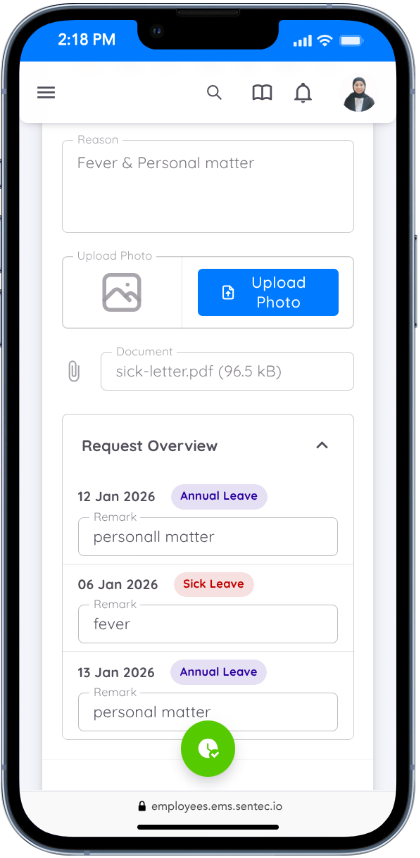
Filling in the Reason field is mandatory. Uploading a supporting photo or document (PDF) is optional. Employees may also add Remarks for each leave date if needed.
The leave balance will be deducted immediately once the leave request is submitted.
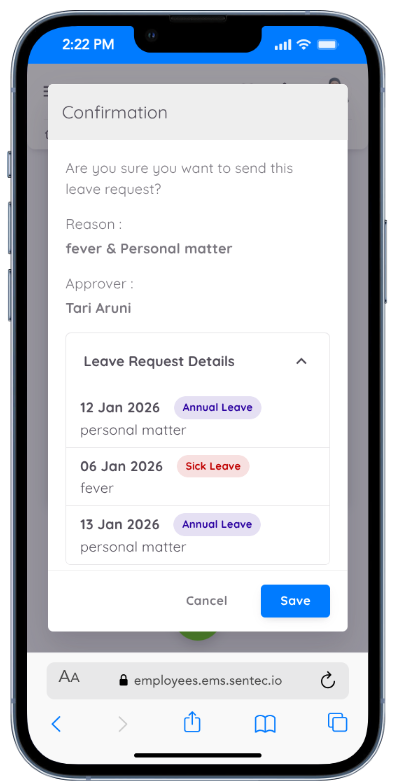
After submitting the leave request, depending on the configuration set by management, the request may be automatically sent to the employee’s administrative supervisor or the organizational supervisor, or the employee may be given the option to choose between both.
Note
- If the desired leave type is not available, please contact management.
- Ensure that the end date of the employee’s contract is later than the requested leave dates. If the employee has received a contract extension and the new contract is not yet active, use the end date of the new contract.
Leave Cancellation
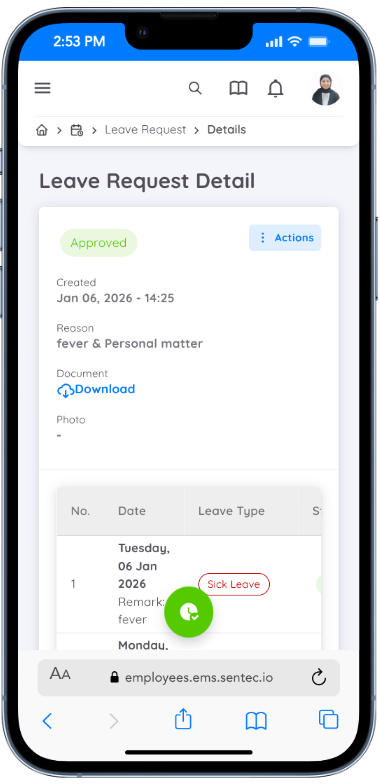
Employees can cancel leave requests even if they have already been approved by the "Administrative or Organizational Superior." There are two types of leave cancellations:
Canceling all leave request
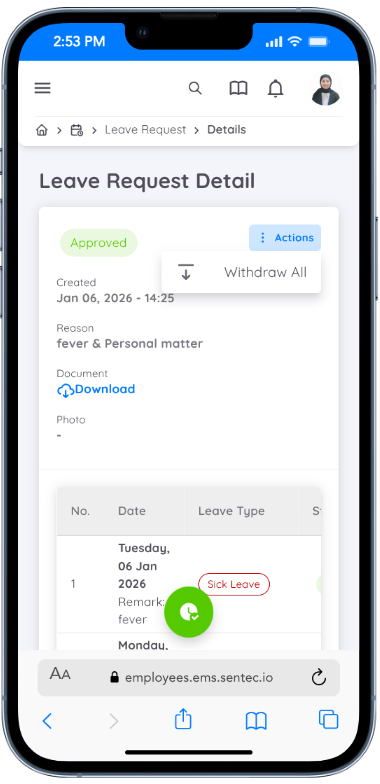
This process will cancel all dates included in the submitted leave request. For example, if an employee has submitted a leave request for a specific date range, this cancellation will cover all those dates and cancel the entire leave request.
Canceling specific leave dates
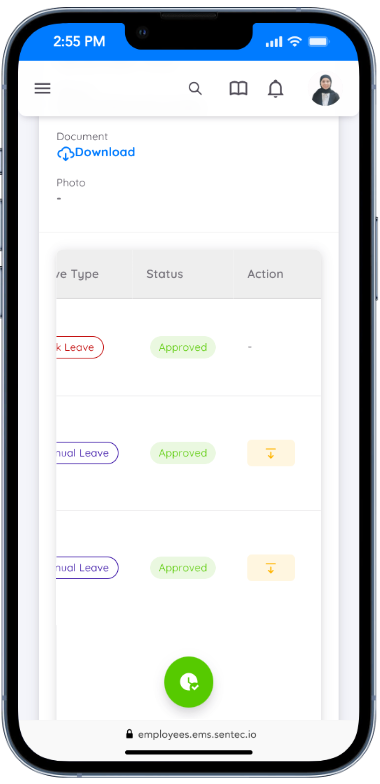
This cancellation will only affect the selected leave dates chosen by the employee. Only specific dates within the leave request will be canceled, not the entire leave request.
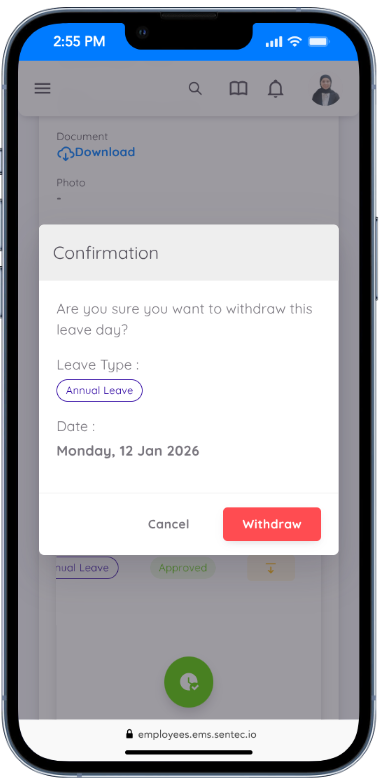
Whenever leave is canceled, the balance of the corresponding leave type will be restored to the employee.
Note
Leave cancellations can only be made for future dates. Employees cannot cancel leave for the current day or past dates.
Approval
In the Leave menu, a new sub-menu called Approval has been added. This sub-menu is designed to display and manage all leave requests from employees (associates).
Users can apply several filters to simplify the search and management of leave requests.
- Pending Filter : Used to display leave requests that have not yet been approved. Users can set a date range for the requests they want to filter and view.
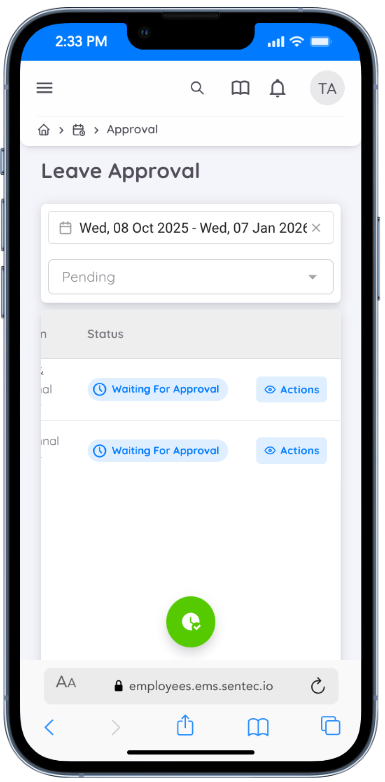
- Replied Filter : Displays the history of leave requests that have been responded to by the administrator. In this filter, all requests with Approved or Rejected status will be shown, based on the selected date range.
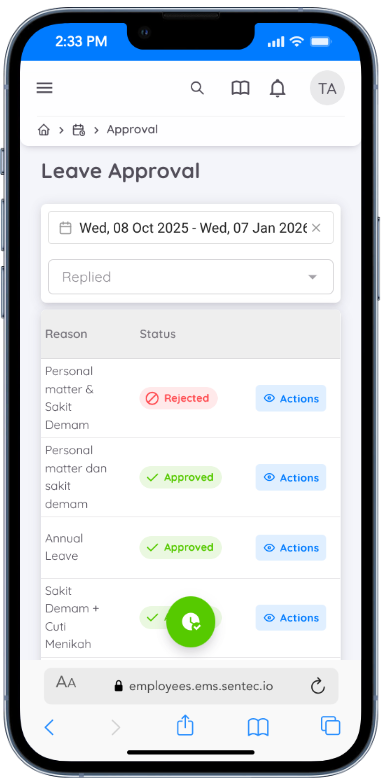
This feature is designed to streamline the leave approval process, allowing users to easily track leave requests, view their current status, and manage the approval history more transparently and efficiently.
Approval Process
Approvers, whether organizational or administrative supervisors, can manage leave approvals through this menu. Leave requests that require approval will appear under the Pending filter with the status Waiting for Approval.
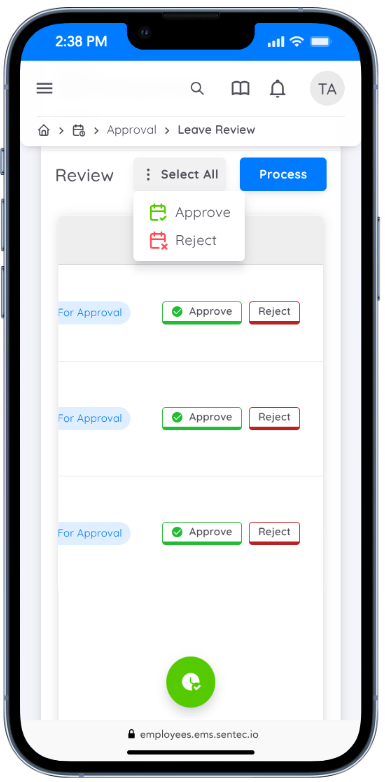
To approve or reject a leave request, the approver can click the Action button on the request. In the Leave Review form, the approver can approve or reject all requested dates by selecting Select All and then clicking Process.
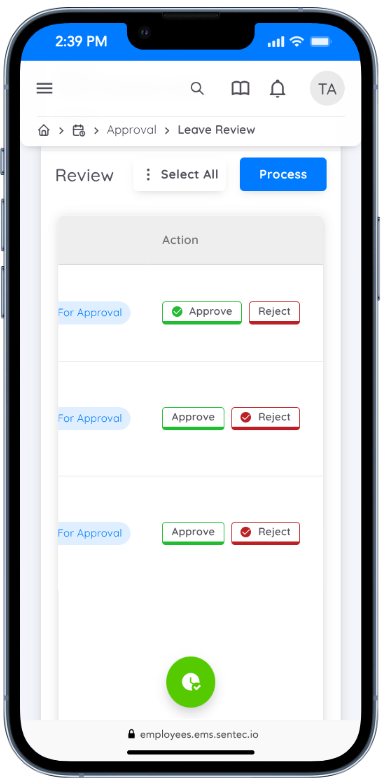
Alternatively, the approver can approve or reject individual leave dates by clicking the corresponding button for each date and then clicking Process.
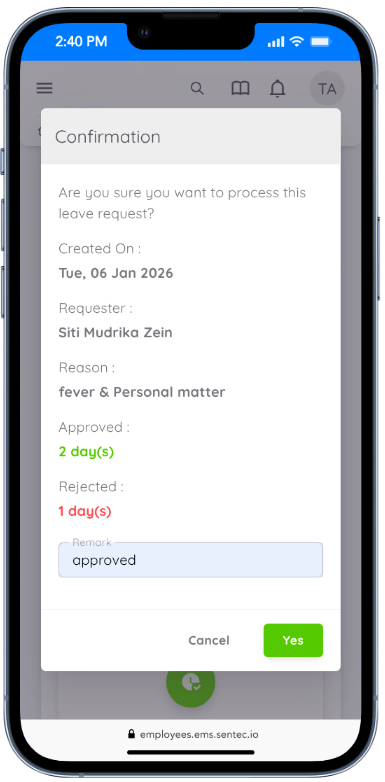
The approval or rejection action will require confirmation before being finalized.
Change Approval
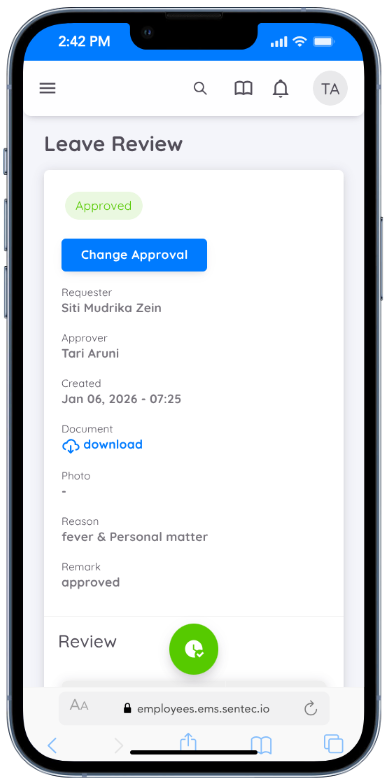
An approver can change their approval even if the request has already been approved or rejected. However, only upcoming leave dates can be changed; past leave dates cannot be modified.
Approval changes can only be applied to all requested leave dates at once.
If the leave was previously approved, the approver may change the status to Rejected.
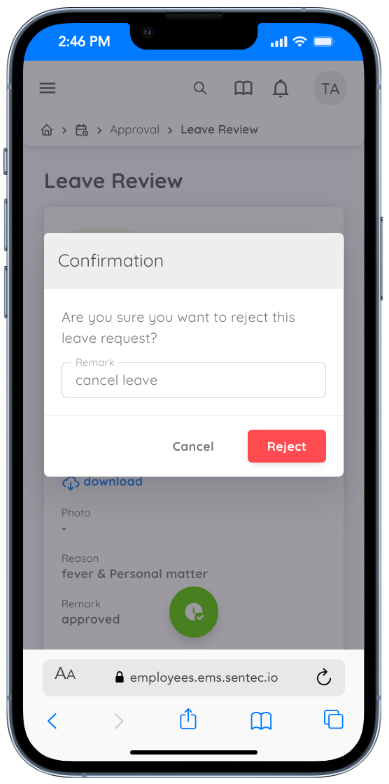
After rejecting the leave, the approver can approve it again to change the status of all requested dates back to Approved.
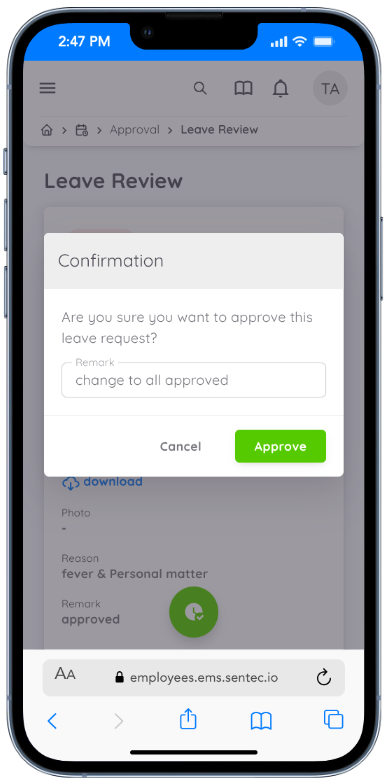
Approval changes remain available as long as the leave dates have not passed.
Balance
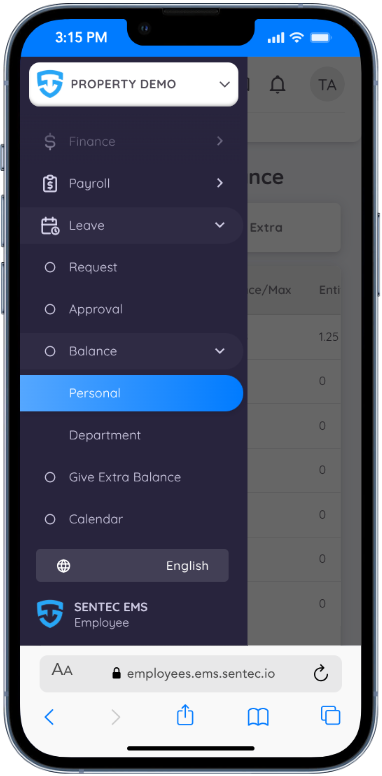
This page provides information about the types of leave available to employees:
Personal
On the Personal menu page, you can view the Regular Leave tab and the Extra tab.
Regular Leave
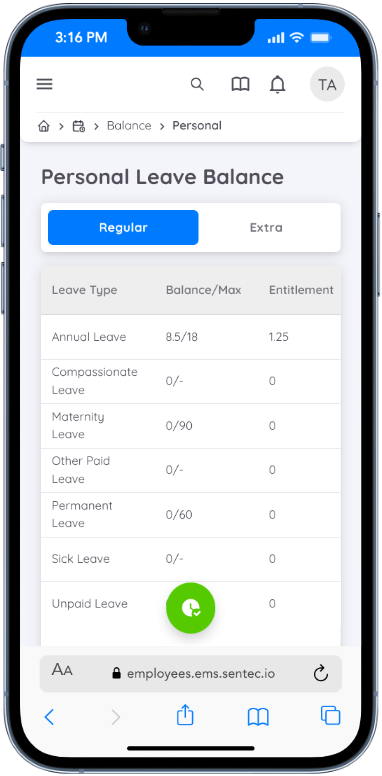
Displays the types of regular leave available to employees. Only active leave types can be used. The "Balance" column shows the remaining leave balance available for use by the employee, while "Entitlement" indicates the amount of leave entitlement granted each month or year, according to company policy.
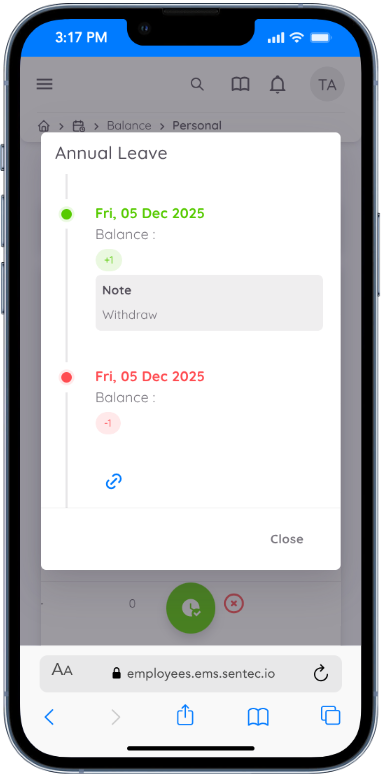
The Status indicates whether the leave is active and can be used by the employee, while the History column allows employees to view the history of leave balance additions and deductions.
Extra Leave Credit
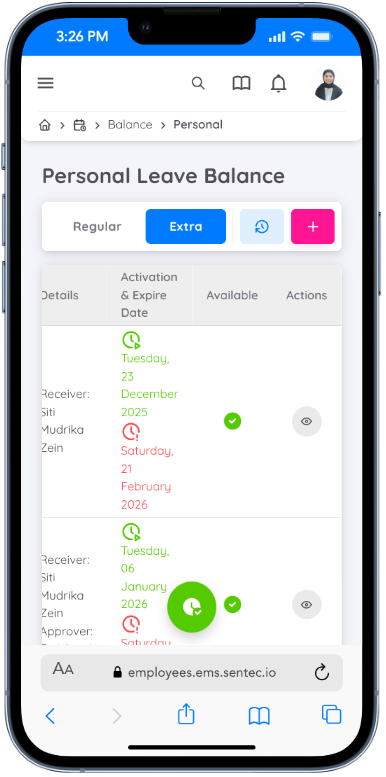
This page displays the Extra Leave Balance owned by employees. Each Extra Leave Balance has an expiration date, and once past that date, the balance can no longer be used.
- The "Available" column indicates whether the Extra Leave balance is still usable.
- The "Status" column shows whether the Extra Leave balance has been approved by management.
Day Off Payment & Extra Off Request by Employee
In the latest update, employee can now submit Day Off Payment and or Extra Leave request directly from the Extra Leave Balance page by clicking the "+" button.
How to Submit a Day Off Payment & Extra Off Requests :
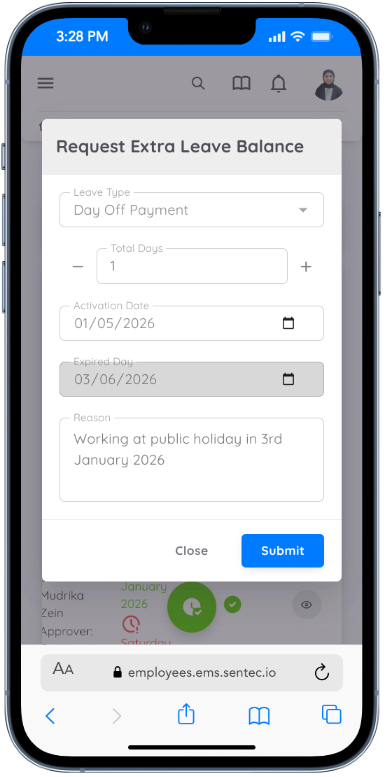
- Click the "+" button on the Extra Leave Balance page
- Select the leave type you want to request
- Enter the balance amount or the number of leave days requested.
- Set the effective start date of the extra leave balance.
- Provide a reason for requesting the extra leave balance.
- Submit the request for review and approval by management.
Extra Leave Balance Activation Process Before employees can use their Extra Leave balance, the approval process consist of two steps :
- Approval by Head of Departement (HOD)
- Extra Leave balance requests must first be approved by the HOD of each departement.
- HODs can approve requests via Approval menu then approver or reject on Leave tab.
- Verification and Activation by HR
- Once approved by the HOD, the request moves to the Management Page for HR verification.
- HR can verify the requests via the Requests tab by clicking Details in the Actions column and then granting approval (Verify).
- After HR activates the balance, employees can use their Extra Leave according to company profiles.
Extra Leave Request History
Employees can also view the history of their submitted extra leave requests and filter the records based on a selected date range.
NOTE
Extra leave types are defined by the company in accordance with company regulations, including its expiration dates.
Department
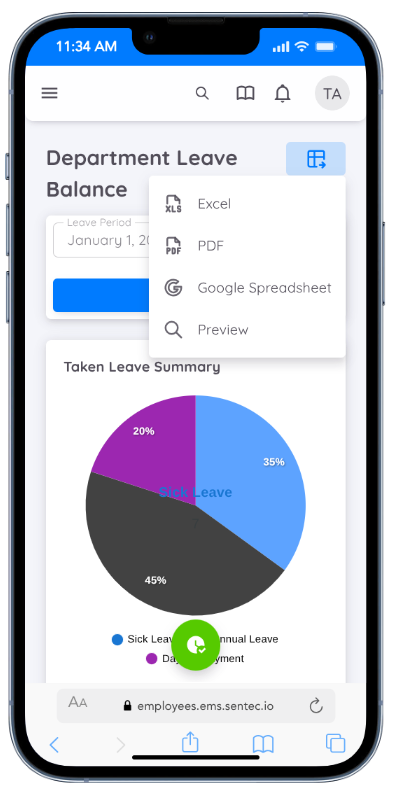
In the latest update, employees with Head of Department (HOD) status now have access to view their employees leave balances within their department through the Leave menu under the Balance sub-menu. This feature enhances transparency in workplace leave management.
In the Department Leave Balance section, the HOD can view pie chart visualizations and a summary. The data can also be exported in multiple formats, enabling easier reporting, analysis, and record management.
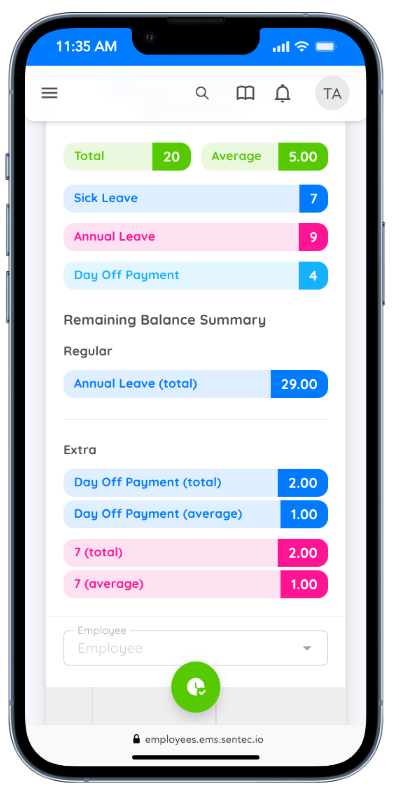
Leave balances are divided into two categories:
- Regular Balance: Displays the combined balance from various leave types categorized as Regular Leave. Employees can see the total regular leave available for use according to company policy.
- Extra Balance: Represents the combined balance of leave types categorized as Extra Leave. This includes requests for additional or special leave beyond the regular allowance.
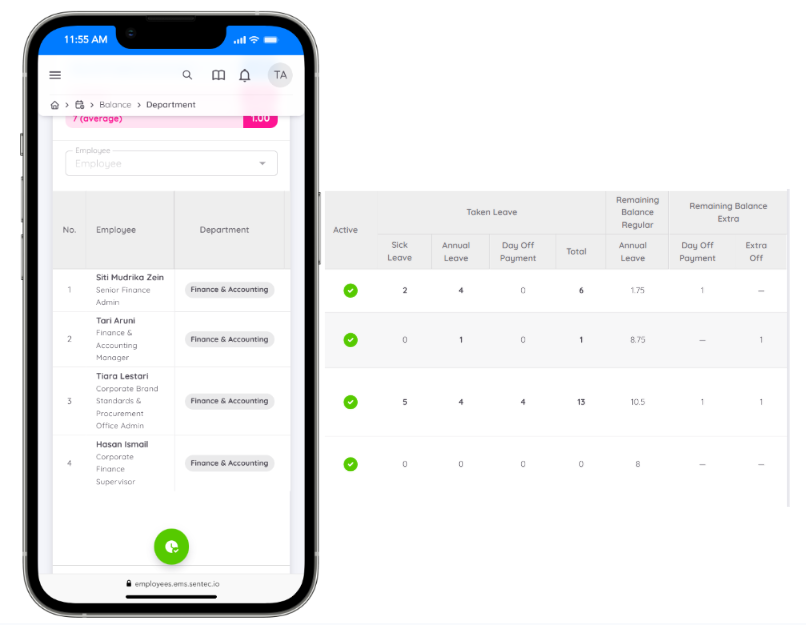
In addition to the remaining balance information, the Leave Details section now provides Heads of Department (HODs) with a more comprehensive breakdown of employee leave data. HODs can view the active balance as well as detailed records of taken leave, including Sick Leave, Annual Leave, and Extra Leave, along with the overall total.
This feature allows HODs to better understand leave utilization and monitor employee leave status more accurately.
Give Extra Leave Credit
This page can only be accessed by employees who hold the position of Head of Department.
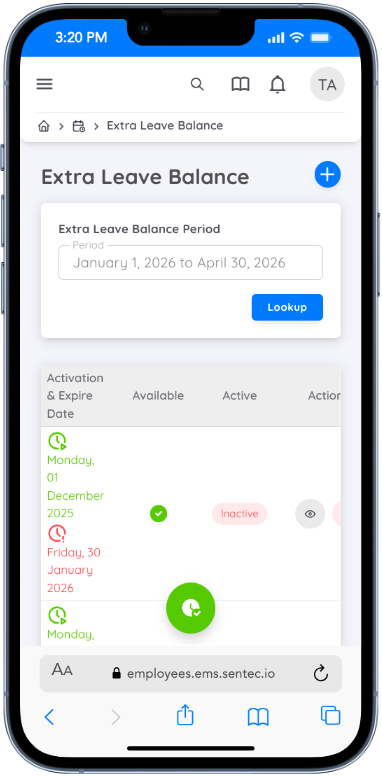
Here, you can view all extra leave grants within the selected date range.
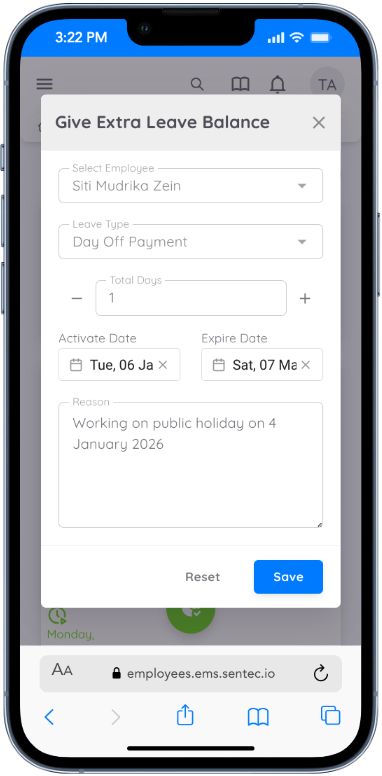
Employees have the option to add extra leave balance by clicking the (+) button.
- Employee: Select the name of the employee to receive the extra leave.
- Leave Type: Select the type of leave to be given.
- Day(s): Enter the number of extra leave days to be given.
- Activated date: The start date of the extra leave balance.
- Expire date: The expiration date of the extra leave balance, automatically set according to company policy.
Each extra leave grant request is not immediately active and requires management review. If approved, the recipient will receive an email notification. If rejected, the Head of Department will be notified.
Calendar
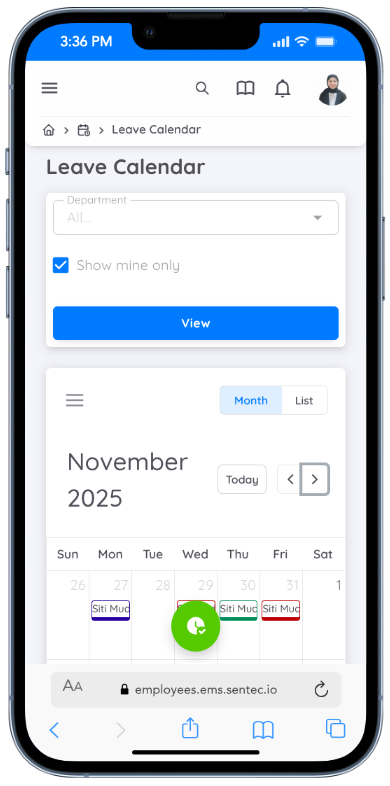
In the latest update to the Leave Calendar section, employees can now use the filter feature to display leave requests that have been approved, based on departments. This feature provides greater flexibility in monitoring employee leave schedules across all departments. Employees can also view only their own leave request dates by enabling the “Show Mine Only” option