Extra
This page displays Extra Leave balance granted to employees. The displayed data can be filtered based on the selected date period.
- The "Available" column indicates whether the granted Extra Leave balance has been used by the employee.
- The "Status" column shows whether the Extra Leave balance has been approved from the managemen page.
Leave Extra Approval
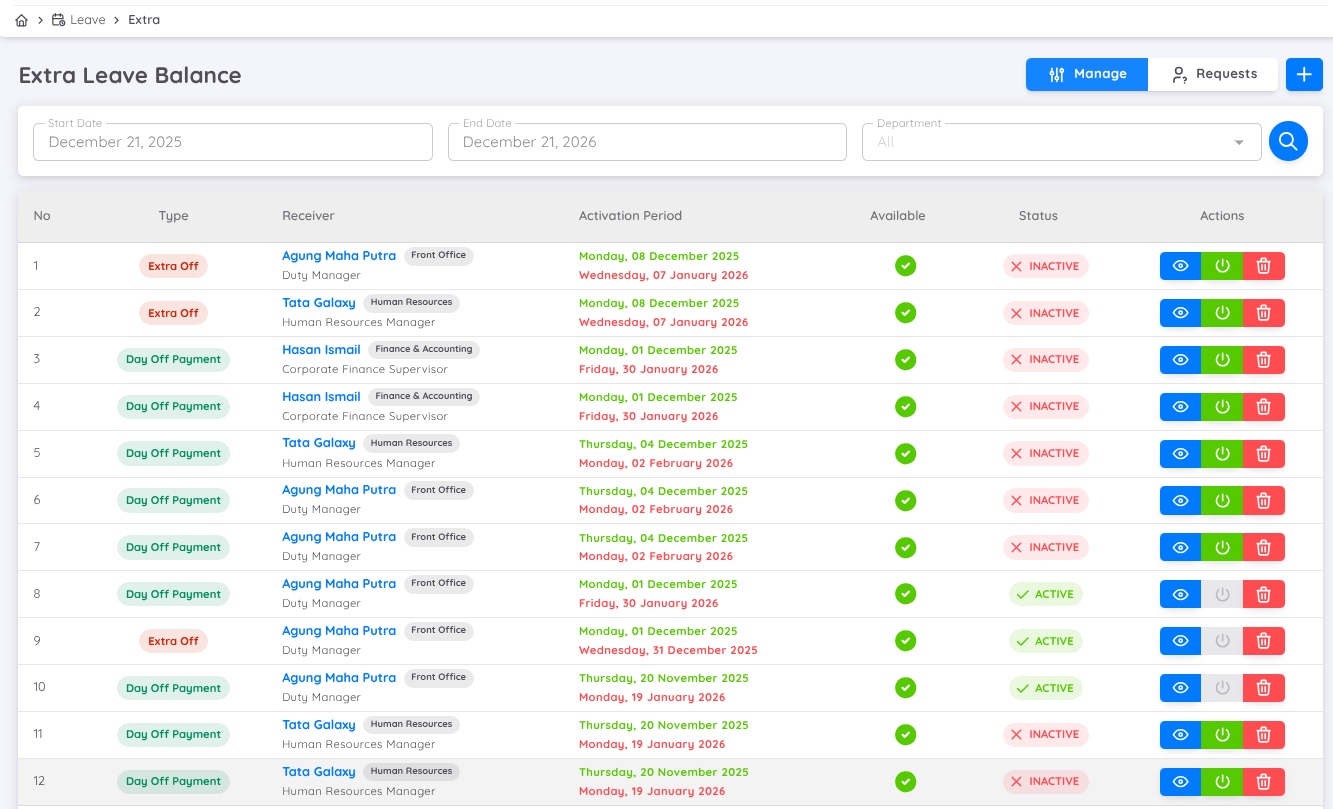
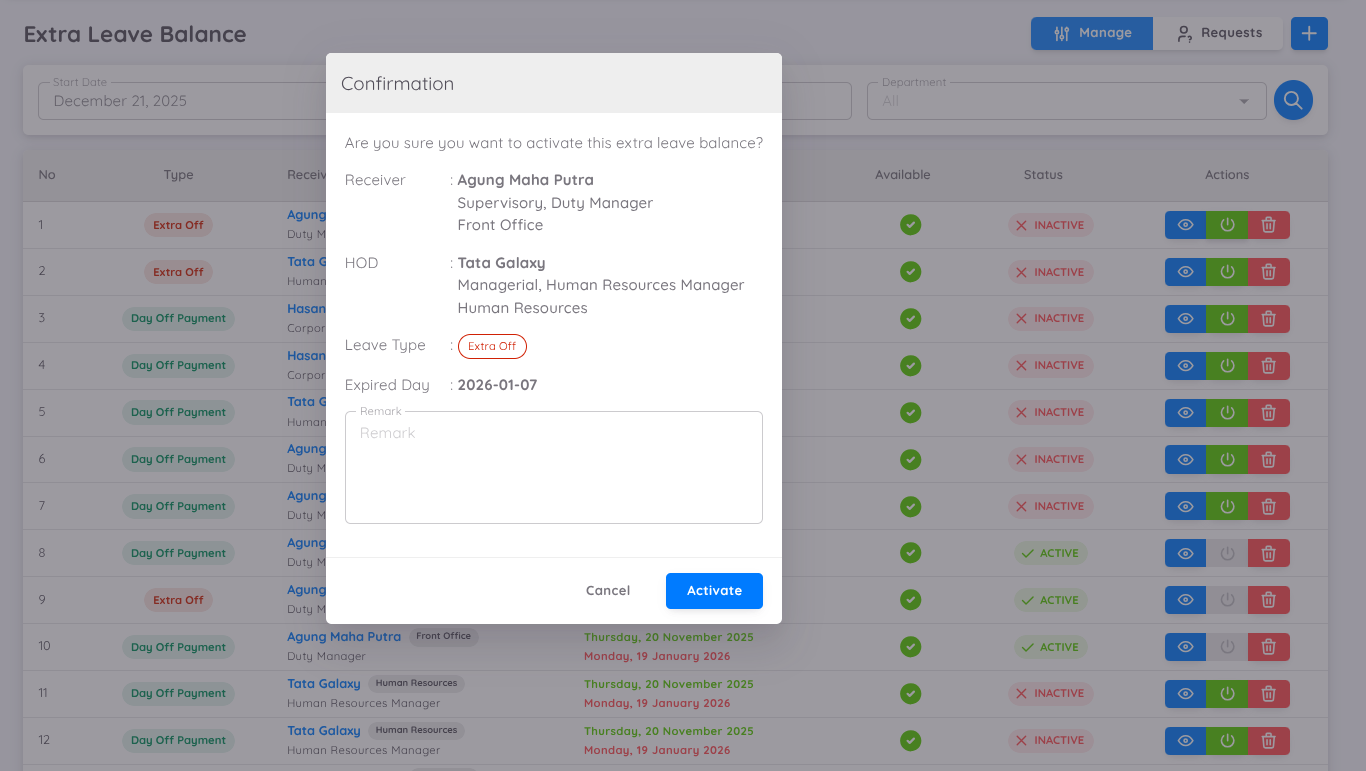
If the "Status" column shows "Inactive", it means the Extra Leave balance granted to the employee has not yet been approved from the management page. In this case, an "Activations" button will appear in the "Actions" column, which can be clicked to approve it. Employees will receive an email notifications once their Extra Leave balance is approved by management. If the Extra Leave balance request is rejected of deleted, click the "Trash" button.
- The Head of Department (HOD) will receive an email notification if the Extra Leave balance request is rejected or deleted by management
- In both process, remarks can be added and will appear in the email body sent to the Head of Department or employee
Extra Leave Balance Activation Process
There are currently two tabs for activiting Extra Leave Balance:
- "Manage" Tab
In this tab, users can activate Extra Leave balance by clicking the "Activation" button in the "Actions" column. Extra Leave balance requests in this tab are submitted by the Head of Department in each department to grant additional leave to employees.
- "Requests" Tab
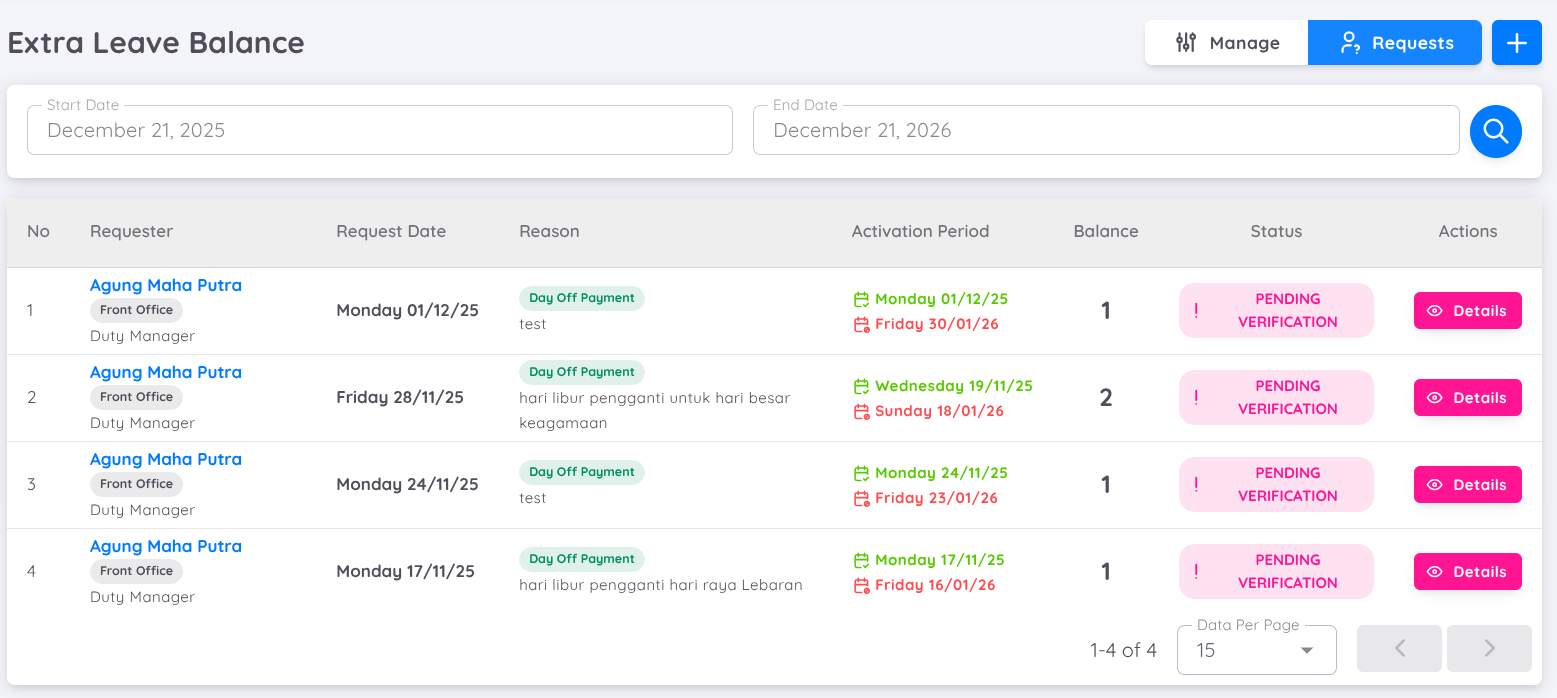
In this tab, users can verify Extra Leave balance requests submitted directly by employee through their Employee accounts and already approved by the Head of Department.
To verfiy request :
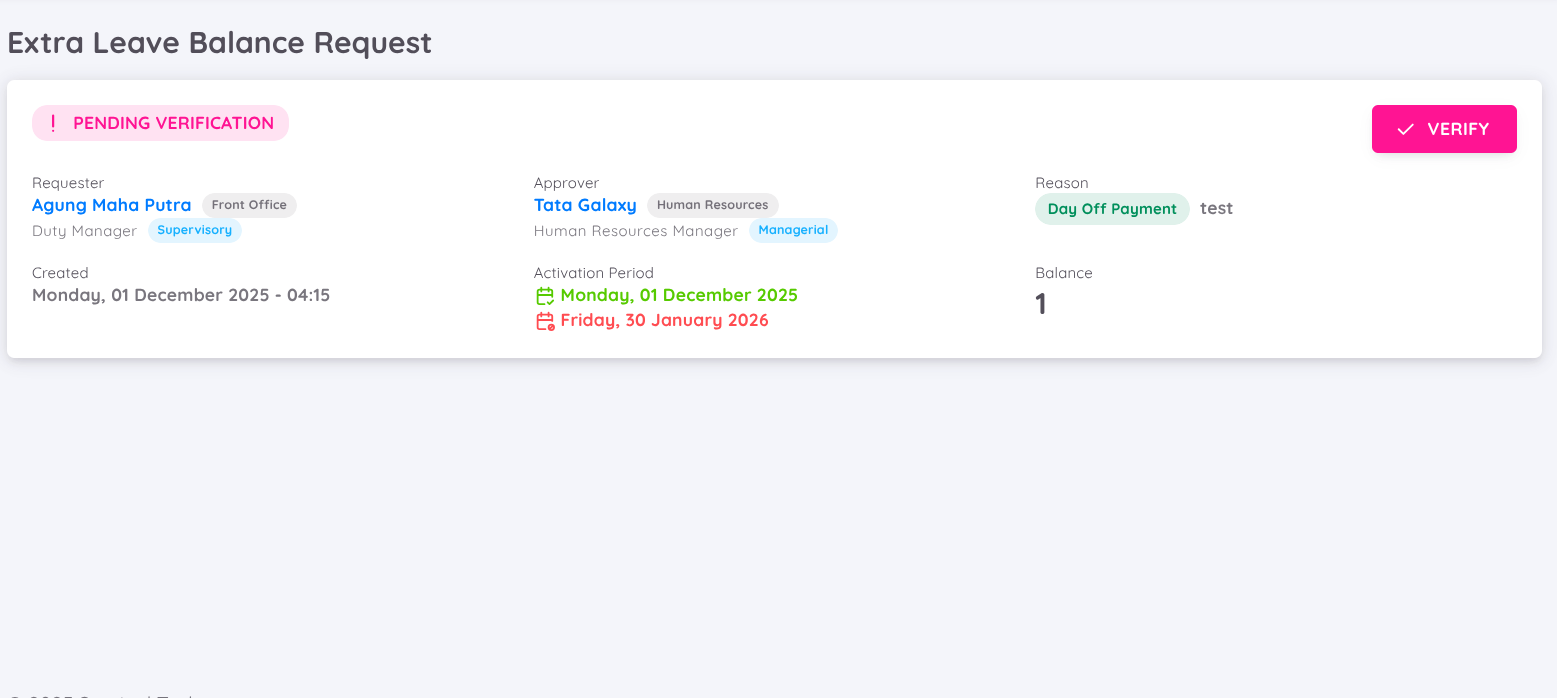
- Click the "Details" button in the Actions column.
- Click the "Verify" button to activate the Extra Leave balance.
Note
Every extra leave balance granted by the department head must be approved by a user with "Leave Extra" permission mode “Write” in order to be used by the receiving employee.
Adding Extra Leave balance from the Management Page
To create extra leave balance, click the "+" button in the top right corner. Extra leave balance granted by management can be used immediately by the employee because its status is automatically active.
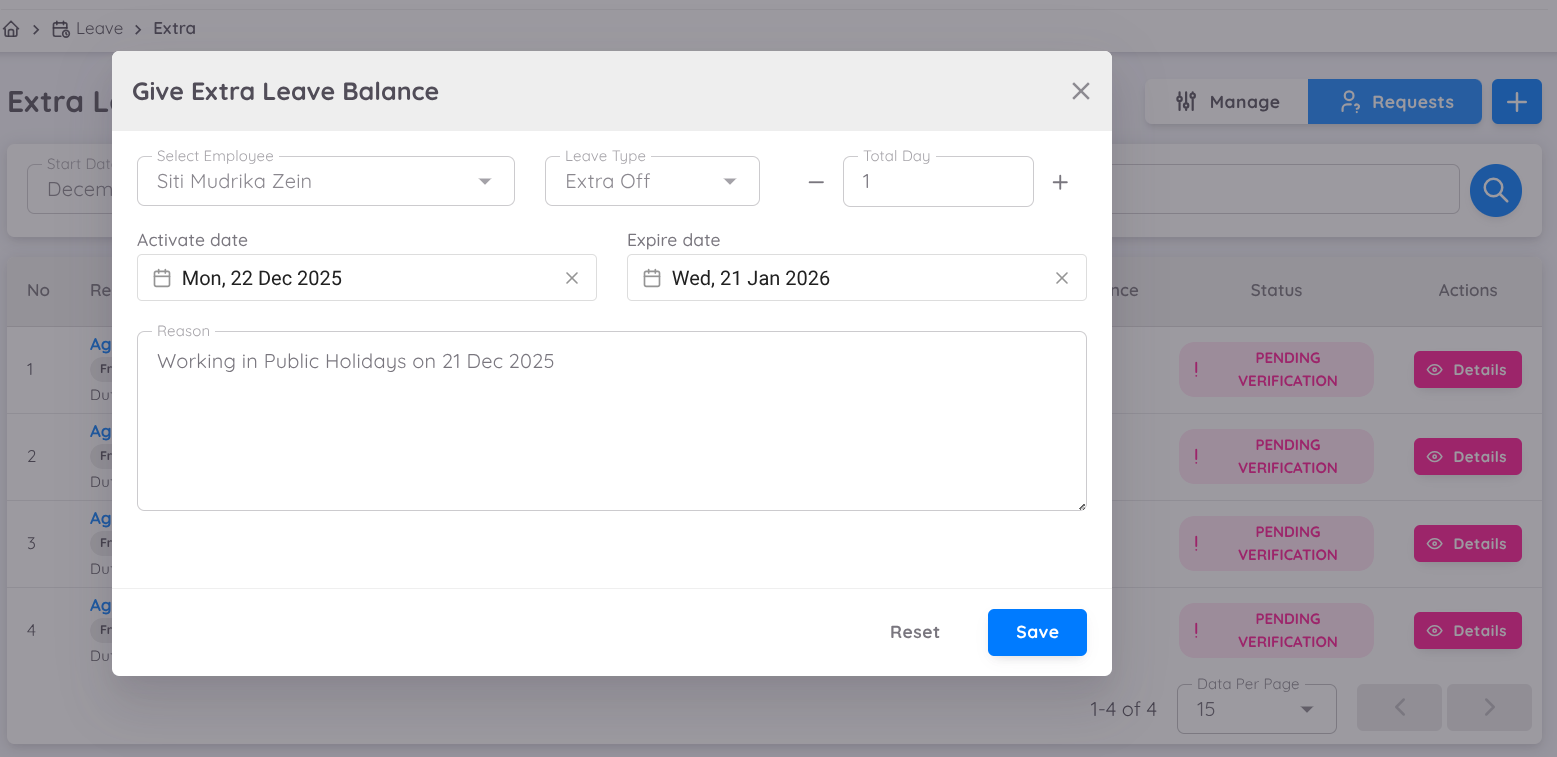
- Select Employee: Choose the employee to be granted extra leave balance
- Leave Type: Select the pre-defined type of extra leave
- Total Days: Enter the number of leave days granted
- Activate Date: The start date when the extra leave balance becomes active
- Expire Date: The expiration date of the extra leave balance, automatically filled based on the "Expiring in" parameter in the leave type configuration
- Reason: Provide the reason why this extra leave balance is granted
Note
The employee will receive an email notification when their extra leave balance is granted.