Vacancy
The Recruitment module in Sentec EMS is highly flexible and designed to simplify recruitment workflows to meet the unique needs of each property. Below are the features and processes explained in detail to facilitate understanding and implementation.
Job Vacancy Management
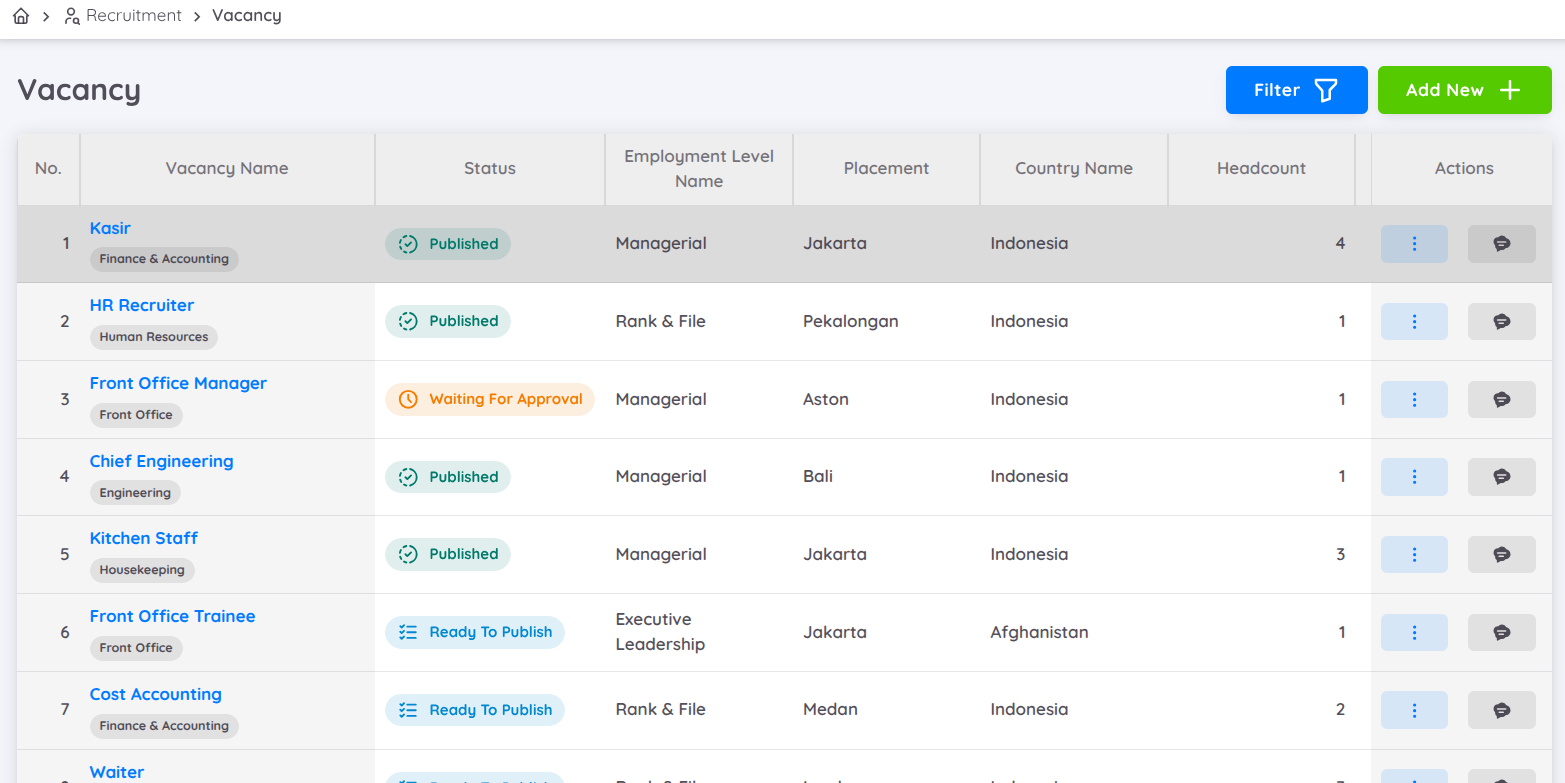
The Job Vacancy menu allows users to create new job vacancies, view a list of existing vacancies, filter by creation date, and search by job title. Each vacancy displays essential information, including :
- Job Title
- Department
- Job Level
- Placement Location
- Country Name
- Headcount (Number of Open Position)
- Minimum and Maximum Salary
- Creation Date
- Status
Status indicators include :
- Green: The vacancy has been published
- Blue: A draft that has been approved but is awaiting publication
- Yellow: A draft awaiting approval
To create a job vacancy, users can access the Create Vacancy Form and fill out three main tabs: Details, Additional Information and Confirmation
Job Vacancy Form
Details Tab
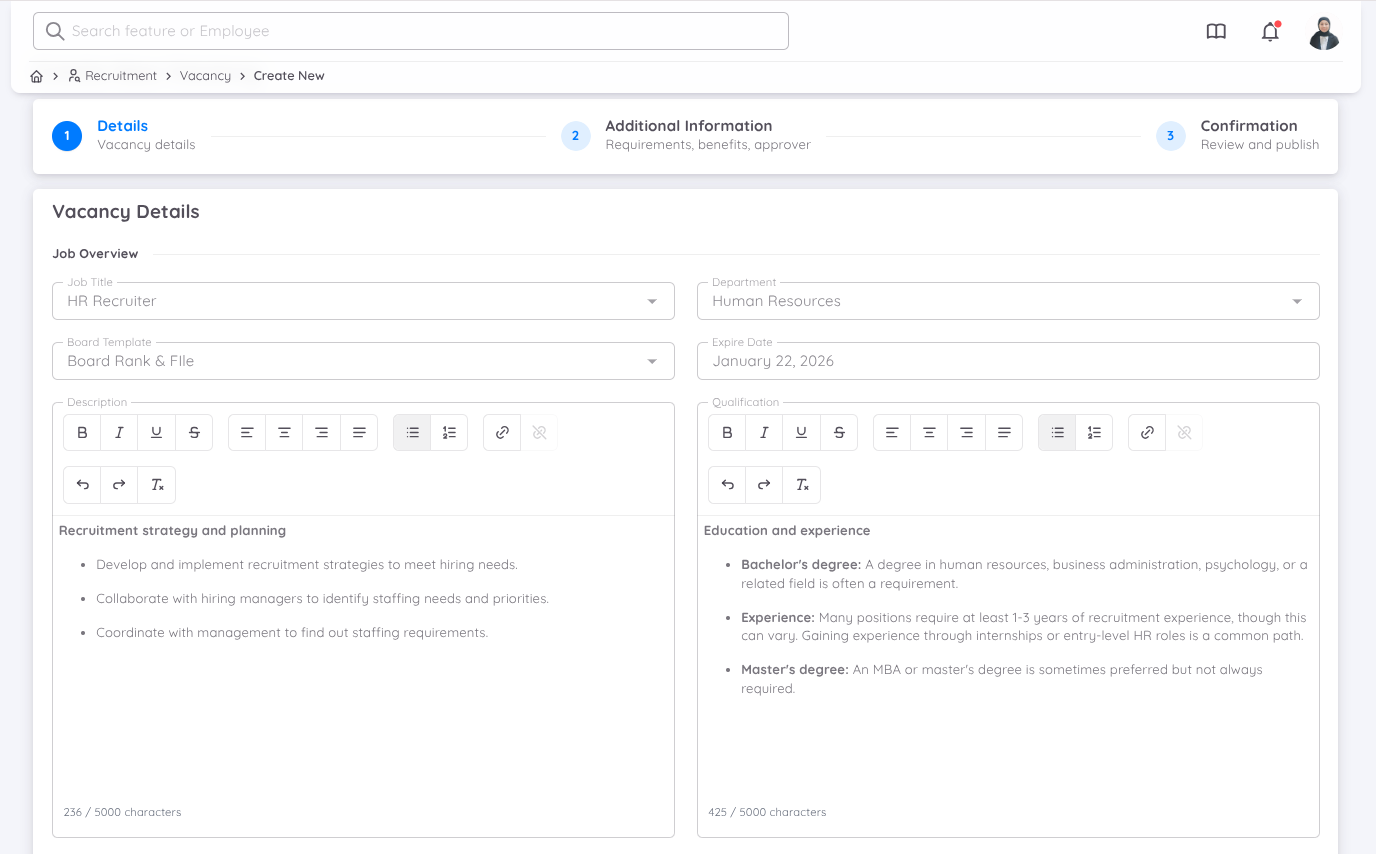
- Configure the job description by entering the job title, department, recruitment board template (from Recruitment settings), expiration date, and both the job description and qualifications.
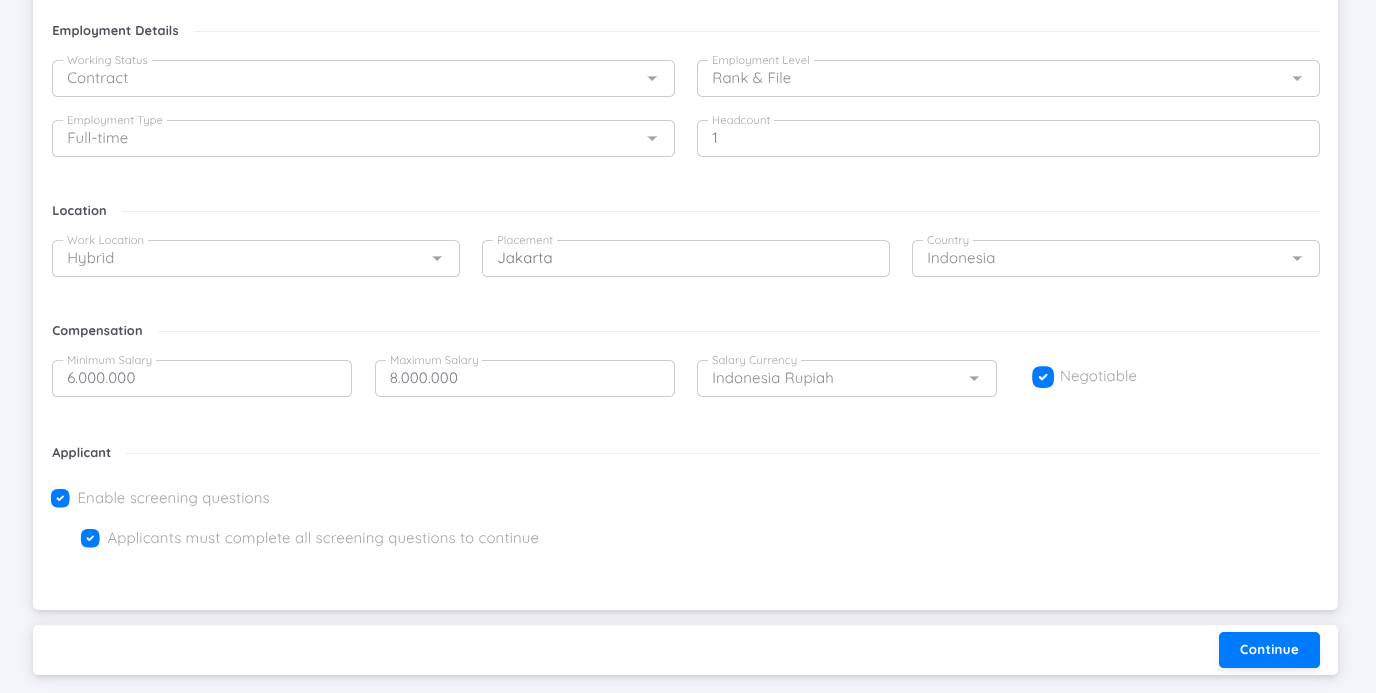
- Fill in job details such as employment status (contract, daily, permanent), job level, job type (part-time, full-time, freelance), and headcount(number of required positions).
- Location settings include the type of work location (hybrid, on-site, WFH), placement, and country.
- The compensation section allows users to define the minimum and maximum salary, currency, and whether the salary is negotiable.
Additional Information Tab
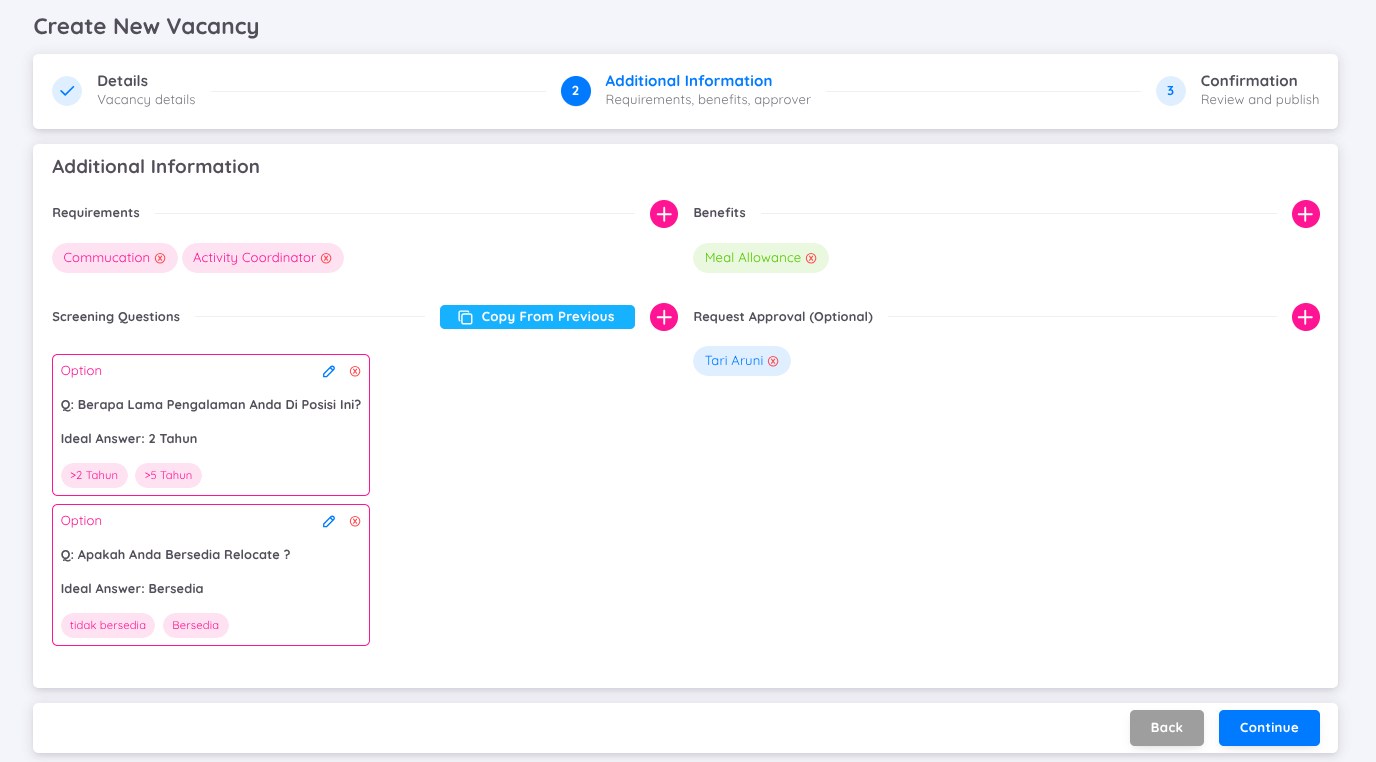
- Add skill requirements relevant to the job description.
- Specify allowances and other benefits.
- Configure screening questions by selecting the order, question type, and ideal answers. These screening questions will appear when someone clicks the "Apply" button on the job vacancy page.
- Request approval for the vacancy, including cross-property collaboration if necessary.
Confirmation Tab
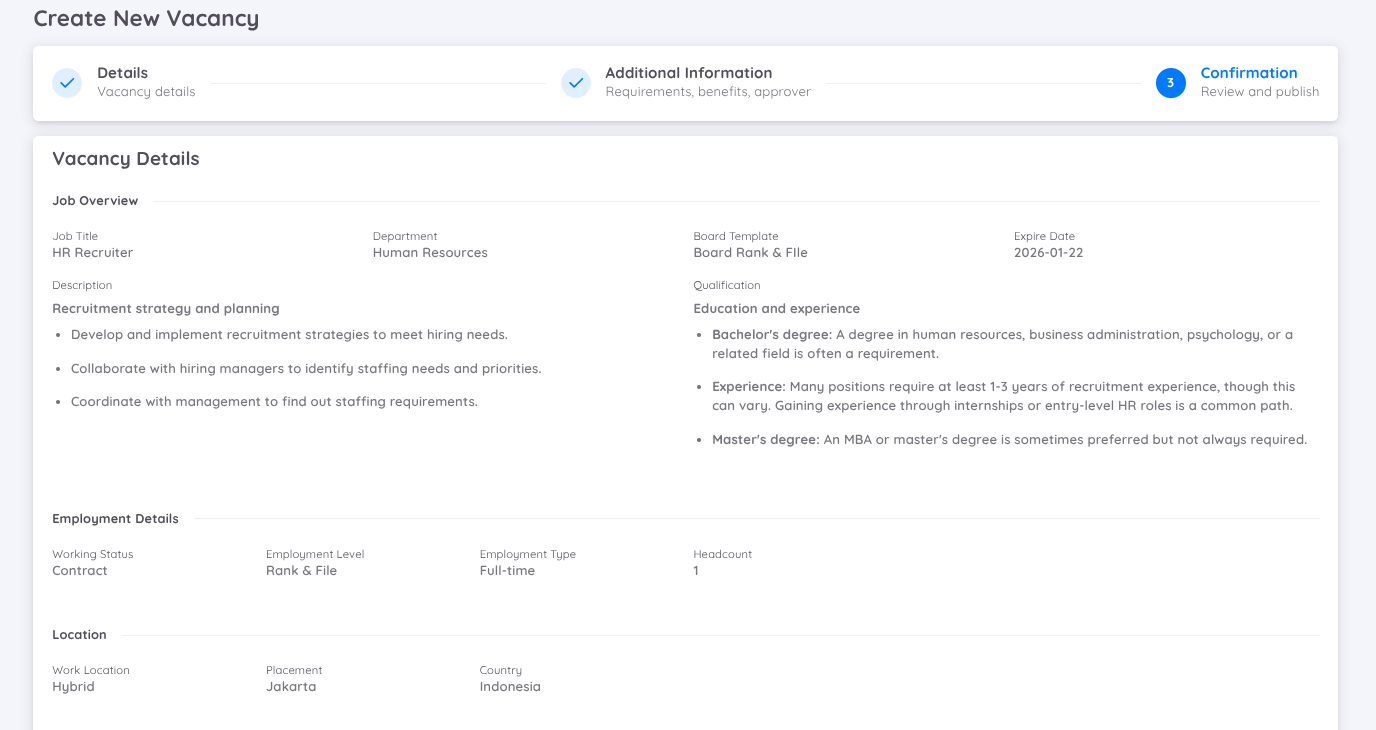
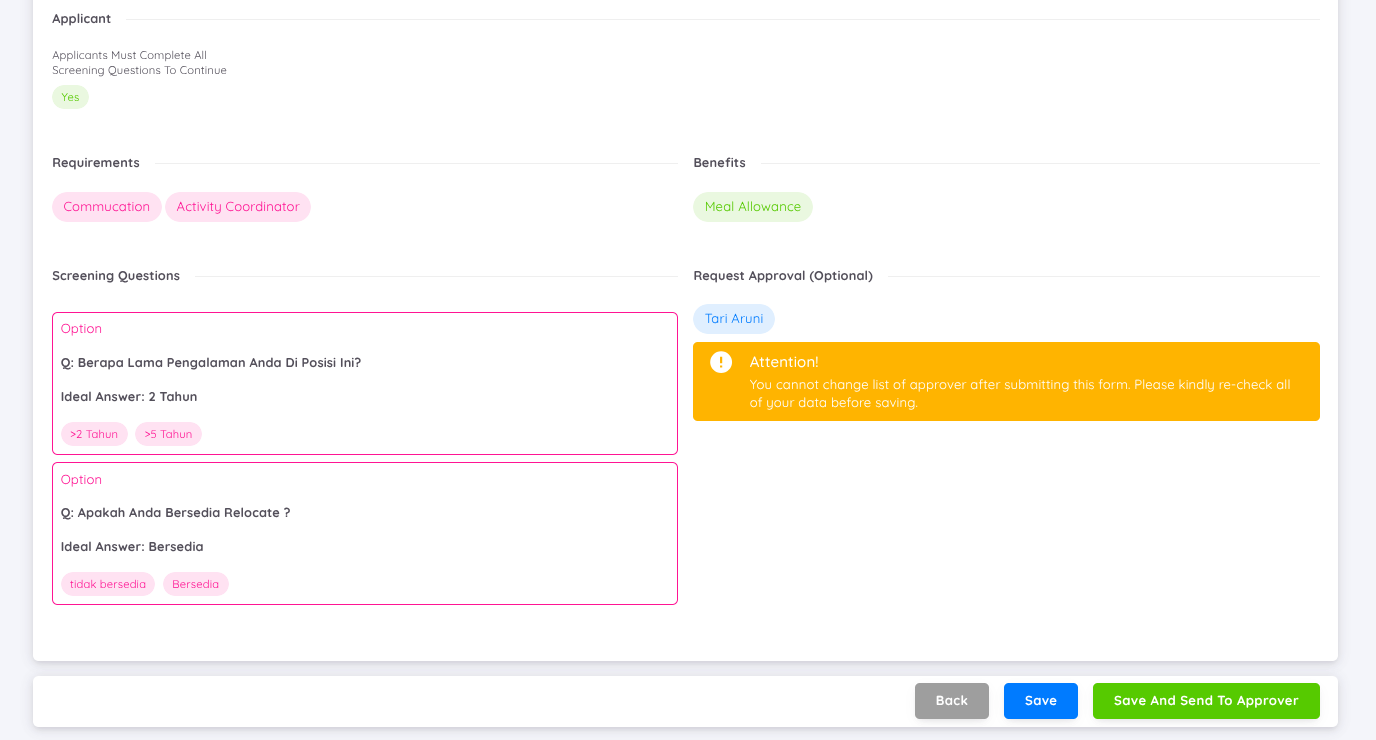
- Provide a summary of the job vacancy details for review.
- Users can click Save and Publish to publish the vacancy to the Job Portal or save it as a draft.
- If the vacancy requires approval, a notification will be sent via email to the relevant parties for approval or revision.
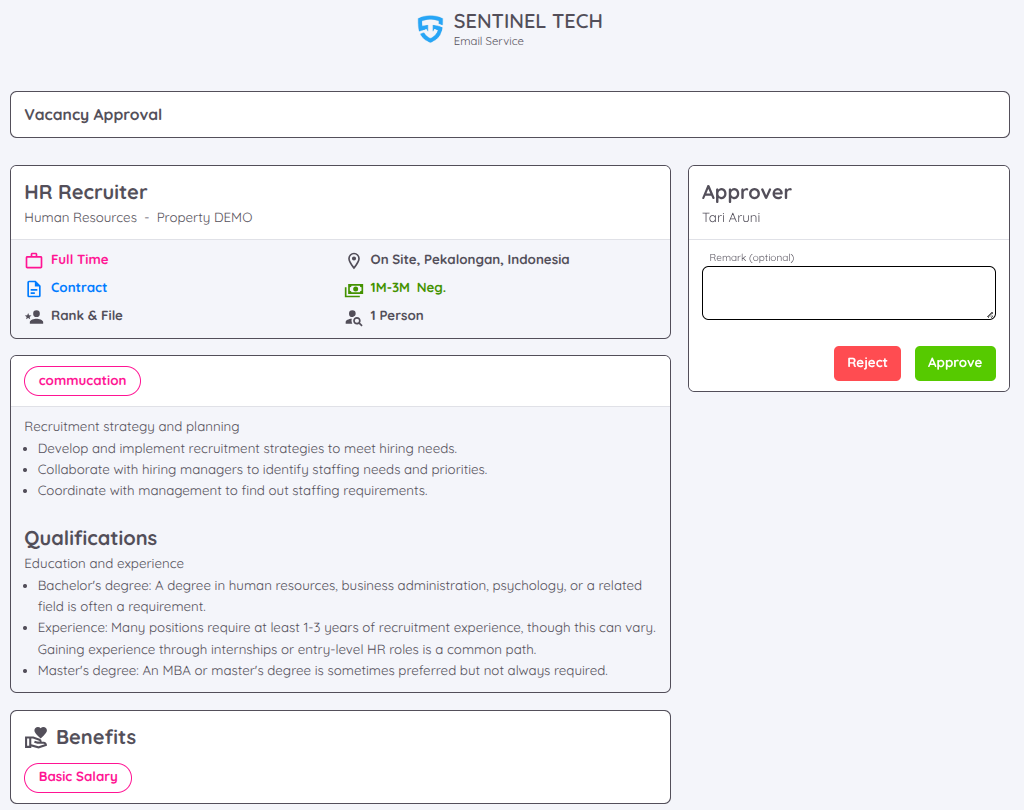
If a job vacancy requires approval from another user, that user will receive a notification email. This email includes complete details of the job vacancy, such as the job description, candidate qualification, benefits, and screening questions (if any). On the right side of the email, the approver can provide remarks and choose the approve or reject the job vacancy. The job vacancy can only be published once it has been approved by the approver.
Kanban Board Workflow
The Kanban Board organizes the recruitment process into customizable stages, making it easier to track and manage candidates. Below is a deatiled explanation of each stage.
New Candidate Column
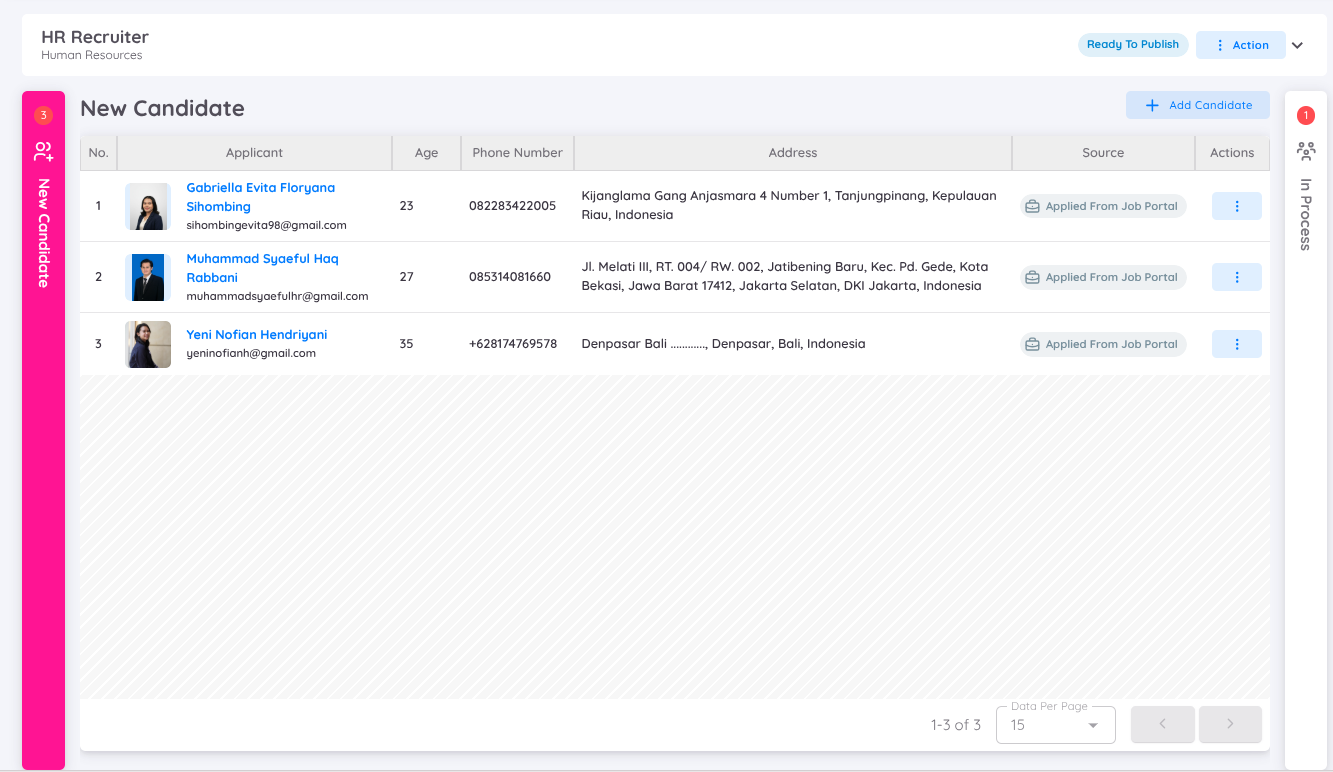
The New Candidate section displays all candidates who have applied for a position. Candidates who apply through the Job Portal will have their source indicated as Applied from Job Portal.
Add Candidate Manually
Candidates can also be added manually by clicking Add New Candidate and entering the candidate's email address.
The system will check whether the candidate already exists in the EMS database. If the candidate already exists, the available basic information will be filled in automatically. If the candidate does not exist in the database, the required information must be entered manually.
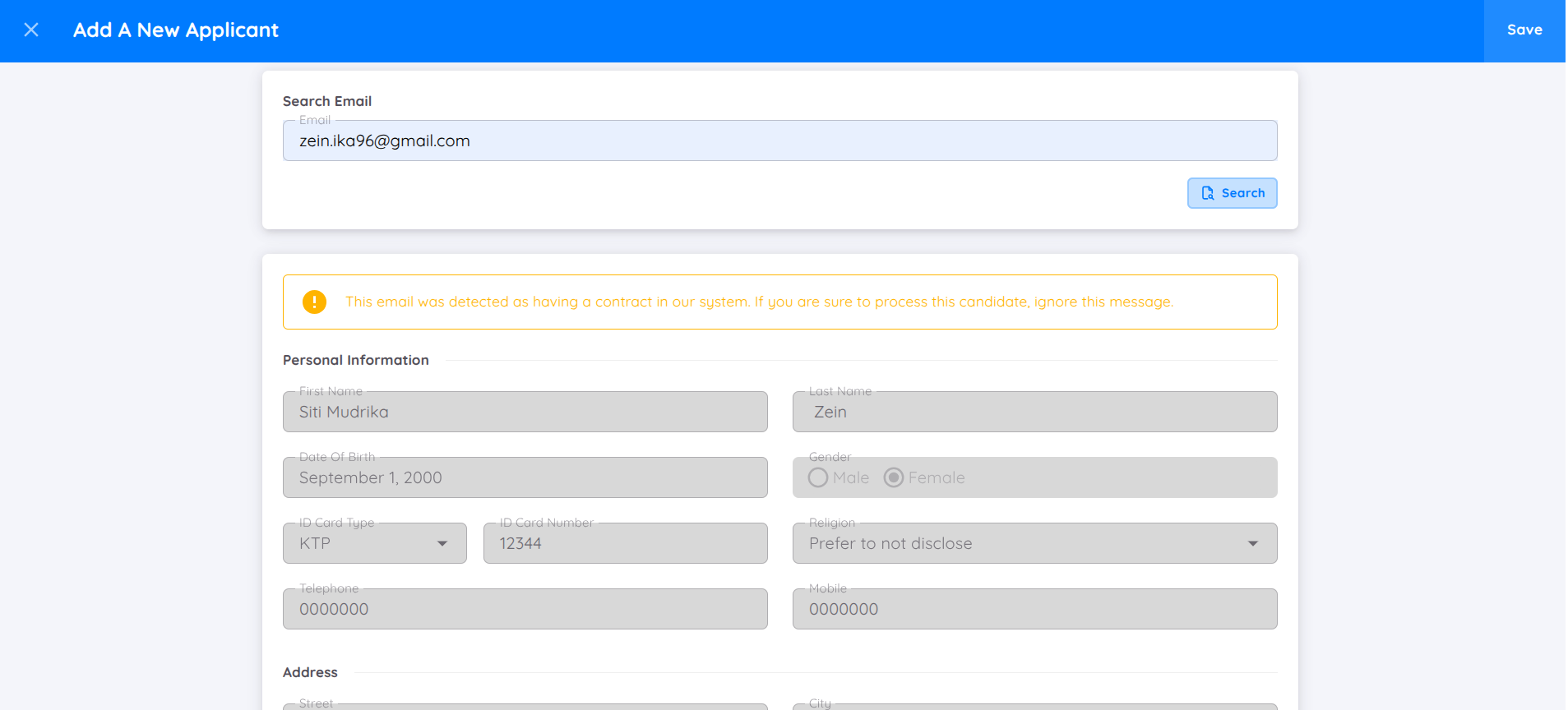
Candidates added to this section, either manually or through the Job Portal, will have the following information displayed:
- Photo
- Name
- Age
- Phone Number
- Address
- Source: Indicates where the candidate was added from, such as the internal system or Job Portal.
The Action column provides the following options:
- View: Displays the candidate's detailed profile.
- Screening Question: When a candidate applies through the Job Portal and completes the screening questions, the submitted responses can be accessed directly from this option.
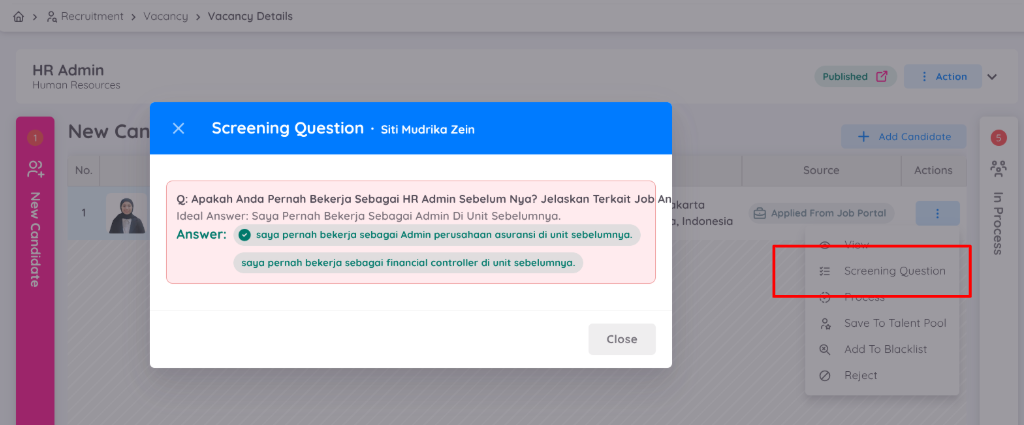
- Process: Moves the candidate to the next stage of the recruitment process or adds the candidate to the Kanban Board.
- Save to Talent Pool: Adds the candidate to the Talent Pool for consideration for future opportunities.
- Add to Blacklist: Adds the candidate to the Blacklist.
- Reject: Rejects the candidate. A candidate who is rejected will receive an email notification.
Candidate in Progress
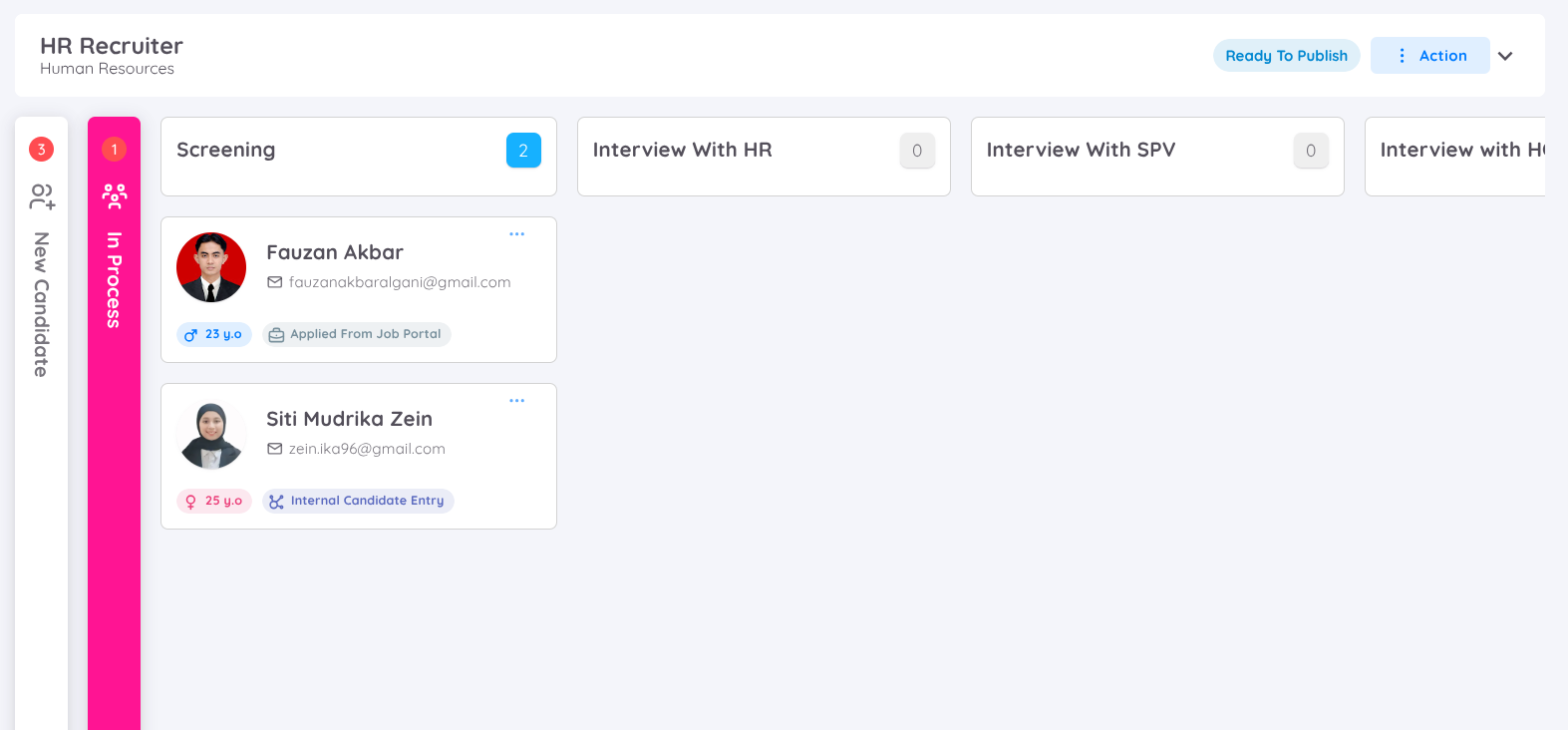
Processed candidates will be moved to the board according to the recruitment stage (shortlisting, interview, or final review). Each candidate can have additional notes in each column, such as pass/fail status, extra comments, or supporting documents. Candidates can also be locked in a specific column to prevent them from being moved to another stage.
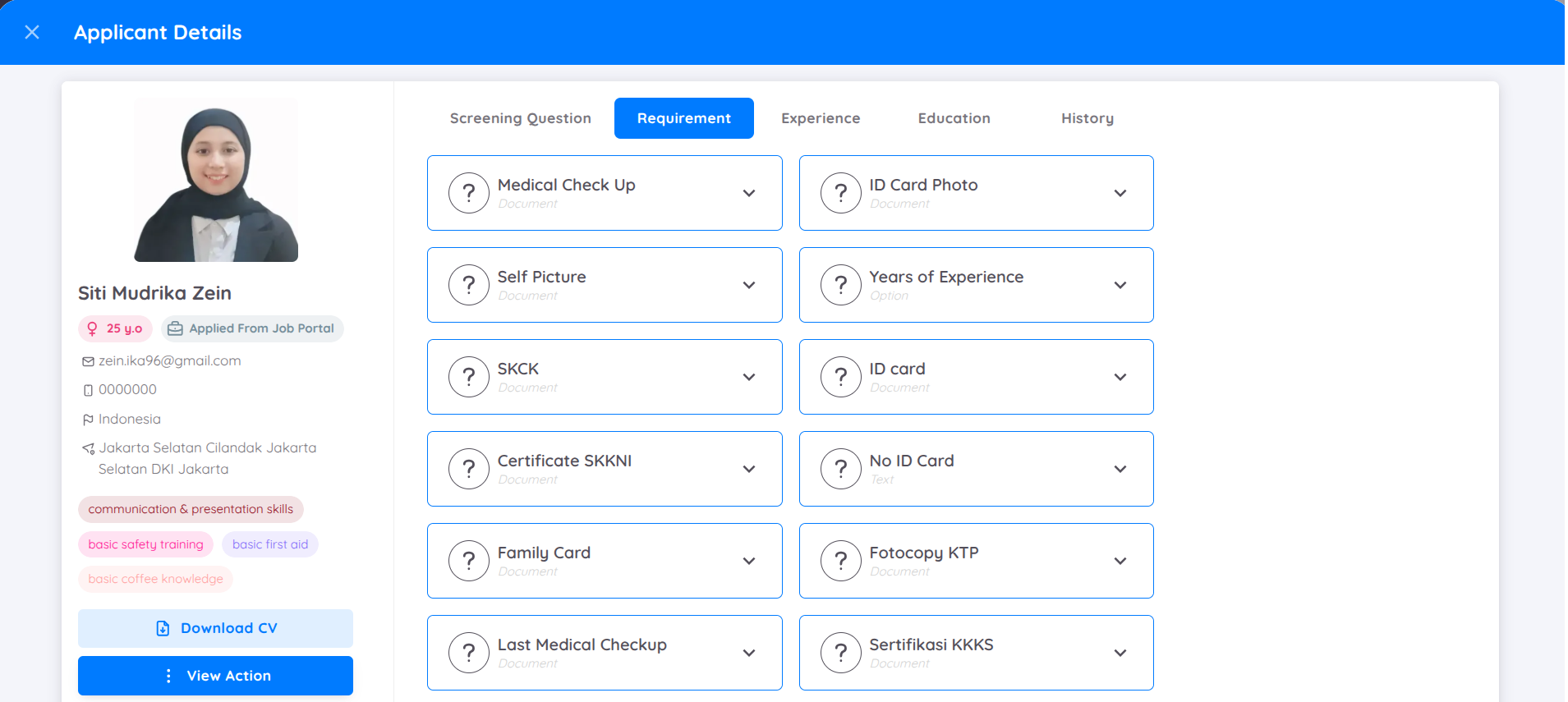
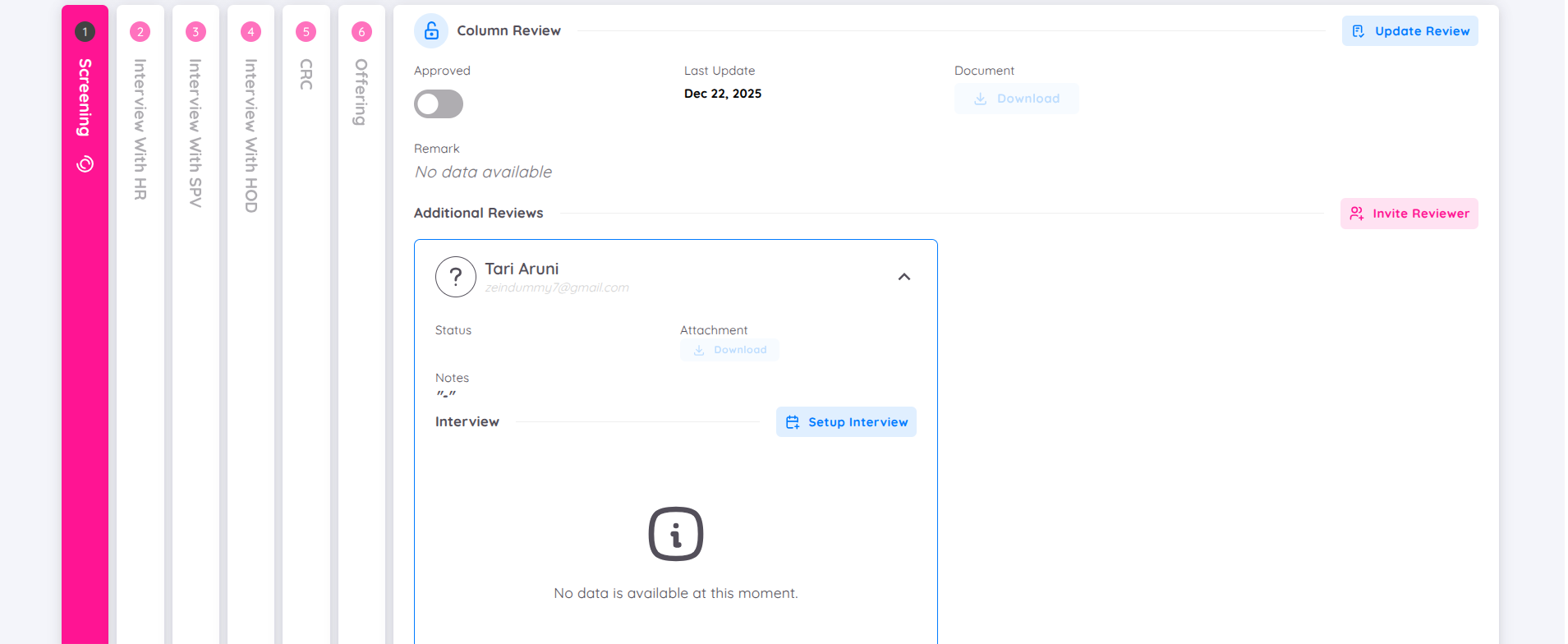
Each board is customizable, and users can add more reviewers if needed. Reviewers can be assigned manually or selected from a template, with options to add active employees in the property, other employees within the organization, or external parties not registered in Sentec EMS.
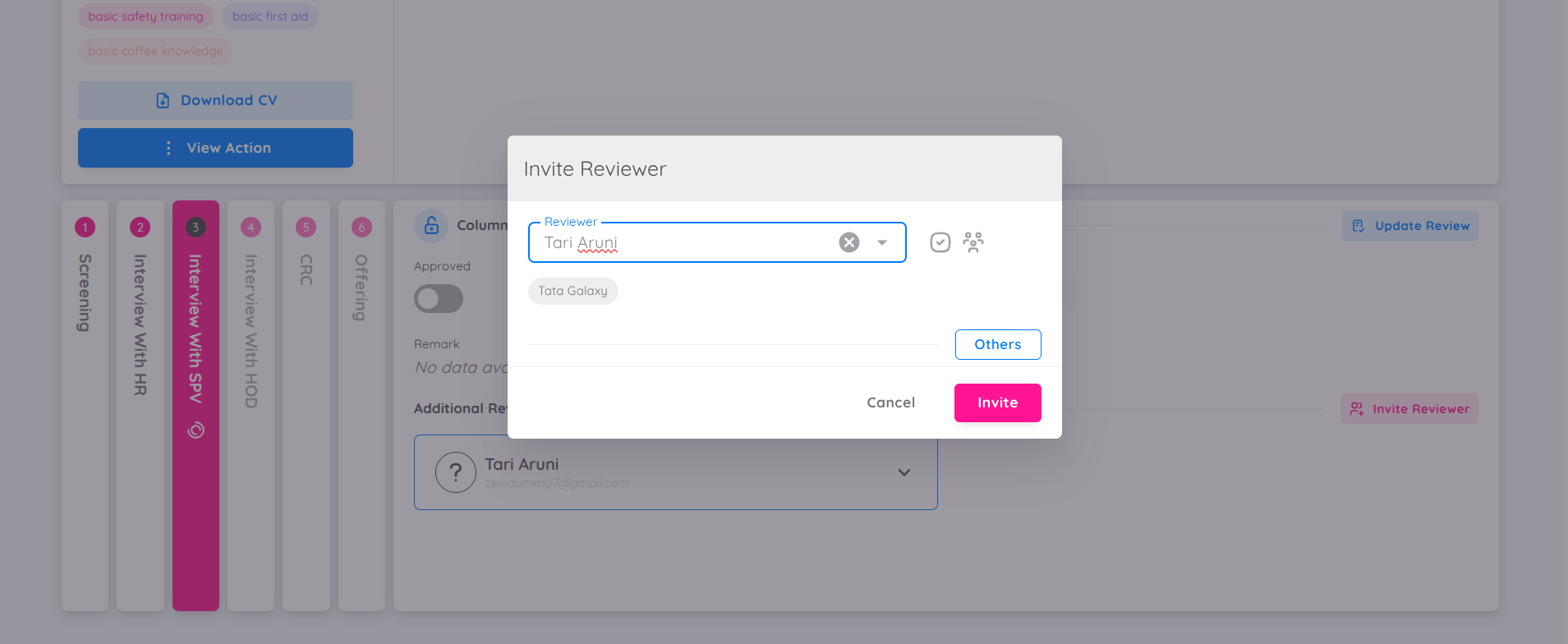
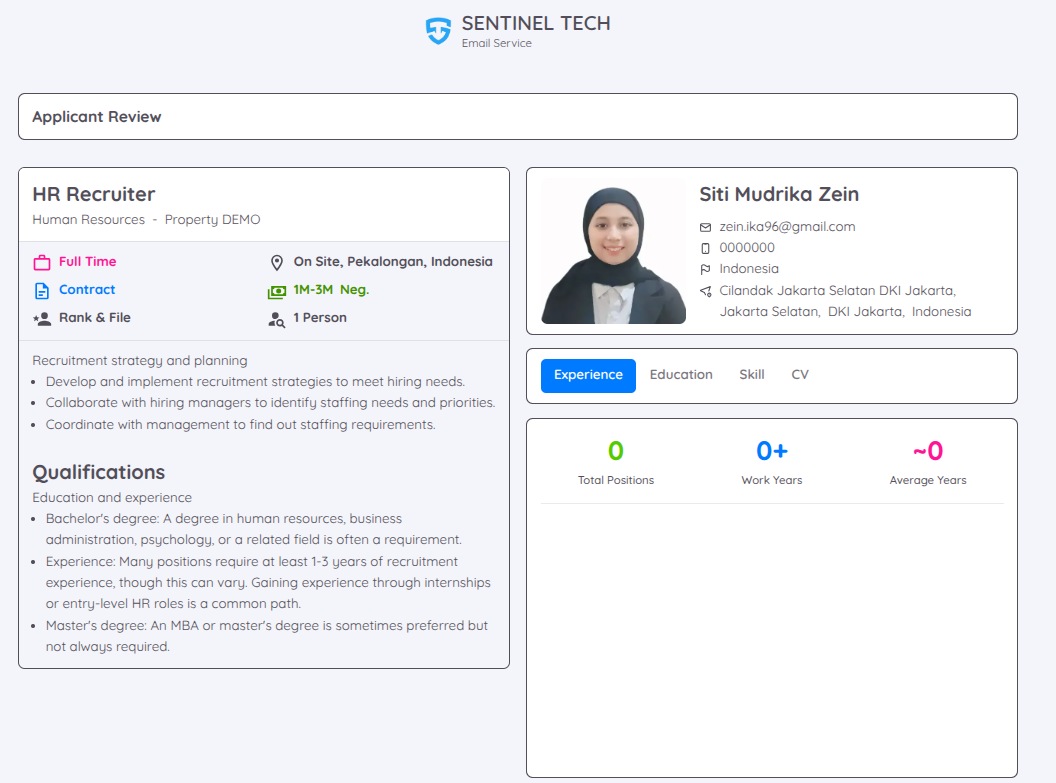
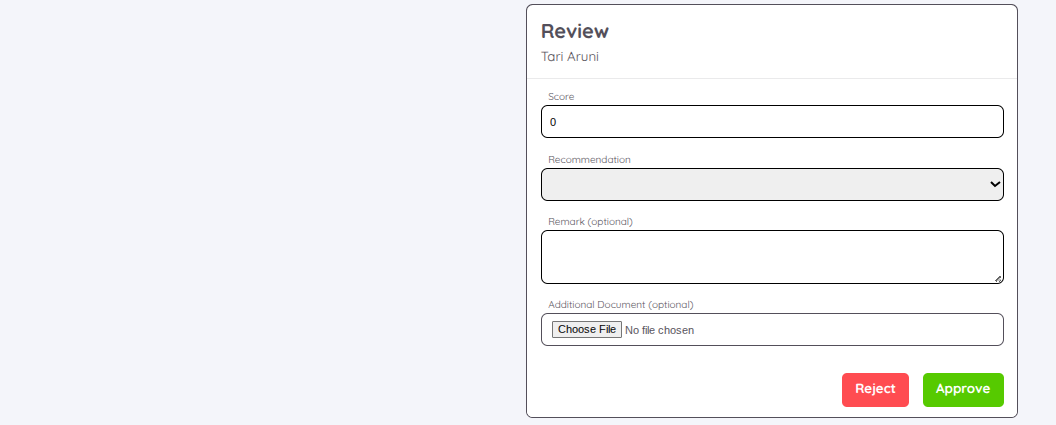
Added reviewers will receive an invitation email and gain access to the Applicant Review page. This page displays job vacancy details and candidate information, including contact details, work experience, education, skilss, and CV. Reviewers can provide feedback through the Review section, which includes fields for scoring, recommendations (passed, failed, hired, rejected), remarks and additional documents if needed. This feature ensures a more structured and transparent candidate evaluation process.
Interview Scheduling
- For the interview stage, a schedule can be created through Set Interview Schedule by filling in the date, location, and meeting link (for virtual interviews)
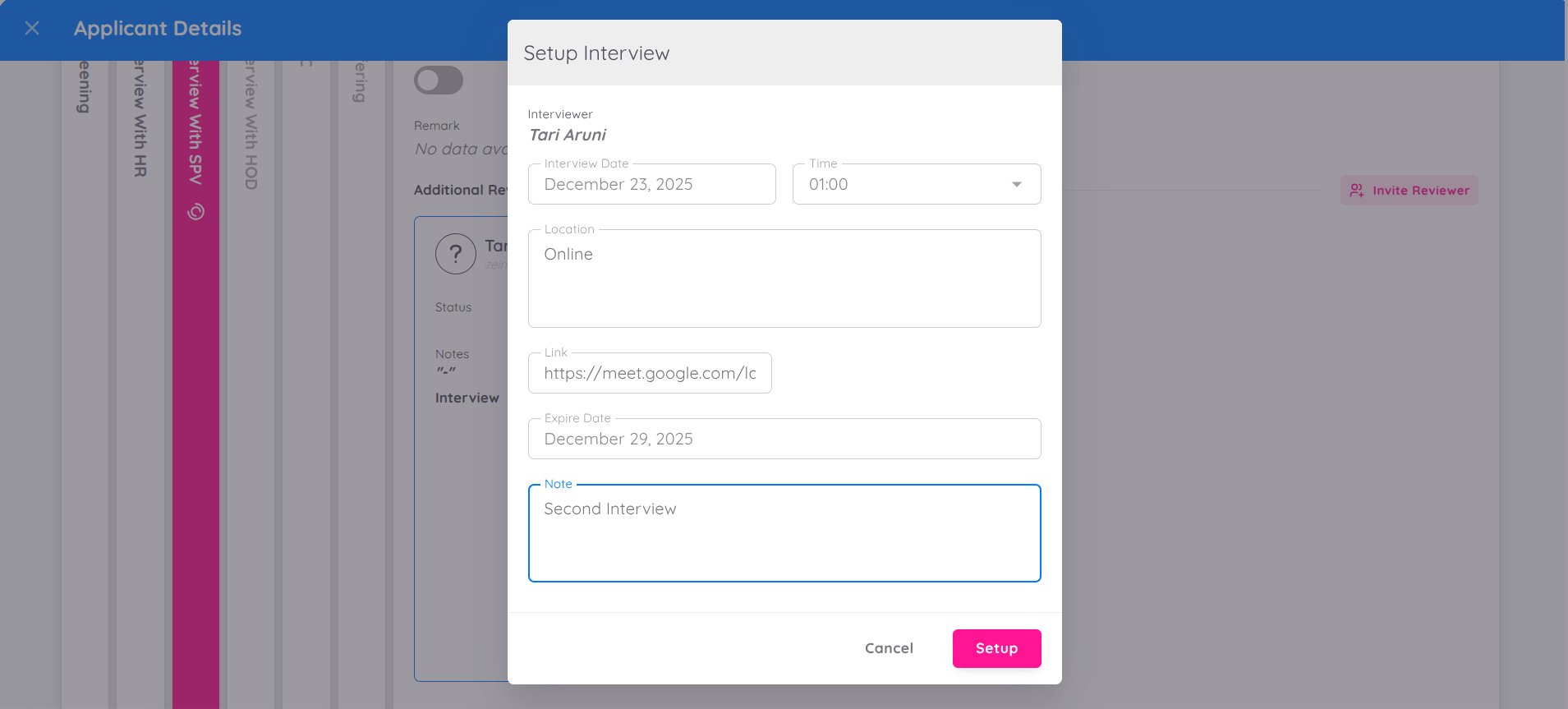
- The system will automatically send interview invitations to the assigned interviewers.
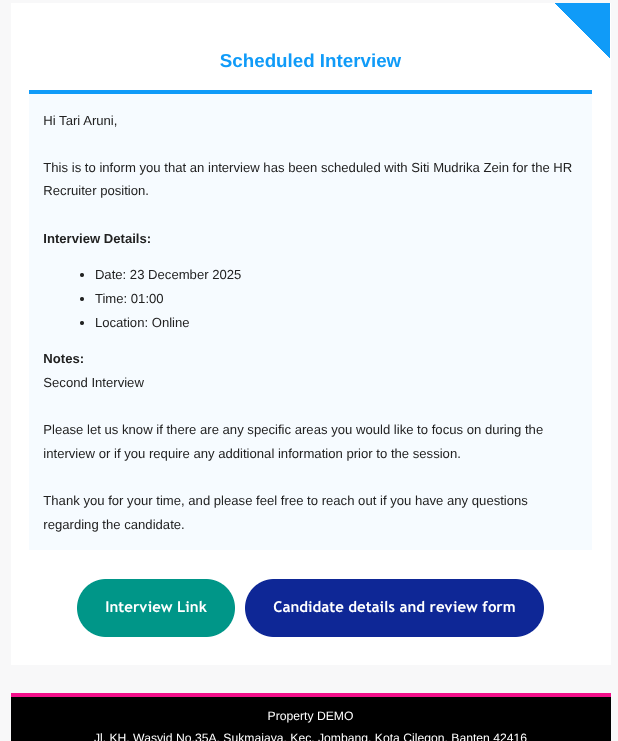
Final Stage and Approval
- Candidates approved by the review team can proceed directly to contract draft creation stage. The contract draft can be created without requiring approval and can be immediately added to the Onboarding milestone to register the candidate in the Employee module.
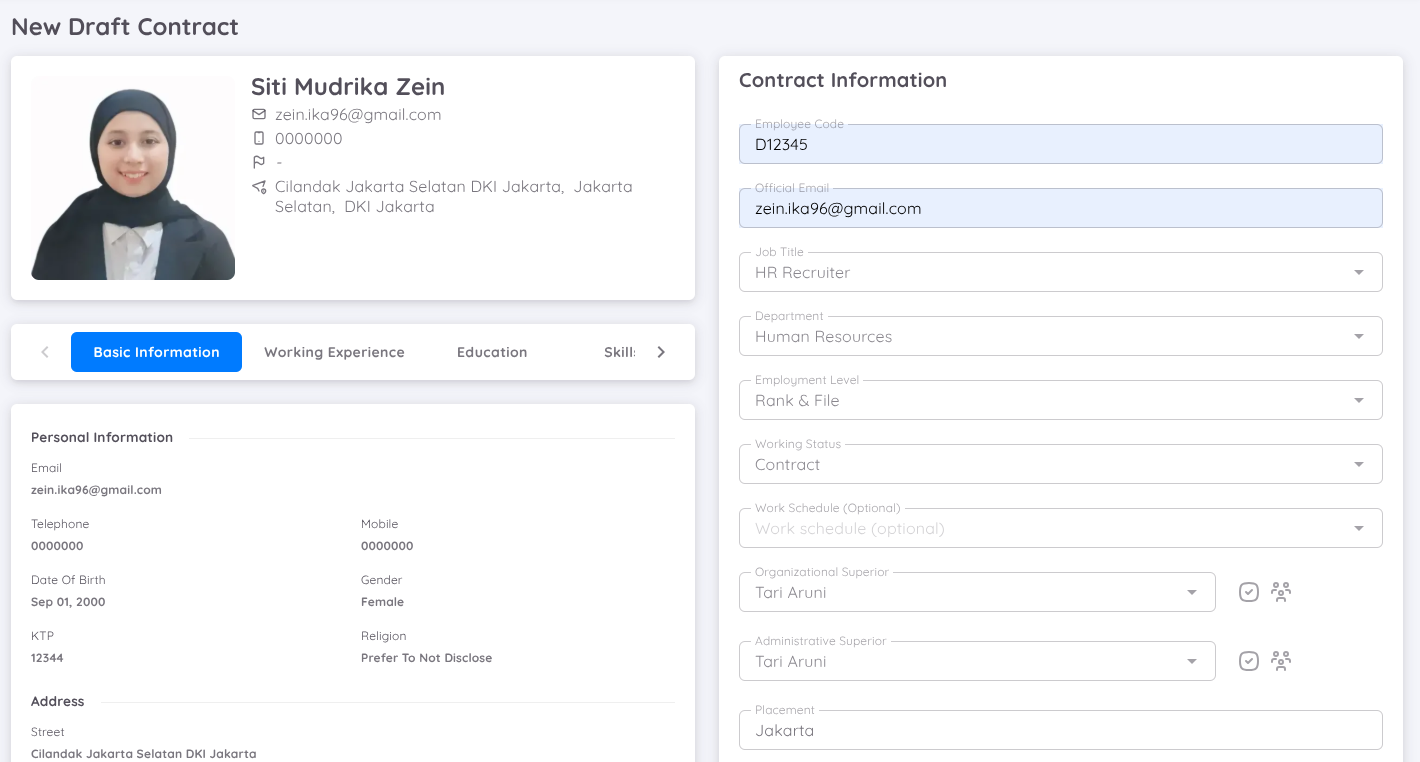
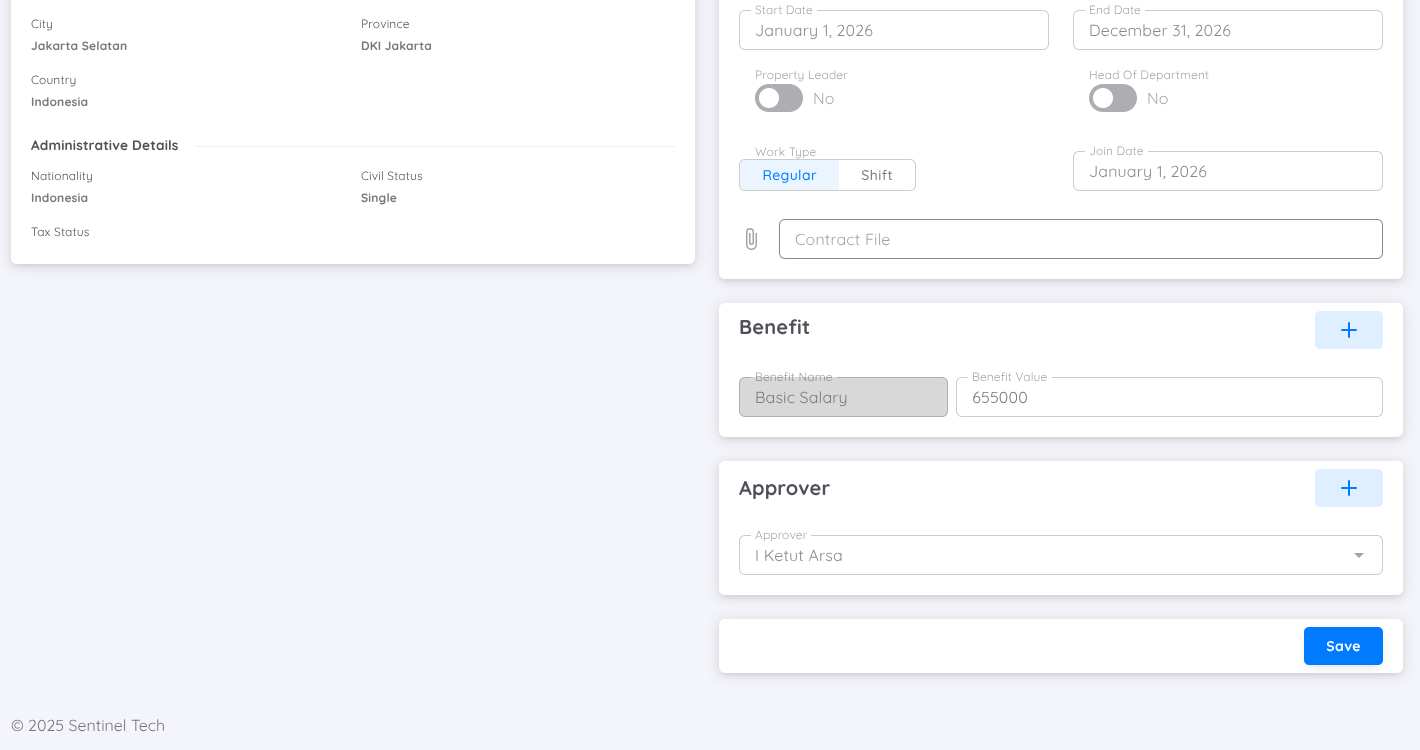
However, if a unit requires an approval process before activating the contract, an approver can be assigned before saving the contract draft. The approver can be from within or outside the unit by clicking the Cross Property button next to the the approver name search.
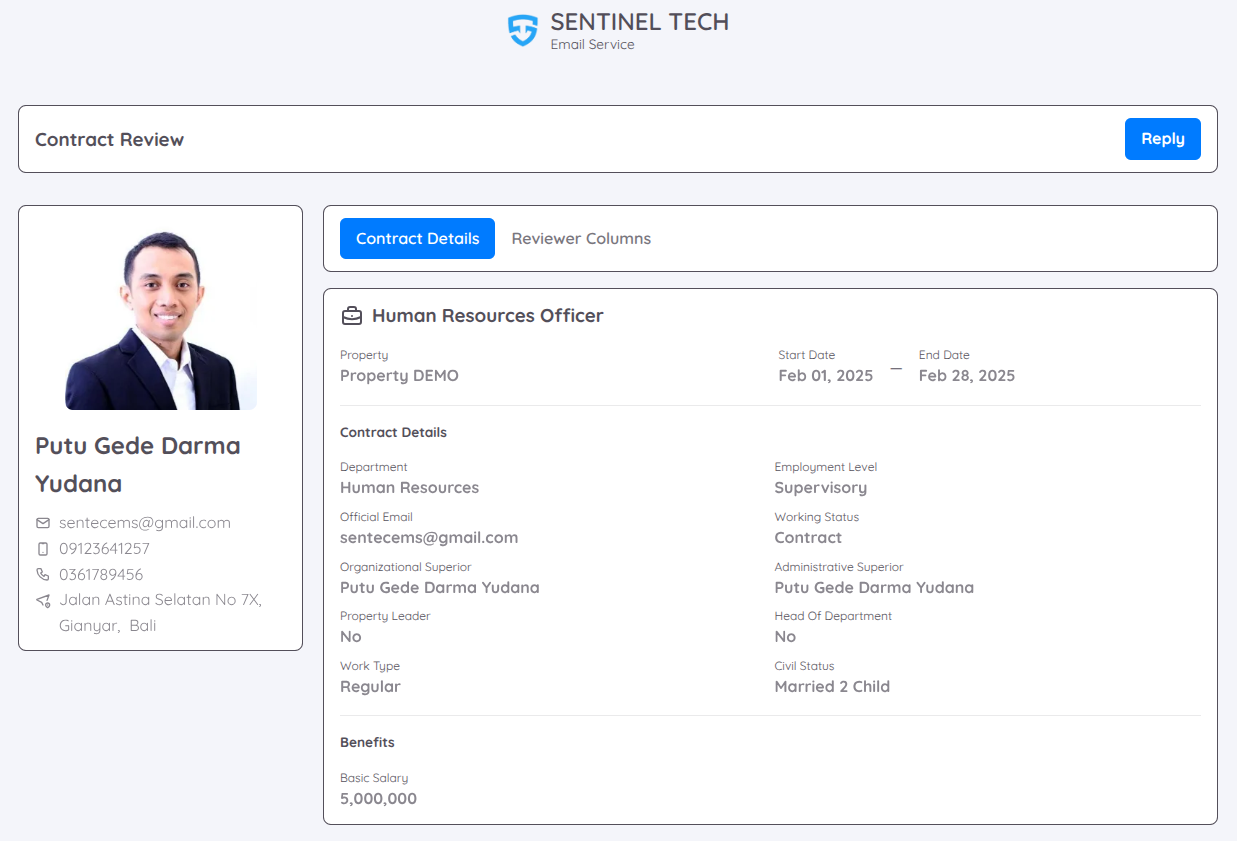
The approver will receive an email notification and gain access to the Contract Review page, which displays contract details such as position, departement, benefits and recruitment process information in the Reviewer Columns tab. To approve or reject the contract draft, the approver can provide feedback and click the Reply button.
The Recruitment module ensures an efficient and flexible recruitment process while providing better management convenience.