Permission & Installation
Before using the Sentec EMS Employee App, employees are required to complete several initial settings to ensure the application functions properly. These settings are especially important for features that rely on device access, such as attendance recording, which may require permission to use the camera, microphone, and location.
In addition to permission settings, employees also have the option to install the web app shortcut on their device. Since the Sentec EMS Employee App is currently accessible only via a web browser, this installation does not download a native mobile application. Instead, it creates a web app shortcut on the device’s home screen, allowing faster access, a more app-like experience, and easier daily use without repeatedly opening the browser.
Completing the permission and installation steps below will help ensure a smooth and uninterrupted experience when using the Sentec EMS Employee App.
Permission
There are several ways to allow permissions when using the EMS Employee App, depending on the device and operating system used by the employee (Android or iOS).
For Android users, it is recommended to use Google Chrome as the web browser for the best experience and compatibility.
Android (Chrome)
To allow access to the Camera, Microphone, and Location for Android users using the Chrome web browser, follow these steps:
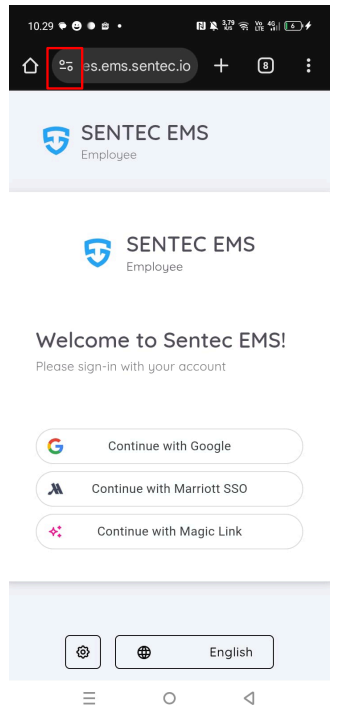
- Open Chrome and access the Sentec EMS application.
- Tap the Tab Overview on the address bar.
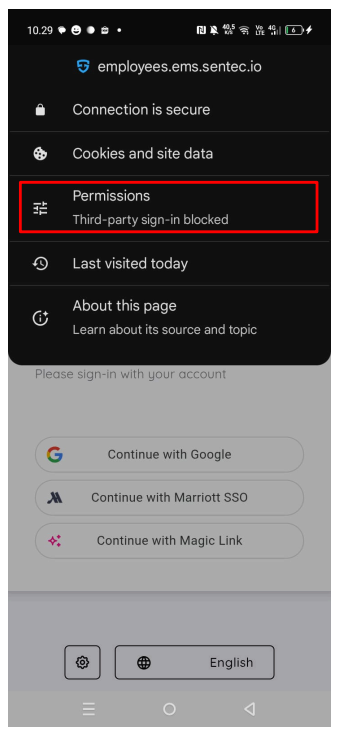
- And then select Permissions.
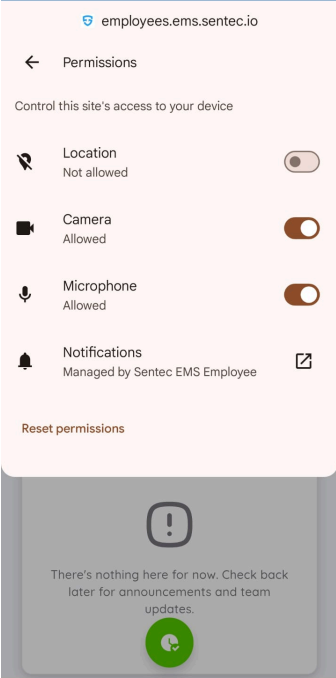
- And you can directly, enable permissions for Camera, Location, and Microphone by selecting Allow.
iOS (Safari)
For iOS users, access the Safari web browser and allow the required permissions for Camera, Microphone, and Location by following these steps:
- Open Safari and access the Sentec EMS application.
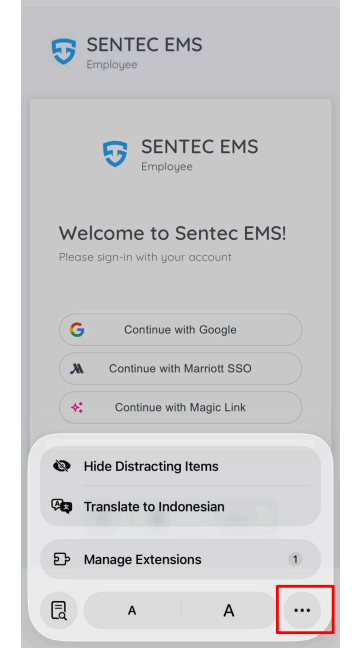
- Tap the icon next to the address bar.
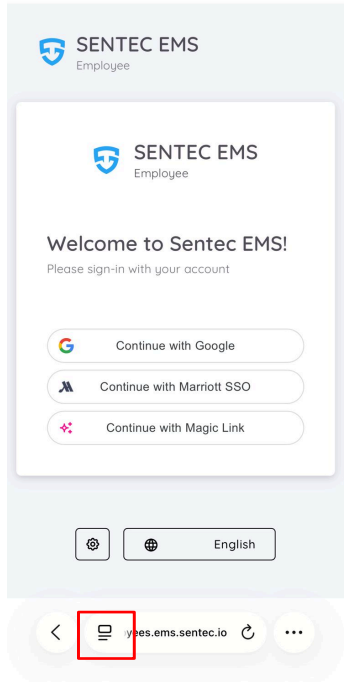
- Tap the three-dot icon in the bottom-right corner.
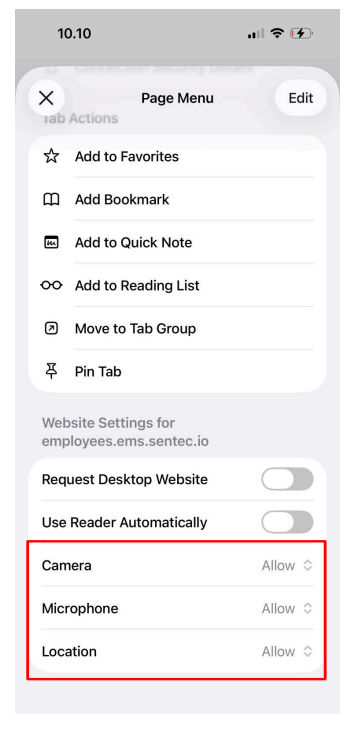
- Make sure the Camera, Microphone, and Location permissions are all set to Allow.
You can also view the process in the video below:
For the second option you can also verify and manage permissions directly through the iOS system settings:
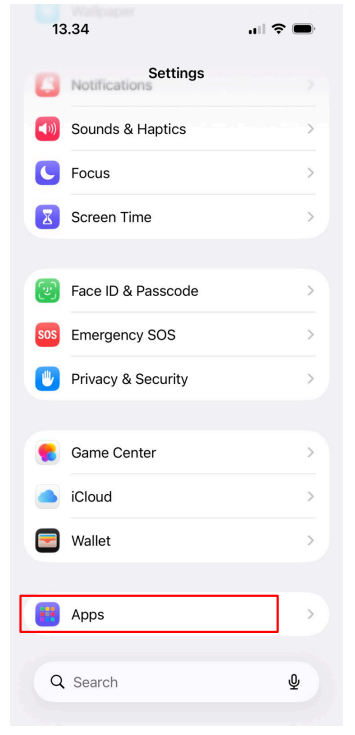
- Open Settings, then scroll down and tap Apps.
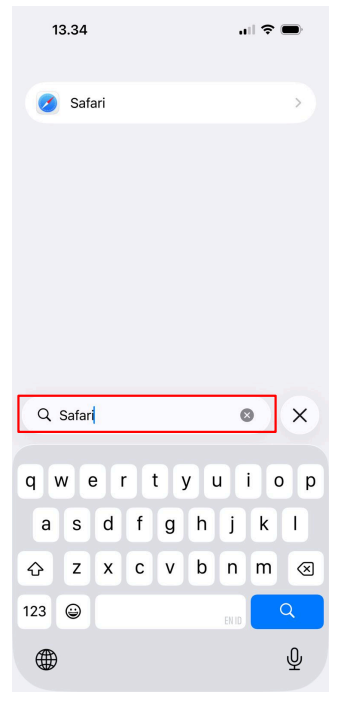
- From the list of apps, find and tap Safari.
- Scroll down until you find Setting for Camera, Microphone, and Location.
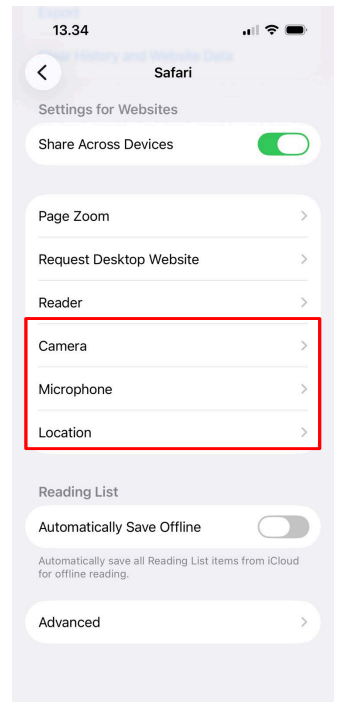
- Check each permission and ensure that Camera, Microphone, and Location access are set to Allow for
employees.ems.sentec.io.
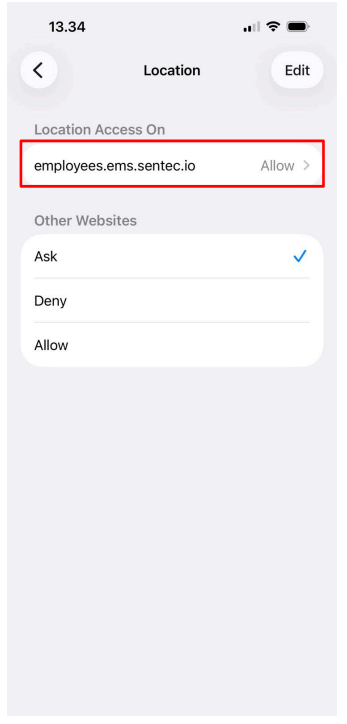
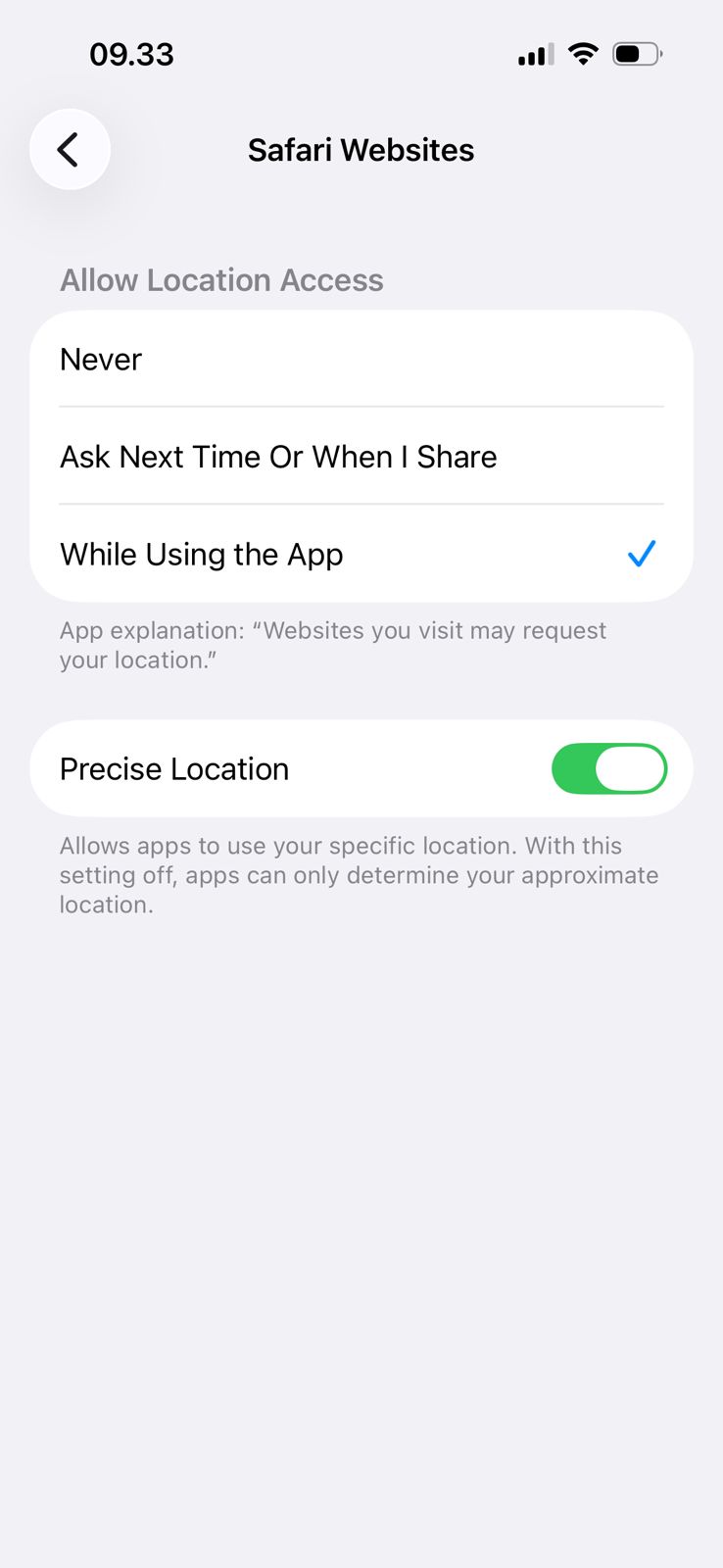
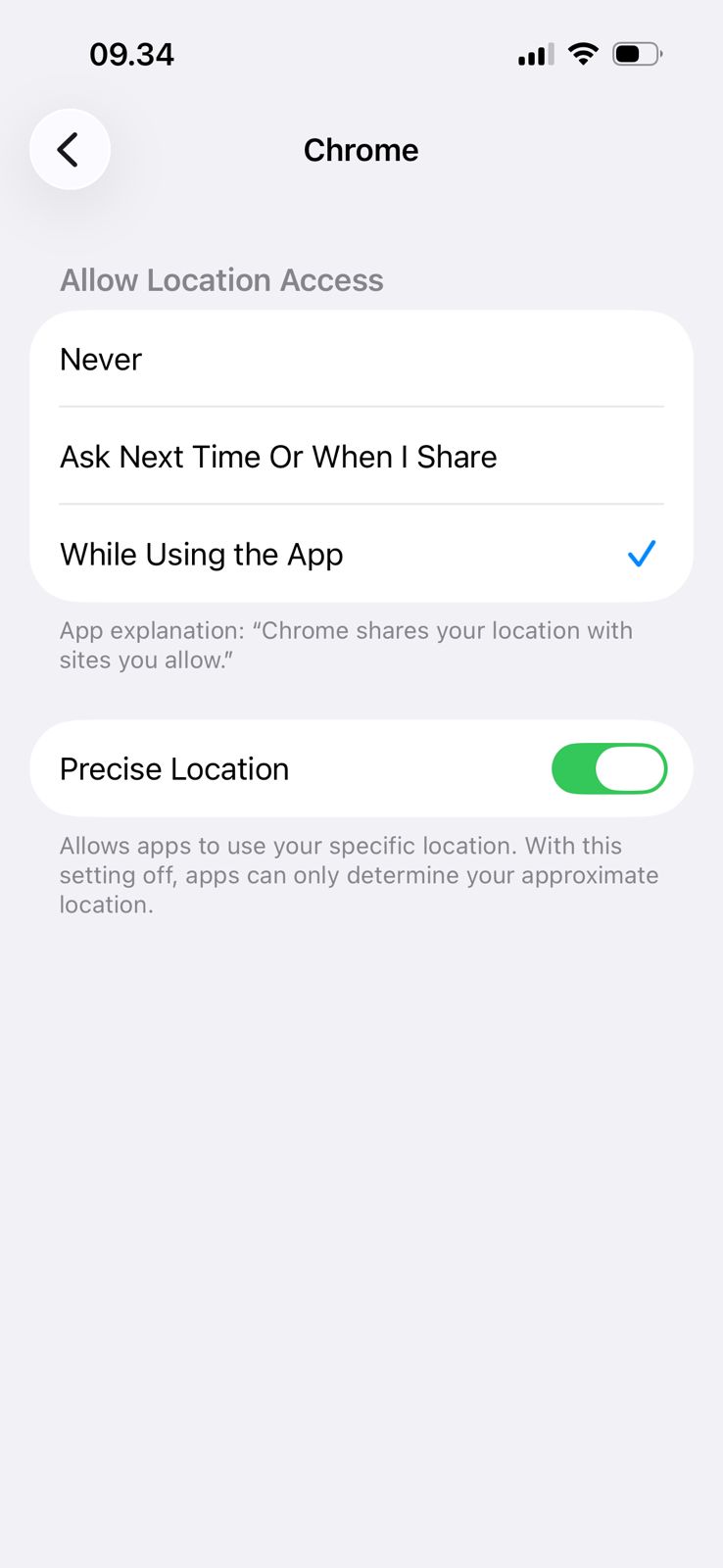
You can also ensure that location access is allowed for both Chrome and Safari by following these steps:
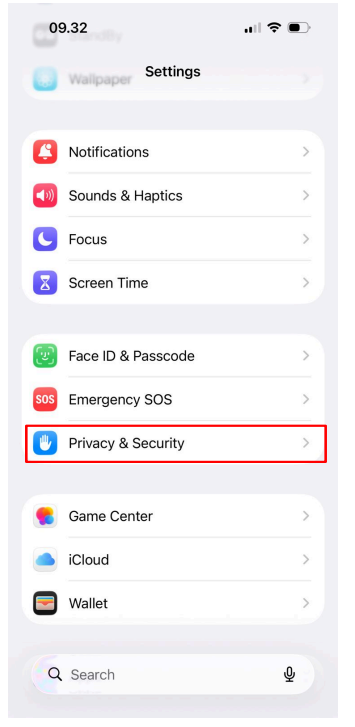
- Go to Settings.
- Select Privacy & Security.
- Tap Location Services.
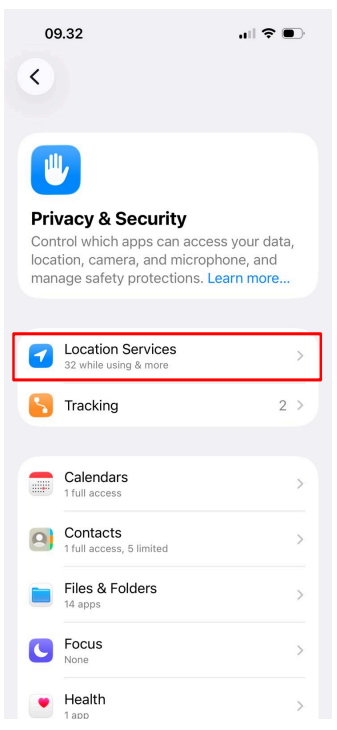
- Select the Safari and Chrome apps, then:
- Allow location access
- Enable Precise Location
Safari
Chrome
IMPORTANT
To access the EMS Employee App, it is not recommended to open the link directly from other applications such as WhatsApp.
Instead, copy the link and paste it into the browser’s address bar, or manually type employees.ems.sentec.io directly into your web browser.
Installation
The installation steps below explain how to add the Sentec EMS Employee App to your device’s home screen for quicker and easier access.
Since the application is currently available only through a web browser, this installation does not download a native mobile app. Instead, it creates a web app shortcut on your home screen, providing a more app-like experience and faster access without repeatedly opening the browser.
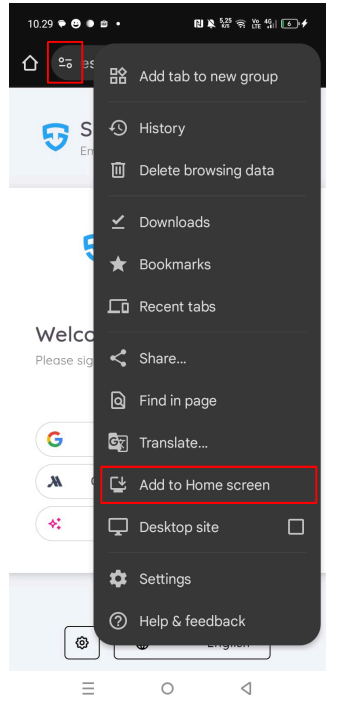
Android (Chrome)
- Open the Sentec EMS application using the Google Chrome browser.
- Tap the Tab Overview in the top-right corner of the browser.
- Select Add to Home screen.
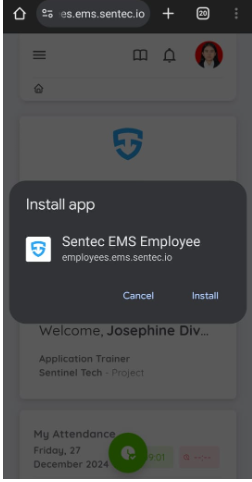
- A confirmation pop-up will appear. Tap Install to complete the installation process.
WARNING
Before installing the Employee App, make sure the following permissions have been granted:
- Camera: To enable features such as photo capture during attendance.
- Location: To enable location-based attendance feature work properly.
- Microphone: Required to support features that need audio input, such as verification or audio recording (if applicable), and to ensure full compatibility with attendance features and other functions within the application.
- Once completed, the application icon will appear on your device’s home screen, allowing quick access to the Sentec EMS application.
iOS (Safari)
- Open the Sentec EMS application using Safari.
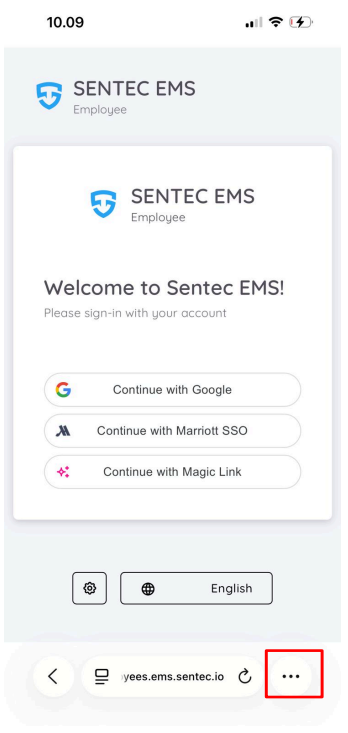
- Tap the menu button (three dots) in the bottom-right corner of the browser.
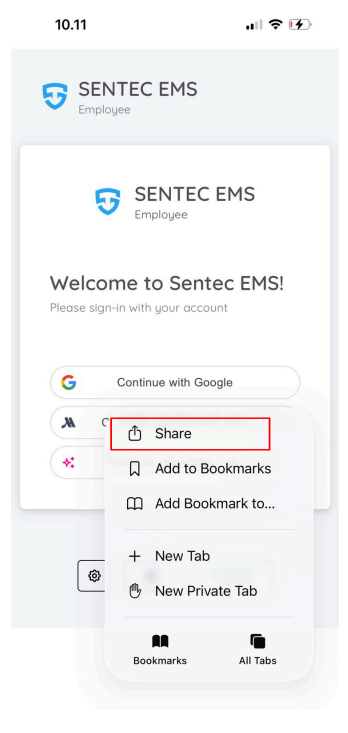
- Tap the Share button.
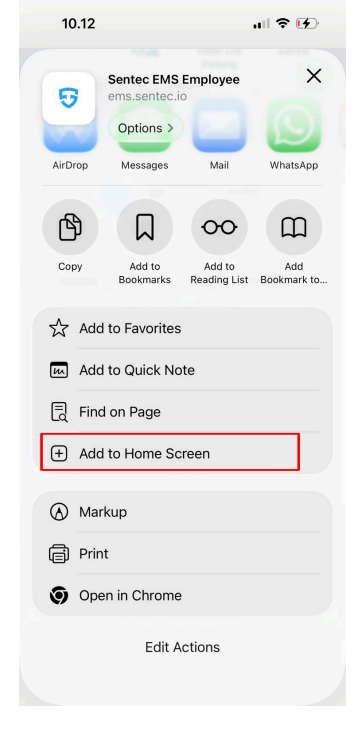
- Select Add to Home Screen.
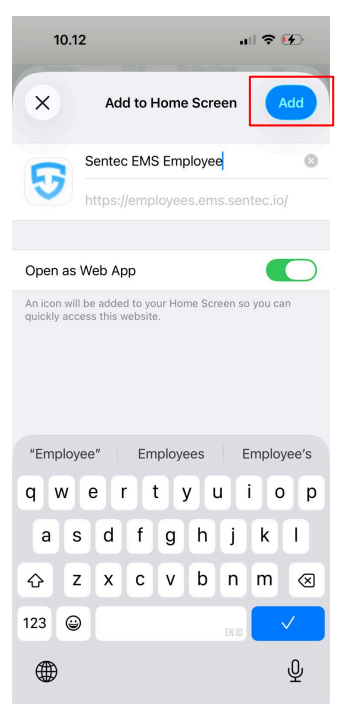
- A confirmation pop-up will appear. Tap Add to complete the process. You may change the app name if necessary, and make sure to enable the “Open as a Web App” toggle.
WARNING
Before installing the Employee App, make sure the following permissions have been granted:
- Camera: To enable features such as photo capture during attendance.
- Location: To enable location-based attendance feature work properly.
- Microphone: Required to support features that need audio input, such as verification or audio recording (if applicable), and to ensure full compatibility with attendance features and other functions within the application.
- Once completed, the application icon will appear on your device’s home screen, allowing quick access to the Sentec EMS application.