Overtime
The Overtime implementation in Sentec EMS can be customized according to each company’s regulations and operational conditions.
Each company can design its own overtime profile to ensure calculations align with labor law or company own regulations.
Before applying the overtime, the overtime profile must first be created through the Configuration - Setup - Attendance menu.
Overtime Administration
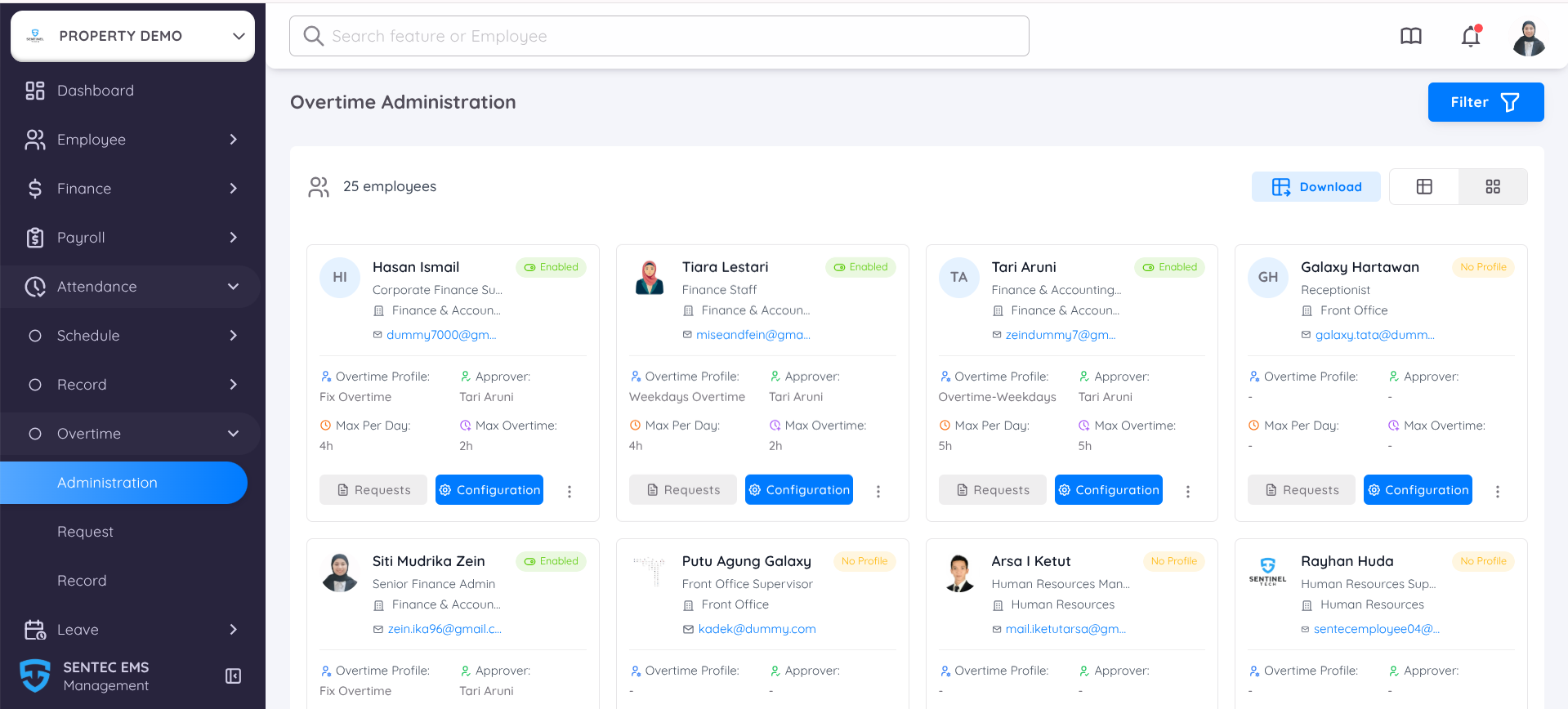
For employees to be able to request overtime, management must first enable an overtime profile for employees who are eligible.
All active employees will be listed on this page. In the card view, you can find detailed information related to each employee’s overtime profile.
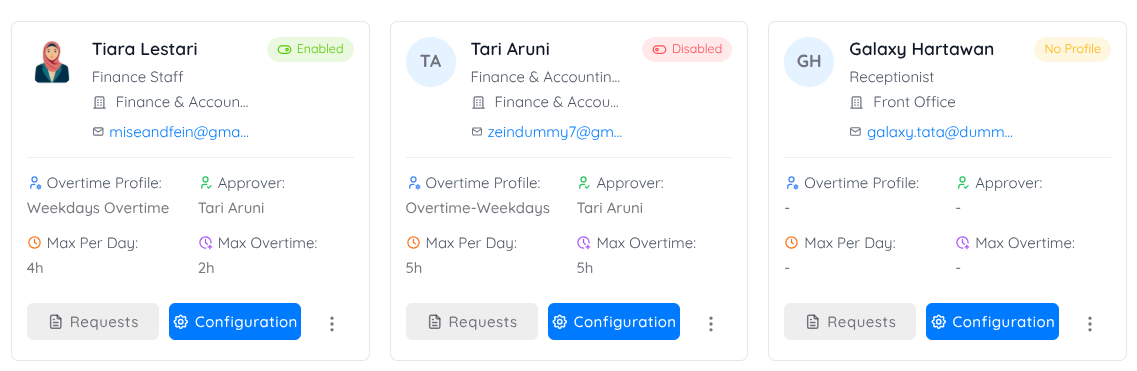
Enable: The employee has an assigned overtime profile and is allowed to request overtime.
Disable: The employee previously had an overtime profile, but it has been disabled.
No Profile: The overtime profile has not been configured, or the employee is not eligible for overtime.
Users with write access can enable, disable, assign, or modify the overtime configuration at any time by clicking and accessing the Configuration button.
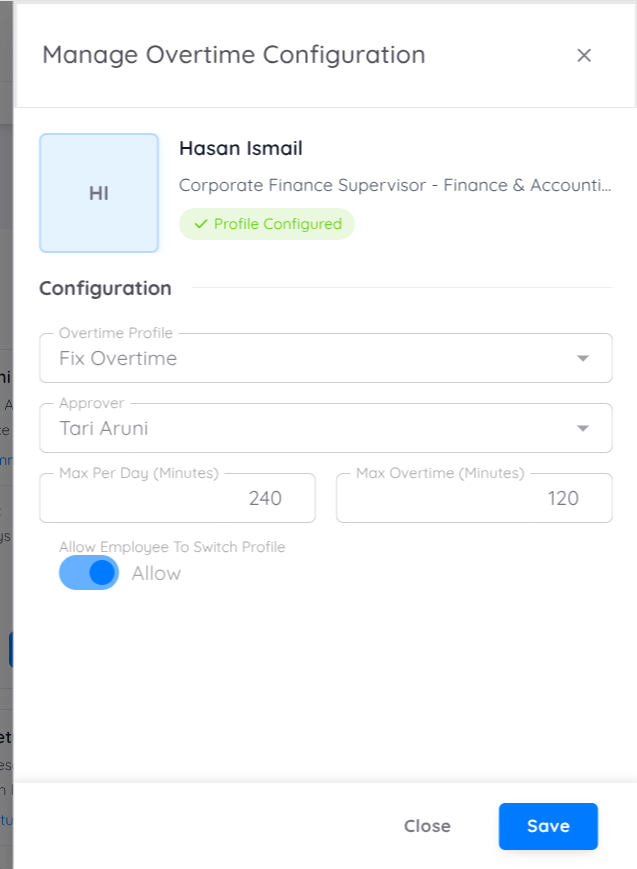
In Manage Overtime Configuration you can set the following:
| Setting | Description |
|---|---|
| Overtime Profile | By default, employees will be assigned a specific overtime profile. Management may change this profile if there are updates to employee eligibility or overtime rules. |
| Approver | By typing the approver’s name, you can assign who will approve the overtime request (organizational or administrative superior). |
| Max Overtime per Day | Limits the maximum overtime duration for each employee per day (in minutes). |
| Max Overtime | The overall maximum overtime limit according to company policy. |
| Allow Profile Switching (Toggle) | Enabled (Allow): Employees can switch between listed overtime profiles. Disabled (Forbid): Employees can only use the default profile assigned to them. |
Request Overtime
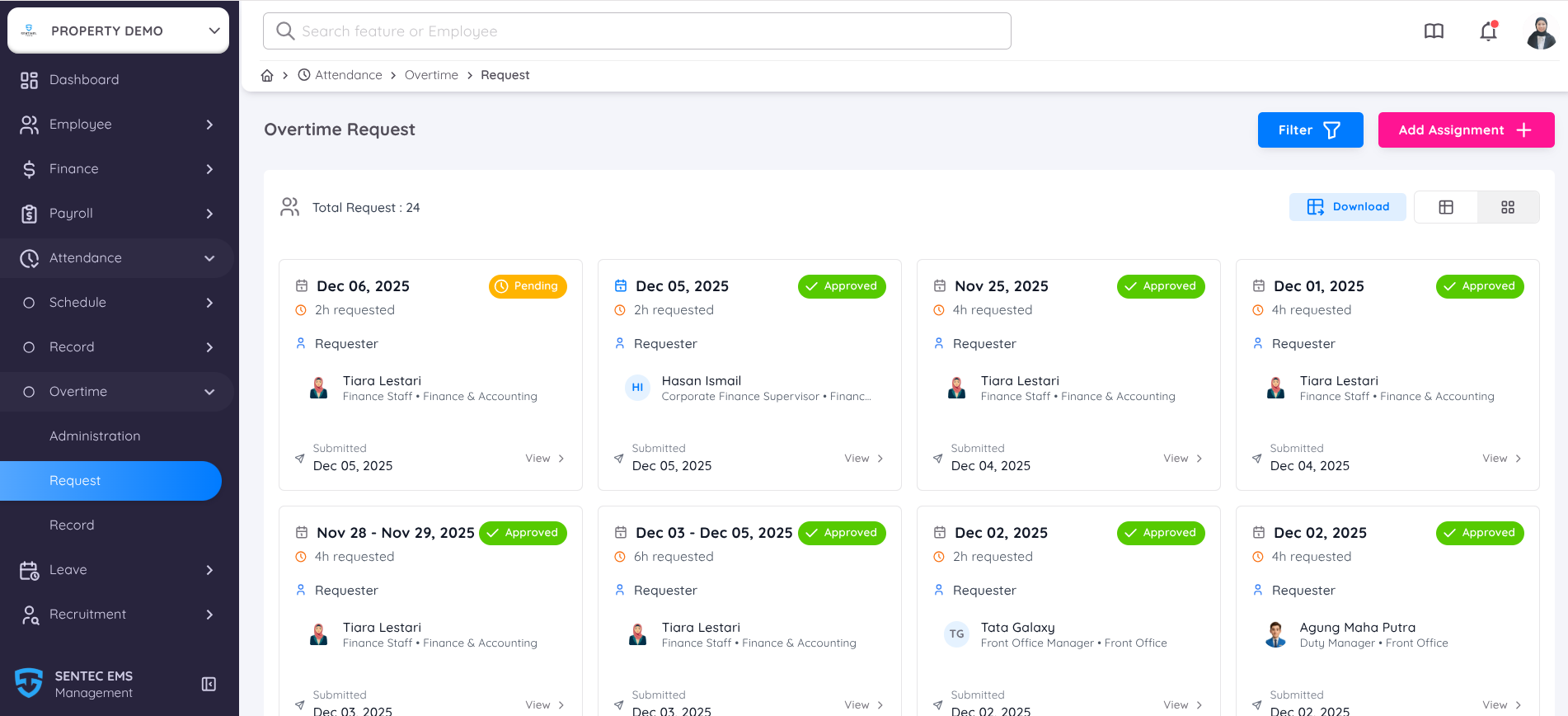
All requested overtime will be listed under the Request submenu.
In both card view and table view, you can see detailed overtime requests submitted or assigned to each employee, along with their status:
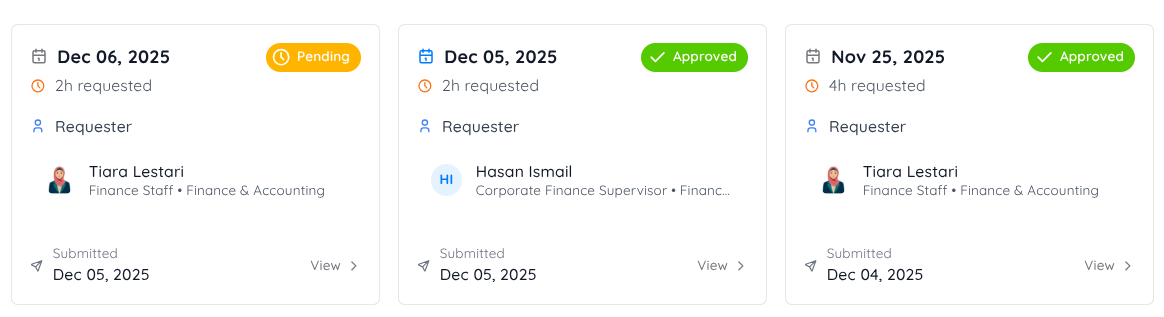
- Pending : The request has not yet been approved by the employee's superior.
- Approved : The request has been approved by the employee's superior.
- Rejected : The request has been rejected by the employee's superior.
NOTE
If the overtime is assigned by the employee’s superior or management, the overtime assignment will be automatically approved.
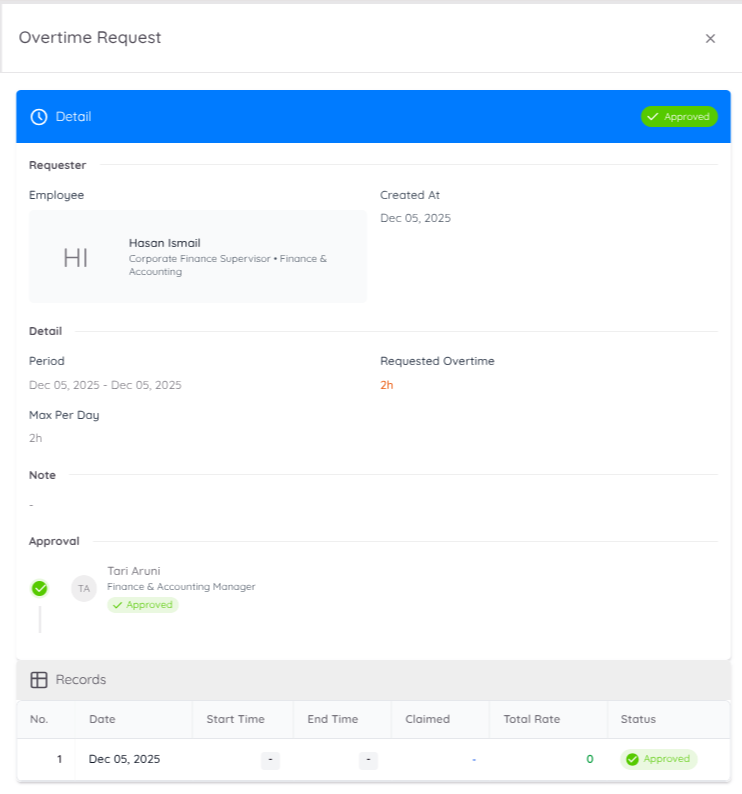
Each overtime request will include record details, containing:
- Overtime date
- Start and end time
- Claimed hours
- Total rate
- Status
When the request is approved and the employee has completed the overtime, all records will show:
- Actual start and end time
- Claimed hours based on the requested overtime duration
- Total rate, which will depend on the overtime profile selected or assigned to the employee.
Add Overtime Assignment
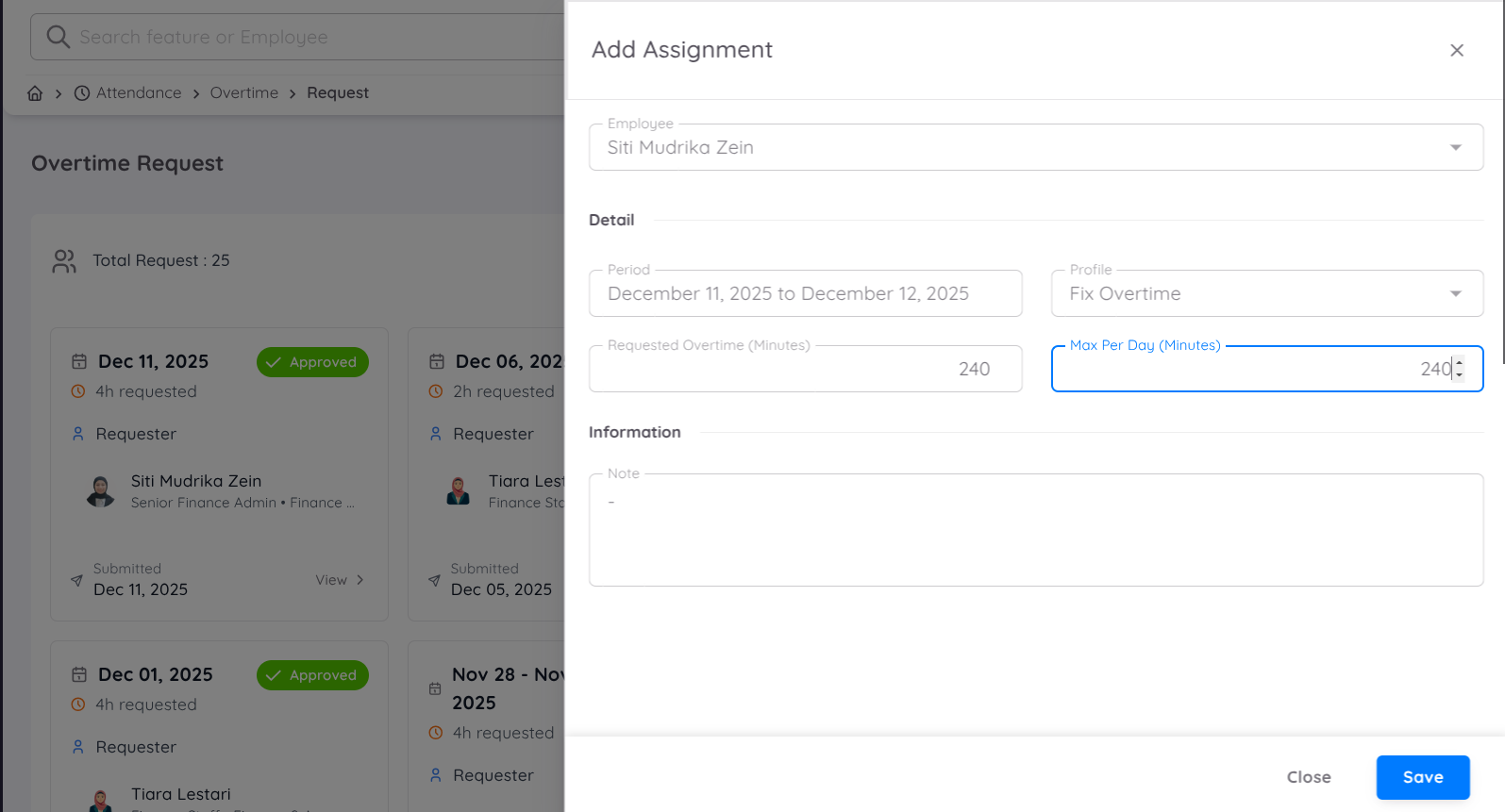
The Add Assignment form allows supervisors or management to directly assign overtime to an employee. Assigned overtime does not require approval, as it will be automatically marked as Approved.
| Field | Description |
|---|---|
| Employee | Type the employee’s name to select who will receive the overtime assignment. |
| Period | Defines the overtime duration period. - You can select a single date or a date range. - The system will calculate the overtime duration for each selected date. |
| Profile | Allows you to select which Overtime Profile will be used for this assignment. This determines: - Rate calculation - Rules applied - Eligibility and limitations |
| Requested Overtime (Minutes) | The total overtime minutes intended to be assigned to the employee. Example: 240 minutes = 4 hours |
| Max Per Day (Minutes) | Sets the maximum allowed overtime per day within the selected period. - This value cannot exceed the maximum limitation configured in the employee’s overtime profile. - Example: 240 minutes ensures the employee cannot exceed 4 hours of assigned overtime per day. |
| Note | Management or supervisors can provide additional information, justification, or special instructions regarding the assignment. |
| Save | Click Save to confirm the overtime assignment. Once saved: - The overtime will appear in the Overtime Request list. - The status will automatically be set to Approved since it is assigned by a superior or management. |
Key Notes
- Assigned overtime bypasses the approval workflow.
- All limitations (such as max overtime per day) will still follow the selected overtime profile.
- Employees will be able to view the assignment details in their Overtime Request history.
Overtime Record
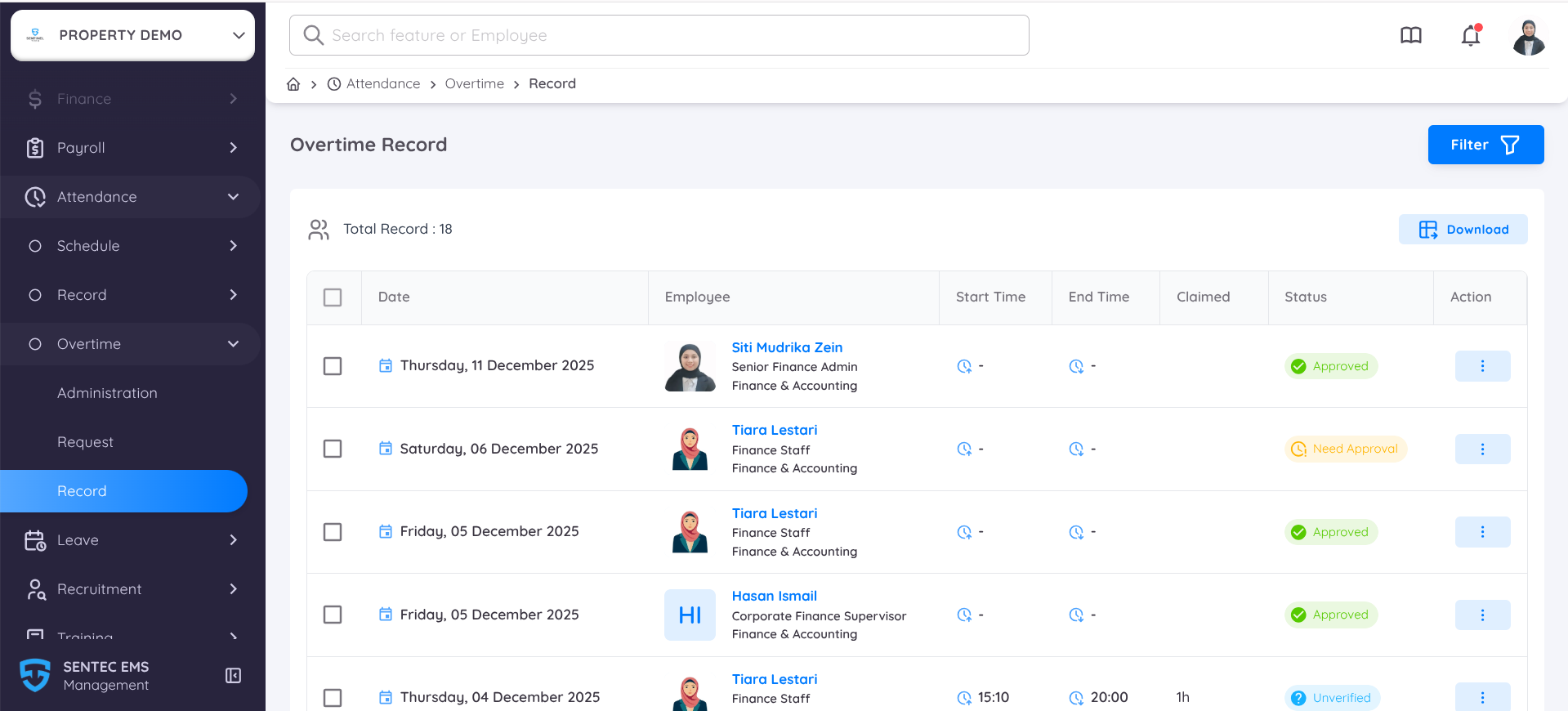
The Overtime Record page in Sentec EMS provides a centralized interface for viewing, reviewing, and managing all employee overtime submissions. This page allows supervisors, managers, and administrators to monitor the status of overtime entries, verify records, and download data for reporting purposes.
The Overtime Record page displays a list of all overtime entries submitted or assigned within the system. It includes essential overtime details such as date, employee, work duration, status, and available actions.
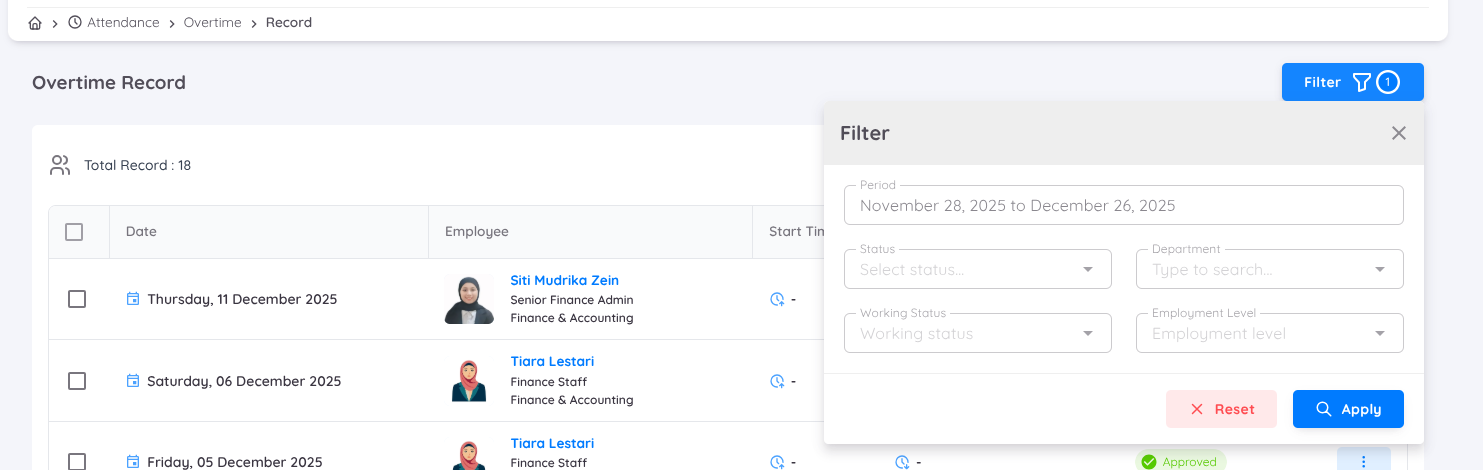
At the top of the page, users can also apply Filters based on: Period, Status, Department, Working Status, and Employee Level.
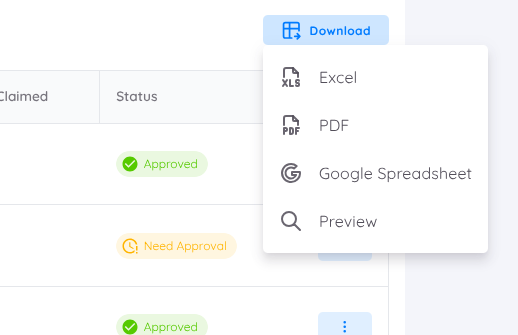
Users may also Download the entire overtime record dataset based on the filters applied.
Each overtime record includes a status that indicates its current approval state:
| Status | Description |
|---|---|
| Approved (Green) | Overtime has been reviewed and approved. |
| Need Approval (Yellow) | Awaiting review by supervisor/manager. |
| Unverified (Blue) | The system detected time data, and the record requires validation. If the time has not been recorded yet, verification will result in an error. |
| Rejected (Red) | The request has been rejected by the superior. |
Overtime Claim Process
The overall process for overtime submission and verification is as follows:
- The employee or user assigns the overtime to an employee.
- The request is approved by the superior.
- The employee completes the overtime hours by performing attendance in the system.
- HR/Management verifies the record.

- The overtime system calculates the total claimed overtime hours.
The verification process can also be performed through the View Details option.
This will redirect users to the complete list of overtime requests grouped under a single submission.
From there, users can verify any overtime record that has not yet been verified.
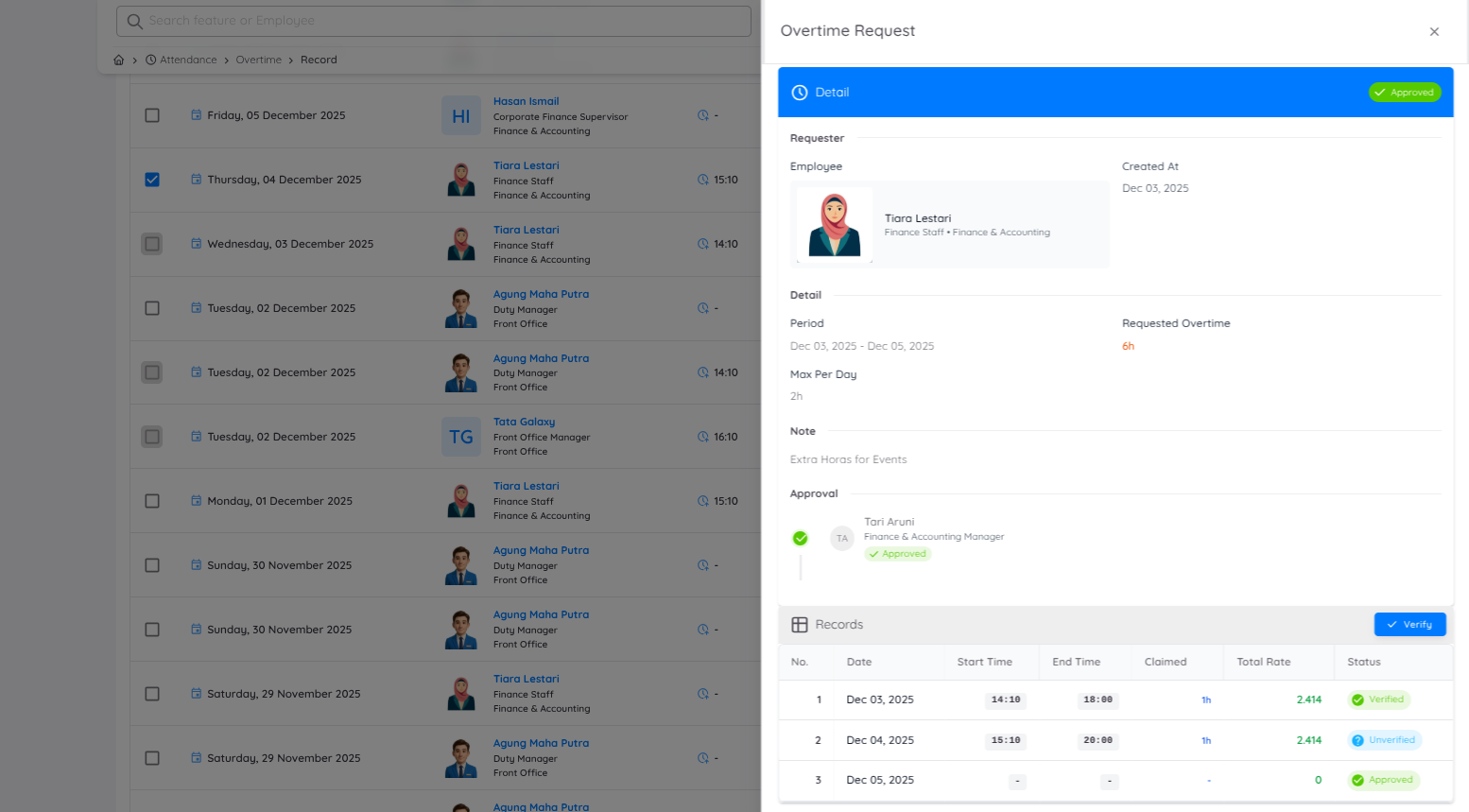
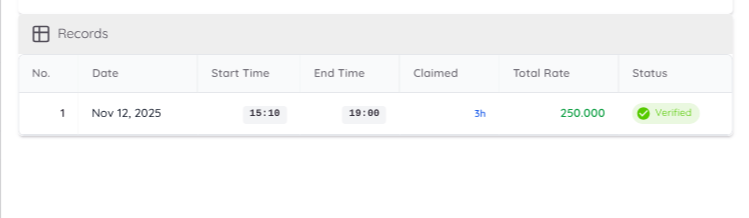
Records that have been verified will show the full breakdown of the overtime details in the Record Details section. This section displays:
Date: Shows the specific date on which the overtime was performed.
Start and End Time: Displays the exact time range recorded or submitted by the employee for the overtime period.
Total Hours Claimed: The total duration of overtime calculated based on requested overtime.
Total Calculated Rate: The system automatically calculates the overtime payment rate according to the overtime profile assigned to the employee. This may vary depending on company rules or regional regulations.
Status: Indicates the current approval state of the overtime record (e.g., Approved, Verified, Rejected, etc.).
The overtime claims that have been approved and verified can also be monitored and will be listed in the Compensation menu.
Important Notes
- If an employee submits overtime but has not completed the recording process in the system, the Start Time and End Time will show “–”. After the record is completed, the claim must be verified.
- Records from multiple days or multiple employees can be displayed simultaneously.
- Overtime records cannot be modified or removed regardless of user access rights.