Payroll Report
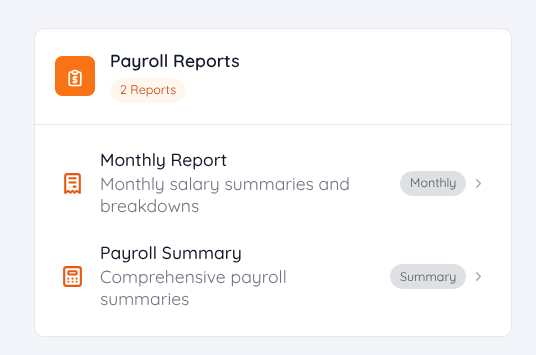
In the Payroll Report module, there are two types of reports available for further analysis:
- Monthly Payroll Report provides a detailed view of employee payroll data for a specific month.
- Payroll Summary Report allows users to compare payroll data across different months to identify trends or discrepancies.
Monthly Payroll Report
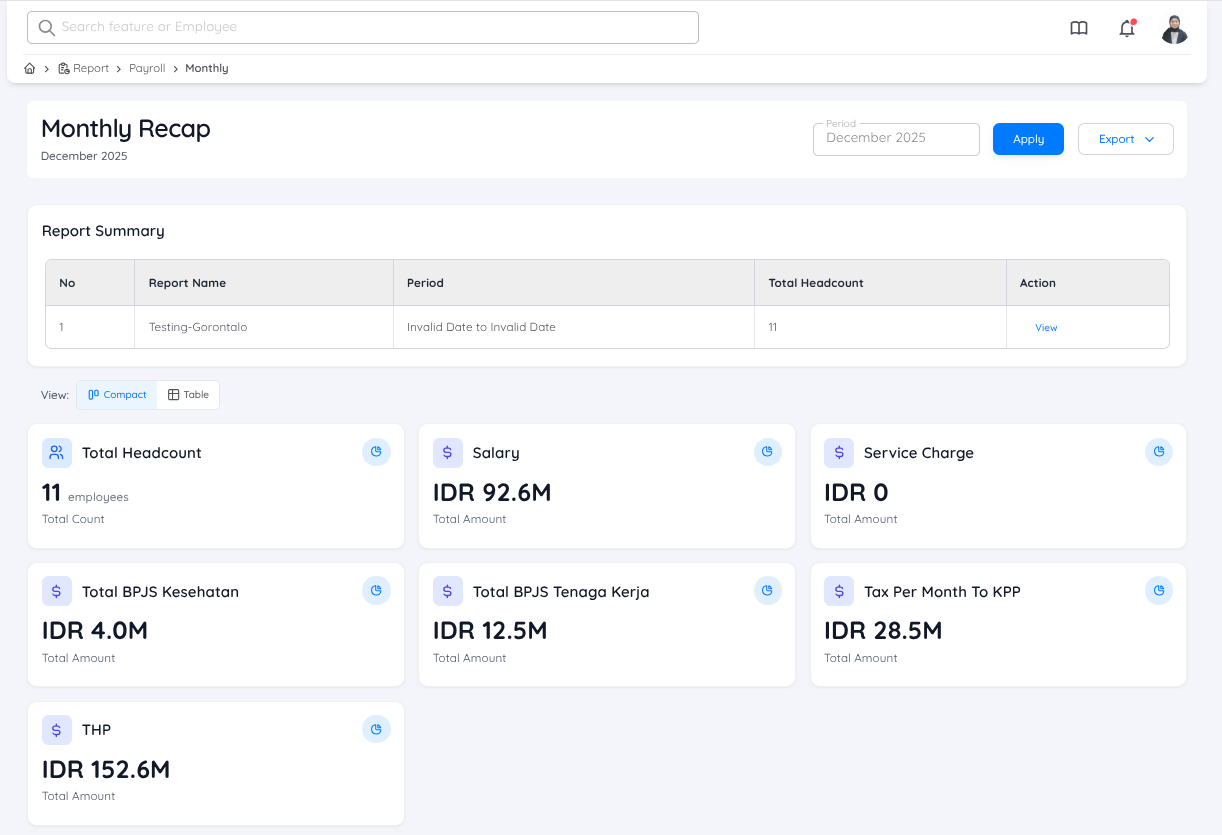
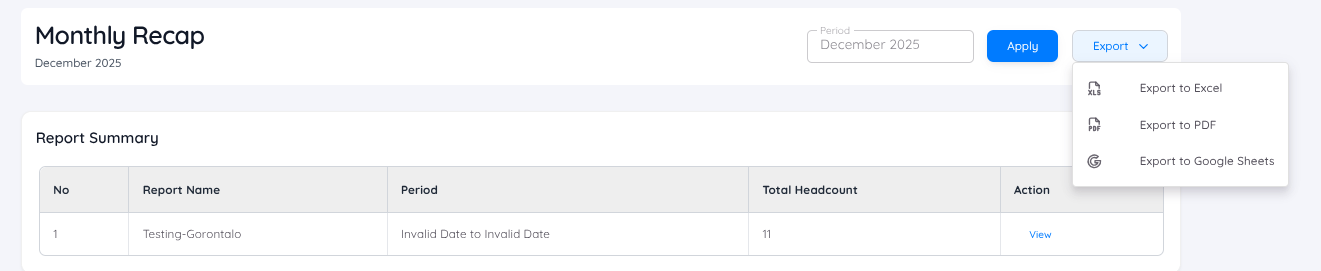
To view the Monthly Payroll Report, users must first select the payroll period they want to review.
Once the period is selected, a report summary will be displayed and all payroll reports generated within the selected period will appear in this summary.
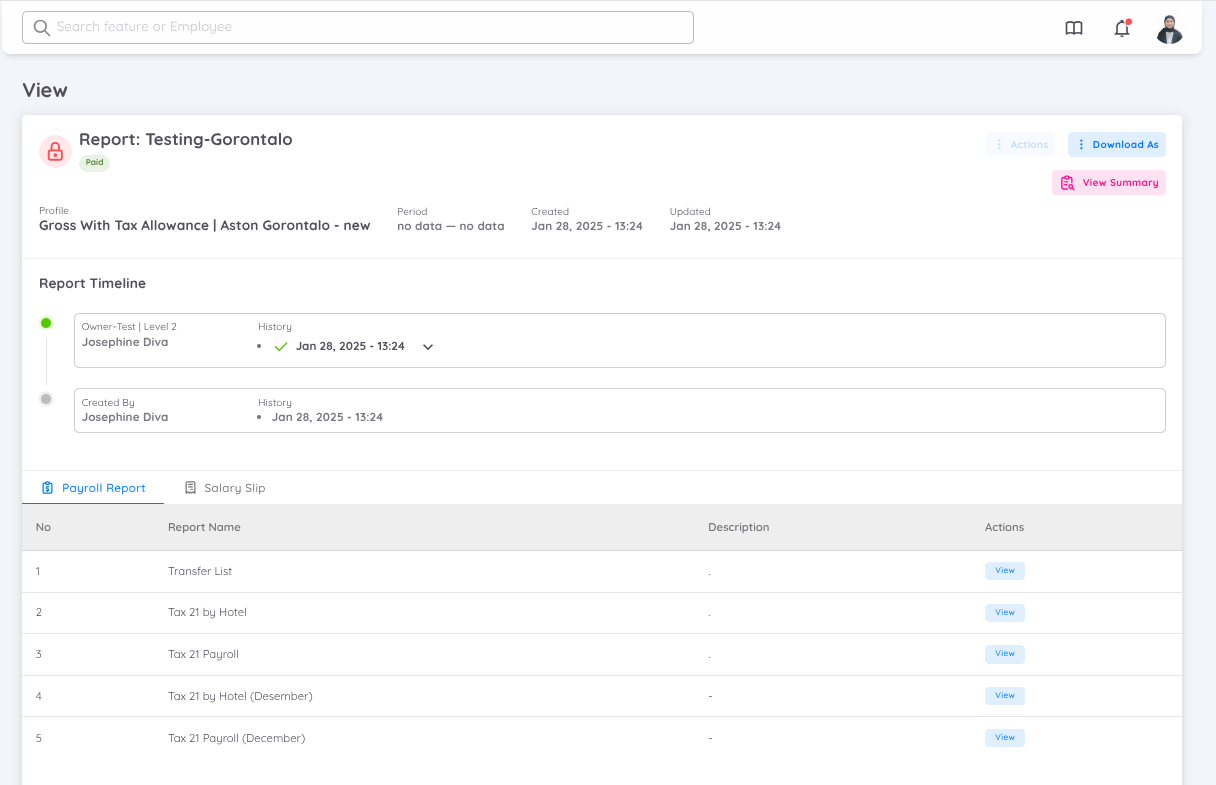
Clicking the View button in the report summary will also redirect users to the detailed view of the selected payroll report.
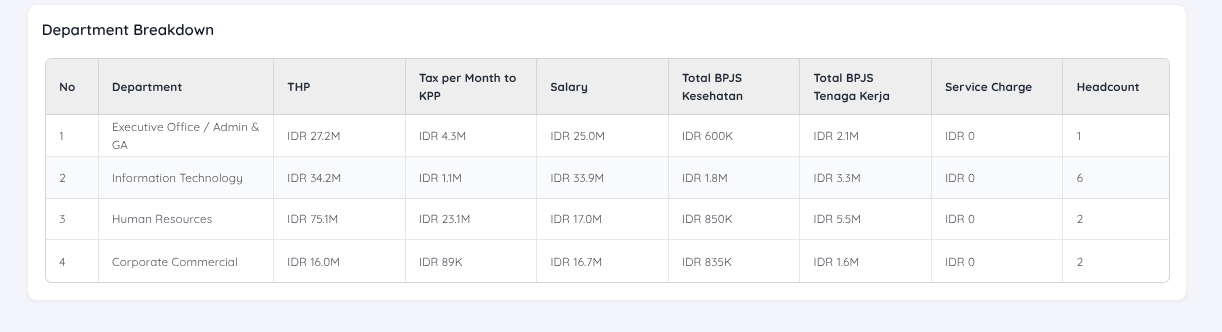
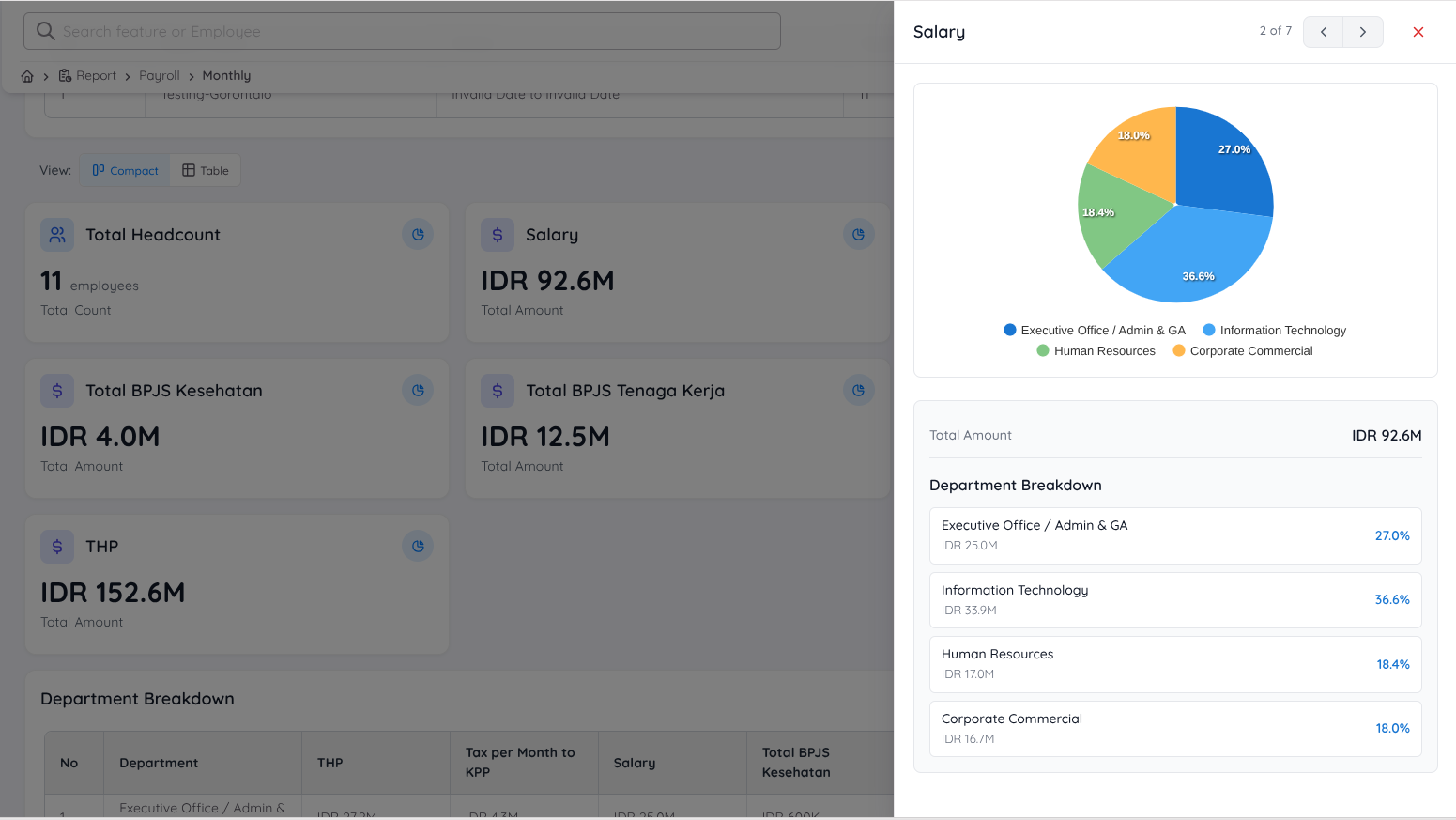
In Compact View or Table View, users can see the account summary of the payroll report. By clicking the Chart button, users can view a detailed breakdown of each account, including a breakdown by department.
Users also have the option to export the report in Excel or PDF format.
Payroll Summary Report
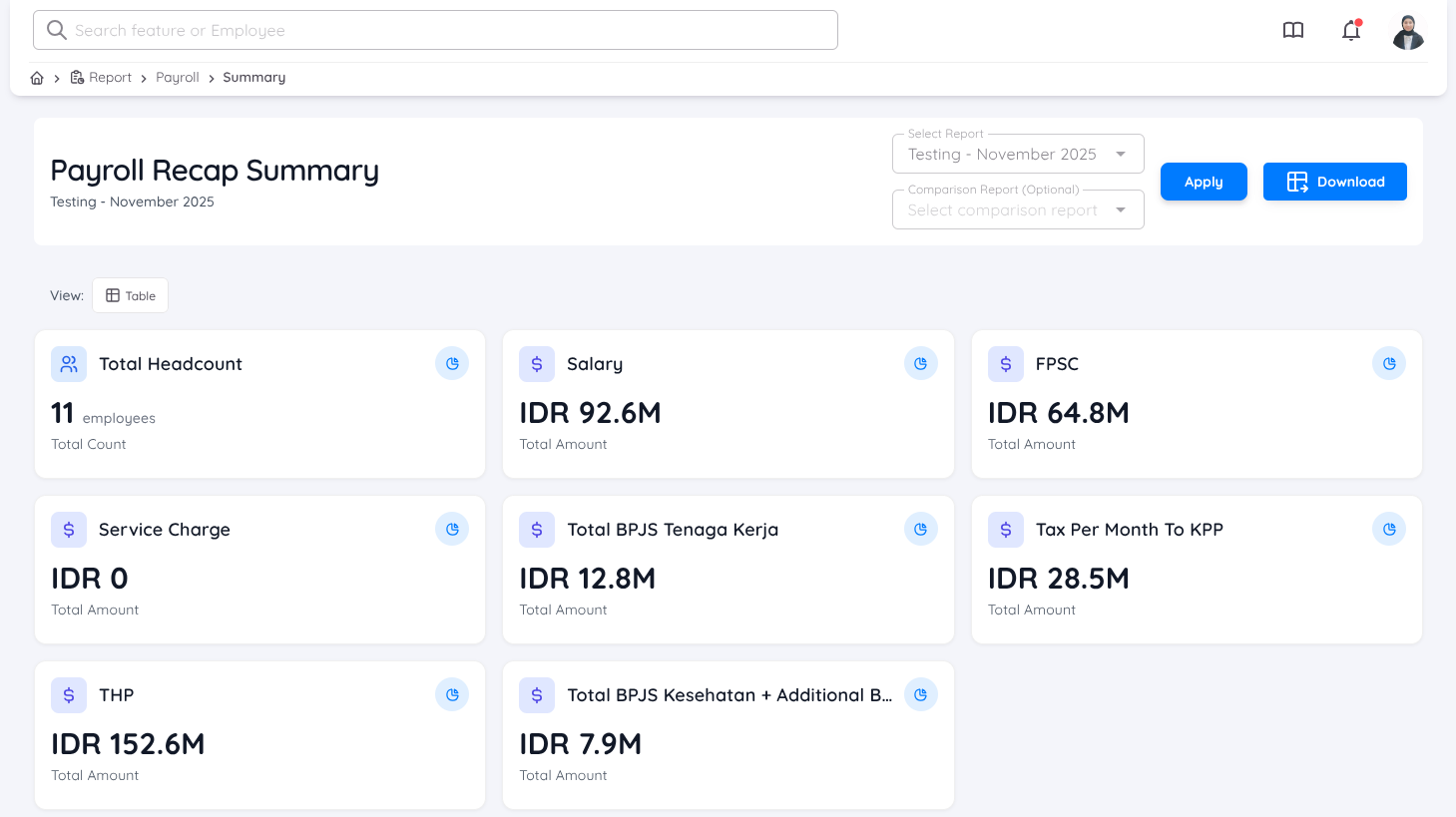
There are two options when viewing the Payroll Summary Report:
- View a single payroll summary for a selected period.
- Create a comparison by selecting another payroll report in the Comparison Report field. This allows users to analyze payroll data across different months effectively.
To use the payroll comparison feature, users must select:
- The payroll month to be reviewed, and
- A comparison payroll month.
Once selected, the system will display a detailed comparison of configured payroll accounts, which may include a breakdown of Take-Home Pay (THP), Total Headcount, and other payroll account components.
Be Noted
If you want to change or customize which payroll accounts are displayed in the summary and recap reports, please contact the EMS support team and any changes will take effect in the next generated payroll report.
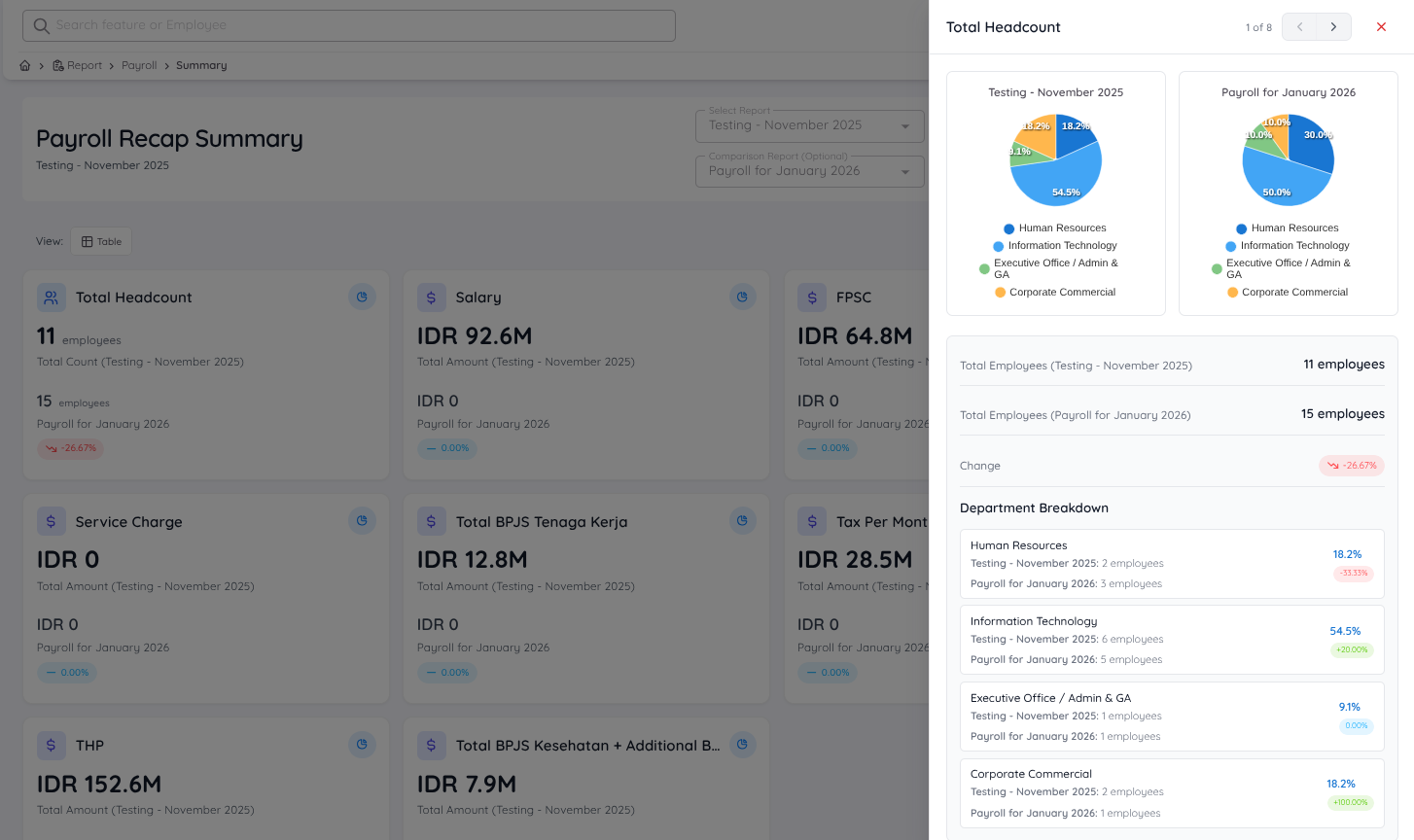
The recap summary is displayed in table view only. In the detailed view, users can:
- Compare two payroll periods side by side in a single table.
- View automatic percentage changes for each payroll component.
- Open quick charts for each account to visualize trends.
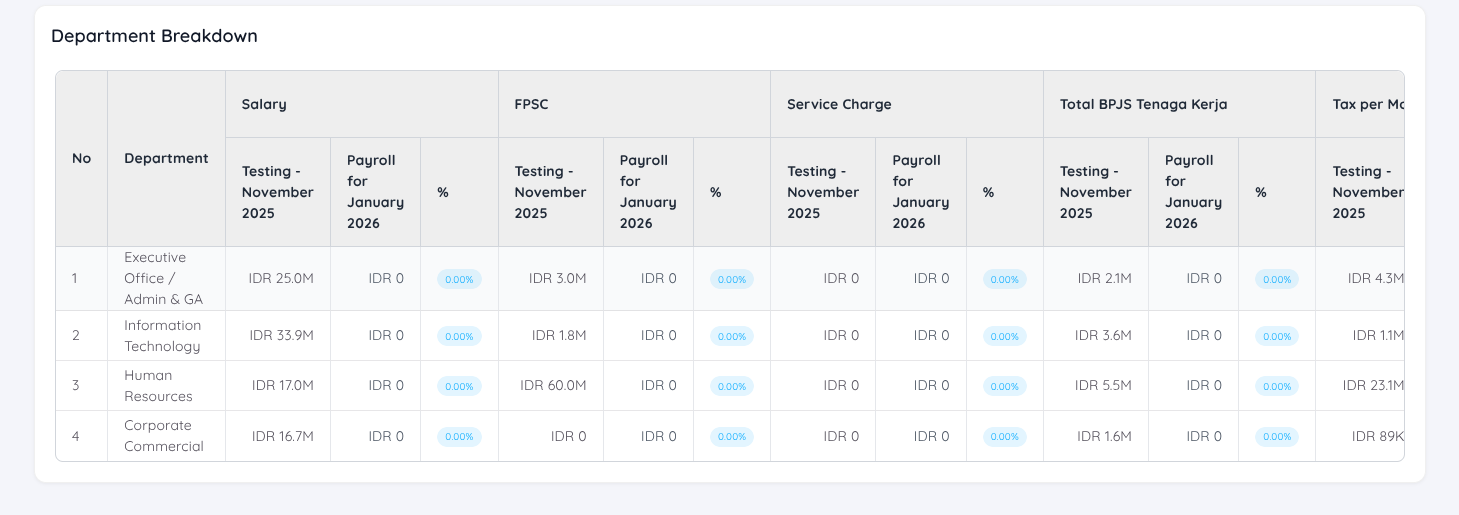
The comparison results are also reflected in the Department Breakdown, allowing users to analyze payroll components by department across different periods.
Be Noted
Payroll values will only be visible when the payroll report status is set to Paid.
Additionally, users can download payroll reports in Excel, Spreadsheet, or PDF format, making it easier to perform further analysis or share reports with relevant stakeholders.