Manage Attendance
Schedule
View and manage employee work schedules for shift workers.
View
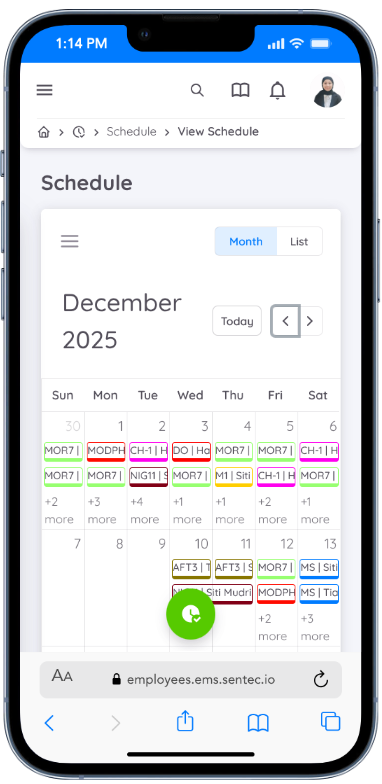
This sub-menu displays the work schedules of employees within a department for one month. Schedules can be displayed in Calendar or List mode.
Change Schedule
Employees who are assigned as Head of Department (HOD) can change the work schedules of employees in their department through Calendar mode on the View page.
Click a date on the calendar to display the Manage Schedule form. Select the employee and specify the new work schedule, then click Add to assign the schedule to the employee.
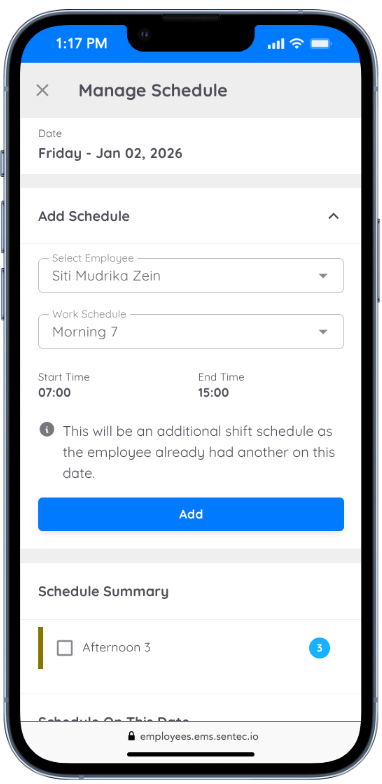
After adding the new schedule, click the relevant column or date on the calendar again. Scroll down to Schedule on This Date, then delete the previous schedule by clicking the Trash icon.
Schedule changes can also be performed in the reverse order, by deleting the previous schedule first and then adding the new schedule.
NOTE
On the View page, schedules can also be added or changed for employees with the regular worker type.
Schedule changes can also be made directly through the Create Schedule menu. In this menu, HOD can directly replace an existing schedule, but only for upcoming dates (future dates).
Delete Schedule
To delete an active work schedule, the process is performed through the View menu. Only employees assigned as Head of Department (HOD) can delete work schedules for employees in their department.
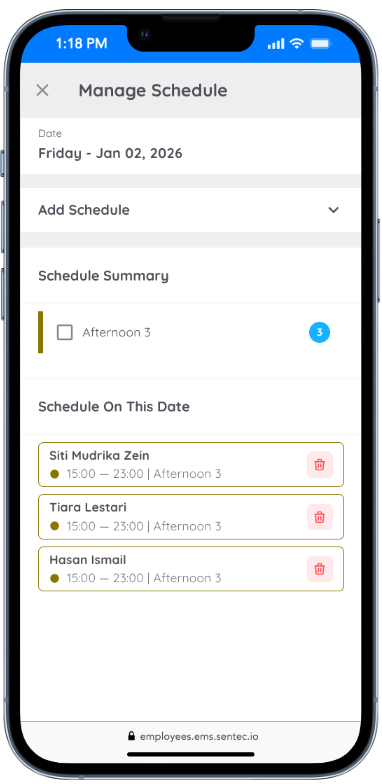
Click a date on the calendar to display the Manage Schedule form, then scroll down to Schedule on This Date.
To delete a work schedule, click the Trash icon next to the employee's work schedule.
NOTE
Past dates cannot be selected for schedule changes, including adding or deleting schedules.
A schedule that already has attendance records cannot be deleted.
Add Multiple Schedules
If an employee needs an additional work schedule on the same day, HOD can add an additional schedule through the View menu.
Click a date on the calendar to display the Manage Schedule form. Select the employee and specify the schedule to be added, then click Add.
Multiple schedules can also be added for employees with the regular worker type who need an additional work schedule outside their regular schedule.
Add Custom or Split Shift
To add a Custom Shift or Split Shift, first make sure that the required work schedule is already available in the system.
Contact HR/Administrator to add or create a custom work schedule if it is not yet available.
Once the custom work schedule is available, it can be added through the View menu.
Click a date or column on the calendar to display the Manage Schedule form. Select the employee who will be assigned the schedule, then select Custom Shift or Split Shift. You will then be prompted to specify the start and end times according to the required work schedule.
Custom Shift or Split Shift can only be added by HOD and can only be applied to today's date and future dates.
Create
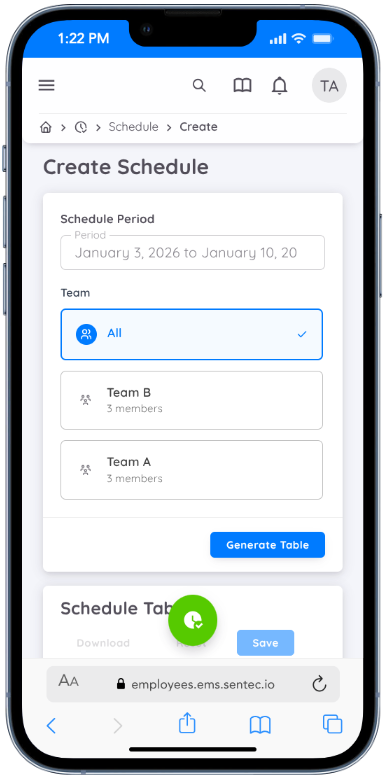
This feature is only available to employees assigned as Head of Department (HOD) to create work schedules for employees in their department.
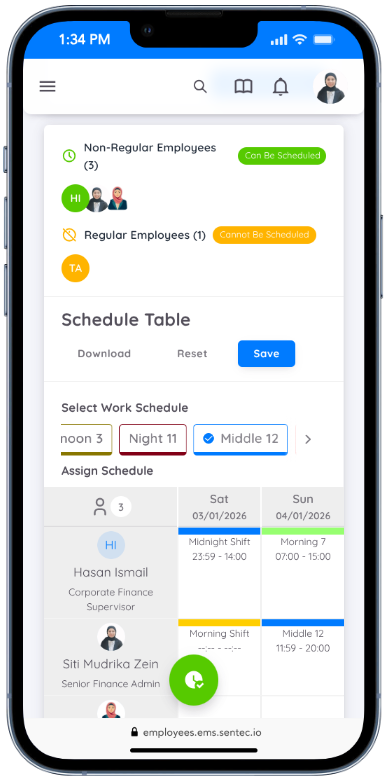
Specify the schedule date range, then click Generate Table. Work schedules are created using the table mode.
Select the type of work schedule you want to use, then click the appropriate cell in the table based on the employee and work date to assign the schedule.
If there is an error or you want to replace an employee's work schedule, select the desired schedule type at the top of the table, then click the schedule cell that you want to replace.
NOTE
Creating work schedules using table mode does not support Custom Shift/Split Shift and cannot assign more than one work schedule to an employee on the same day.
Mass Schedule Update
If there are changes to an active work schedule, HOD can make mass schedule changes through the Create menu.
This feature allows HOD to replace the work schedules of multiple employees at once for upcoming dates (future dates).
After the schedule changes are saved, the work schedules will be automatically updated according to the changes made.
Plan
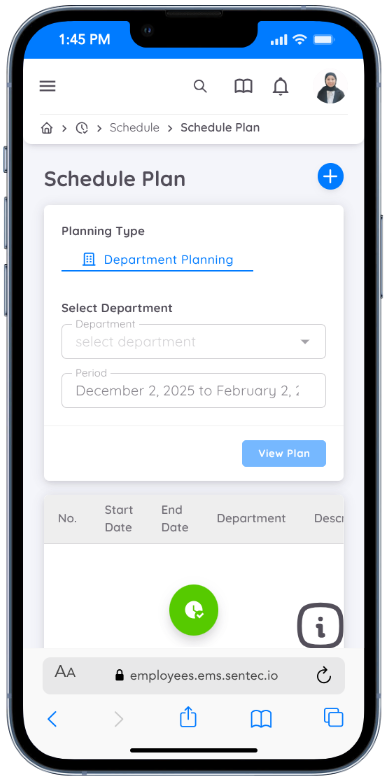
Employees who have permission to create work schedules can access this menu. They can create work schedules for one or more departments, depending on the access granted by Management.
The process of creating a schedule as a Creator is similar to the process used by a Head of Department (HOD). However, depending on the access settings configured by Management, the created (planned schedule) may require approval from the Head of Department or Management before it can be activated and used by employees. The schedule can also be configured to be auto-approved.
Contact HR or Management for more information regarding the applicable access permissions and rules.
Creator can create a planned schedule through the Plan menu by clicking the plus (+) button to add a new schedule.
NOTE
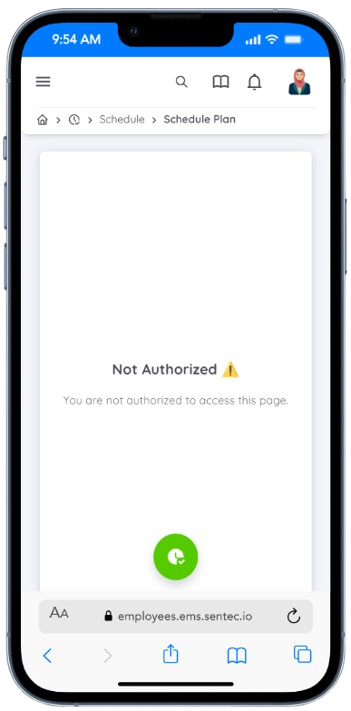
If you have access, you can view and use this menu. However, if you are not authorized, the menu and its contents cannot be accessed.
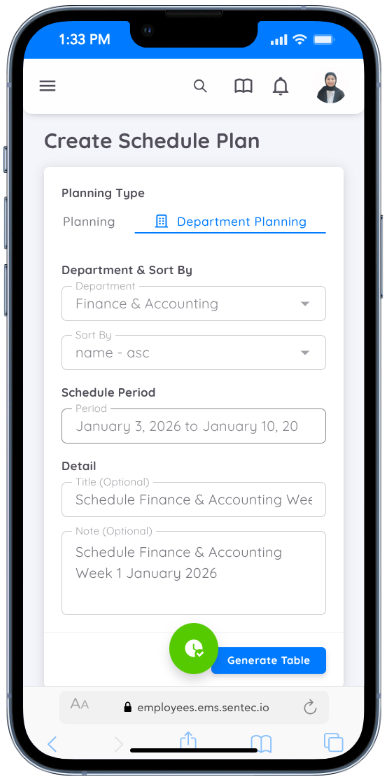
In the Schedule Plan form, specify the date range for the planned work schedule, then select the relevant department. You can also add a title and notes if needed.
Team Schedule
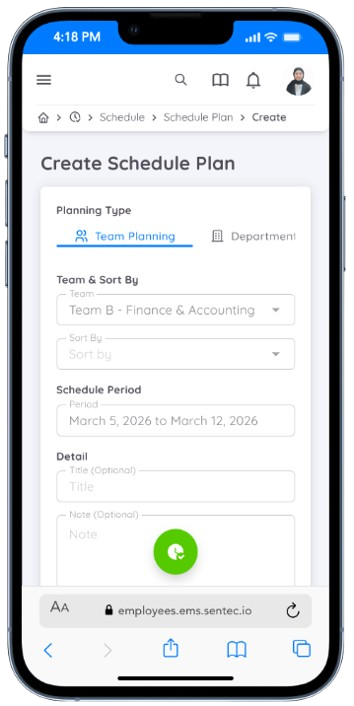
You can also create schedules for a Team. However, you can only plan a team schedule if you have been assigned as the Leader and Schedule Creator for that team.
Please note that you can only be assigned as the Leader and Schedule Creator for a team within your own department.
Then, enter the work schedule by clicking and dragging on the available table according to the employee's name and the specified date.
Note
Make sure that every date column in the table is filled with the appropriate work schedule when creating a schedule plan.
The date range of a schedule plan must not overlap with another schedule plan that is still active or has not yet been rejected by the HOD or Management.
For example, if there is already a schedule plan from May 1 to May 7, and you want to create a new schedule plan from May 5 to May 12, the system will reject the new plan as long as the previous schedule plan has not been rejected by the HOD or Management.
Request
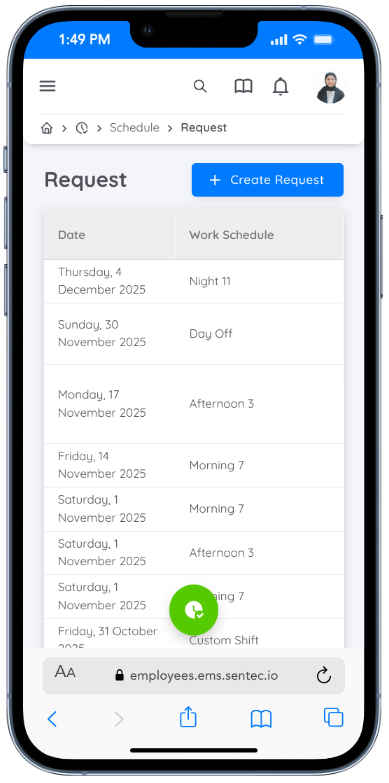
In Sentec EMS, employees can submit requests to change their own work schedule or a schedule that has been assigned to them.
There are two types of schedule requests available for employees:
- Add / Replace Schedule
- Swap Schedule
1. Add & Replace Schedule
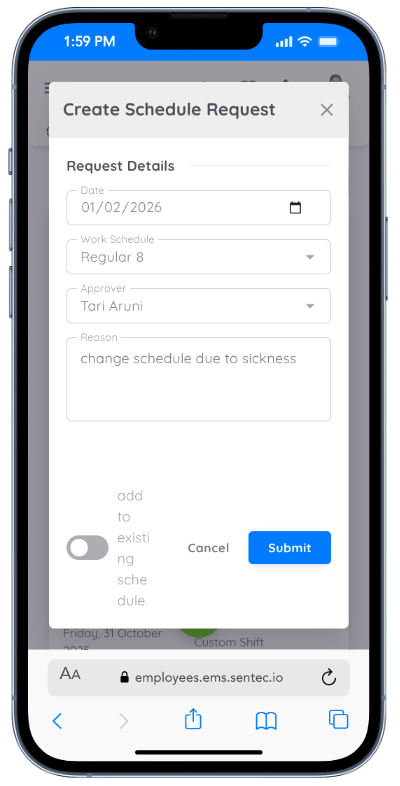
Employees can request a schedule change by clicking the Request button and filling in the required information, including:
- Date of Schedule Change
- Work Schedule
- Approver (e.g., Department Head)
- Reason for the Schedule Change
There is a toggle option that determines how the requested schedule will be applied:
Toggle Disabled (Add Schedule)
When the request is approved, the new schedule will be added to the existing schedule on the selected date.Toggle Enabled (Replace Schedule)
When the request is approved, the new schedule will replace the existing schedule on that date.
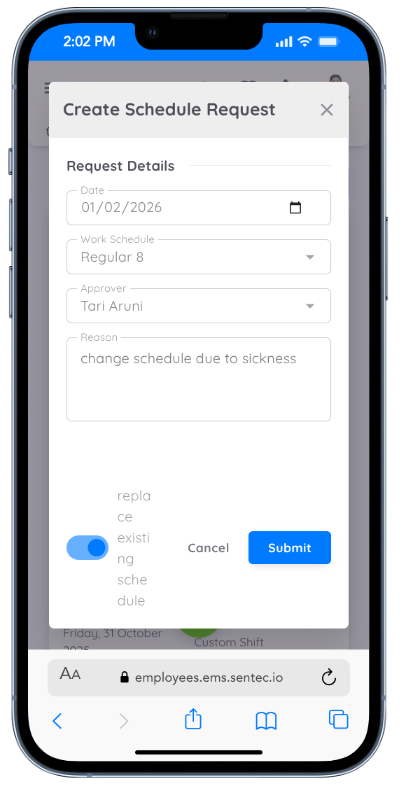
And the Approval Flow will follow:
- The employee submits the request.
- The request is sent to the Department Head for approval.
- Once approved, the requested schedule becomes active and is applied according to the selected option (Add or Replace).
2. Swap Schedule
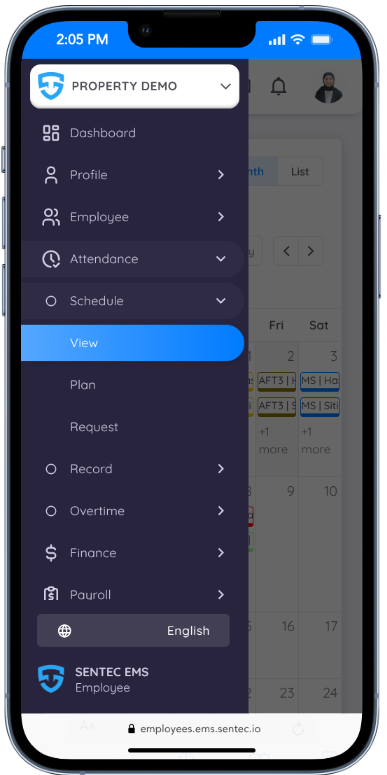
To swap schedules, employees can access the View menu and select:
- The calendar date
- The employee name they want to swap schedules with
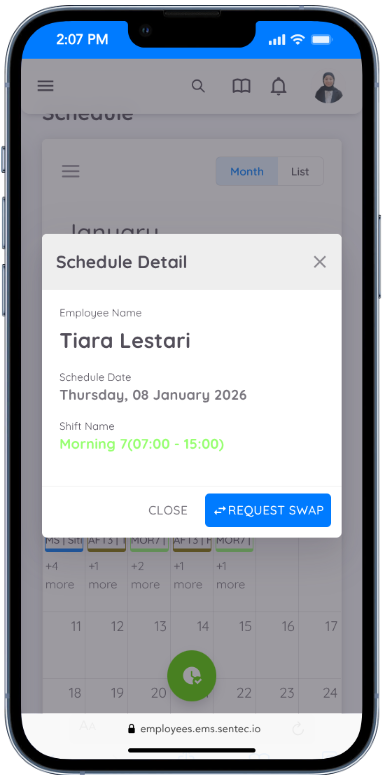
The swap schedule request follows this process:
- The employee submits a swap schedule request.
- The selected employee receives a notification and must approve the swap request.
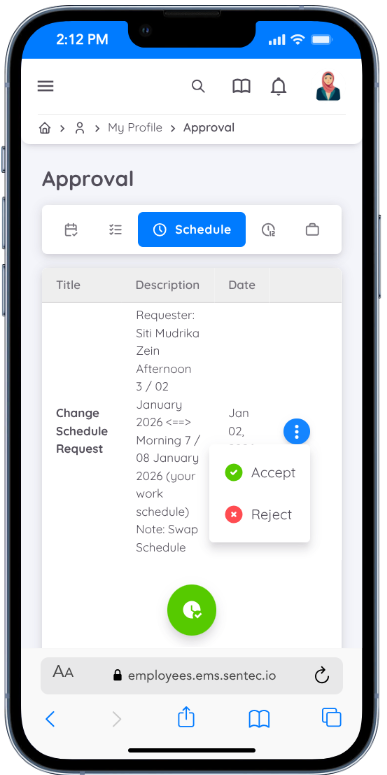
- After the second employee approves, the request is forwarded to the Department Head for final approval.
- Once approved by the Department Head, the swap schedule becomes active for both employees.
Record
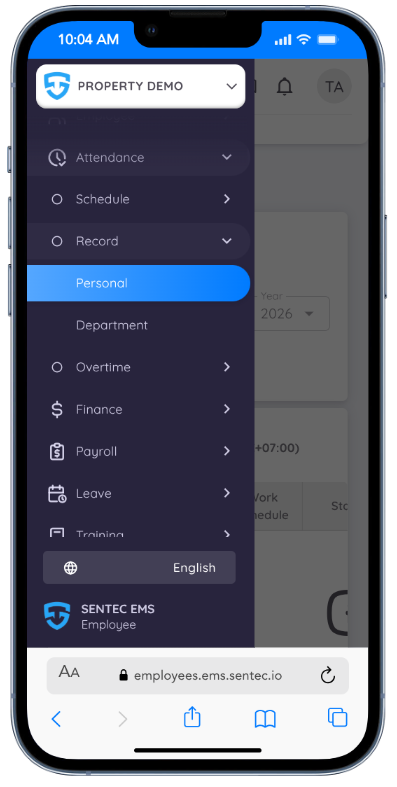
In this menu, employees can view their own attendance records through the Personal submenu.
For Department Heads, an additional submenu (Department) is available to view attendance records for their employees.
Record Requests
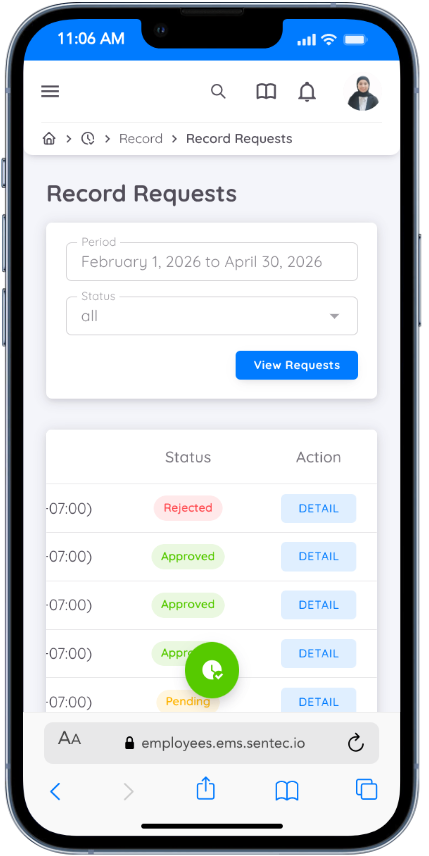
This page displays employee attendance record approvals based on the selected date range and status.
| Status | Description |
|---|---|
| Pending | The record is waiting for approval and has not yet been saved in the system. |
| Approved | The record has been approved and is saved in the system. |
| Rejected | The request has been rejected, and the record is not saved in the system. |
Personal
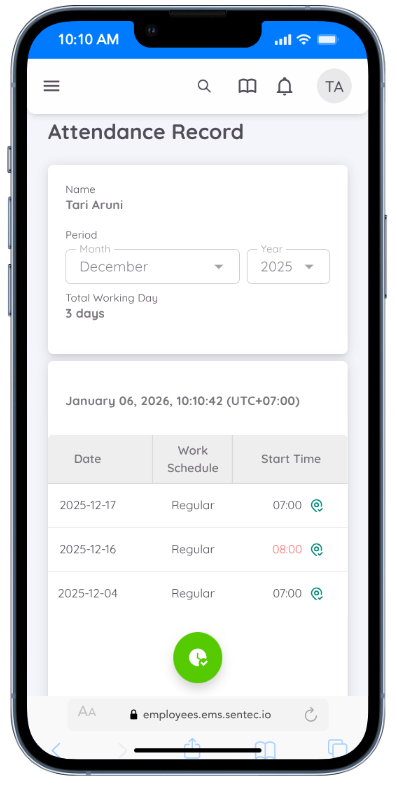
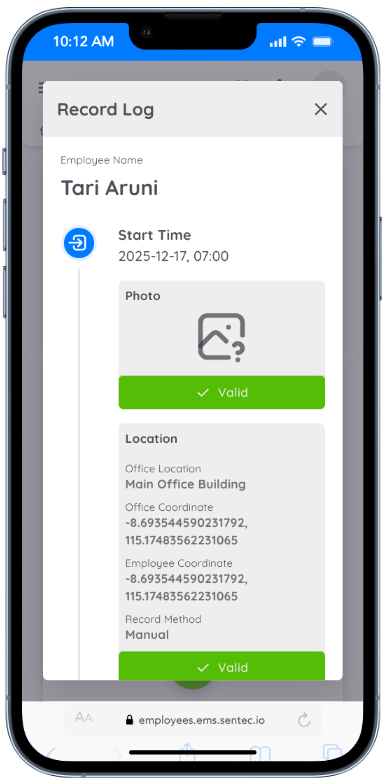
This page displays employee attendance records based on the selected date range. Employees can view and access their work hour details as well as their personal attendance log for each date.
Department
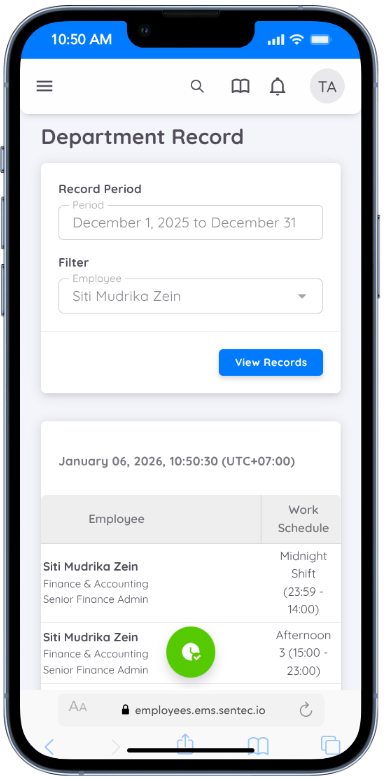
Only the Head of Department (HOD) can view attendance records for employees in the department they manage. To view these records, the HOD must specify the attendance period by selecting a date range and may optionally apply a filter based on employee name. The displayed attendance records will correspond to the selected date range
Overtime
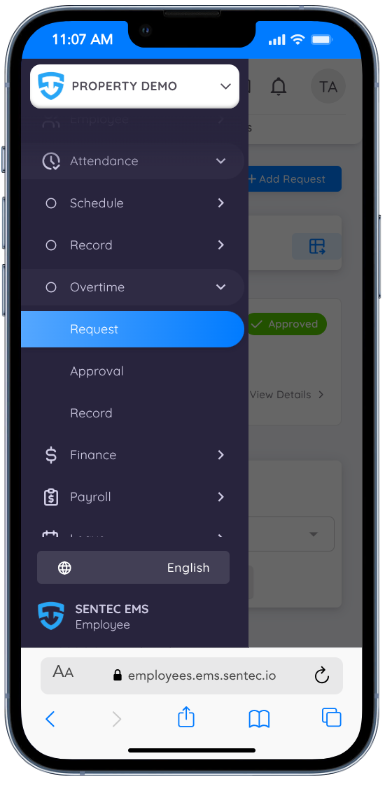
In Sentec EMS, employees can request and manage their overtime records through the Attendance menu.
The Overtime menu is available as a submenu, where employees can access the Request, Approval, and Record submenus.
Request Overtime
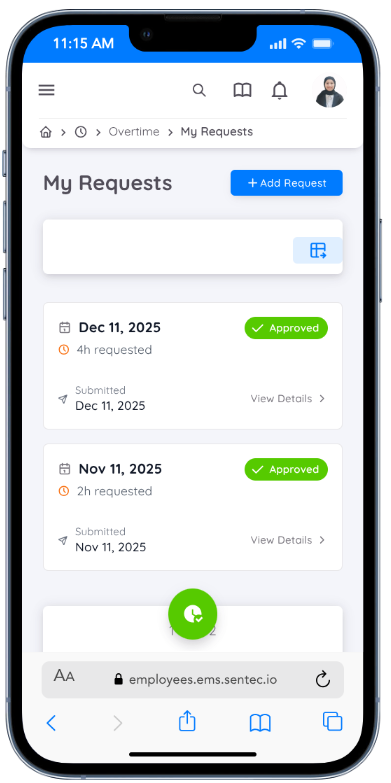
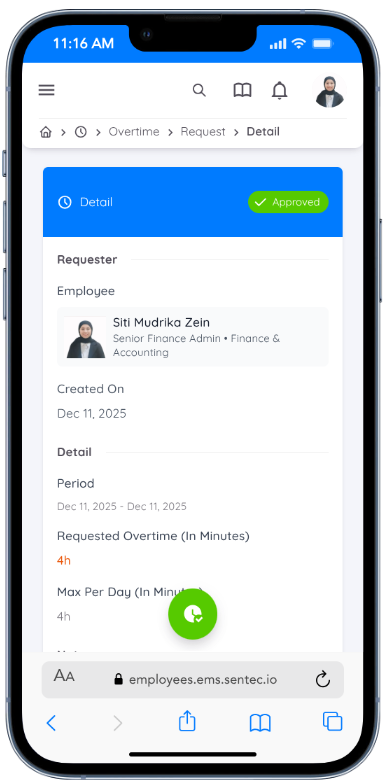
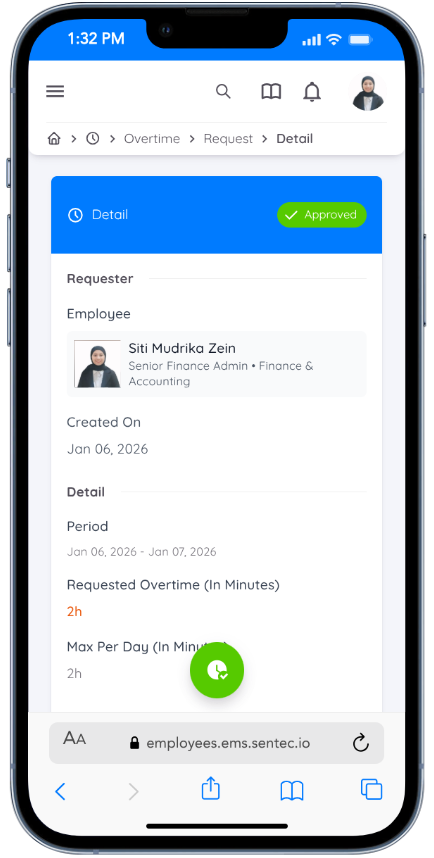
The Request submenu displays a list of your overtime requests. You can view the request details by clicking View Details, along with the status of each request (Pending, Approved, or Rejected).
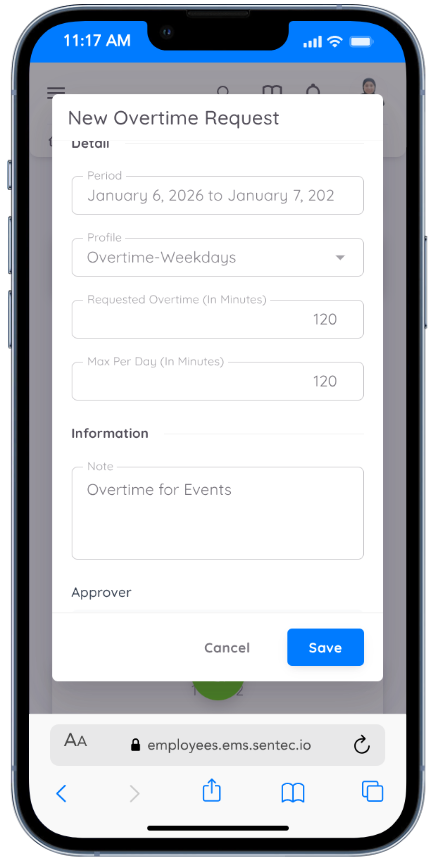
To submit a new overtime request, click the + Add Request button.
NOTE
You must be eligible to request overtime. If you are not eligible, you will not be able to submit an overtime request.
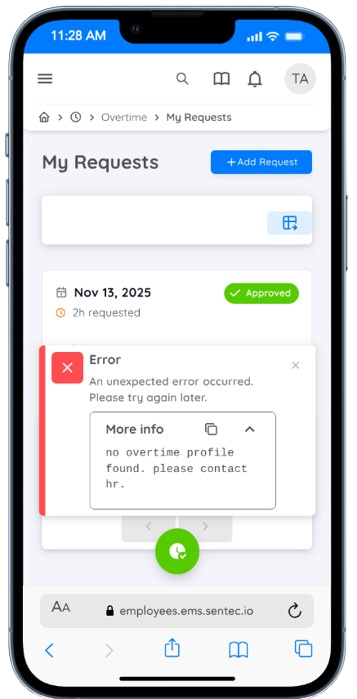
The following information is mandatory when submitting an overtime request:
Overtime Period
Select a single date or a date range, depending on your overtime request.Overtime Profile
If your property has more than one overtime calculation profile and profile selection is enabled, you must choose one. The selected profile determines how your overtime hours are calculated.Requested Overtime Hours
Specify the number of overtime hours you are requesting. The overtime calculation will follow the hours you request.Maximum Overtime per Day
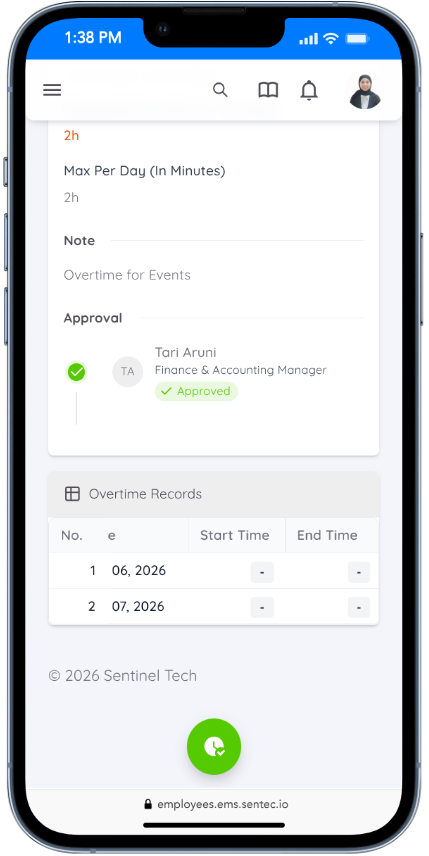
The system will validate your request based on the maximum allowed overtime per day.Note / Reason
You must provide a note or reason for the overtime request.Approver
The approver responsible for reviewing your request will be displayed at the bottom of the form.
After clicking Save, your overtime request will be sent to the approver. You will receive an email notification once the request is approved or rejected.
If approved, the overtime hours will be calculated and recorded based on your clock-in and clock-out data in Sentec EMS.
Approval Overtime
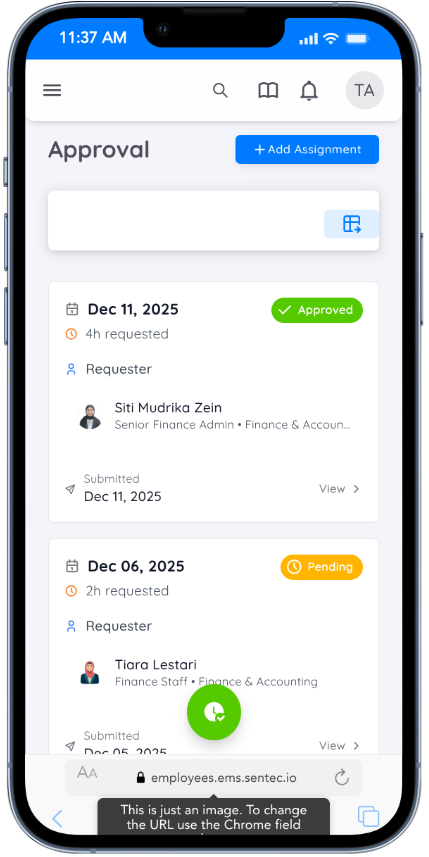
For Department Heads or approvers, this menu displays a list of overtime requests submitted by employees. You can view which requests have been approved and which are still in a pending status. Each request card shows the request date and the employee’s name.
To approve or reject a request, click the View button to open the request details. From there, you can approve or reject the request.
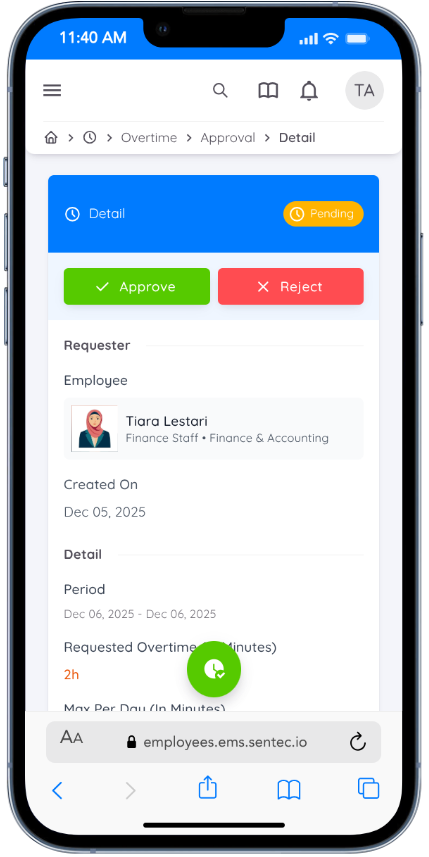
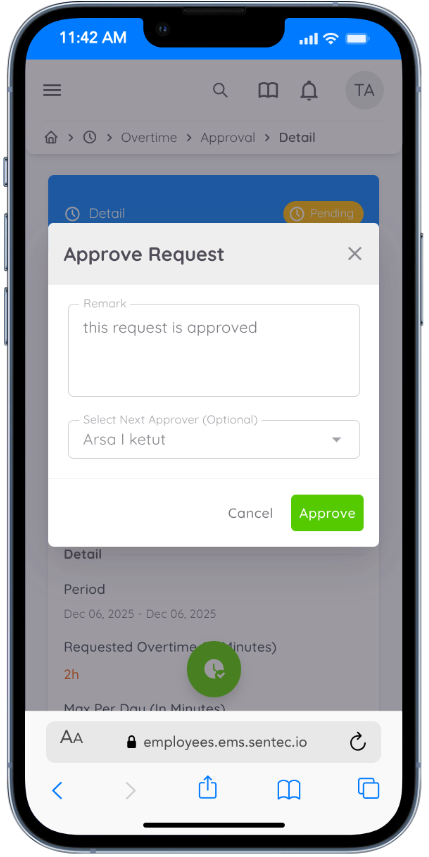
After clicking Approve or Reject, a confirmation dialog will appear, allowing you to add remarks.
For approved requests, you can also add an additional approver. When you enter the name of the next approver, they will receive a notification to approve or reject the request.
NOTE
If you are not a Department Head or an assigned approver, this menu will be empty.
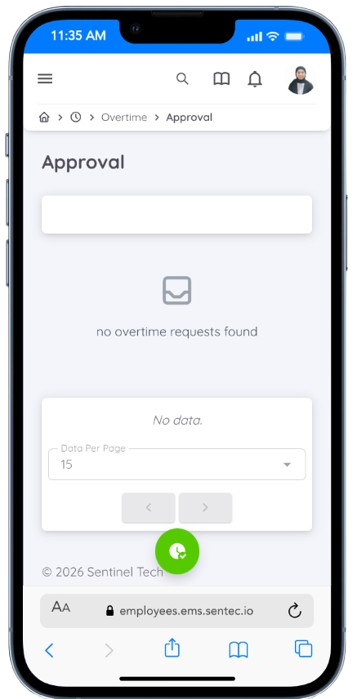
Assign Overtime
Within the Approval menu, Department Heads (HOD) will see a + Add Assignment button. This allows you to assign overtime directly to your employees.
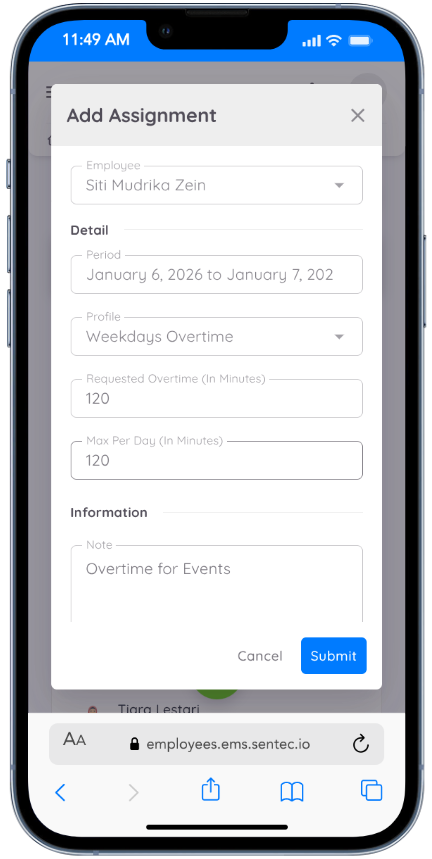
Enter the employee’s name to assign overtime to a specific employee. You must also provide additional details, such as the overtime period, overtime profile, assigned overtime hours, and a note describing the assignment.
After clicking Submit, the overtime assignment will automatically become active, and a notification will be sent to the selected employee. No further approval is required.
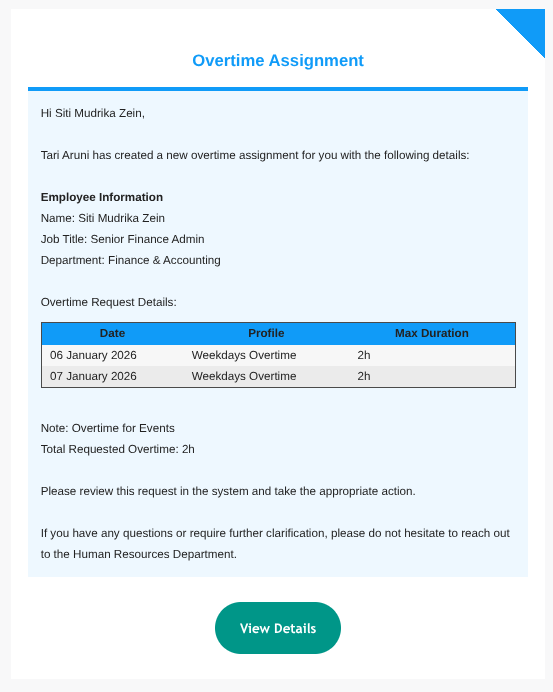
Overtime Record
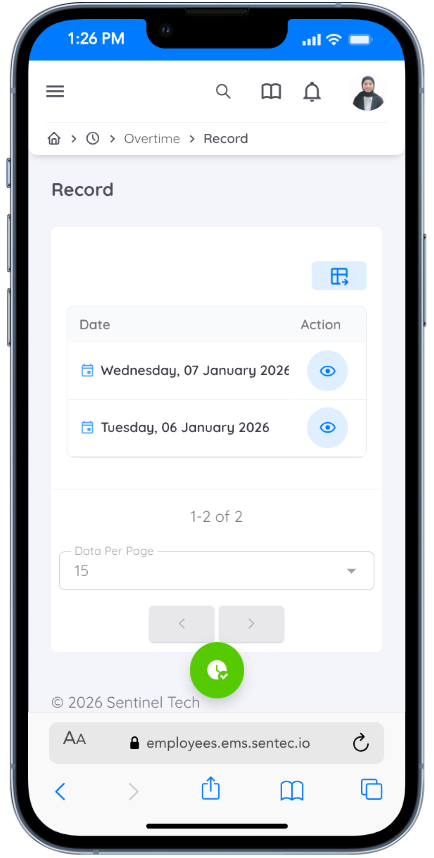
Employees can view their overtime records through the Record menu.
All upcoming overtime that has already been approved will be listed on this page.
To view the details of an overtime record, click the eye icon in the Action column.
In the detail view, you will be able to see complete overtime information, including:
- Overtime date
- Start and end time
- Claimed rate and total rate
- Overtime status
This feature allows you to easily track and review your overtime history and status.