Compensation
Compensation Profile
Each employee who is eligible to receive compensation must have their compensation type set in their profile.
This allows the system to automatically convert the benefit into their compensation balance based on the configured rules.
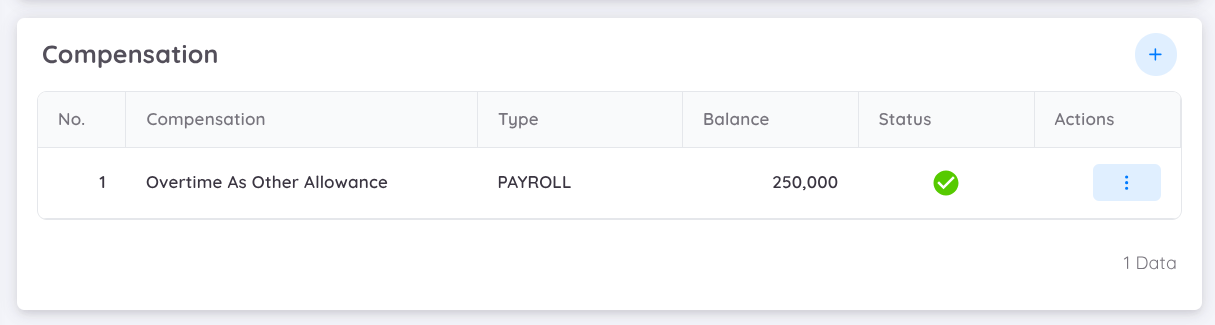
Employees can be assigned one or more types of compensation according to company policy or applicable regulations.
NOTE
Currently, the system supports only overtime compensation, which can be converted into payroll or leave.
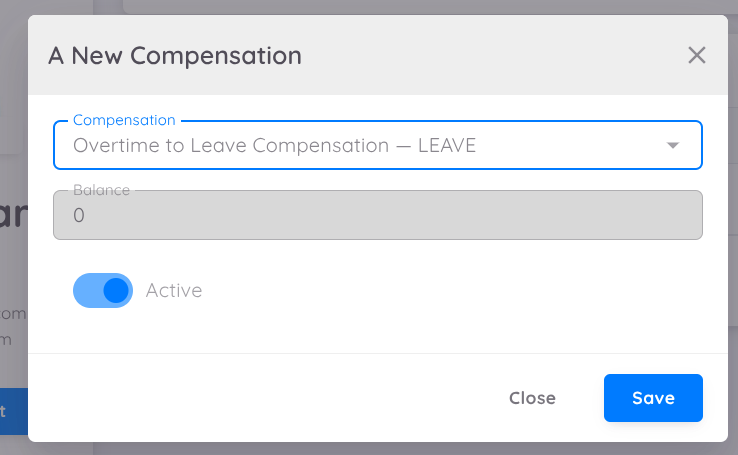
Be Reminded
When you activate the compensation profile, previously recorded overtime will not be overridden by the new profile.
Compensation Lists
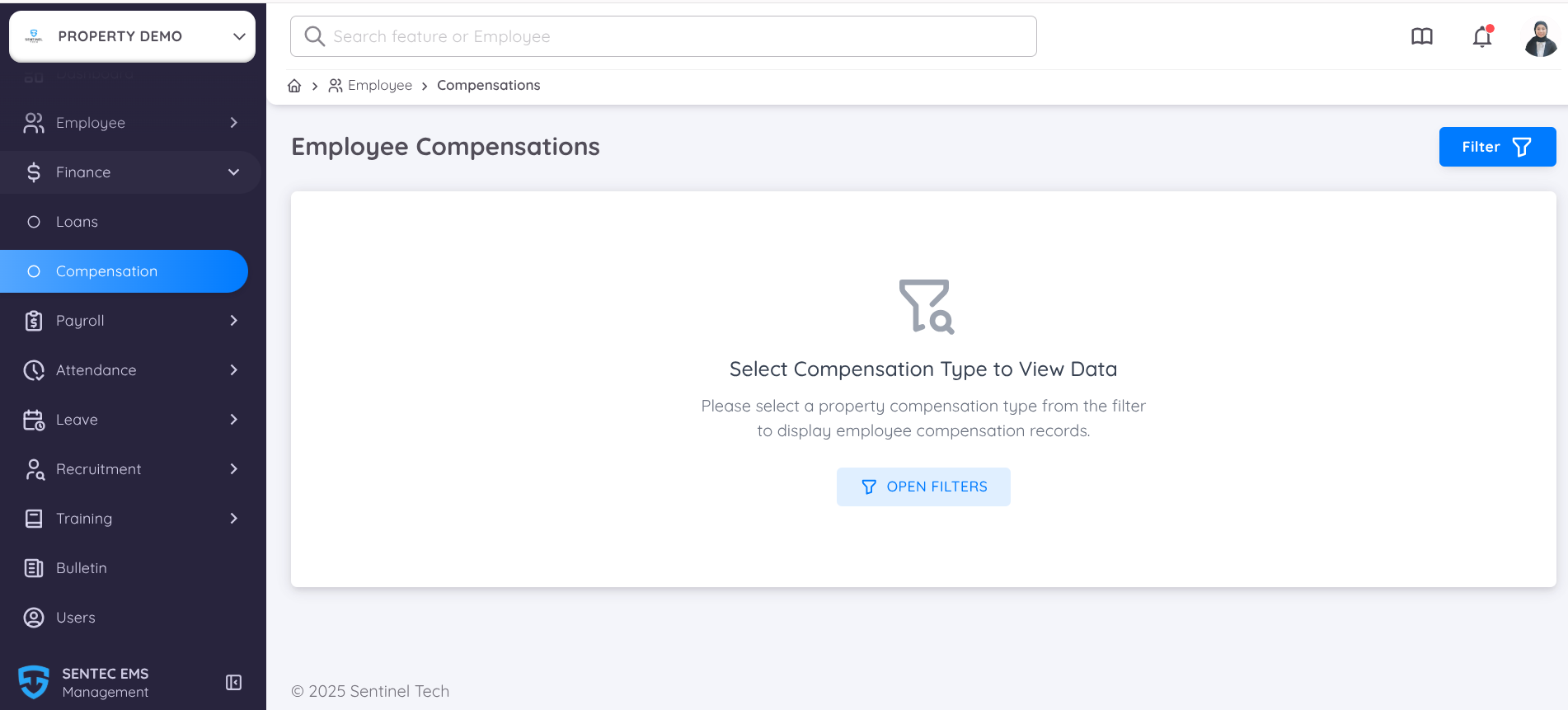
When you have defined or added the compensation in each employee profile, and the overtime has been verified by Management or HR, the employee’s compensation records will appear in the Compensation menu.
However, to display the list, you must first use the Filter option and select the compensation type that was previously configured in Configuration → Setup → Finance.
To Display the Compensation List you can follow the steps as follows:
- Open the Compensation menu.
- Click Filter.
- Select the compensation type that you have added in
Configuration → Setup → Finance. - Optionally you can apply additional filters such as Department and Working Status
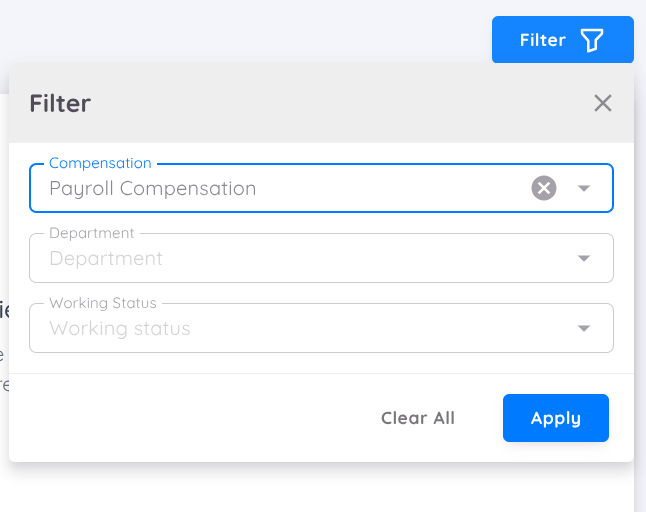
Once the filter is applied, the system will display the list of employee compensation based on the compensation type and other filter data that you choose.
After applying filters, you will be able to view the following information:
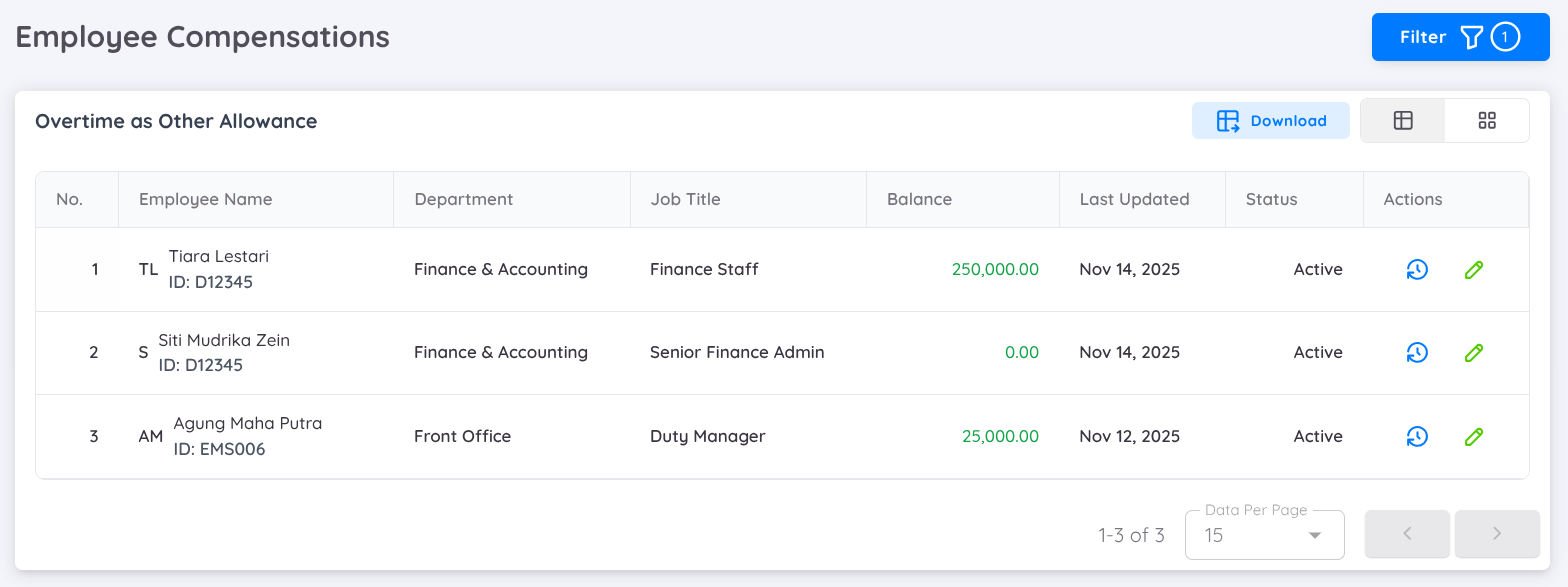
Employee Name: The name of the employee receiving the compensation.
Department: The employee’s department.
Job Title: The employee’s current job title.
Balance: The remaining compensation amount or the total value depending on the compensation configuration.
This may represent monetary value or hours based on your Finance setup.Last Updated: The date when the compensation record was last modified.
Status: Shows the current processing stage (e.g.,
ActiveorInactive).Action: Available actions for each record:
- View History: View the detail of each compensation.
- Edit: Modify compensation details (requires proper permissions).
Summary Workflow:
- Set up the Compensation Type.
- Define or add the compensation type in each employee profile.
- HR/Management verifies the overtime.
- The system automatically generates compensation entries based on the Finance setup.
- The user opens Compensation → Filter and selects the compensation type.
- The list will appear with columns such as Employee, Department, Job Title, Balance, Status, and more.
- Users may view the history or edit entries as needed.
Tips & Best Practices
- Ensure all compensation types are properly configured in
Configuration → Setup → Financeso they appear in the filter. - Combine filters (type + department + status) for faster data retrieval.
- Always add a note when editing records to keep the audit trail clear.
- Restrict edit permissions to authorized users only.
Compensation History
All compensation history related to Payroll or Leave mapping is available in the Compensation List menu.
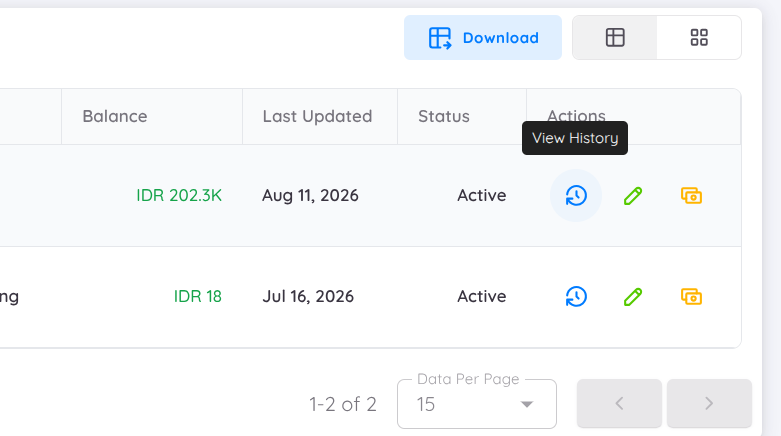
Once an overtime record has been verified, the corresponding compensation balance will be automatically added to the Compensation History.
Compensation to Payroll
Compensation to Payroll displays the compensation balance based on the Overtime Profile applied to the verified overtime record.
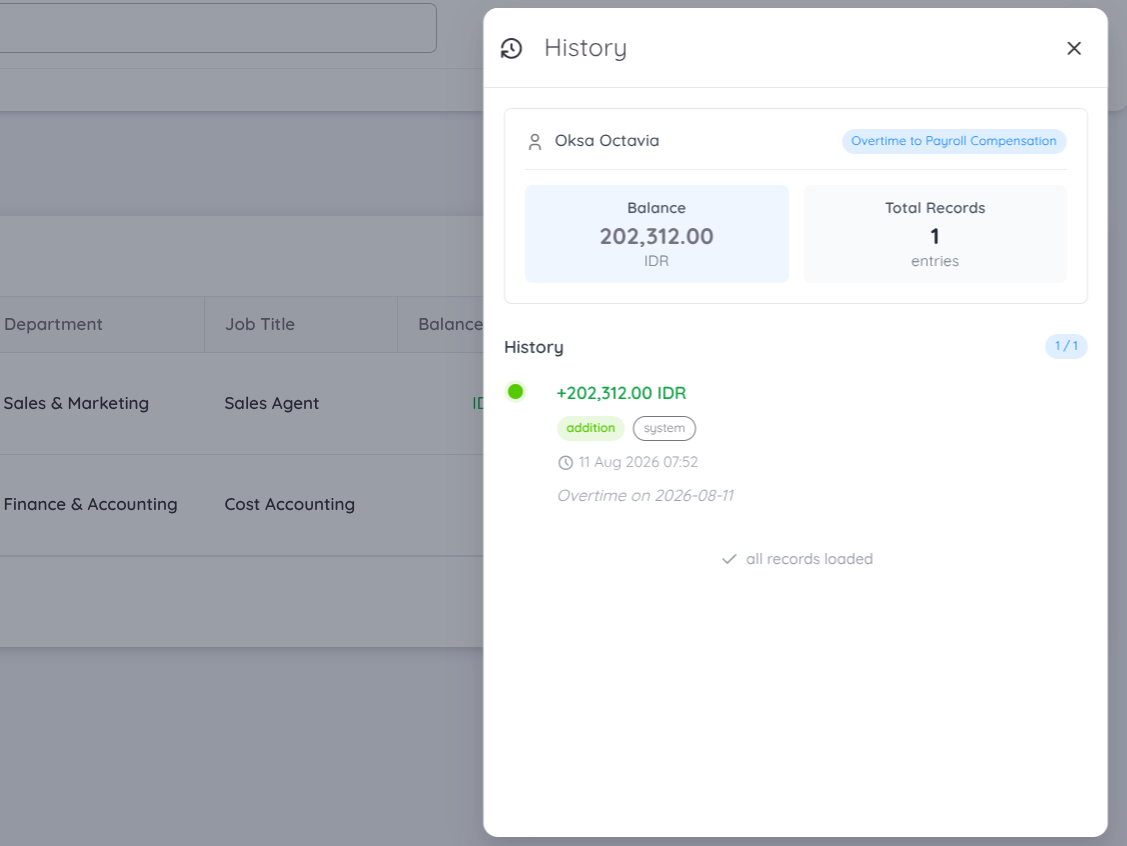
The balance is calculated according to the overtime rate and calculation rules configured in the applicable Overtime Profile.
Compensation to Leave
Compensation to Leave displays the compensation balance based on the verified overtime duration.
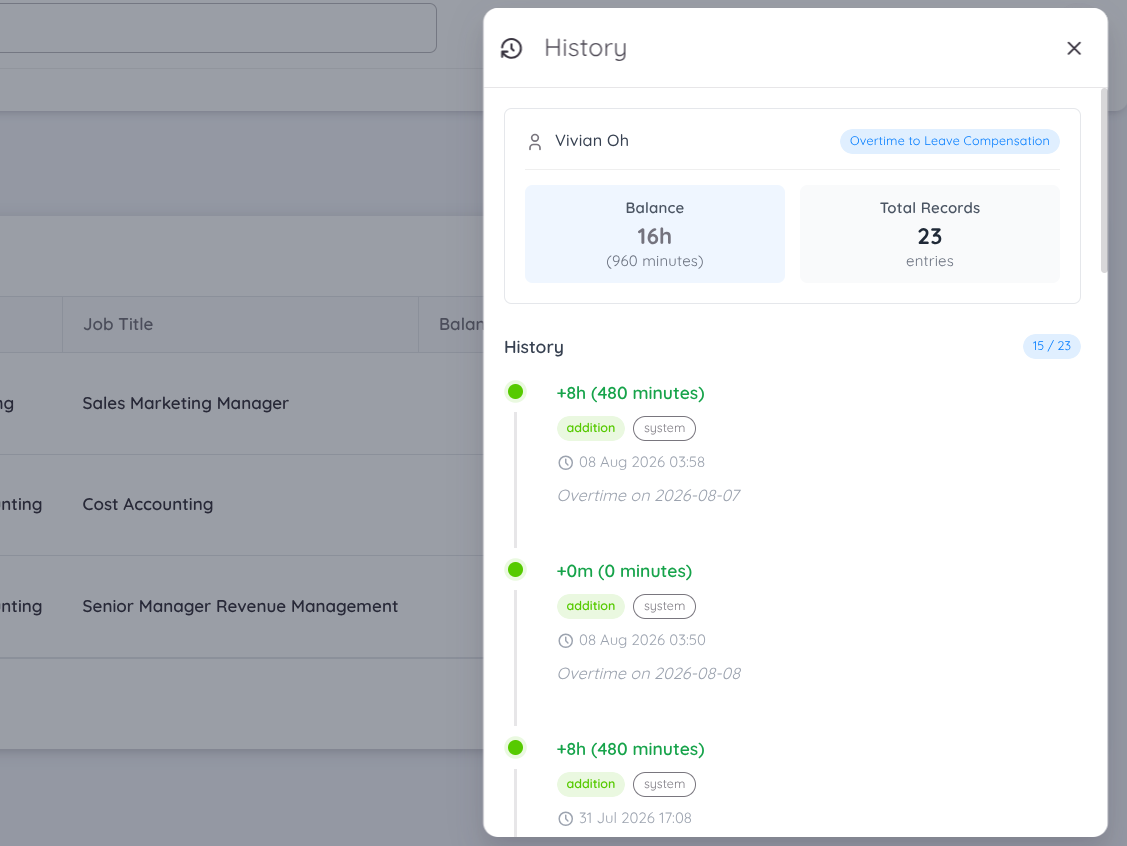
The balance is determined based on the total overtime duration that has been verified and mapped as compensation to leave.
Manage Compensation Balance
When an adjustment or correction is required for an employee's compensation balance amount, the balance can be adjusted using the pencil icon in the Action column.
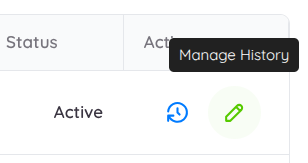
Compensation to Payroll
In the Add Compensation History for Payroll form, the compensation balance can be adjusted using the following options:
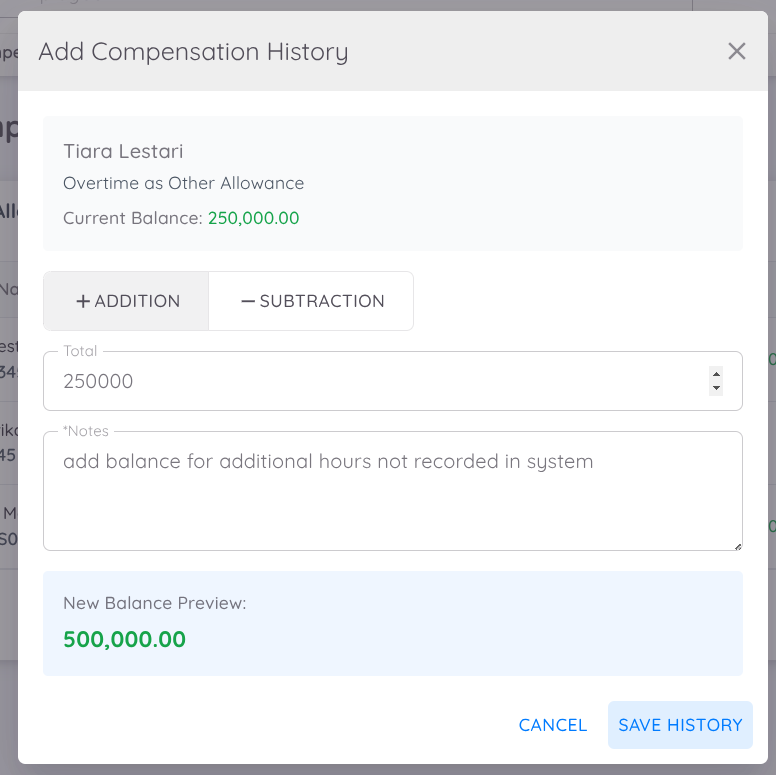
- + Addition: Adds an amount to increase the employee's compensation balance.
- – Subtraction: Subtracts an amount to reduce the employee's compensation balance, for example, to correct an excess balance.
Example Scenarios:
➕ Addition Example
An employee was approved for 5 hours of overtime, but only 3 hours were recorded in the system. As a result, the employee should have received IDR 500,000 in compensation, but only IDR 250,000 was recorded.
To correct the balance, add IDR 250,000 using the + Addition option.
➖ Subtraction Example
An employee was approved for 2 hours of overtime, but accidentally worked 5 hours, and all 5 hours were recorded in the system. The compensation balance displays IDR 500,000, but the correct amount should be IDR 250,000.
To correct the balance, subtract IDR 250,000 using the – Subtraction option.
NOTE
The value entered must always be a positive number, whether the + Addition or – Subtraction option is selected. The selected action determines whether the value is added to or deducted from the existing balance.
Compensation to Leave
The adjustment process for Compensation to Leave is similar to the Payroll compensation adjustment. However, instead of entering a monetary amount, the adjustment is entered as a duration in minutes.
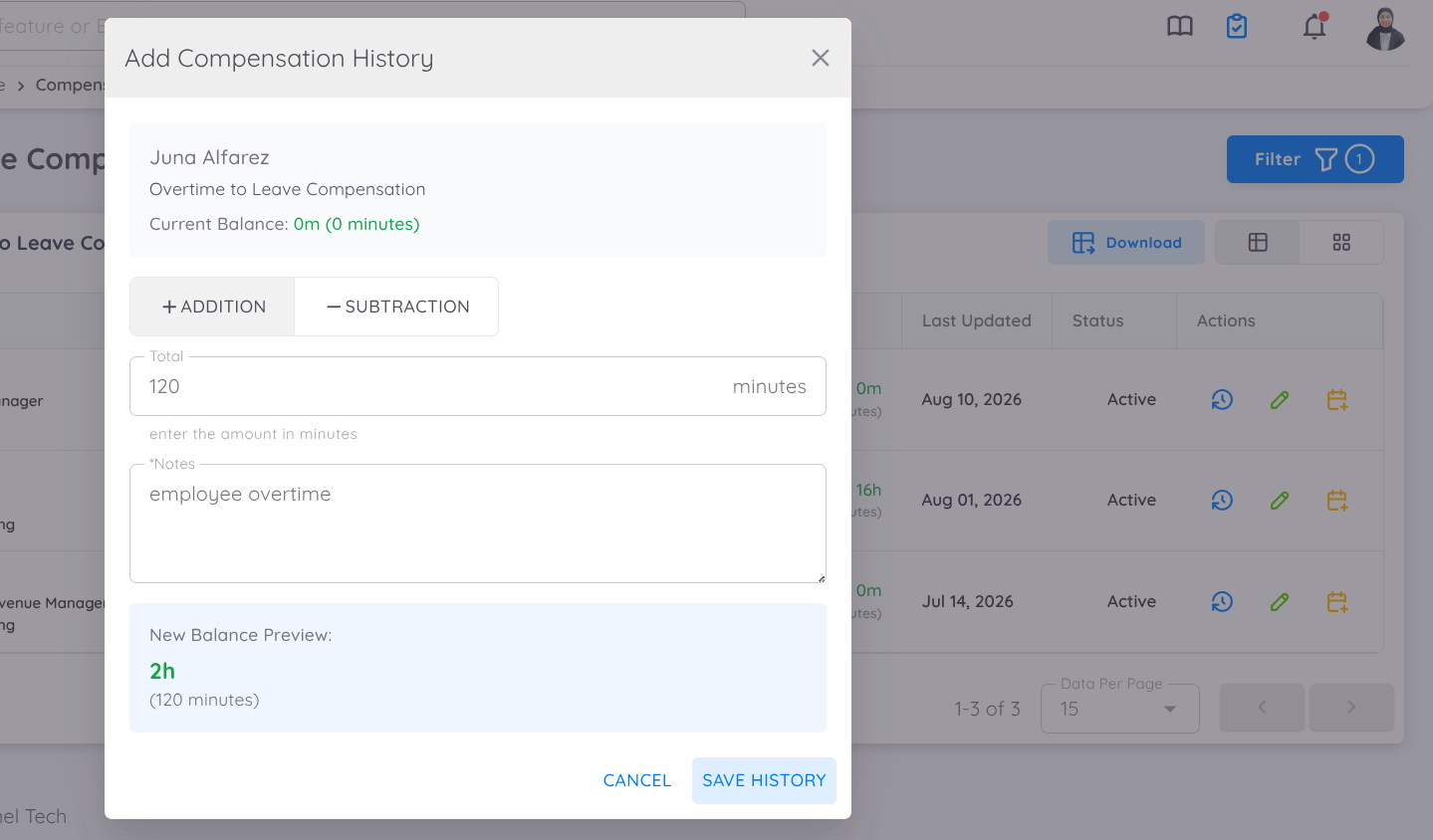
The New Balance Preview displays the total compensation duration that will be added to or deducted from the employee's leave compensation balance.
For overtime converted to leave, the conversion is based on the following standard:
- 8 hours of overtime = 1 day of leave balance
- 1 day = 480 minutes
For example, if 960 minutes (16 hours) of verified overtime are converted to leave, the balance will be equivalent to 2 days of leave.
NOTE
The duration entered for Compensation to Leave must always be a positive number, regardless of whether the adjustment is an Addition or Subtraction.
Redeem Balance
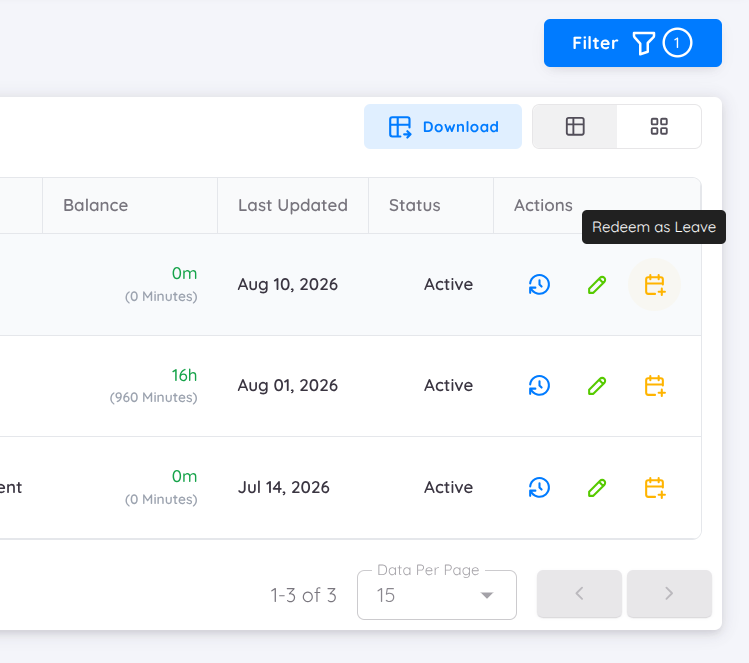
Verified overtime compensation with a sufficient balance can be redeemed and converted into the corresponding compensation mapping, either Payroll or Leave.
To convert an overtime compensation balance, Management or HR must redeem the available balance.
The overall compensation process is as follows:
- Overtime Request – Overtime is requested by the employee or assigned by the HOD or Management.
- Overtime Recording – The employee's overtime is recorded in the system.
- Overtime Verification – The overtime record is reviewed and verified by Management or HR.
- Compensation Balance – Once verified, the overtime compensation is added to the employee's Compensation History. The balance can accumulate from multiple verified overtime records.
- Balance Redemption – Once a sufficient balance is available, the compensation can be redeemed and mapped to either Payroll or Leave.
Redeem to Payroll
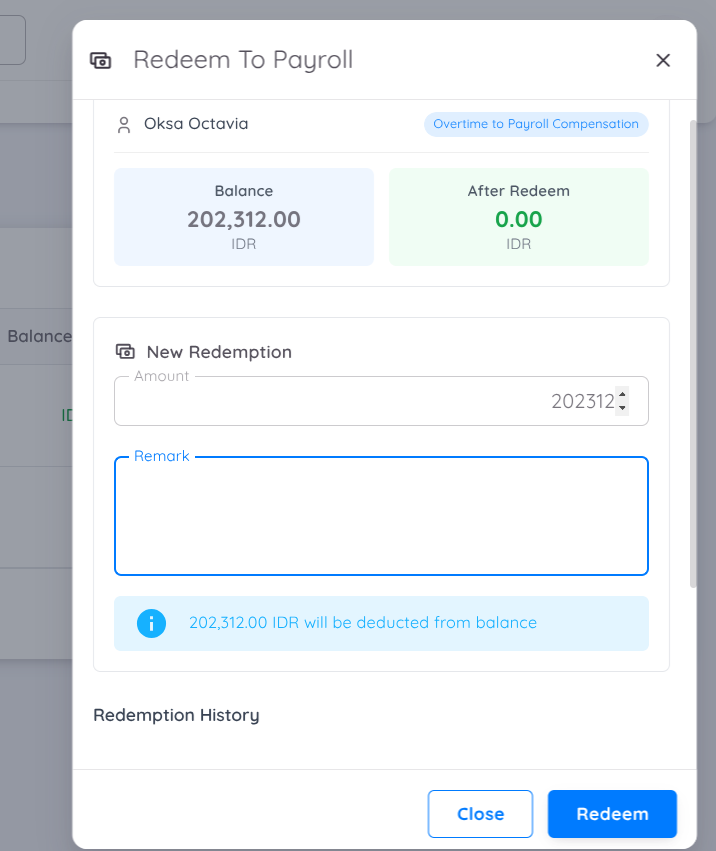
The overtime compensation amount may vary depending on the Overtime Profile applied to the overtime record.
Once the overtime has been verified and the compensation balance is available, the balance can be redeemed to Payroll.
To redeem the balance:
- Enter the amount to be redeemed as a positive value.
- The system will display the current balance and remaining balance in real time.
- Confirm the redemption to deduct the redeemed amount from the available compensation balance.
NOTE
Currently, the redeemed balance is not automatically added to Payroll. The redeemed amount must be handled separately in the Payroll process. Automatic integration with Payroll will be available in a future update.
Redeem to Leave
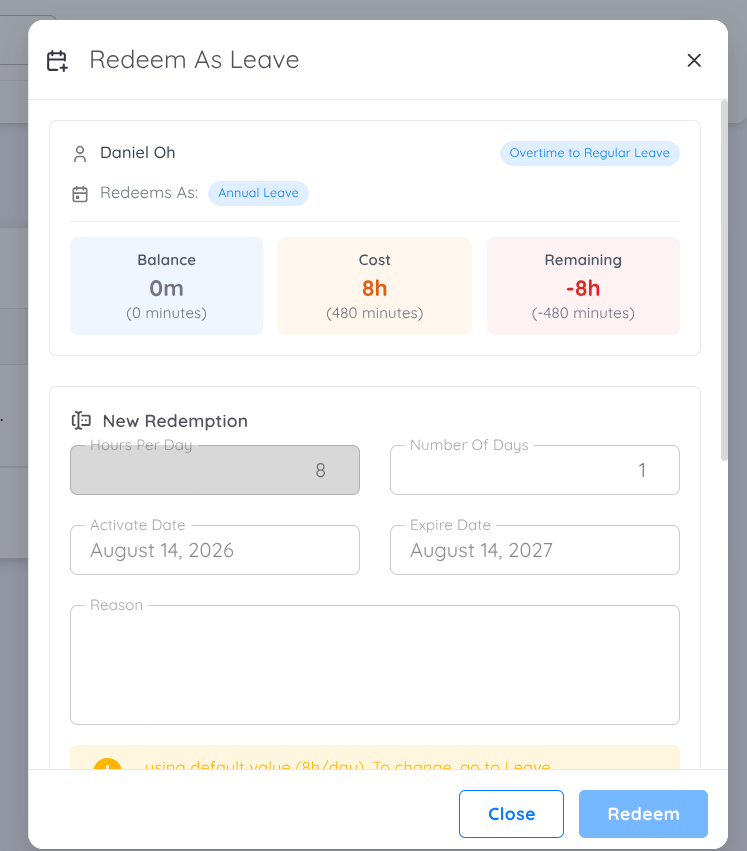
Once overtime has been verified, the verified overtime duration will automatically become available in the Compensation History.
The overtime balance can then be redeemed and converted into a leave balance based on the configured compensation-to-leave mapping.
The conversion follows the standard:
- 8 hours of overtime = 1 day of leave balance
- 1 day = 480 minutes
- The minimum redemption is 1 day, equivalent to 8 hours (480 minutes) of overtime.
- The leave activation date and expiration date can be configured according to the applicable requirements.
To redeem the balance:
- Enter the number of days to be redeemed as a positive value.
- The system will display the remaining compensation balance in real time.
- The redeemed amount will be deducted from the available compensation balance.
- Once the redemption is completed, the corresponding leave balance will be automatically added to the leave type mapped to the compensation.
For example, if 960 minutes (16 hours) of verified overtime are available and 2 days are redeemed, the equivalent of 960 minutes will be deducted from the compensation balance and 2 days will be added to the mapped leave type.