Employee List
This page displays a list of all employees within the company.
Active and inactive employees are separated into two different sections to make data management easier.
Current

Displays all active employees currently working in the company.
Former
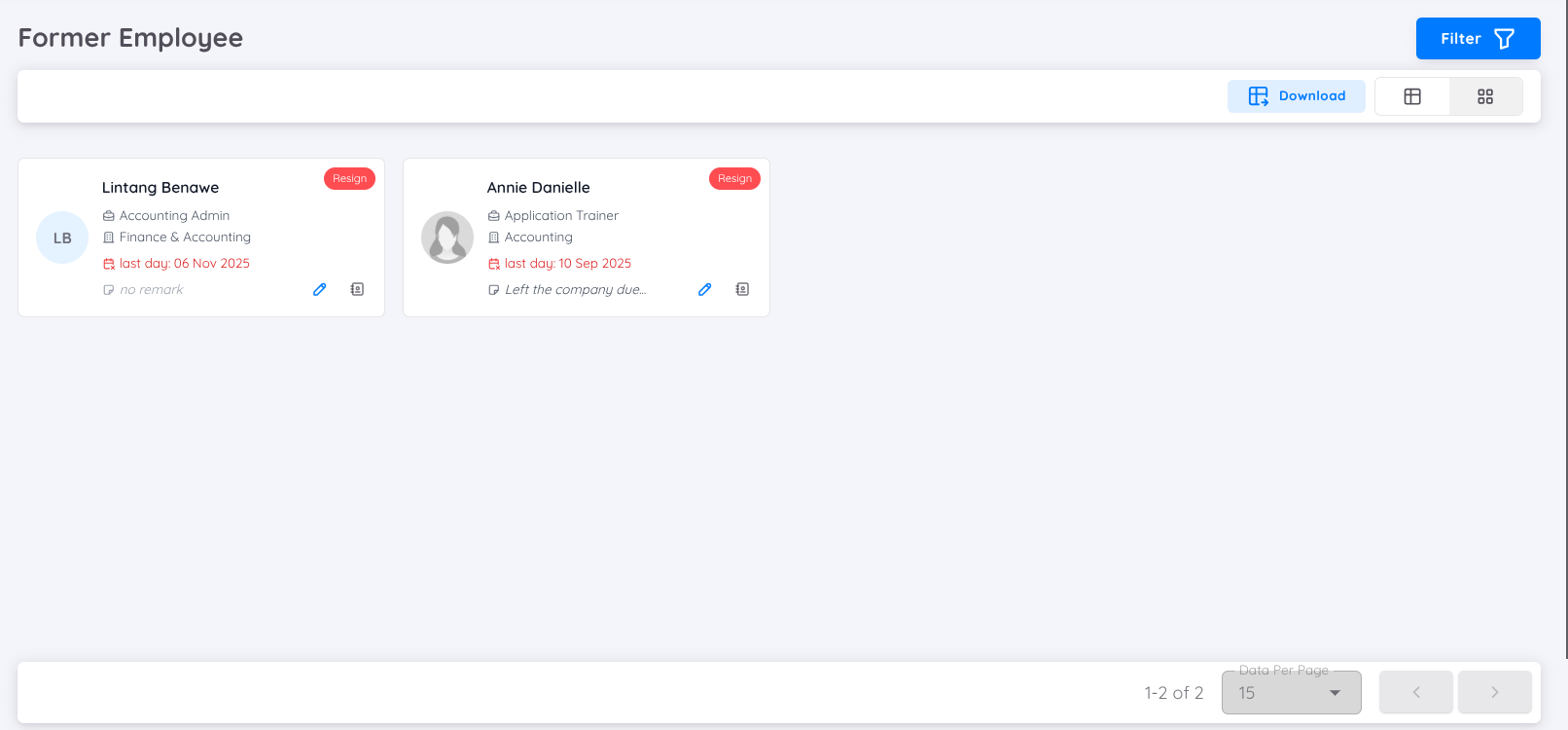
This section displays all inactive employees or employees who no longer work for the company.
You can also add remarks for each former employee for documentation and record-keeping purposes.
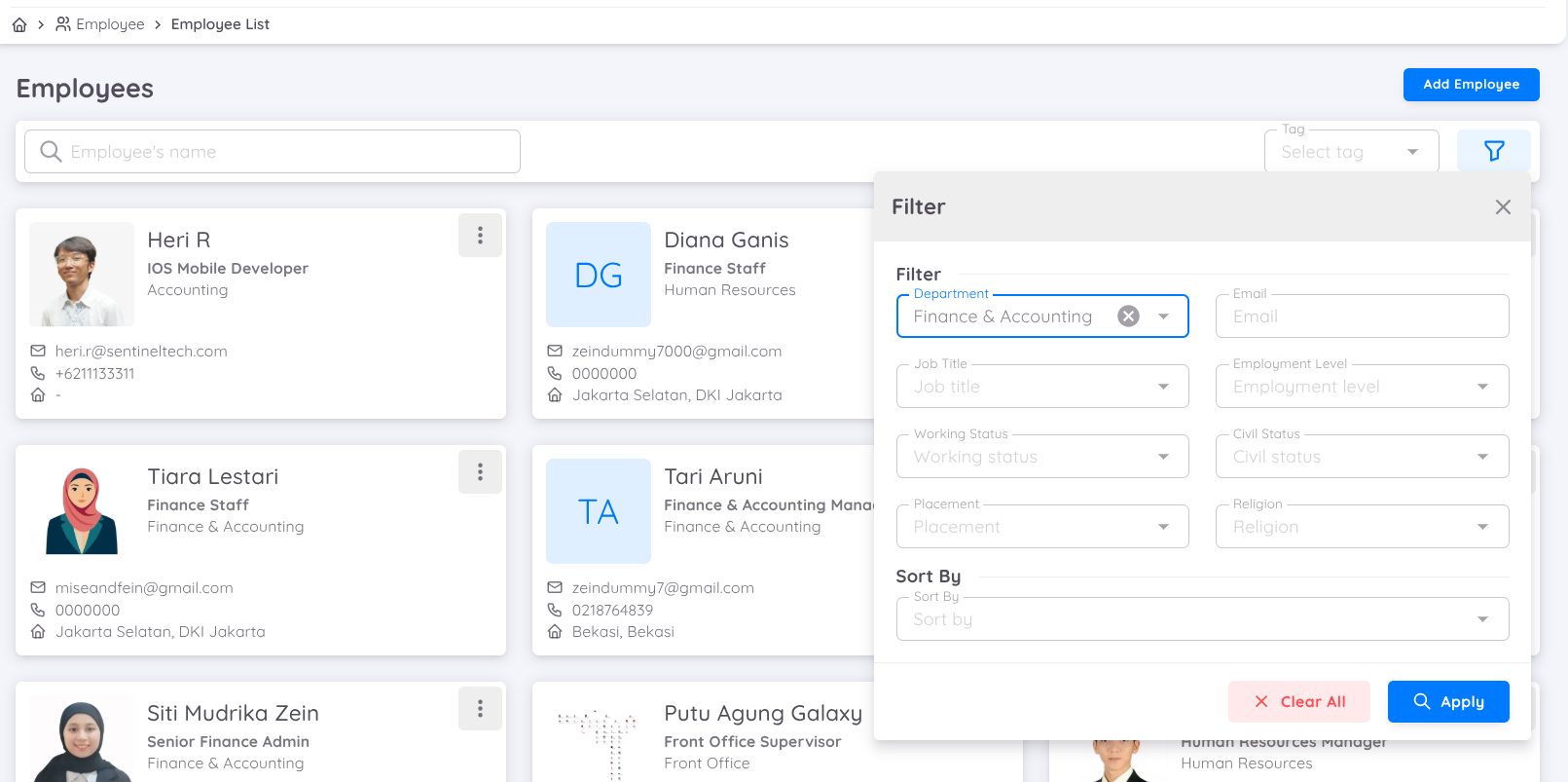
Filter
To filter data, click the filter button in the top right corner.
Tag
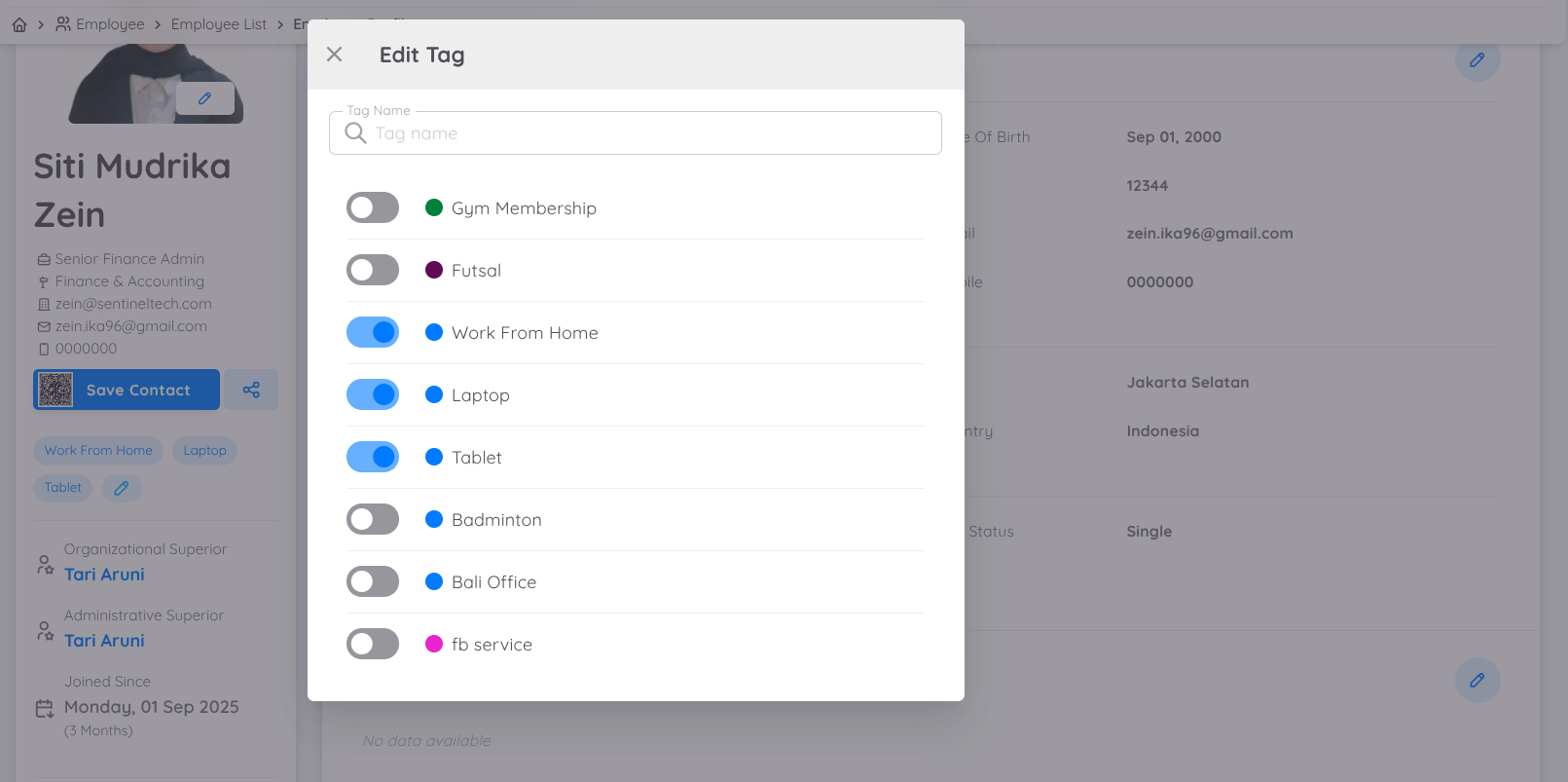
To see the grouping of employees based on tags that were previously created on the setup page, use the tag filter feature.
NOTE
To add or remove employees from a tag, you can do so directly from the employee's profile page.
Profile and Information
This page displays detailed information about an employee's profile, making it easy for both employees and management to view detailed personal data and work-related information.
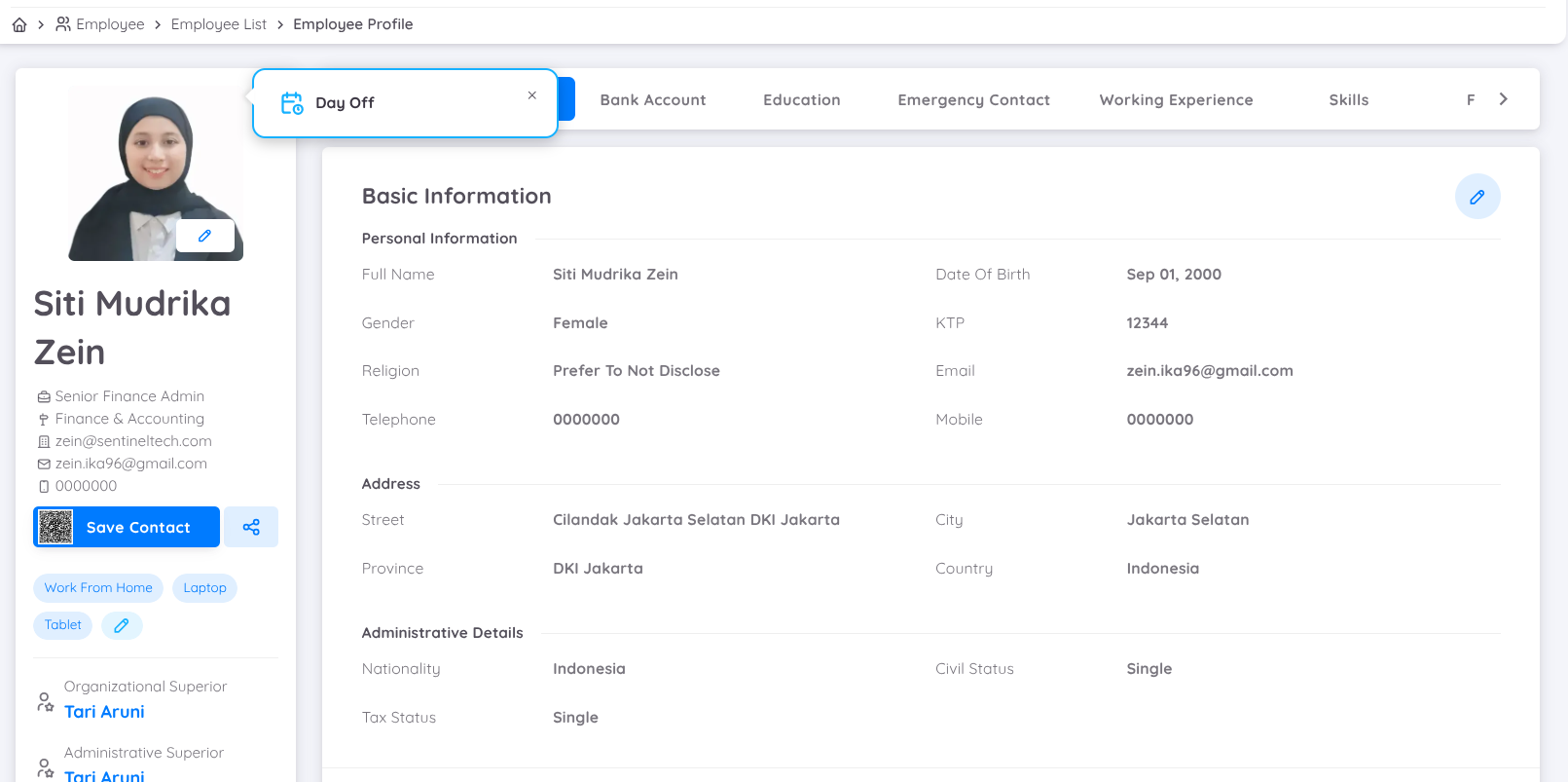
On the left side of the employee profile page, users can:
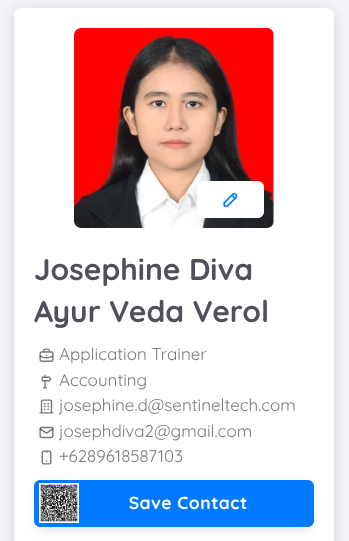
Contact: Store employee contact information.
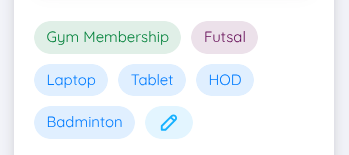
Tags: Add and remove tags.
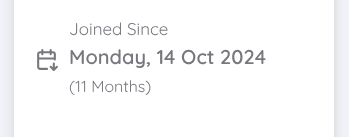
Join Date: Displays the start date of the employee's first contract and length of service.
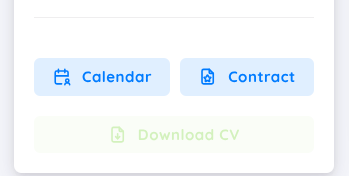
Calendar, Contract, and Download CV: Buttons are available to view the work calendar, contracts, and download the CV (if available).
Archipelago Membership
Only for Unit in Archipelago
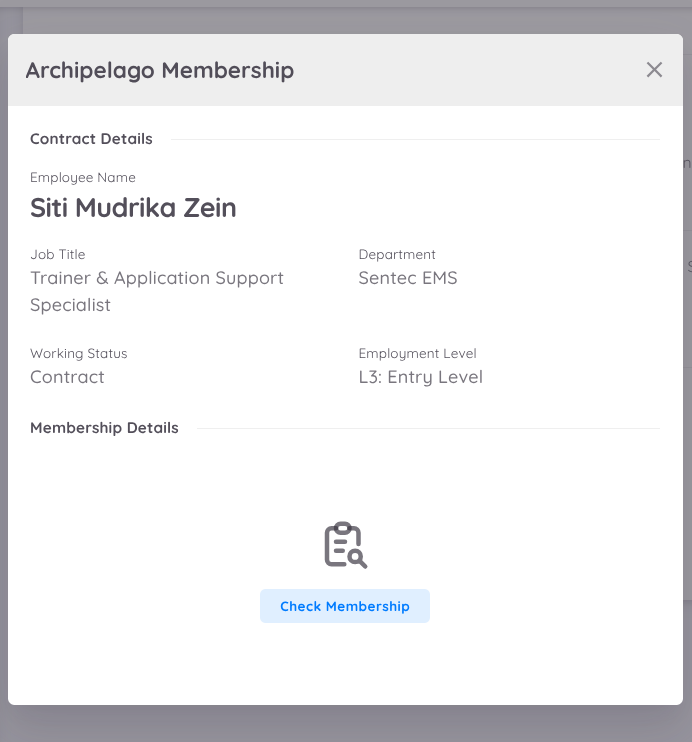
Archipelago Membership Activation: Management users can now register employees for Archipelago Membership using their personal email.
Activation steps:
- Select the employee whose membership you want to activate.
- Click the "Archipelago Membership" menu.
- The "Membership Details" page will appear, then click "Check Membership".
- If the account is not yet active, click "Register" to register the employee.
- If the account is already registered, membership details and the member type will be displayed as "Staff".
NOTE
For employees whose contracts will be terminated, change the member type to "Basic" by clicking "Change membership type to Basic".
On the right side, employee information is displayed as follows: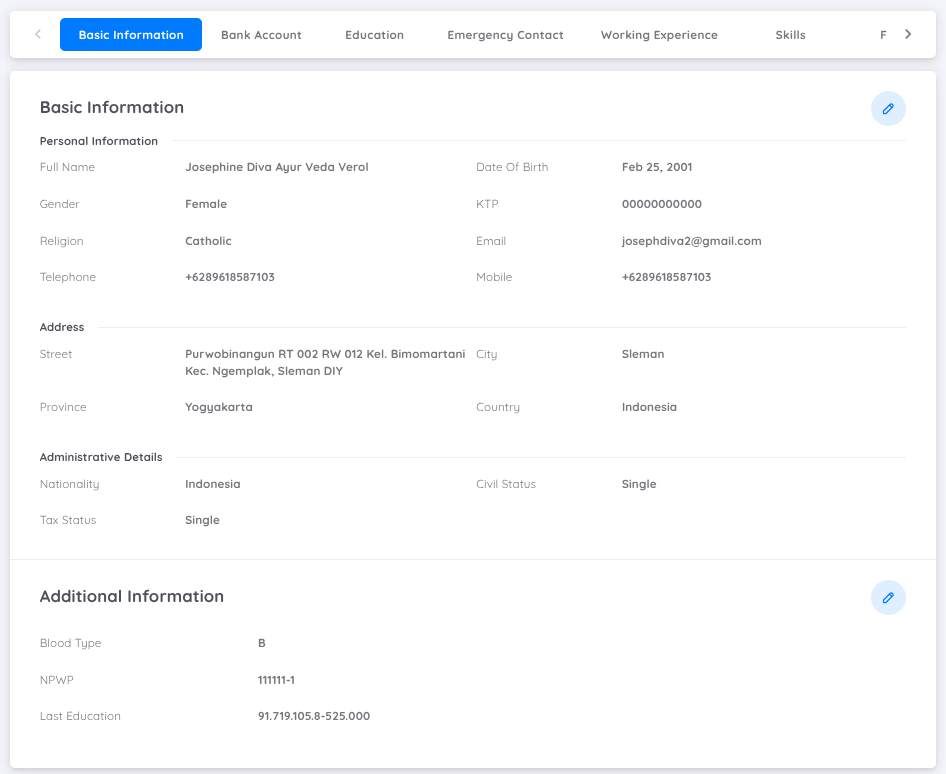
Basic Information
Displays the employee’s basic information, including personal details, home address, and administrative data.
Within Basic Information, users can also add Additional Information, which displays extra details defined through custom fields on the setup page.
Note
You can add additional information in the Custom Field Configuration menu.
Bank Account
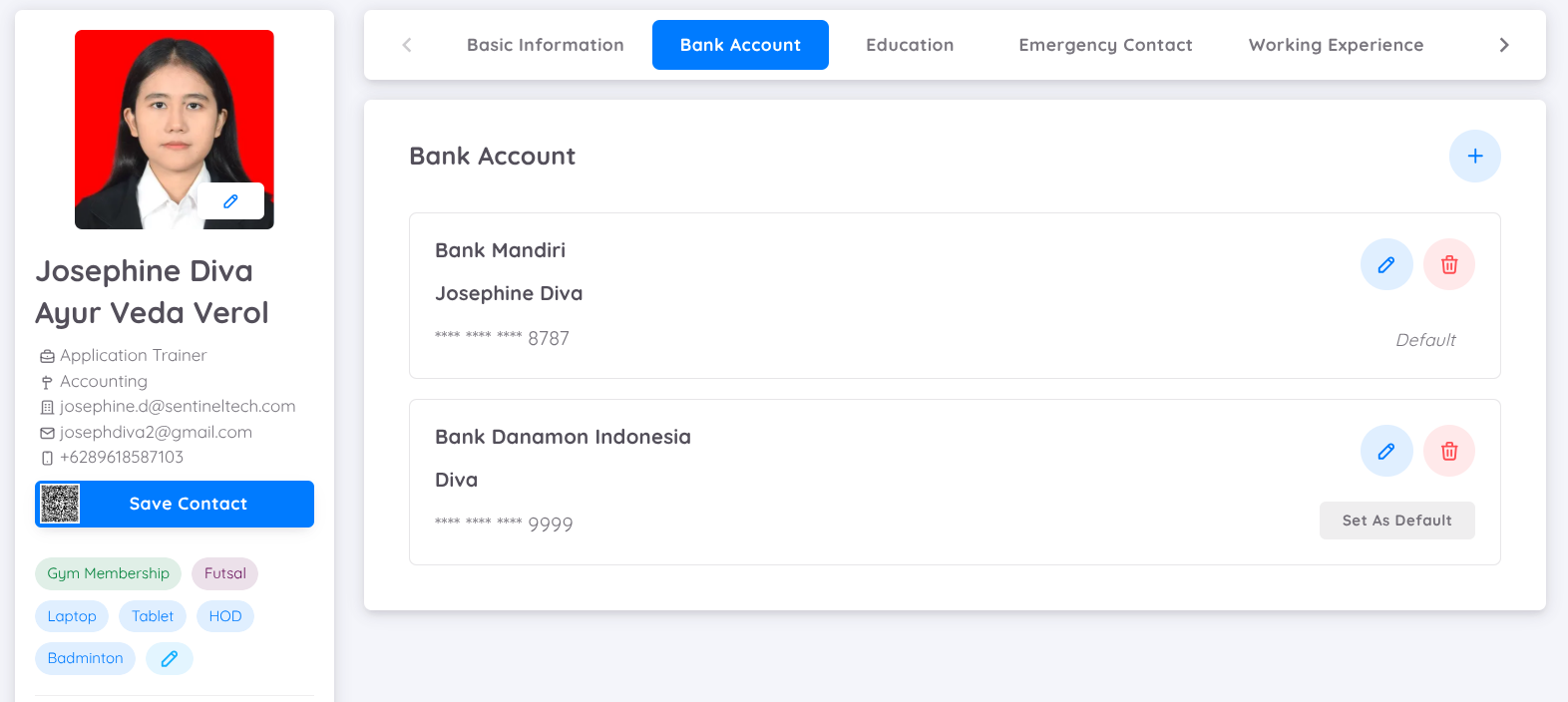
Displays the employee's bank data used in payroll reports.
NOTE
There must be one bank account set as the default.
Education
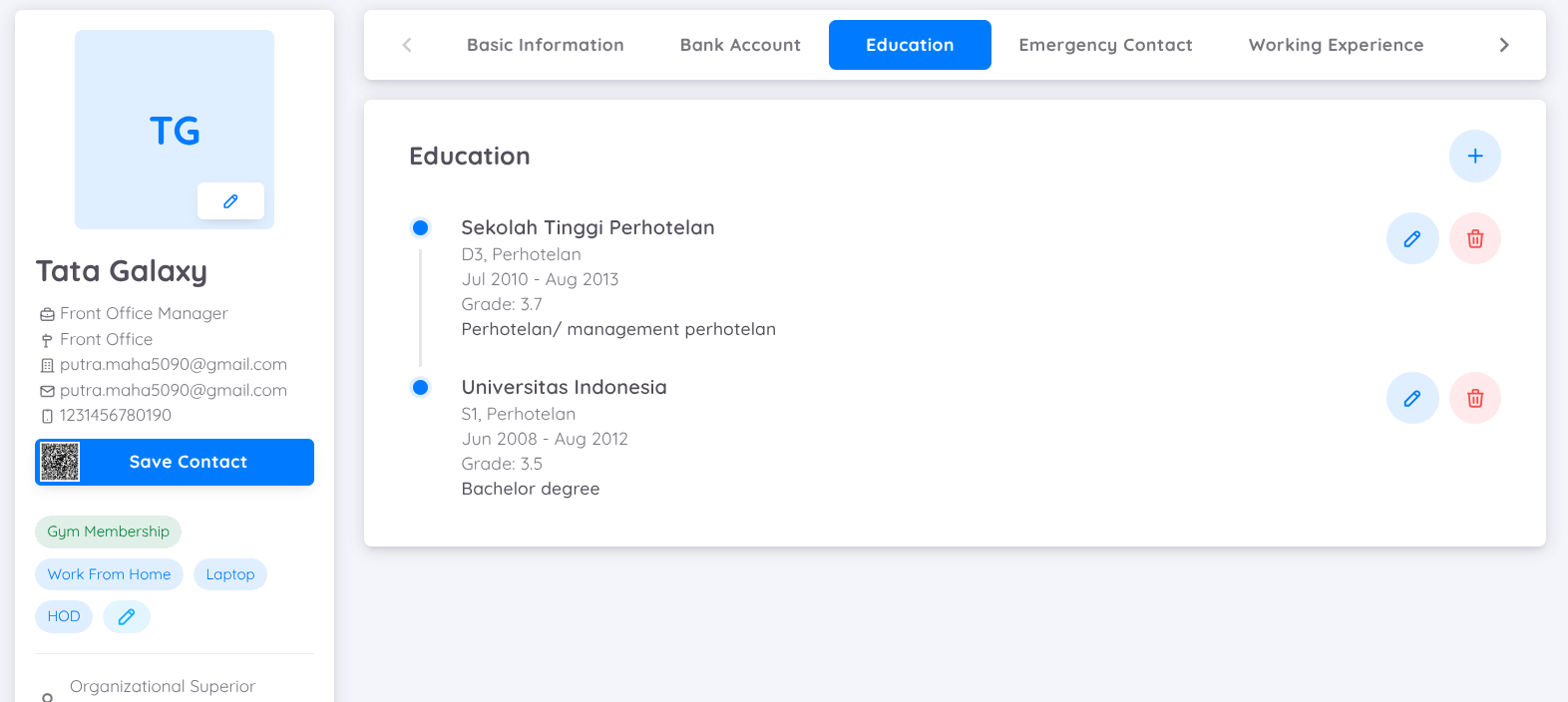
Displays the employee's educational history.
Emergency Contact
Displays a list of emergency contacts that can be reached.
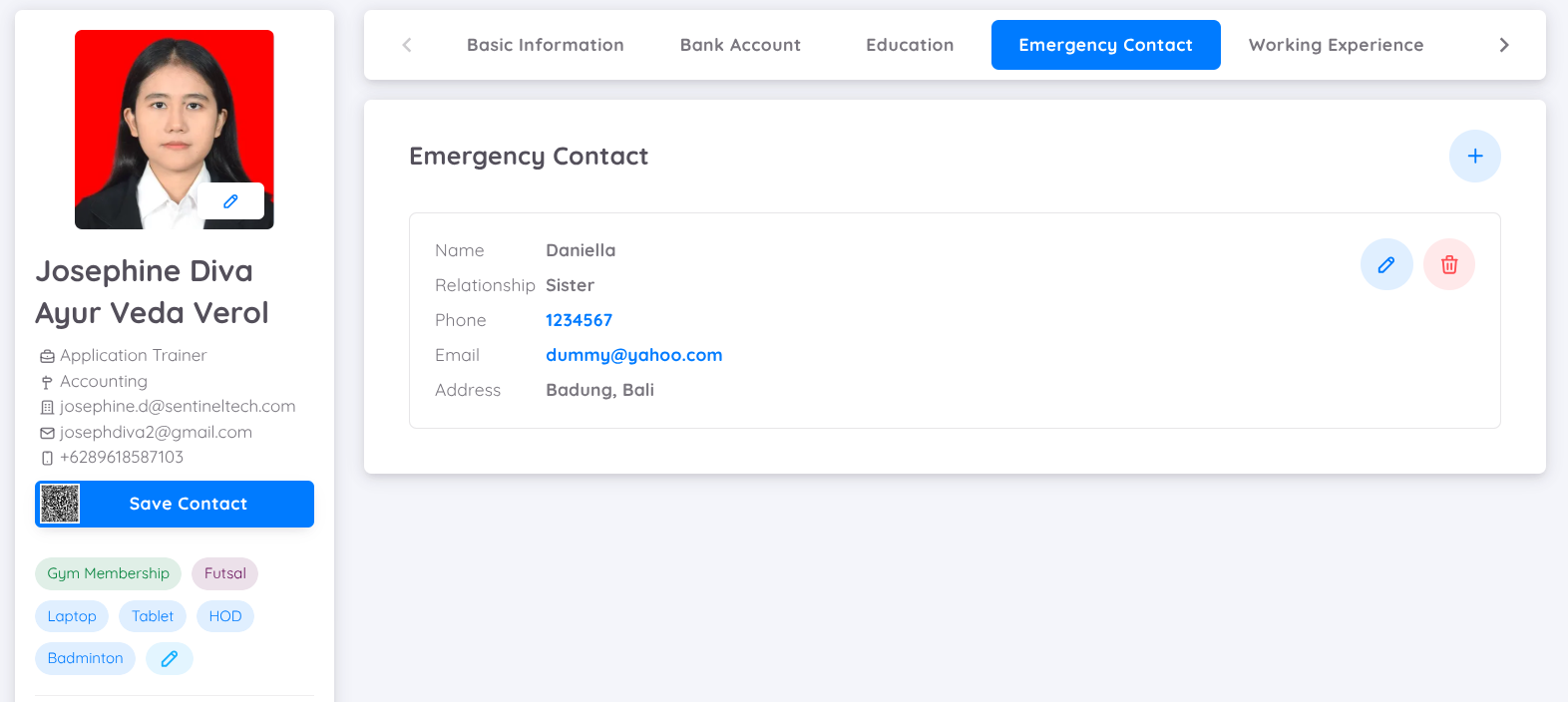
NOTE
You can add more than one emergency contacts.
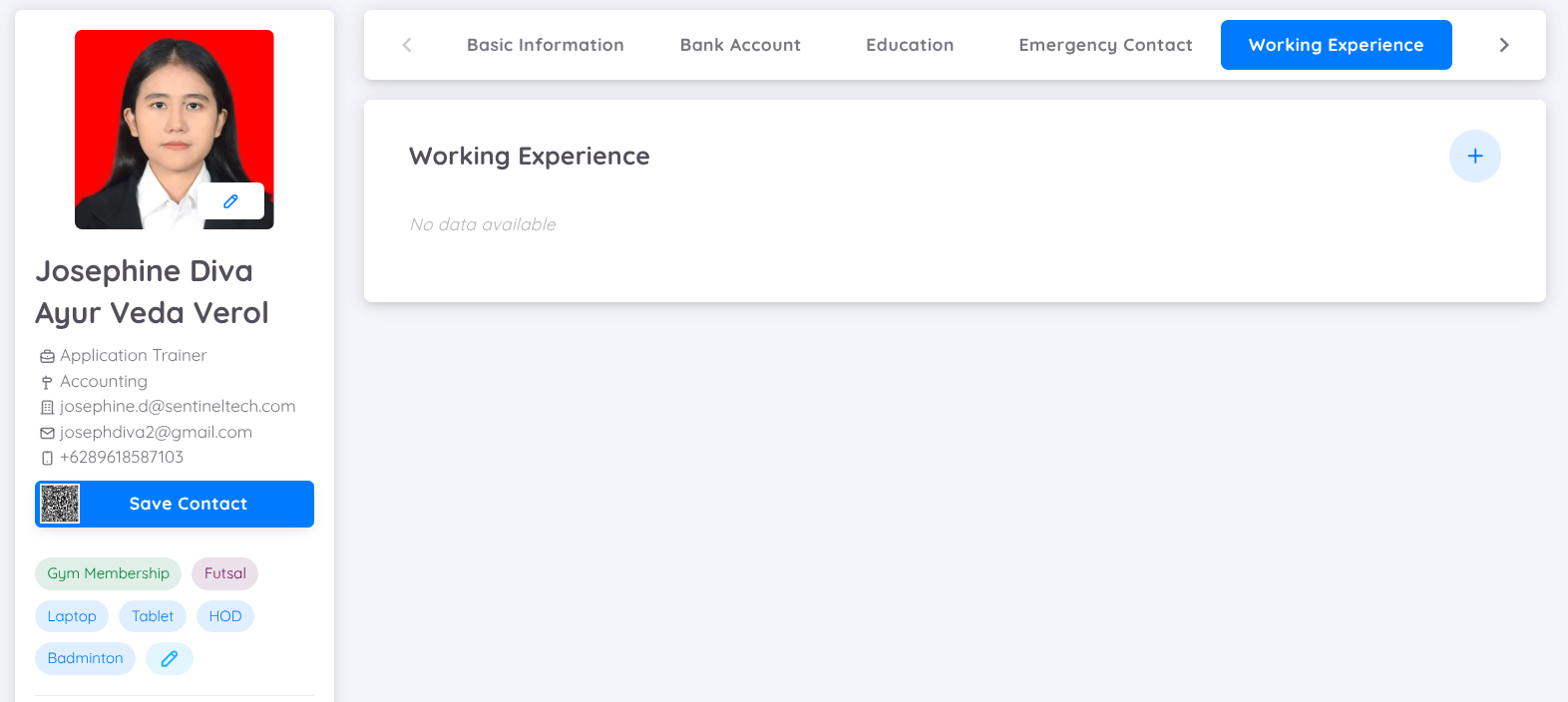
Working Experience
Displays the employee's work experience.
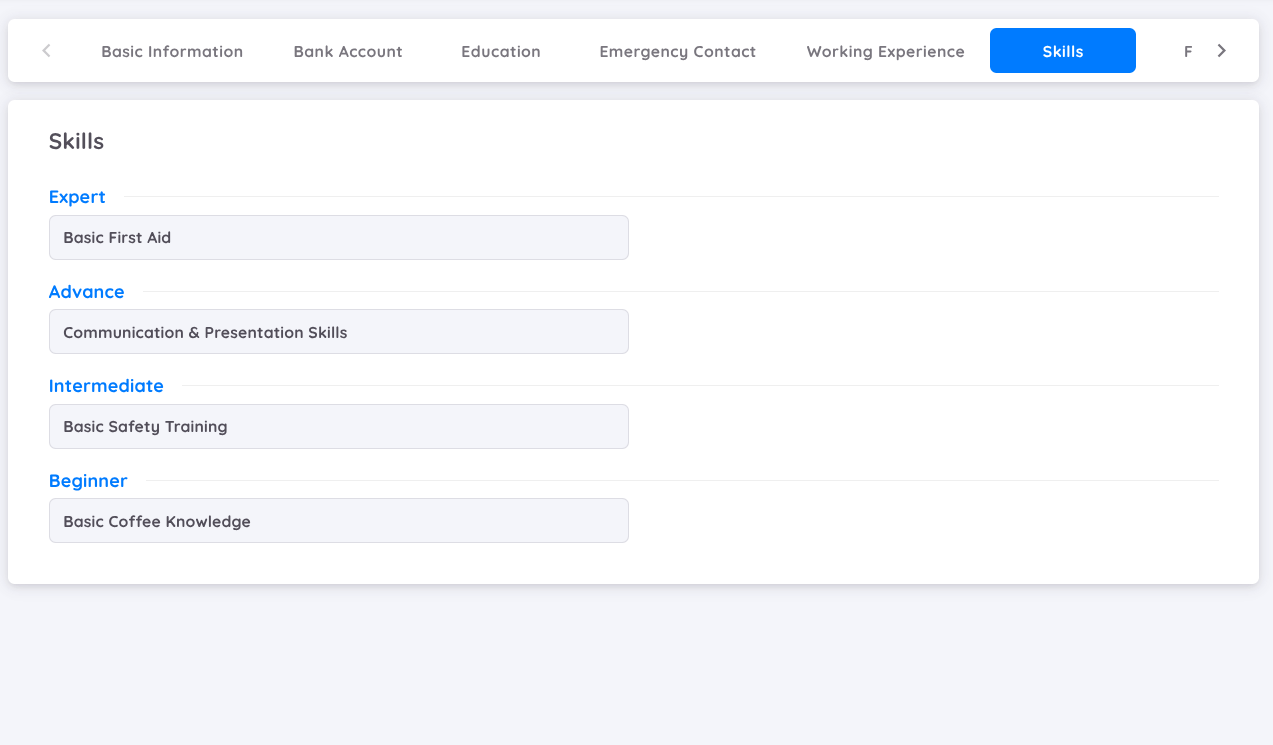
- Skills: Display the skills added by employees.
Folder
Displays employee information and documents
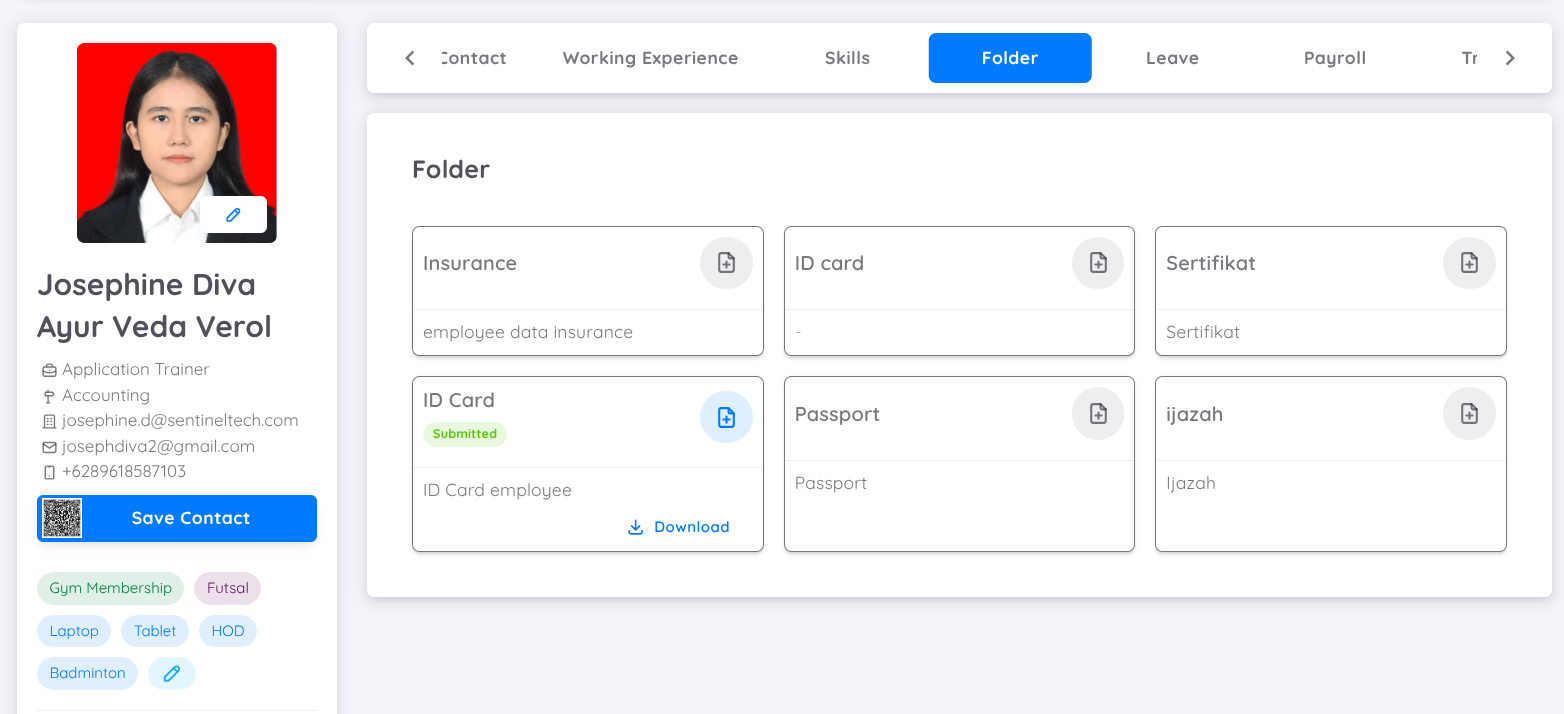
NOTE
In this feature, employees can only download documents and access the available data.
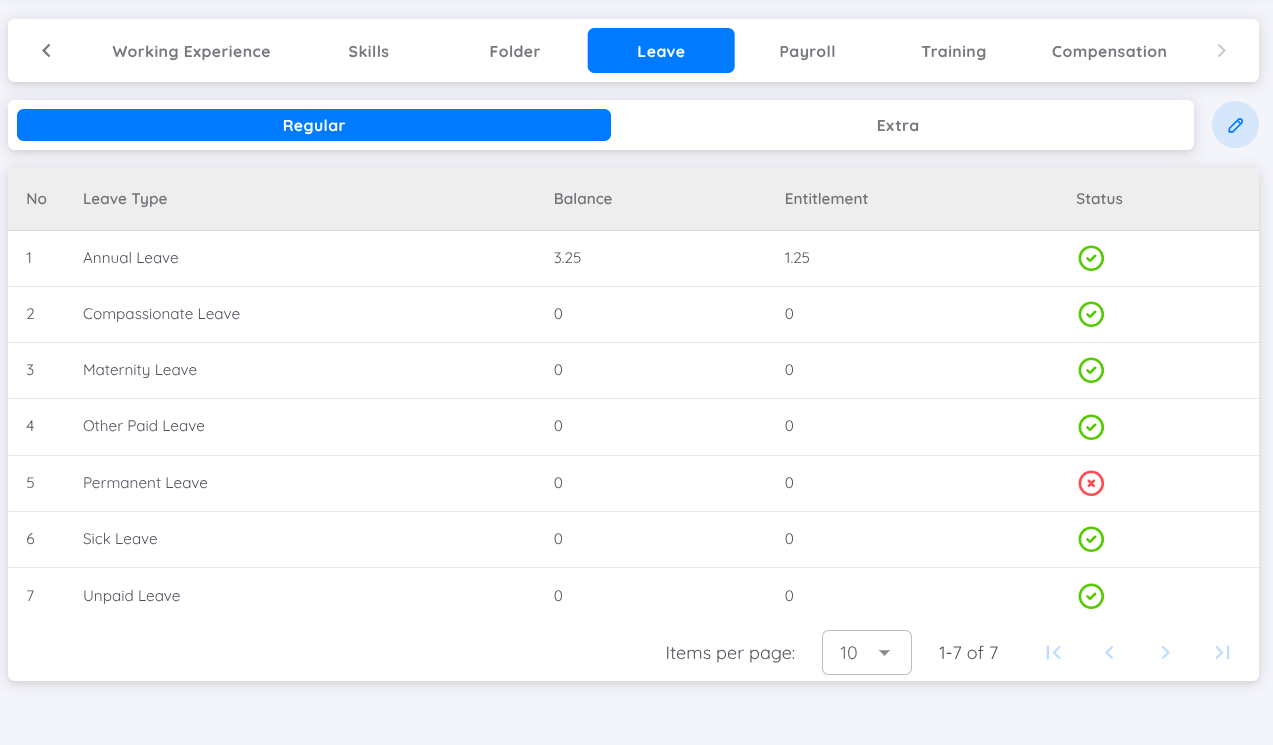
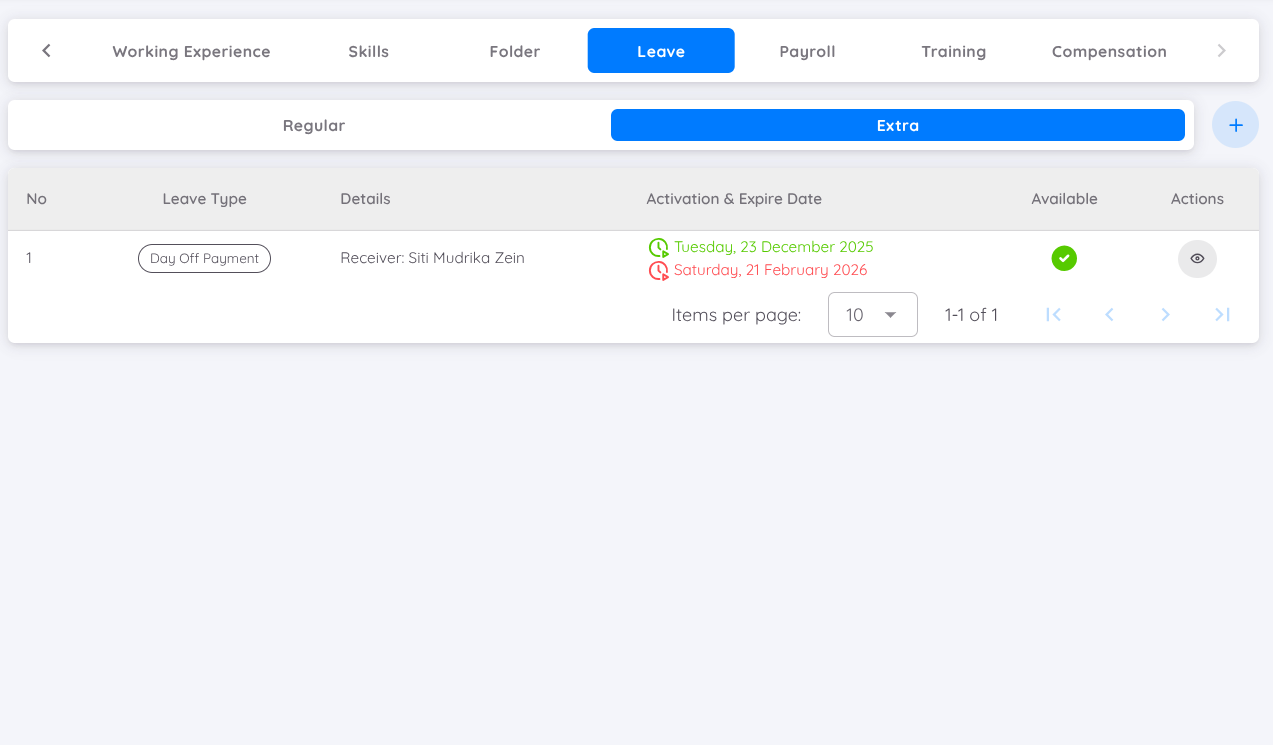
Leave
Displays the employee's leave profile.
NOTE
Only users with "Leave" permission set to "read/write" can access this tab.
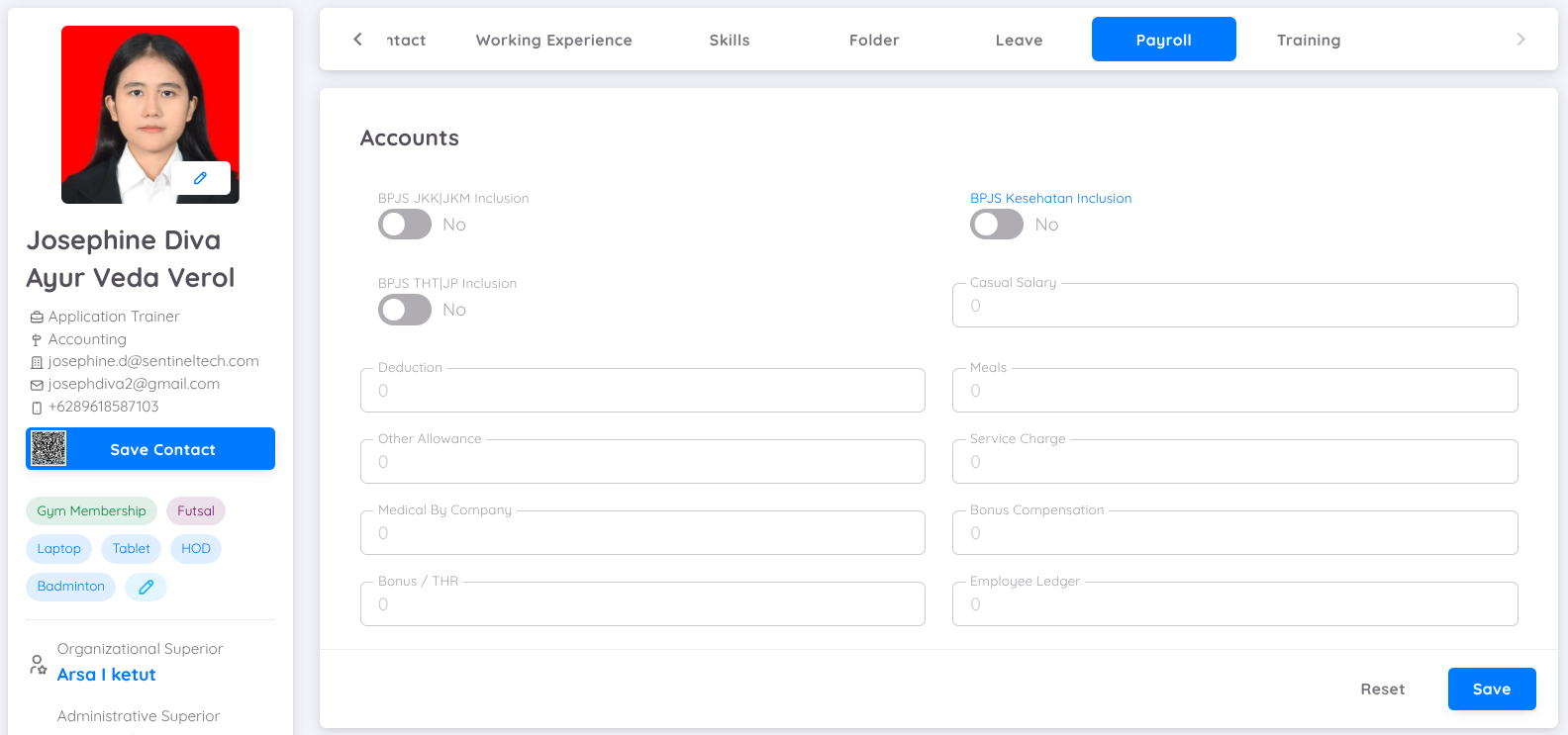
Payroll
Displays the employee's payroll profile.
NOTE
Only users with "Payroll" permission in "read/write" mode can access this tab.
Training
Displays the history and the activity of trainings attended
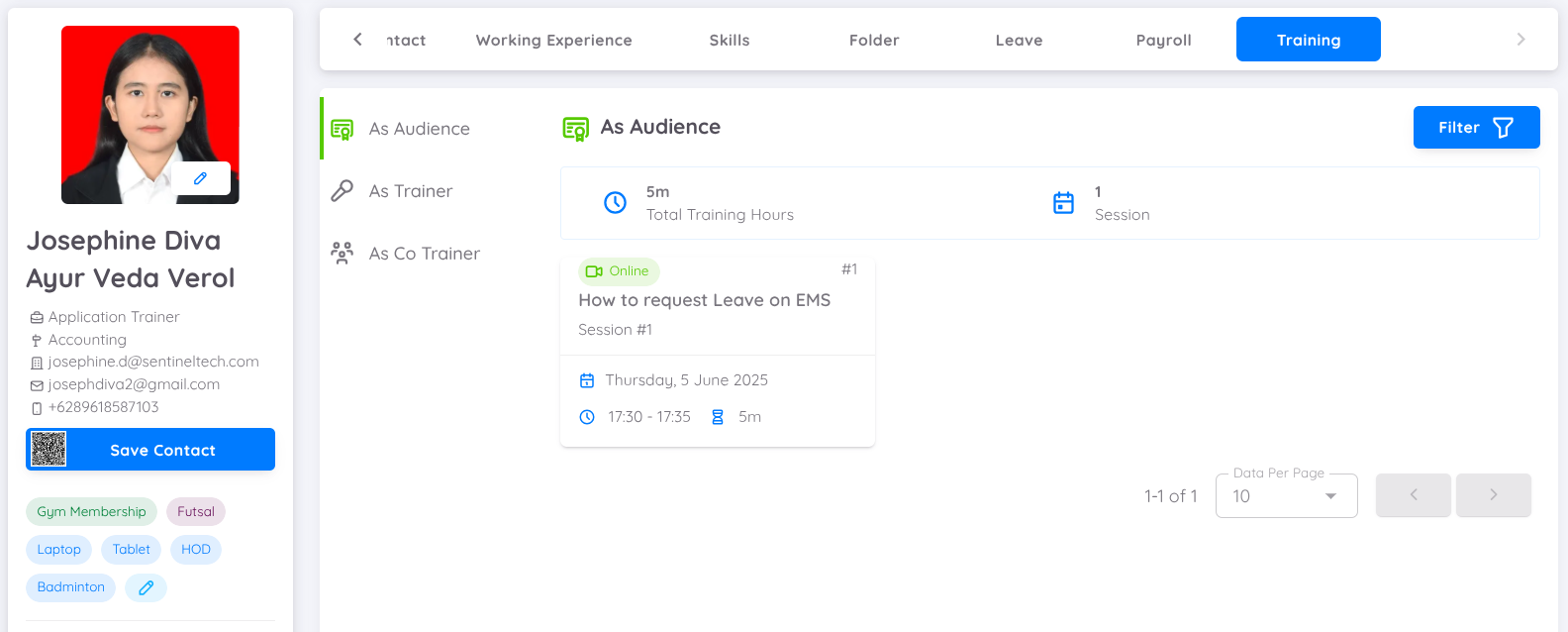
This feature also shows options to view training history as a Participant, Trainer, or Co-Trainer.
Compensation
Displays the compensation profile for each employee.
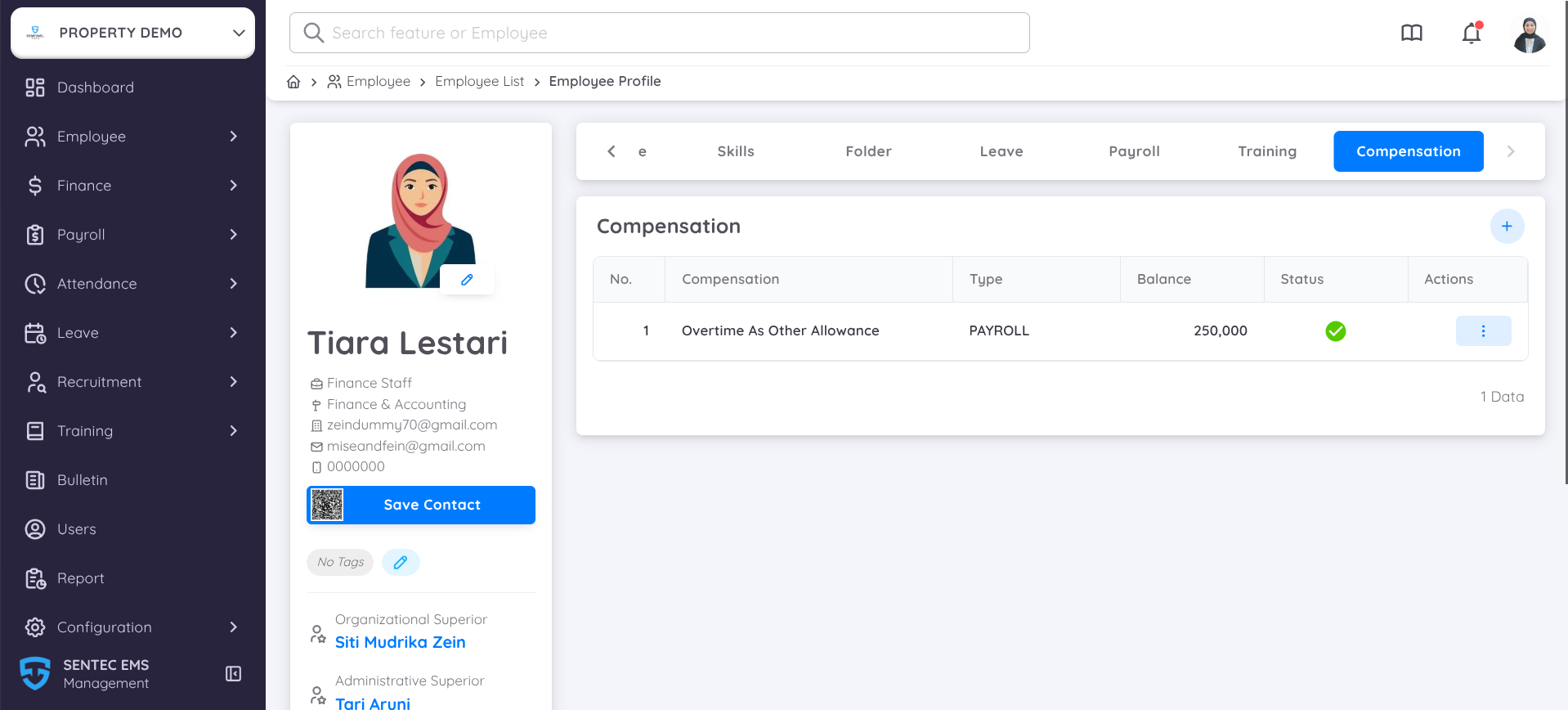
You can add a compensation profile for the employee and select the compensation type that was previously configured in Configuration → Setup → Finance.
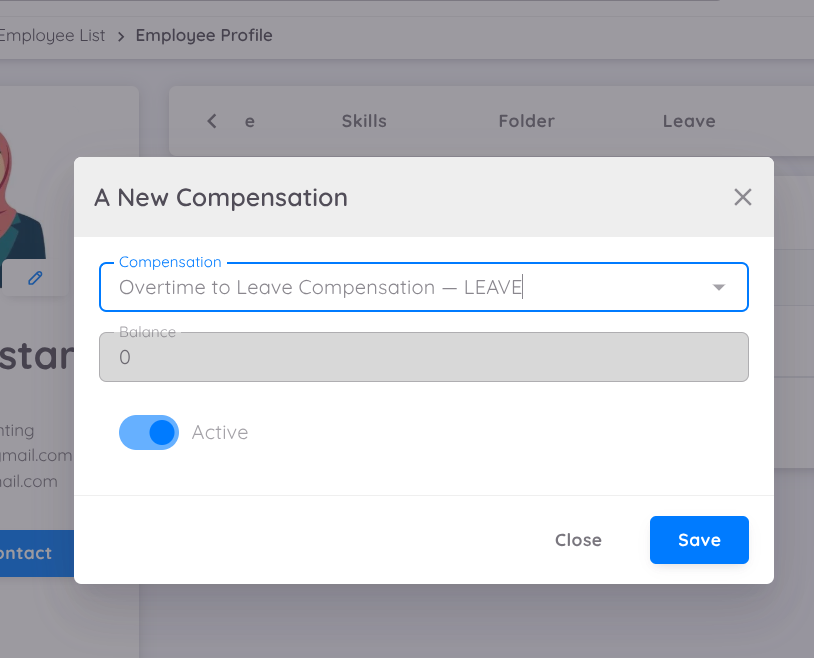
Editing
NOTE
Only users with "Employee" permission in "write" mode can manipulate employee data. Exceptions apply to the "Leave" and "Payroll" tabs.
All employee information can be edited directly by the employee through the employee page https://employees.ems.sentec.io, except for the Leave and Payroll tabs.