Award
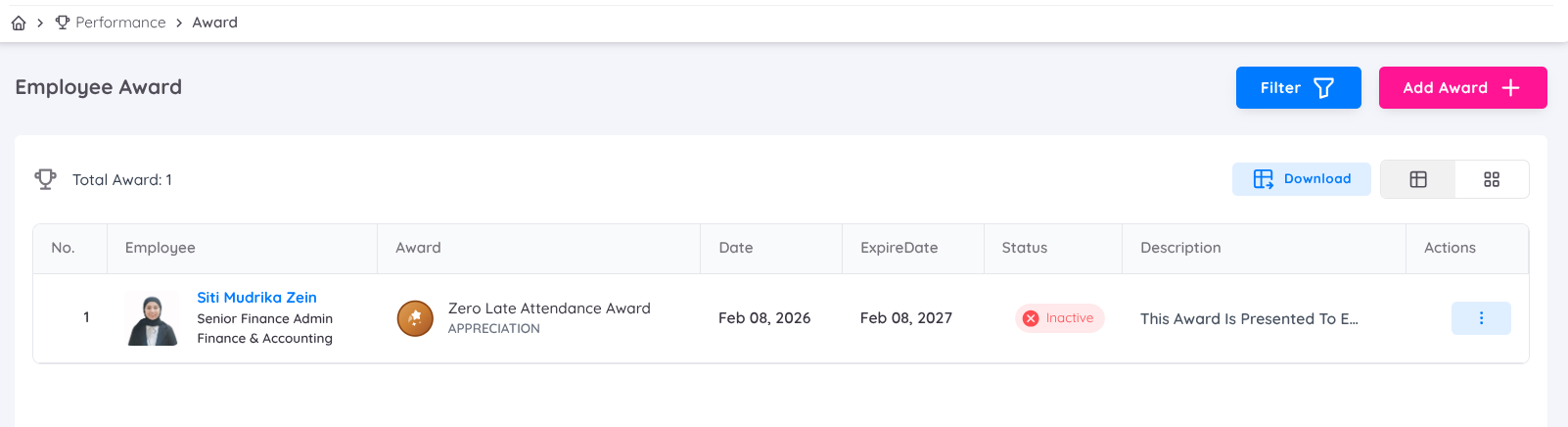
In the Award feature, Management can assign awards to employees based on specific criteria. These awards are displayed on the employee’s profile and can be configured as either term-based or lifetime recognition.
Before assigning an award to an employee, the award template must first be created in the Performance Setup menu.
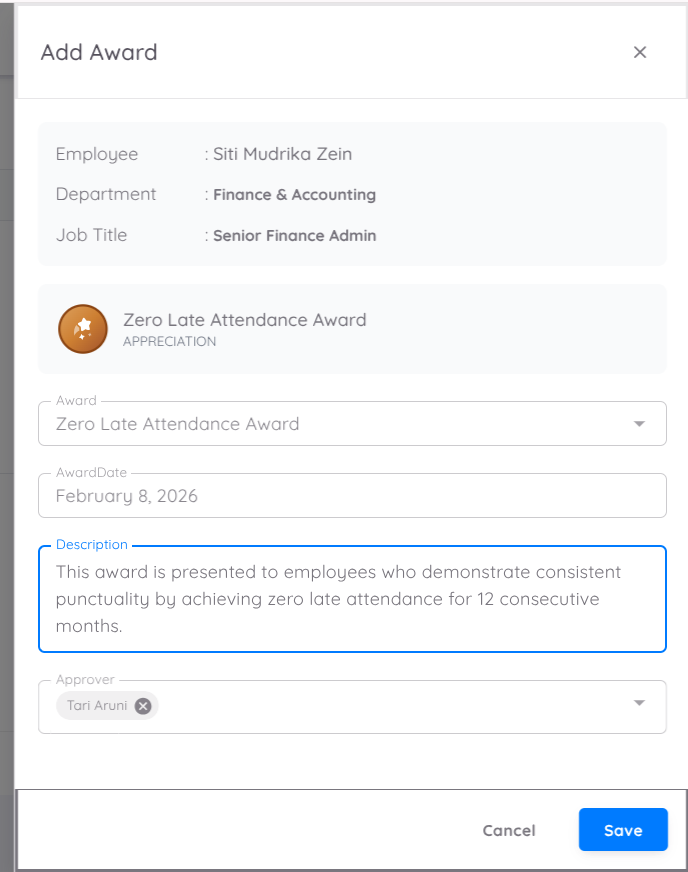
These are the steps to assign an award to an employee:
Navigate to the Award Menu
Go to Performance → Award in the system menu.Select the Employee
Choose the employee who will receive the award. You can search by employee name.Assign the Award
Select the specific award from the available list.Set the Award Date
Specify the date the award is granted.Add Description
Provide a description or reason for the recognition.Approval (if required)
If the Need Approval option is enabled, an Approver column will appear.
Enter the name of the approver(s). Multiple approvers can be added if needed.Confirmation
Once assigned (and approved, if required), the award will be recorded in the employee’s performance profile.
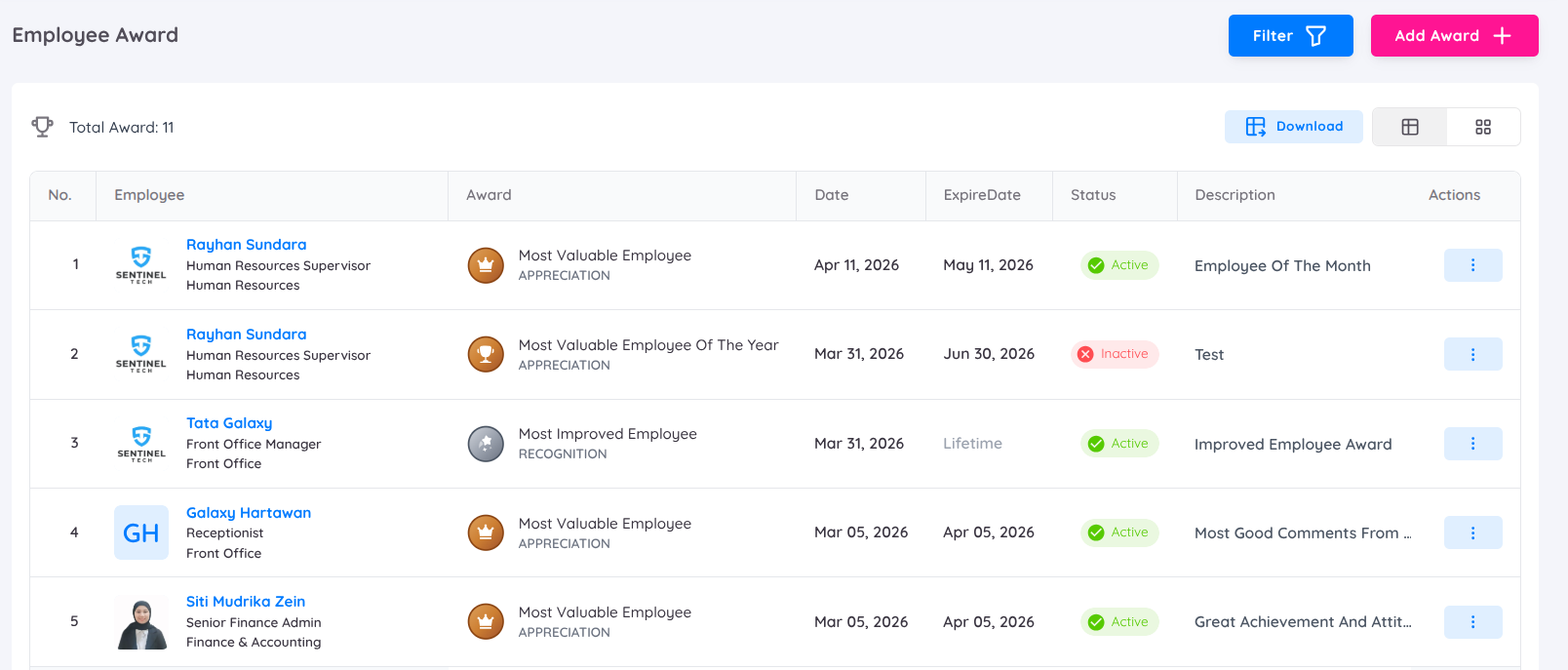
Once an award is created, it will appear in the Award menu, where users can view the following information:
- Award List: Displays employee name, award, date, expiry (if term-based), description, and status
- Status:
- Inactive: Pending approval
- Active: Badge is visible on the employee’s profile
- Actions: Edit, view, or delete awards as needed
Approver Notification and Action
Approvers will receive an email notification when they are assigned.
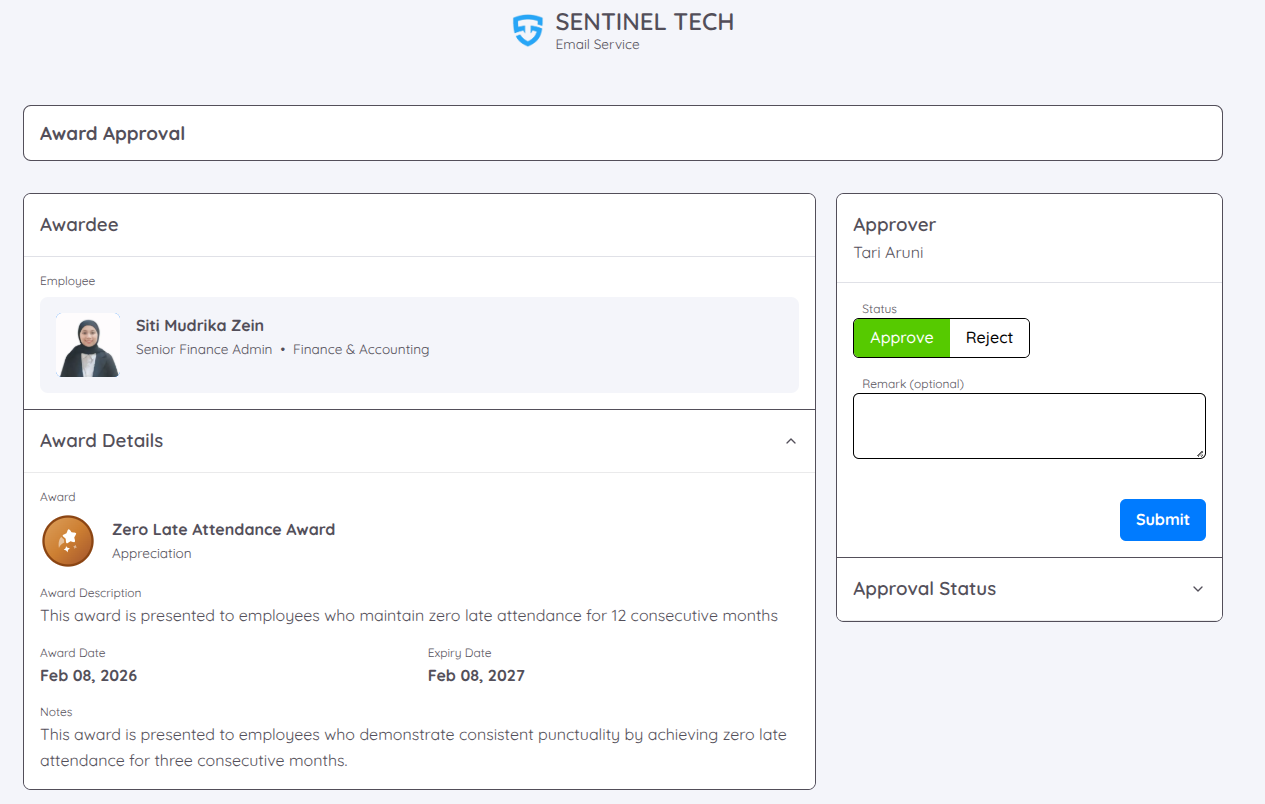
By clicking the View Details button in the email, they will be redirected to the award approval page.
Approvers can approve or reject the award and add remarks as needed.
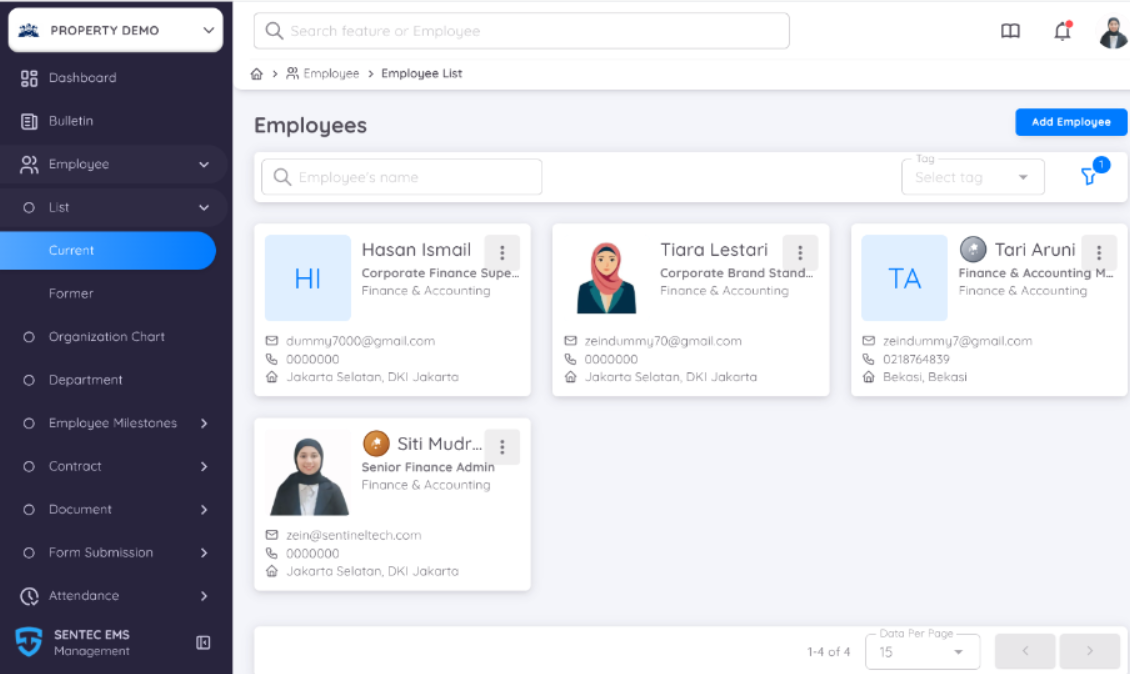
In the Management Page, when viewing the employee list, any employee who has received an award will have the corresponding badge displayed next to their name.