Recap
To accommodate and implement the Yearly Tax Calculation in accordance with Indonesian regulations, Government Regulation (PP) No. 58 of 2023 and Minister of Finance Regulation (PMK) No. 168 of 2023, The calculation of Income Tax Article 21 (PPh Article 21) is performed using the Monthly Effective Tax Rate (TER Bulanan).
For the final tax period, either at the end of the year or in the tax period in which an employee ceases employment, the tax calculation is performed using the progressive income tax rates as stipulated in Article 17 of the Income Tax Law.
In addition, companies can access the Annual Recap, which helps to:
- Review total annual income and accumulated tax per employee
- Support year-end tax reconciliation
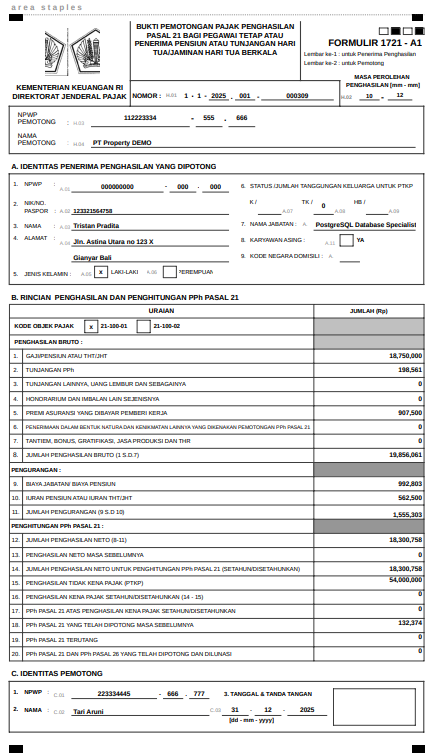
- Generate official tax documents such as Form 1721-A1 or SPT
NOTE
The Annual Recap is specifically applied for Indonesian tax reporting and is used for tax withholding purposes.
Annual Recap
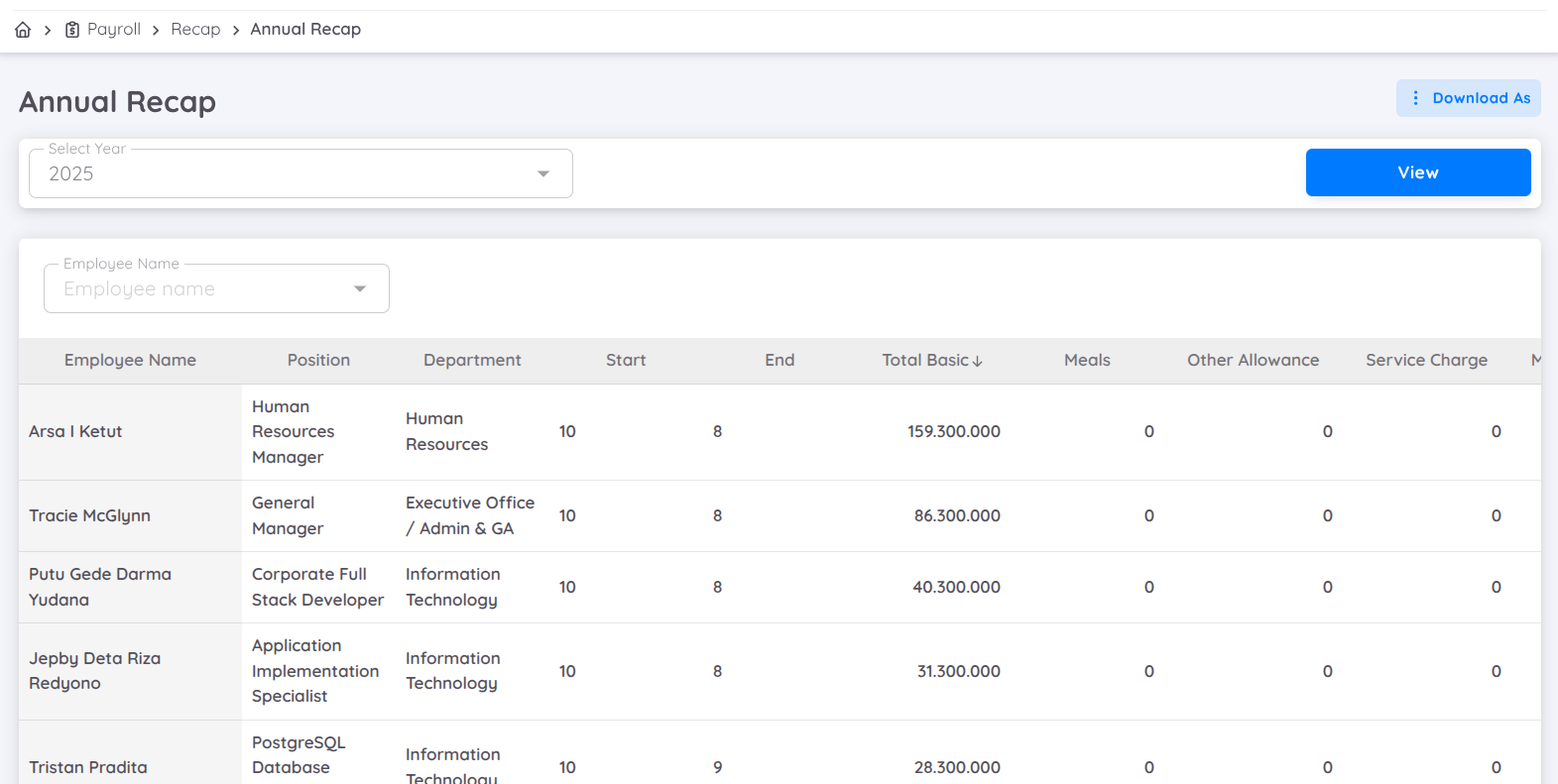
The annual income summary automatically calculates the accumulated income tax for the selected year based on:
- Payroll reports that have been set to Paid
- The period during which the employee’s contract is active at your property
In the Annual Recap, the system accumulates income tax from all Paid payroll reports within the selected year.
Example:
- If an employee joined your property in September, the calculation will start from Month 9.
- If the employee’s last salary was paid in November, the calculation will end at Month 11.
This ensures that the annual tax calculation reflects only the employee’s active working period within your company.
In this view, you can also filter the data by employee name and download the annual recap report.
Tax Withholding Slip
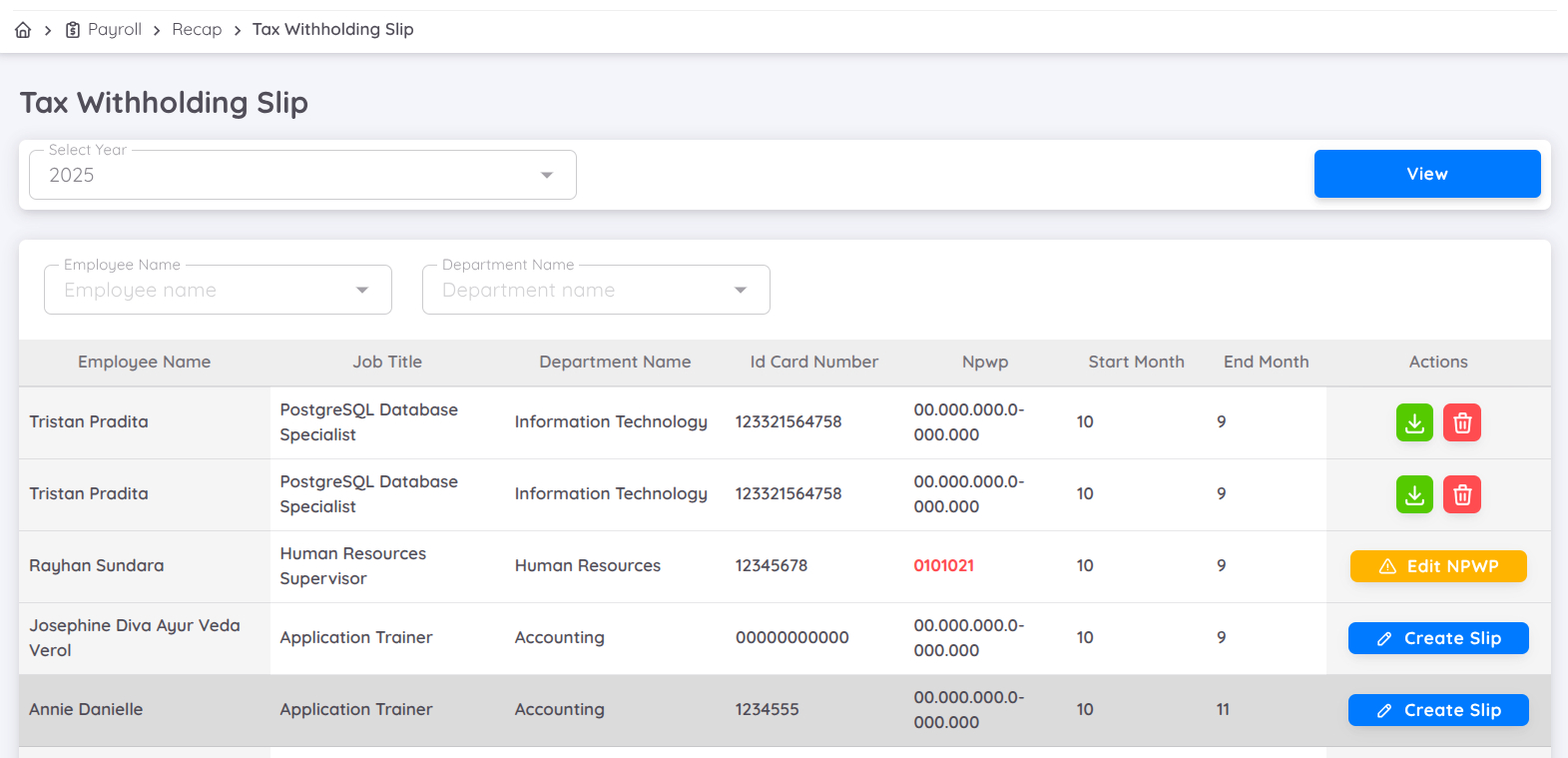
The Tax Withholding Slip page is used to view, manage, and generate annual tax withholding slips for employees based on the selected tax year. This feature is specifically designed to support Indonesian tax reporting.
Important Notes
- The data is generated from the Annual Recap.
- Employees who joined or resigned during the year can still have the form generated based on their active working period and payroll records in Sentec EMS.
- The data may not be fully accurate depending on the start and end months when the payroll feature was used. However, after downloading the form, users can still edit and adjust the data as needed.
To generate the Tax Withholding Slip, navigate to Payroll > Recap > Tax Withholding Slip.
To view the list, select the tax year from the Select Year dropdown at the top of the page, then click View to display the data for the chosen year.
You can also refine the displayed data using the following filters:
- Employee Name
- Department Name
These filters help you quickly locate specific employees or departments.
The table will provides the following information for each employee:
- Employee Name
- Job Title
- Department Name
- ID Card Number
- NPWP
- Start Month – The month when tax calculation begins
- End Month – The month when tax calculation ends
- Actions – Available actions related to the tax withholding slip
Depending on the employee’s data status, different actions may be available:
Edit NPWP
Appears when the employee’s NPWP is missing or invalid. You must update the NPWP before generating the slip. This button will redirect you to the employee profile or the setup page where the tax withholder’s NPWP must be updated.
The NPWP must be entered in the correct format: 00.000.000.0-000.000.NOTE
to edit or add employee NPWP you must first add the NPWP template Configuration → Setup → Employee → Custom Field.
Create Slip
Displayed when the employee has complete data, including a valid NPWP. Clicking this button will generate the Tax Withholding Slip (Form 1721-A1) for the selected employee.Download Slip
Allows you to download the generated tax withholding slip after it has been created.Delete Slip
Removes an existing tax withholding slip if the slip has already been created.
Notes
- The Start Month and End Month reflect the employee’s active working period during the selected year.
- Tax withholding slips can only be generated when the required employee data (such as NPWP) is complete and valid.
- This feature is used as the basis for generating official Indonesian tax documents, such as Form 1721-A1.
Create Slip
To create a slip, all required data must be completed. Once all requirements are met, the Create button will appear.
All components in the slip follow the Form 1721-A1 format, and all values are generated based on the Annual Recap.
A. Identity of the Income Recipient (Penerima Penghasilan yang Dipotong)
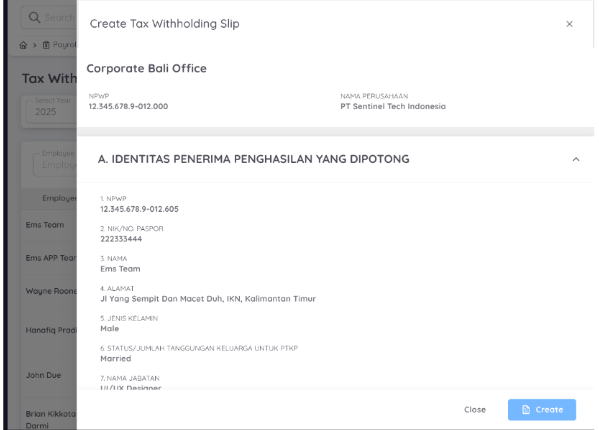
This section contains the personal and employment information of the employee whose income is subject to tax withholding. The information includes:
- NPWP: The employee’s Tax Identification Number
- NIK / ID / Passport: The employee’s national identification number or passport number (for non-Indonesian employees)
- Name: The full legal name of the employee
- PTKP Status: The employee’s non-taxable income status based on marital status and dependents
- Job Title (Nama Jabatan): The employee’s position within the company
- Department: The department or organizational unit where the employee is assigned
- Employment Period: The start and end months indicating the employee’s active working period in the selected tax year
This information is automatically populated from the Employee Profile recorded in Sentec EMS.
B. Detailed Calculation of PPh 21
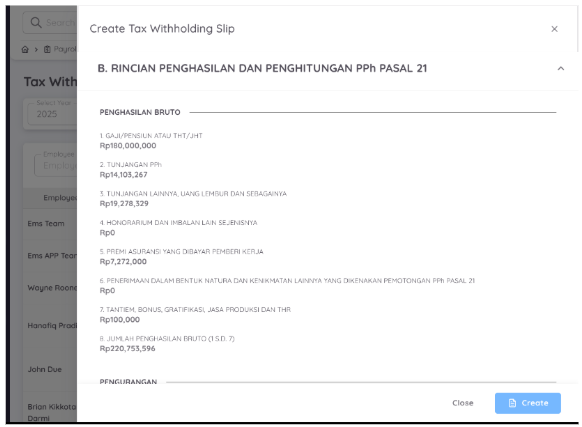
This section displays the PPh 21 calculation generated from the Annual Recap data recorded in Sentec EMS. The calculation is divided into Gross Income (Penghasilan Bruto), Deductions (Pengurang), and Tax Calculation.
Gross Income (Penghasilan Bruto)
Gross income includes the accumulation of all income components received by the employee during the selected tax year, such as:
- All Regular Income: Including salary, pension contribution (Jaminan Pensiun), and old-age security (Jaminan Hari Tua)
- PPh Allowance (Tunjangan PPh): Tax allowance provided by the company to cover employee income tax
- Honorarium or Similar Compensation: Payments received outside regular salary
- Additional Income: Including other allowances and overtime payments
- Insurance Premiums (Premi Asuransi): Insurance contributions provided by the company and treated as taxable income
- Benefits in Kind (Natura): Non-cash benefits received by the employee
- Bonus and THR: Including bonuses, holiday allowance (THR), and other irregular income
- Accumulation of Items 1–7: The total gross income calculated from all components above
Deduction
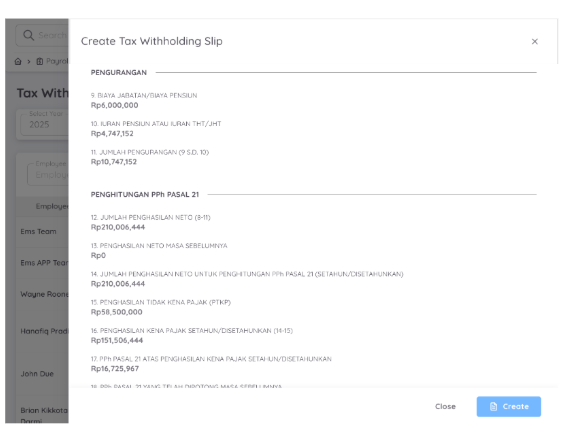
This section shows the components that reduce the employee’s gross income in the PPh 21 calculation.
Biaya Jabatan / Biaya Pensiun
Biaya Jabatan is calculated as 5% of Gross Income (Penghasilan Bruto), with the following limits:
- Maximum IDR 500,000 per month, or
- Maximum IDR 6,000,000 per year
The system automatically applies the applicable limit based on the employee’s payroll period within the year.
Iuran Jaminan Pensiun (JP) dan Jaminan Hari Tua (JHT)
This includes employee contributions to:
- Pension Security (JP)
- Old Age Security (JHT)
The values are calculated based on payroll data recorded in Sentec EMS.
Accumulation of Items 1–2
Total deductions are calculated as the sum of Biaya Jabatan / Biaya Pensiun and JP & JHT contributions.
Calculation of PPh 21
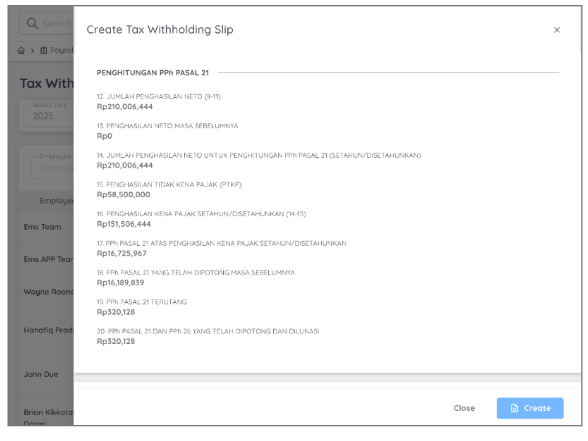
This section shows how Sentec EMS calculates PPh 21 tax for each employee based on payroll data recorded during the year:
- Net Income (Jumlah Penghasilan Neto): Income after deductions are applied
- Previous Net Income (Penghasilan Neto Masa Sebelumnya): Net income from earlier months in the same year
- Annualized Net Income: Total net income calculated on an annual basis, adjusted to the employee’s active working period
- Non-Taxable Income (PTKP): Tax-free income based on the employee’s PTKP status
- Taxable Income (Penghasilan Kena Pajak): Income subject to PPh 21 after PTKP deduction
- Annual PPh 21: Total PPh 21 calculated using applicable tax rates
- Previously Withheld PPh 21: PPh 21 already deducted in previous payroll periods
- PPh 21 Payable: Remaining PPh 21 to be withheld or settled
- PPh 21 / PPh 26 Paid: Final tax amount withheld or paid, including PPh 26 if applicable
C. Identity of the Withholder
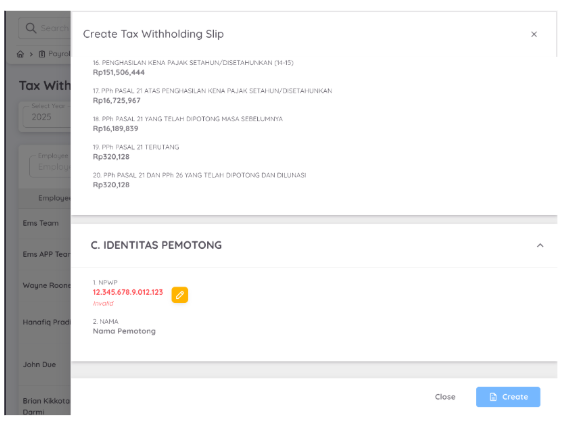
This section displays the tax withholder information used in the Tax Withholding Slip.
NPWP
The tax identification number of the withholder.
If the NPWP format is incorrect, it will be marked as Invalid. You can update it by clicking the Edit button, which will redirect you to Configuration → Setup → Payroll.Nama Pemotong
The official name of the tax withholder as registered for tax reporting purposes.
The data in the Tax Withholding Slip cannot be edited directly in Sentec EMS, as the form is generated and integrated with the Annual Recap.
Download Slip
After the slip is successfully created, you can download it in Excel/spreadsheet format. The downloaded file can be printed or edited if necessary, allowing each company the flexibility to review, adjust, and finalize the data according to internal requirements.