Frequently Asked Questions (FAQ)
This page compiles answers to the most common questions about Sentec EMS usage.
Login & Access
Q: The Employee Page cannot be accessed in the browser, shows an error, or does not load correctly for one user, while it works for others. How can I fix it?
✅ Solution:
If EMS shows an error or fails to load for only one user (while other users can access it without issues), the most common cause is a browser cache issue.
For Desktop Users
- Perform a hard refresh of the page by pressing:
- Ctrl + Shift + R (Windows/Linux)
- Cmd + Shift + R (Mac)
- Log out of EMS, then log back in.
- To verify whether the issue is caused by browser cache, open the affected page in an Incognito/Private Window.
- If the page loads correctly in Incognito/Private mode, the issue is likely related to the browser cache.
- Clear your browser cache (for example, in Chrome:
chrome://settings/clearBrowserData) and try accessing EMS again. - If the issue persists, try accessing EMS using a different browser or device.
For Mobile Users
- Completely close the browser or EMS application, then reopen it.
- Log out of EMS and log back in.
- Try accessing EMS using Private/Incognito Mode.
- If the page loads correctly, the issue is likely caused by cached browser data.
- Clear the browser cache:
- Android (Chrome):
- Open Chrome → Settings → Privacy and Security → Clear Browsing Data → select Cached Images and Files → Clear Data.
- iPhone/iPad (Safari):
- Open Settings → Safari → Clear History and Website Data.
- Android (Chrome):
- Make sure your browser is updated to the latest version.
- If the issue still occurs, try accessing EMS using a different browser or device.
Recommended Browsers
- Android: Google Chrome
- iPhone/iPad (iOS): Safari
If the issue persists after following the steps above, please contact your administrator or support team and provide the error details, device information, browser version, and a screenshot if available.
Q: The employee cannot log in to the employee page?
✅ Make sure the email used is already registered in Sentec EMS.
Q: Which devices cannot access the Sentec EMS application?
✅ The Sentec EMS Application cannot be accessed on devices below iPhone 8 and below Android 7.
✅ Some features may not be accessible on systems running Windows 7 or earlier.
Q: Unable to Access Employee App (Magic Link / Login Issue)
✅ Basic Troubleshooting
- Log out of the application.
- Close all tabs that are currently accessing Sentec EMS.
- Open a new browser tab and go to the Sentec EMS login page.
- On the login page, click the Clear Data button.
- Perform a hard refresh or clear the browser cache. If you are using a desktop, press: Ctrl + F5. This will reload the page and clear the cache.
- Try logging in again.
Note
If the issue persists, please note that mobile devices do not have a direct hard refresh option like desktop browsers. You can try the following methods:
Method 1: Clear Browser Cache (Android - Chrome)
- Open the Chrome browser.
- Tap the three dots (⋮) in the top right corner.
- Go to Settings.
- Tap Privacy and Security.
- Select Clear Browsing Data.
- Choose Cached images and files.
- Tap Clear Data.
- Reopen the browser and try logging in again.
Method 2: Clear Browser Data (iPhone - Safari)
- Open Settings.
- Scroll down and tap Apps and Find Safari.
- Tap Clear History and Website Data.
- Confirm the action.
- Open Safari again and access the login page.
Alternative Quick Method
- Close the browser completely and reopen it.
- Or try accessing the system using Incognito / Private Mode.
If the issue still persists, please contact the support team for further assistance.
Q: Can employees only log in using their personal email address?
✅ No. If an employee has an official email address that is registered in their Employee Contract in Sentec EMS, they can log in using either their registered personal or official email address.
Q: How can I change my login email address?
✅ To change the personal or official email address used for login, please contact your HR Department. HR will then coordinate with the Sentec Team to update the employee's email address in Sentec EMS.
Attendance
Q: The employee cannot record attendance?
✅ For regular employees, in Configuration → Setup → Attendance, ensure the selected default work schedule is correct and the working hours match the day. For non-regular (shift) employees, they must have a corresponding work schedule before recording attendance.
Q: No leave options available in the leave request form?
✅ Ensure the employee has a leave profile in Leave → Leave Administration, and the leave type is activated.
Q: Location/Photo does not appear when recording attendance?
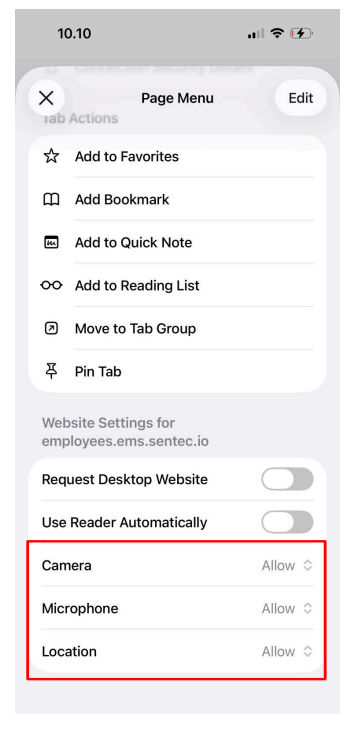
✅ Please check the permissions in the web browser. Ensure that access to location, camera, and microphone is allowed
Q: Do employees need to record attendance (Check in/out) at the same location?
✅ No, employees can record attendance at any designated attendance point. The attendance time will follow the timezone of the specified attendance point.
Q: How to calibrate location on an Android device?
✅ Location calibration on Android can be done using the following steps:
Open the Google Maps app
- Launch the Google Maps app on your device.
Tap the blue dot
- The blue dot indicates your current location.
Select the "Calibrate" option
- Choose the "Calibrate" option from the menu that appears.
Follow the calibration instructions
- Move your phone in a figure-eight motion several times as instructed on the screen.
Done
- The compass on Google Maps will be calibrated, improving location accuracy.
Q: How to calibrate location on an iPhone?
✅ Location calibration on iPhone can be done as follows:
Download the Google Maps app
- Ensure Google Maps is installed from the App Store.
Open the Google Maps app
- Launch the Google Maps app on your device.
Tap the blue dot
- The blue dot indicates your current location.
Select the "Calibrate" option
- Choose the "Calibrate" option from the menu that appears.
Follow the calibration instructions
- Move your phone in a figure-eight motion several times as instructed on the screen.
Done
- The compass on Google Maps will be calibrated, improving location accuracy.
Q: When should I calibrate my location?
✅ You should calibrate if you notice inaccuracies in the location recorded during attendance.
Work Schedule
Q: The schedule creator cannot create a work schedule plan?
✅ Check the work schedule period to be created. Each work schedule plan period cannot overlap with previously existing periods.
Payroll
Q: Can the payroll report that has been created be changed to a different payroll profile?
✅ No, if there is an error in the payroll profile, such as a missing "Account" or a need to change the payroll profile, the payroll report must first be revoked, then regenerated using the new payroll profile.
Q: Can users change the payroll profile or the "Account" formula?
✅ No, users cannot change the payroll profile or the formulas used in the "Account." Please contact the Sentec EMS team to make changes.
Q: The employee's bank account number does not appear in the Payroll Report Transfer List?
✅ Check if the employee has entered the bank account number and ensure it is set as the default account.
Contracts
Q: How can I reactivate a contract that has become inactive (e.g., with a status of "resign", "end of contract", etc.)?
✅ Access Contract Administration under the Employee menu. Use the filter by filling in the Contract status field with Inactive, then click Apply. A list of inactive contracts will appear. Select View Contract in the Actions column. On the Contract Details page, choose Edit Contract and change the status to either Extend or New Hire. Set the effective date according to the employee's new start date, and click Save. If Extend is chosen, activate from the Extending milestone; if New Hire, activate from the Onboarding milestone.
Leave Management
Q: Can Sentec EMS accommodate monthly additions to the annual leave balance?
✅ Yes, Sentec EMS can automatically accommodate the addition of annual leave balance each month based on the contract's start date.
Permissions & Installation
Q: How can employees enable camera, location, and microphone access permissions in Chrome and Safari for check-in/out?
✅ Employees who need to enable camera, location and microphone access permissions for check-in/out can follow these steps:
For Chrome:
- Open Chrome and access the Sentec EMS application.
- Tap the Tab Overview on the address bar.
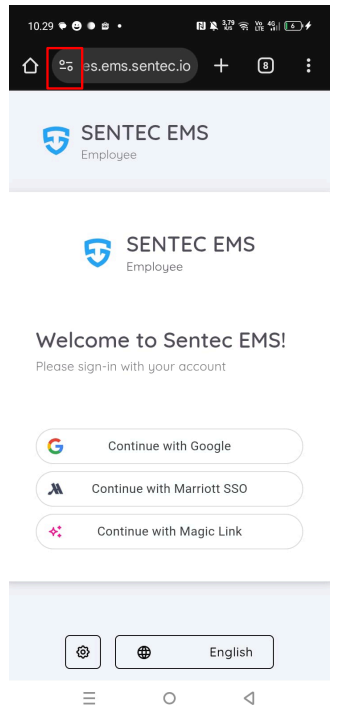
Select "Permission".
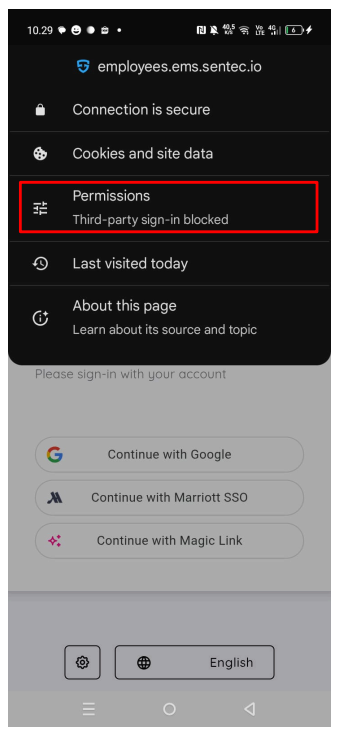
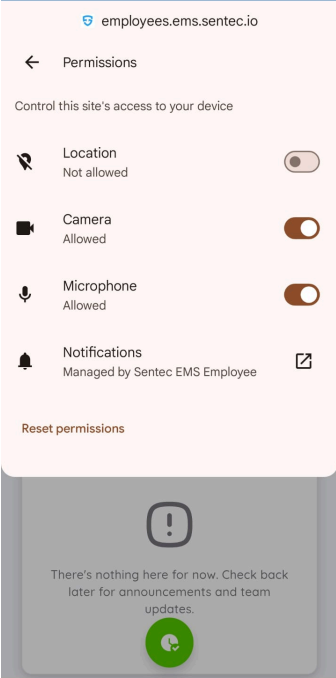
You can enable permissions for Camera, Location and Microphone by clicking "Allow".
For Safari:
- Open Safari and access the Sentec EMS application.
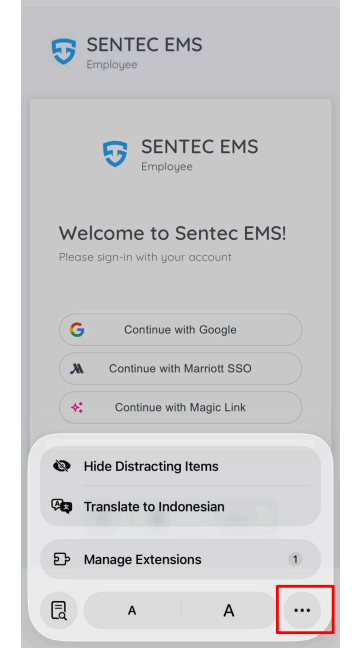
- Click the icon next to the address bar.
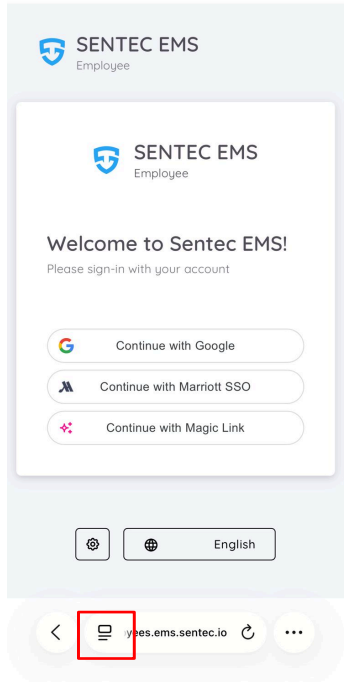
- Click the three-dot icon in the bottom-right corner.
- Make sure the Camera, Microphone, and Location permissions are all set to “Allow.”
You can also view the process in the video below:
Q: How do I install the application as a shortcut from the Chrome browser?
✅ You can install the Sentec EMS application (Management or Employee) as a shortcut on your device's home screen through the Chrome browser by following these steps:
- Open the Sentec EMS application in the Google Chrome browser.
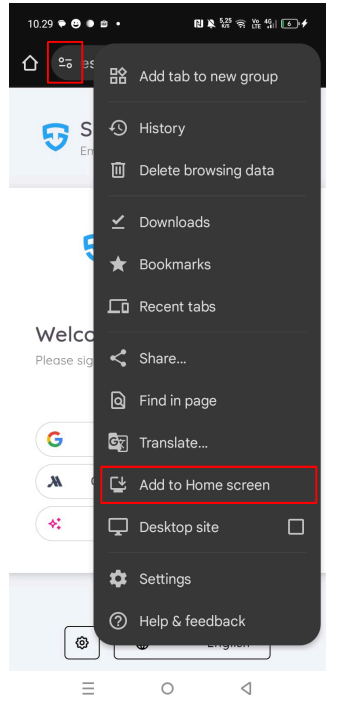
- Click the menu button (three dots) in the top right corner on the browser window.
- Select the option Add to Home Screen.
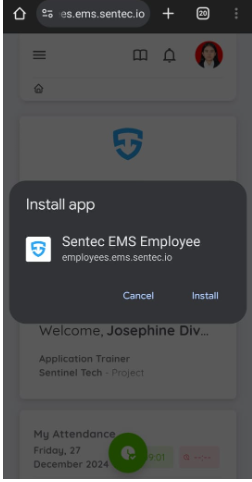
- A confirmation pop-up will appear. Click Install to complete the installation process.
WARNING
Before installing the Employee application, ensure you have granted the following permissions :
- Camera: To enable features such as photo capture during attendance.
- Location: To enable location-based attendance feature work properly.
- Microphone: Required to support features that need audio input, such as verification or audio recording (if applicable), and to ensure full compatibility with attendance features and other functions within the application.
- Once completed, the application icon will appear on your device's home screen, allowing quick access to the Sentec EMS application.
Q: How do I install the application as a shortcut from the Safari browser?
✅ You can install the Sentec EMS application (Management or Employee) as a shortcut on your device's home screen through the Safari browser by following these steps:
- Open the Sentec EMS application in Safari.
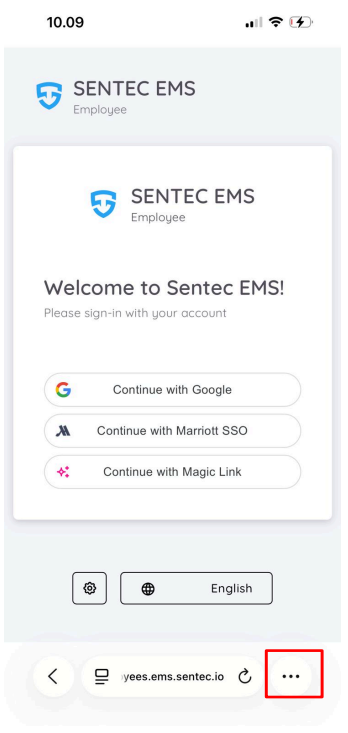
- Click the menu button (three dots) in the bottom right corner on the browser window.
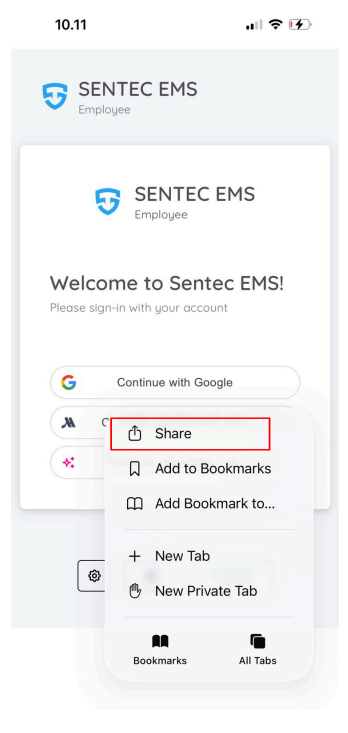
- Click Share Button.
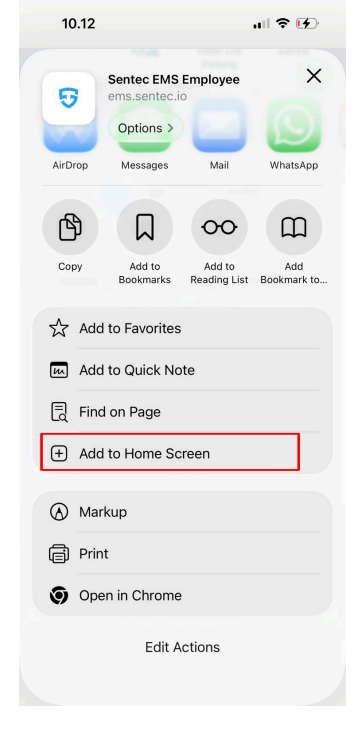
- Select the option Add to Home Screen.
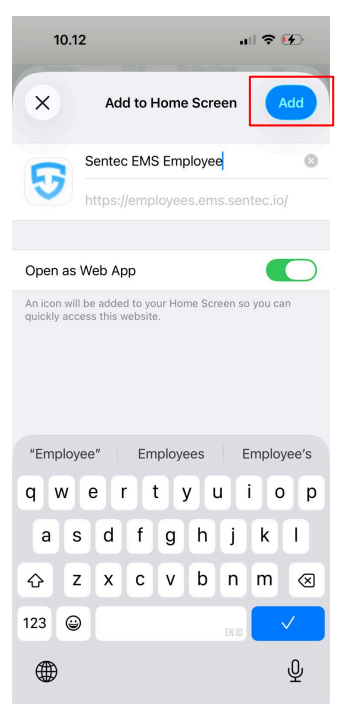
- A confirmation pop-up will appear. Click Add to complete the process, you can also change the app name if necessary, and make sure to enable the “Open as a Web App” toggle.
WARNING
Before installing the Employee application, ensure you have granted the following permissions :
- Camera: To enable features such as photo capture during attendance.
- Location: To enable location-based attendance feature work properly.
- Microphone: Required to support features that need audio input, such as verification or audio recording (if applicable), and to ensure full compatibility with attendance features and other functions within the application.
- Once completed, the application icon will appear on your device's home screen, allowing quick access to the Sentec EMS application.
Cache & Browser
Q: How do I clear the cache in Chrome (macOS and Windows)?
✅ Steps to clear cache in Chrome :
- Open Chrome : Launch the Google Chrome browser.
- Open Clear Browsing Data :
- Click the three dots (menu) in the top-right corner of the broswer.
- Hover over More tools and select Clear browsing data
- Choose What to Clear :
- In the Clear Browsing Data window, ensure that Cached images and files is checked.
- Select the desired time range (e.g., Last hour, Last 24 hours, or All time).
- Clear Cache
- Click the Clear data button to remove the cache.
Alternative : You can press Ctrl+Shift+Delete (Windows) or Command+Shift+Delete (Mac) to quickly open the Clear browsing data window.
Q: How do I clear the cache in Safari (iOS)?
✅ Steps to clear cache in Safari on iPhone or iPad :
- Open Settings : Go to the Settings app on your iOS device.
- Select Safari : Scroll down and tap on Safari
- Clear History and Website Data :
- Under Privacy & Security, tap on Clear History and Website Data. = Confirm by selecting Clear History and Data. This will remove cache, browsing history, and other website data.
Q: How do I clear the cache in Chrome (iOS and Android)?
✅ Steps to clear cache in Chrome on iOS or Android :
- Open Chrome : Launch the Google Chrome app on your device.
- Open Settings Menu :
- Tap the three vertical dots in the top-right corner of the app to open the menu.
- Select Settings
- Open Clear Browsing Data :
- Scroll down and tap on Privacy.
- Tap Clear Browsing Data
- Choose What to Clear :
- Check Cached images and files.
- You can also select the time range (e.g., Last hour, Last 24 hours, or All time)
- Clear Cache :
- Tap Clear Browsing Data at the bottom to remove the cache.
Superior
Q: How to Change a Superior for Associated Employees
✅ If a superior resigns or leaves the company, you can reassign all associated employees to a new superior by following these steps:
- Go to the Management Page and open the Contract Details of the superior who is leaving the company.
- Inside the contract details, click the View Associate button.
- This will open the Associate Form, which displays the employee hierarchy and two tabs:
- Organizational
- Administrative Superior Change
- This will open the Associate Form, which displays the employee hierarchy and two tabs:
- To change the superior:
- Open the relevant tab.
- Click the arrow icon next to the superior you want to replace.
- A pop-up window will appear. Enter the new superior and click Save.
After saving, all associated employees will automatically be reassigned to the new superior.
NOTE
If the superior is not replaced before the employee leaves the company, the superior field for all subordinates under that superior will become null.
Default Property
Q: What is the Default Property feature?
✅: The Default Property feature allows users with access to multiple properties or units to set one property as their default. This property will automatically be displayed when accessing the management page.
Q: What is the benefit of setting a Default Property?
✅: It improves efficiency by reducing the need to switch between properties each time you access the management page.
Q: Who can use this feature?
✅: Users who have access to more than one property or unit—either in the Management App or Employee App—can use this feature.
Q: How do I set a Default Property?
✅: Follow these steps:
- Go to the Switch Property menu
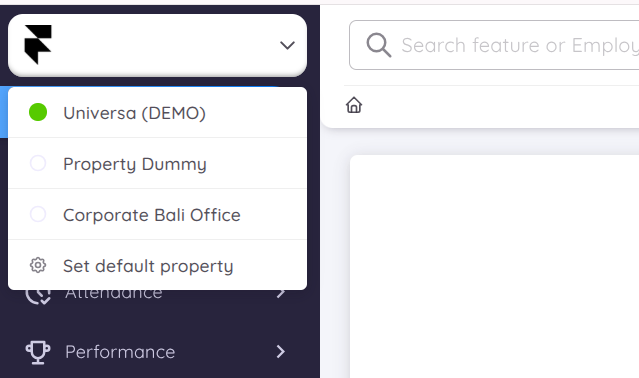
In the Employee App:
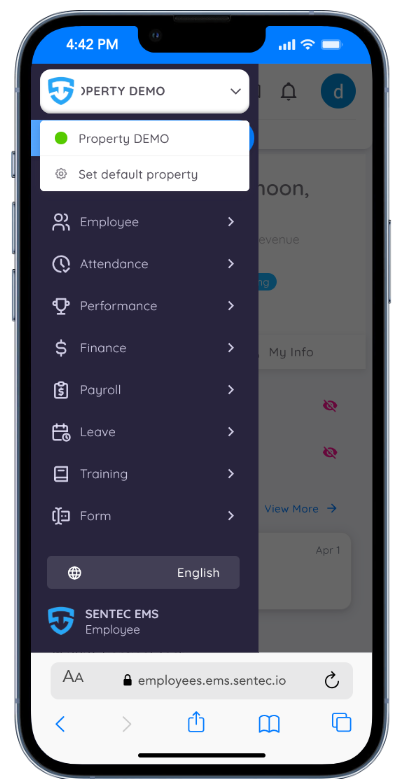
- Tap on Set Default Property
- Choose the property you want to set as default from the pop-up window
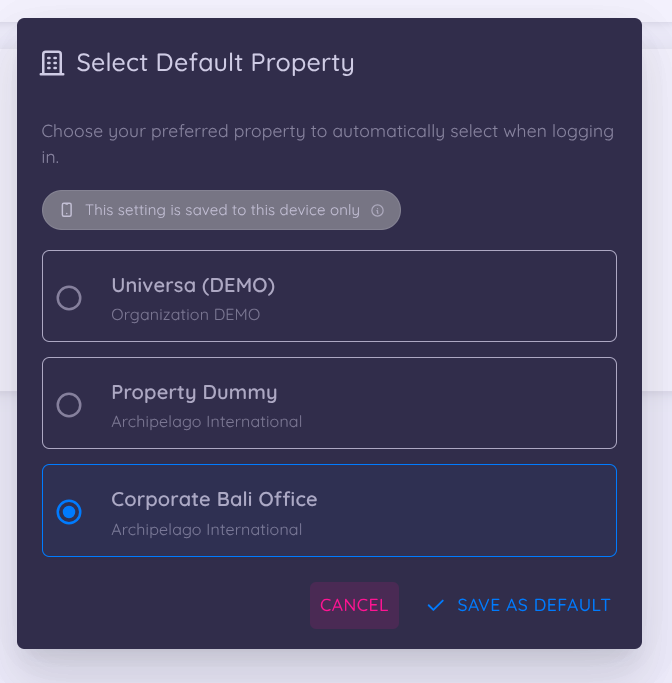
In the Employee App:
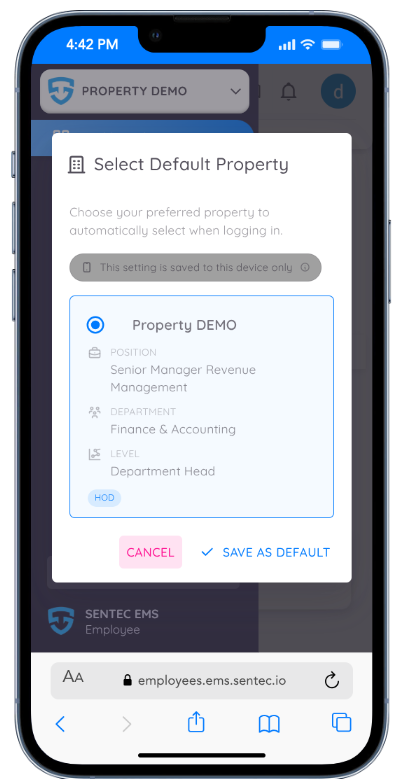
Q: What happens after I set a Default Property?
✅: The selected property will automatically appear whenever you access the management and or employee page.
Q: Can I change my Default Property later?
✅: Yes, you can change it at any time by selecting a different property through the same menu.
Q: Will this affect other users?
✅: No, the Default Property setting is user-specific and does not impact other users.