Employee Requisition Form
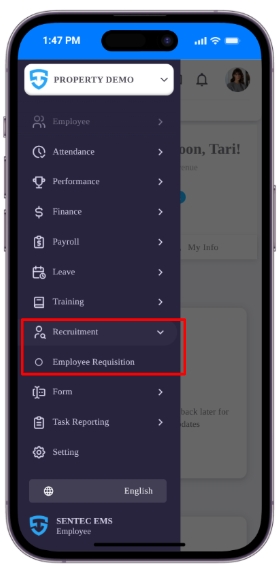
For Heads of Department (HODs) to submit requests for new or replacement employees, they can access the Employee Requisition feature.
The Employee Requisition feature is available under the Recruitment module and is automatically accessible to HODs.
What can HODs do?
HODs can:
- Submit requests for new or replacement employees directly through the Employee Requisition feature.
- Submit Employee Requisitions for approval based on the configured approval flow.
- Track the status of submitted Employee Requisitions.
Once an Employee Requisition is submitted and the required approval process is completed, a Vacancy will be automatically created in the Management Portal, allowing HR to manage the recruitment process directly.
Create Employee Requisition
Go to Recruitment → Employee Requisition and click the + (Plus) button.
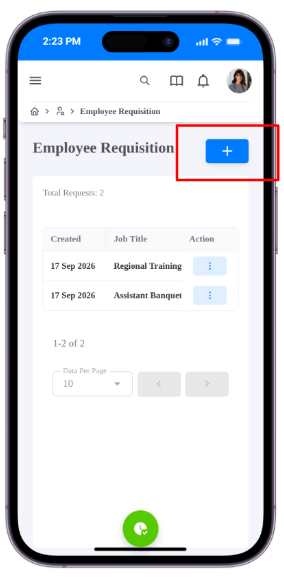
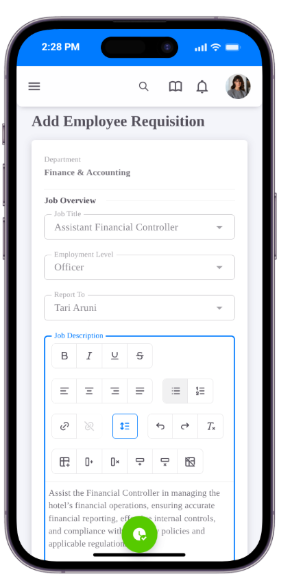
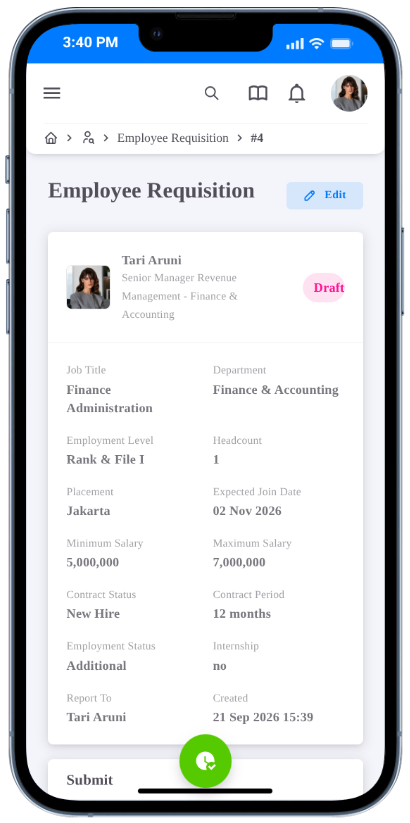
Employee Requisition Form
Fill in the required details:
| Field | Description |
|---|---|
| Job Title | Select the position being requested. |
| Employment Level | Select the appropriate employment level. |
| Report To (Superior) | Select the employee's direct supervisor. |
| Job Description & Requirements | Enter the job description and required qualifications. |
| Headcount | Enter the number of employees required. |
| Contract Period (Months) | Enter the contract duration in months. |
| Employment Status | Select Additional for a new position or Replacement to replace an existing employee. |
| Expected Join Date | Select the expected start date. |
| Placement | Select the unit or location where the employee will be assigned. |
| Internship | Select Yes if the request is for an intern, or No if it is not. |
| Salary Range | Enter the minimum and maximum salary range for the position. |
| Note | Add any additional information or remarks related to the request. |
Click Save to save the Employee Requisition as a Draft before submitting it for approval.
Submit Employee Requisition
After the Employee Requisition is saved, the HOD can choose how to proceed with the request. The request will initially have a Draft status.
While the request is in Draft status, the HOD can view the details and edit the Employee Requisition.
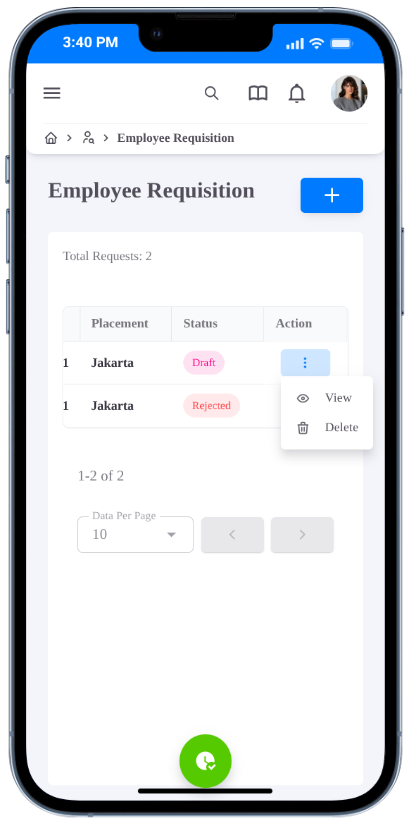
The Edit button is available in the top-right corner. Click Edit to continue updating the Employee Requisition.
Submit for Approval
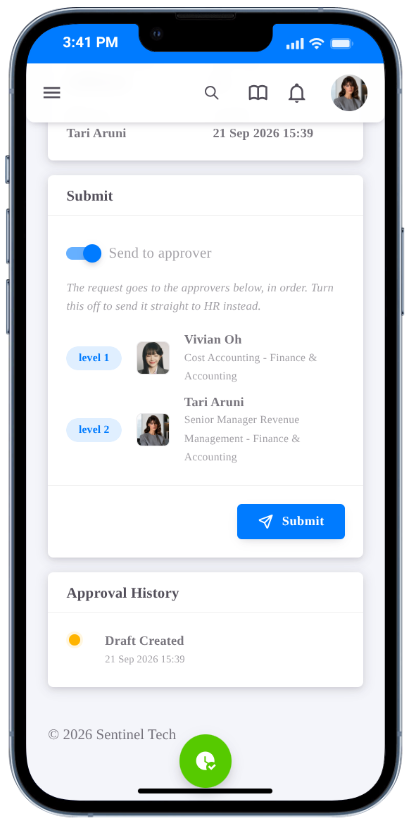
The HOD can submit the Employee Requisition for approval by enabling the Submit for Approval option.
The request will be sent to the approvers configured by Management under Configuration.
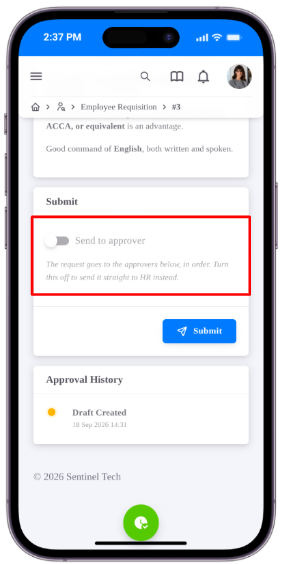
If the Submit for Approval option is disabled, the request will be sent directly to HR without going through the configured approval process.
After Submission
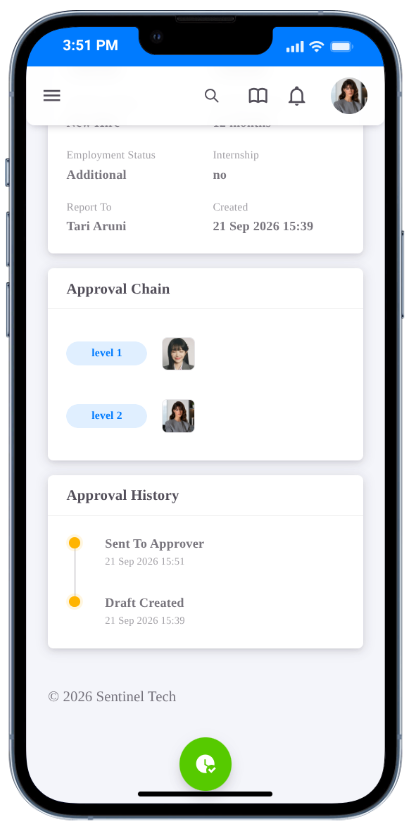
Once the Employee Requisition has been submitted, the HOD can no longer update or cancel the request unless it is rejected by an approver.
If an approval flow is configured, the request will be sent to the approvers sequentially, starting from Level 1, followed by the next approval level based on the number of approvers configured.
Notification Approval
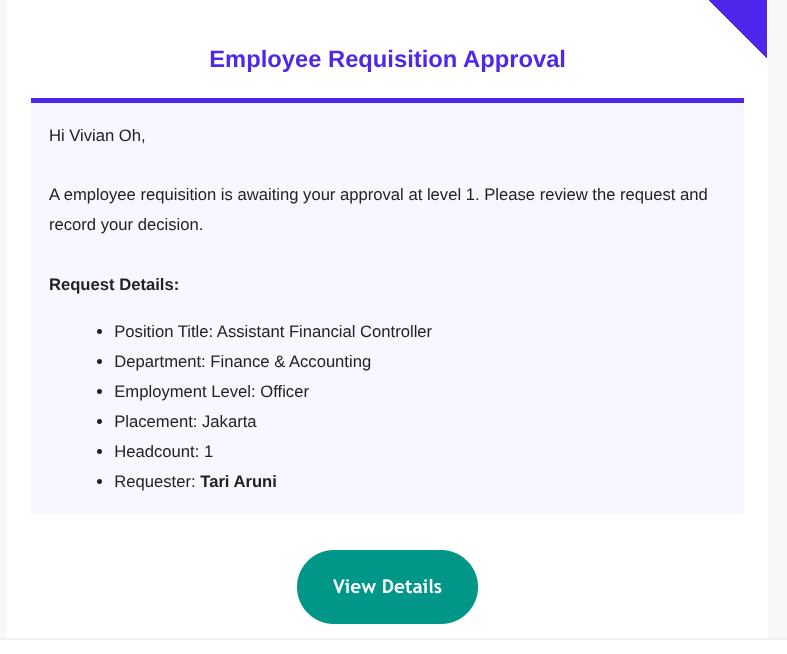
The assigned approver will receive an email notification when an Employee Requisition requires their approval.
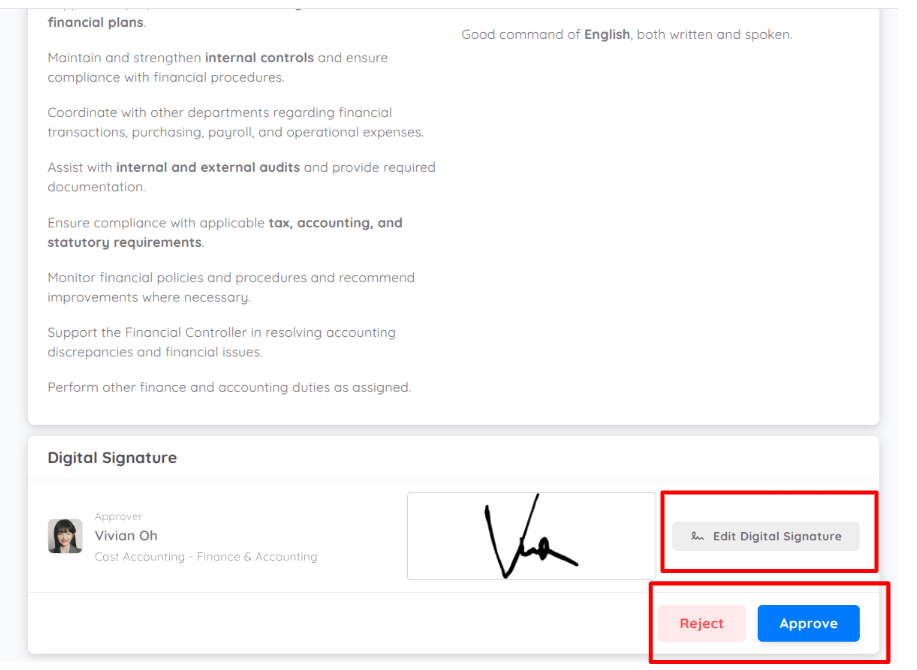
The approver can add a digital signature when approving the request.
Once approved, the request will move to the next approval level, if applicable.
If there are no further approval levels, the Employee Requisition status will be updated to Approved, and a Recruitment will be created automatically.
Automatic Recruitment Creation
Once the Employee Requisition has been fully approved, a Recruitment will be created automatically in the Management Portal.
HR/Management can manage the automatically created recruitment by:
- View the recruitment details.
- Edit the recruitment information.
- Publish the vacancy.
- Delete the vacancy.
Note: The Vacancy page is only available in the Management Portal.