Task Reporting
Task Reporting in the Task Management module is a feature that helps management assign specific tasks to employees, making work organization more effective while improving task tracking and accountability.
Before tasks can be assigned or requested by employees, a task report template must first be created in the Configuration menu.
Task Lists
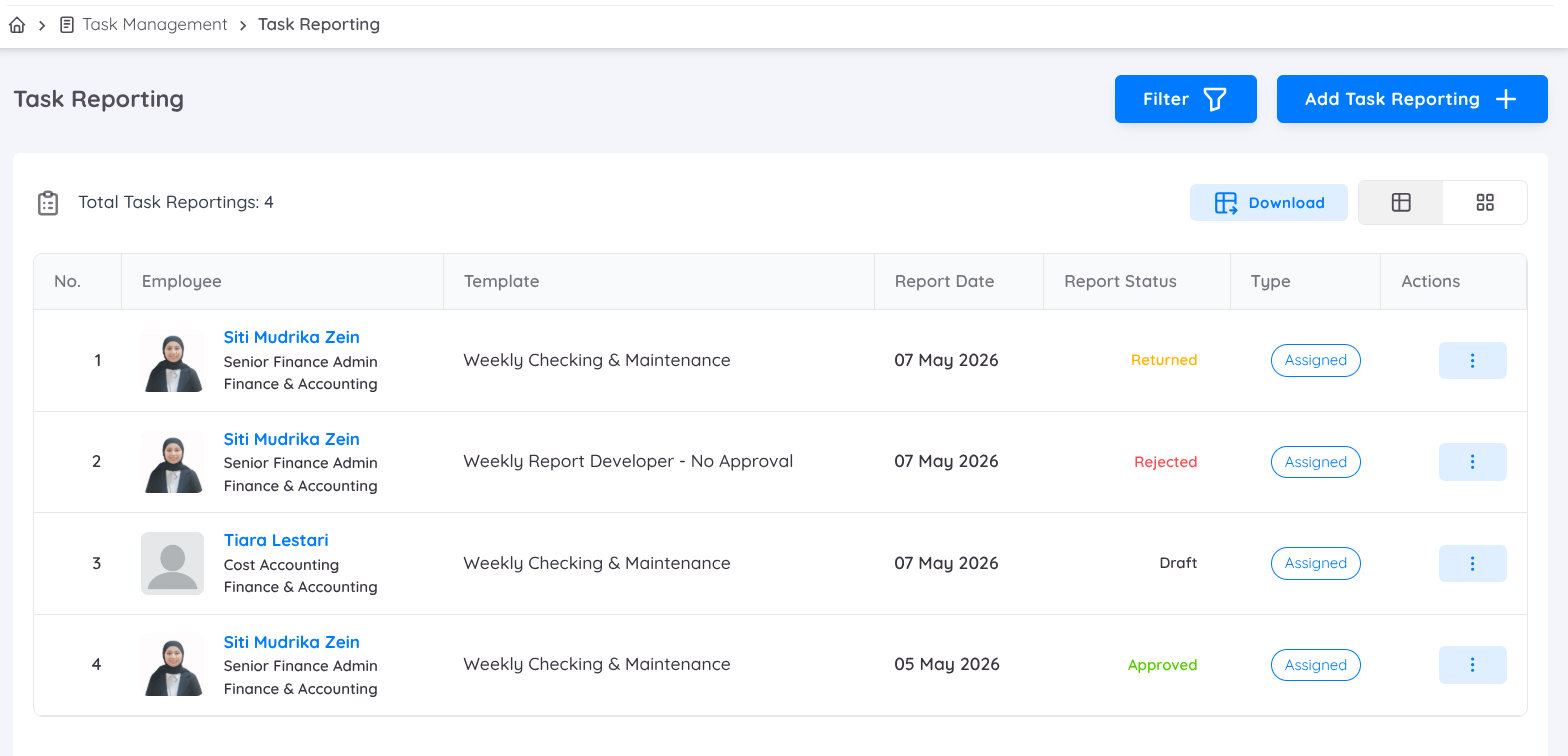
On the Task Reporting list page, all task reporting information will be displayed, including:
Employee Information
Displays the employee name, position, and department assigned to the task report.Task Template
Shows the task template used for the report, based on the configured task category or reporting structure.Report Date
Displays the selected report date or task assignment date for the task.Report Status
Indicates the current status of the task report, such as:
| Report Status | Description |
|---|---|
| Draft | The task is still being prepared by the employee. |
| Returned | The task has been returned for revision or adjustment. |
| Rejected | The task has been rejected and can no longer be modified. |
| Approved | The task has been reviewed and approved. |
Task Type
Displays the task assignment type, such as assigned tasks or requested tasks.Actions
Provides actions to view task details.
Assign Task
When assigning a task, a template must be selected along with the report date.
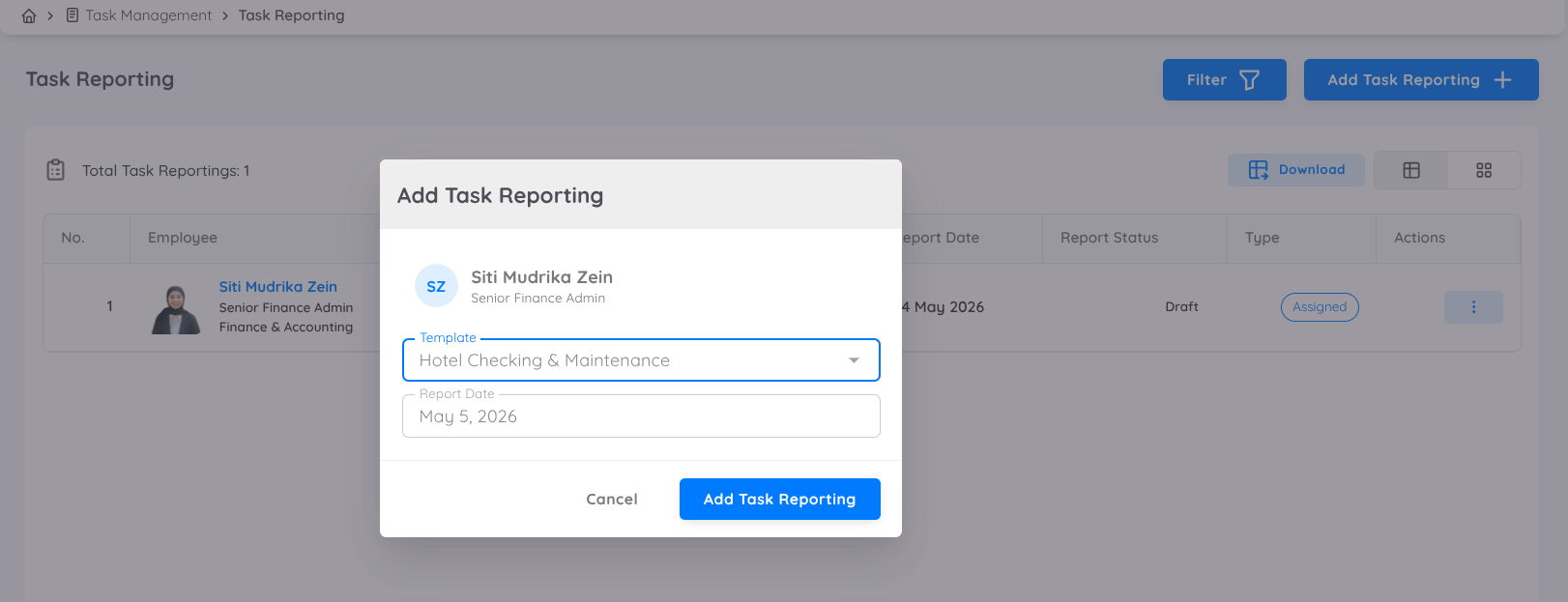
Once a task is assigned, the employee will receive a notification. If task approval is enabled, the submitted task will be sent to the assigned approver for review and approval after the employee submits it.
Before a task is completed or approved, management will be able to perform the following actions:
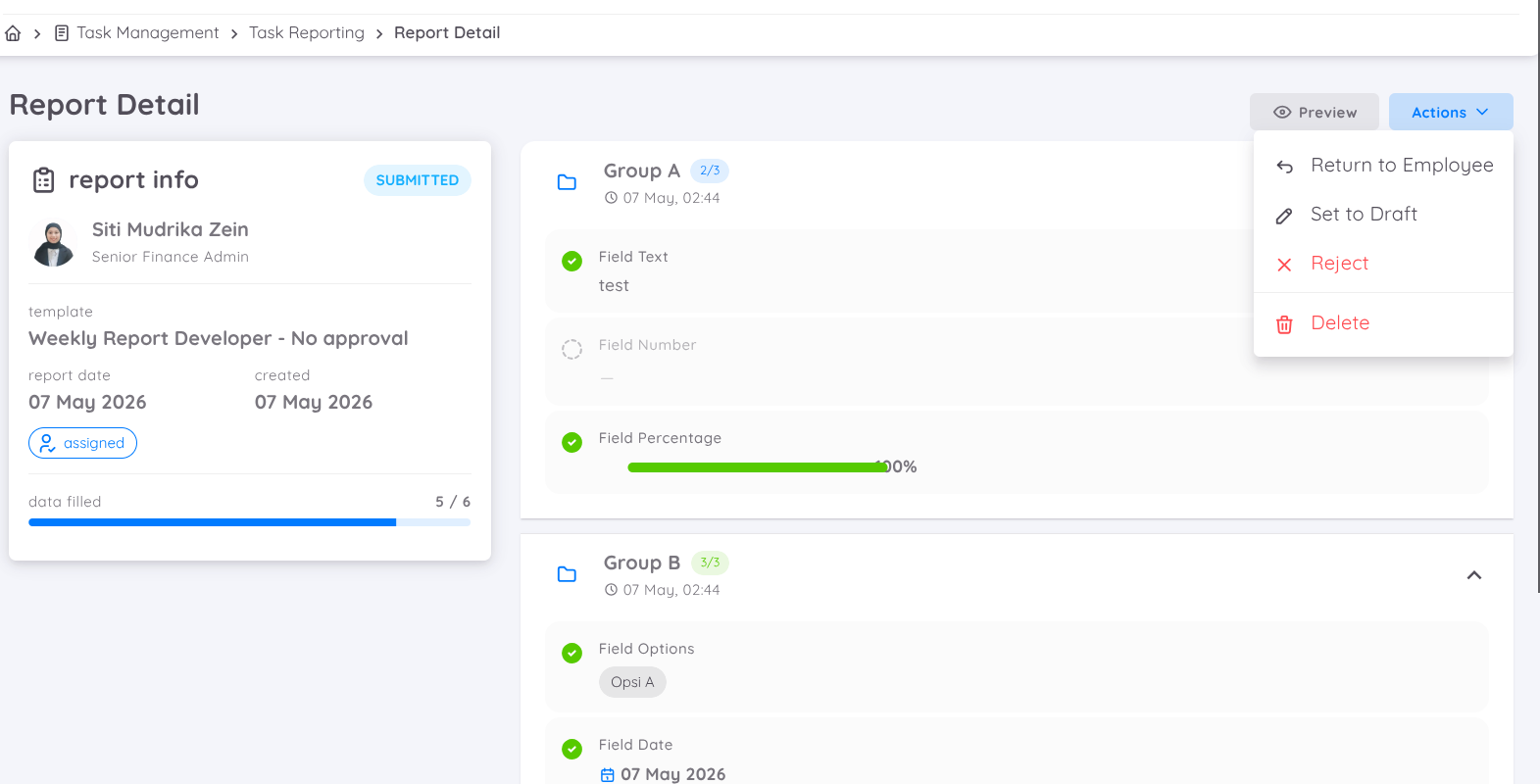
Return to Employee
The task will be returned to the employee for adjustment or revision. To make changes, the employee must first change the task status back to Draft.Set to Draft
The employee will automatically be able to update and modify the task.Reject
The task will be rejected, and the employee will no longer be able to make changes to the task.Delete
Permanently removes the task from the system.
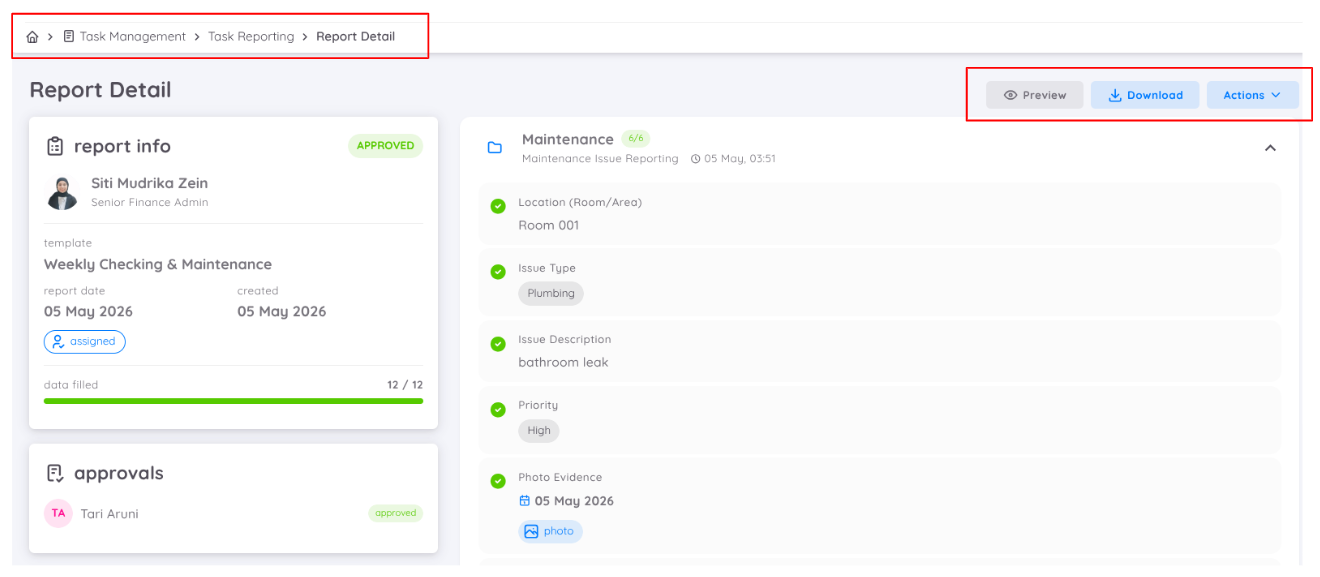
Once a task has been completed and approved, management can view the full task details, including all submitted information and attachments. Management can also:
- Preview the task report
- Download the task report in PDF format
- Delete the task through the action button
These features help support documentation and record-keeping processes.
Task Details
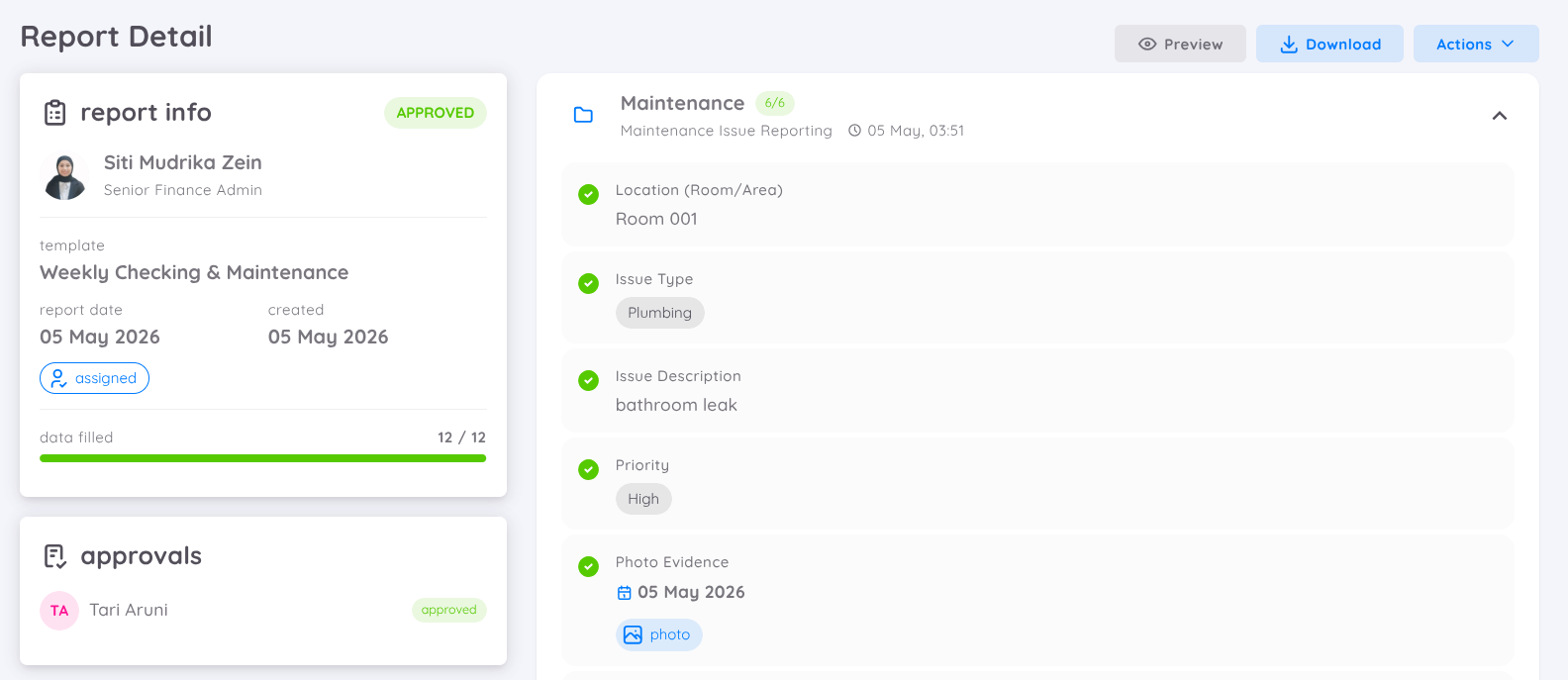
The Report Detail page displays complete information about the selected task report, including employee information, task status, approvals, and all submitted report data.
The page consists of the following sections:
Report Info
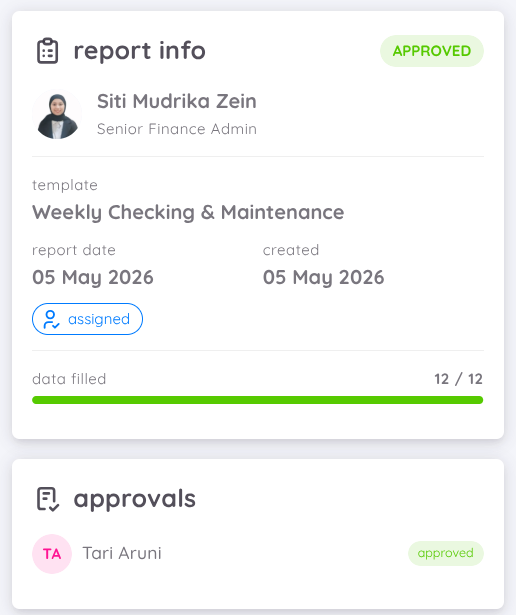
Displays the main information related to the task report, including:
| Information | Description |
|---|---|
| Employee Information | Shows the employee assigned to the task. |
| Report Status | Displays the current task status such as Approved, Draft, Returned, or Rejected. |
| Template | Shows the task template used for the report. |
| Report Date | Displays the selected report date or task assignment date for the task. |
| Created Date | Shows the date when the task report was created. |
| Task Type | Indicates whether the task is assigned or requested. |
| Data Filled Progress | Displays the total completed fields compared to the total required fields in the report. |
| Approvals | Displays the list of approvers assigned to the task along with their approval status. |
Task Report Data
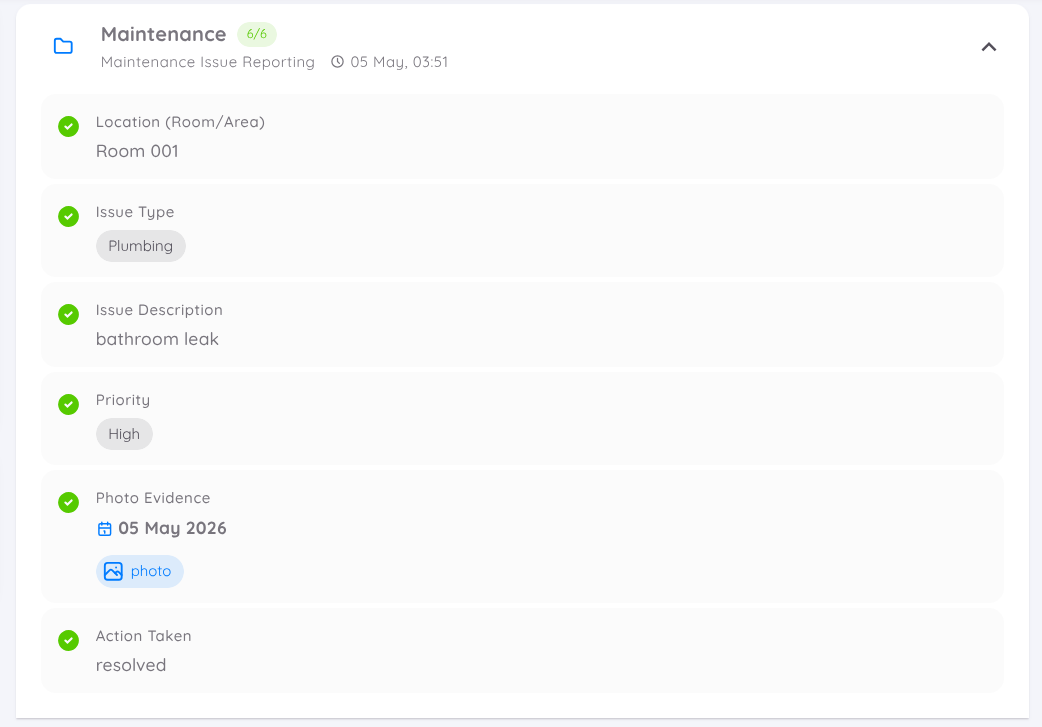
Displays all submitted task report information based on the selected template fields, such as:
| Field Type | Description |
|---|---|
| Text Input | Displays written information entered by the employee, such as descriptions, notes, comments, or issue details. |
| Options or Selections | Displays predefined options selected by the employee, such as categories, priorities, statuses, or task types. |
| Dates and Times | Displays selected dates and times related to the task report, such as reporting dates, schedules, or activity times. |
| Numbers or Percentages | Displays numeric values or percentage-based information, such as quantities, measurements, progress percentages, or completion rates. |
| Attachments or Supporting Evidence | Displays uploaded supporting files such as images, documents, or other evidence related to the task report. |