Performance Report
The Performance menu in the Employee Portal is used to support the employee performance evaluation process. Through this menu, Head of Department (HOD) and employees assigned as Reviewers can perform performance evaluations according to their assigned permissions.
In addition to conducting performance reviews, the Head of Department has access to manage the Performance Management process within their department, including:
- Creating KPI Templates for their department.
- Editing, copying, and deleting KPI Templates owned by their department.
- Creating Performance Reports.
- Reviewing and evaluating employee Performance Reports.
- Assessing employee KPIs.
Performance Report Menu
The Performance Report menu consists of three submenus, each designed for a different role in the performance evaluation process:
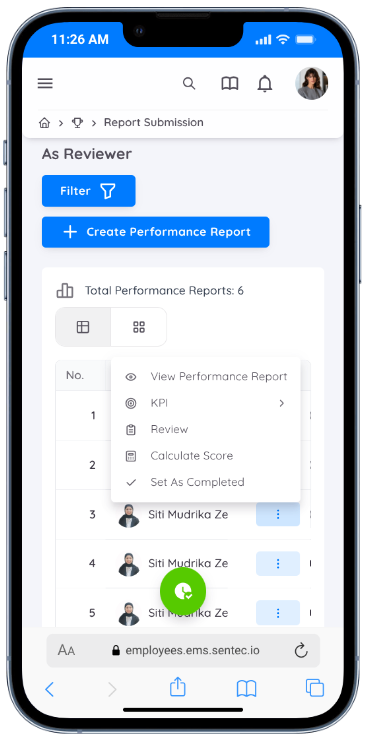
- As Reviewer, used by employees assigned as Reviewers to evaluate other employees.
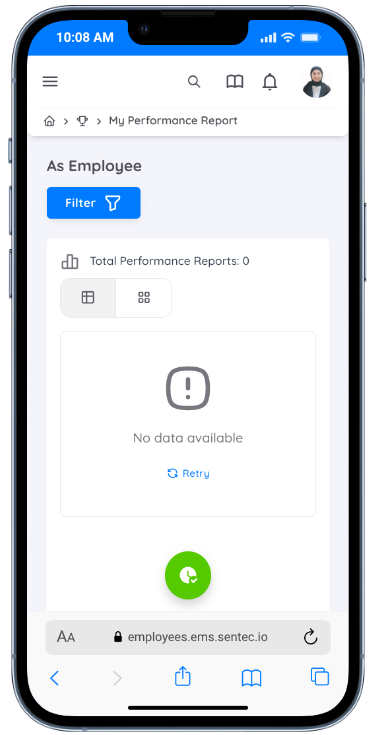
- As Employee, used to view completed Performance Reports that have been finalized by the Reviewer.
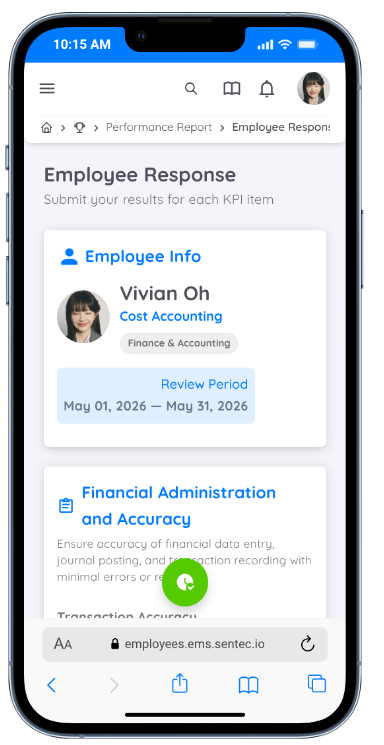
- KPI Assessment, used by employees to complete their Self Assessment based on the assigned KPI Template.
Head of Department (HOD) Access
In addition to the features available to General Employees, Head of Department (HOD) users have additional permissions to manage the Performance Management process within their department.
These additional permissions include:
- Creating and managing Performance Reports.
- Creating KPI Templates.
- Defining evaluation components.
- Enabling Self Assessment.
- Acting as the Reviewer for Performance Reports they create.
Creating a Performance Report
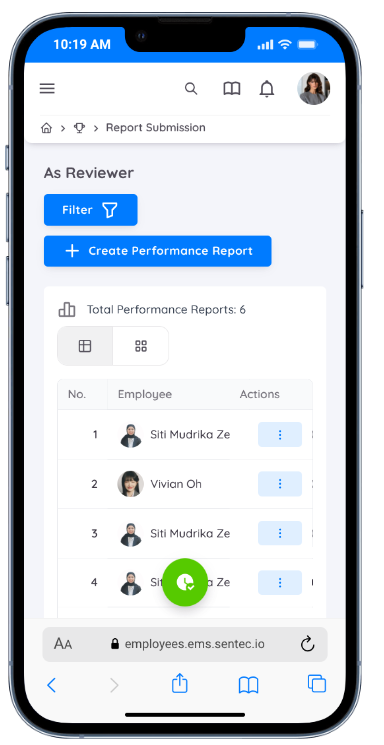
Through the As Reviewer menu, the Head of Department can create a Performance Report and define the evaluation process for an employee.
When creating a Performance Report, the following information can be configured:
| Field | Description |
|---|---|
| Employee | Specifies the employee to be evaluated in the Performance Report. |
| Component Profile | Specifies the evaluation components that will be included in the performance assessment. Component Profiles are created by HR or Management, while the Head of Department can only select from the available profiles. |
| Start Date | Specifies the start date of the evaluation period. |
| End Date | Specifies the end date of the evaluation period. |
| KPI Template | Specifies the KPI Template to be used if KPI is included as one of the evaluation components. Templates may be created by Management or by the Head of Department. |
| Enable Self Assessment | When enabled, the employee will be required to complete a Self Assessment before the Reviewer finalizes the evaluation process. |
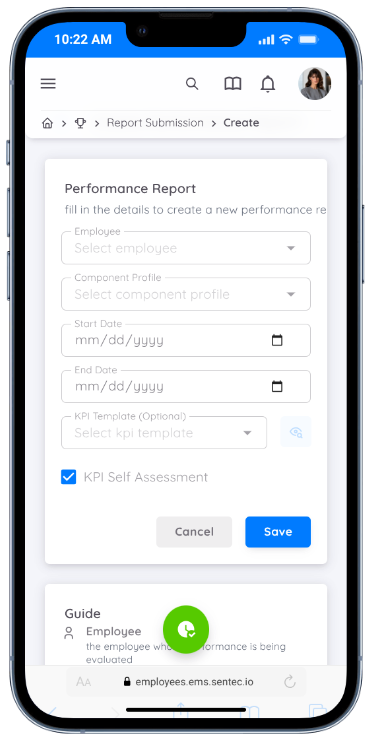
Performance Reports created by the Head of Department automatically assign the Head of Department as the Reviewer.
Creating a KPI Template
In addition to the Performance Report menu, the Head of Department (HOD) also has access to the KPI Template menu. This menu is used to create and manage KPI Templates that serve as the basis for employee performance evaluations within their department.
Each KPI Template can be reused when creating a Performance Report.
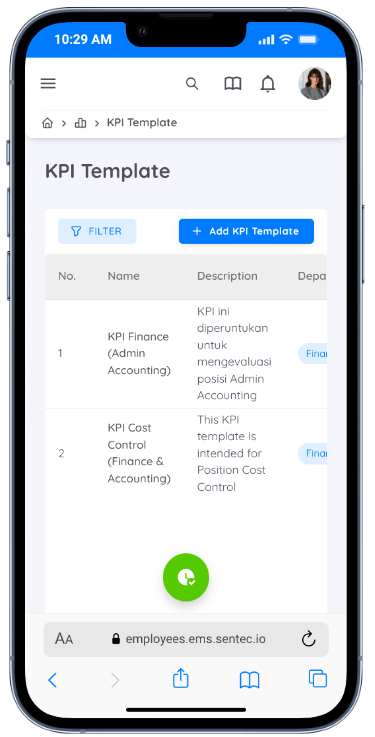
Using the KPI Template menu, the Head of Department can define:
- KPI Groups
- KPI Items
- Evaluation Weights
- KPI Targets or Indicators
- KPI Descriptions
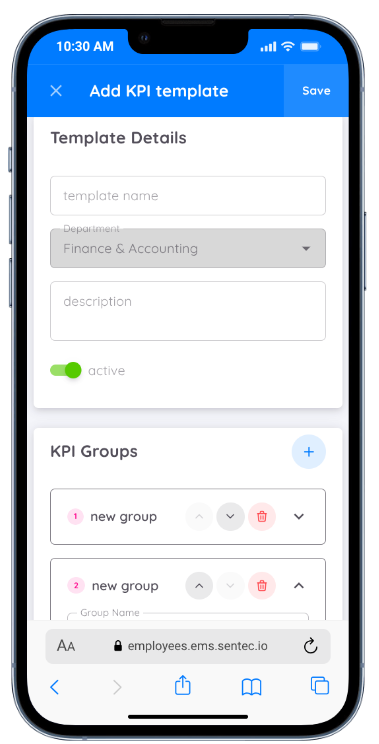
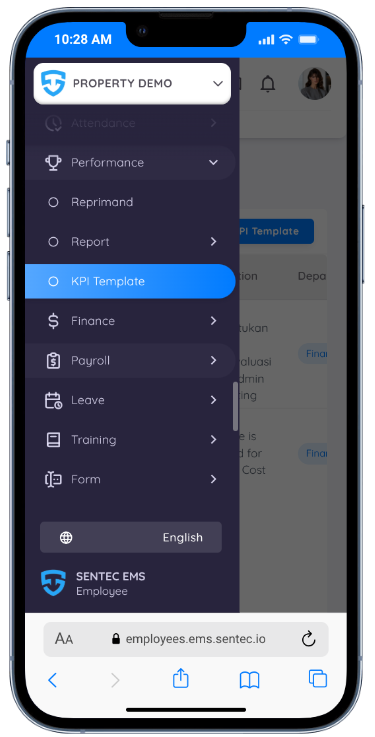
To create a KPI Template, navigate to Performance → KPI Template, then click Add KPI Template.
Next, complete the information in the Template Details form.
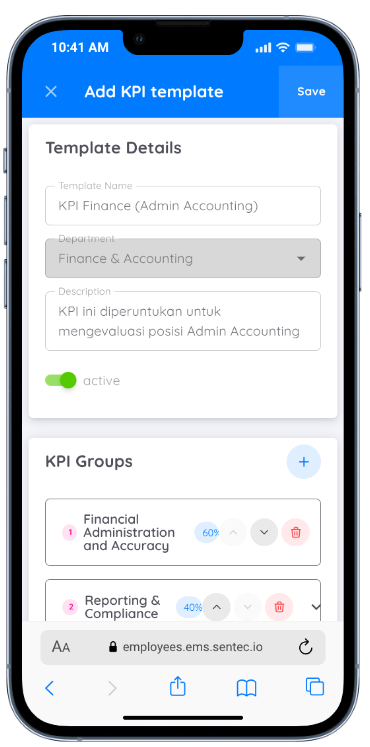
| Field | Description |
|---|---|
| Template Name | Specifies the name of the KPI Template. It is recommended to align the template name with the employee's Position or Job Description, ensuring that each role is evaluated based on its specific responsibilities. |
| Department | Displays the department of the currently logged-in Head of Department. The KPI Template will belong to this department. |
| Description | Provides a brief description of the purpose or intended use of the KPI Template. |
KPI Groups
KPIs are organized into one or more KPI Groups, each representing a specific evaluation category, such as:
- Productivity
- Quality
- Teamwork
- Leadership
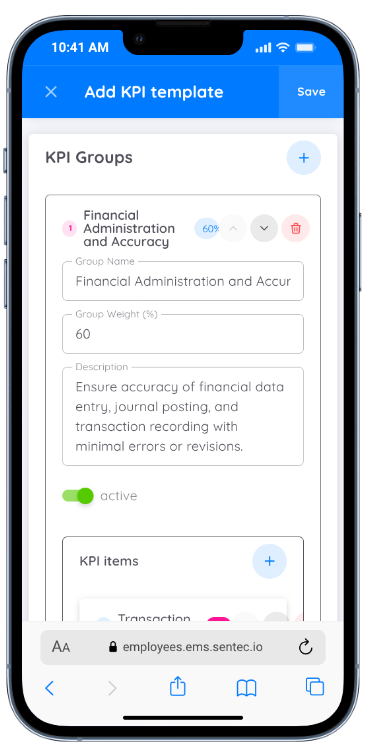
Each KPI Group has a Weight that determines its contribution to the final Performance Report score.
Note
The total weight of all KPI Groups must equal 100%.
KPI Items
Within each KPI Group, the Head of Department can add one or more KPI Items that will serve as the evaluation indicators.
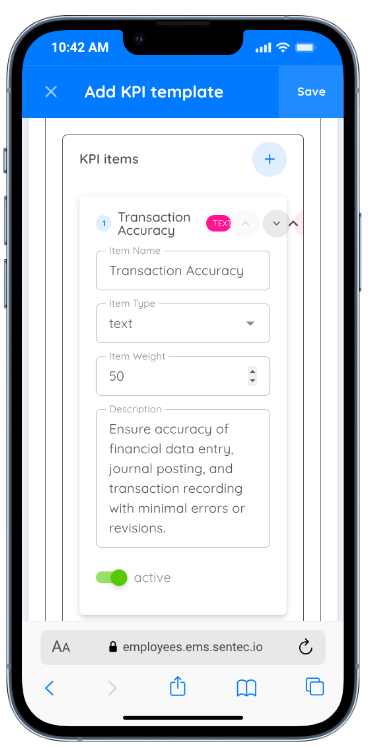
Each KPI Item consists of the following information.
| Field | Description |
|---|---|
| Name | Specifies the name of the KPI indicator to be evaluated, such as Sales, Task Completion, or Work Accuracy. |
| Type | Specifies the evaluation type or input format used for the KPI Item, such as Rating, Percentage, Number, or Score. The value entered through this evaluation does not directly determine the final KPI score. Instead, it serves as a reference for the Reviewer when assigning the KPI Score. |
| Item Weight | Specifies the contribution of each KPI Item within its KPI Group. The higher the assigned weight, the greater its influence on the KPI Group calculation. Unlike KPI Groups, the total weight of all KPI Items within a group does not need to equal 100%. The system automatically calculates each KPI Item's contribution proportionally based on its weight relative to the total weight of all KPI Items in the group. |
| Description | Provides additional information or guidance about the KPI Item, helping the Reviewer understand the evaluation criteria more clearly. |
KPI Score Calculation
During the evaluation process, the Reviewer assigns a score to each KPI Item.
The system then automatically calculates the KPI result based on the weight of each KPI Item and the corresponding KPI Group. The calculated result becomes the KPI contribution to the overall Performance Report.
In general, the calculation process follows these steps:
- The Reviewer assigns a score to each KPI Item.
- The system calculates the weighted score for each KPI Item.
- The scores of all KPI Items are accumulated based on the KPI Group weight.
- The resulting KPI score becomes one of the evaluation components in the Performance Report.
Reference
To learn how the system calculates KPI weights and their contribution to the final Performance Report score, please refer to the Performance Score Calculation Simulation.
Processing a Performance Report
Once a Performance Report has been assigned to a Reviewer, the system sends an email notification informing the Reviewer that a performance evaluation is pending.
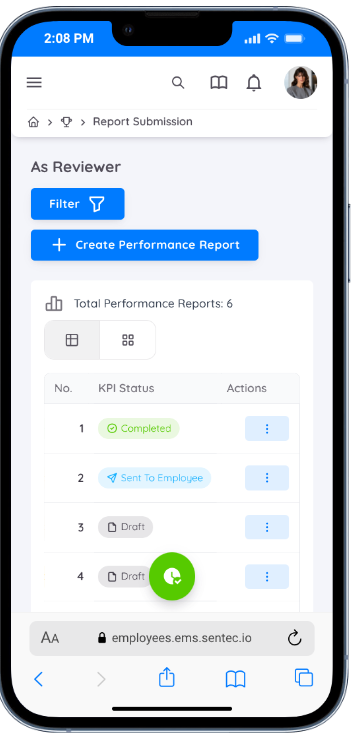
In addition to the email notification, the Reviewer can access pending Performance Reports through Performance → Report → As Reviewer.
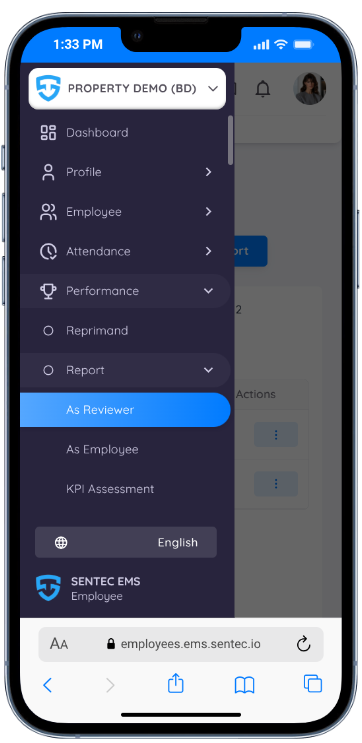
Through this menu, the Reviewer can perform the following activities:
- Evaluate each KPI indicator.
- Assign scores to other evaluation components, such as Attendance, Leave, Training, Awards & Reprimands, and Tasks (if enabled).
- Review the Question Set included in the Performance Report.
- View the calculated performance score based on all evaluation components.
- Complete the evaluation process by changing the Performance Report status to Completed.
To view the details of a Performance Report, click View Performance Report on the selected Performance Report.
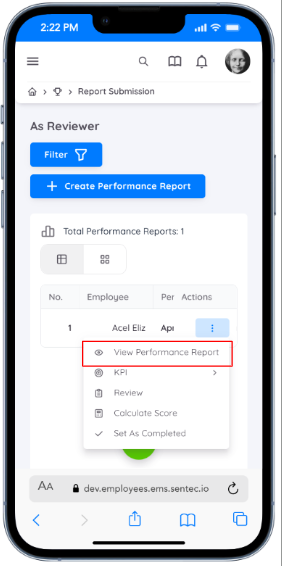
The Performance Report page displays all evaluation components configured in the selected Component Profile.
The components displayed may vary depending on the selected Component Profile.
Key Performance Indicators (KPI)
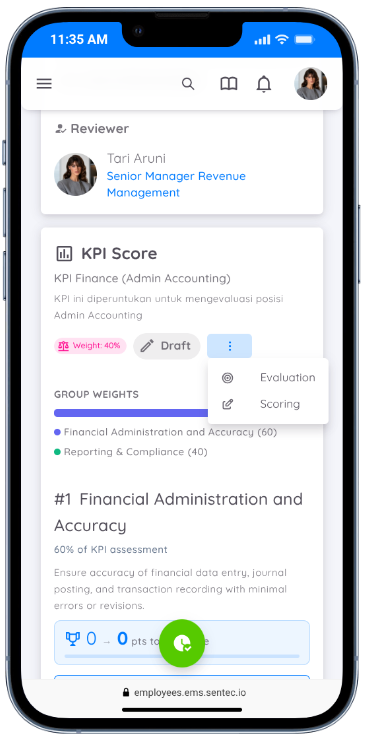
If KPI is included as one of the evaluation components and the Performance Report is still in Draft status, the Reviewer can directly evaluate each KPI from this page.
Question Set
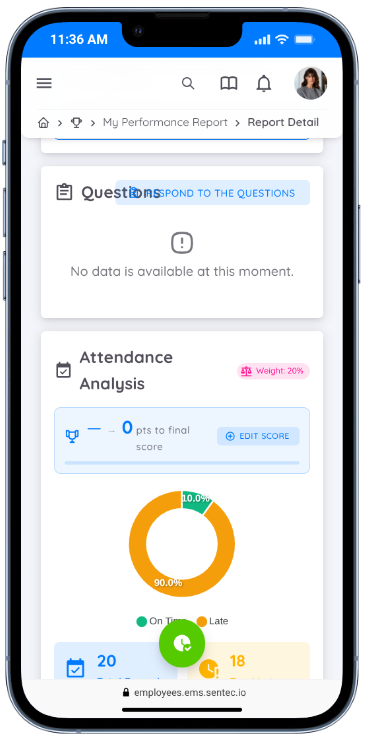
If the Performance Report includes a Question Set, the list of questions is displayed on the Performance Report page.
To begin answering the questions, click Respond to the Question. The system will navigate the Reviewer to the Question Set page.
Other Evaluation Components
In addition to KPI, a Performance Report may include other evaluation components, such as:
- Attendance
- Leave
- Training
- Awards & Reprimands
- Tasks
When these components are included, the system displays the corresponding details on the Performance Report page.
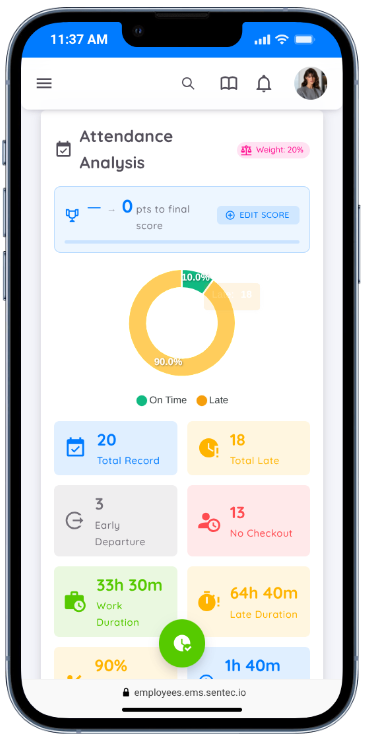
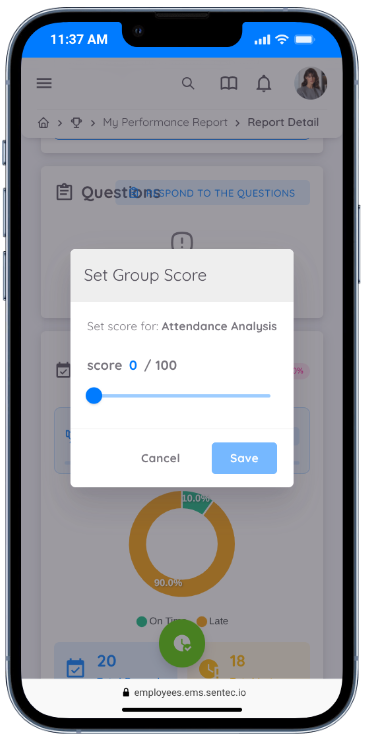
The Reviewer can assign scores directly to each available evaluation component.
Notes & Comments
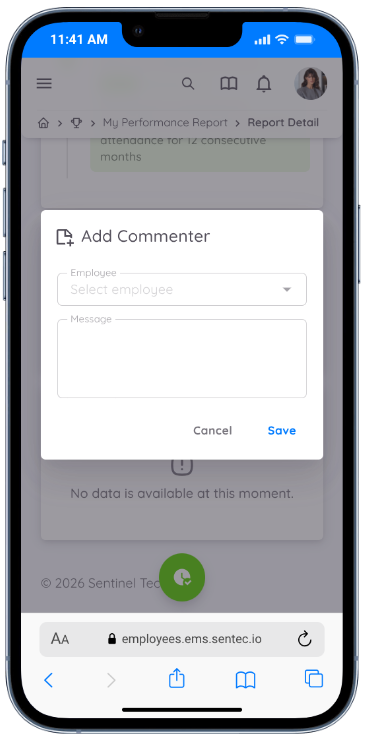
The Reviewer can also add Notes & Comments as part of the evaluation process.
These notes or comments can be assigned to the evaluated employee or other relevant users, allowing them to be used for follow-up actions and as supporting documentation for the performance evaluation.
KPI Evaluation
Before assigning the KPI Score, the Reviewer can first perform a KPI Evaluation for each KPI Item available in the Performance Report.
The purpose of this evaluation is to provide an initial assessment based on the Reviewer's observations of the employee's performance.
⚠️
The KPI Evaluation does not directly affect the final KPI score. It serves only as a reference for the Reviewer when assigning the KPI Score during the scoring stage.
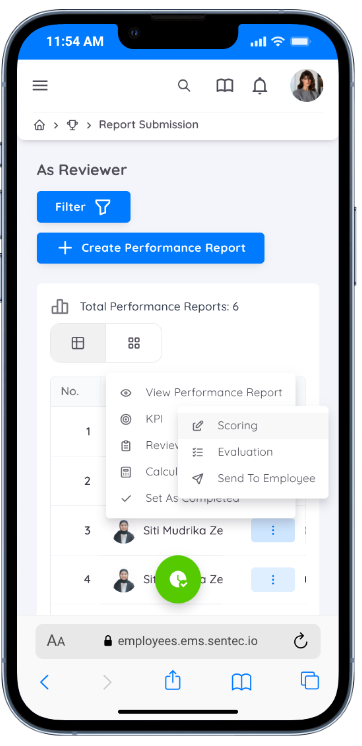
The KPI Evaluation menu can be accessed either from the Performance Report Detail page or directly from the Performance Report list under the KPI menu.
On the evaluation page, the Reviewer can provide an evaluation for each KPI Item according to the Type configured in the KPI Template.
The evaluation type may vary for each KPI Item, such as:
- Rating
- Percentage
- Option
- Number
- Text
In addition to providing an evaluation, the Reviewer may also upload an Attachment for each KPI Item as supporting documentation or relevant evidence.
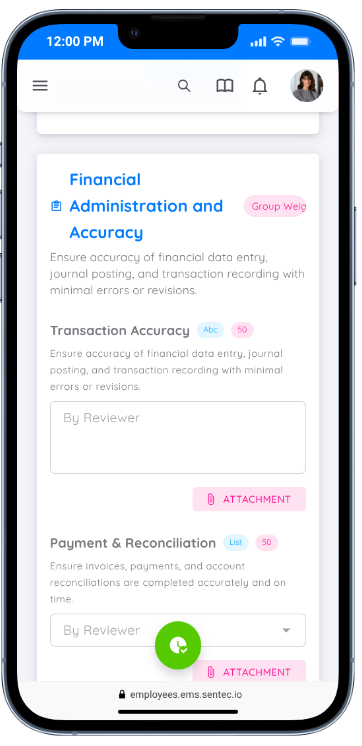
After completing all evaluations, the Reviewer has two available actions:
- Save, to save the evaluation as a Draft.
- Save & Send to Employee, to send the evaluation to the employee so they can proceed with the Self Assessment process.
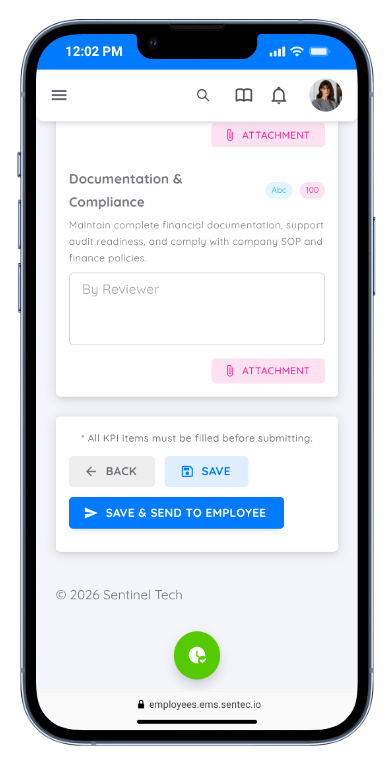
⚠️ Important
Once the evaluation has been sent to the employee using the Send to Employee action, the Reviewer cannot modify or update the KPI Evaluation until the employee has completed the Self Assessment process.
During the Self Assessment process, the employee cannot view the Reviewer's evaluation results or feedback. However, if the Reviewer has attached supporting documents to a KPI Item, those Attachments will remain accessible to the employee as references during the Self Assessment process.
Self Assessment (Employee)
Once the KPI Evaluation has been sent by the Reviewer, the system will send an email notification to the employee informing them that a Self Assessment is awaiting completion.
In addition to the email notification, employees can access the Self Assessment list through Performance → Report → KPI Assessment.
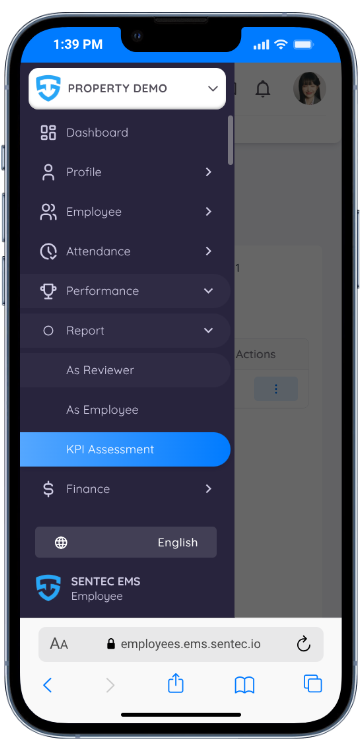
The KPI Assessment menu displays all Performance Reports that have been sent by the Reviewer and are waiting for the employee's Self Assessment.
To begin the Self Assessment, select one of the Performance Reports and open its detail page.
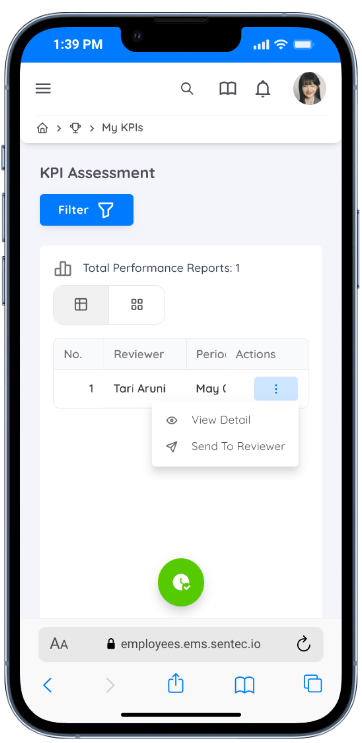
On the detail page, employees can view the evaluation period information along with the list of KPI Items that need to be completed.
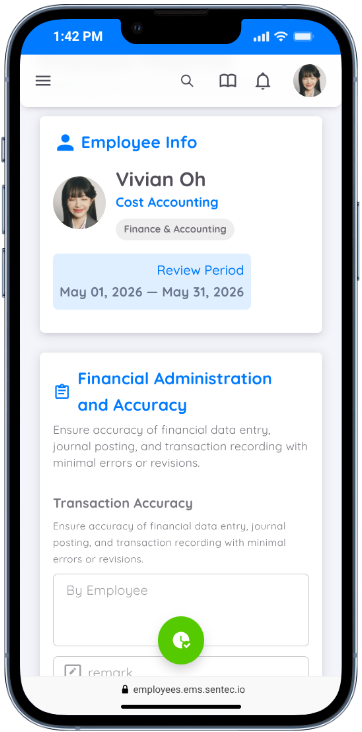
The evaluation Type that must be completed follows the configuration defined in the KPI Template, which may include Rating, Percentage, Number, Option, or Text.
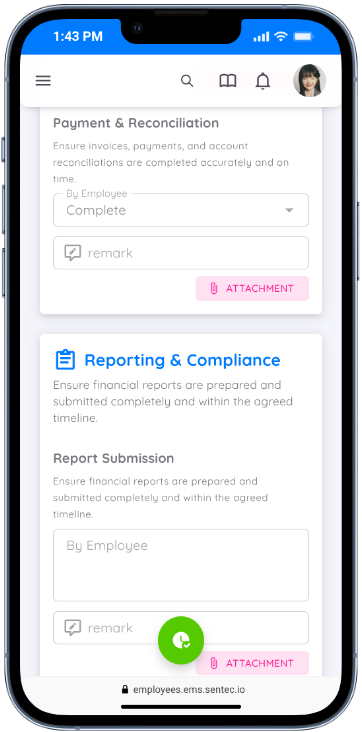
In addition to completing each KPI Item, employees can also:
- Add Remarks to provide explanations or responses for the evaluated KPI.
- Upload Attachments as supporting documents when necessary.
Note
During the Self Assessment process, employees cannot view the evaluation results or feedback provided by the Reviewer. The Self Assessment is intended to be an independent self-evaluation and serves as one of the considerations in the final evaluation process.
After completing all evaluations, the employee has two available actions.
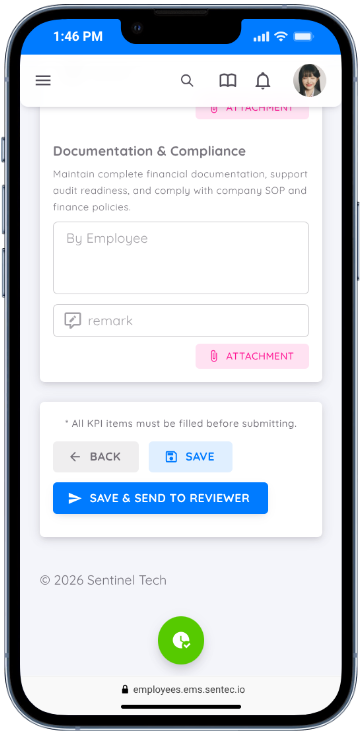
| Button | Description |
|---|---|
| Save | Saves the Self Assessment as a Draft. While the status remains Draft, the employee can still modify or update the Self Assessment before submitting it to the Reviewer. |
| Save and Send to Reviewer | Sends the completed Self Assessment to the Reviewer for further evaluation. Once submitted, the employee can no longer modify or update the submitted Self Assessment. |
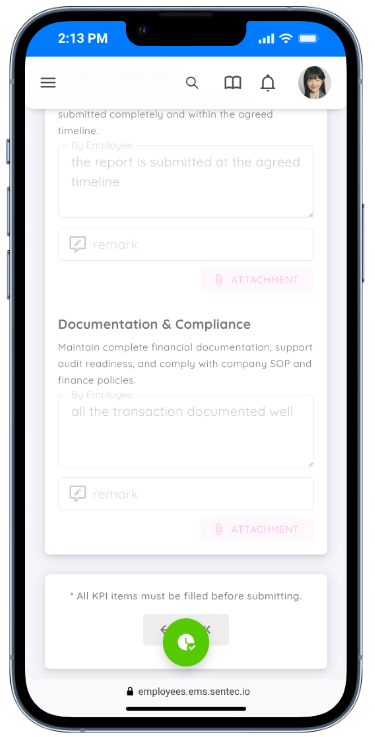
⚠️ Important
As long as the Self Assessment has not been submitted back to the Reviewer using the Save and Send to Reviewer button, or the evaluation status remains Send to Employee, the Reviewer cannot provide or modify either the KPI Evaluation or the KPI Score for the Performance Report.
The Reviewer can continue the evaluation process only after the employee has completed and submitted the Self Assessment.
Once the Self Assessment has been submitted, the system will send an email notification to the Reviewer.
The Reviewer can then continue the evaluation process by reviewing the employee's Self Assessment, making adjustments if necessary, and assigning the KPI Score as the final assessment for each KPI Item.
KPI Scoring
After both the KPI Evaluation and Self Assessment processes have been completed, the Reviewer can assign a KPI Score to each KPI Item in the Performance Report.
The KPI Scoring menu can be accessed in two ways:
- From the Performance Report Detail page.
- From the Performance Report list under the As Reviewer menu, then selecting KPI.
Assigning KPI Scores
On the KPI Scoring page, the Reviewer assigns a score ranging from 1–100 for each KPI Item.
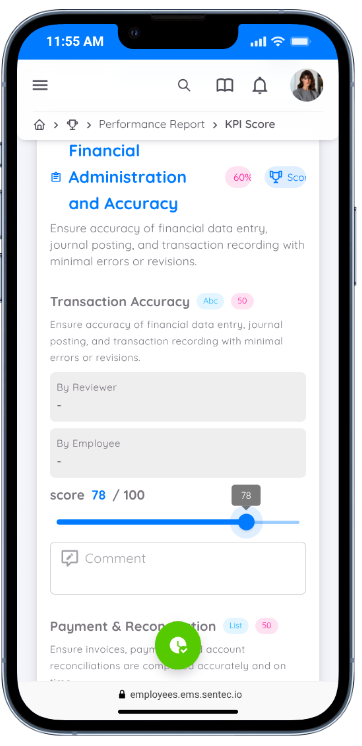
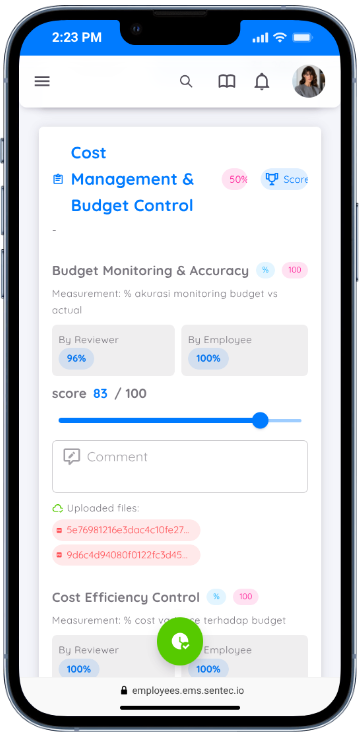
While assigning KPI Scores, the Reviewer can also:
- View the previously completed KPI Evaluation.
- Review the employee's Self Assessment.
- View Remarks provided by both the Reviewer and the employee.
- View Attachments uploaded as supporting documents.
This information can be used as supporting references before determining the final score for each KPI Item.
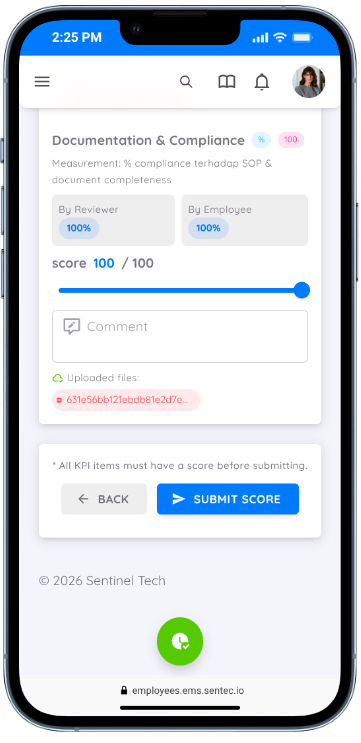
After all scores have been entered, click Submit Score to save the evaluation results.
Note
As long as the Performance Report has not reached the Completed status, the Reviewer can still modify or update the assigned KPI Scores.
Calculating KPI Scores
To view the preliminary KPI calculation results, the Reviewer can select Calculate Score from the Performance Report list.
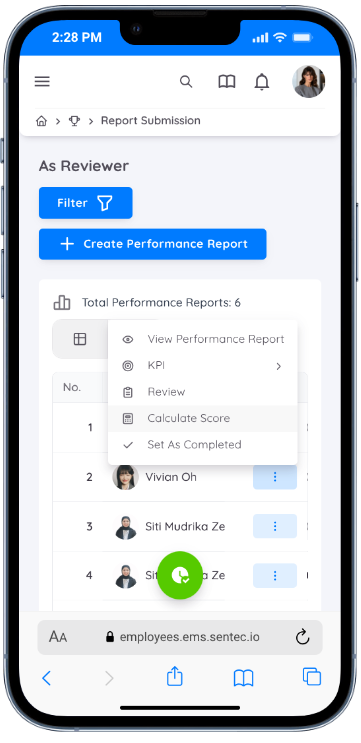
KPI score calculation can also be performed directly from the Performance Report Detail page.
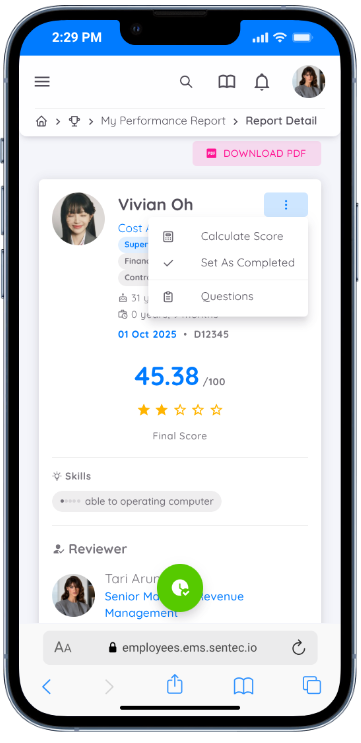
Reference
To understand how KPI weights and their contributions are calculated toward the final Performance Report score, please refer to Performance Score Calculation Simulation.
Other Component Scoring
In addition to KPI, a Performance Report can also include other evaluation components, such as:
- Attendance
- Leave
- Training
- Awards & Reprimands
- Task
If these components are included, the Reviewer can assign scores directly from the Performance Report Detail page.
For example, to score the Attendance component, scroll to the Attendance Analysis section and click the Edit Score button.
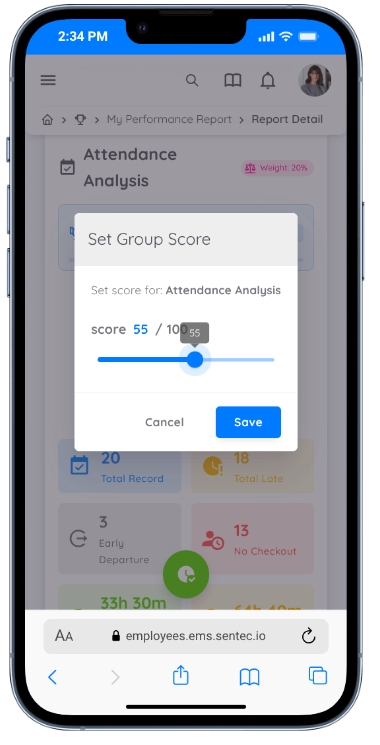
The Reviewer can assign a score ranging from 1–100 based on the evaluation results for the selected component.
Repeat the same process for the other evaluation components if they are included in the Performance Report.
After all components have been scored, use the Calculate Score menu to view the preliminary overall Performance Report score.
Reviewing the Question Set
If a Question Set is included as one of the components in the Performance Report, the Reviewer can provide responses or feedback for each available question.
The Reviewer can access the Question Set from the Performance Report Detail page by clicking Respond to the Question.
In addition to the Performance Report Detail page, the Reviewer can also access the Question Set directly from the Performance Report list under the As Reviewer menu by selecting Review from the Action column.
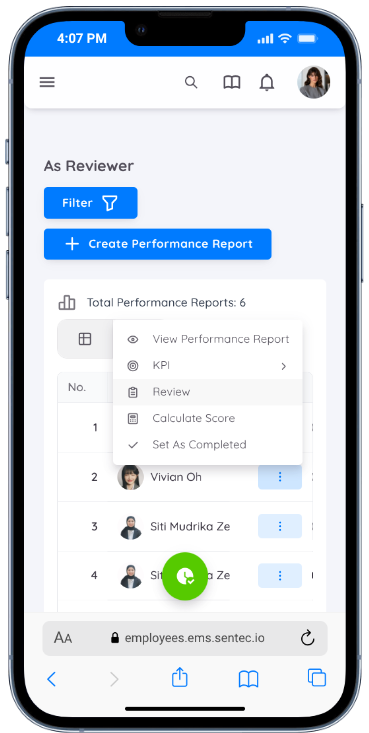
On the Question Set page, the Reviewer can answer each question according to its configured Question Type, such as Rating, Option, Text, Number, or any other supported question type.
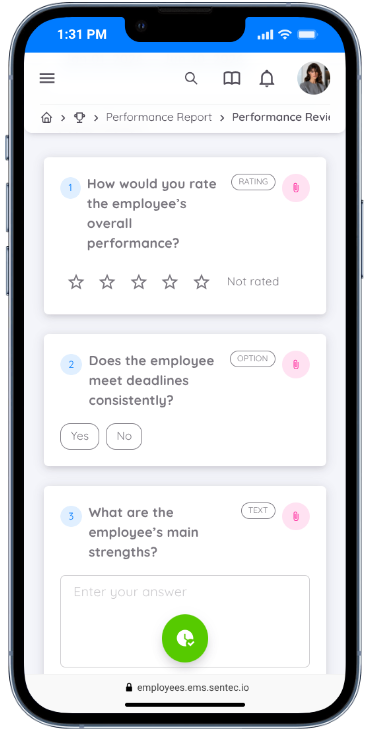
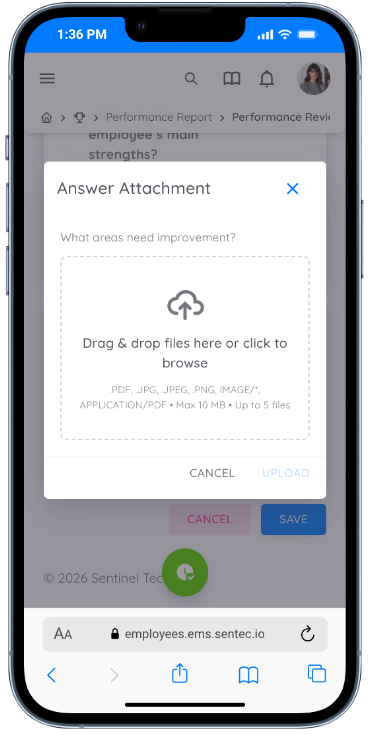
In addition to answering the questions, the Reviewer can upload an Attachment for each question as supporting documentation or reference for the provided response.
Note
As long as the Performance Report has not reached the Completed status, the Reviewer can still modify or update the saved responses in the Question Set.
Calculate Score
After all evaluation components have been assigned a Score, the Reviewer must perform Calculate Score to recalculate the final Performance Report score.
This process should be performed whenever any score is modified or adjusted before the Performance Report is completed.
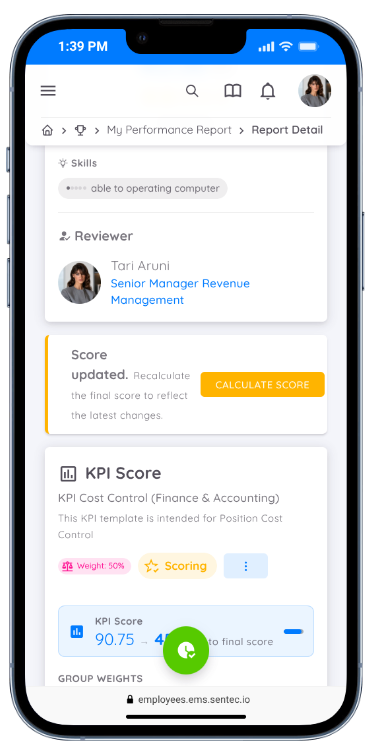
If there are score changes that have not yet been recalculated, the system will display a notification on the Performance Report Detail page reminding the Reviewer to perform Calculate Score.
Note
Make sure to perform Calculate Score before changing the Performance Report status to Completed, so that all score updates are included in the final evaluation result.
Notes & Comments
In addition to performing evaluations, the Reviewer can also add Notes & Comments to a Performance Report that is still in Draft status or has not yet been marked as Completed.
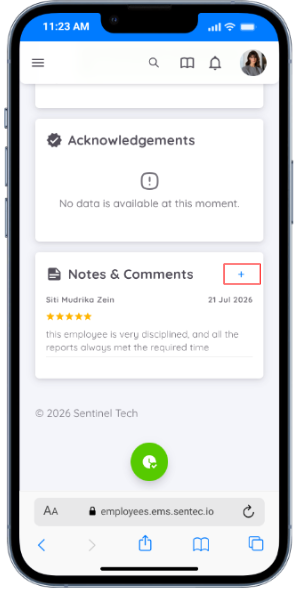
Notes or comments can be addressed to other users involved in the evaluation process, such as the Direct Supervisor, Head of Department, or the employee being evaluated.
To add recipients, the Reviewer simply selects or enters the user's name in the available field.
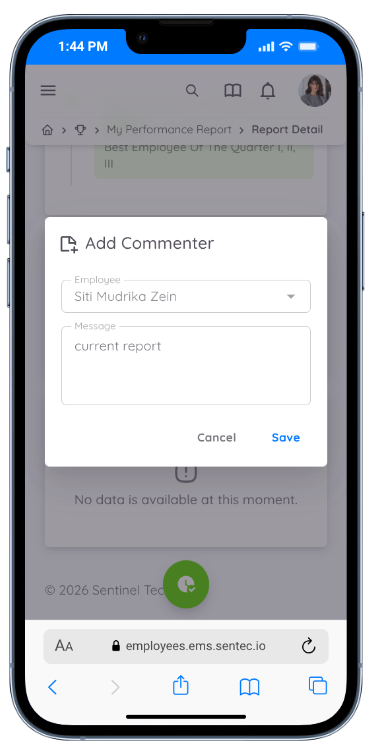
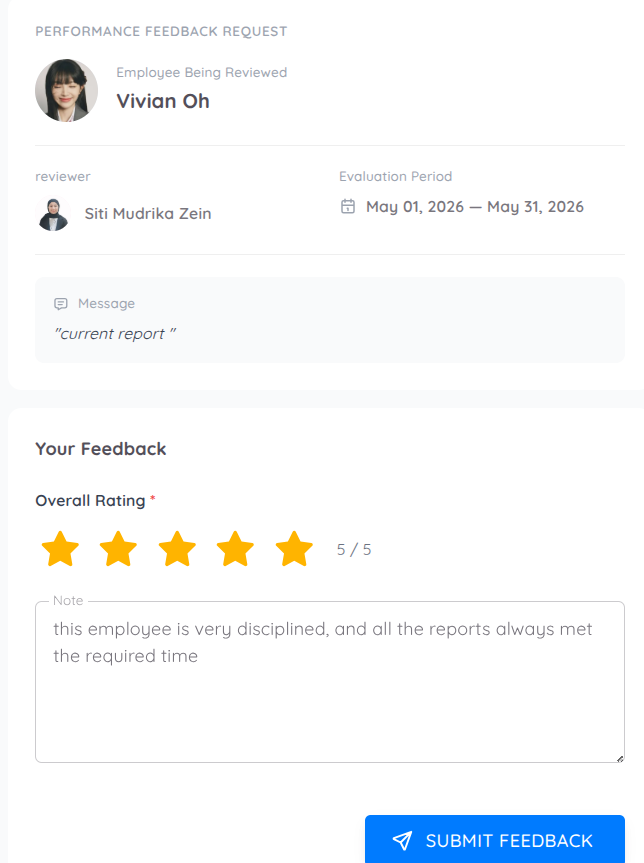
Once the note has been sent, the system will send an email notification to the selected recipient so they can review it and provide follow-up feedback.
Feedback can only be submitted through the link provided in the email notification sent by the system. Feedback cannot be submitted directly from the Performance Report page.
Finalizing the Performance Report
Once all evaluation stages have been completed, the final step is to finalize the Performance Report by changing its status to Completed.
Before finalizing the report, ensure that the entire evaluation process has been completed, including assigning scores for all evaluation components and performing Calculate Score.
Note
Once the Performance Report status has been changed to Completed, all evaluation results, KPI Scores, and other evaluation component scores can no longer be modified or updated.
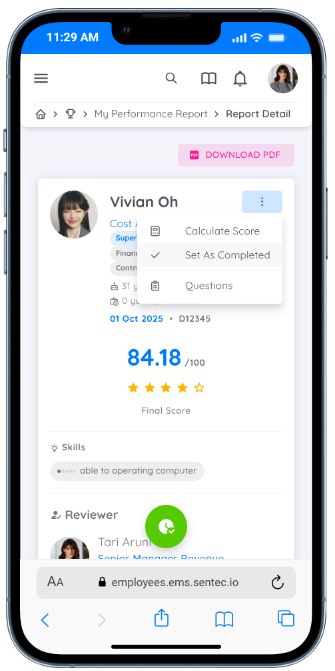
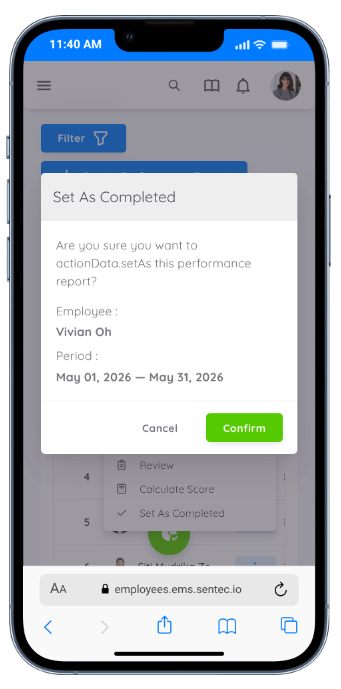
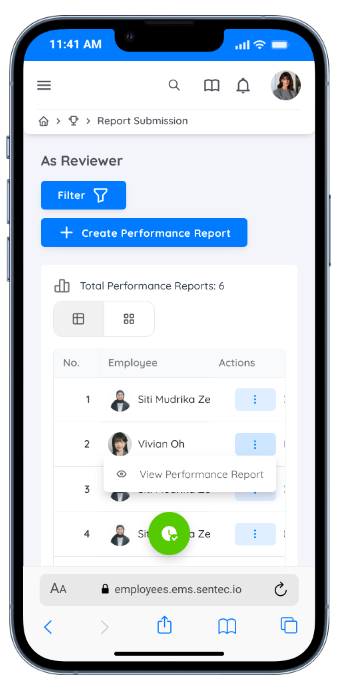
The Reviewer can finalize the report from the Performance Report Detail page by selecting Set as Completed from the More Actions menu (three-dot icon).
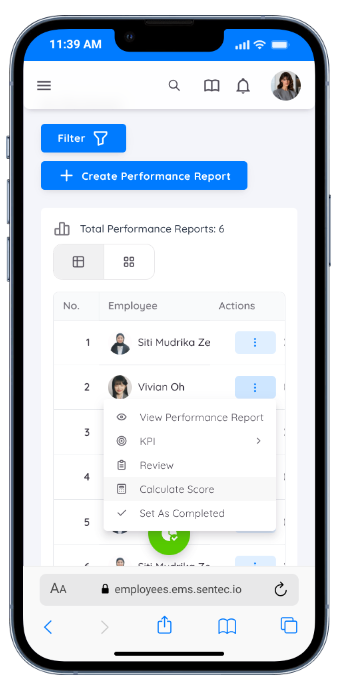
Alternatively, Set as Completed can also be accessed directly from the Performance Report list under the As Reviewer menu.
Before the Performance Report is finalized, the system displays a confirmation dialog to ensure that all evaluation processes have been completed.
After the status changes to Completed, the Reviewer can still view the final evaluation results, but all menus related to the evaluation process will no longer be available.
Acknowledgement
Once the Performance Report has reached the Completed status, the Reviewer can send an Acknowledgement to the relevant parties as a form of approval or confirmation of the evaluation results.
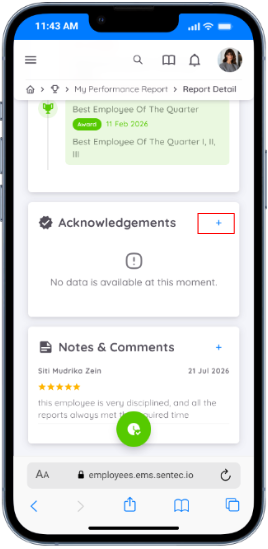
An Acknowledgement can be sent to the Direct Supervisor or other users involved in the evaluation process.
To add an Acknowledgement recipient, the Reviewer simply selects or enters the recipient's name and provides the message to be delivered.
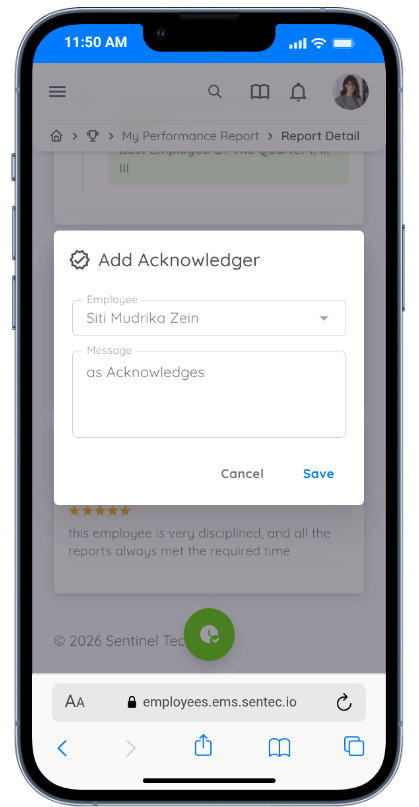
Once the Acknowledgement has been sent, the system will send an email notification to the recipient.
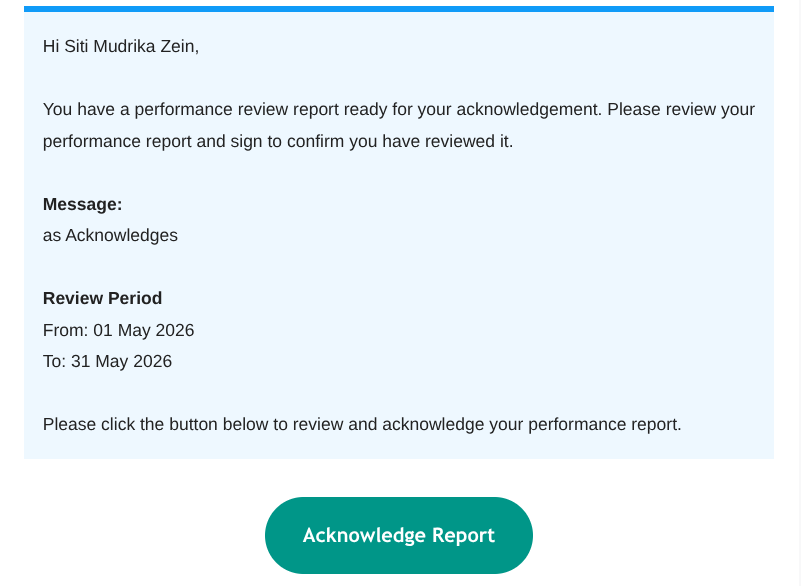
Using the link provided in the email, the recipient can open the Performance Report details, provide feedback if necessary, and then Submit Acknowledgement.
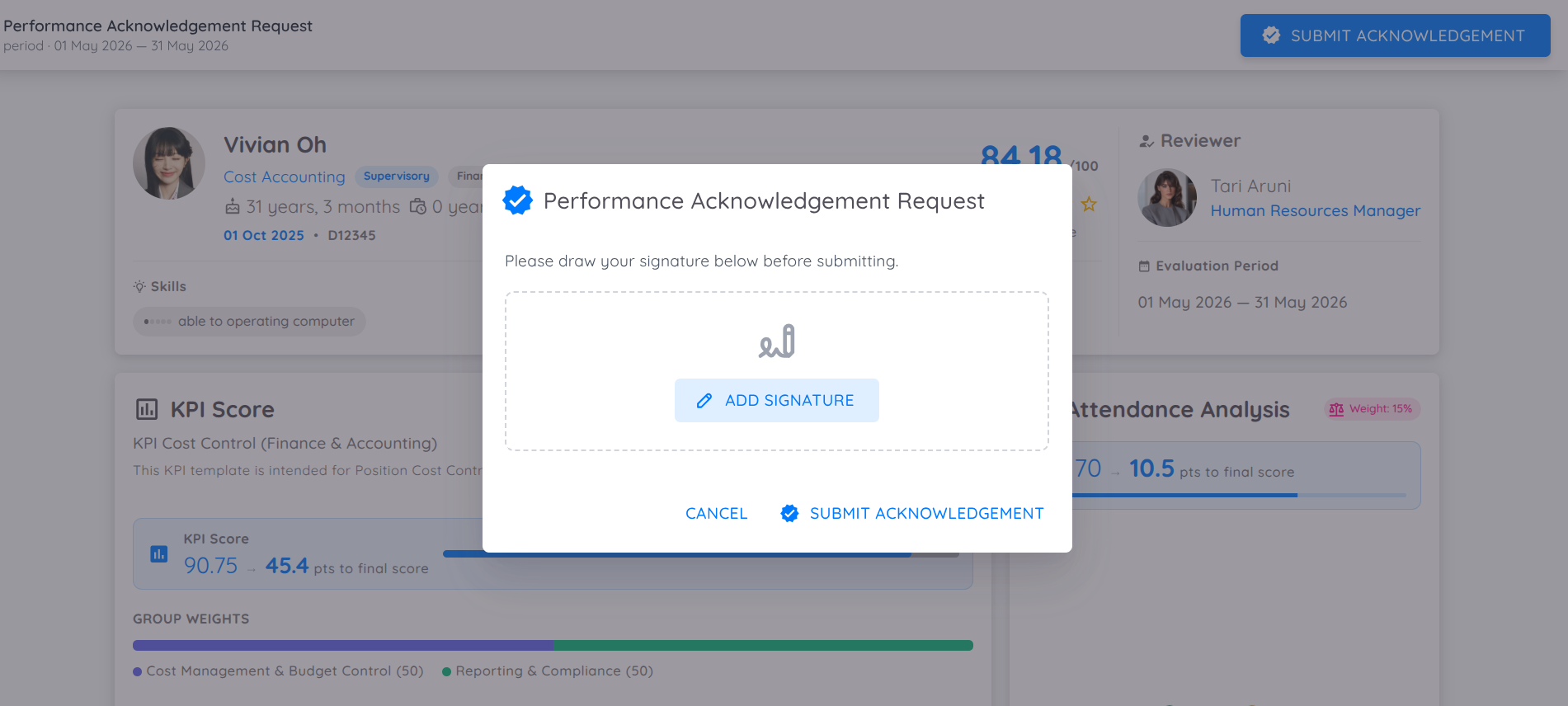
During the submission process, the system displays a confirmation dialog and requires the recipient to provide a Digital Signature as confirmation of their approval of the evaluation results.
Note
The Reviewer can send an Acknowledgement to multiple recipients. Both feedback submission and Acknowledgement can only be completed through the link provided in the email notification sent by the system.
Performance Report Results
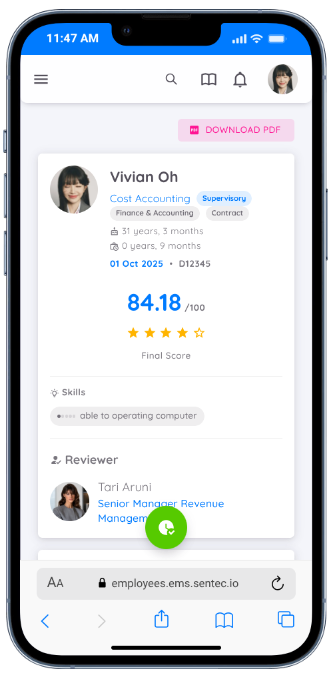
Once the Performance Report has been finalized, the employee being evaluated can access the evaluation results through Performance → Report → As Employee.
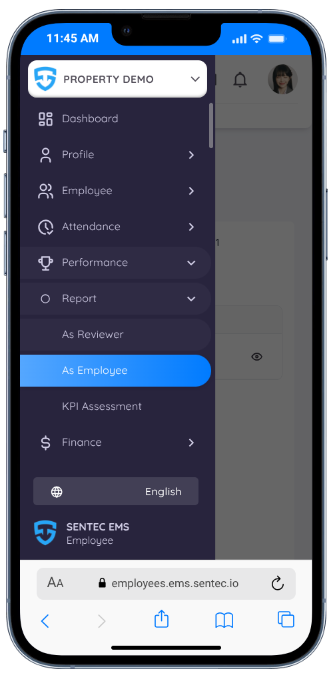
On this page, employees can view the final evaluation results, including the detailed scores for each evaluation component used during the assessment process. Employees can also download the Performance Report in PDF format for documentation purposes.