Performance Report
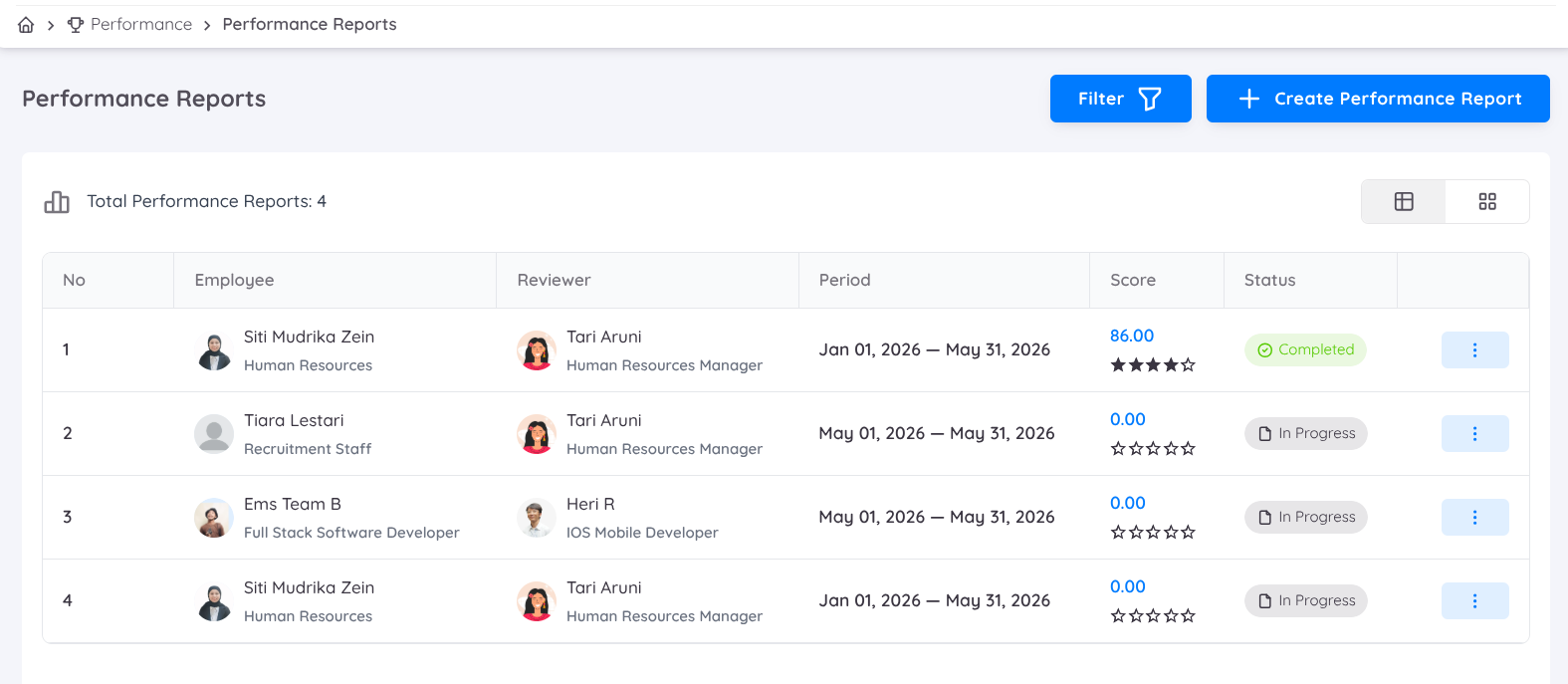
The Performance Report feature enables management to define performance indicators, assign them to employees, and evaluate employee performance through a structured and measurable assessment process.
A Performance Report is used to evaluate employee performance within a specific evaluation period. It provides a comprehensive summary of how effectively an employee has met their job expectations based on predefined indicators, evaluation criteria, and scoring methodology.
The report is designed to support transparent and objective performance reviews while providing management and employees with meaningful performance insights.
The Performance Report process involves the following roles:
- Management: Responsible for creating performance reports, configuring evaluation criteria, assigning reviewers, and monitoring performance outcomes.
- Head of Department (HOD) or Reviewer: Responsible for creating, reviewing, and evaluating employee performance based on assigned indicators, performance data, and observations.
- Employee: Participates in the evaluation process through self-assessment (if enabled), viewing completed evaluation results, and acknowledging performance feedback.
Before management can create a Performance Report, the Component Weight Profile must first be configured under the Configuration menu.
The Component Weight Profile determines:
- Which performance indicators will be evaluated
- The weight contribution of each component
- The calculation structure used to determine the final score
Without an active component weight profile, a performance report cannot be generated.
Performance Report Details
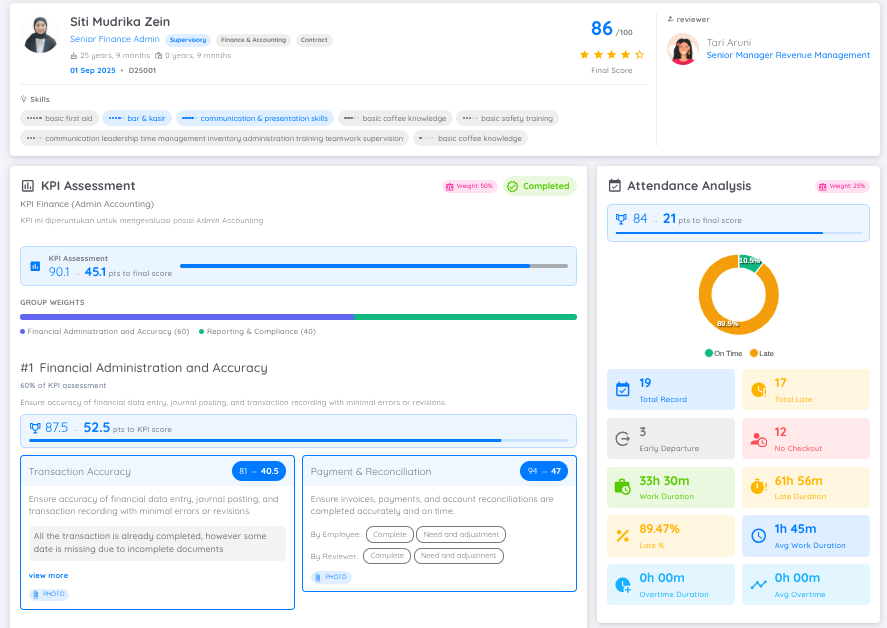
A Performance Report contains the following information:
| Information | Description |
|---|---|
| Employee Information | Displays employee details for the person being evaluated. |
| Reviewer Information | Displays details of the evaluator or assigned reviewer. |
| Performance Components / Indicators | Displays the evaluation details for components such as KPI, attendance, leave, training, awards & reprimands, tasks, and other configured categories. |
| Final Score / Summary | Displays the employee’s overall performance result for the evaluation period. |
Employee & Reviewer Information
The first section of the Performance Detail page displays comprehensive information about the employee being evaluated.

The employee profile section includes:
Employee Information such as:
- Position
- Department
- Employment information
- Age
- Total duration of employment
Employee Skills associated with the employee profile
Final Performance Score, which will be displayed once the evaluation process has been completed. The final score is displayed from 0 to 100 (out of 100) and is accompanied by a star rating indicator to visually represent the employee’s performance level.
The section also displays Reviewer Information, showing the assigned evaluator responsible for conducting the assessment.
KPI Evaluation Details
If KPI is included as one of the evaluation components, detailed KPI information will be displayed.
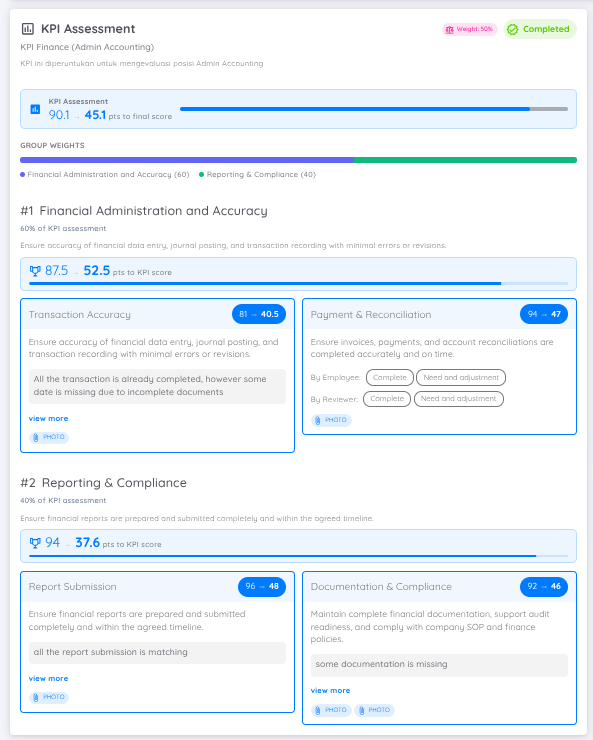
The KPI section includes:
- KPI components being evaluated
- Reviewer comments and feedback
- Scores assigned to employees
- Weight contribution toward the final performance score
- Supporting documents or attachments, if available, which can be accessed for additional reference
This section provides a detailed overview of employee achievement against predefined business objectives and performance targets.
Attendance Evaluation Details
If Attendance is included as an evaluation component, attendance-related performance details will be displayed.
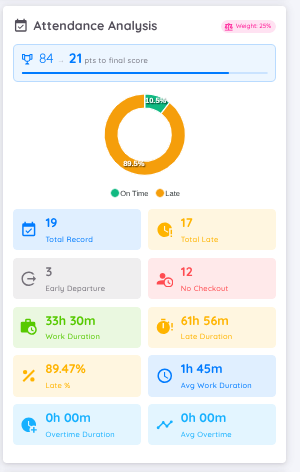
The attendance section includes:
- Attendance score assigned by the reviewer
- Contribution to the final performance score
- Attendance summary based on the selected evaluation period
Attendance details may include:
| Attendance Detail | Description |
|---|---|
| Total Attendance Records | Displays the total number of attendance records during the evaluation period. |
| Total Late Attendance | Displays the total number of late attendance occurrences. |
| Early Departures | Displays the total number of early departures recorded during the evaluation period. |
| Non-Checkout Records | Displays the total number of missing checkout records. |
| Total Working Duration | Displays the total working hours accumulated during the evaluation period. |
| Total Lateness Duration | Displays the total accumulated duration of employee lateness. |
| Additional Attendance Information | Displays other attendance-related details relevant to the evaluation period. |
This information helps organizations evaluate employee punctuality, consistency, and workplace discipline.
Leave Evaluation Details
If Leave is included as one of the evaluation components, leave-related information will be displayed.
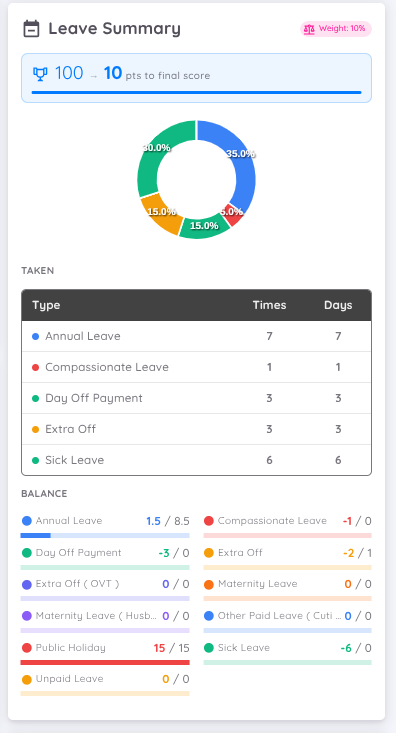
The leave section includes:
- Total leave taken during the evaluation period
- Remaining leave balance
- Leave usage summary within the selected evaluation period
This information helps management understand employee leave patterns and overall attendance behavior.
Training Summary
If Training is included in the evaluation process, a training summary will be displayed.
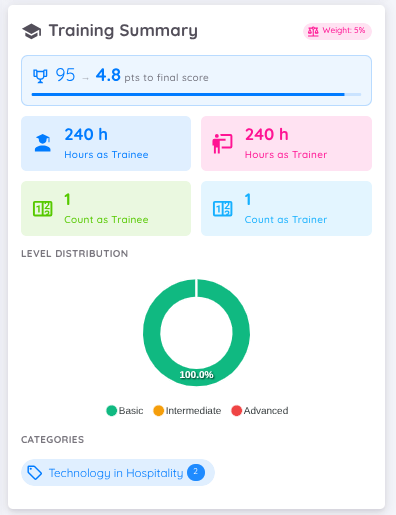
The training section includes:
- Total training hours
- Training participation summary
- Training level/category distribution
This section helps organizations assess employee learning engagement, professional development, and training participation throughout the evaluation period.
Awards & Reprimands
If Awards & Reprimands are included as evaluation components, the related records will be displayed in the report.
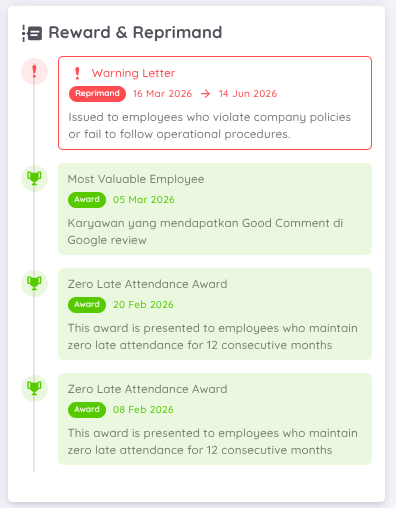
The section includes:
- Awards or recognition received
- Disciplinary actions or reprimands
- Supporting details and descriptions
This information provides additional context regarding employee achievements, conduct, and behavioral performance during the evaluation period.
Performance Review
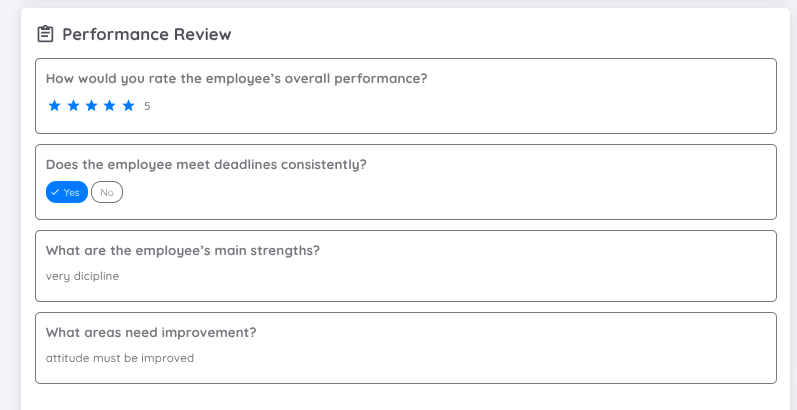
If a Question Set is included as part of the evaluation process, the Performance Review section will be displayed in the performance report.
This section presents the reviewer’s responses and feedback based on the configured question set template, providing additional qualitative insights to support the employee evaluation process.
The Performance Review section may include:
| Information | Description |
|---|---|
| Rating Evaluation | Displays rating-based responses provided by the reviewer, such as employee performance scores using a star rating or scoring scale. |
| Option-Based Responses | Displays reviewer selections for predefined questions, such as Yes/No or other configured options. |
| Text Feedback | Displays written feedback or descriptive responses provided by the reviewer, such as employee strengths, improvement areas, comments, or recommendations. |
| Number Input | Displays numerical responses provided by the reviewer for questions requiring quantitative values. |
| Percentage Input | Displays percentage-based responses for evaluation criteria measured using percentage values. |
| Date Input | Displays date-based responses provided by the reviewer for date-related questions. |
| Time Input | Displays time-based responses provided by the reviewer for time-related questions. |
This section helps provide a more comprehensive evaluation by combining measurable performance indicators with qualitative reviewer feedback and structured assessment questions.
Acknowledgment, Notes & Comments
The Acknowledgment, Notes, and Comments section is displayed within the performance detail page to provide additional context regarding the employee evaluation.

This section may include:
- Reviewer comments and recommendations
- Acknowledgment from employees, supervisors, or management
- Additional notes
- Feedback from employees, colleagues, or reviewers
This section helps facilitate transparent communication between management, reviewers, and employees while ensuring that evaluation feedback is properly documented.
Create New Performance Report
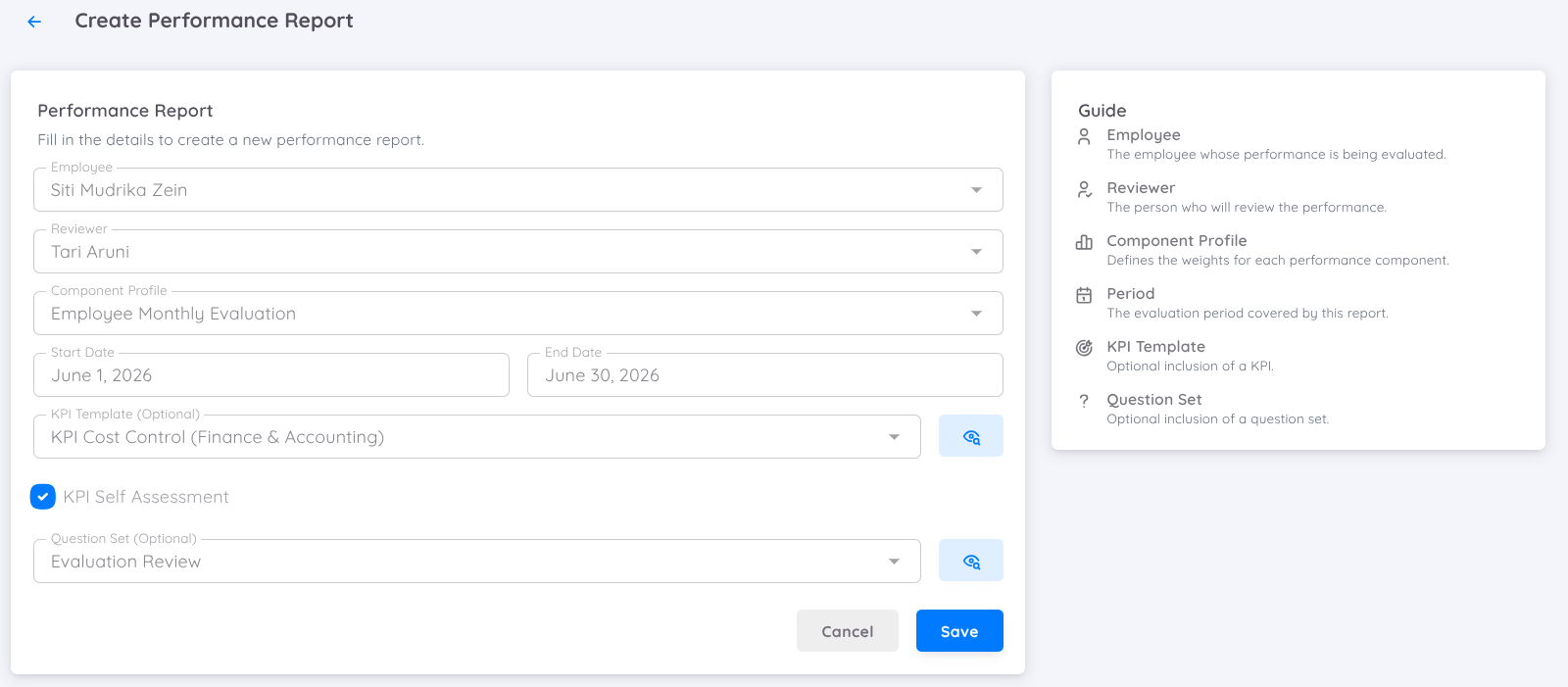
Users who have access to the Performance menu can create a new Performance Report for employees.
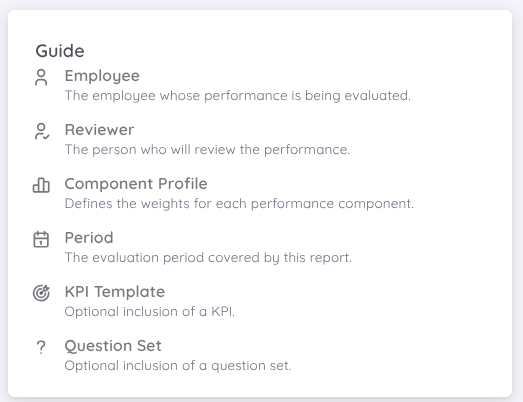
When creating a new report, users can follow the guide provided in the system.
The table below describes the available fields for configuring a Performance Report:
| Field | Description |
|---|---|
| Select Employee | Choose the employee who will be evaluated. |
| Add Reviewer | Assign reviewers who will be responsible for evaluating the employee. Reviewers can be administrators, the employee's direct superior, HR personnel, or any other designated evaluator. |
| Component Profile | Select the evaluation template that will be used for the assessment. |
| Period | Define the evaluation period or time frame for the performance review. |
| KPI Template (Optional) | Select a KPI template if KPI evaluation is included in the assessment process. |
| KPI Self-Assessment | Allow employees to perform a self-assessment based on the indicators defined in the selected KPI template. This option is only available when enabled. |
| Question Set (Optional) | Select an optional set of questions to collect additional evaluation input during the assessment process. |
IMPORTANT
The KPI Template reference for how to add and create a KPI Template can be found here:
KPI TemplateOnce the Performance Report has been created, the assigned reviewer will receive a notification and can begin the evaluation process.
The evaluation process can only be completed by the assigned reviewer.
Once all evaluations have been completed and the Performance Report status changes to Completed, Management users will be able to view the final performance score and evaluation results.
The Performance Report can be downloaded and is available in PDF format.
Scoring Process
The scoring process for a created Performance Report is conducted by the assigned reviewer. The final performance score is calculated based on the performance components selected during the performance report creation process.
The system currently supports the following performance indicators: KPI, Attendance, Leave, Training, Award & Reprimand, and Task.
Each selected indicator is assigned a specific weight, and the total weight of all selected indicators must equal 100%.
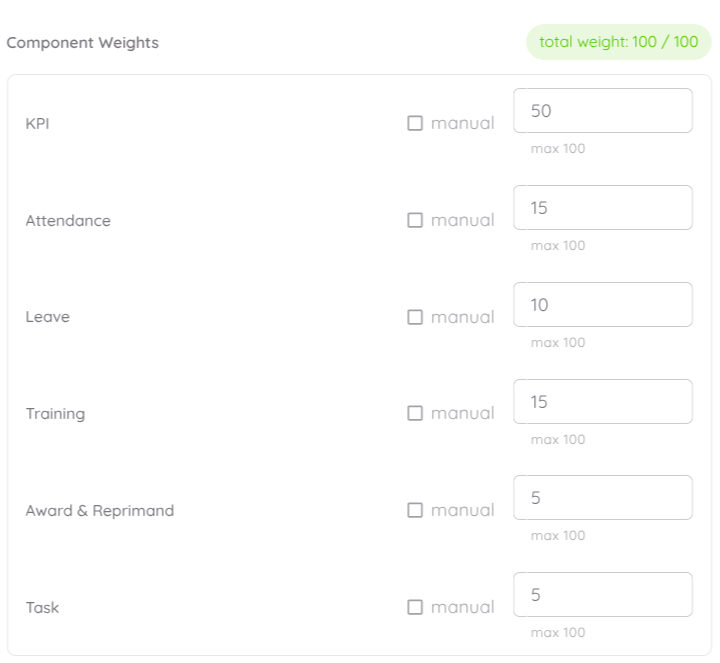
Each performance indicator contains:
- An Indicator Weight that determines its contribution to the final score.
- A Performance Contribution Score ranging from 0–100, representing the employee's achievement level for that indicator.
The Weighted Score formula is:
Weighted Score = (Performance Contribution Score × Indicator Weight) ÷ 100The Final Performance Score formula is:
Final Performance Score = Sum of All Weighted ScoresPerformance Score Example
The following example illustrates how the Performance Score is derived:
| Performance Indicator | Weight (%) | Contribution Score | Weighted Score |
|---|---|---|---|
| KPI | 50 | 83.98 | 41.99 |
| Attendance | 20 | 50.00 | 10.00 |
| Leave | 10 | 100.00 | 10.00 |
| Training | 10 | 100.00 | 10.00 |
| Award & Reprimand | 5 | 100.00 | 5.00 |
| Task | 5 | 100.00 | 5.00 |
| Total | 100 | 533.98 | 81.99 |
Based on the example above, the employee's final performance score is:
81.99 / 100KPI Scoring Process
The KPI contribution score is calculated separately before being used in the overall Performance Score calculation.
A KPI consists of one or more KPI Groups, and each KPI Group contains one or more KPI Group Items.
- Each KPI Group is assigned a Group Weight.
- The total weight of all KPI Groups must equal 100%.
- Each KPI Group Item is assigned an Item Weight.
- KPI Item Weights can be assigned with any value and do not need to total 100.
- The reviewer may assign any score to a KPI Item based on the employee's achievement.
- The KPI score is calculated using the weighted contribution of each KPI Group.
Step 1: Calculate KPI Item Results
Each KPI Item Result is calculated by multiplying the Item Weight by the Reviewer Score.
The formula is:
Item Result = Item Weight × Reviewer ScoreStep 2: Calculate KPI Group Average Score
Sum all KPI Item Results within the group, then divide the result by the total KPI Item Weight.
The formula is:
Group Average Score = Total Item Results ÷ Total Item WeightStep 3: Calculate KPI Group Contribution
Multiply the KPI Group Average Score by the KPI Group Weight.
Group Contribution = Group Average Score × Group WeightStep 4: Calculate Final KPI Score
Add all KPI Group Contributions together.
Final KPI Score = Sum of All KPI Group ContributionsKPI Scoring Example
The following example demonstrates how the KPI Score is calculated from KPI Items, KPI Groups, and KPI Group Weights.
KPI Group: Productivity
| KPI Item | Item Weight | Reviewer Score | Item Result |
|---|---|---|---|
| Quality of Work | 50 | 90 | 4,500 |
| Work Quantity | 40 | 80 | 3,200 |
| Timeliness | 30 | 85 | 2,550 |
| Teamwork | 25 | 88 | 2,200 |
| Initiative | 15 | 75 | 1,125 |
| Total | 160 | - | 13,575 |
Calculate Group Average Score
Group Average Score =
Total Item Results ÷ Total Item Weight

13,575 ÷ 160 = 84.84
Calculate Group Contribution
The Productivity KPI Group has a Group Weight of 40%.
Group Contribution =
84.84 × 40%
= 33.94
The same calculation is performed for all KPI Groups.
| KPI Group | Group Average Score | Group Weight | KPI Group Contribution |
|---|---|---|---|
| Productivity | 84.84 | 40% | 33.94 |
| Quality | 81.25 | 30% | 24.38 |
| Teamwork | 88.60 | 20% | 17.72 |
| Leadership | 79.40 | 10% | 7.94 |
| Total | - | 100% | 83.98 |
Calculate Final KPI Score
Final KPI Score =
33.94 + 24.38 + 17.72 + 7.94

= 83.98
In this example:
- KPI Group Weights total 100%.
- KPI Item Weights within each group do not need to total 100.
- Reviewer Scores are assigned by the reviewer based on employee performance.
- The final KPI Score is calculated from the weighted contribution of all KPI Groups.
Other Components Scoring Process
For Attendance, Leave, Training, Award & Reprimand, and Task, the scoring process is based on the reviewer's evaluation.
Unlike KPI, these components do not use Group Weights or Item Weights. Instead, the reviewer directly assigns a Performance Contribution Score ranging from 0 to 100 based on the employee's performance and the available supporting data.
All related reference data for each component is available for the reviewer to review before assigning a score. However, the final score is determined solely by the reviewer's assessment and judgment.
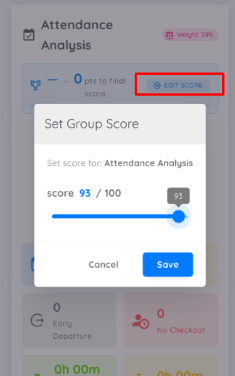
The Scoring Flow are:
- The reviewer opens the performance component.
- The system displays all relevant reference data related to the selected component.
- The reviewer evaluates the employee's performance based on the available information.
- The reviewer assigns a score between 0 and 100.
- The assigned score becomes the component's Performance Contribution Score.
- The score is then multiplied by the component weight during the final Performance Score calculation.
For an example if the Attendance component weight is 20%, and the reviewer score is:
Reviewer Score = 50The weighted score is calculated as:
(50 × 20) ÷ 100
= 10.00
The same approach applies to Leave, Training, Award & Reprimand, and Task.
NOTE
- These components use a reviewer-based scoring approach.
- No Group Weight or Item Weight configuration is required.
- Supporting data is provided as a reference to assist the reviewer during the evaluation process.
- The final score is determined by the reviewer's assessment.
- The reviewer may assign a score ranging from 0 to 100.
Final Calculation
After all performance indicators have been evaluated, the system calculates the employee's final performance score by applying the configured indicator weights to each component's contribution score.
Weighted Score = (Contribution Score × Indicator Weight) ÷ 100Final Performance Score = Sum of All Weighted ScoresThe weighted scores from all selected performance indicators are added together to produce the employee's final performance score.
Refer to the examples in the previous sections for detailed KPI and component scoring calculations.
NOTE
- The total weight of all selected performance indicators must equal 100%.
- Each indicator contributes to the final score according to its assigned weight.
- The final performance score is the sum of all weighted indicator scores.
- Contribution scores are calculated independently before being included in the final calculation.
Performance Score Simulation
You may edit or replace the KPI Group, Group Item, and Reviewer Score values with your own data. All calculations will update automatically.
Step 1 - KPI Group Weight Determination
| KPI Group | Weight (%) | Actions |
|---|---|---|
% | ||
% | ||
% |
Total KPI Group Weight: 100.00%
You may assign any weight value to each KPI Item. The system will calculate the Group Contribution using the formula: Total Item Result ÷ Total Item Weight.
Step 2 - KPI Item Scoring : Sample Group 1
| KPI Item | Weight Item | Reviewer Score | Result (Weight Item x Reviewer Score) | Action |
|---|---|---|---|---|
| 4500 | ||||
| 4000 |
You may assign any weight value to each KPI Item. The system will calculate the Group Contribution using the formula: Total Item Result ÷ Total Item Weight.
Step 2 - KPI Item Scoring : Sample Group 2
| KPI Item | Weight Item | Reviewer Score | Result (Weight Item x Reviewer Score) | Action |
|---|---|---|---|---|
| 5100 | ||||
| 3520 |
You may assign any weight value to each KPI Item. The system will calculate the Group Contribution using the formula: Total Item Result ÷ Total Item Weight.
Step 2 - KPI Item Scoring : Sample Group 3
| KPI Item | Weight Item | Reviewer Score | Result (Weight Item x Reviewer Score) | Action |
|---|---|---|---|---|
| 9200 |
Step 3 - KPI Group Weighting
The Group Contribution Score is automatically taken from the table in Step 2.
The group weight is taken from the values in the table in Step 1.
And the KPI Contribution is the result of: Group Contribution Score × Group Weight (%).
| KPI Group | Group Contribution Score | Weight (%) | KPI Contribution (Group Score × Weight %) |
|---|---|---|---|
| Sample Group 1 | 85.00 | % | 34.00 |
| Sample Group 2 | 86.20 | % | 30.17 |
| Sample Group 3 | 92.00 | % | 23.00 |
Total Group Weight: 100.00%
Step 4 - Other Evaluation Components
You may edit or replace the Component Weight and Other Reviewer Score values (Except KPI) with your own data. All calculations will update automatically.
| Component | Weight (%) | Score | Weighted Score (Weight x Score) |
|---|---|---|---|
| KPI | % | 0.00 | |
| Attendance | % | 13.50 | |
| Leave | % | 8.00 | |
| Training | % | 8.50 | |
| Award & Reprimand | % | 4.75 | |
| Task | % | 8.00 |
Total Components Weight: 100.00%