Report
List
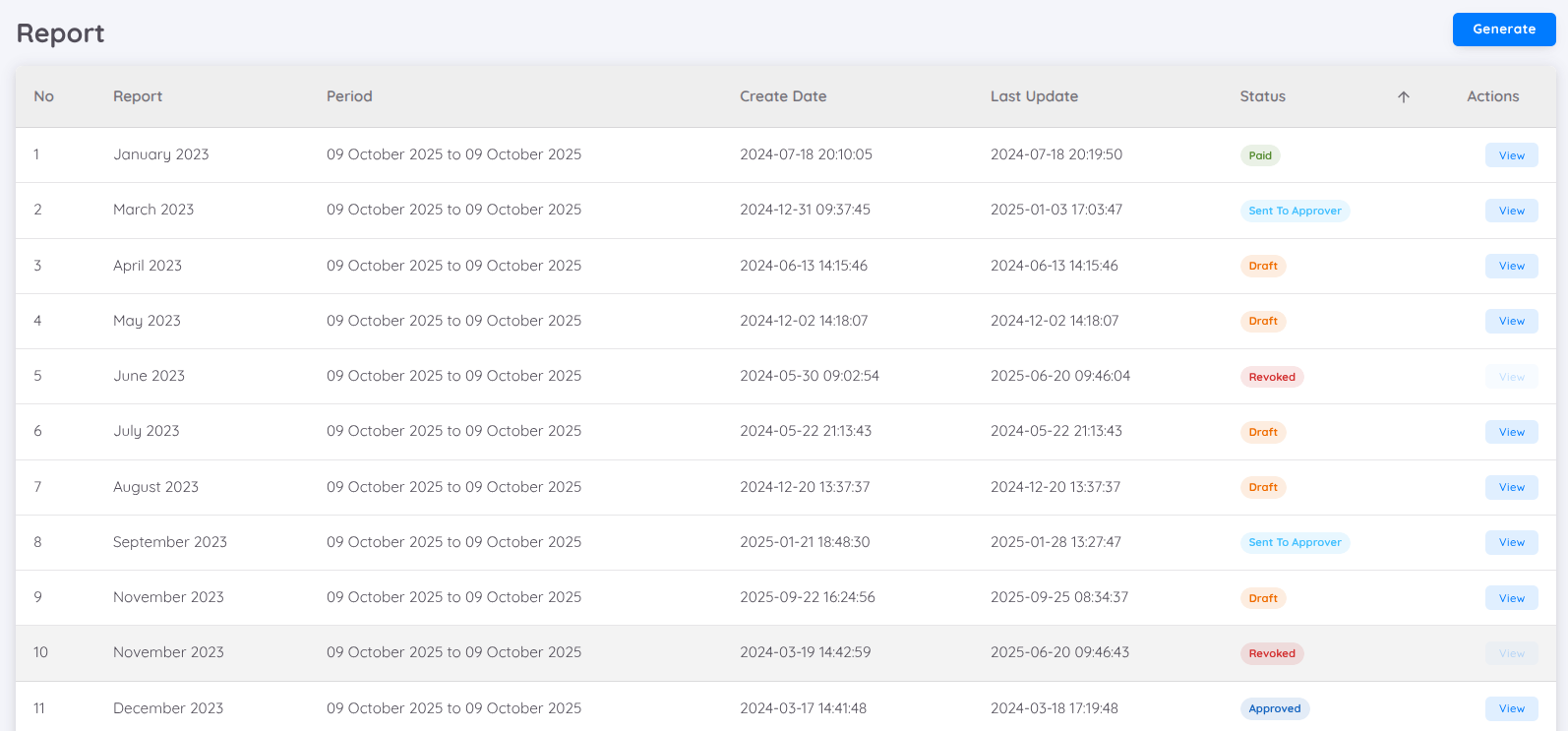
This page displays all payroll reports that have been created. Here is an explanation of the report statuses:
| Status | Description |
|---|---|
| Processing | The payroll report is being generated by the system. This process takes some time depending on the number of employees. If the status does not change after a while, click the "Set as draft" button in the "Actions" column to change the payroll report status, allowing users to check the results. |
| Draft | The payroll report has been successfully created and users can edit this report. |
| Send to approver | The payroll report has been sent to the approver and will be reviewed according to the set approver level. |
| Approved | The payroll report has been approved by the final level approver. |
| Paid | The payroll report has been approved and turned into pay slips that can be accessed by all employees through the employee page. |
| Revoked | The payroll report has been revoked. Users cannot open the details of a revoked report. |
To support clearer tracking of payroll periods, greater transparency, and improved accuracy and reliability of payroll reporting, the report displays the following information:
Period
Displays the payroll period covered by the report. This helps ensure you are viewing data for the correct time frame.Last Update
Shows the date and time when the report was last refreshed, providing confidence that the data is up to date.
Generate
Click the Generate button located at the top right corner of the Report page to create a new payroll report.
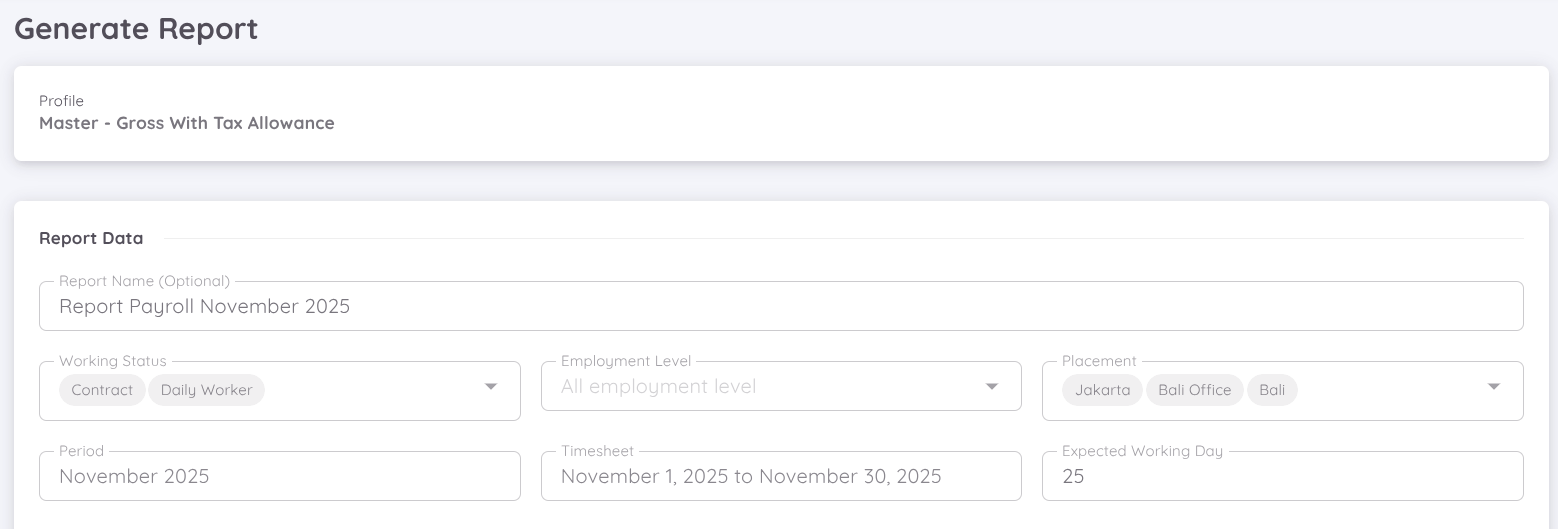
A form will appear displaying the selected Payroll Profile along with all available Accounts, where users can input or adjust the values manually as needed.
When generating the report, users can:
- Add a name in the Payroll Report Name field.
- Select a specific Working Status (if not selected, the system will include all working statuses).
- Optionally choose Employment Level and Placement filters to narrow down the generated report.
These filtering features allow units to process payroll reports only for employees with a specific status, level, or location, including salary slip generation, tax summary, and journal voucher creation.
Selecting both Period and Timesheet Period is mandatory, as the system uses these values to calculate salaries, especially for daily workers, whose payroll is based on attendance data recorded within those periods.
The Expected Working Days value is automatically generated based on the total days in the timesheet period. However, This value can still be manually edited through the corresponding column when adjustments are required.
Prorate Calculation
The prorate calculation is applied based on the timesheet period and the expected working days within the payroll period.
The salary is calculated using the following formula:
(Total Working Days ÷ Expected Working Days) × Total Basic Salary
Example:
If the expected working days in a month are 28 days, the prorated salary will be calculated as:
(Total Working Days ÷ 28) × Total Basic Salary
This ensures that the employee’s salary is calculated proportionally based on actual attendance within the payroll period.
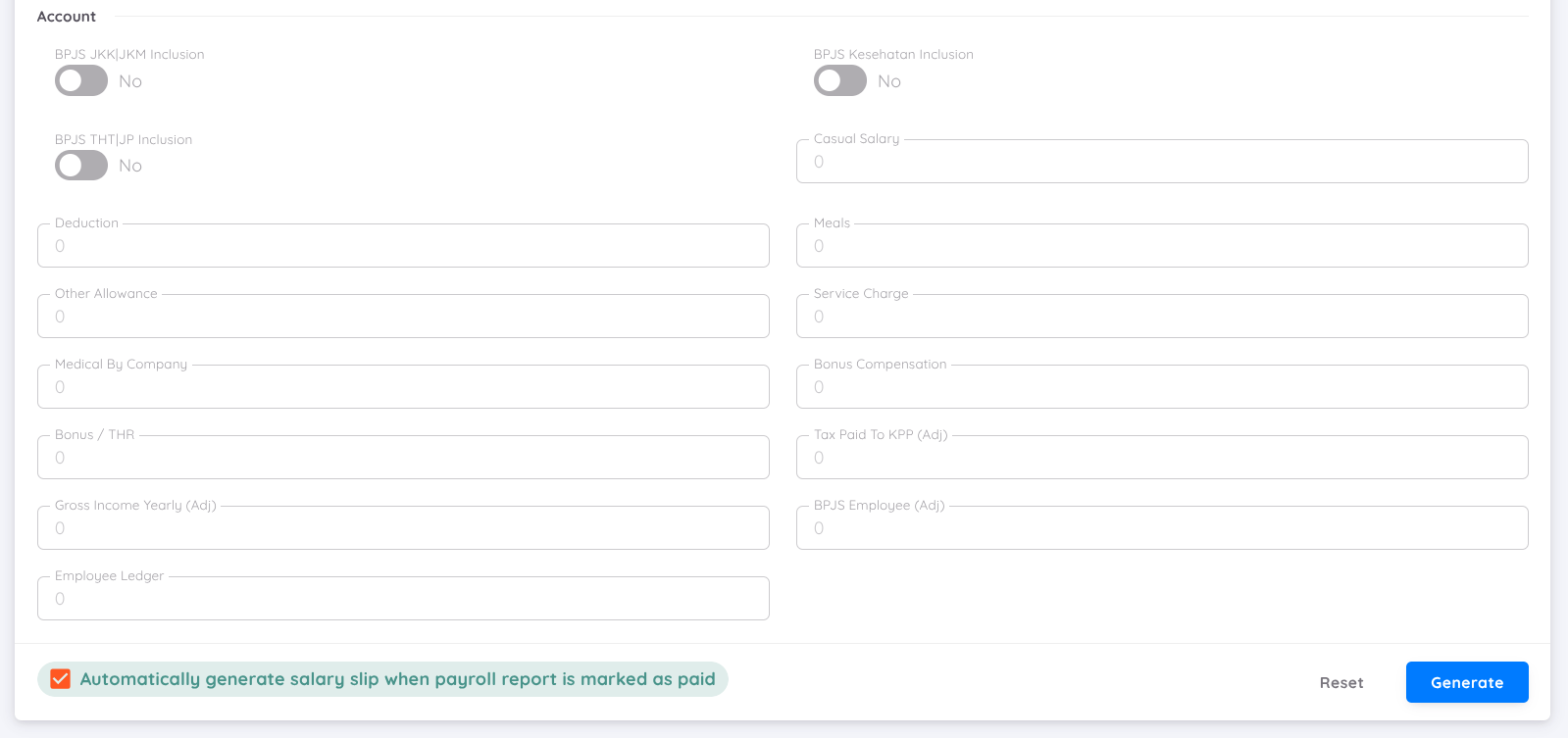
The Accounts section can be adjusted according to each company’s payroll scheme.
There is an optional toggle that can be enabled or disabled as needed.
The values entered in this form will also be applied to all employees according to the Account name.
For example, if the value for Service Charge is set to 1,000,000 (in Rupiah), all employees will receive 1,000,000 in the Service Charge account.
If an employee has an Employee Payroll Profile, the value will be taken from that profile instead.
NOTE
The Employee Payroll Profile is linked to the selected Payroll Profile.
When you change the Payroll Profile, the Employee Payroll Profile settings will revert to default or follow the new profile.
This means the Employee Payroll Profile always inherits the configuration of the active Payroll Profile.
Employee salaries and FPSC (Fixed Pay Salary Components) are taken from employee allowance data for those with an active contract status.
Employees with an inactive contract status can be added to the payroll report after the report is created (status: Draft).
Additionally, users can check the option “Automatically generate salary slip when payroll report is marked as paid” to automatically send salary slips to each employee once the payroll report is marked as Paid.
The payroll report generation process may take time depending on the number of employees, and the report cannot be accessed until the process is complete.
Users will receive an email notification once the report has been successfully generated.
NOTE
Users can only create one report per month and year.
If an error occurs and the report needs to be recreated, the previous report must first be revoked.
However, if an additional report is required for the same period (for example, when separating reports for daily workers and contract employees), you can contact the Sentec EMS Support Team to request access for creating more than one report within the same period.
For a visual guide, watch the tutorial video on how to Generate a Payroll Report below:
View Report
The View Report page provides complete information about a generated payroll report, including the report details, approval history, analytics, and available actions.
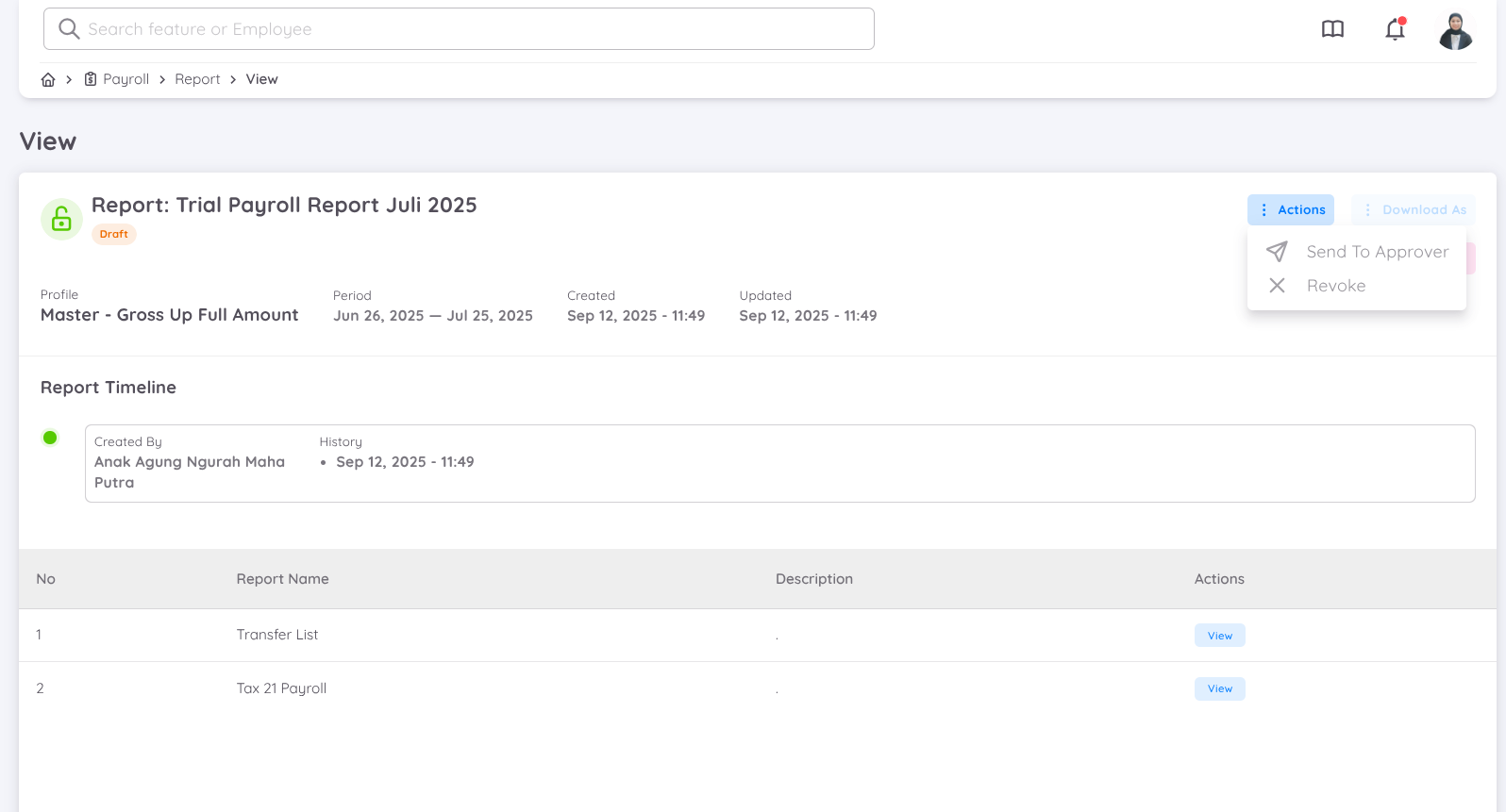
Within the View Report page, you can access and manage all information related to the selected payroll report, including:
- Payroll Profile used to generate the payroll.
- Payroll Period for the generated report.
- Report Information, including the report generation date, time, and current status.
- Report Timeline, which displays:
- Report creator.
- Approval history.
- All status changes throughout the payroll process.
- Action Menu, providing quick access to:
- Download – Download payroll-related reports.
- View Summary – View a summarized overview of the generated payroll.
- Payroll Analytics – Analyze payroll data through various analytical reports.
- Action – Perform payroll actions based on the current report status.
- Payroll Reports, containing all available payroll report templates and detailed payroll reports.
- Salary Slips (available only when the payroll report has been set to Paid), allowing users to access and review employee salary slips.
Edit Report Name
If the payroll report is still in Draft status, you can rename the report by clicking the Edit (pencil) button beside the report name.
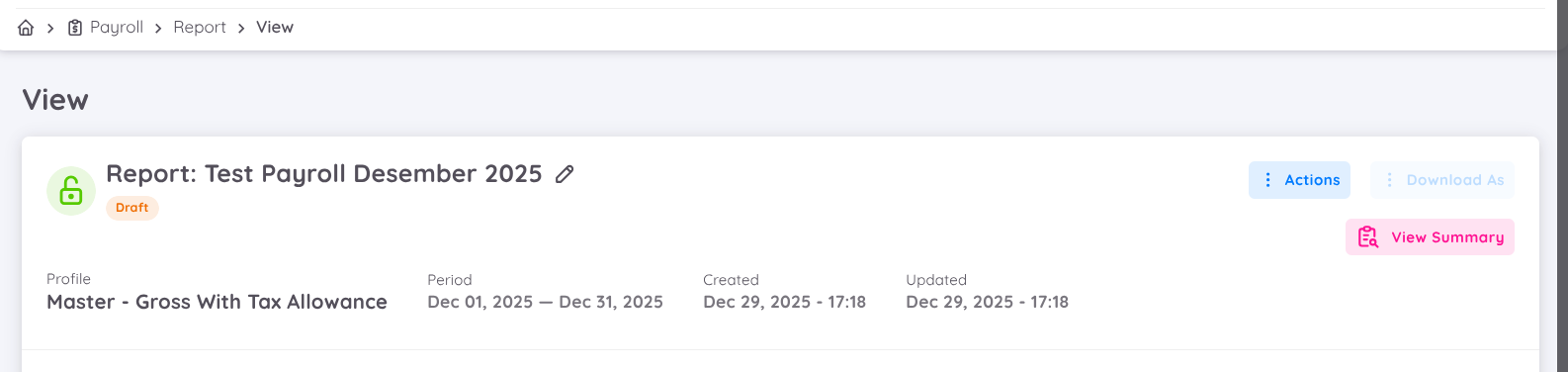
Once the report has been submitted for approval or finalized, the report name can no longer be changed.
Available Actions
In the View Report page, several actions are available depending on the current payroll report status. The available options may change as the report progresses through the payroll approval workflow.
Download
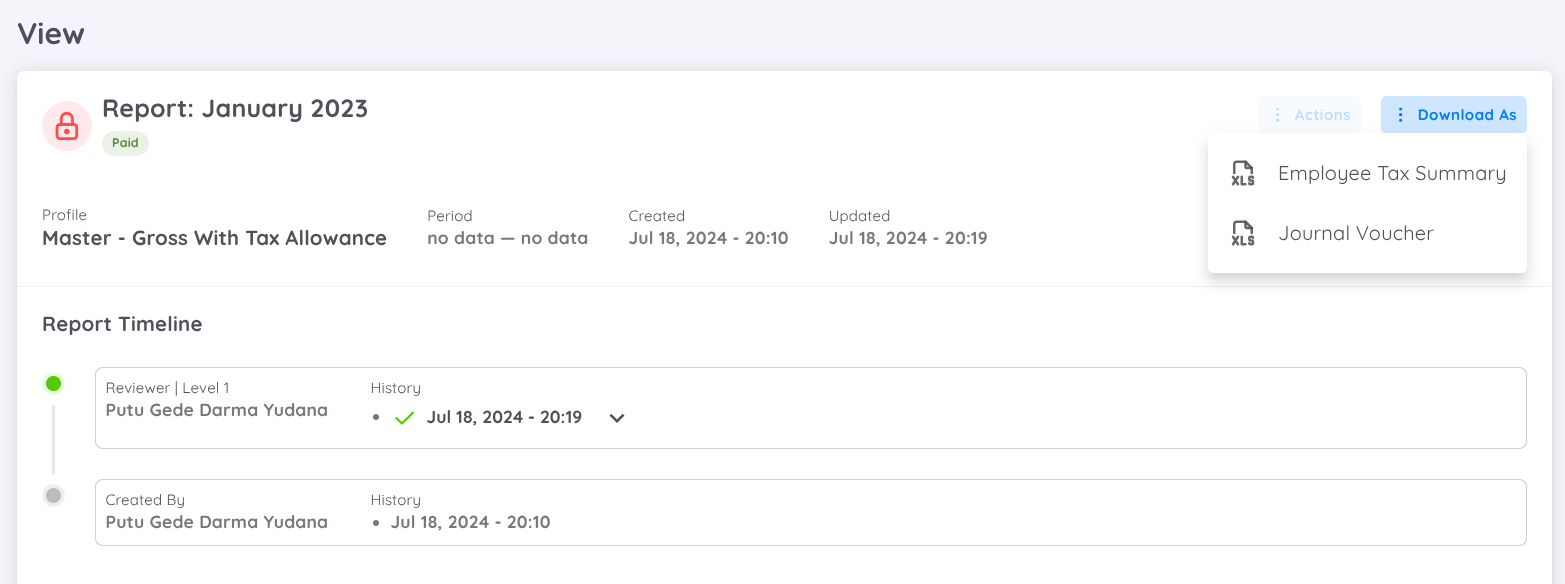
The Download button allows users to download payroll-related reports.
Currently available:
- Employee Tax Summary — Downloads a report containing tax information for all employees (currently available only for the Indonesian Tax Report).
NOTE
The Download button becomes available only after the payroll report status has been changed to Paid.
View Summary
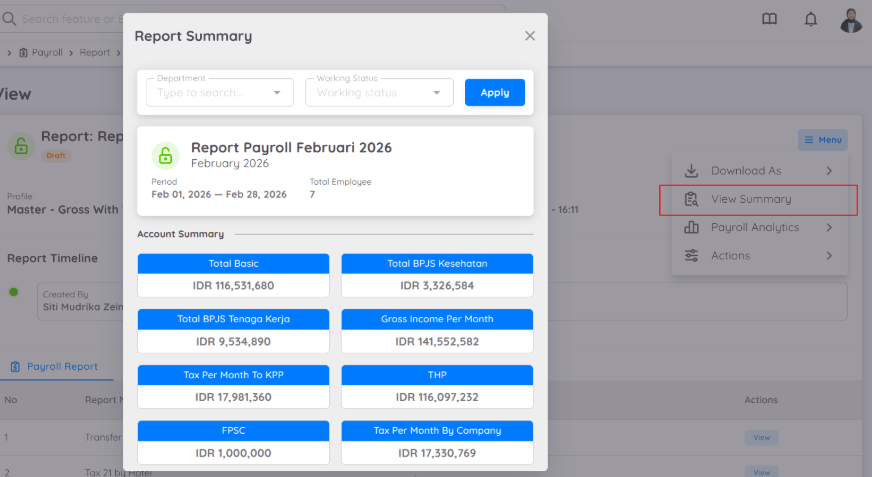
After the payroll report has been successfully generated, the View Summary page becomes available.
This page provides a summarized overview of the payroll results and allows users to quickly review payroll totals without opening individual reports.
The summary can be filtered by:
- Department
- Employee Working Status
NOTE
The payroll accounts displayed in the View Summary can be customized based on your organization's requirements. Please contact the Sentinel Tech Team if customization is required.
Payroll Analytics
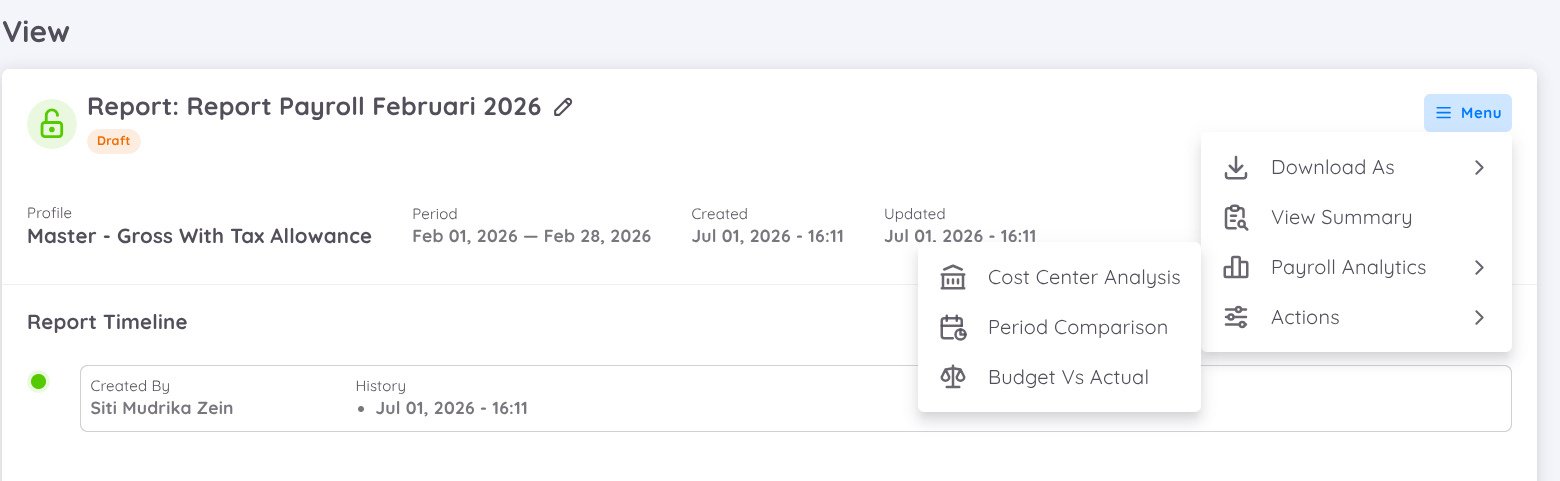
The Payroll Analytics page provides visual analysis and insights into generated payroll data.
Available analytics include:
- Cost Centre Analysis
- Period Comparison
- Budget vs Actual
Before these analytics can be displayed, the required payroll allocation setup must first be completed.
Please refer to the Allocation & Cost Centre Setup documentation.
Cost Centre Analysis
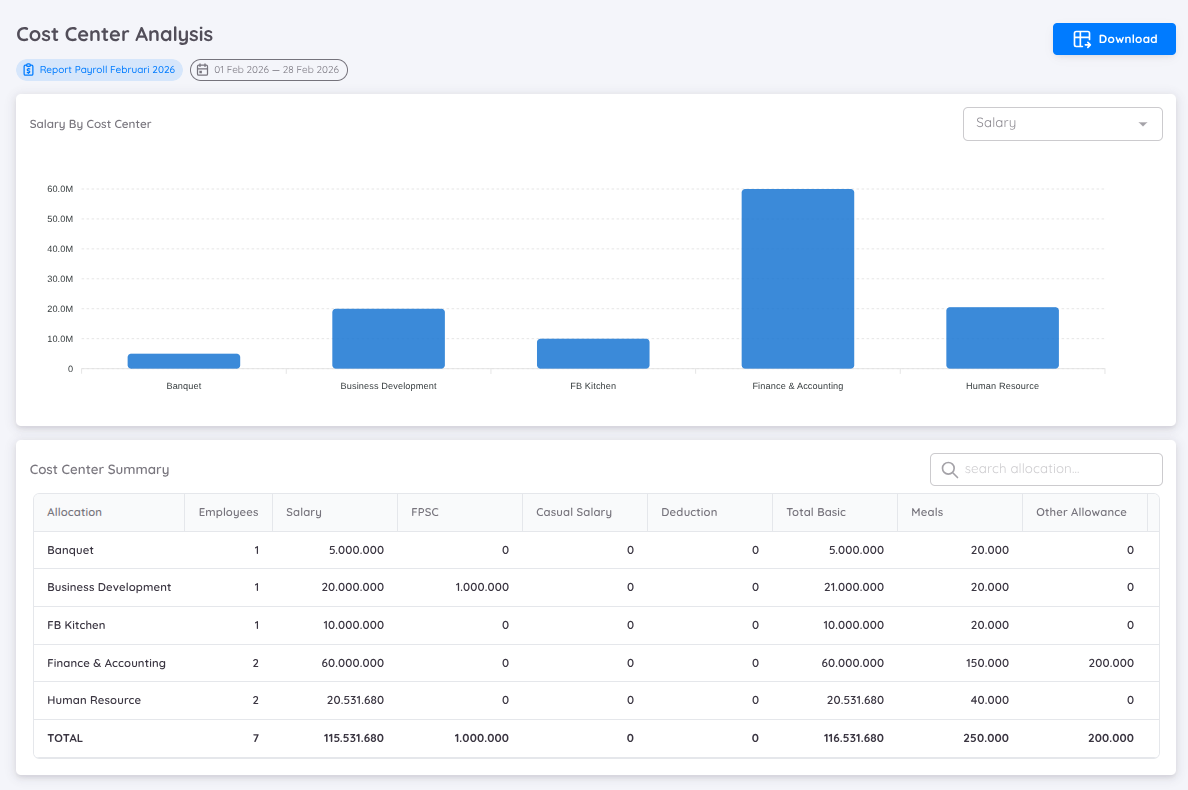
The Cost Centre Analysis feature helps organizations analyze payroll expenses based on Cost Centres and Allocation Accounts.
This analysis provides a detailed breakdown of payroll costs allocated to each cost centre, allowing management to:
- Monitor payroll spending by department or business unit.
- Review payroll allocations across multiple cost centres.
- Analyze labor costs assigned to allocation accounts.
- Improve financial visibility and payroll cost distribution.
The report summarizes payroll expenses for every allocation account and displays how payroll costs are distributed across organizational units.
Period Comparison
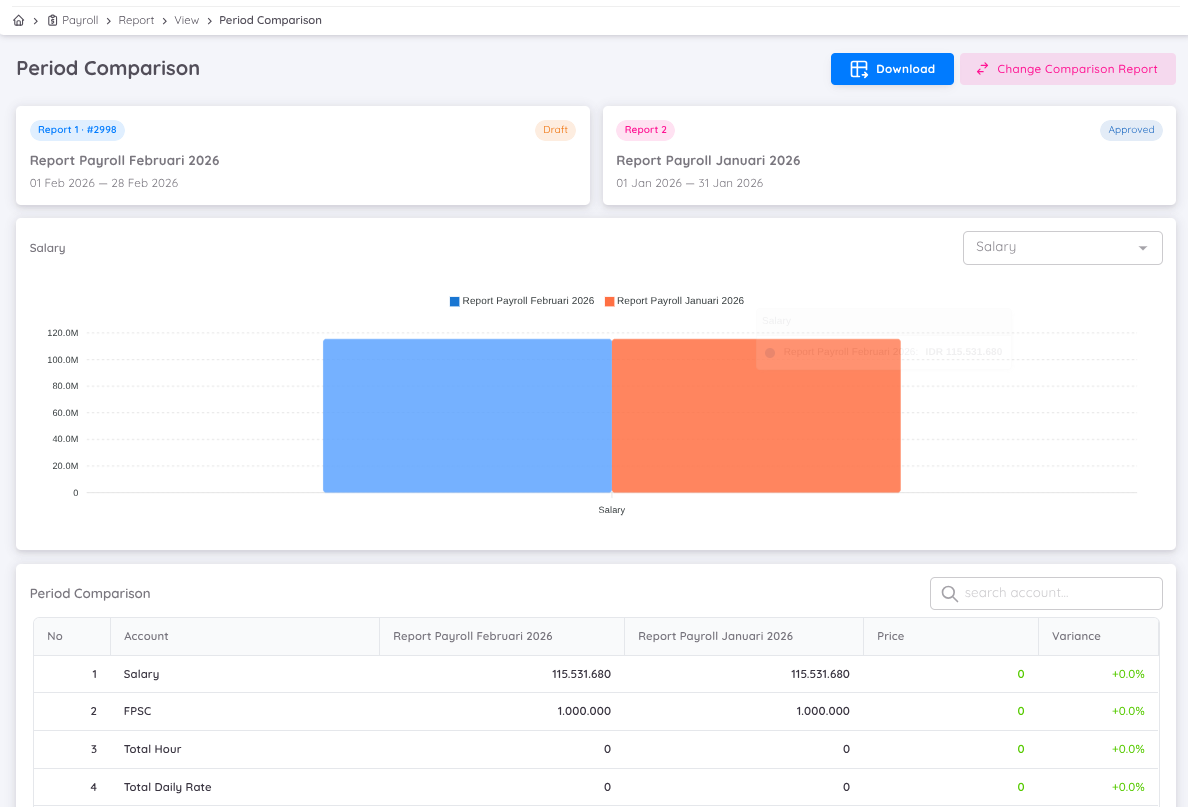
The Period Comparison feature allows users to compare payroll results between the current payroll period and a previously generated payroll report.
This comparison helps management:
- Identify payroll variances.
- Monitor payroll trends.
- Review increases or decreases in payroll costs.
- Detect unusual payroll changes.
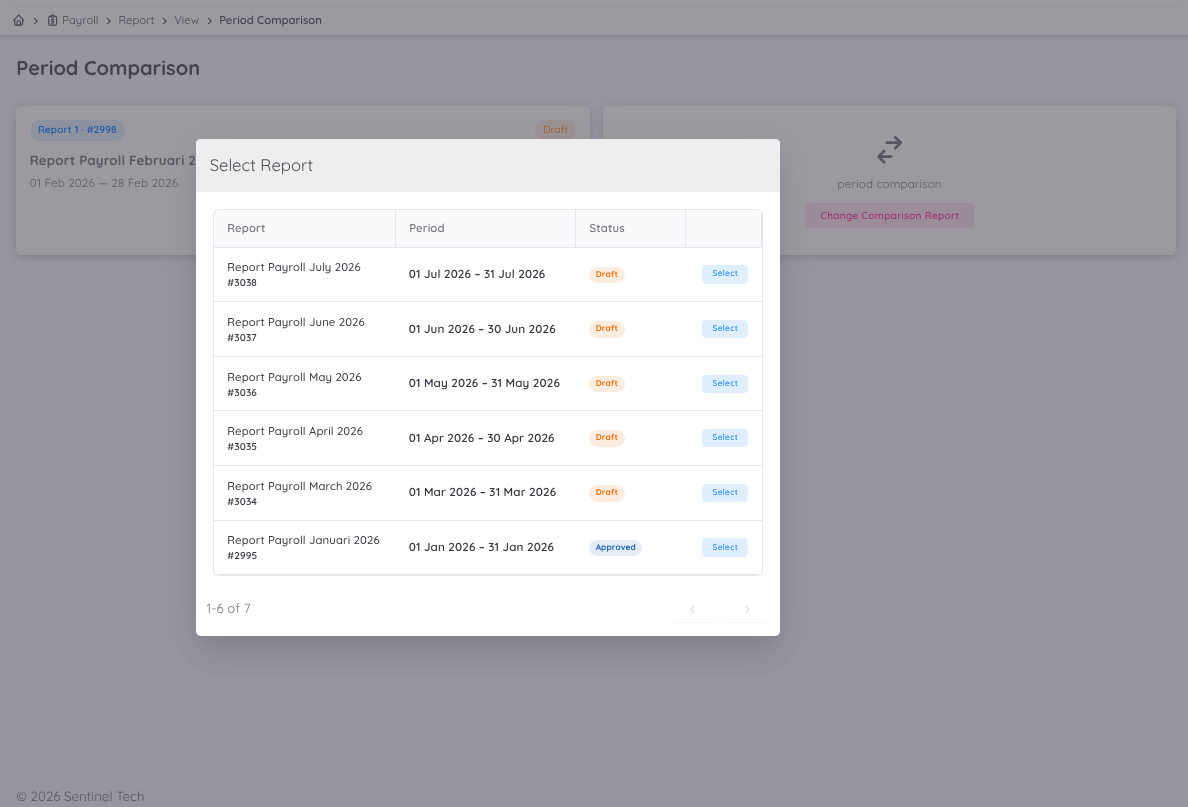
To begin the comparison, select one of the previously generated payroll reports.
The comparison initially displays a summary for a payroll account.
Users can switch to other payroll accounts using the available account selector.
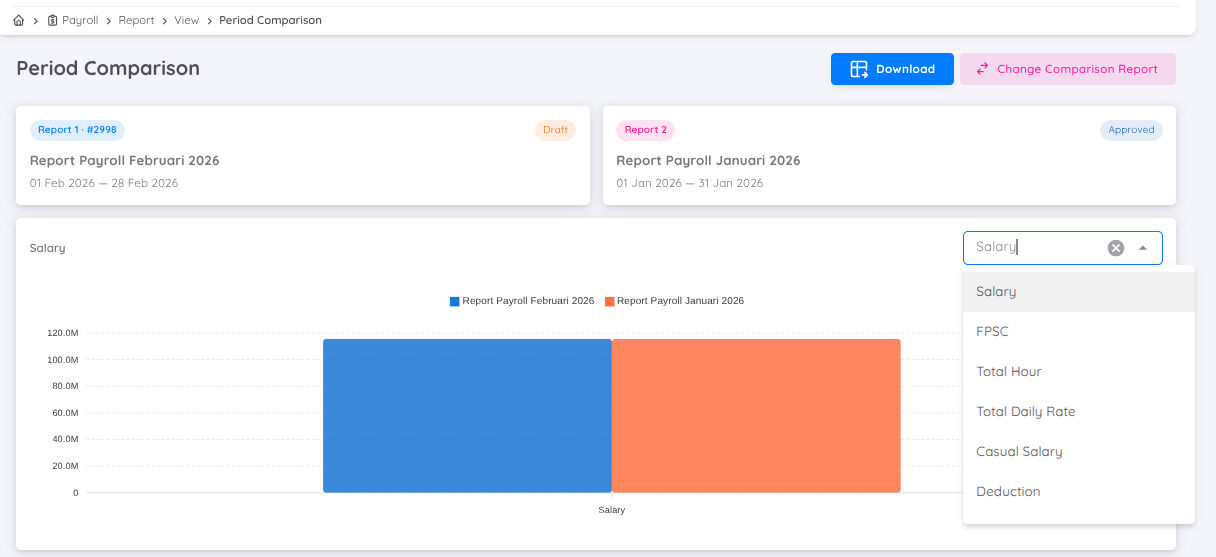
For each payroll account, the system displays:
- Current period amount
- Previous period amount
- Difference (Variance)
- Percentage variance
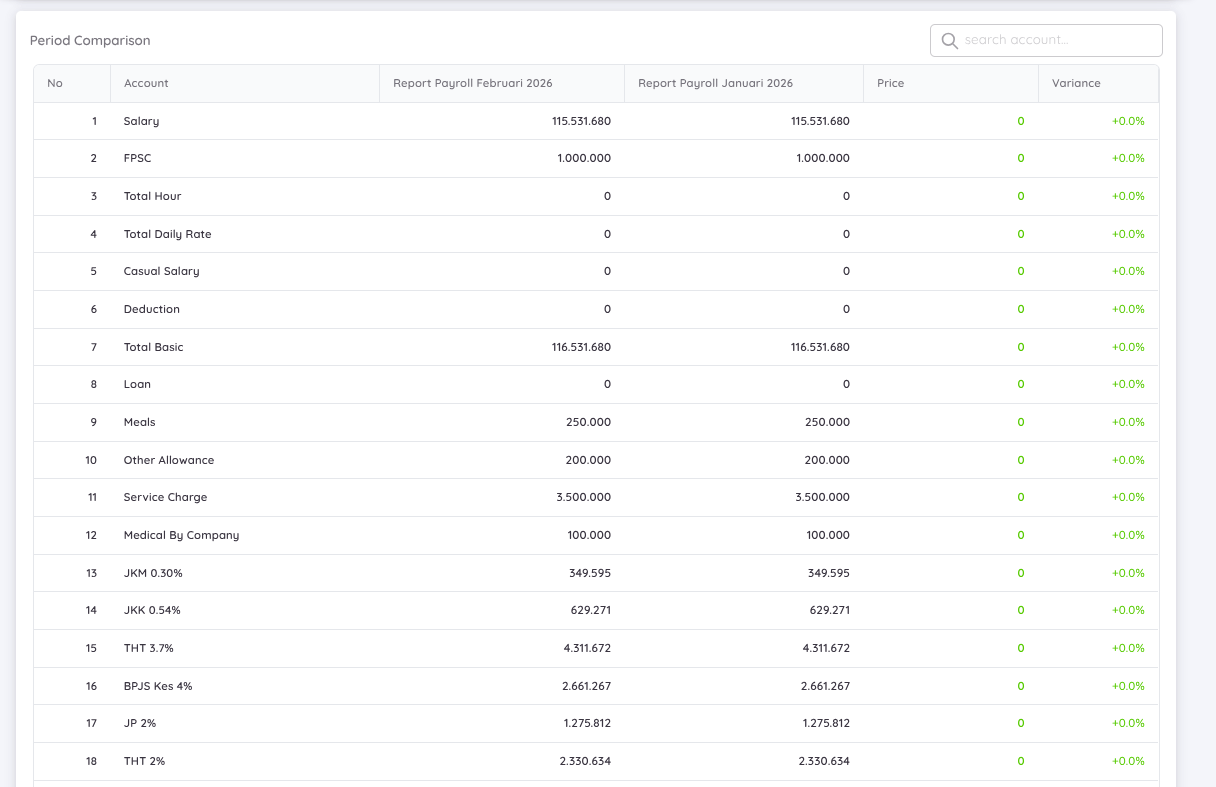
The comparison report can be exported in:
- Excel
- Spreadsheet
Budget vs Actual
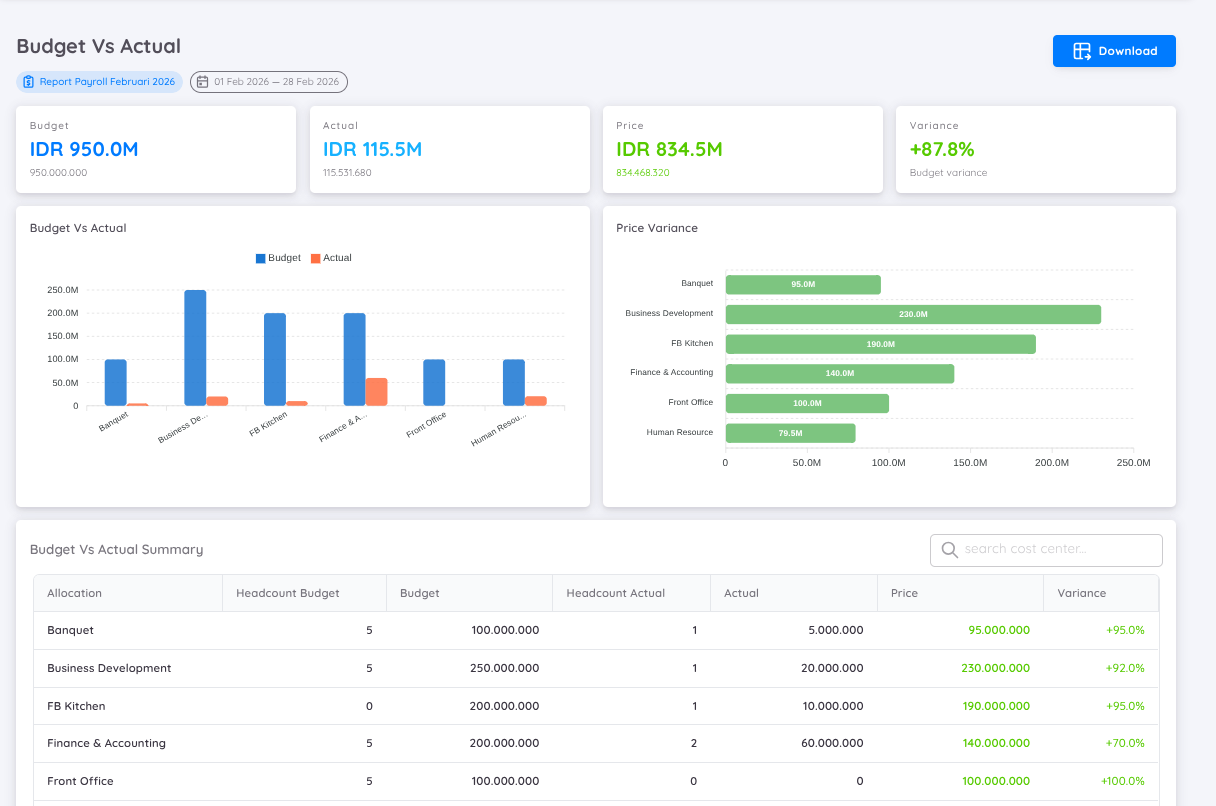
The Budget vs Actual feature compares planned payroll budgets with actual payroll expenses.
This analysis enables organizations to evaluate payroll spending against allocated budgets across different payroll periods, cost centres, and allocation accounts.
The report includes:
- Budget amount
- Actual payroll expense
- Variance amount
- Variance percentage
This information helps management:
- Monitor payroll spending.
- Identify over-budget or under-budget payroll costs.
- Improve workforce planning.
- Support budgeting and financial decision-making.
Action Menu
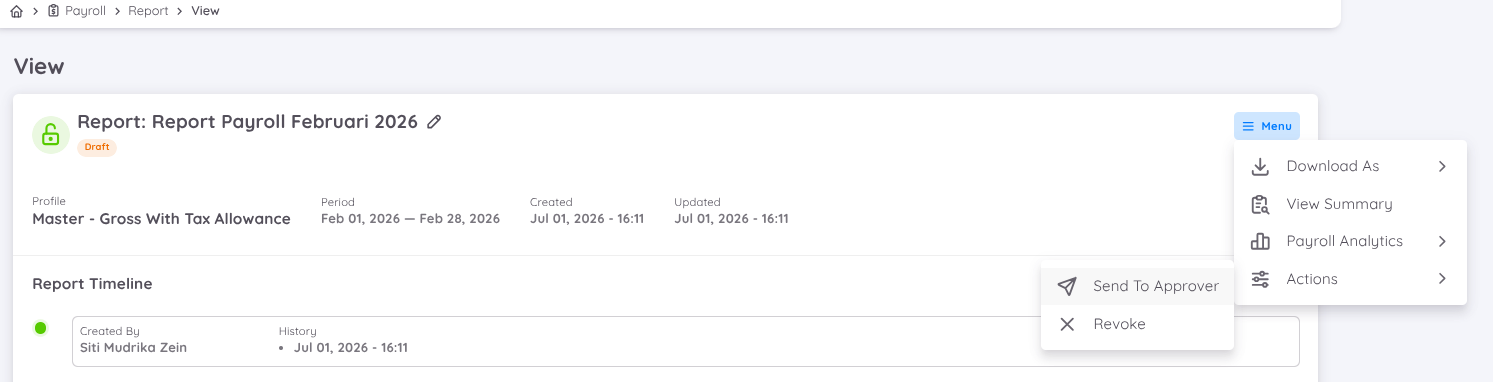
The available actions depend on the current payroll report status.
When the report is in Draft
The following actions are available:
- Send to Approver — Sends the payroll report to the first approver in the approval workflow. All designated approvers will receive an email notification.
- Revoke — Cancels the payroll report before it enters the approval process.
NOTE
Once a payroll report has been Revoked, it can no longer be accessed or restored. Please ensure the report is no longer required before performing this action.
When the report is Waiting for Approval
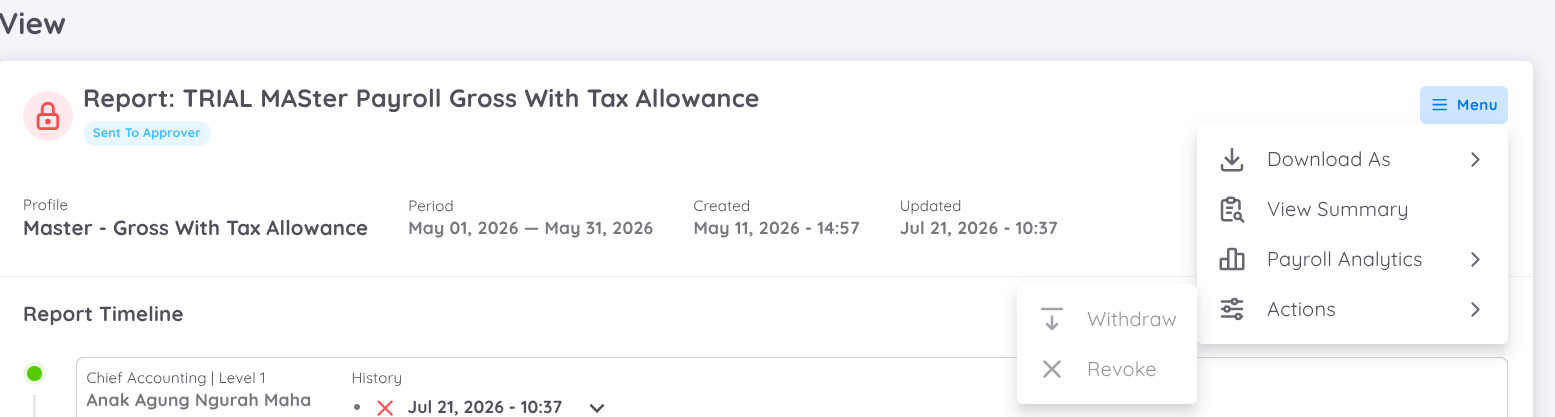
Available action:
- Withdraw — Cancels the approval process and returns the payroll report to Draft status.
When the report has been Approved
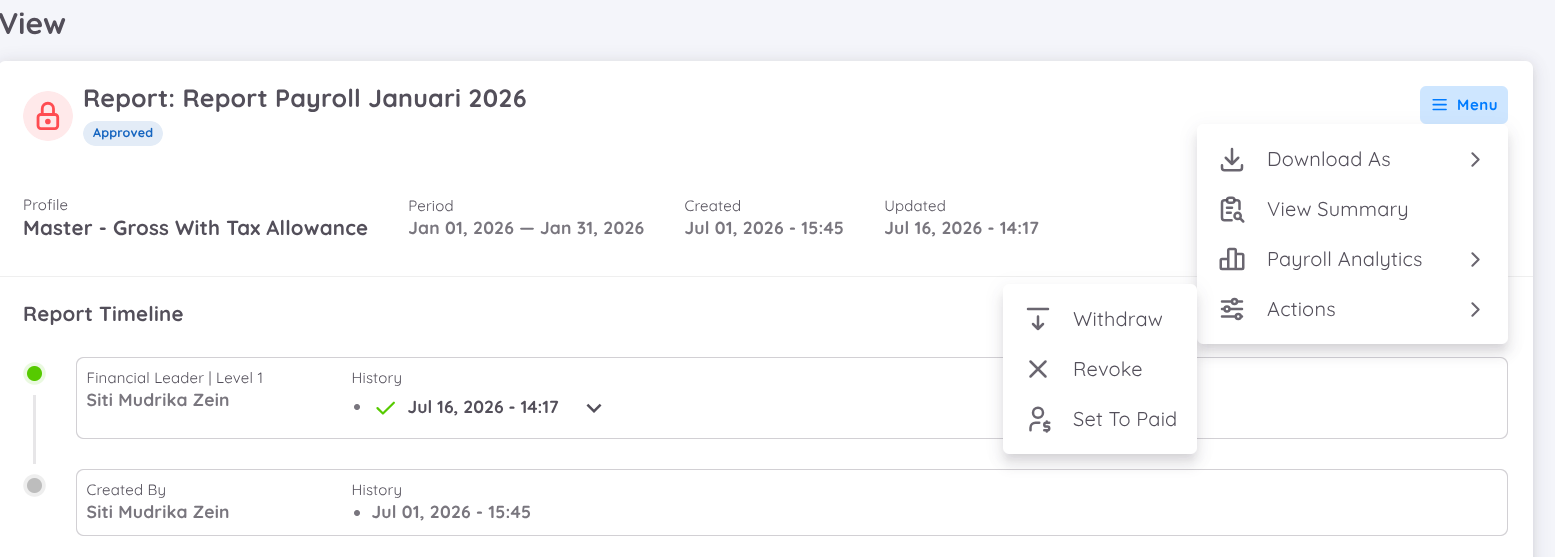
Available action:
- Set to Paid — Finalizes the payroll report.
Once the report status changes to Paid:
- The payroll process is considered complete.
- The payroll report can no longer be withdrawn or revoked.
- Depending on the payroll generation settings, employee payslips will automatically be distributed to employees.
- Payroll download reports become available.
- Salary Slip tab becomes available and can be accessed to view or download employee salary slips.
IMPORTANT
Only the user who generated the payroll report (the report creator) is authorized to access and perform actions from the Action menu.
Payroll Reports
The Payroll Reports section displays all report templates generated for the selected payroll.
Available report templates can be customized. Please contact the Sentinel Tech Team if additional reports or customized report formats are required.
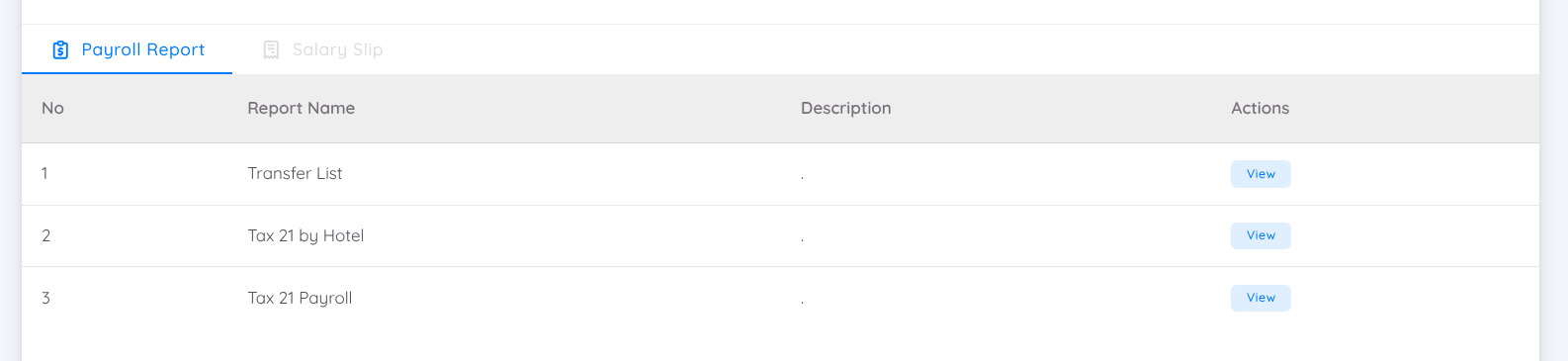
Select a report template to view its detailed payroll information.
Payroll Report Details
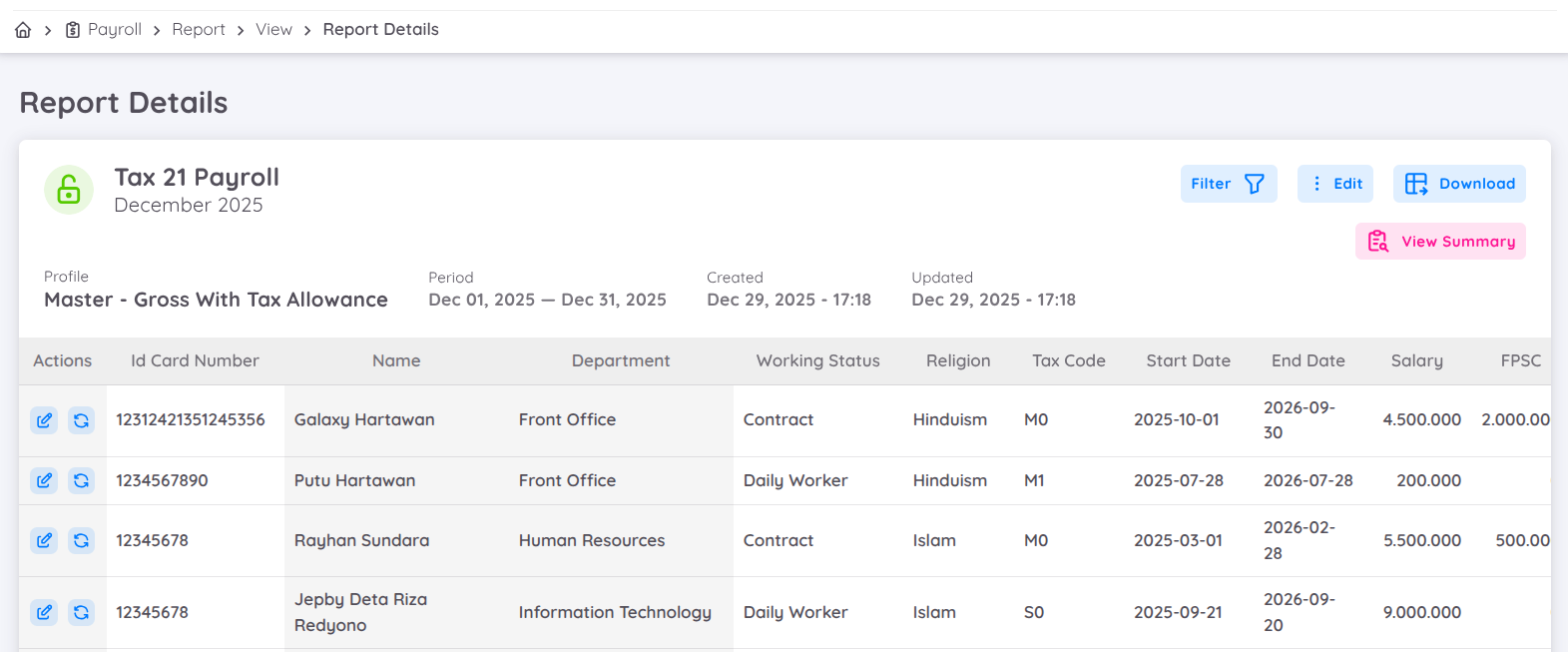
The Payroll Report Details page displays the complete payroll calculation for each employee, including all payroll components contained within the selected report.
Users who have access to the Payroll menu can view the details of all generated payroll reports. However, only the report creator (the user who generated the payroll) is authorized to perform payroll actions, including editing payroll values, making adjustments, and accessing the Edit and Action buttons.
When editing is permitted, an Action column will appear, allowing the report creator to modify payroll component values for individual employees.
Any changes made will automatically recalculate the payroll using the configured payroll formulas, ensuring all related calculations remain accurate.
NOTE
Changes made to a payroll component are synchronized across all payroll report templates generated from the same payroll process. Updating an account in one report automatically updates the corresponding account in every related report.
Filter Data
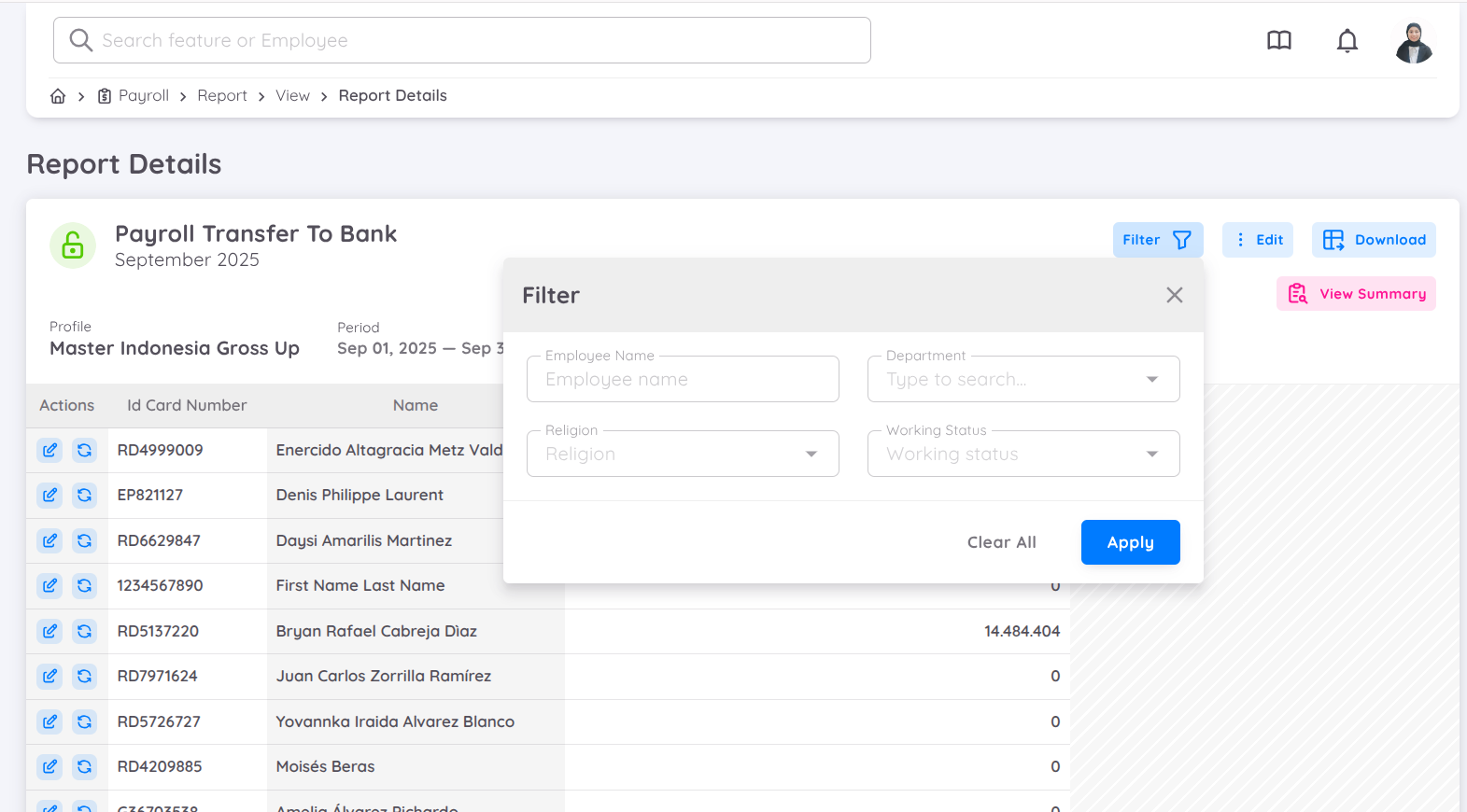
Users can filter employee payroll data using four types of filters: Employee Name, Department, Religion, and Work Status.
Edit Report
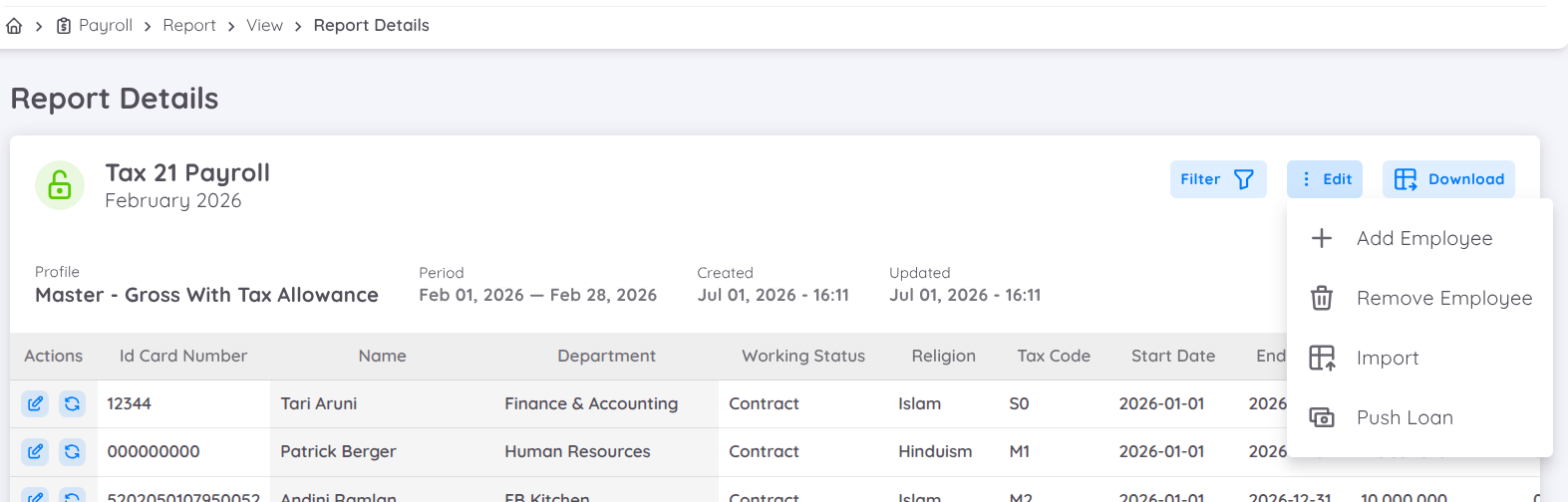
The Edit button allows the report creator to modify the payroll report after it has been generated. Depending on the payroll configuration and report status, the following actions are available:
Add Employee : Use Add Employee to include an employee who was not included when the payroll was originally generated. This is commonly used in scenarios where an employee's contract has already been deactivated in the system but the employee is still entitled to receive salary or other payroll payments.
An employee can be added to the payroll report for up to 3 months after their contract has been deactivated.
Remove Employee: Use Remove Employee to exclude an employee from the payroll report if they were included by mistake or should not be processed in the selected payroll period.
Removing an employee will delete all payroll calculations associated with that employee from the current payroll report.
Import: The Import Value feature allows users to import payroll component values in bulk using the provided import template. This is useful for updating variable payroll components such as allowances, deductions, overtime, incentives, commissions, or other payroll values before finalizing the payroll.
Push Loan: The Push Loan feature imports outstanding employee loan transactions into the current payroll report.
Any eligible employee loan deductions for the payroll period being generated that have not yet been processed can be added to the payroll using this action. The imported loan transactions will then be automatically deducted during the payroll calculation process.
Add Employee into Payroll Report
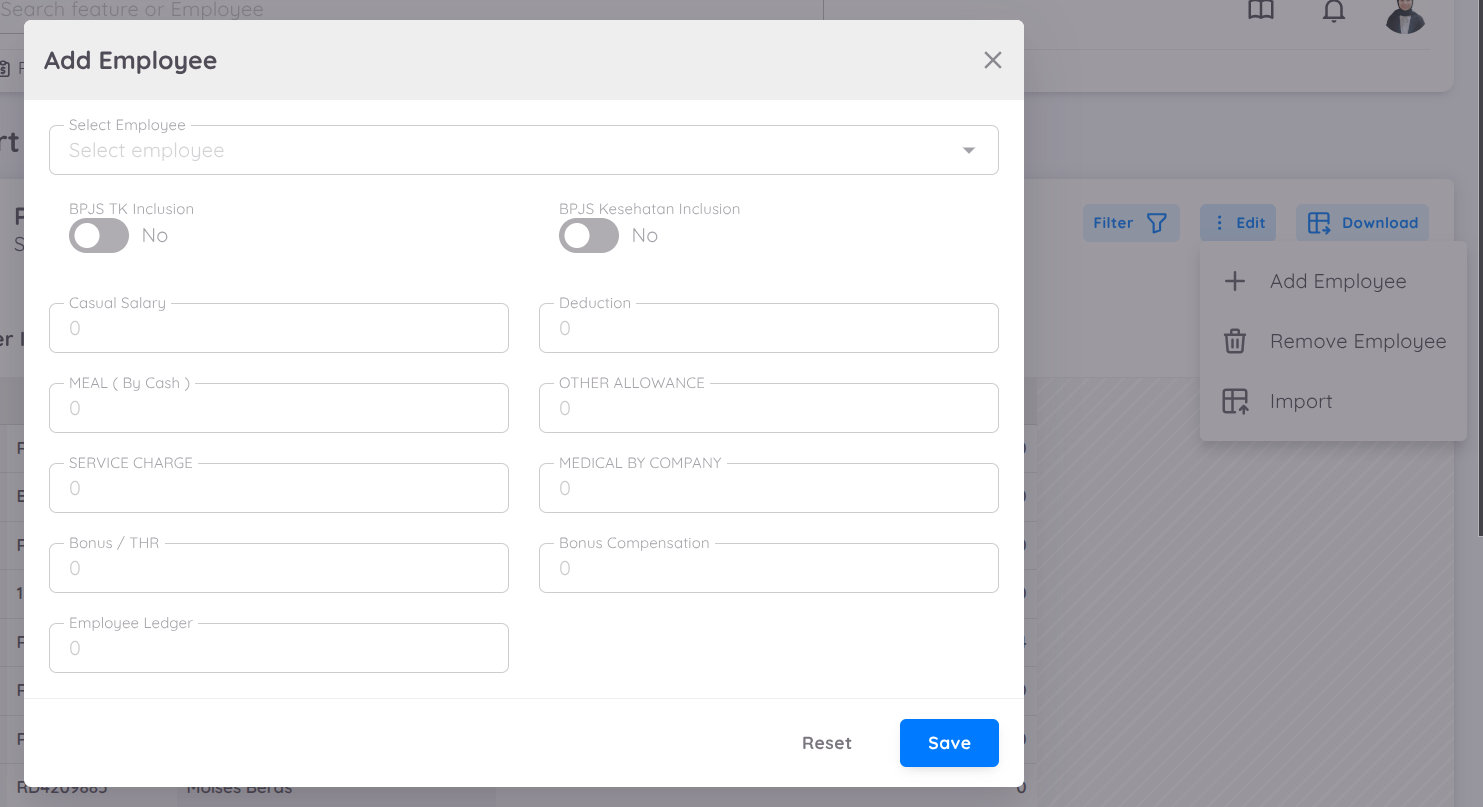
If an employee is not included in the generated payroll report, the report creator can manually add them by clicking the Edit button in the upper-right corner of the page and selecting Add Employee.
The employee list includes:
- Employees with an Active contract.
- Employees whose contracts have been inactive within the last 3 months.
Search for the employee you want to add, then complete the required payroll component values in the same way as when generating the payroll report.
During this process, the system automatically retrieves the employee's Basic Salary and contract-based Benefits from the employee's active (or latest eligible) contract.
You only need to review and enter values for payroll components that require manual input or verification, such as:
- Variable allowances.
- Incentives or bonuses.
- Overtime.
- Deductions.
- Other eligible payroll components.
- Enabling or disabling optional payroll components based on employee eligibility.
After all required payroll values have been completed, save the changes to include the employee in the payroll report.
Remove Employee from Payroll Report
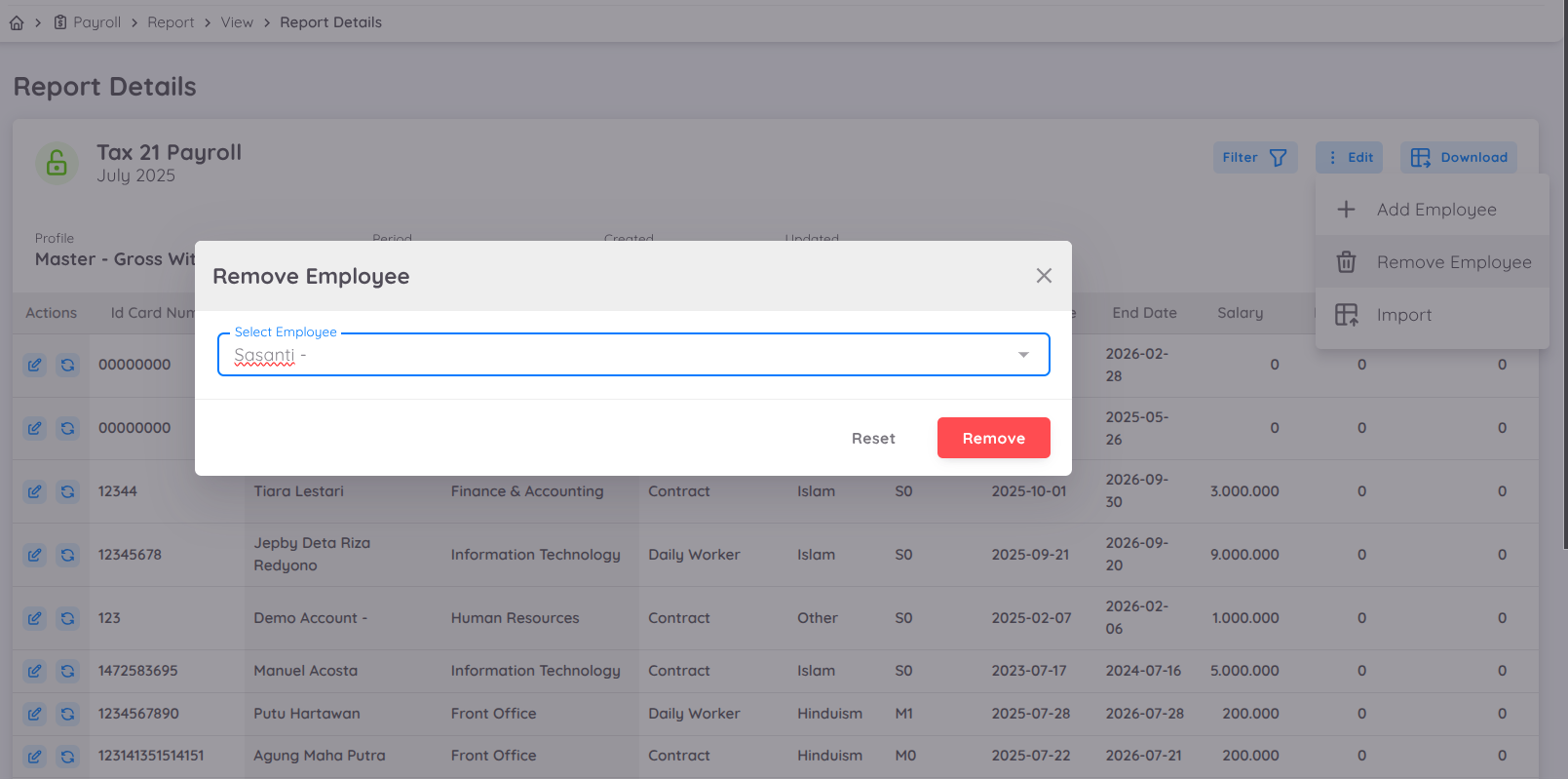
If an employee should not be included in the payroll report, the report creator can remove them by clicking the Edit button and selecting Remove Employee.
In the Search field, locate the employee you want to remove, then click Remove to exclude the employee from the current payroll report.
Removing an employee will delete all payroll calculations associated with that employee from the selected payroll report.
NOTE
Only employees that are currently listed in the payroll report can be removed. If you cannot find the employee using the search function, browse through the report pages to ensure the employee is included in the payroll report before attempting to remove them.
Import Data
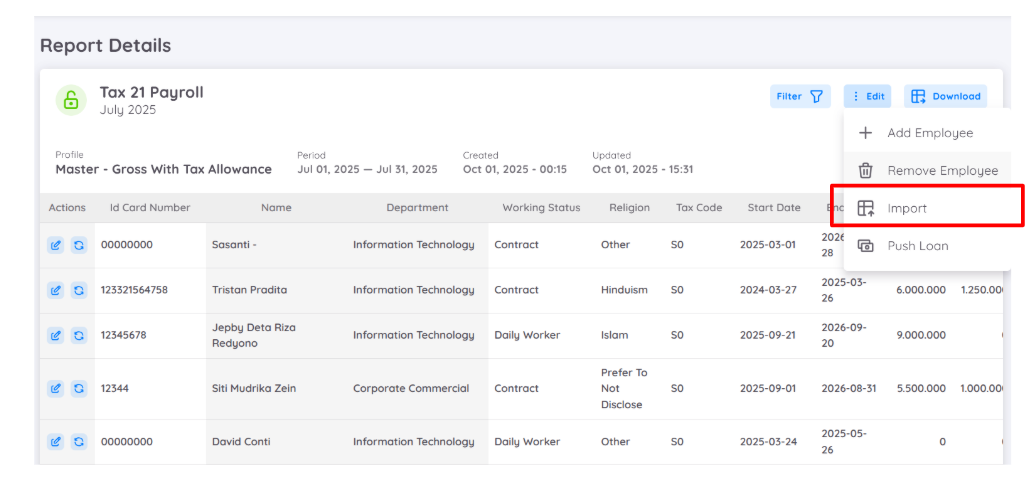
In addition to using the Edit Employee Payroll feature, users can also update employee payroll data through the Import Payroll menu.
To import payroll data, click the Edit button in the top-right corner and select the Import option.
Before importing data, you must first download the Data Template.
To download the template:

- Select the payroll accounts you want to update.
- All accounts configured in your Payroll Profile will be displayed.
- Choose the specific account(s) to be updated.
- Download the generated import template.
You can then enter the required values into the template before importing the data.
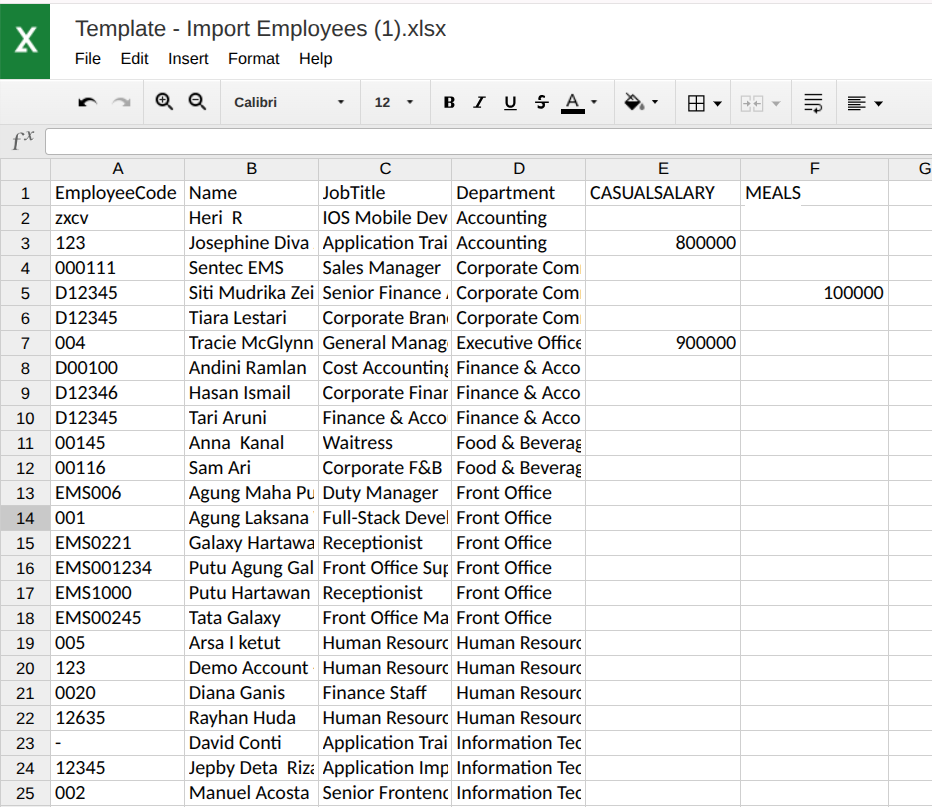
In the downloaded template:
- Enter the correct or updated value for each employee.
- All employee names will be included automatically in the file.
Please note:
- Any value that needs to be updated must be re-entered in the template.
- If an employee is removed from the template, or if a value field is left empty, the system will process the employee with a value of 0.
- Empty values or removed data will overwrite existing data and be treated as 0.
Ensure that all values are entered as plain numbers only, without:
- Dots (
.) - Commas (
,) - Formulas
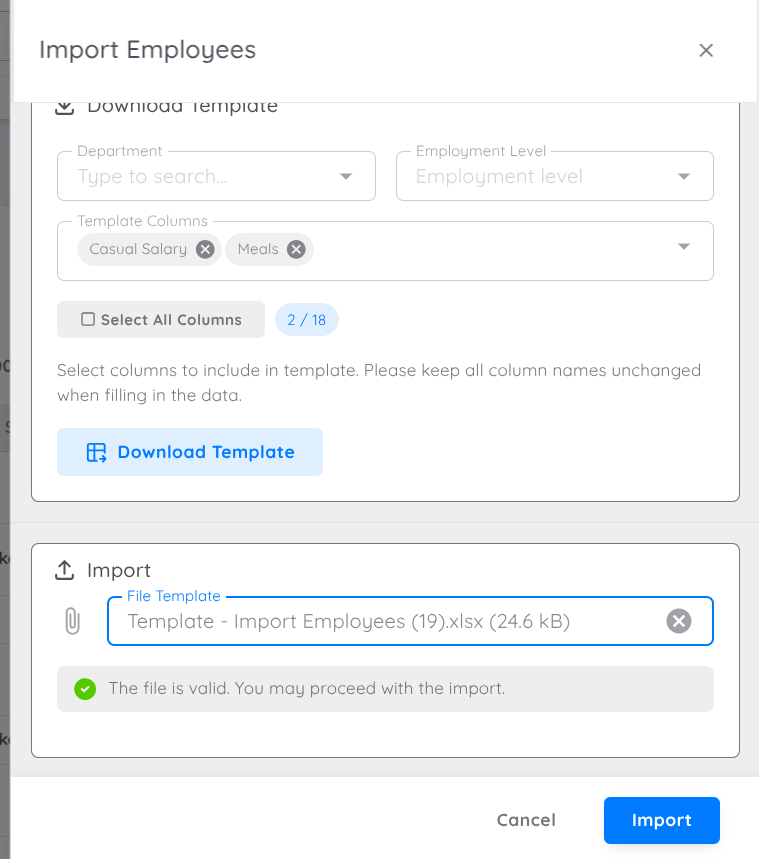
After completing the data input and updates, upload the template using the Import column.
Make sure that the uploaded file matches the selected account.
To proceed with the import:
- Select the payroll account again.
- Click the Import button.
If no account is selected, the Import button will remain inactive and a notification will be displayed.
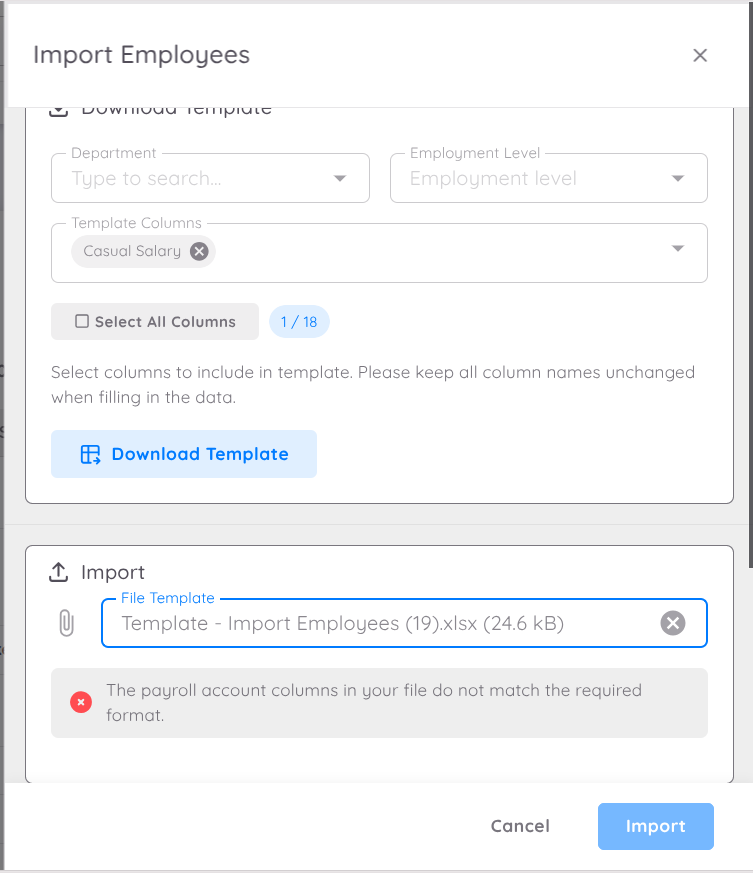
Once the data is successfully imported, the updated payroll values will be reflected in the report.
Push Loan
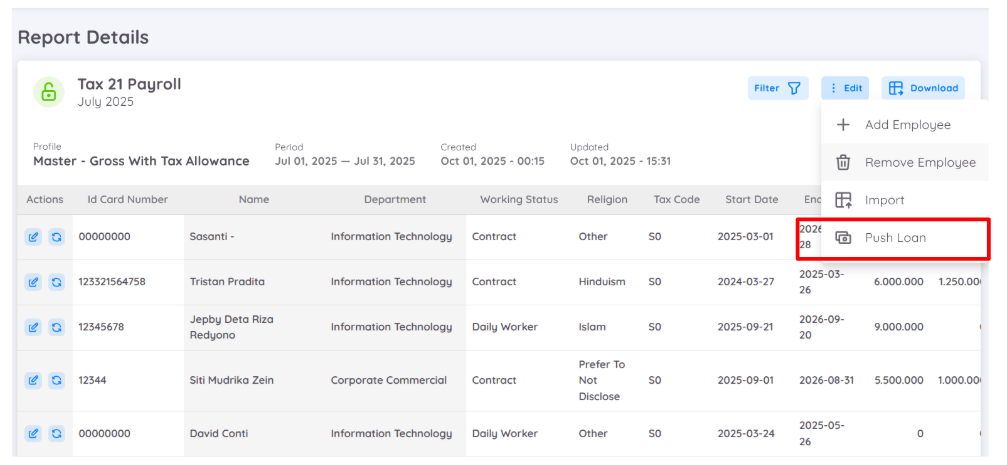
In addition to the Loan feature available in the Finance module, loans are now fully integrated with Payroll in Sentec EMS.
To include loan data in the payroll report, you must first map the loan to the corresponding payroll account. Once the loan is mapped, loan deductions will be automatically calculated and reflected in the payroll report during payroll processing.
This integration helps ensure:
- More accurate payroll calculations
- Reduced manual adjustments
- Better visibility of loan deductions within payroll reports
To add or configure a specific account for loan deductions, please contact the Support Team for assistance.
Note
To use the Push Loan feature, you must first configure the Loan Account.
And for more detailed information about loan management, please refer to the Loan Documentation.
To push a loan to payroll:
- Navigate to Payroll → Report.
- Open a payroll report with Draft status.
- Click View on the selected report (e.g. Tax 21 or Payroll).
- Click Edit, then select Push Loan.
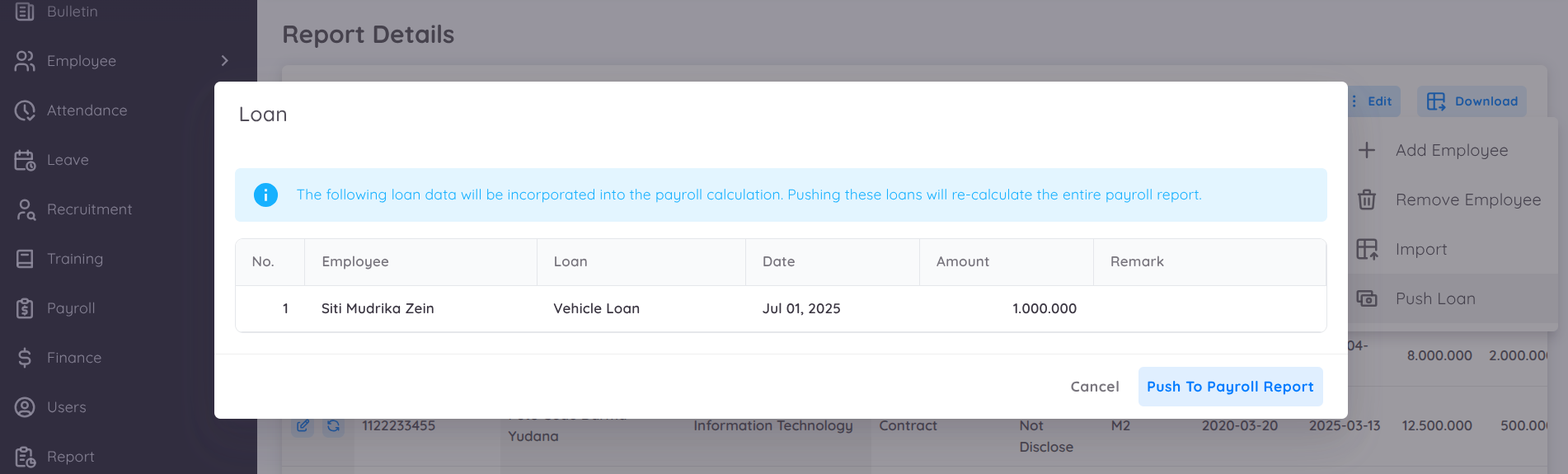
The loan payment schedule will be aligned with the payroll period being generated.
When a loan is added to the payroll report, the loan amount will be reflected under:
- The mapped Loan Account, or
- Other applicable accounts (e.g. Medical by Employee or a Custom Account),
it will depends on your payroll setup and loan account mapping.
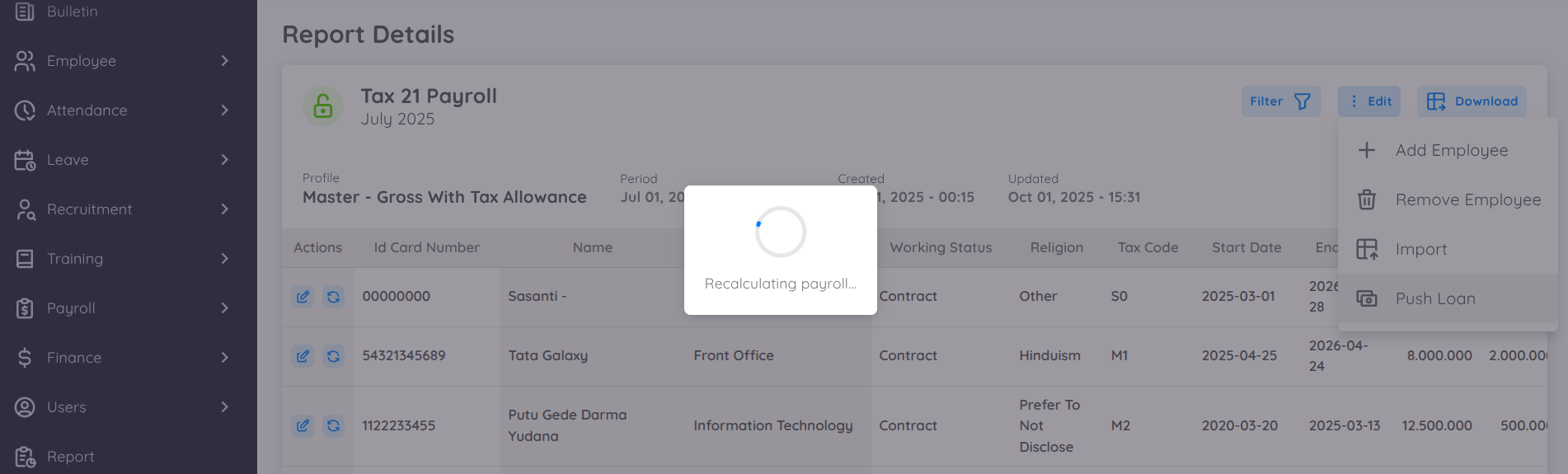
Rules for Pushing Loans to Payroll
- The loan pushed will always follow the payroll period currently being generated.
- If the loan value or installment details are updated, you must push the loan again to apply the changes.
- Even if a loan has already been pushed, any changes made afterward will not be reflected in payroll unless the loan is re-pushed.
After clicking Push to Payroll Report, the loan will be automatically added and calculated in the payroll report.
Edit Individual Employee Payroll
The report creator can update payroll values for individual employees directly from the payroll report by using the Action column available for each employee.
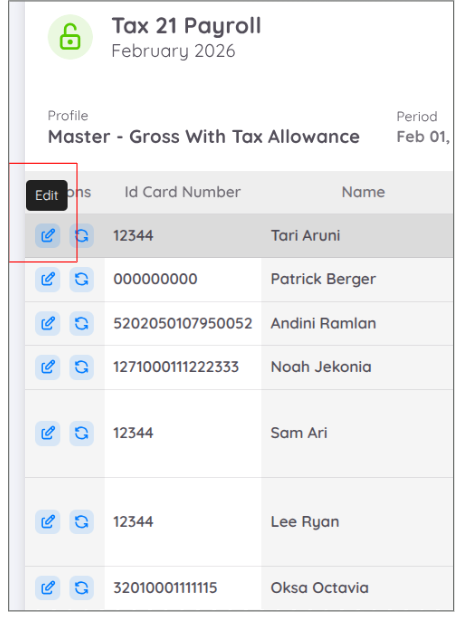
To edit an employee's payroll data, click the Edit (pencil) icon in the corresponding employee row.
The Edit Employee Payroll window will display all payroll accounts that are available for manual adjustment. These are the same editable payroll accounts that were available when the payroll report was originally generated.
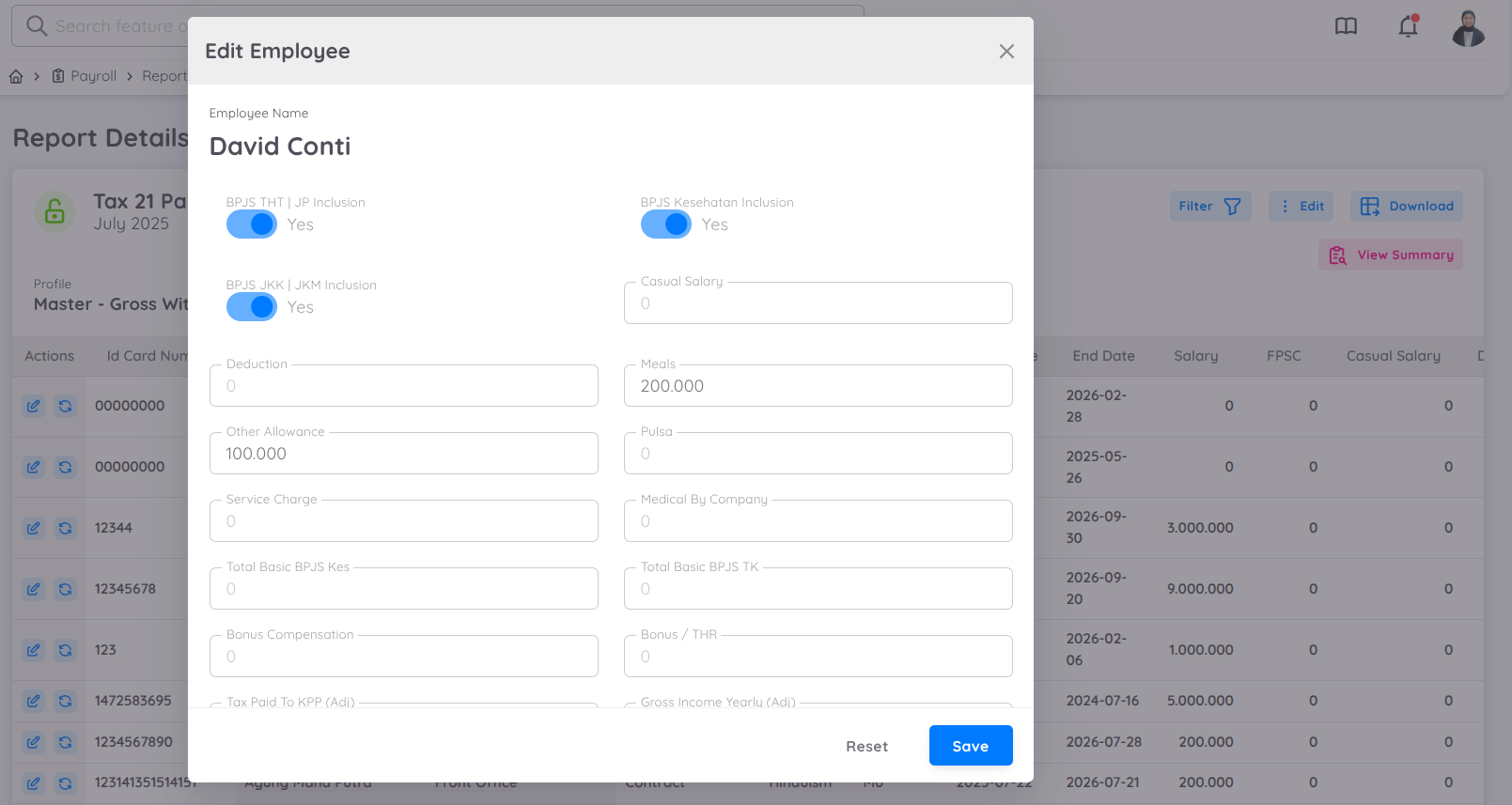
You can update values for payroll components that allow manual input, such as variable allowances, incentives, deductions, or other configurable payroll accounts.
After saving the changes, the system will automatically recalculate the employee's payroll using the configured payroll formulas.
NOTE
Only payroll components that are configured as editable can be modified from the Edit Employee Payroll window.
Contract-based information such as Basic Salary, fixed benefits, and other values that originate from the employee's contract cannot be edited from the payroll report. To change these values, update the employee's contract first, then recalculate the payroll report as required.
Recalculate
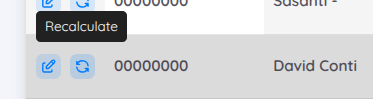
The Recalculate button is used to recalculate payroll results using the latest employee data and payroll configuration.
This feature is useful when there have been changes after the payroll report was generated, such as:
- Updates to an employee's Basic Salary.
- Changes to contract-based benefits (such as FPSC).
- Updates to payroll account values.
- Changes to payroll formulas or calculation rules.
When Recalculate is performed, the system recalculates the payroll using the most recent employee contract information, editable payroll values, and configured payroll formulas.
NOTE
If your organization requires changes to the payroll formulas or calculation logic, please contact the Sentinel Tech Team to update the payroll formula configuration. After the formula has been updated, you can click Recalculate to apply the latest calculation rules to the payroll report.
Another Note
Only the report creator can recalculate or modify the payroll report. Additionally, employee payroll data can only be updated while the payroll report is in Draft status.
Download Payroll Report
The payroll report can be downloaded in Excel formats. Click the download button at the top right and select "Excel."
Approval Process
After the payroll report has been reviewed and is ready for finalization, the report creator can submit it for approval through the Action menu by selecting Send to Approver.
Once the report has been submitted, the approval workflow begins based on the configured approval hierarchy.
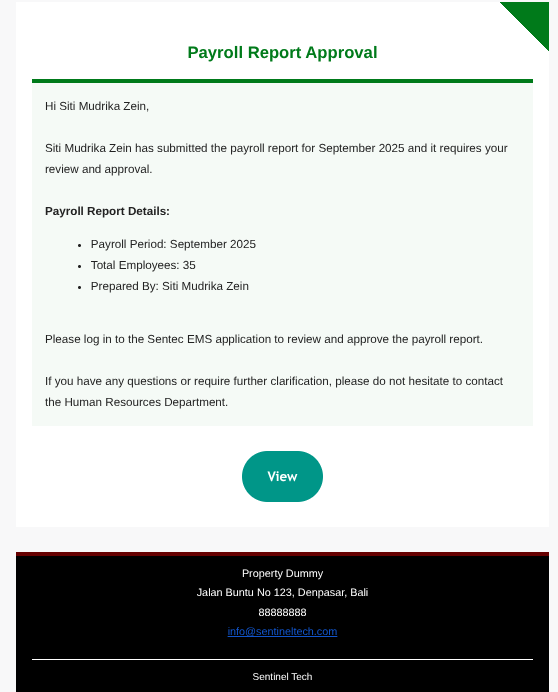
Each approver will receive an email notification informing them that a payroll report is awaiting their approval. Approvers can then open the payroll report and review its details from the View Report page.
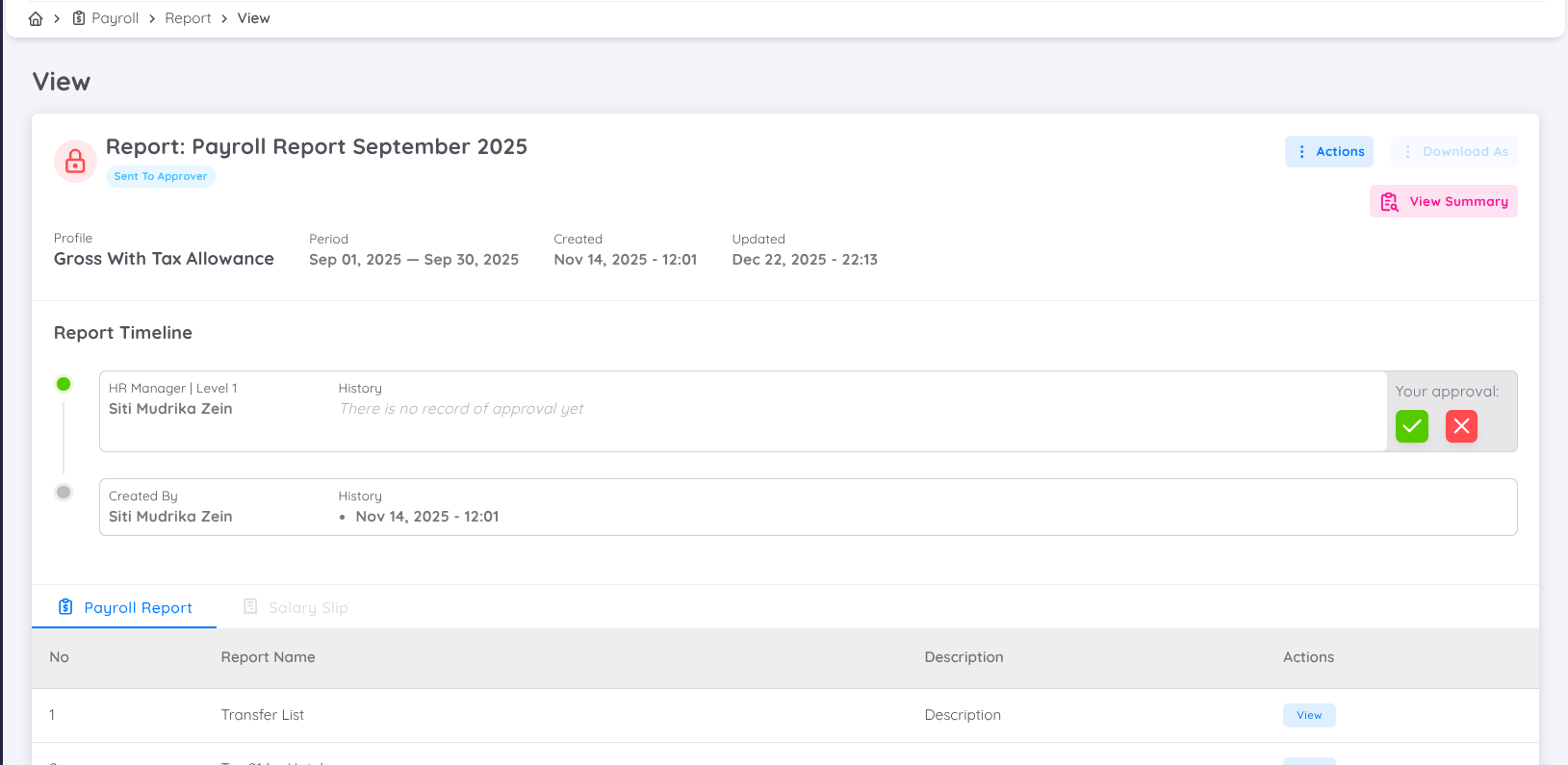
The payroll approval process is performed sequentially according to the configured approval levels. Reports are routed from the lowest approval level to the highest, based on each approver's assigned level number (where a smaller level number indicates higher priority in the approval sequence).
Before making a decision, approvers can review the payroll report, including:
- Payroll report details.
- Payroll Summary.
- Payroll Reports.
- Payroll Analytics (if available).
Available Approval Actions are:
Approve: Approves the current approval step and forwards the payroll report to the next approver in the approval workflow. If the approval is performed by the final approver, the payroll report status changes to Approved.
Reject: Rejects the payroll report and returns its status to Draft, allowing the report creator to make the necessary corrections before resubmitting it for approval.
NOTE
Whenever the payroll report status changes, including submission, approval, rejection, withdrawal, revocation, or being set to Paid, email notifications are automatically sent to the report creator and all relevant approvers.
Payroll Profile Update
In the Payroll module, there is a feature that allows adjustments to reports when changes occur in the system. This feature helps ensure that the generated reports remain accurate and aligned with the latest data.
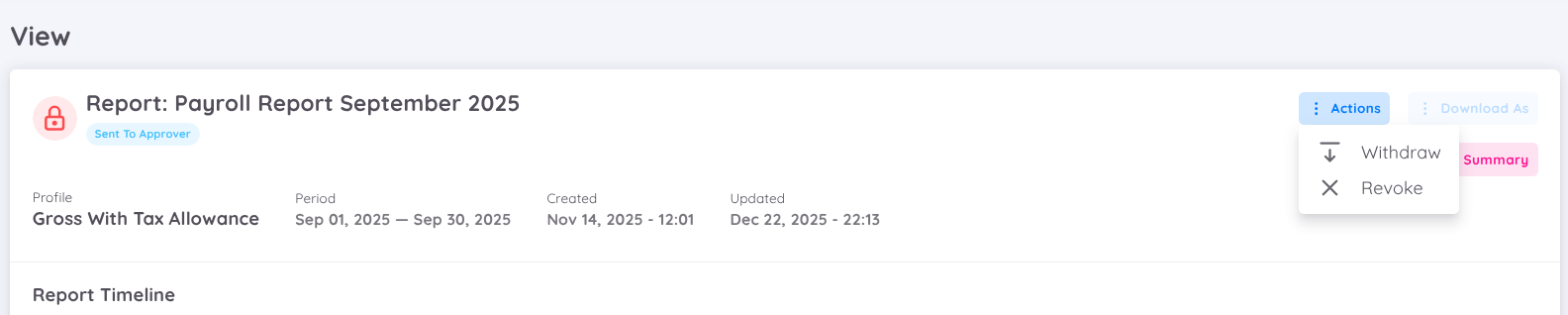
- Revoke : If there are any additions or deletions of columns during system operation, users must perform a Revoke on previously generated reports. This step is necessary to update the reports to reflect the latest data structure changes.
- Recalculate : If the changes only affect the calculation formulas, users simply need to perform a Recalculate on the reports without needing to do a Revoke. This feature will update the calculations based on the new formulas without altering the data structure.
- Withdraw: If a report has already been sent for approval and only minor adjustments or updates are required, users can Withdraw the report. The report will then revert to Draft status for further editing.
This feature ensures that Payroll reports are always up-to-date and aligned with the current system configuration.
Set to Paid
After the review process and all approvals are completed, you must set the report to Paid to automatically generate the payslip and the monthly report summary.
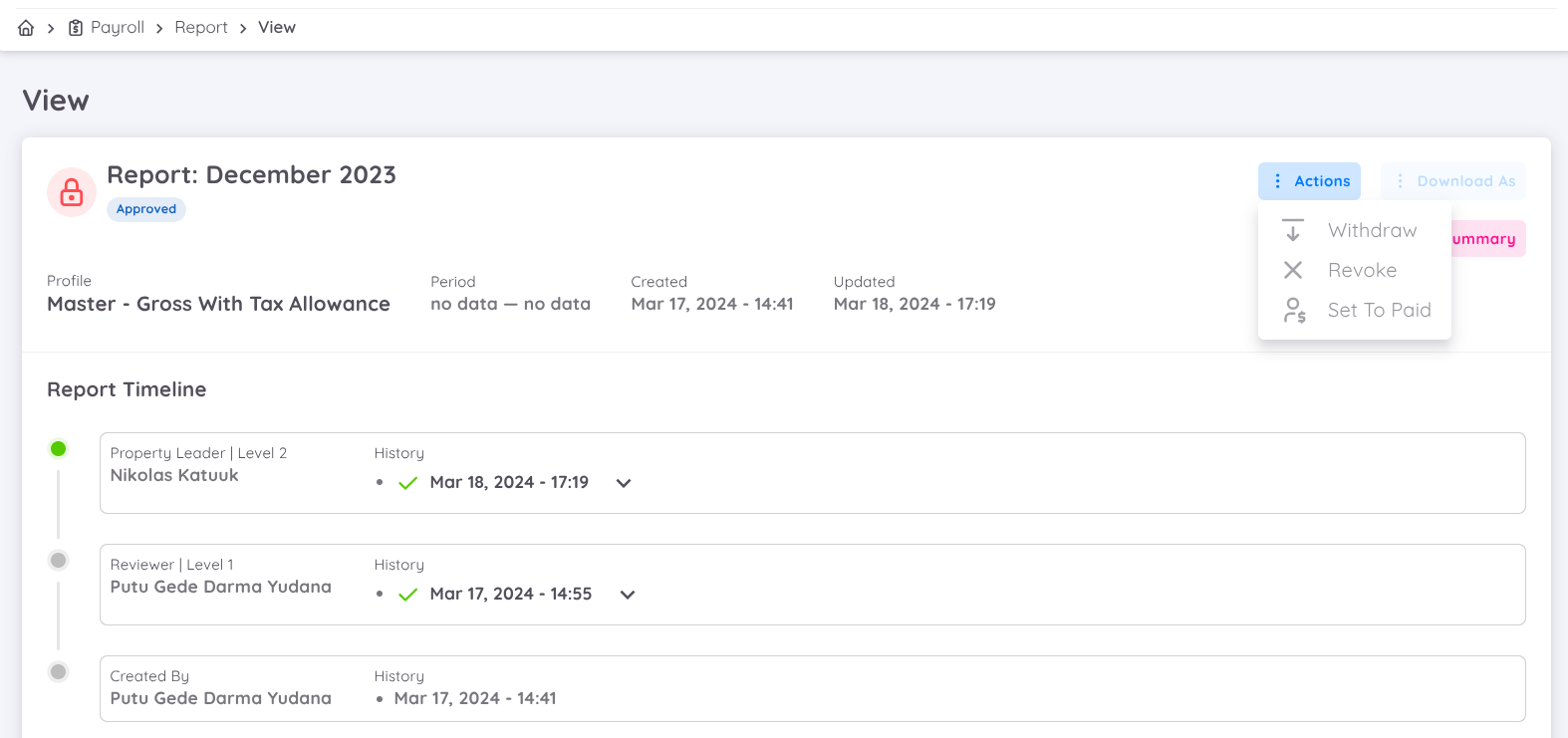
To set the report to Paid, open the View Report page for the approved report, then click the Action button and select Set to Paid.
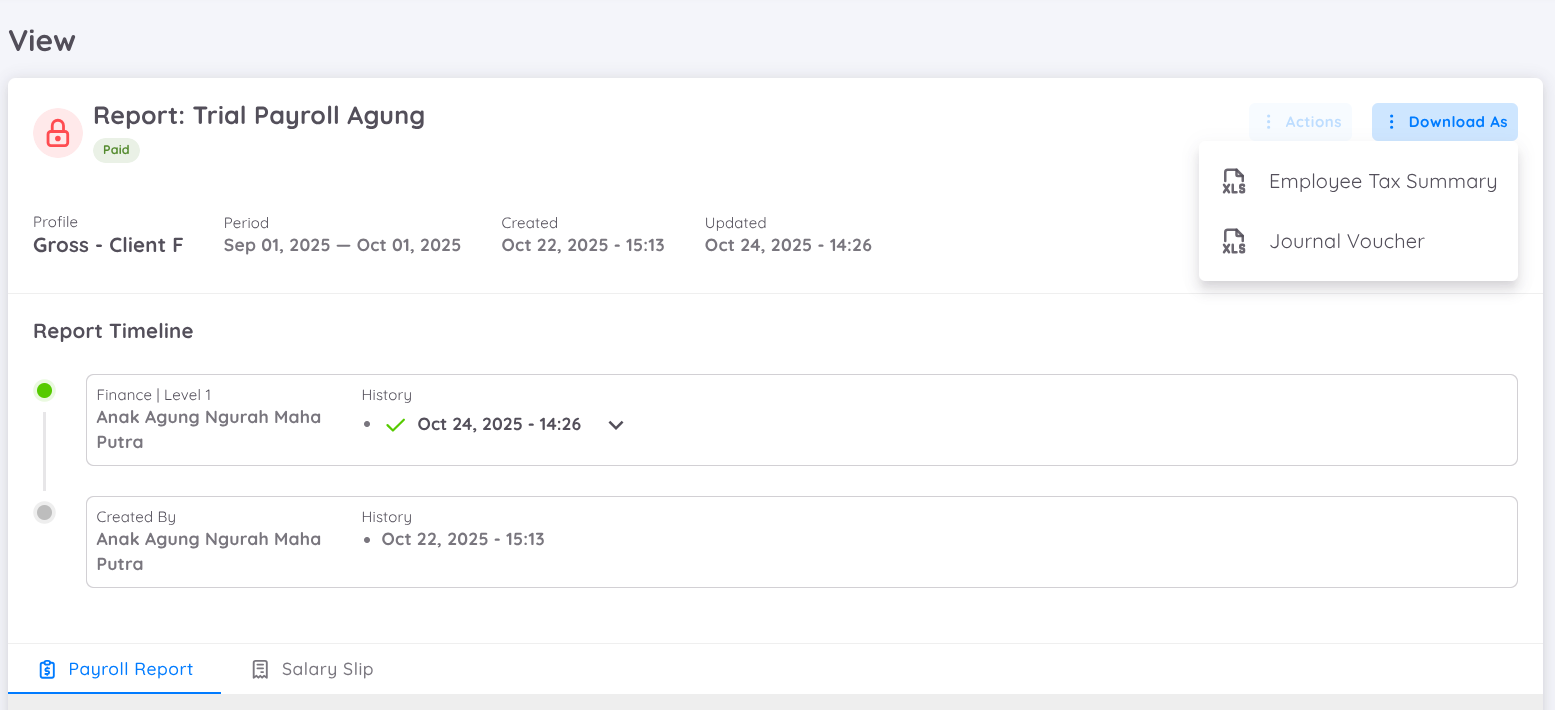
Once the report status is Paid, you can download the following available reports:
- Employee Tax Summary: Monthly PPh 21 withholding report format. This report is intended for official tax reporting and/or regulatory submissions, in accordance with applicable Indonesian regulations.
Salary Slips
Once the payroll report has been set to Paid, the Salary Slip tab becomes fully accessible from the Payroll Report Details page.
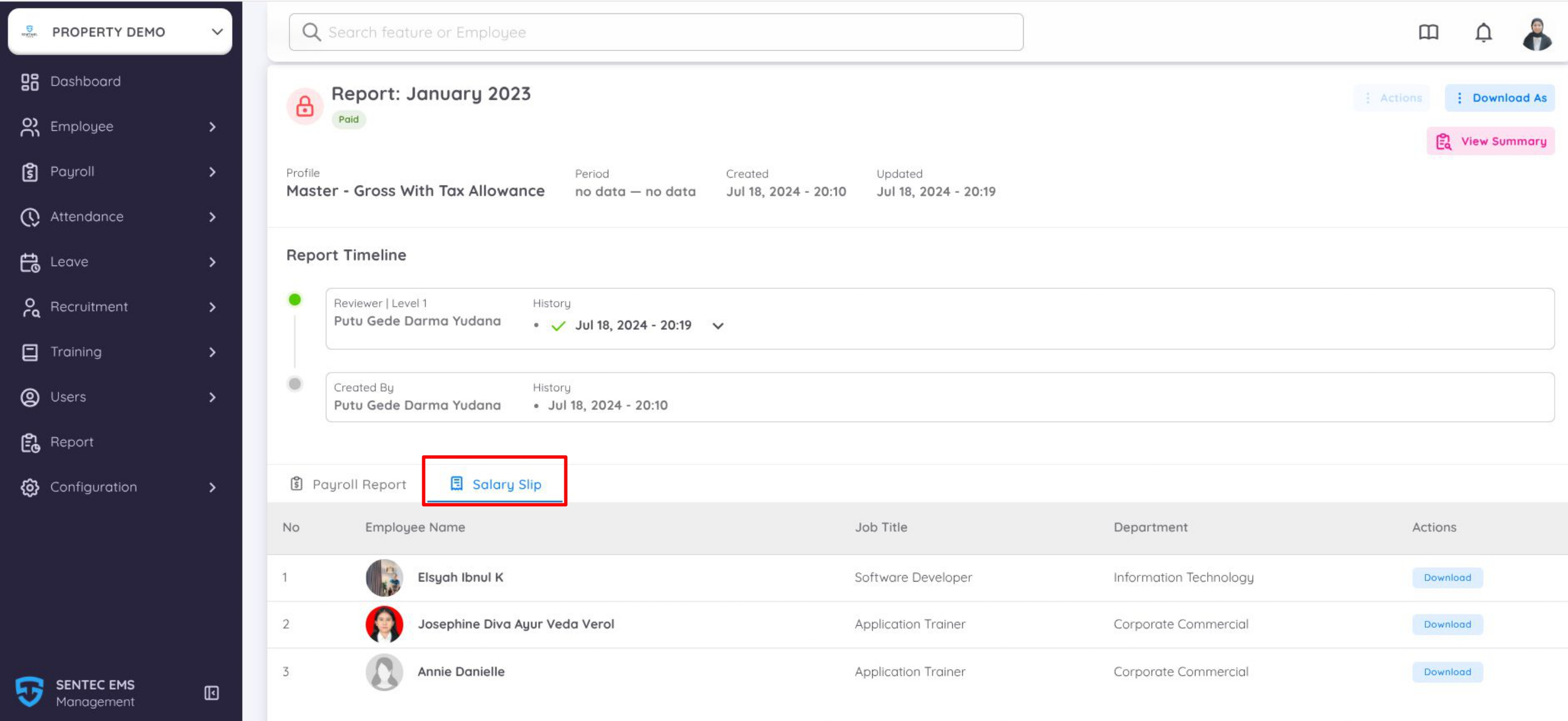
After the payroll report is marked as Paid, authorized users can:
- View employee salary slips.
- Download individual salary slips.
- Access all salary slips generated for the selected payroll report.
Each salary slip contains the payroll information that was finalized during the payroll process, ensuring the document remains unchanged even if employee data is updated afterward.
NOTE
Salary slips remain available even for employees who are no longer active in the company, as each salary slip is permanently associated with the payroll report in which it was generated.
December Report (Indonesia Regulation)
To accommodate and implement the December payroll, Sentec EMS has adjusted several features to support accurate payroll and tax calculations.
This implementation is in accordance with Government Regulation (PP) No. 58 of 2023 and Minister of Finance Regulation (PMK) No. 168 of 2023, which stipulate that the calculation of Income Tax Article 21 (PPh Article 21) is conducted using the Monthly Effective Tax Rate (TER Bulanan).
For the final tax period namely December, or the tax period in which an employee ceases employment, The tax calculation is performed using the progressive income tax rates as stipulated in Article 17 of the Income Tax Law.
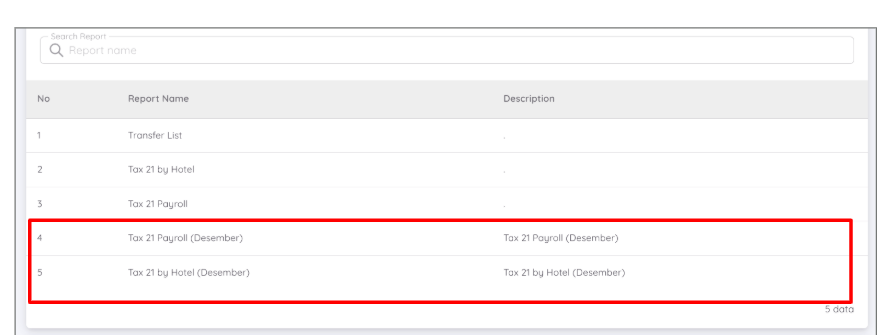
In the December Report, Sentec EMS provides additional reports to accommodate the December payroll process. These reports are designed to support and ensure accurate tax calculations for the December tax period.
NOTE
The report that is adjusted depends on the payroll profile being applied.
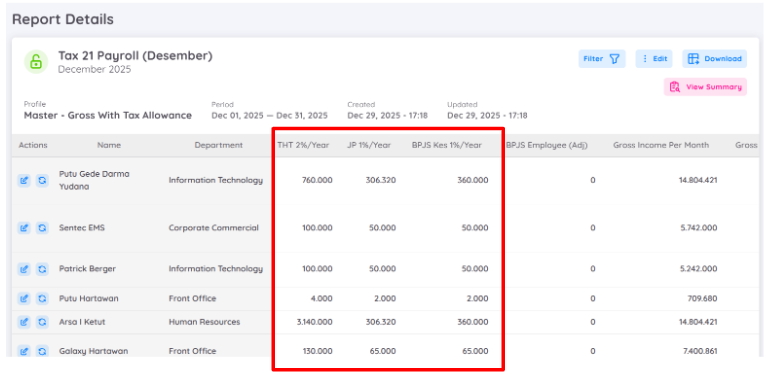
In the December report details, you will find additional columns for annual calculations, such as BPJS Employment (Ketenagakerjaan) – Yearly, BPJS Health (Kesehatan) – Yearly, Gross Income – Yearly, PTKP, Netto, PKP, Tax Per Year, and other related components required for tax calculation.
Monthly calculations and values will continue to be displayed as usual. The annual calculation columns represent the values used by the system to calculate annual income tax.
This is because tax calculations are based on annual income, and all income components included in the tax calculation will be shown.
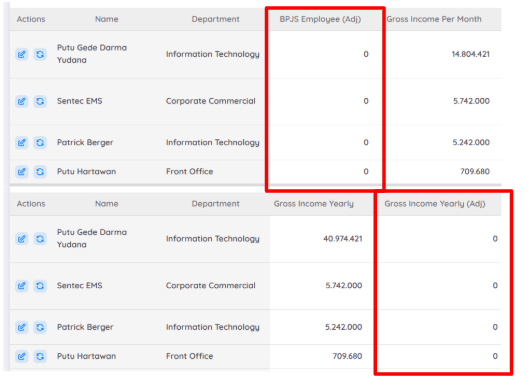
In the December report details, the system also provides adjustment columns for:
- BPJS Employee (Yearly Adjustment) for JHT (Jaminan Hari Tua) and JP (Jaminan Pensiun)
- Additional Gross Income (Yearly Adjustment)
These columns are used to accommodate scenarios where annual income must be calculated from January to December, even if payroll processing in Sentec EMS did not start at the beginning of the year.
Use Case Examples
Payroll started mid-year
If your company started using Sentec EMS payroll in October, you can manually add BPJS employee values and additional gross income for each employee covering January to September.
This ensures that the final tax period (December) is calculated based on the full annual income (January–December).
Newly joined employees
If an employee joined your company during the year and you want to calculate their annual income starting from January, you may also input the relevant values in the adjustment columns for that employee.
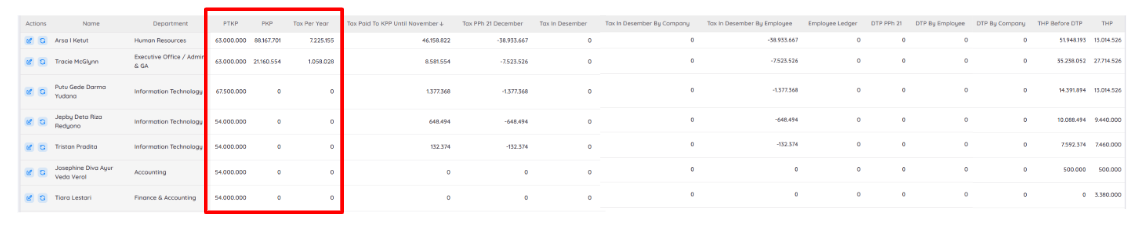
In the December report, the system performs the annual income tax calculation for each employee in accordance with Indonesian tax regulations for the final tax period (masa pajak terakhir).
Annual Tax Components
PTKP (Non-Taxable Income)
The system calculates the applicable PTKP for each employee based on their tax status.PKP (Taxable Income)
PKP is calculated from the employee’s annual net income after deducting PTKP, in accordance with Article 17 of the Income Tax Law.Tax Per Year (Pajak yang Disetahunkan)
Represents the annual income tax payable, calculated using the applicable progressive income tax rates based on the employee’s PKP.

Tax Paid to KPP until November (Pajak yang Telah Disetor/Dipotong)
This amount represents the PPh Article 21 that has already been withheld and remitted to the Tax Office (KPP) up to the previous months within the same tax year.
PPh Article 21 – December
This value is calculated using the following formula:
Tax Per Year − Tax Paid to KPP
- If the result is negative, it indicates an overpayment (Lebih Bayar).
- If the result is positive, it indicates an underpayment (Kurang Bayar).
Tax in December
The tax amount withheld in December follows the PPh Article 21 – December value:
- If the calculated amount is negative (Lebih Bayar), the tax withheld in December will be 0.
- If the calculated amount is positive (Kurang Bayar), the system will withhold the remaining tax balance in the December payroll.