Employee Milestones
This page will display employees based on their contract status. Below is a list of contract statuses and their descriptions:
| Status | Description |
|---|---|
| New Hire | Used for newly recruited employees. |
| Extend | Used when an employee's contract is extended. |
| Resign | Used when an employee submits a resignation. |
| Terminated | Used to terminate a contract before the contract end date. |
| Promotion | Used when an employee receives a promotion. |
| Demotion | Used when an employee is demoted. |
| End of Contract | Used when an employee's contract is not extended. |
| Inter Unit Transfer | Used when an employee is transferred to another company within the same organization. |
| Departmental Transfer | Used when an employee is transferred to another department within the same company. |
| Deceased & Other | Used for contract changes that do not fall into the above categories. |
| Adjustment | Used for changes in the contract that do not alter the contract status, such as changes in supervisors. |
The contract status will be stored as the history of the employee's contract. One contract can have more than one history. Each history must include the effective date of the contract status change.
Onboarding (New Hire)
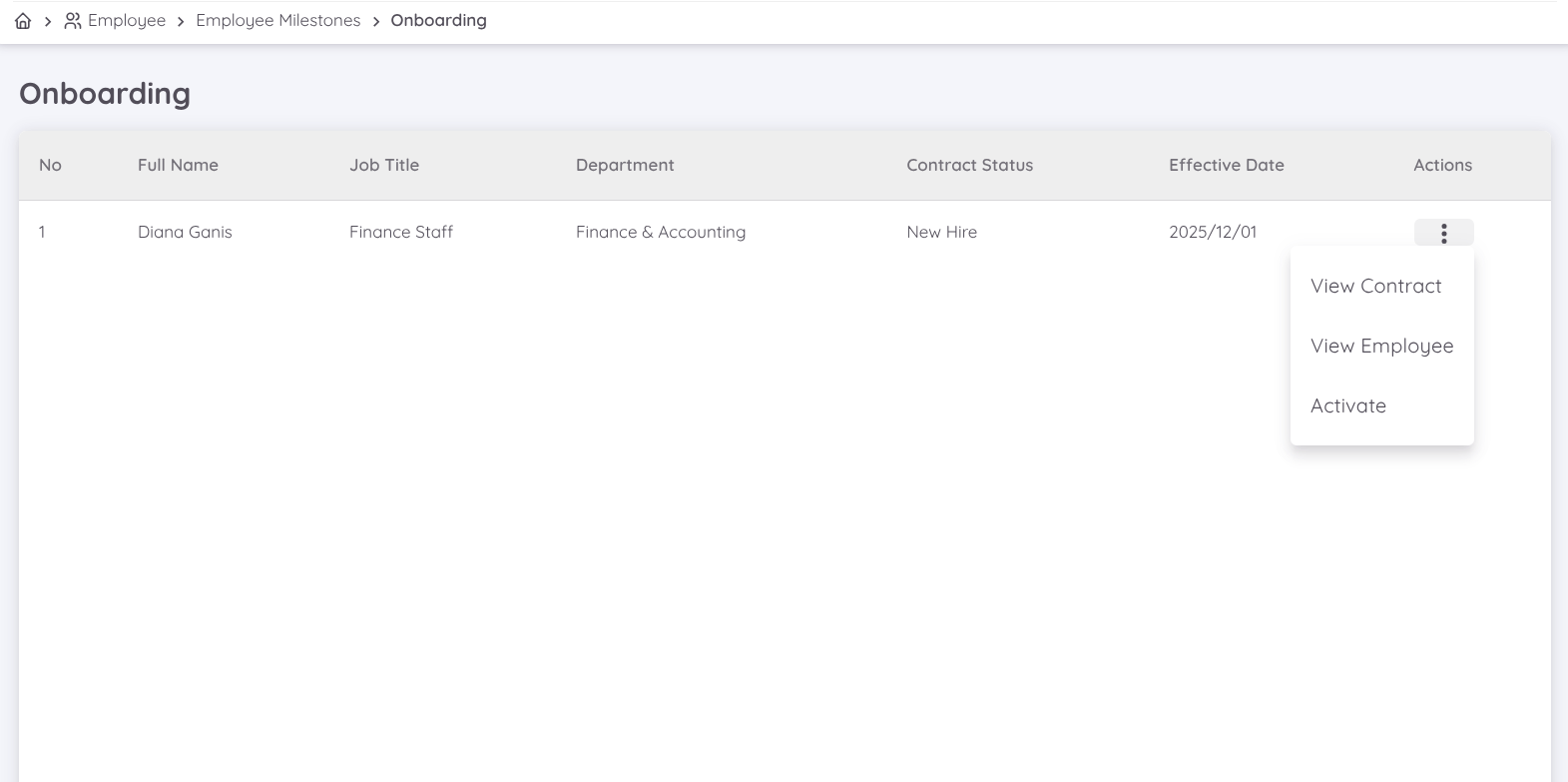
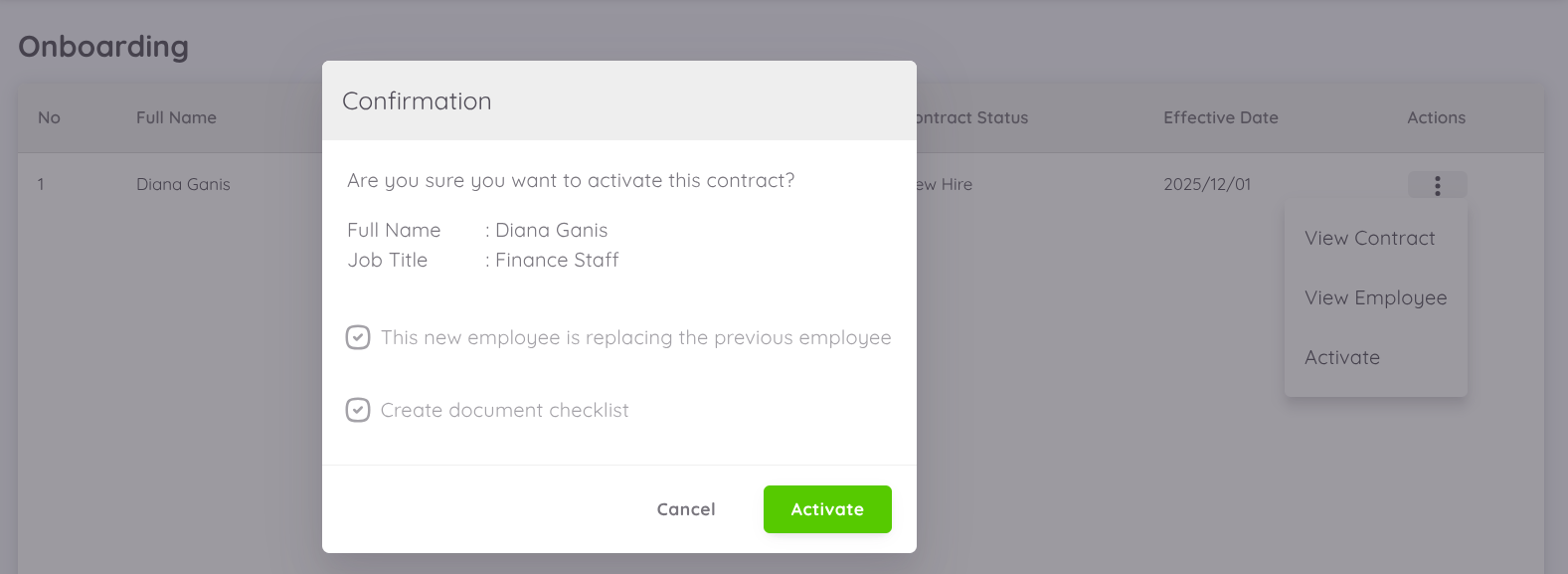
This page will display a list of employees whose contract status is not yet active (meaning the effective date of the contract is within one week). The contract activation process is done manually, and during activation, an option to create related checklist documents will appear.
NOTE
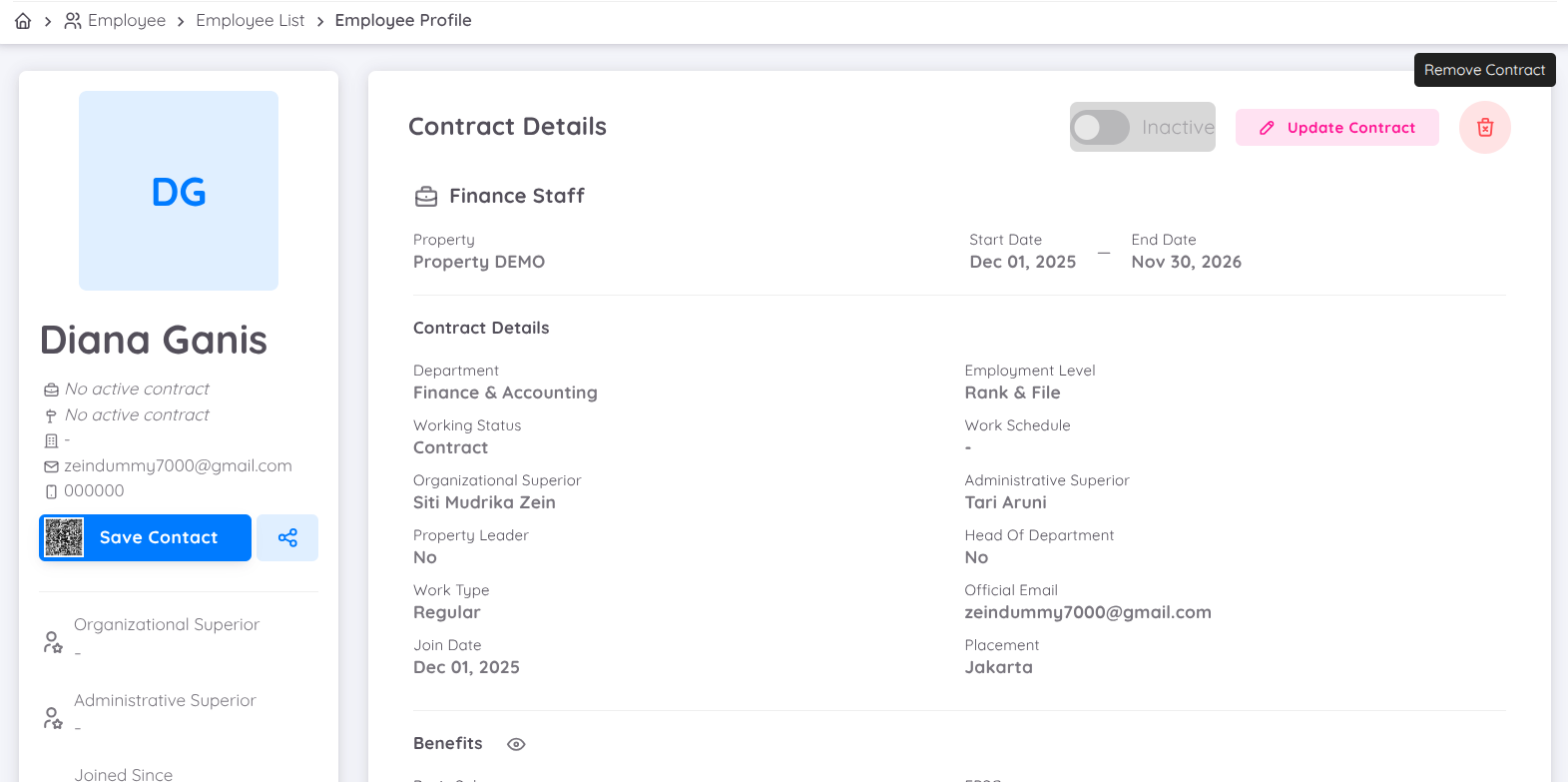
To cancel a contract, you can select the "Remove Contract" option on the employee's contract page available in the Actions list.
New Hire Announcement
For contracts with New Hire status, the Announcement button will appear and remain available for 30 days after the contract is activated. This feature allows the sending of email notifications regarding new employees who have joined the unit, with no limit on the number of emails that can be sent.
This feature can be used if the New Staff Onboarding notification has been activated and the target email addresses have been provided.
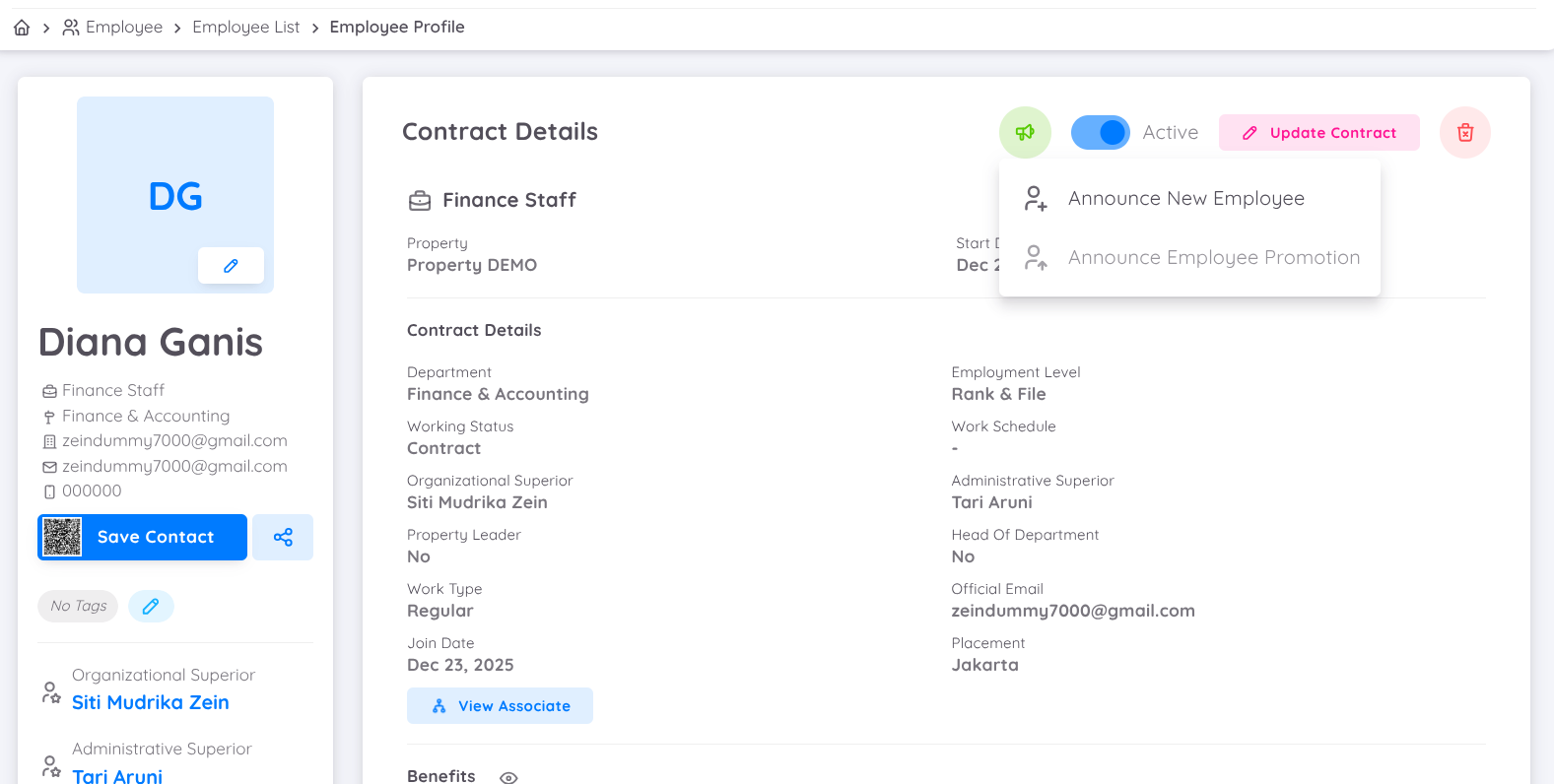
The steps to use this feature are as follows:
- After clicking the Announcement button, a pop-up menu will appear.
- In this menu, users can check the email addresses that were previously entered in the notification settings.
- Users can also add additional email addresses if needed.
- Once all target emails are set, click the Send button to send the notification email regarding the new employee.
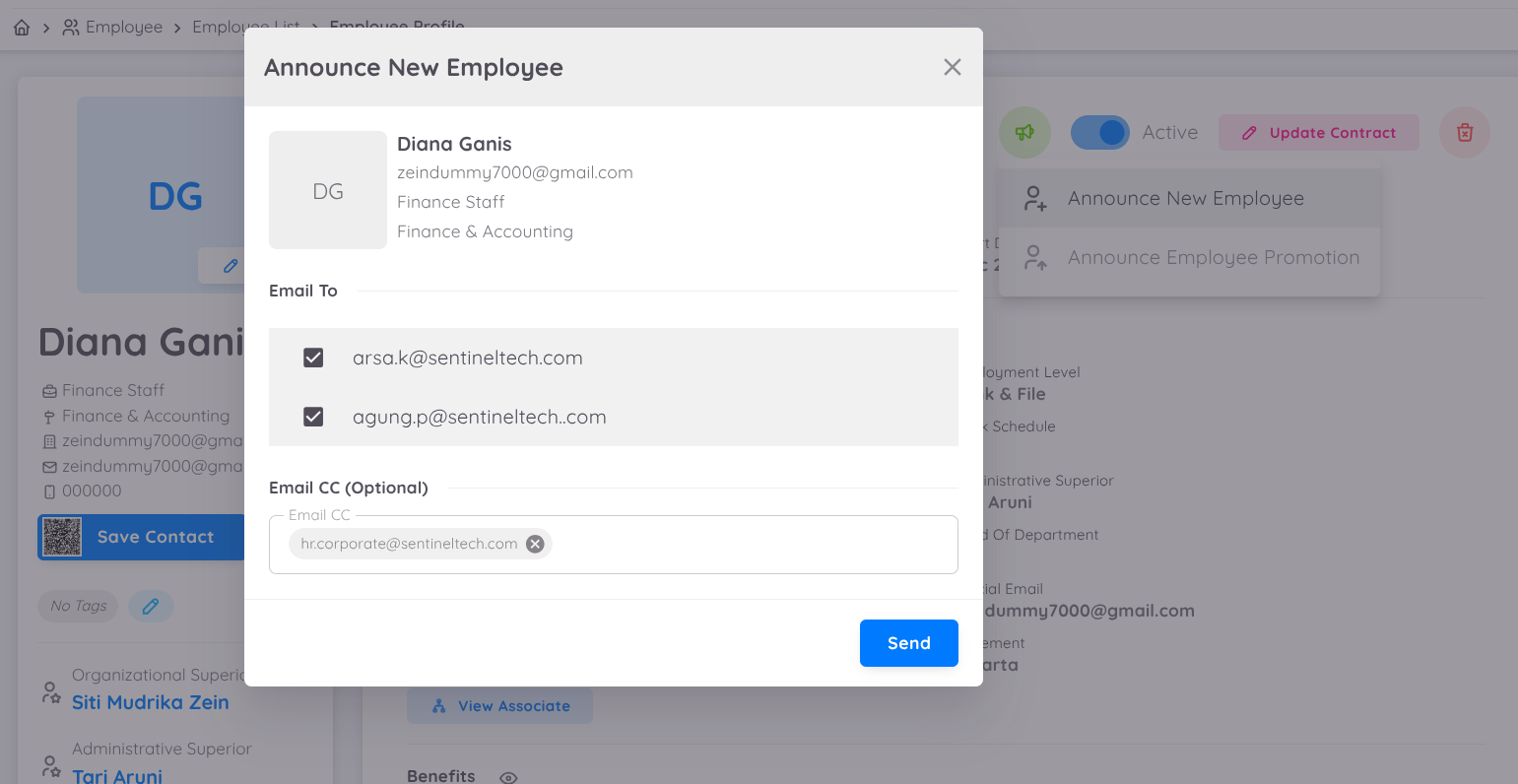
This feature provides flexibility in efficiently informing relevant units about new employees during the first 30 days of the contract’s activation.
For a visual reference, please watch the tutorial video below demonstrating how to activate a new employee’s contract.
Departing (Resign, Terminated, End of Contract, Deceased & Other)
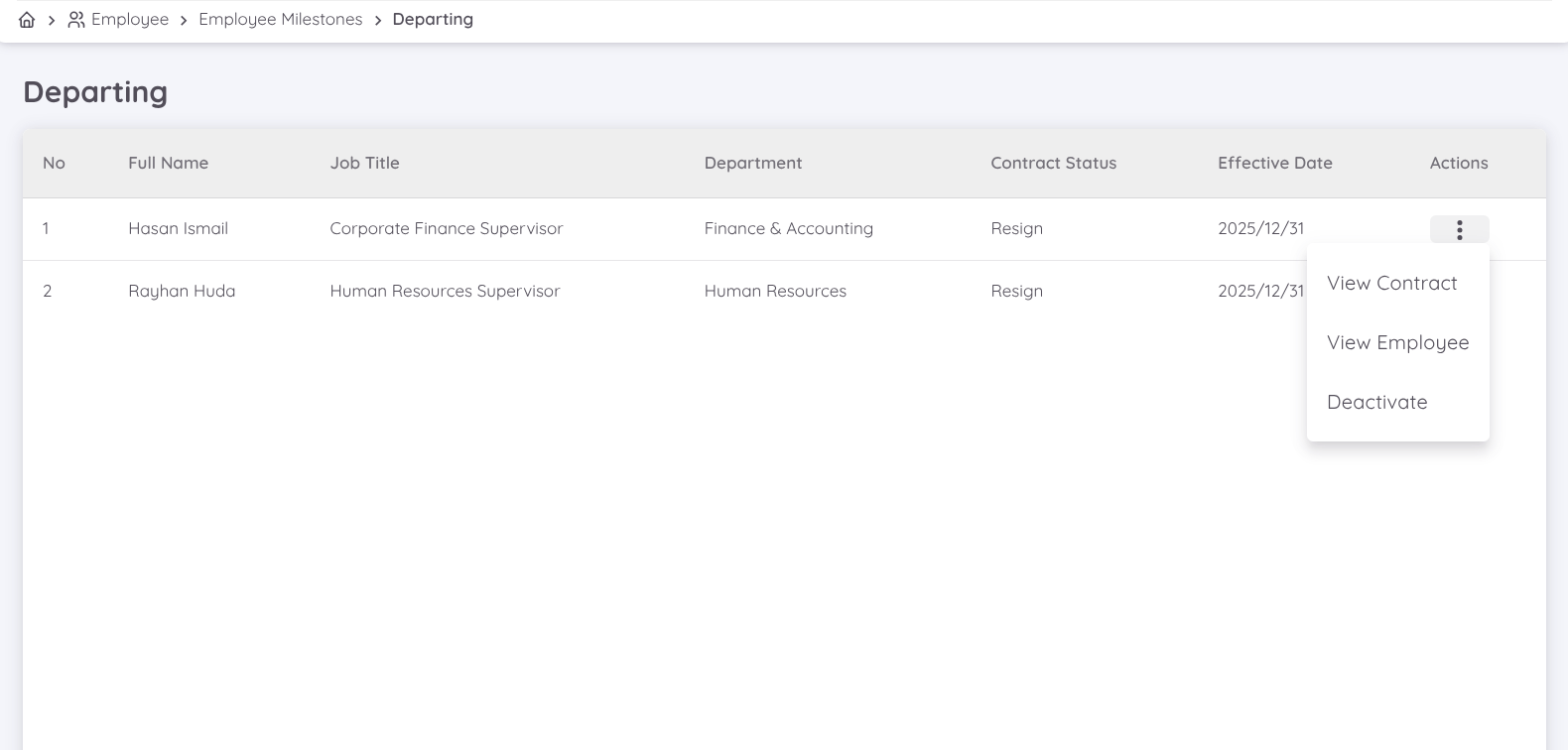
This page displays a list of contracts that have been changed according to the above descriptions. The contract deactivation process is done manually based on the effective date of the contract.
For a visual guide, watch the tutorial video on how to update a contract with Resign, Terminated, End of Contract, Deceased & Other (Employee Departing) status below:
Transferring (Inter Unit Transfer)
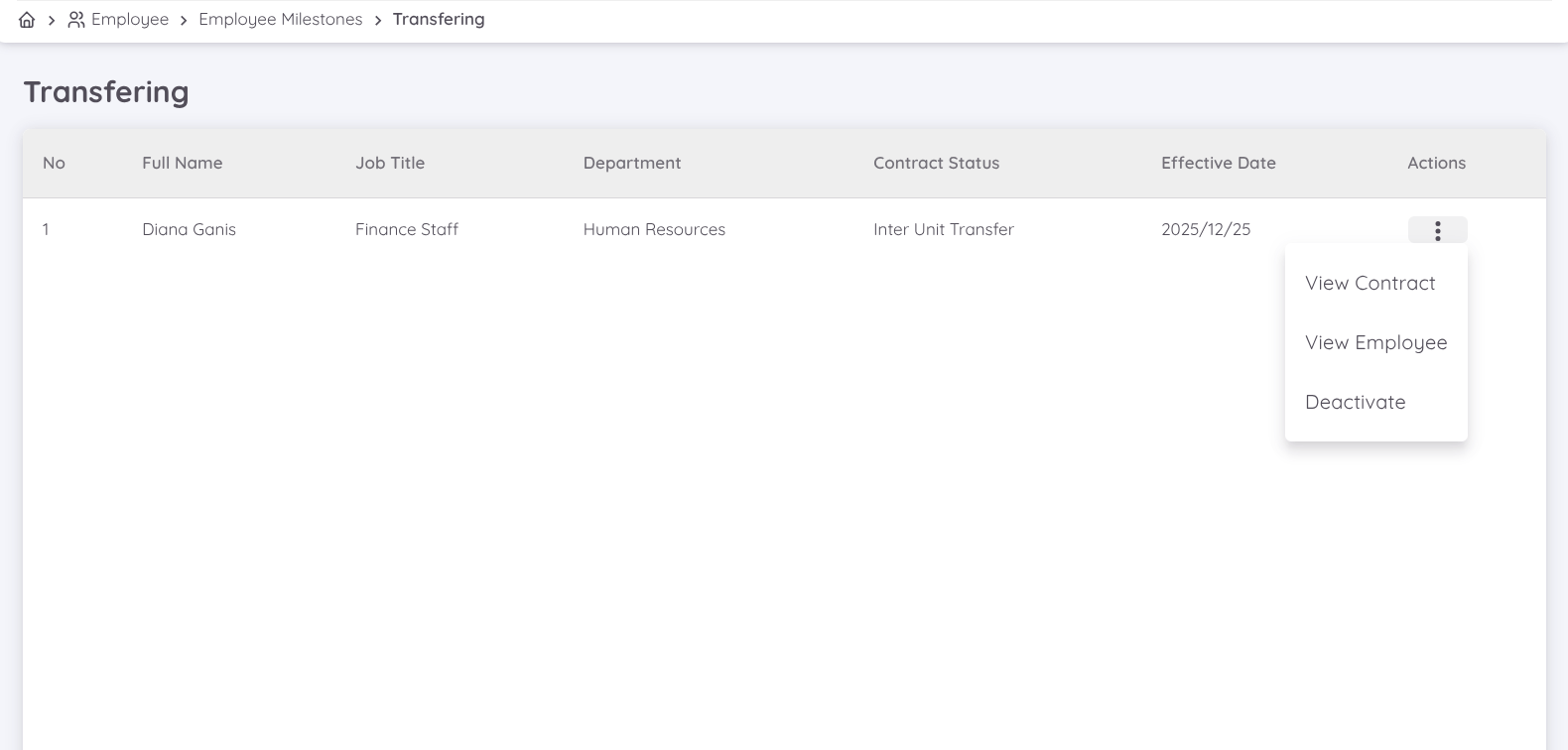
This page displays a list of employees who will be transferred to another company or unit within the same organization. The contract deactivation process is handled manually based on the effective date defined in the contract status.
If your unit is managed under the same organization and an employee is moving to another unit within that organization, the transfer must be recorded properly through the employee’s contract.
To process an Inter Unit Transfer, you must first update the employee’s contract by setting the contract status to Inter Unit Transfer. During this step, you must also define the effective date, which represents the last working day of the employee in your current unit.
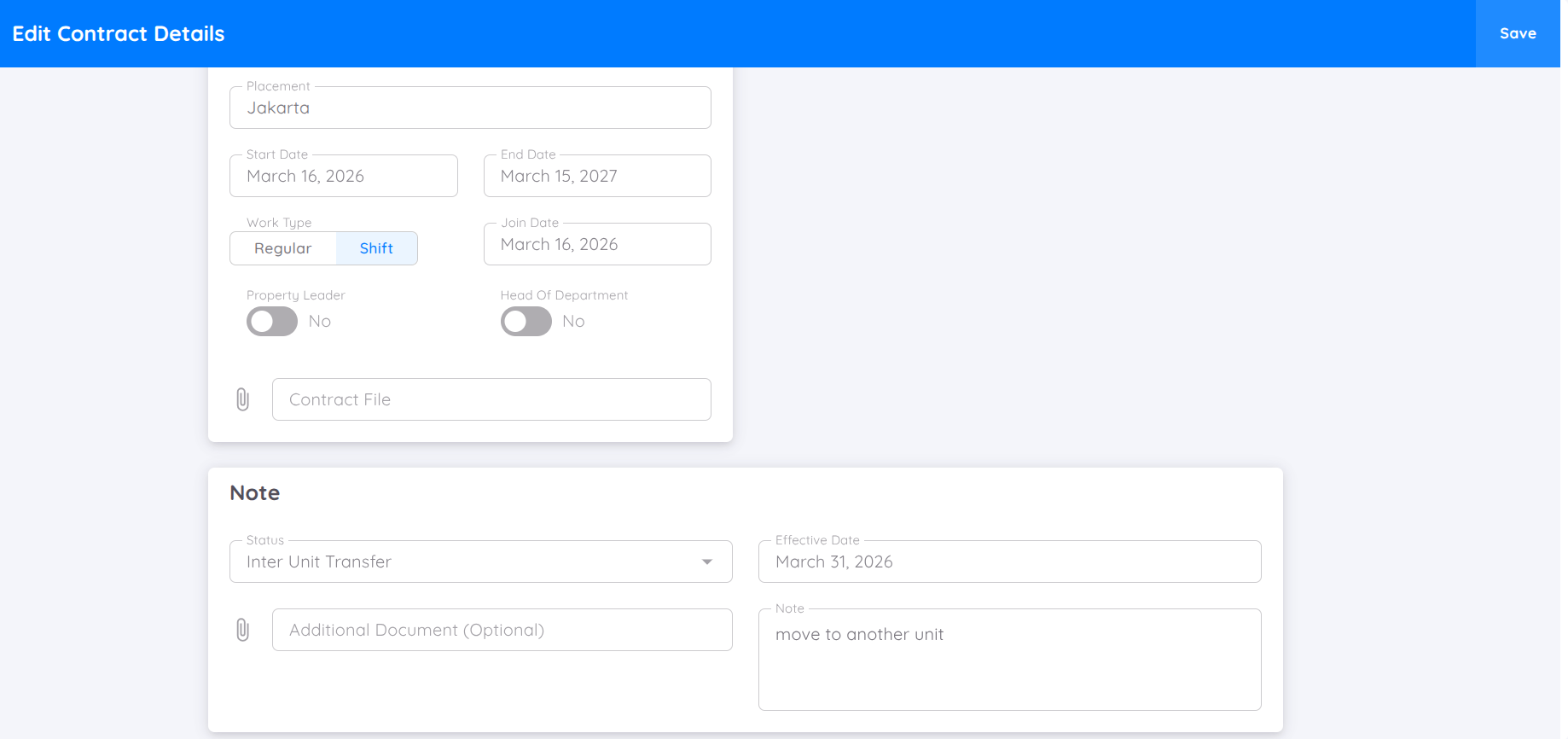
Once the employee reaches the effective date (their final working day in your unit), you must manually deactivate the employee’s contract. After the contract is deactivated, the employee will automatically appear in the Former Employees list for your unit, allowing the receiving unit to proceed with their own contract setup if needed.
For a visual guide on transferring an employee from your unit, please refer to the following video:
Extending
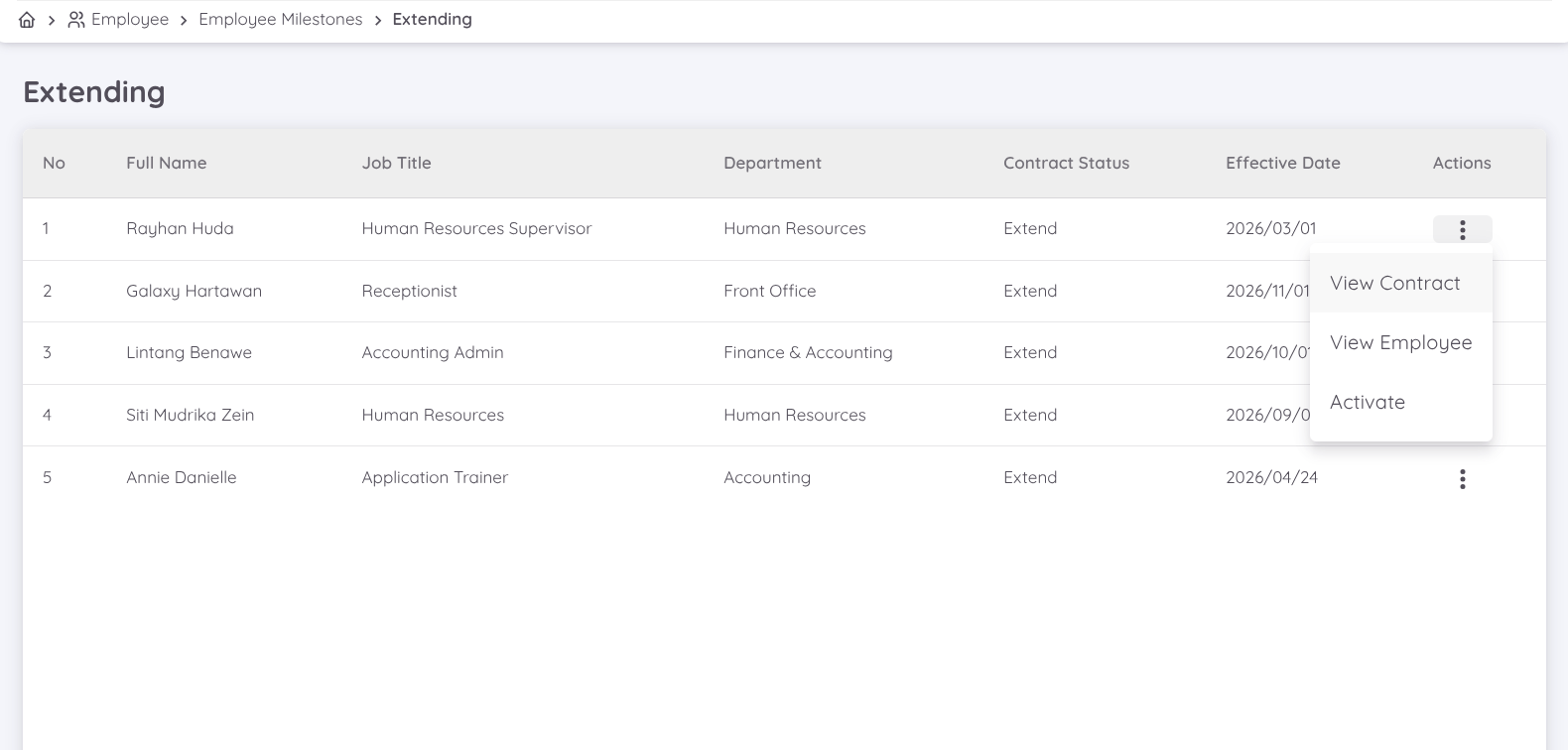
This page displays a list of employees whose contracts are being extended. The new contract activation process is done manually based on the effective start date of the contract status.
NOTE
It is expected that employee contract statuses do not repeat, so each contract should have only one "Resign" history to ensure accurate reporting.
Guide to Adding a Contract with 'Extend' Status
For a visual guide, watch the tutorial video on how to add a contract with Extend status below:
Promotion
When an employee receives a promotion that results in changes to their status, benefits, or contract details, the employee’s current contract can be updated to reflect these changes.
The user can update the employee’s current contract and make the necessary adjustments. In the Status column, select Promotion and set the effective date for the contract changes due to the promotion.
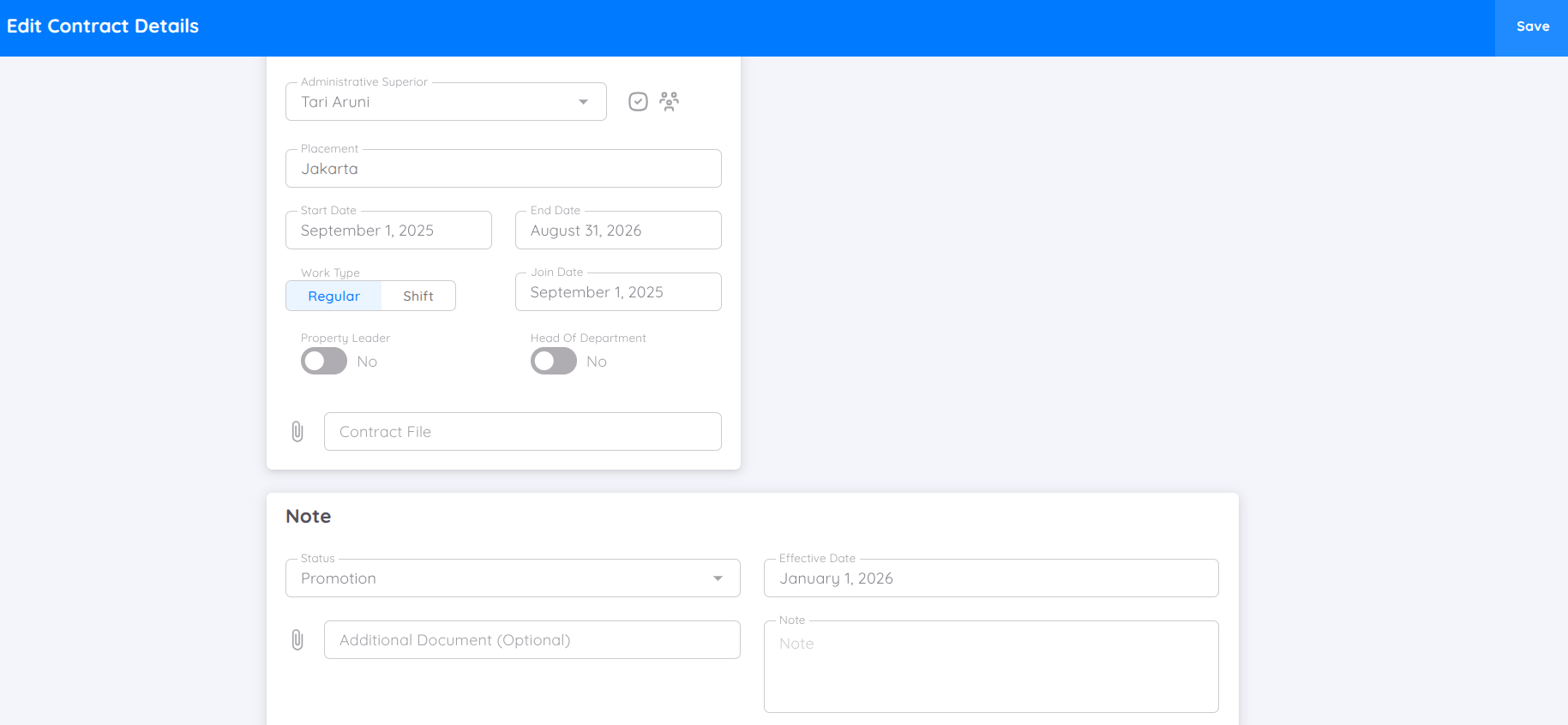
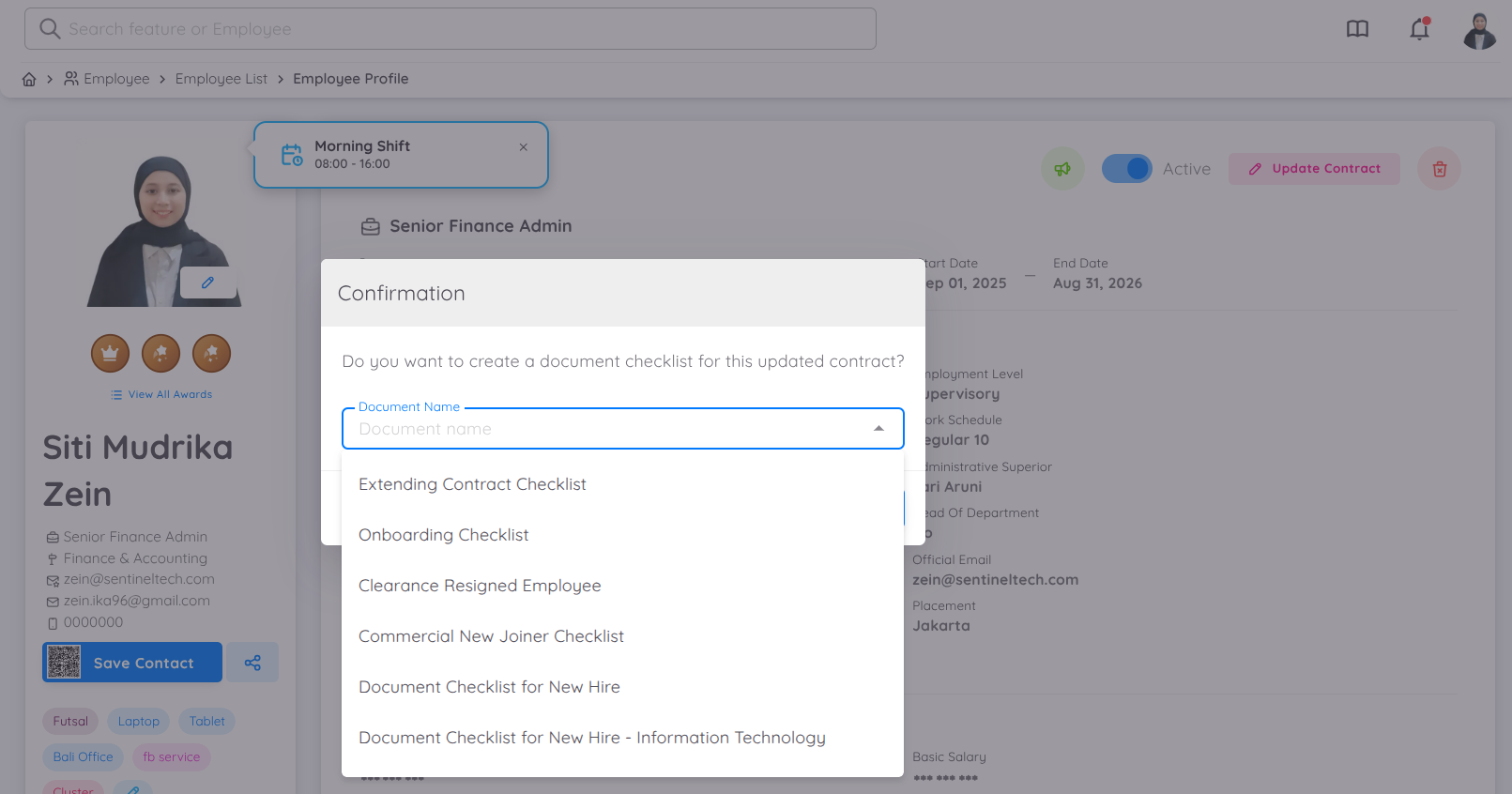
After saving, a confirmation will appear, and the user can add a document checklist for these changes.
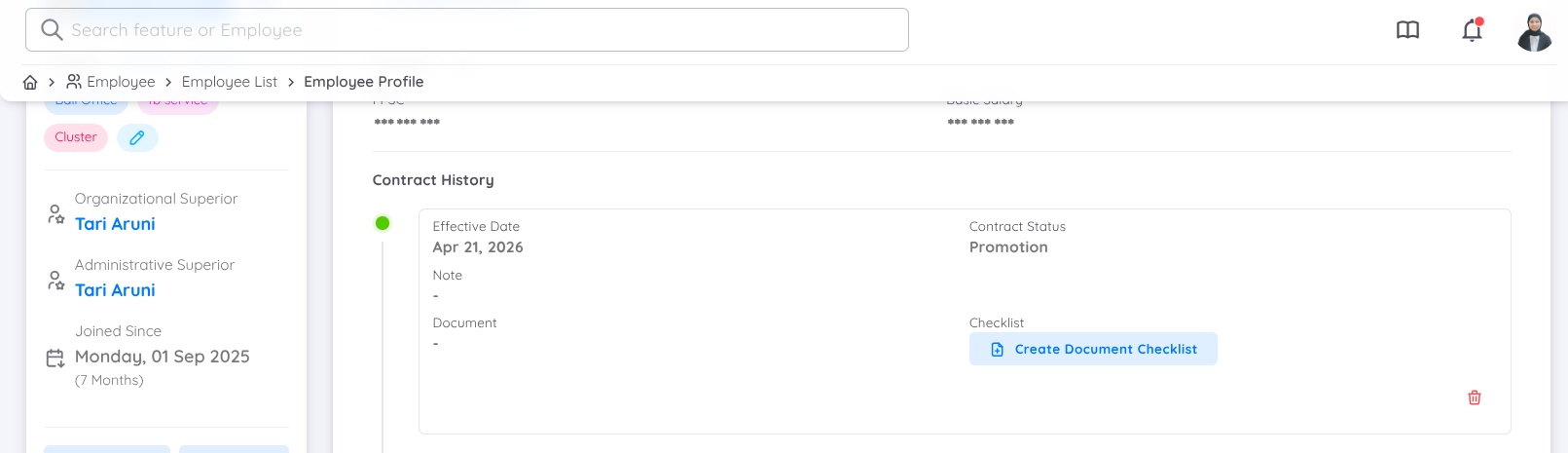
The contract update for the promotion will also be reflected in the contract details within the contract history list.
Promotion Announcement
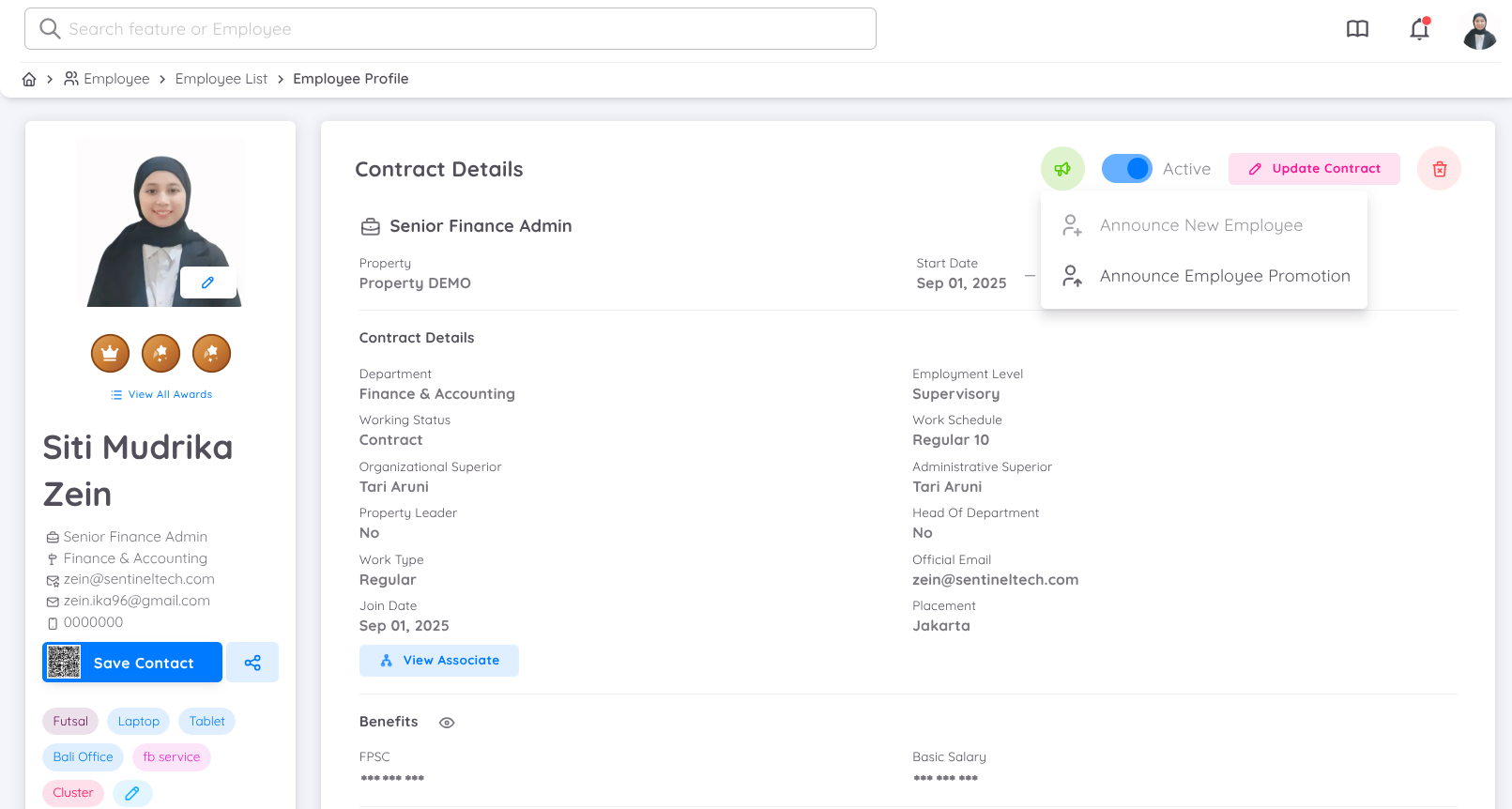
Similar to announcing a new employee, for contracts with Promotion status, the Announcement button will also appear and remain available for 30 days after the contract is updated. This feature allows sending email notifications regarding employees who have been promoted, with no limit on the number of emails that can be sent.
This feature can also be used if the Promotion Announcement notification has been activated and the target email addresses have been configured.
This must be set up first in the Configuration menu.
Contract Adjustment
If there are any changes to an employee’s current contract that are not related to a promotion but only involve updates to contract details, the contract can be adjusted accordingly.
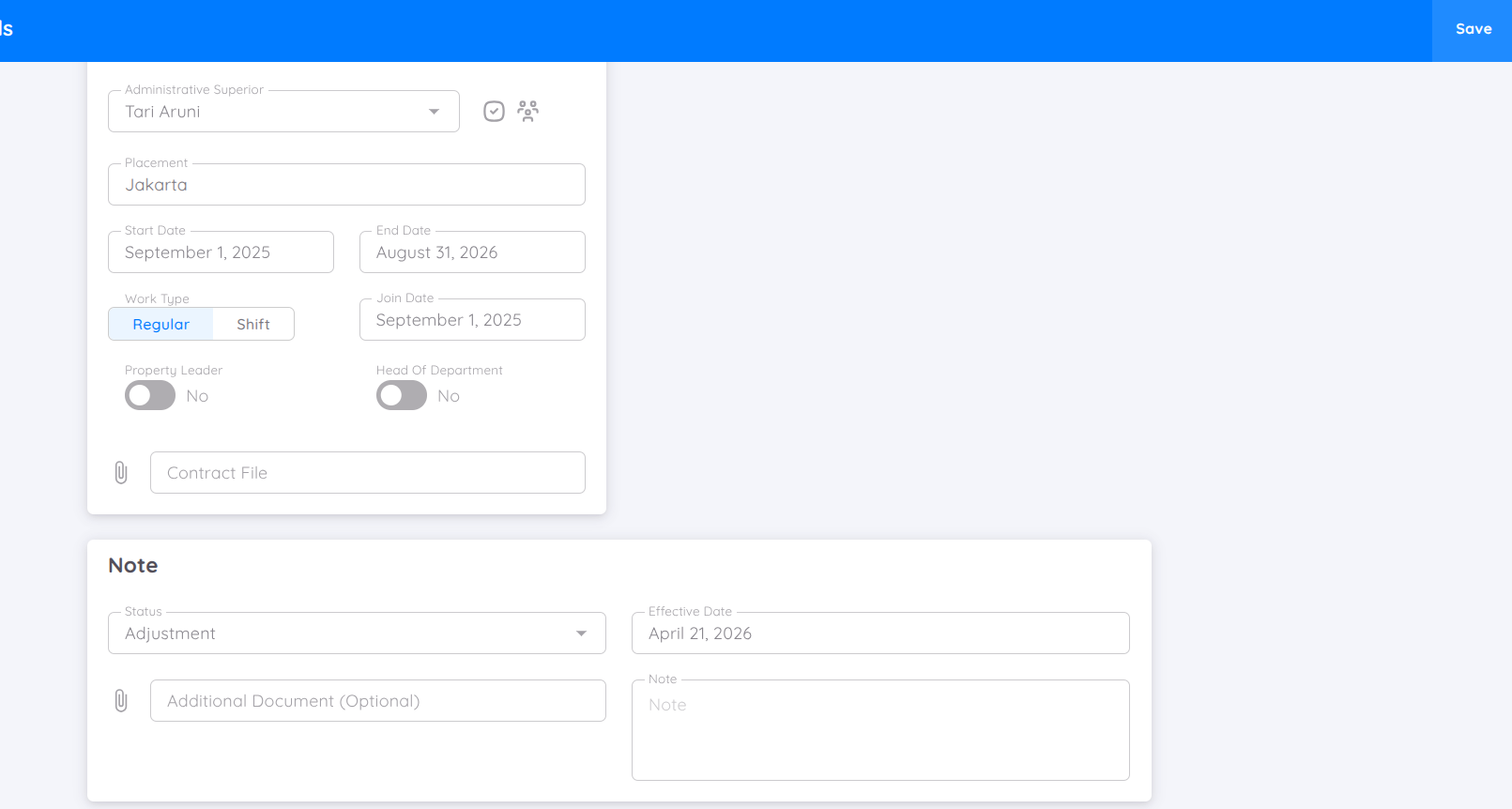
For changes that do not need to be reflected in the contract history, Management can update the employee’s current details and select the Adjustment option in the Status column. Then, define the effective date based on when the changes will take effect or have already been applied.
After saving, the contract will be updated. However, these changes will not be reflected in the contract history list.
Below is a tutorial video on adjusting an employee's contract, whether to correct input errors, make adjustments to other contract information, or update the contract when an employee receives a promotion: