Task Reporting
The Task Reporting menu can be used by employees to create and submit task reports.
Employees can also receive task assignments from HR (Management) or their direct supervisor (Head of Department).
Add New Task Report
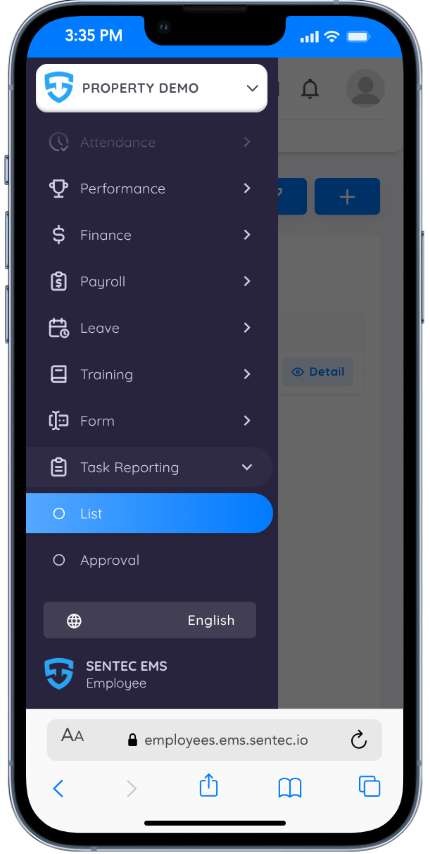
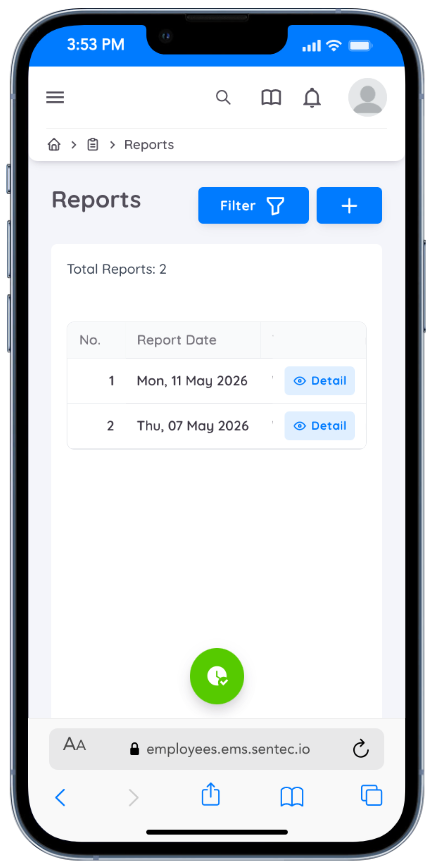
To add a new task report, employees can access the Task Reporting List menu.
All assigned tasks will also be available in this menu.
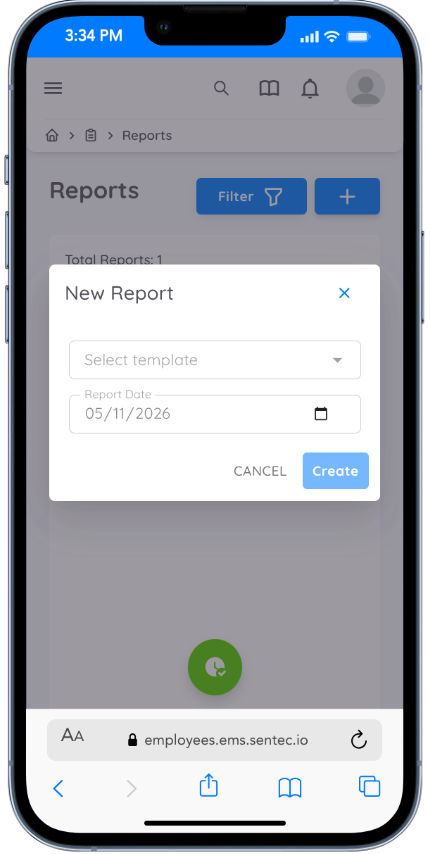
When creating a new task report, employees must select the task template and report date.
Employees must complete all required report fields and submit the report once it has been completed.
Before submission, the report status will remain as Draft.
Employees can still update the report as long as the status remains Draft.
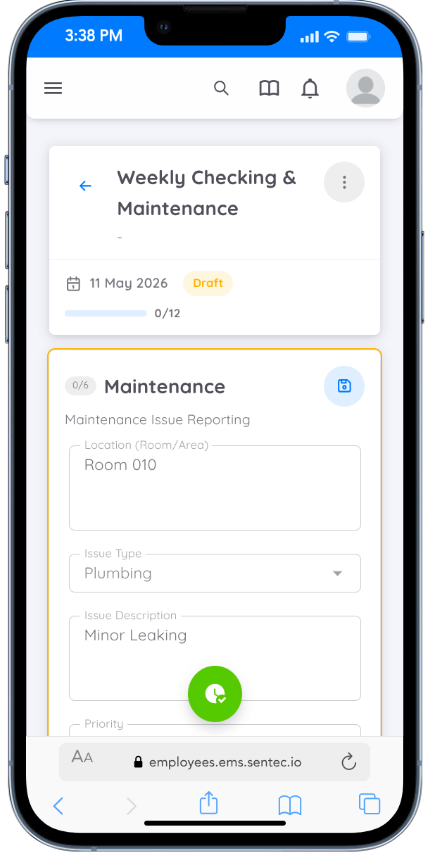
When adding or updating a task report, employees must save every data update before the report can be submitted again.
Employees can also view the task progress indicator to ensure that the task report has been completed.
Submit and Save Task Report
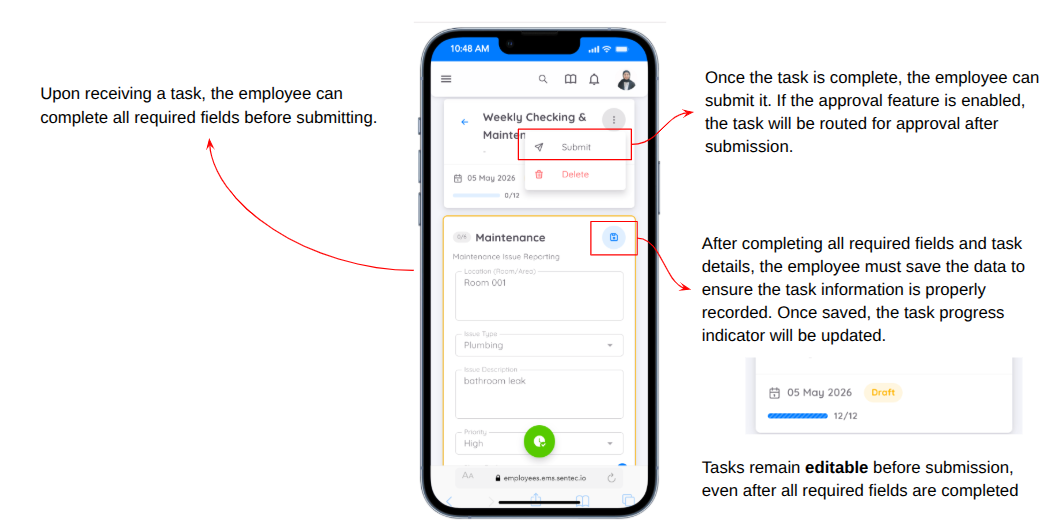
Once the report is submitted, the task report will be sent for approval.
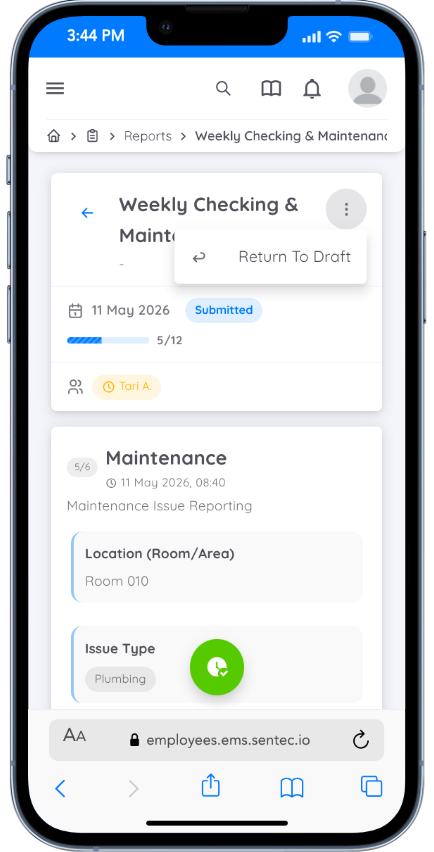
Employees will no longer be able to update or delete the report after submission.
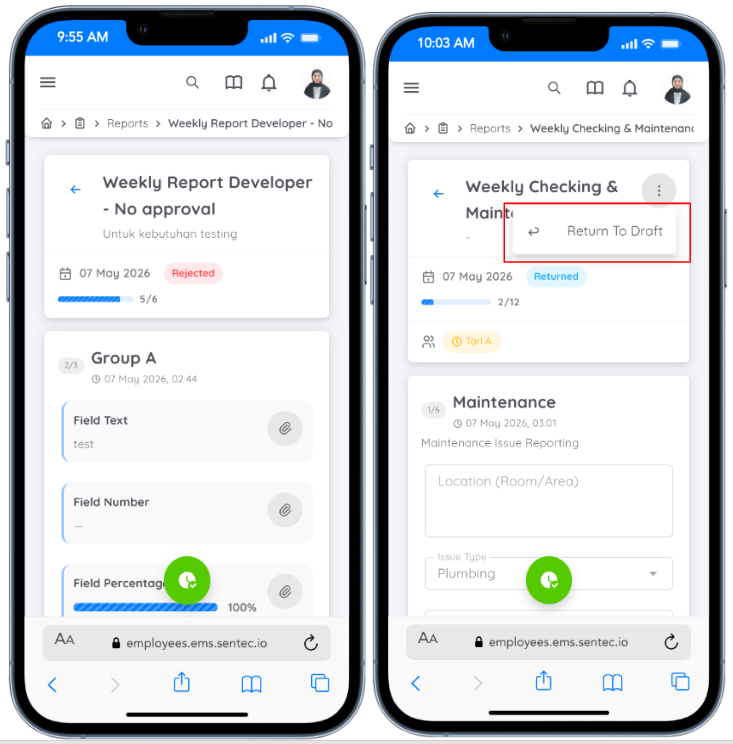
However, employees can still return the report status to Draft if revisions or data updates are still required.
Task Report Assignment
When HR or the Head of Department (HOD) assigns a task to an employee, the employee will receive an email notification.
Employees can complete and update the report through the Task Reporting List menu.
To complete and submit the task report, employees must access the Details section.
Once the task has been assigned, HR or the HOD can return the task report for revision.
If the report status is Returned, employees must first change the status back to Draft before updating and resubmitting the task report.
Task Report Assignment (HOD)
The Head of Department (HOD) has access to assign task reports to employees within their department.
The HOD can assign tasks to themselves or to other employees, making the task distribution, monitoring, and coordination process more flexible and organized.
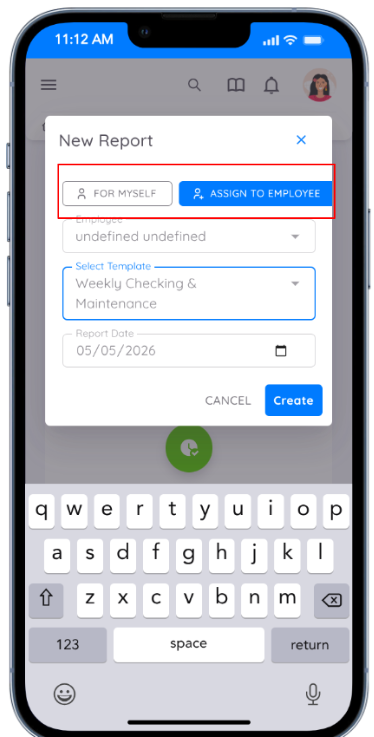
After a task is assigned by the HOD, the assigned employee will receive an email notification regarding the assignment.
The employee can then access the task through the Task Reporting List menu, complete the task report, and submit it for approval.
The task assignment flow is as follows:
Task Assigned by HOD
        ↓
Employee Completes the Task Report
        ↓
Task Submitted for HOD Approval
Task Approval
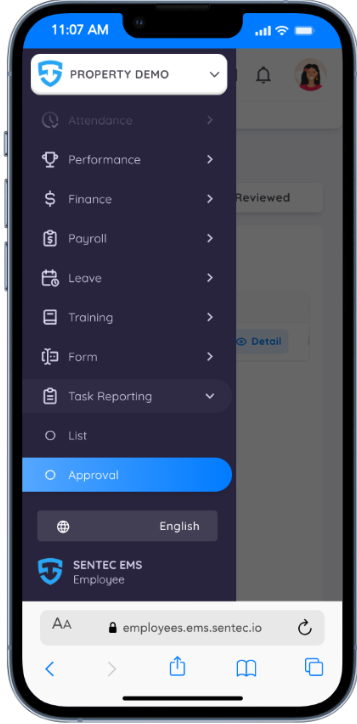
Once the task report is submitted, the approver will receive a notification.
The approver can also access and review the task report through the following menu:
Task Management → Task Reporting → Approval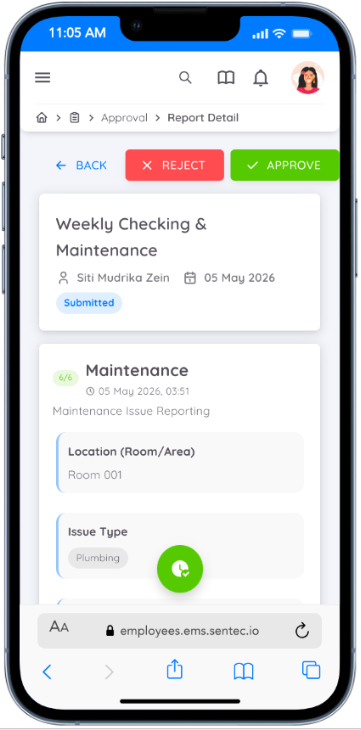
The approver can review the submitted task report and choose to:
- Approve the task
- Reject the task
Once the task is approved, the report will automatically be moved to the Reviewed tab for tracking and documentation purposes.
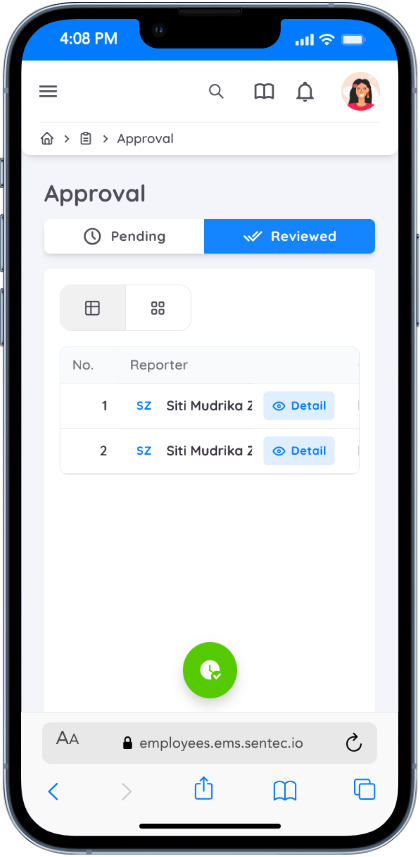
If the task is rejected, employees will no longer be able to modify the report or change the task status.
However, if the task report is returned by management or Human Resources, employees can still update the task report by changing the task status back to Draft before resubmitting it.