Contract
View
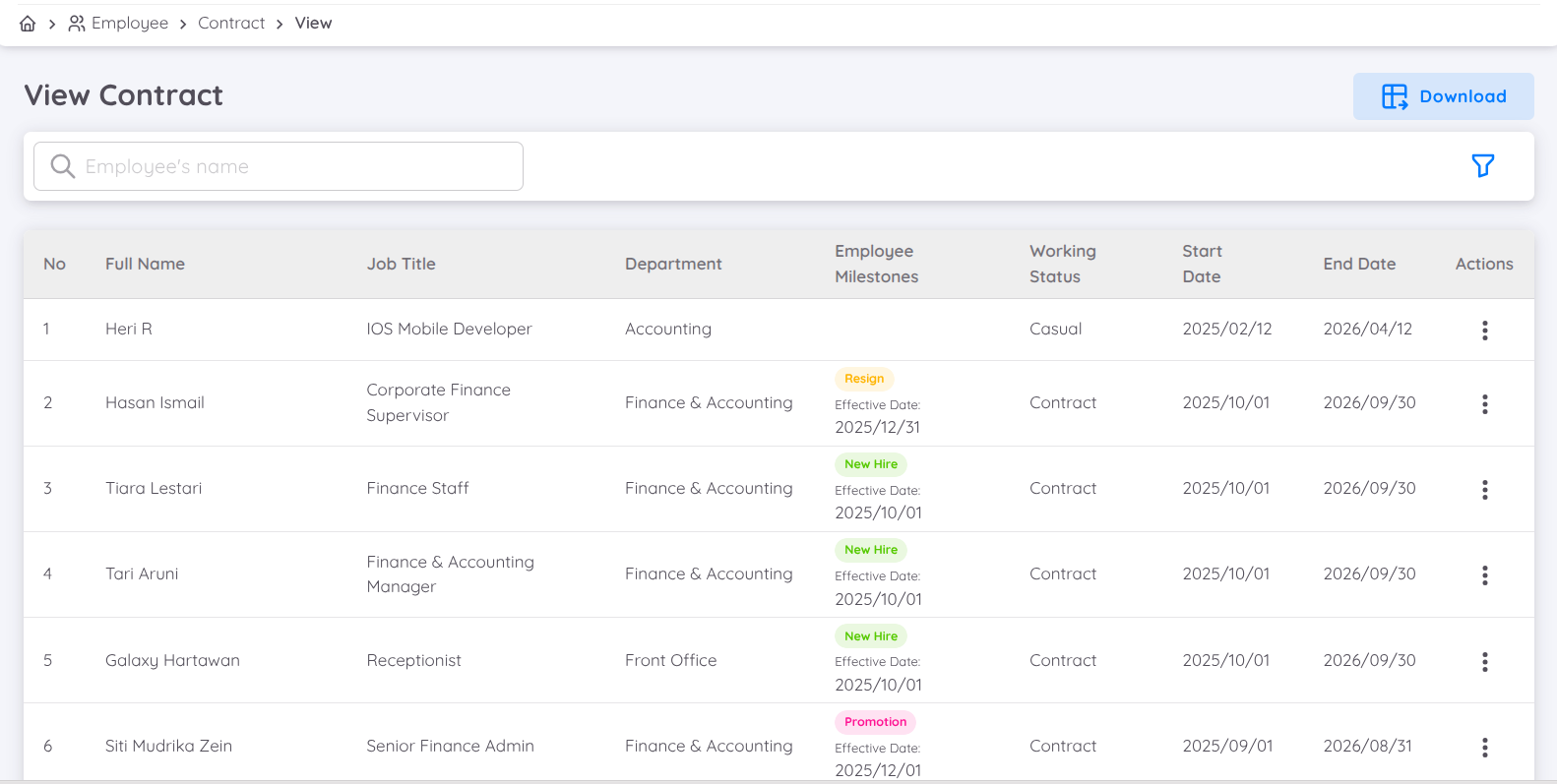
This page will display all the contracts created by the company for employees. By default, only active contracts are displayed. Users can use the filter at the top right to filter contracts as needed.
Contract Attributes & Benefits
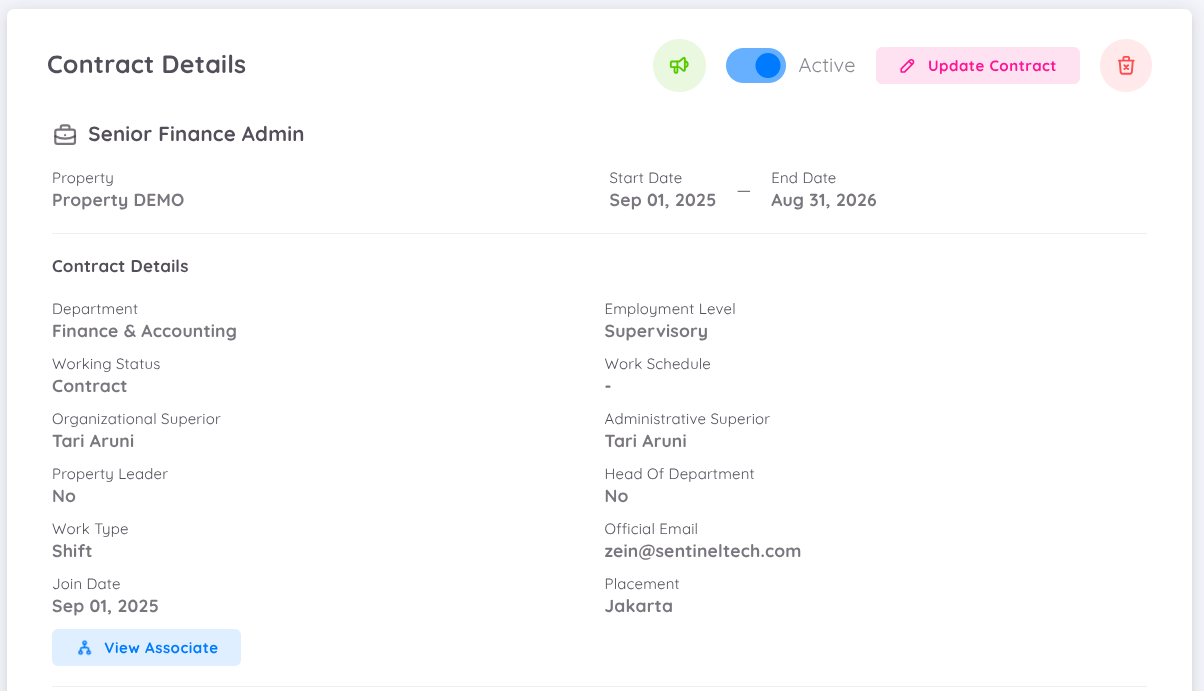
| Attribute | Description |
|---|---|
| Job Title | The job title given by the company to the employee |
| Property | The name of the company |
| Start date - end date | The start and end date of the employee's contract |
| Department | The name of the department where the employee works |
| Employment level | The level or grade of the employee according to the settings on the configuration page |
| Working status | The working status of the employee:
|
| Work Schedule | Only filled in for regular employees who have a non-default regular work schedule |
| Placement | Employee's work location, such as the city or office name where the employee is assigned |
| Organizational superior | The employee's superior who will form the organization chart |
| Administrative superior | The employee's superior who will give approvals on administrative matters such as leave requests, and others. The superior can be from another unit within the same organization |
| Head of department | (YES/NO) Determines if the employee is the head of the department |
| Property leader | (YES/NO) Determines if the employee is the property leader. Select Yes if the employee is the General Manager or holds the highest position in the company |
| Work Type | The type of work schedule for the employee:
|
| Official email | The official email provided by the company |
| Join date | The effective date of the employee's first contract (may be earlier than the current contract) |
| Subordinate | View other employees who are subordinates |
NOTE
"Head of department" will affect the organization structure and approvals related on the employee page. Work Type will affect the attendance process, where regular employees do not need a fixed work schedule, while shift employees must have a defined schedule for attendance.
Superior Change
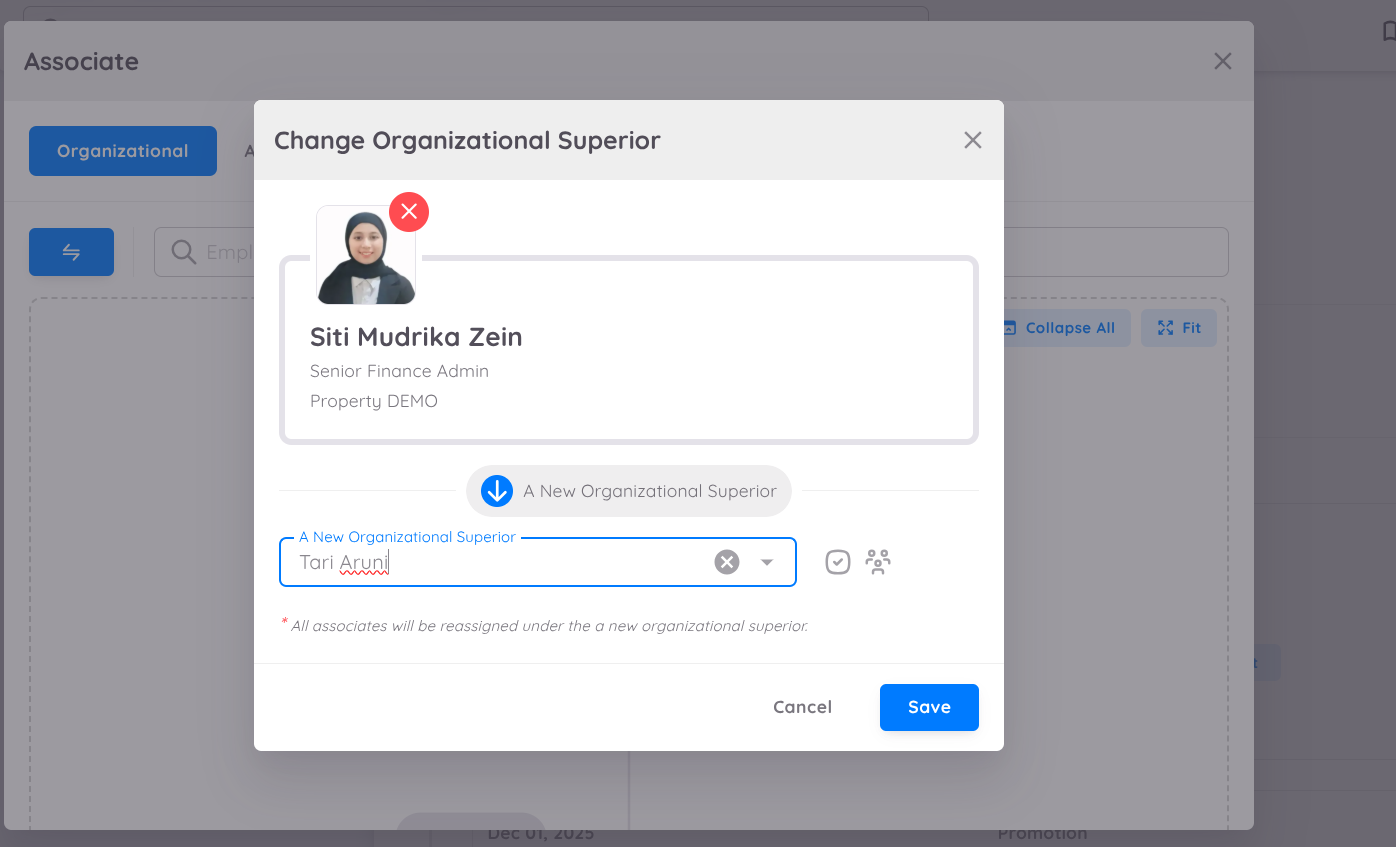
When there is a change in superiors for example if the current superior is resigning, users with Write permissions can update the superior for all associated employees. This change will automatically update the organizational chart to reflect the new reporting structure.
To Change a Superior both for Organizational and/or Administrative you can follow these steps:
- Go to the Contract Details page of the superior who is leaving the company before the contract is deactivated
- Click the View Associate button.
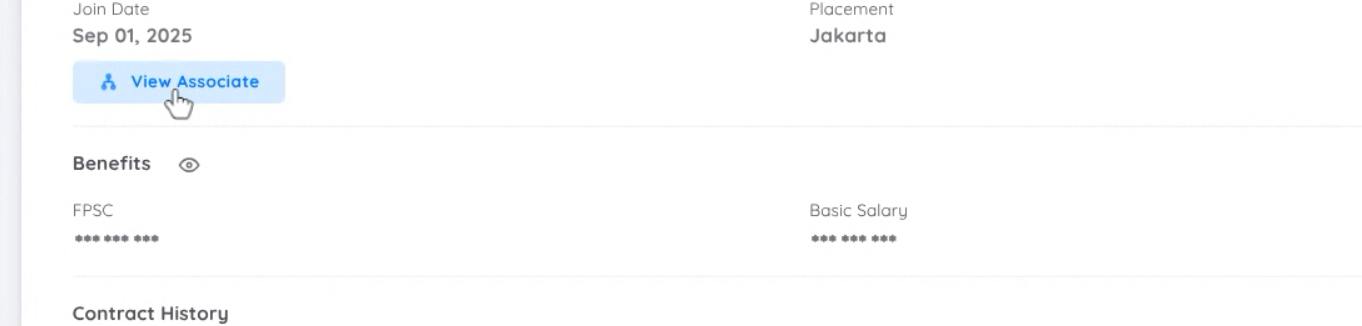
When the associate form is displayed, choose the tab for Administrative or Organizational to change the respective superior.
- In each tab, you can click the arrow button to Change the Superior.
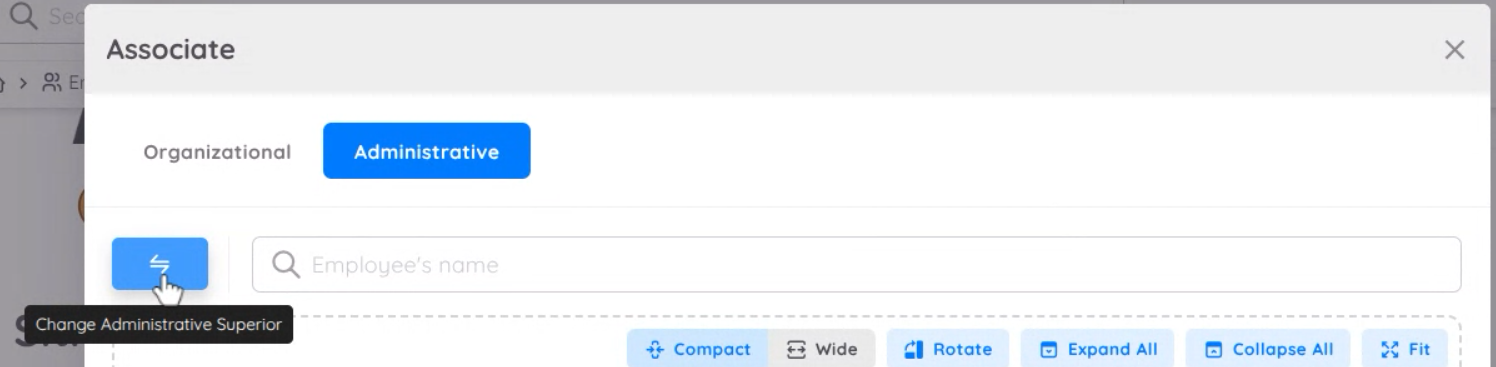
- In each tab, you can click the arrow button to Change the Superior.
In the pop-up form:
- Type the name of the new superior.
- Ensure the replacement superior is already assigned in the system.
- If the superior is from another unit, check the organization so you can find the employee from another unit within your organization.
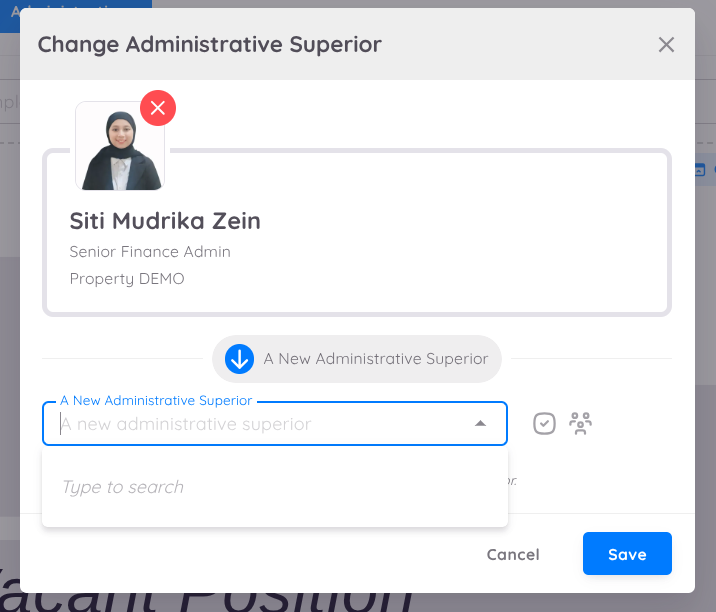
- Click Save to confirm the change.
Notes:
- This change of superior must be done in the contract of the superior who is leaving the company, as it will affect all subordinates
- This action will reassign all associated employees under the new superior if the employee has direct reports.
- The change can apply to organizational and/or administrative superiors.
- Only users with Write permissions can perform this action.
- After saving, the organizational chart will update automatically to reflect the new superior.
- If the superior is not replaced before the employee leaves the company, the superior field for all subordinates under that superior will become null.
Benefit
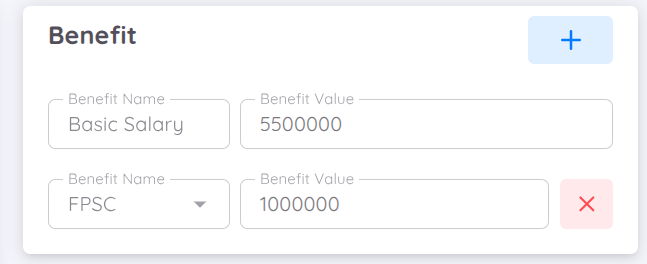
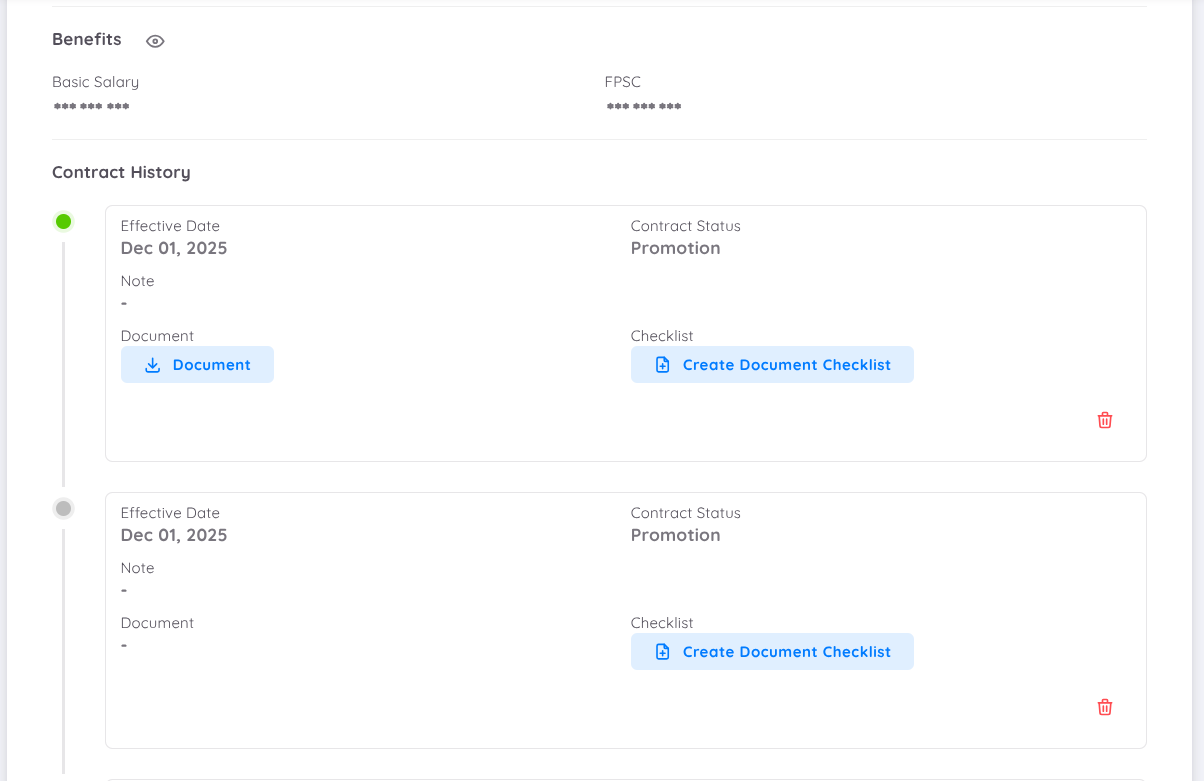
This section will display the benefits included in the contract. Mandatory benefits:
| Benefit | Description |
|---|---|
| Basic Salary | Must be filled with a numeric value, 0 is allowed |
| FPSC | Can be filled with a value of 0 |
These two benefits affect payroll calculations. Other than these benefits, text can be entered.

History
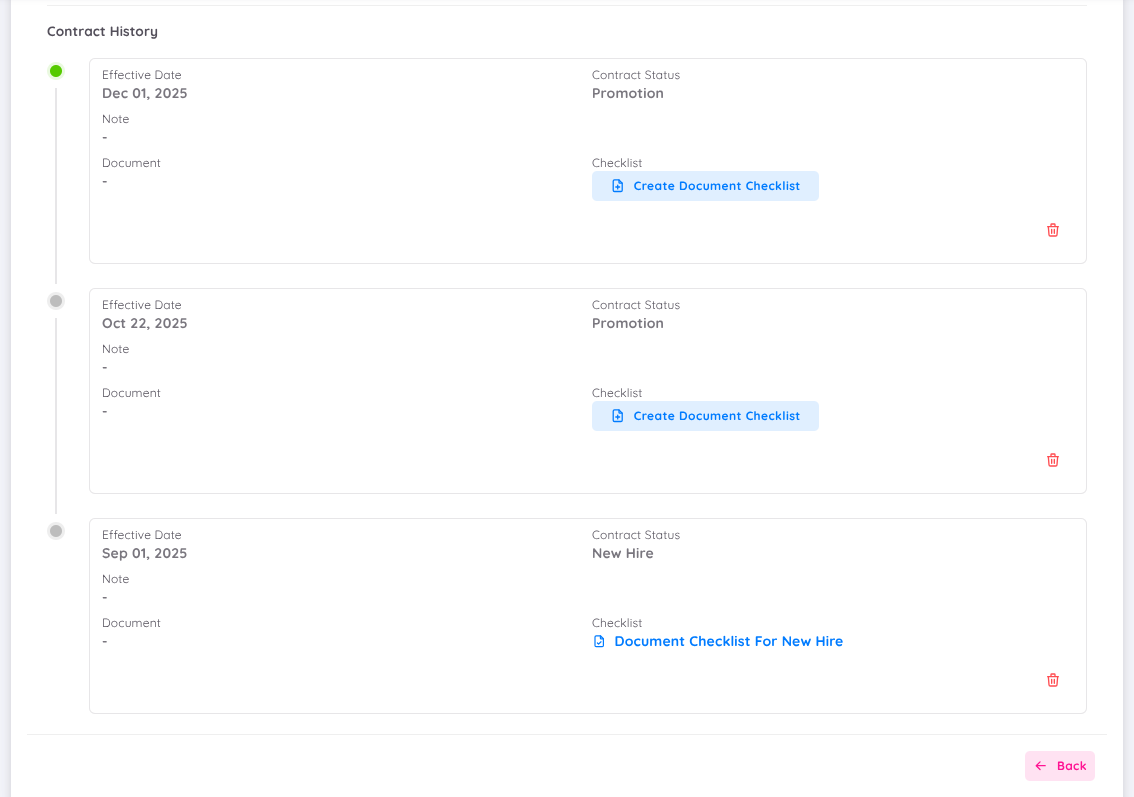
This section will display the history of the employee's contract. For example, in one contract, the employee can have a history of "New Hire" and then "Resign."
NOTE
Each contract history can be supplemented with uploaded documents in PDF format, or checklist documents that were previously created on the configuration page.
Editing
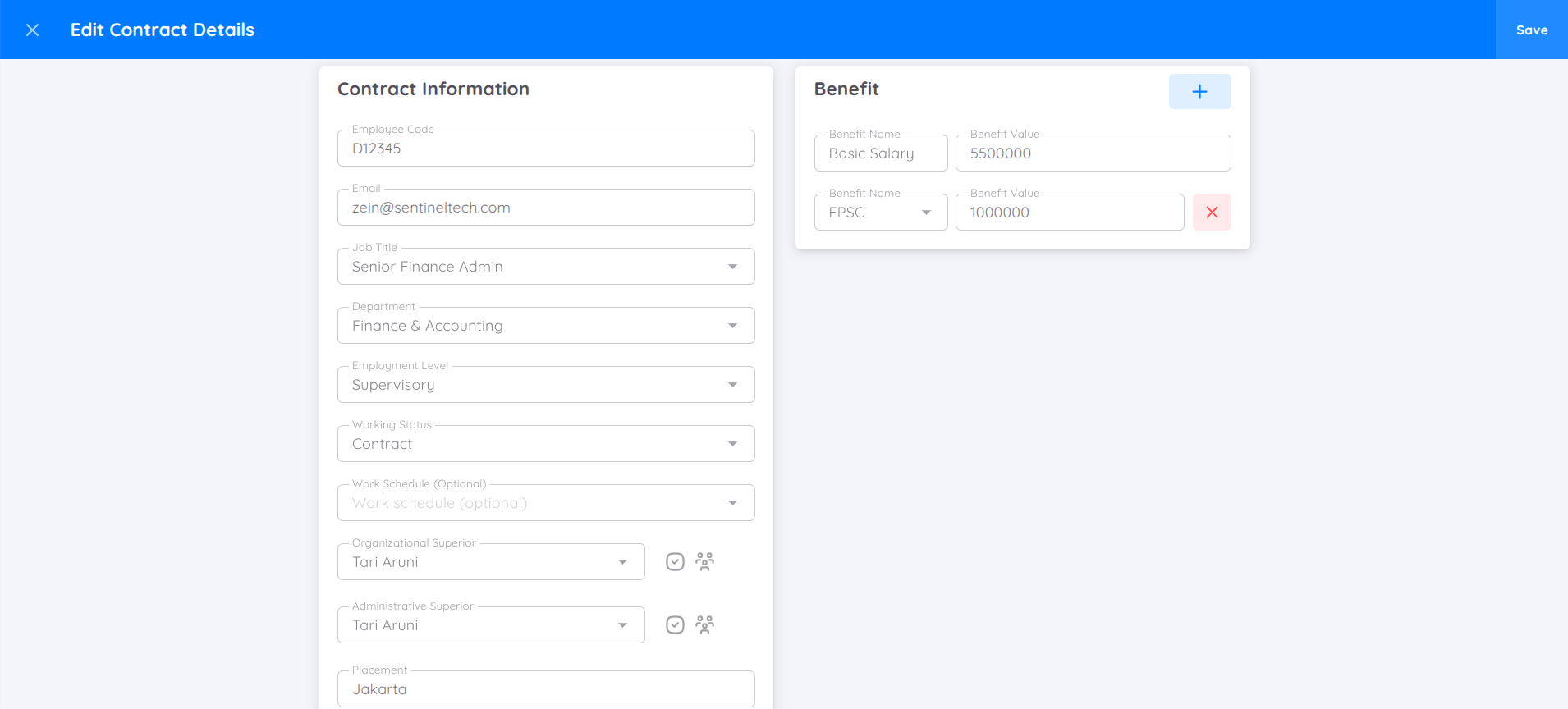
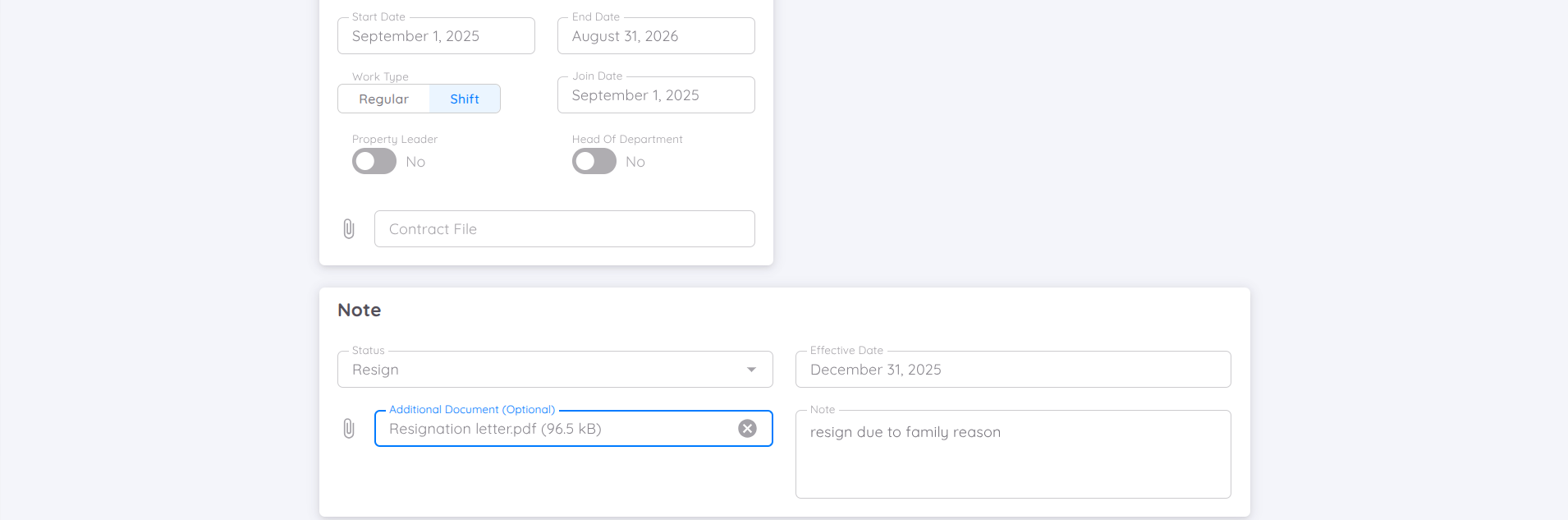
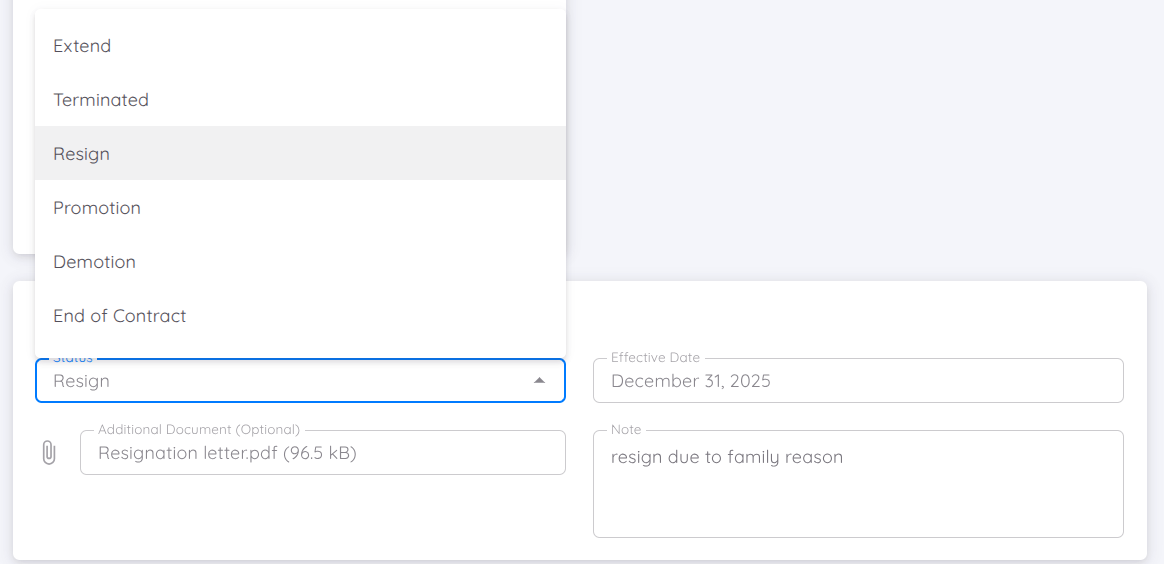
Whenever updating contract data, be sure to specify the contract status, which will be recorded in the contract history. Changes in contract status will affect Employee Milestones, except for changes with "Adjustment" status.
NOTE
The effective date must match when the contract status change takes effect, as it will be displayed in "Employee Milestones." New contracts not migrated from EmployeeDB will use the effective date as the join date.
Draft
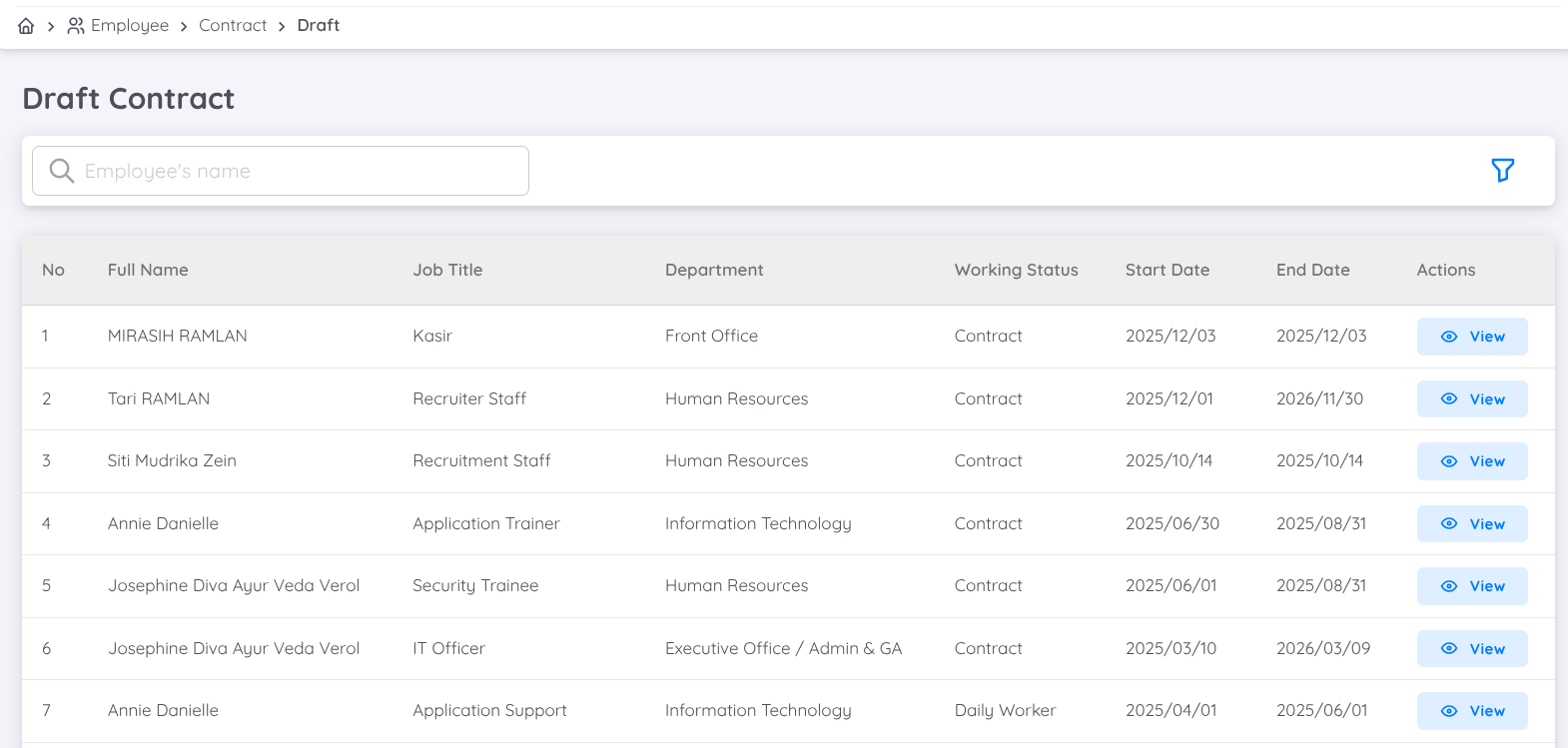
This menu is used to manage draft contracts for candidates who have passed the final stage of the recruitment process. Users with 'Write' access can :
- Search drafts by employee name.
- Apply filters based on :
- Contract dates (start or end)
- Department
- Milestone status
- Working status (e.g., permanent or temporary)
- Contract status (active or inactive)
Each draft displays basic details such as the employee's name, job title, department, working status, and contract dates. To edit or view details, click View in the Action column.
Draft Details
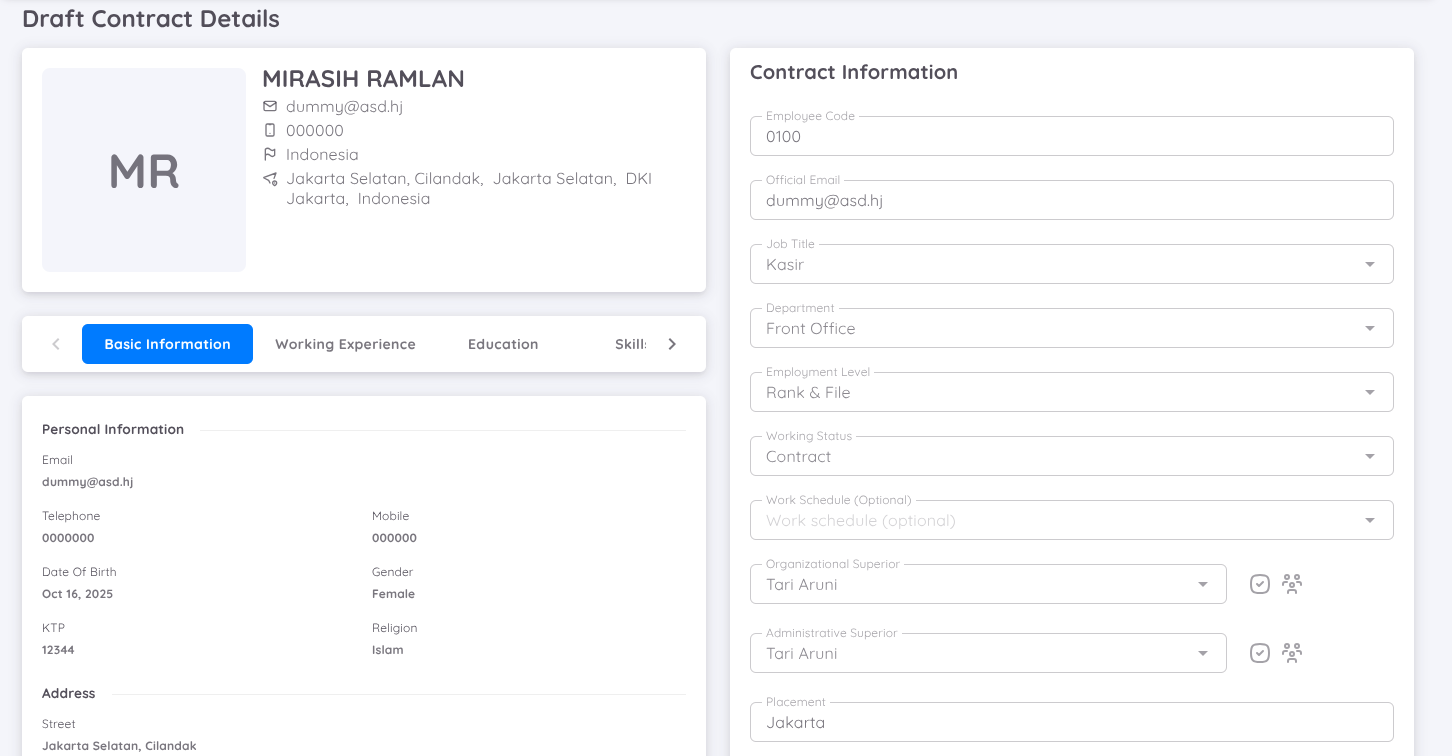
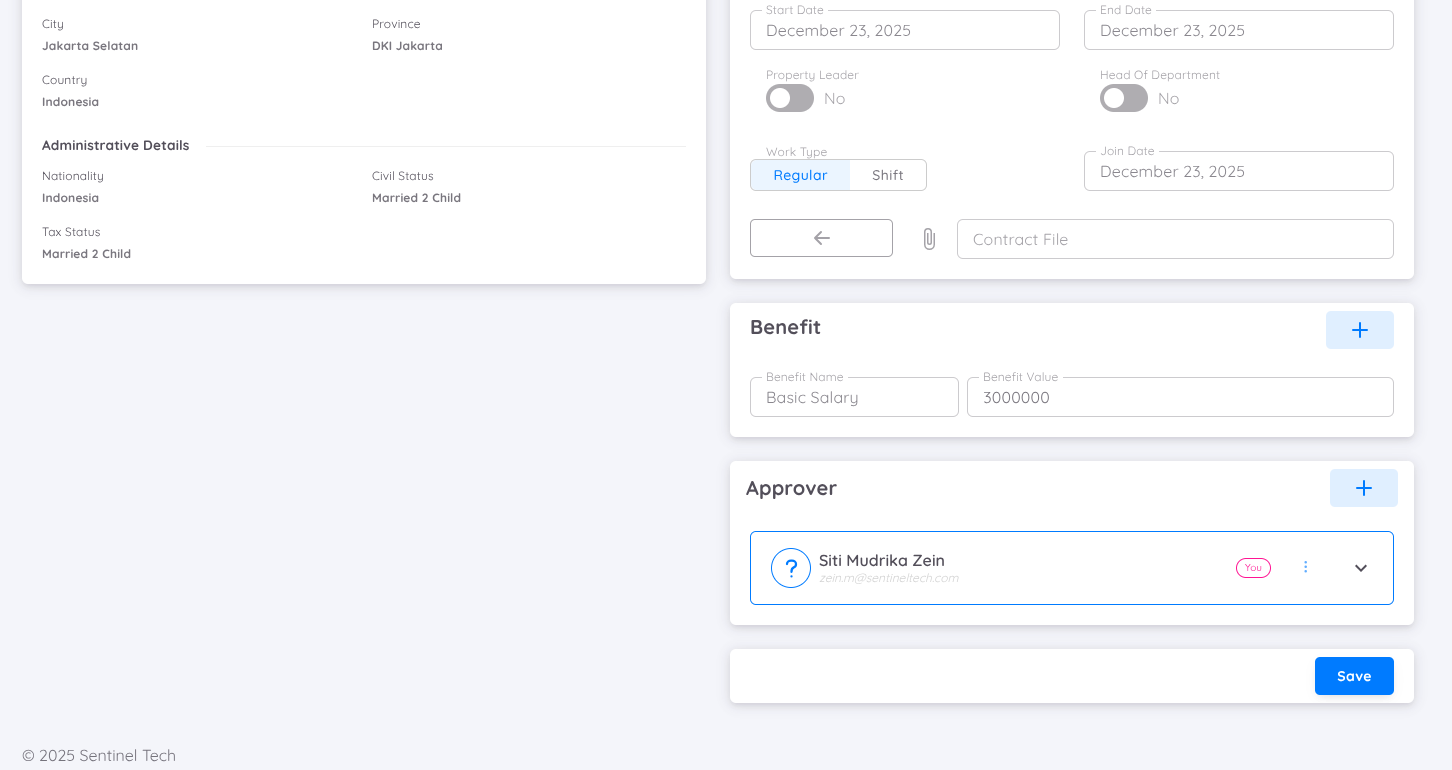
The draft contract includes :
- Personal information : (photo, name, email, phone number, address, nationality)
- Details from the Job Portal (education, skilss, and work experience)
Users can complete the draft by :
- Selecting the contract status and effective date in the Note tab.
- Filling in the required contract information (e.g., employee code, supervisor, benefits) in the Contract Information tab.
After verifying the details :
- Click Save to submit the draft for approval.
- Use Save and Activate to immediately activate the contract if no additional approval is required.
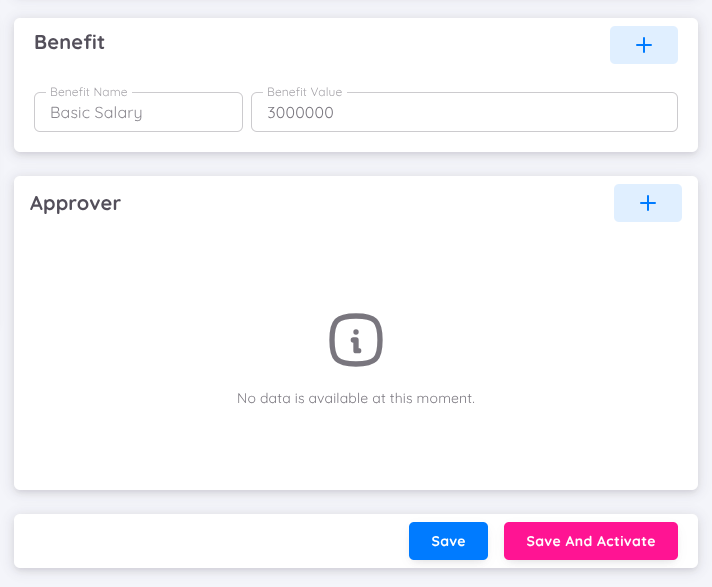
This setup simplifies contract management while ensuring a seamless workflow between recruitment and employee administration.
Contract Evaluation
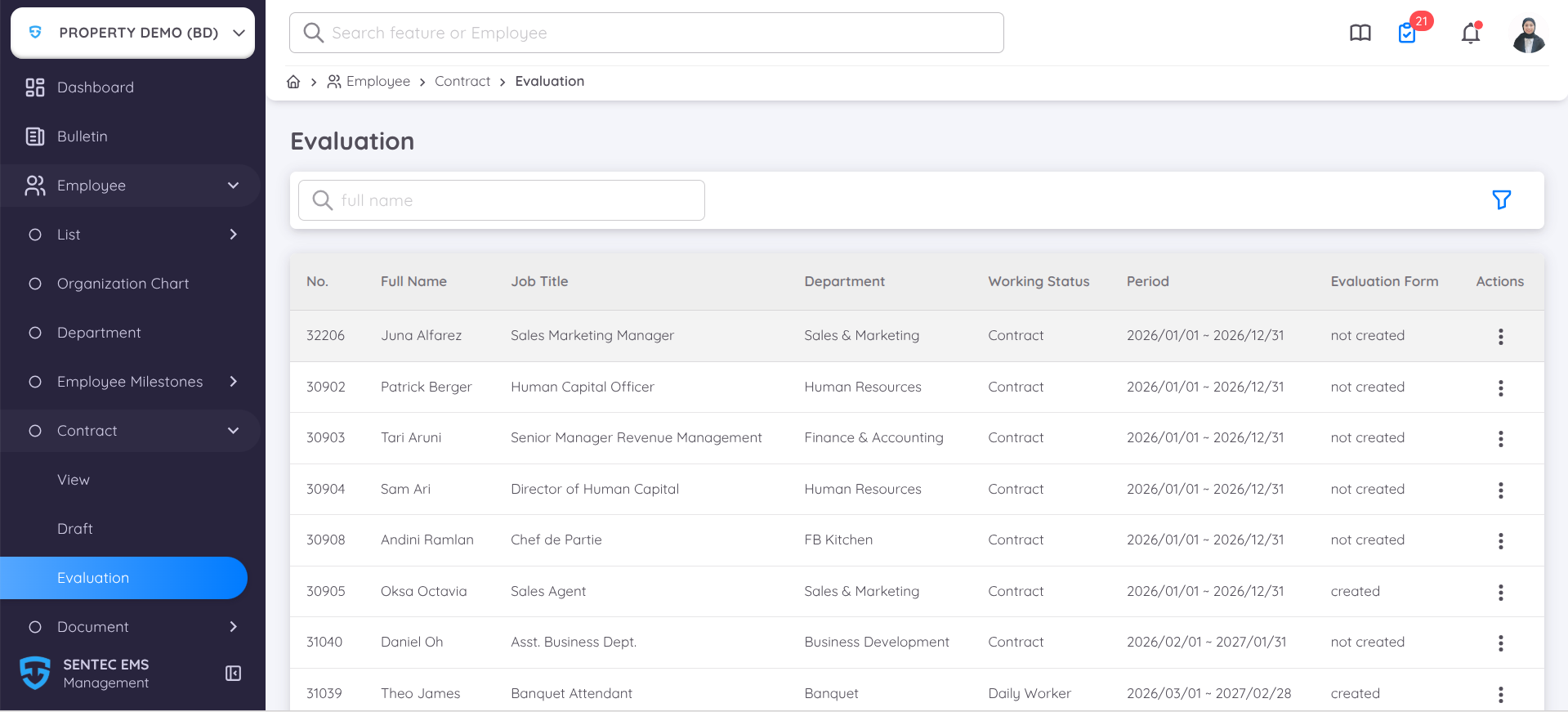
The Contract Evaluation feature helps organizations evaluate employee contracts and support decisions regarding promotion, demotion, contract extension, renewal, or termination based on predefined evaluation criteria and performance reviews.
Create Evaluation
Contract Evaluations can be created from the Management page by navigating to:
Employee Menu → Contract → Evaluation
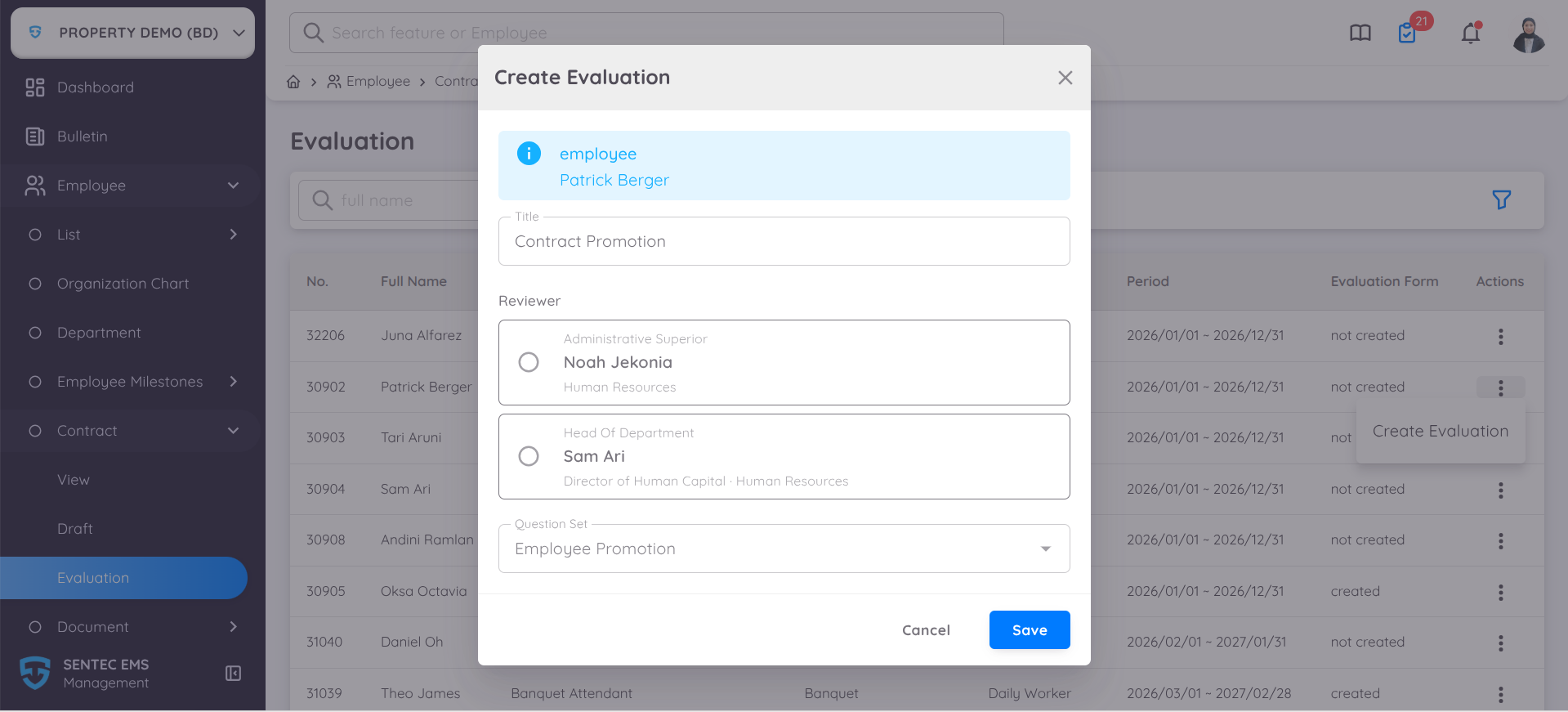
When creating a new Contract Evaluation, Management can:
- Define the evaluation title.
- Assign the appropriate reviewer, such as the Administrative Superior or Head of Department.
- Select the question set to be used for the evaluation.
This feature helps streamline the employee contract review process and supports decisions regarding promotion, demotion, contract extension, renewal, or termination.
Once a Contract Evaluation is created, Management and the assigned reviewer can view the complete Contract Evaluation Details on a centralized page.
Contract Evaluation Detail
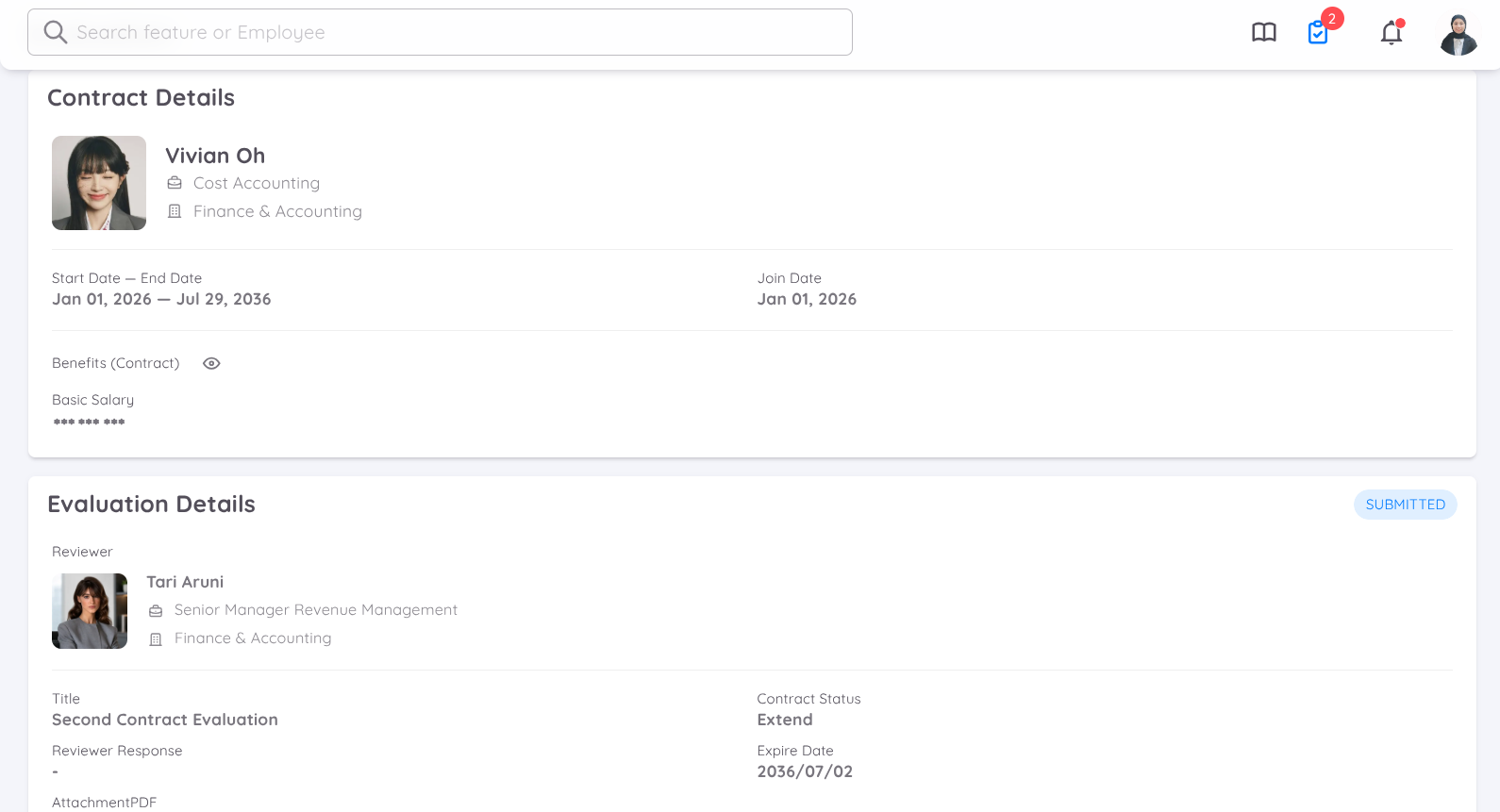
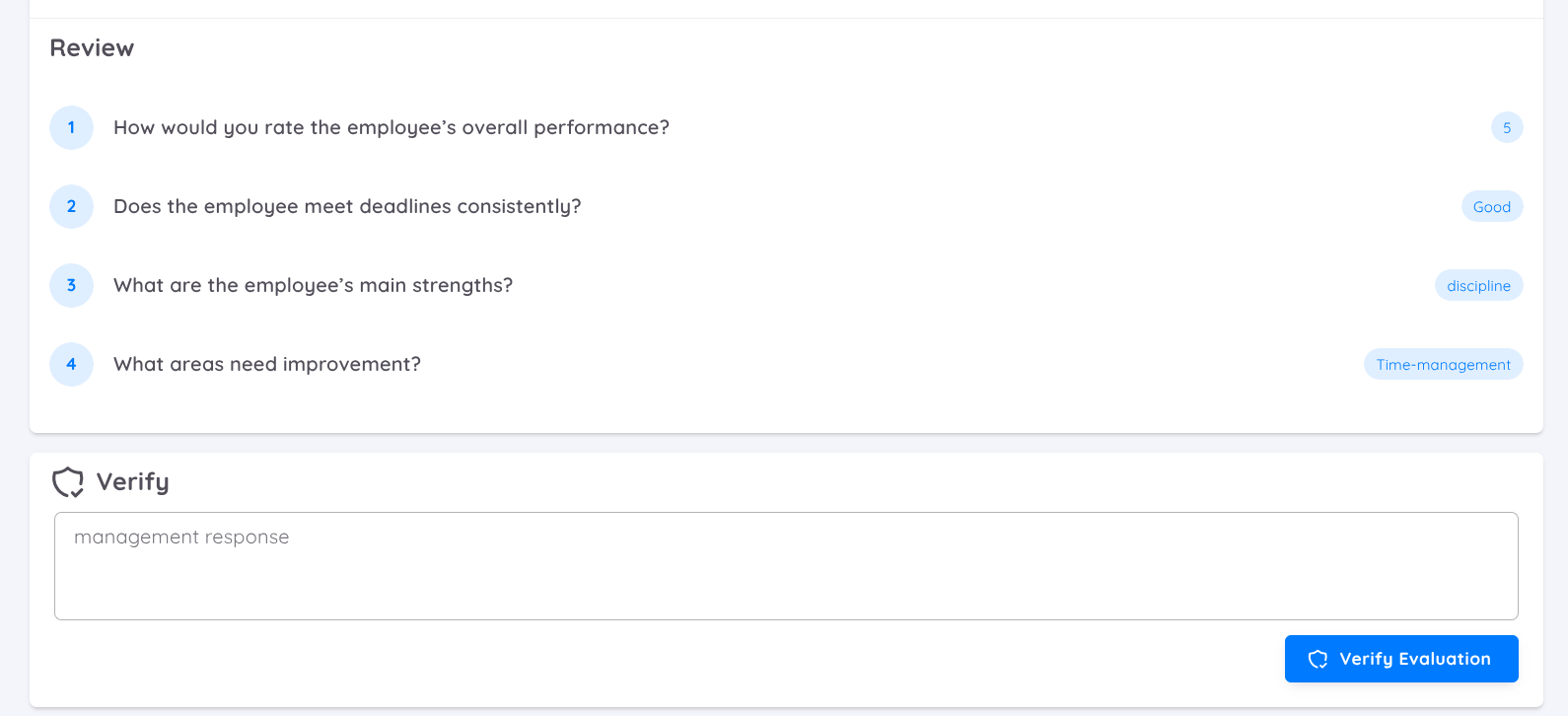
The Evaluation Details page provides the following information:
- Contract Details – Displays employee information, employment status, department, contract period, benefits, salary, and reporting structure.
- Evaluation Details – Displays the evaluation title, assigned reviewer, contract status, responses, verifier information, and evaluation expiry date.
- Status Tracking – Allows Management and reviewers to monitor the current evaluation progress, such as Assigned, In Review, and Completed.
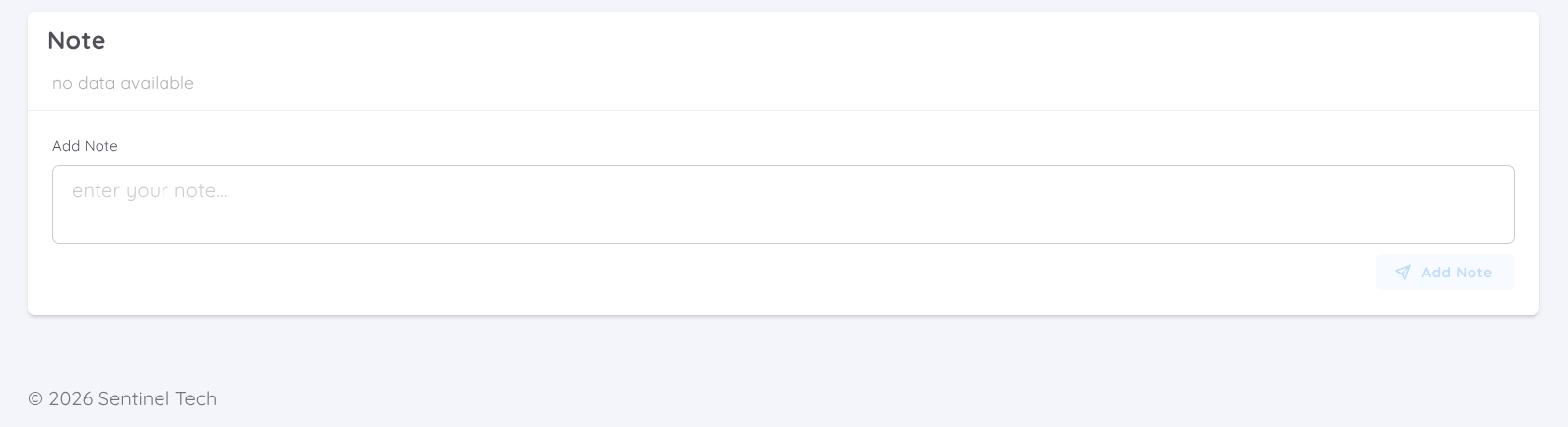
- Notes – Allows notes to be added throughout the evaluation process. This feature is only available and visible on the Management Portal.
This feature improves transparency and streamlines the contract evaluation workflow by providing complete visibility into the employee's contract assessment records.
Once the evaluation is saved by the evaluator or reviewer, it will be automatically submitted. After submission, the reviewer or evaluator will no longer be able to update or modify the evaluation details.
Verify Contract Evaluation
Once the Contract Evaluation has been submitted by the reviewer, Management must review and verify the evaluation details before proceeding with the next contract action, such as updating the existing contract or creating a new contract. The next action will depend on the evaluation outcome and the employee's determined contract status.
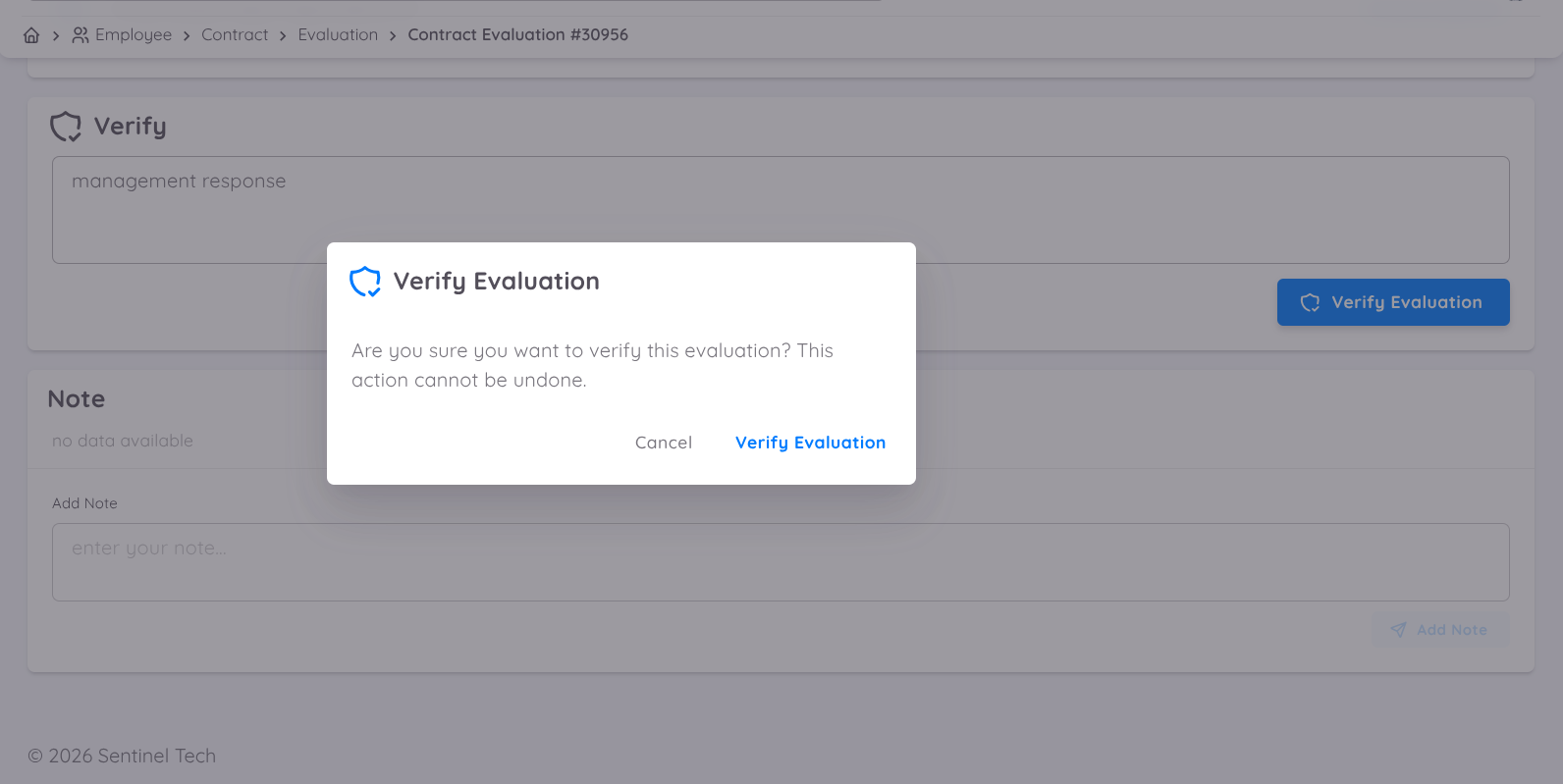
The verification process becomes available on the Evaluation Details page once the evaluation has been submitted. From this page, Management can review and verify the submitted evaluation before proceeding with the next contract action.
During the verification process, Management can also provide responses, add notes, and include additional comments to support the evaluation outcome and contract decision.
Update or Add New Contract
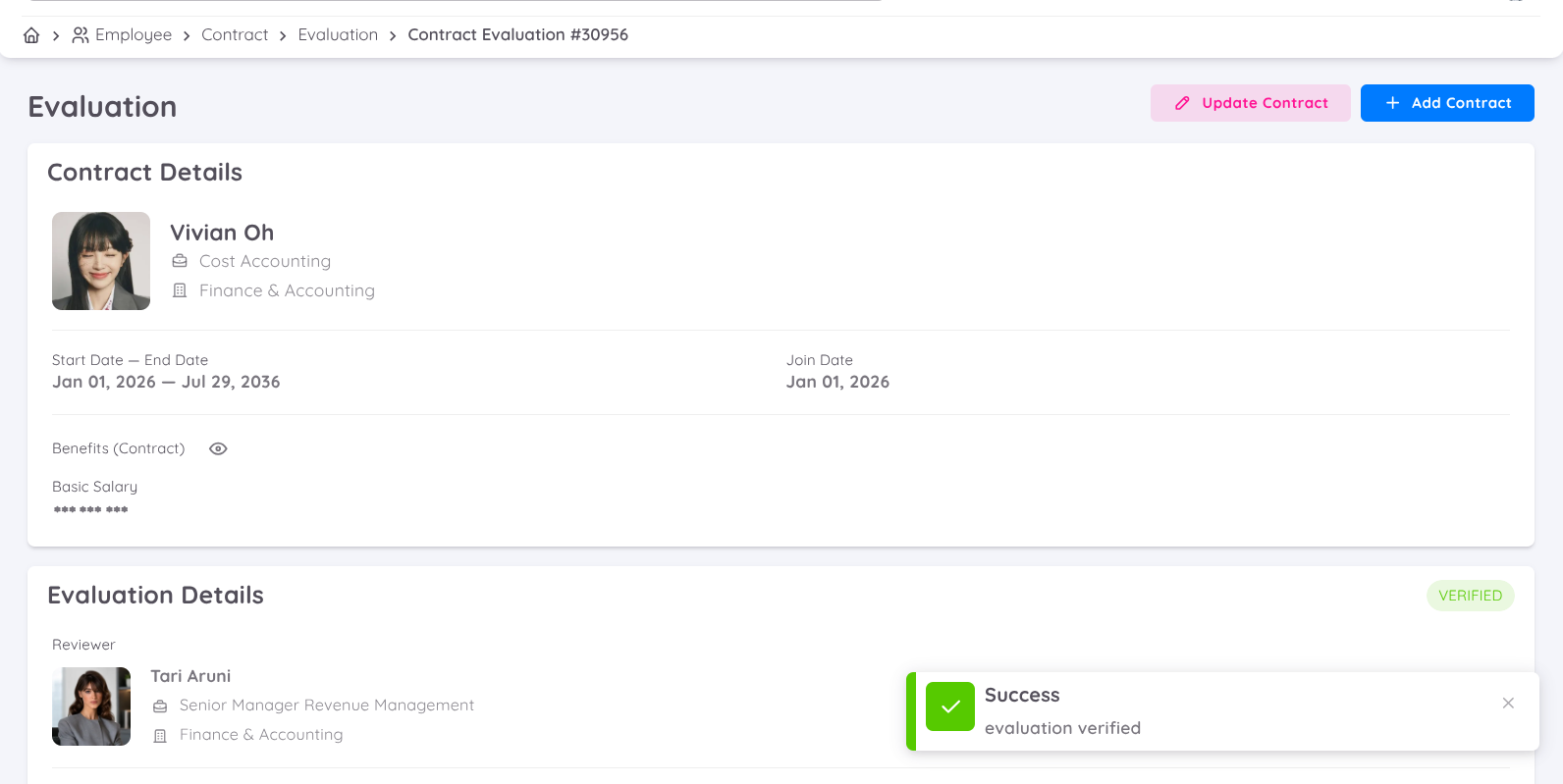
Once Management has verified the evaluation, the Update Contract and Add Contract buttons become available.
From this page, Management can proceed to either update the employee's existing contract or create a new contract based on the submitted evaluation results and the employee's determined contract status.
Contract changes are not automatically applied to the system. Management must manually enter the contract updates or create a new contract based on the verified and agreed-upon evaluation results.
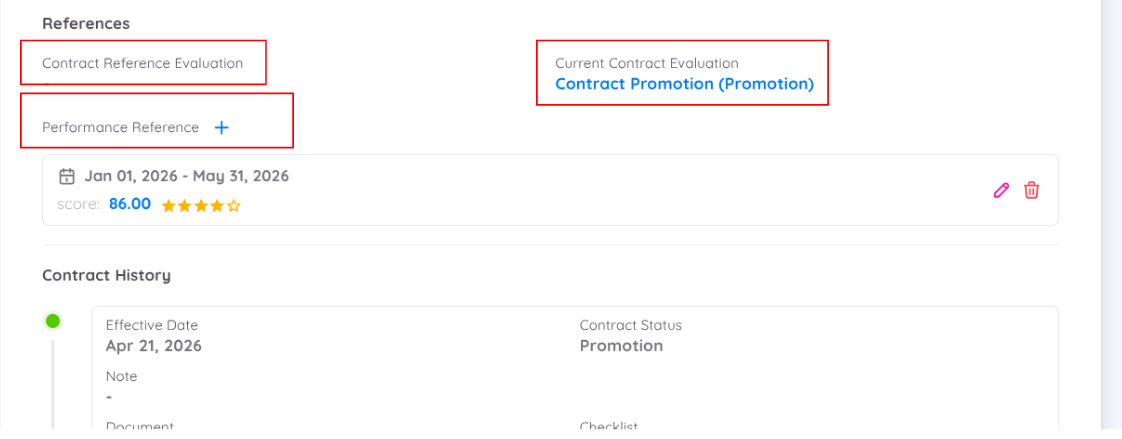
Once the contract has been updated or a new contract has been added, Management can view the related references on the Contract Details page.
There are three types of references that may be displayed:
Contract Evaluation Reference – Displayed when the Contract Evaluation is created for a new contract, contract renewal, or contract extension. This reference allows Management to trace the evaluation used as the basis for the contract creation, renewal, or extension decision.
Current Contract Evaluation Reference – Displayed when the Contract Evaluation is associated with an existing active contract and results in updates or changes to the current contract details.
Performance Reference – If a Performance Report is used as part of the contract decision process, Management can add the related performance evaluation as a reference to support and justify the contract update or employment decision.
These references improve traceability and transparency by linking contract changes to the relevant evaluation and performance records used during the decision-making process.
Currently, contract references on the Contract Details page are only accessible and visible to Management.